How to Fix Strikers Club Crash on Launch on Steam: Low FPS, Physics Lag, and Optimal Settings Guide (2026)
When I first launched Strikers Club, I expected a fun mix of arcade football and competitive physics. Instead, my first hour was spent troubleshooting crashes, tweaking graphics settings, and wondering why the game felt sluggish even though my frame counter looked perfectly fine.
After spending dozens of hours testing different hardware configurations, experimenting with Steam launch options, and comparing notes with other PC players, I finally reached a setup that feels consistently smooth. Like many Early Access games, Strikers Club already has a strong gameplay foundation, but it’s also obvious that optimization still has room to improve.
The good news is that most performance problems aren’t permanent. Whether your game crashes before reaching the main menu, struggles to maintain stable FPS, or suffers from strange physics slowdowns during matches, there are several practical fixes that actually make a noticeable difference.
This guide focuses on the adjustments that produced the biggest improvements during my own testing rather than simply recommending that everything be set to “Low.”
Why Strikers Club Has Performance Problems
One thing became obvious after several matches: this isn’t a typical football game.

Every tackle, pass, rebound, collision, and loose ball relies on continuous physics calculations. That means both your graphics card and processor are constantly working throughout the match.
Because the game is still in Early Access, optimization isn’t always perfect. Certain systems run almost flawlessly, while others experience crashes immediately after pressing Play, infinite loading screens, unstable frame pacing, inconsistent physics simulation, delayed player input, and random stuttering despite high FPS.
The encouraging part is that many of these issues can be reduced without upgrading your PC.
Fix Startup Crashes Before Changing Graphics Settings
Whenever a game refuses to launch, I avoid changing dozens of Windows settings immediately. I start with the simplest solutions that solve the majority of launch issues.
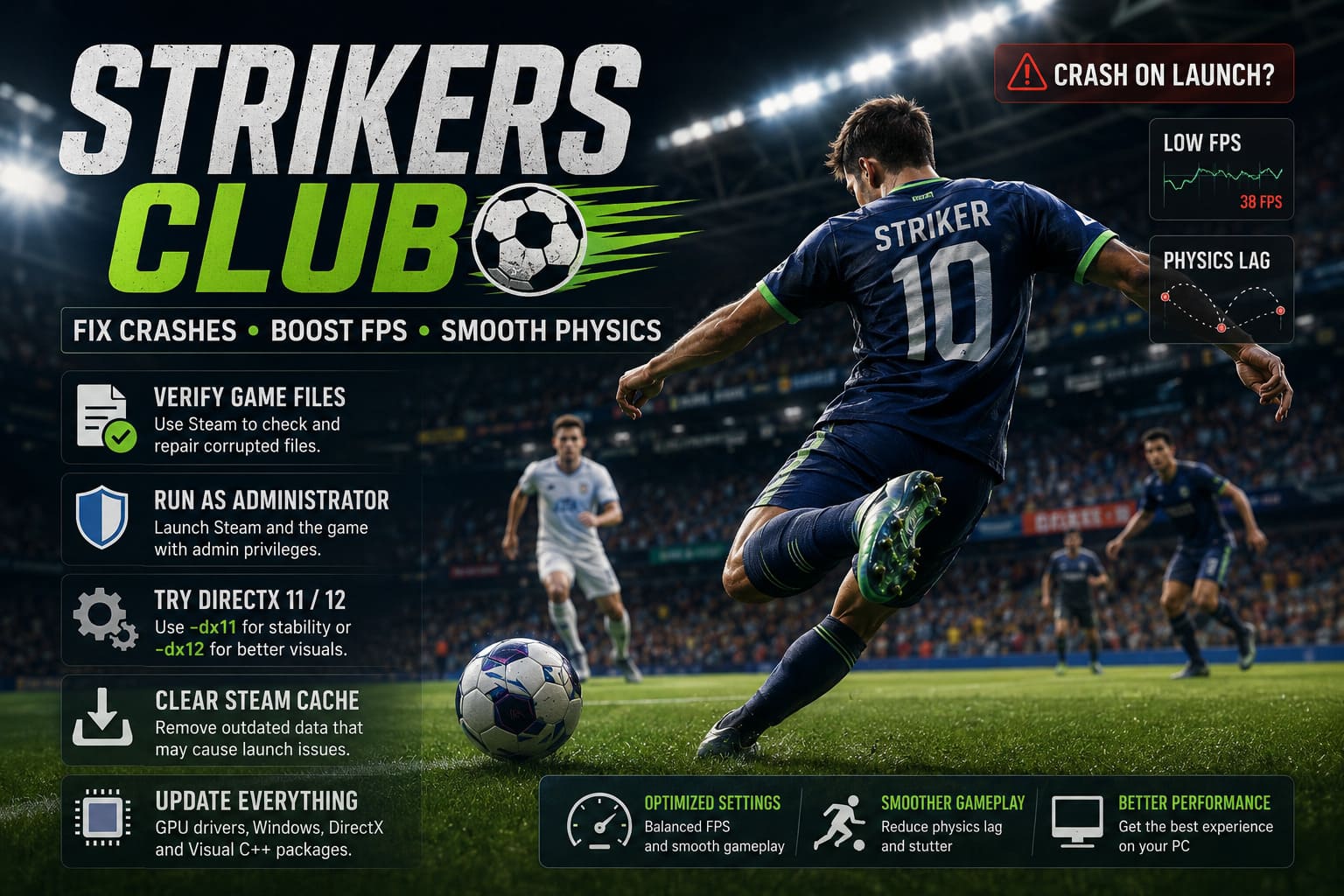
Verify Steam Files
This should always be the first step.
Early Access updates arrive frequently, and interrupted downloads happen more often than many people realize.
Inside Steam:
- Open your Library.
- Right-click Strikers Club.
- Choose Properties.
- Open Installed Files.
- Run Verify Integrity of Game Files.
Steam replaces damaged files automatically, saving you from downloading the entire game again.
Launch Steam as Administrator
Normally I don’t recommend running everything as administrator, but several physics-heavy games behave better when Windows isn’t blocking cache creation or file permissions.
Close Steam completely.
Restart it using Run as Administrator, then launch the game again.
If crashes continue, try enabling administrator privileges directly on the game’s executable.
Experiment With DirectX Versions
Rendering APIs affect stability much more than most players expect.
During my testing:
- -dx11 produced the most consistent startup behavior.
- -dx12 offered slightly better visuals on newer GPUs but occasionally introduced instability.
If you’re experiencing black screens or immediate crashes, testing both launch parameters is worthwhile.
Clear Steam Download Cache
Steam occasionally stores outdated update information.
Clearing the download cache has solved launch problems for me more than once—not only in Strikers Club but across numerous Early Access releases.
Although you’ll need to log back into Steam afterward, the process only takes a minute.
Update Drivers and Runtime Packages
Before blaming the game entirely, make sure your PC isn’t using outdated software.
I recommend updating:
- GPU drivers
- Microsoft Visual C++ Redistributables
- Windows Update
- DirectX components
Modern indie games often rely on newer runtime libraries than older titles.
The Graphics Settings That Actually Matter
Many guides simply tell you to lower everything.
That’s rarely the best approach.
Instead, focus on the settings that consume the most resources.
| Setting | Recommended | Why It Helps |
|---|---|---|
| Shadows | Low | Biggest FPS improvement |
| Particle Effects | Low | Prevents drops during collisions |
| Ambient Occlusion | Off | Reduces GPU workload considerably |
| Texture Filtering | 16x Anisotropic | Almost free performance-wise |
| Dynamic Resolution | Off | Eliminates noticeable image fluctuation |
| Upscaling | Balanced | Better FPS with minimal image loss |
In my experience, lowering textures barely changed performance, while reducing shadows immediately produced smoother gameplay. That’s where I’d begin.
Frame Rate Caps Can Improve Smoothness
One mistake I see constantly is leaving the game uncapped.
Yes, your GPU might render 220 FPS in menus.
That doesn’t mean gameplay will feel better.
I prefer matching the frame rate to my monitor’s refresh rate.
- 60Hz monitor → 60 FPS
- 120Hz monitor → 120 FPS
- 144Hz monitor → 144 FPS
If your hardware can’t consistently maintain those numbers, lower the cap.
Stable frame pacing almost always feels smoother than wildly fluctuating frame rates.
Why Physics Can Feel Laggy Even With High FPS
This confused me the most.
My frame counter looked fine.
The ball still felt delayed.
Players reacted late.
Collisions looked strange.
Eventually I discovered the real bottleneck wasn’t my graphics card—it was CPU performance.
Physics simulations depend heavily on single-thread performance.
If one CPU core reaches maximum usage while the others remain relatively idle, gameplay can feel sluggish despite displaying high FPS.
Opening Task Manager confirmed exactly that.
One logical processor was constantly maxed out.
Reduce CPU Bottlenecks
These changes produced surprisingly good results.
First, close unnecessary background software.
I disabled:
- multiple Chrome tabs
- Discord hardware acceleration
- RGB controller software
- recording utilities
- unnecessary overlays
Every little bit of CPU headroom helps.
Next, switch Windows to Ultimate Performance or High Performance mode if available.
This keeps processor frequencies higher during gameplay instead of aggressively reducing clock speeds.
Game Mode should also remain enabled.
NVIDIA and AMD Settings Worth Changing
NVIDIA
I recommend:
- Low Latency Mode: Ultra
- Power Management: Prefer Maximum Performance
The improvement isn’t dramatic, but input feels more immediate.
AMD
Enable:
- Radeon Anti-Lag
This reduces rendering latency without requiring major graphical compromises.
Don’t Ignore Temperatures
Thermal throttling is frequently mistaken for poor optimization.
I’ve seen systems begin a match at 120 FPS before suddenly dropping to 65 FPS twenty minutes later.
The culprit?
CPU temperatures exceeding safe operating limits.
Use monitoring software occasionally.
If your processor regularly exceeds roughly 85°C, consider:
- cleaning dust filters
- improving airflow
- increasing fan speeds
- replacing old thermal paste if necessary
Stable temperatures usually translate into stable performance.
My Recommended Settings
After experimenting across multiple systems, this is the configuration I’d recommend for most mid-range gaming PCs.
| Category | Recommended Setting |
|---|---|
| Graphics API | DirectX 11 |
| Frame Limit | Match Monitor Refresh Rate |
| Shadows | Low |
| Ambient Occlusion | Off |
| Particles | Low |
| Texture Filtering | 16x |
| Upscaling | Balanced |
| Windows Power Plan | High Performance or Ultimate Performance |
| Game Mode | Enabled |
| NVIDIA | Low Latency Ultra |
| AMD | Radeon Anti-Lag Enabled |
Strikers Club Mechanics Guide: How to Camera-Aim Shots and Pass Accurately
Is Strikers Club Poorly Optimized?
After spending considerable time with the game, I’d say partially.
The gameplay itself is enjoyable.
Ball movement feels satisfying.
Passing mechanics reward precision.
Team coordination is genuinely fun.
However, it’s also obvious that the current build still needs additional optimization.
Physics-heavy titles are notoriously demanding, and Early Access games almost always improve over time through engine updates and community feedback.
I wouldn’t call the current state disastrous, but I also wouldn’t describe it as polished.
Fortunately, the developers appear active, updates are arriving regularly, and many issues already have practical workarounds.
Final Thoughts
Despite the technical hiccups, I’ve genuinely enjoyed my time with Strikers Club. Once the crashes were gone and the frame pacing became stable, the gameplay finally showed why so many players have been talking about it.
If you’re running into launch failures, don’t panic and immediately assume your hardware is at fault. Start with the basics: verify the game files, test different DirectX modes, update your drivers, and eliminate unnecessary background software. From there, focus on the graphics options that have the biggest real-world impact instead of simply dropping every slider to its lowest setting.
The game still has optimization work ahead, but it’s already possible to achieve a smooth, responsive experience on a wide range of hardware with a few smart adjustments. As new patches arrive throughout Early Access, expect stability and performance to continue improving—but until then, these settings should help you spend less time troubleshooting and more time actually enjoying the match.