How to Turn Off Ray Tracing in Mistfall Hunter: Ultimate FPS and Performance Optimization Guide
When I first jumped into Mistfall Hunter, I was blown away by its atmosphere. Bellring Games absolutely nailed the oppressive dark fantasy vibe. Ancient ruins glow with eerie light, abandoned castles disappear into thick fog, and every dungeon feels like it hides something ready to kill you. It’s easily one of the best-looking extraction RPGs built on Unreal Engine 5.
Unfortunately, gorgeous visuals don’t always mean great performance.
After dozens of hours testing different settings and reading countless discussions from experienced PC players, one pattern became impossible to ignore. Nearly every major performance complaint pointed toward one graphics feature: Ray Tracing.
If you’re struggling with unstable frame rates, annoying micro-stutters, or heavy FPS drops during boss fights, disabling Ray Tracing is easily the biggest performance improvement you can make. The visual downgrade is surprisingly small, while the gameplay improvement is massive.
Here’s everything you need to know.
6 Best Dark Fantasy Extraction Games Like Mistfall Hunter You Need to Play Next
Why Ray Tracing Hurts Performance in Mistfall Hunter
Mistfall Hunter relies heavily on Unreal Engine 5’s advanced lighting systems. Dynamic shadows, reflections, global illumination, and atmospheric effects create an incredible world, but they’re also extremely demanding.
Unlike slower single-player adventures where cinematic visuals take priority, Mistfall Hunter is an extraction PvPvE game. Every frame matters.
During difficult encounters you constantly need to:
- dodge attacks
- react to enemy players
- identify boss mechanics
- escape dangerous situations
- loot efficiently before extraction
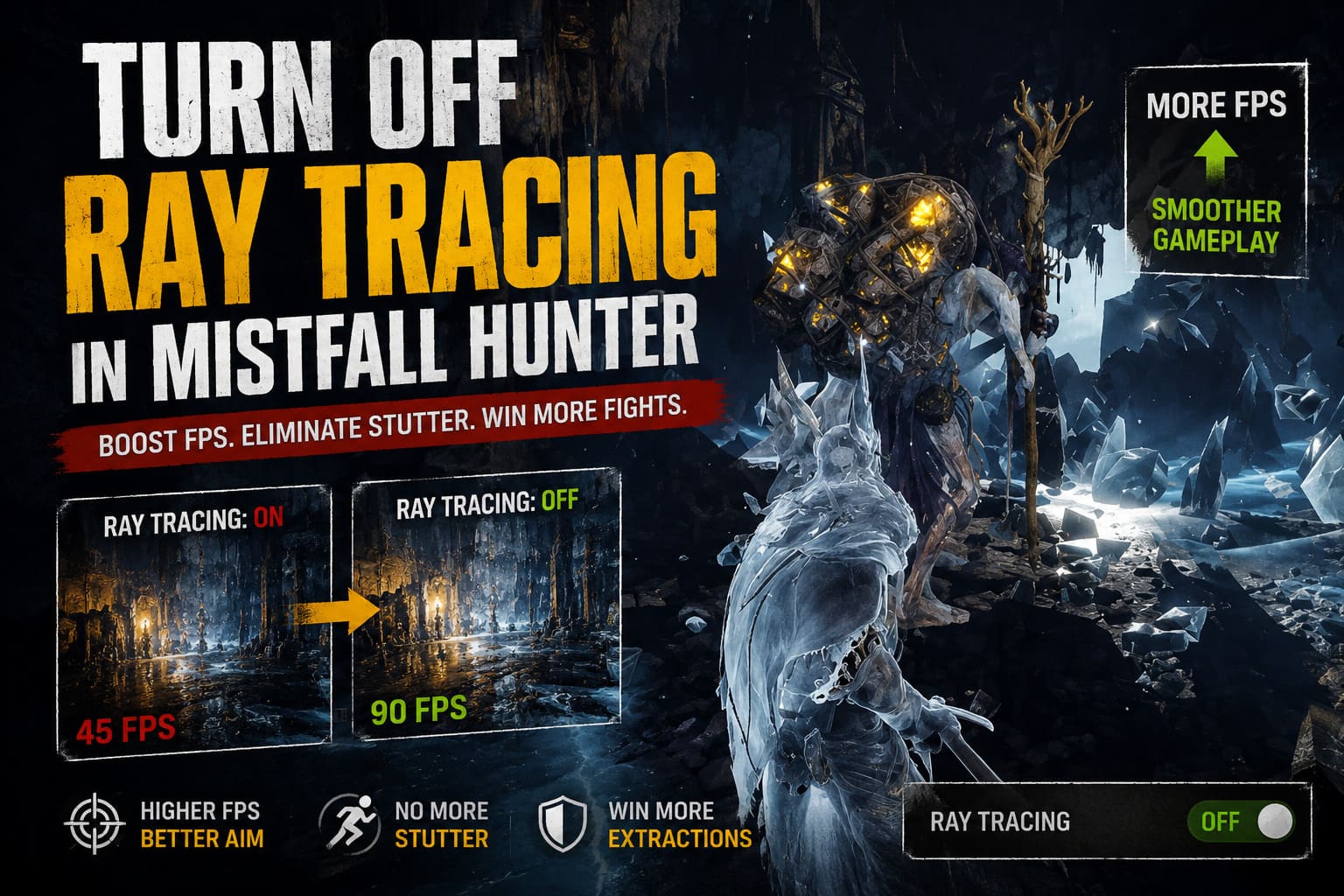
When your FPS suddenly drops from 90 to 45 during combat, those beautiful reflections quickly become your biggest enemy.
Many players with RTX 2060, RTX 3060, RX 6600, RX 6700 XT and similar graphics cards report that turning off Ray Tracing delivers smoother gameplay than lowering dozens of other graphics settings combined.
Method One: Disable Ray Tracing Inside the Game
This should always be your first step because it’s fast and officially supported.
Open Mistfall Hunter and navigate to the graphics settings.
From there:
- Open Settings.
- Select Video or Display.
- Scroll to the advanced graphics options.
- Find the Ray Tracing option.
- Change it to Off.
- Switch the overall graphics preset to Custom if you’re using Epic or Cinematic.
- Save your changes.
- Restart the game.
That last step matters more than people realize.
Restarting forces Unreal Engine 5 to rebuild its shader cache without Ray Tracing enabled, preventing leftover lighting data from affecting performance.
Why Custom Graphics Presets Matter
This is one mistake I see people making over and over.
High-end presets like Epic and Cinematic often control multiple hidden settings simultaneously. Even after disabling Ray Tracing manually, certain lighting options may continue using hardware-intensive features behind the scenes.
Switching the graphics preset to Custom gives you full control and prevents the game from automatically re-enabling expensive rendering features.
It’s a small adjustment that can save several additional FPS.
Method Two: Permanently Disable Ray Tracing Using Engine.ini
Sometimes game updates overwrite graphics preferences.
Several players have reported launching Mistfall Hunter after a patch only to discover performance had suddenly become worse again. In many cases, Unreal Engine had silently restored some lighting options.
The easiest workaround is editing the configuration files.
Navigate to:
%localappdata%\MistfallHunter\Saved\Config\WindowsNoEditor
Depending on your installation, you may instead find:
WindowsPrivateNoEditor
Open Engine.ini with any text editor.
Add the following lines at the bottom:
[SystemSettings]
r.RayTracing=0
r.RayTracing.ForceAllRayTracingEffects=0
r.RayTracing.GlobalIllumination=0
r.RayTracing.Shadows=0
r.RayTracing.Reflections=0
r.Lumen.HardwareRayTracing=0
Save the file.
Afterward, right-click Engine.ini, open Properties, and enable Read Only.
This prevents future game launches from replacing your custom settings.
Just remember to remove the Read Only attribute whenever you want to modify graphics settings later.
Method Three: Disable Ray Tracing Through Your GPU Driver
If you prefer another layer of protection, your graphics driver can also help.
NVIDIA Users
Using NVIDIA Profile Inspector, locate the Mistfall Hunter profile.
Disable any available DXR or Ray Tracing options before applying the changes.
This prevents the driver from attempting to process hardware Ray Tracing effects whenever possible.
AMD Users
Open AMD Software: Adrenalin Edition.
Navigate to the game’s graphics profile and make sure no driver-level Ray Tracing enhancements are being forced.
Choose settings that prioritize application control and maximum performance.
Additional Tweaks That Actually Improve FPS
Ray Tracing is only part of the optimization puzzle.
These extra changes consistently produced better frame pacing during my own testing.
Switch DLSS to FSR
This one surprised me.
Normally DLSS is the obvious recommendation for NVIDIA users.
However, Mistfall Hunter currently behaves differently.
Several community benchmarks have shown that FSR 3 or newer versions often provide more consistent frame times with fewer random micro-stutters.
Even some RTX users report smoother gameplay after switching.
If your frame graph constantly spikes despite high average FPS, this tweak is worth trying.
Turn Off V-Sync
V-Sync introduces additional latency that feels especially noticeable during PvPvE combat.
Without it:
- camera movement feels faster
- aiming becomes more responsive
- input delay decreases
- sudden freezes become less common
If screen tearing becomes distracting, consider limiting FPS instead of enabling V-Sync.
Use Exclusive Fullscreen
Borderless Windowed mode is convenient, but it isn’t always the fastest option.
Exclusive Fullscreen allows Windows to dedicate more system resources directly to the game while reducing desktop overhead.
The improvement won’t double your FPS, but every little optimization helps during demanding extraction runs.
Enable Maximum Performance Mode
Windows loves saving power.
Gamers usually don’t.
Inside your Windows Power Plan and GPU control panel, select the highest performance profile available.
For NVIDIA users, Power Management Mode should be changed to Prefer Maximum Performance.
This prevents aggressive clock speed reductions that can create inconsistent frame pacing.
Recommended Graphics Settings
| Setting | Recommendation |
|---|---|
| Ray Tracing | Off |
| Graphics Preset | Custom |
| Shadows | Medium |
| Global Illumination | Low |
| Reflections | Low |
| Effects | Medium |
| Texture Quality | High (VRAM permitting) |
| View Distance | Medium |
| V-Sync | Off |
| Upscaling | FSR 3 / Latest Available |
| Display Mode | Exclusive Fullscreen |
Is Turning Off Ray Tracing Worth It?
Absolutely.
I spent several hours comparing screenshots before and after disabling it.
During actual gameplay, I honestly stopped noticing the visual difference after five minutes.
What I did notice was:
- smoother camera movement
- significantly fewer frame drops
- more responsive controls
- improved boss fights
- much more stable PvP encounters
In a fast-paced extraction game, stable performance always beats prettier reflections.
You aren’t standing still admiring puddles.
You’re trying to survive.
Final Thoughts
Mistfall Hunter already has one of the strongest atmospheres among recent fantasy extraction RPGs, but it’s also one of the more demanding Unreal Engine 5 releases. While future patches will almost certainly improve optimization, there’s no reason to suffer through inconsistent frame rates today.
Disabling Ray Tracing is easily the single most effective performance tweak available. Pair it with a Custom graphics preset, an optimized Engine.ini configuration, Exclusive Fullscreen mode, and sensible GPU settings, and you’ll notice a dramatic improvement in both responsiveness and overall gameplay smoothness.
After making these changes, my own experience felt completely different. Combat became predictable instead of frustrating, dodges landed exactly when they should, and hectic extraction runs no longer turned into slideshow presentations the moment multiple enemies appeared on screen.
Mistfall Hunter rewards fast reactions, smart positioning, and confident decision-making—not ultra-realistic shadows. If your goal is surviving more extractions, winning more PvP encounters, and enjoying a consistently smooth adventure through its haunting world, turning off Ray Tracing is one of the smartest upgrades you can make without spending a single dollar on new hardware.