How to Fix Star Wars Zero Company Audio Not Working: Complete Guide for PC and Consoles (2026)
There is nothing quite as immersion-breaking as loading into a tactical Star Wars battle, lining up the perfect shot, and getting absolutely nothing back. No blaster crack. No squad chatter. No cinematic dialogue. Just a strangely quiet battlefield where every explosion feels like someone forgot to plug in the speakers.
With Star Wars Zero Company launching on August 27, 2026, early players are already running into several technical problems, and audio is one of the nastier ones. Some players report completely missing sound, while others encounter aggressive audio stuttering, distorted effects, or dialogue that falls badly out of sync during story cinematics.
I have always considered audio one of the most important parts of a tactical game. You spend so much time reading the battlefield, listening for combat cues, hearing squad reactions, and watching cinematic moments unfold. When the sound system breaks, Zero Company can suddenly feel like a completely different game.
The good news? Most of these problems are tied to fairly ordinary PC audio configurations, installation issues, storage setups, or console output formats. They are annoying, but they are usually fixable without waiting for a major patch.
Here is the troubleshooting route I would use first.
Star Wars Zero Company Audio Problems Explained
The audio problems players are encountering can look different depending on the hardware involved. The most common symptoms include:
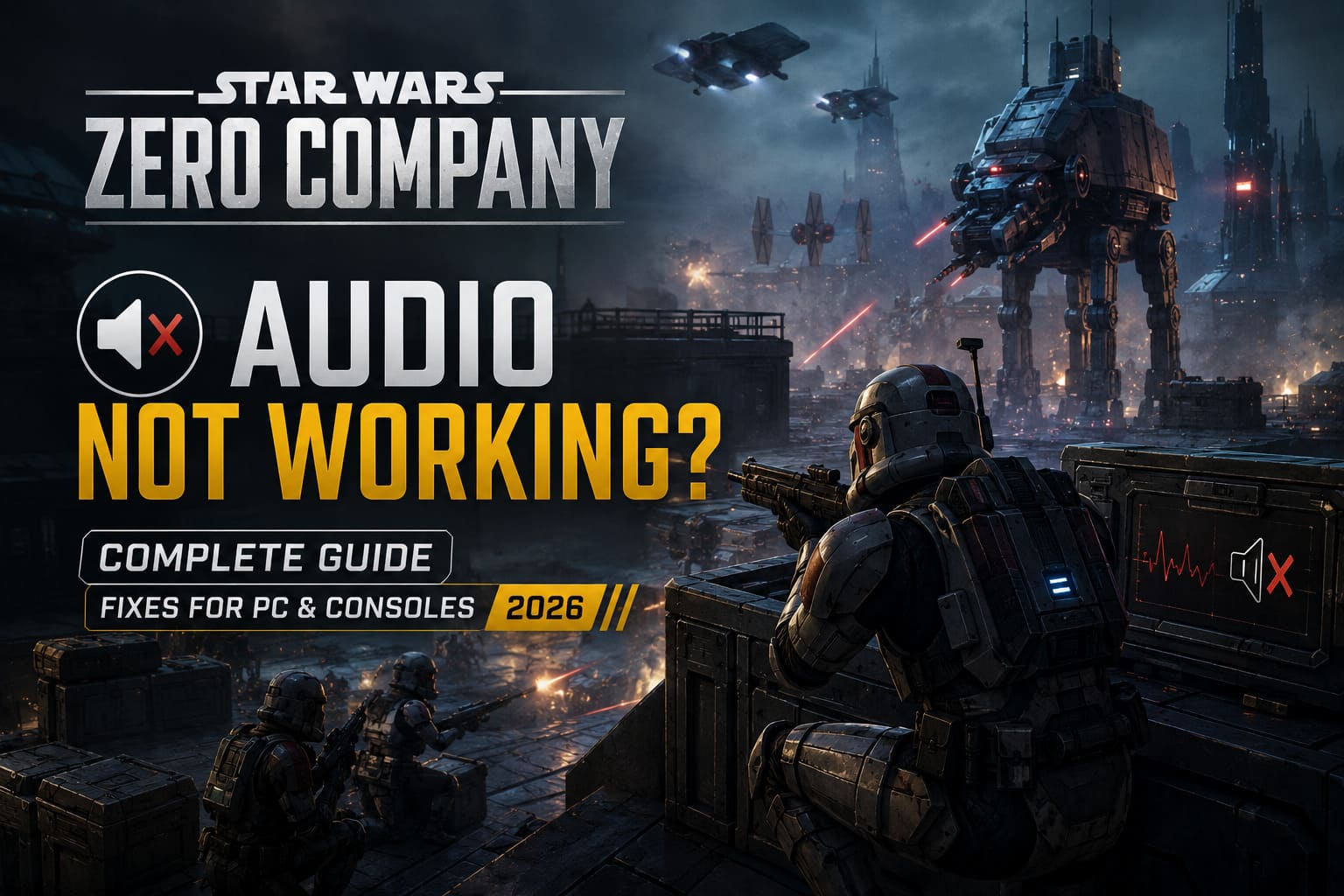
- No game audio whatsoever, despite Windows or the console producing sound elsewhere.
- Blaster and environmental effects cutting out during combat.
- Audio crackling, popping, or repeated stuttering.
- Dialogue disappearing while music continues playing.
- Cinematic voice lines becoming desynchronized from character animations.
- Sound returning after restarting the game, only to disappear again later.
There is no single magic switch responsible for every case. The game is handling a large amount of streamed audio and cinematic data, while PCs also introduce a ridiculous number of variables through drivers, virtual audio devices, enhancements, spatial audio, sample rates, and external applications.
That is why I recommend working through the fixes in order rather than randomly changing ten Windows settings at once.
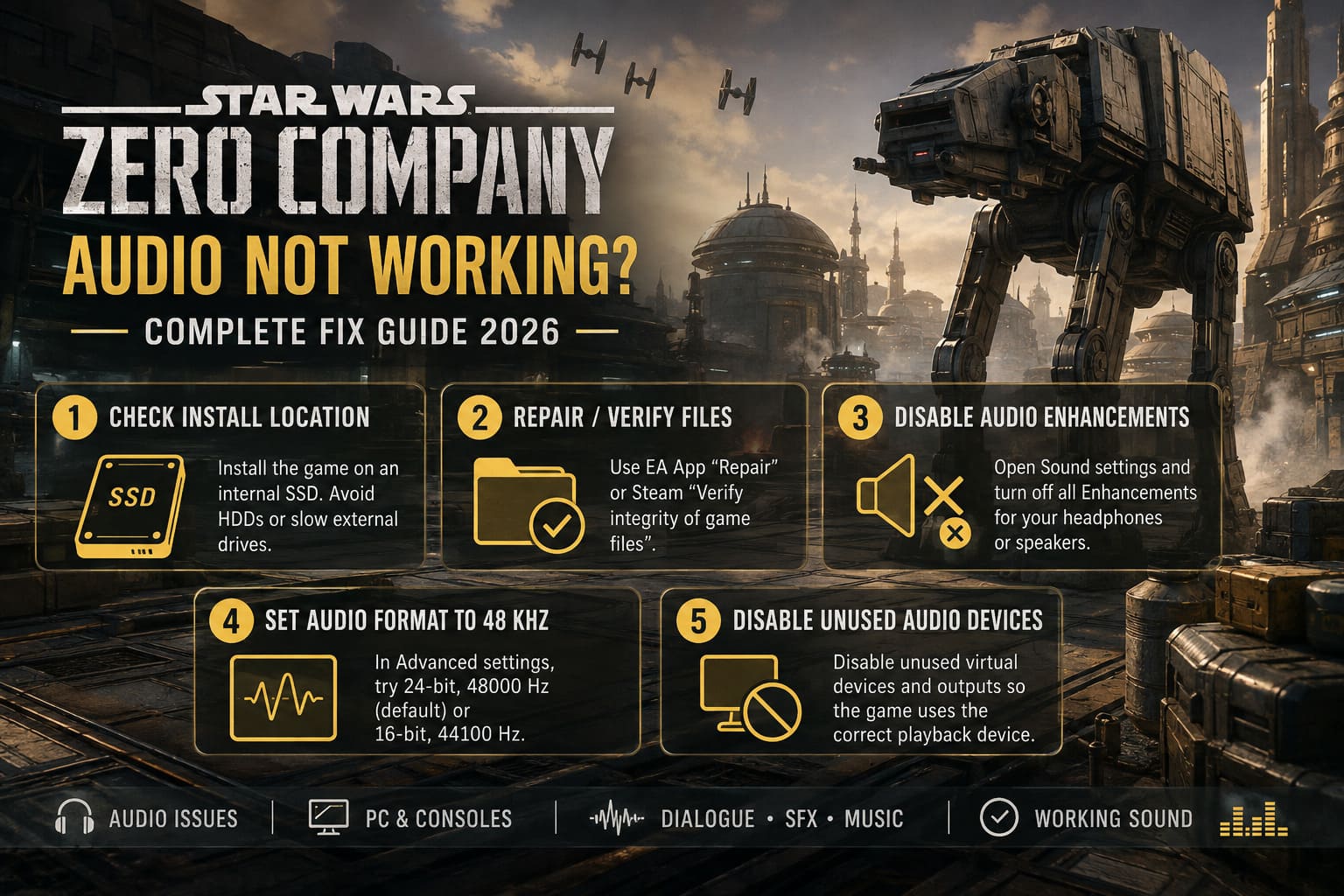
1. Check Where Star Wars Zero Company Is Installed
Before touching Windows audio settings, check your storage.
Modern games increasingly expect fast storage for streaming textures, animations, dialogue, music, and other assets. If Zero Company is installed on an old mechanical HDD or a sluggish external drive, streaming-heavy sequences can become a problem.
This is particularly noticeable during cinematic transitions, where the game may suddenly need to load multiple audio and video assets at the same time.
Move the Game to an Internal SSD
On PC, an internal NVMe SSD is the ideal location.
If you are still running modern games from an old HDD, honestly, this is a good excuse to stop doing that. The difference in loading and asset streaming can be enormous.
On Steam, check the game’s storage settings and move the installation to your faster SSD if necessary.
On the EA App, use the game’s installation or library management options to change its installation location.
For PS5 and Xbox Series X/S, keep Zero Company installed on the console’s internal high-speed storage whenever possible. Avoid running it from older external USB storage if you are troubleshooting streaming-related audio problems.
Moving the game will not magically repair a corrupted installation, but it removes one major variable from the equation.
2. Repair or Verify the Game Files
This is one of the first things I would do after experiencing missing dialogue or completely broken sound.
A large game installation contains thousands of individual assets. If something went wrong during downloading or updating, an audio archive can theoretically be damaged while the rest of the game continues launching normally.
EA App
If you purchased or installed the game through EA’s launcher:
- Open the EA App.
- Go to your Library.
- Find Star Wars Zero Company.
- Open the game’s menu using the three-dot button.
- Select Repair.
- Let the launcher complete its verification process.
- Restart your PC before launching the game again.
Do not interrupt the repair process just because the percentage appears to stop moving for a while. Large installations can take time to scan.
Steam
Steam users can verify the installation through:
- Open Steam and go to your Library.
- Right-click Star Wars Zero Company.
- Select Properties.
- Open Installed Files.
- Select Verify integrity of game files.
- Allow Steam to replace anything it identifies as missing or damaged.
After verification, launch the game again and test several situations rather than checking only the main menu. Play through a combat encounter and watch a cinematic if possible.
3. Turn Off Windows Audio Enhancements
This is one of the most useful PC fixes if the game launches normally but produces no sound.
Windows audio processing can add another layer between the game and your headphones or speakers. Features such as audio enhancements and spatial processing are useful in many situations, but they can also create compatibility problems with certain games.
To disable them:
- Press Windows + R.
- Enter
mmsys.cpl. - Press Enter.
- Open the Playback tab.
- Select your active headphones or speakers.
- Open Properties.
- Look for the Enhancements or Advanced section.
- Disable available audio enhancements.
- Apply the changes and restart the game.
The exact wording varies between Windows versions and individual audio drivers, so don’t panic if your menu does not look exactly the same.
If your audio suddenly works after this change, you have probably found the culprit.
4. Set Your Audio Format to 48 kHz
Here is another setting that is easy to overlook.
If your headphones, DAC, or sound interface is configured for an unusually high sample rate such as 192 kHz or 384 kHz, bringing Windows back to a more conventional gaming format is worth trying.
Open your playback device’s Properties, then go to Advanced and find Default Format.
Try:
24-bit, 48000 Hz
If that does not help, you can also test:
16-bit, 44100 Hz
For gaming, 48 kHz is generally the first format I would try. There is little reason to run your entire Windows audio stack at an extreme studio sample rate just because your hardware supports it.
After changing the setting, restart Zero Company.
5. Disable Unused Virtual Audio Devices
This one is especially relevant to PC players with complicated setups.
If you have software such as virtual mixers, headset suites, streaming tools, VR software, or multiple audio interfaces installed, Windows can expose a huge list of potential playback devices.
Games occasionally pick the wrong one.
Your system might think it is sending Zero Company’s master audio to a virtual device that you are not actually listening through. The result? Silence.
Open the classic Windows Sound Control Panel with mmsys.cpl and inspect the Playback tab.
If you have several devices you never use, temporarily disable the unnecessary ones.
Pay particular attention to virtual outputs associated with:
- Headset software
- Virtual mixers
- VR applications
- Streaming software
- HDMI/DisplayPort devices you are not using
- Secondary monitors with built-in audio
Do not permanently disable hardware you actually need. The goal is simply to reduce unnecessary routing possibilities while troubleshooting.
6. Check Your GPU and Audio Drivers
Drivers are another obvious suspect after a new game launches.
Your graphics card is not only responsible for rendering. If your speakers or television are connected through HDMI or DisplayPort, the GPU can also be part of the audio chain.
That means an outdated or corrupted graphics driver can potentially affect your audio output.
Check for the latest drivers through your GPU manufacturer’s official software.
For NVIDIA systems, inspect the latest Game Ready Driver available for your hardware. AMD users should similarly check the latest Radeon Software package.
Also check Windows Device Manager:
- Search for Device Manager.
- Open Sound, video and game controllers.
- Find your primary audio hardware.
- Right-click it.
- Select Update driver.
- Follow Windows’ driver update process.
If you recently upgraded your GPU and immediately developed audio problems over HDMI or DisplayPort, a clean graphics driver installation can be worth considering.
7. Check Windows Volume Mixer Before Going Nuclear
This sounds painfully obvious, but it catches an embarrassing number of “no sound” problems.
Launch Star Wars Zero Company and make sure the game is actually producing an application entry in the Windows Volume Mixer.
Check:
- Master Windows volume
- Zero Company application volume
- Correct output device
- Muted application status
- Headset versus speaker output
Windows can assign individual applications to different output devices. Your browser might happily play audio through your headphones while Zero Company is quietly sending everything to a monitor you are not using.
If the game is muted or assigned to the wrong device, no amount of reinstalling drivers will fix it.
8. Temporarily Disable Spatial Audio
If you use Windows Sonic, Dolby Atmos, DTS processing, or another spatial-audio solution, temporarily switch it off.
I love spatial audio when it works properly. But when troubleshooting a game with completely broken sound, simplicity wins.
Set the system to a basic stereo output and test the game.
If the sound immediately returns, re-enable spatial processing afterward and experiment with the configuration. You may discover that the game works correctly with one spatial format but not another.
This is particularly useful when the game produces music or interface sounds but loses dialogue or directional effects.
9. Test the Game Without Extra Audio Hardware
Another good diagnostic step is stripping the setup down to basics.
Disconnect or disable unnecessary:
- USB headsets
- Wireless headset dongles
- VR headsets
- External DACs
- USB microphones with audio interfaces
- Controllers with integrated audio
- Secondary monitors with speakers
Then test Zero Company using a simple pair of headphones or your primary speakers.
If the audio suddenly works, reconnect your equipment one device at a time.
This takes a few minutes, but it can reveal exactly which component is causing the routing problem.
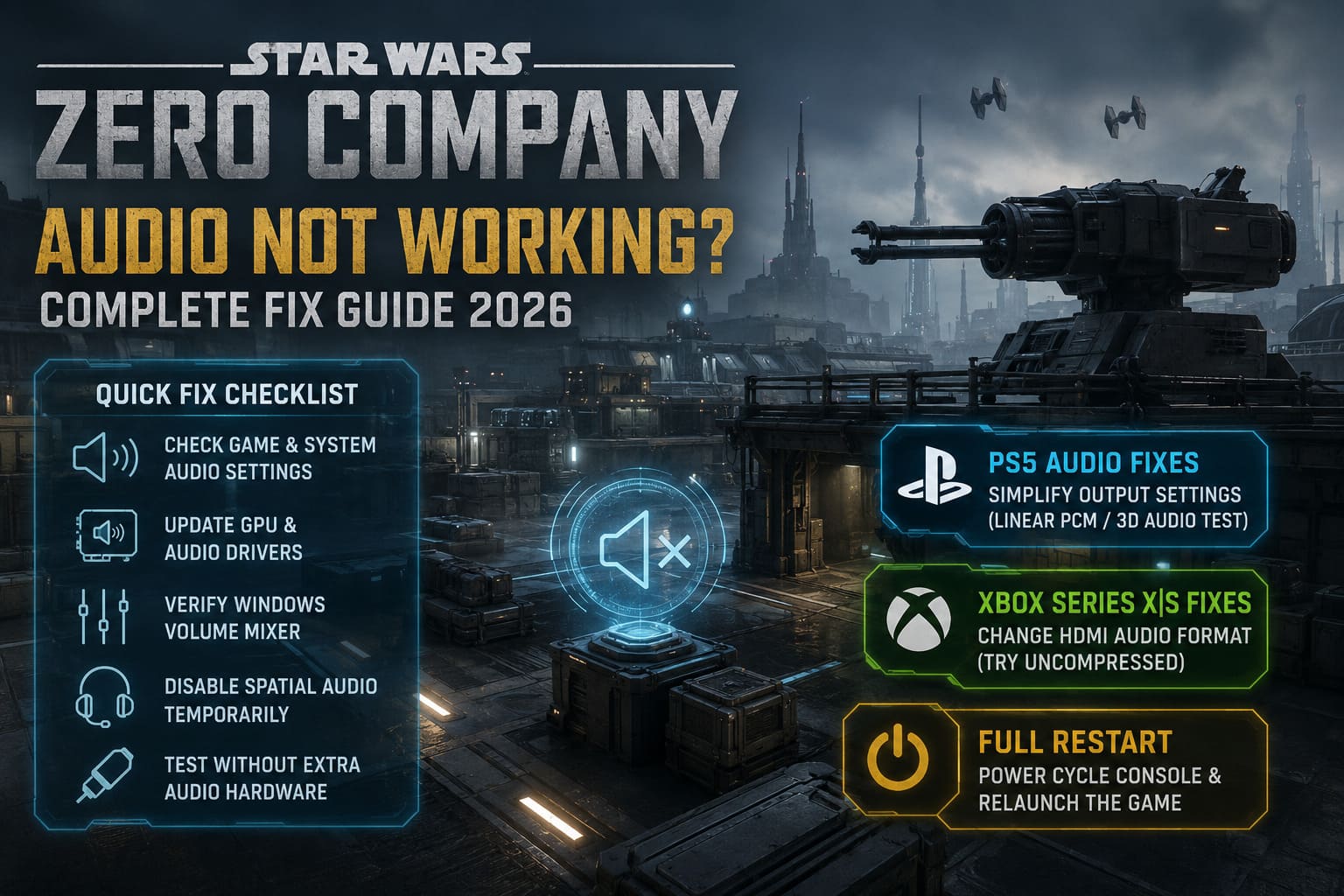
10. Console Fixes for PS5 and Xbox Series X/S
Console players have fewer variables to worry about, but that does not mean audio bugs cannot happen.
The biggest suspect is often the connection between the console, television, headset, receiver, and soundbar.
PS5 Audio Settings
On PlayStation 5, open:
Settings > Sound > Audio Output
Check the current audio format and output device.
If you are using Dolby Atmos, DTS, or another advanced configuration, temporarily switch to a simpler output such as Linear PCM.
If you use headphones, also experiment with the PS5’s 3D Audio settings.
The goal here is not to find the “best” permanent setting. It is to establish whether the advanced audio pipeline is responsible for Zero Company’s missing sound.
Xbox Series X/S Audio Settings
On Xbox, go to:
Settings > General > Volume & audio output
Check the HDMI audio configuration and temporarily move away from more complicated bitstream configurations.
Testing an uncompressed audio option can help determine whether Dolby Atmos, DTS, or another external decoding path is causing the problem.
If the game works correctly after switching to uncompressed audio, you have narrowed the problem down considerably.
11. Fully Restart Your Console
Don’t just close the game and immediately reopen it.
Perform a complete console shutdown and restart.
If you are dealing with a persistent audio handshake problem, a proper power cycle can clear the temporary state between the console and connected audio equipment.
A basic troubleshooting sequence is:
- Close Star Wars Zero Company completely.
- Shut down the console.
- Disconnect power if necessary.
- Leave it powered down for roughly a minute.
- Reconnect power.
- Start the console.
- Launch Zero Company again.
This is especially worth trying after changing HDMI, headset, Dolby, or 3D audio settings.
Quick Star Wars Zero Company Audio Troubleshooting Table
| Problem | First Fix to Try | Platform |
|---|---|---|
| No sound at all | Check Windows Volume Mixer and output device | PC |
| Audio stuttering | Move the game to an internal SSD | PC / Xbox / PS5 |
| Missing dialogue | Repair or verify game files | PC |
| Crackling or distorted audio | Disable audio enhancements | PC |
| Audio desync in cinematics | Verify files and test SSD installation | PC / Console |
| Dolby/Atmos problems | Switch temporarily to Linear PCM or uncompressed audio | PS5 / Xbox |
| Sound routed incorrectly | Disable unused virtual playback devices | PC |
| HDMI audio missing | Update GPU drivers and check output device | PC |
| Headset audio broken | Test without virtual audio software | PC / Console |
The Fixes I Would Try First
If I were sitting down with a broken Zero Company installation right now, I would not start by reinstalling the entire game. That’s the nuclear option, and it takes forever.
I’d go through these in order:
- Check the Windows Volume Mixer and selected output device.
- Verify or repair the game installation.
- Disable Windows audio enhancements.
- Set the device to 24-bit, 48 kHz.
- Turn off spatial audio temporarily.
- Disable unnecessary virtual audio devices.
- Update GPU and audio drivers.
- Make sure the game is installed on fast internal storage.
- On consoles, test Linear PCM or uncompressed audio.
- Perform a complete system restart.
That sequence covers most of the major variables without turning your PC’s audio configuration into a science experiment.
Star Wars Zero Company Unreal Engine 5 Stuttering Fix: PC Performance & FPS Guide
What If Nothing Works?
If Star Wars Zero Company still has no audio after every step above, there is a reasonable chance you are dealing with a genuine game-side issue rather than something wrong with your hardware.
That distinction matters.
If other games, Windows sounds, music, YouTube, and your console interface all work normally, but Zero Company alone remains completely silent, don’t immediately assume your headset is dying.
Try a clean restart, verify the installation one more time, and check whether the problem is limited to a specific campaign mission, cinematic, or audio language.
Launch-day problems can also be inconsistent. A sound bug that appears completely random might disappear after a client update or hotfix.
Star Wars Zero Company Respec Guide: How to Change Specialization & The Best Starting Class (2026)
Final Verdict
Star Wars Zero Company audio problems are frustrating, but they are not a reason to shelve the game.
The most important thing is to troubleshoot systematically. Start with the obvious stuff: output device, volume mixer, game files, and storage. Then move into Windows enhancements, sample rates, spatial audio, virtual devices, and drivers.
For console players, keep things simple while testing. Linear PCM on PS5 or uncompressed audio on Xbox is a useful baseline before returning to Dolby Atmos or other advanced formats.
And if you’re playing on PC, seriously consider putting Zero Company on an internal NVMe SSD if it is currently sitting on an old HDD. Modern games are increasingly designed around fast storage, and there is little reason to make an already demanding streaming system fight through a mechanical drive.
The Clone Wars deserve better than a silent battlefield. Once your audio is behaving, the cinematic dialogue, squad banter, blaster fire, explosions, and combat ambience can finally do their job and make Hawks’ campaign feel like the tactical Star Wars experience it is supposed to be.