Yazs Crashing on Launch Version 1.0 Fix: How to Stop Yet Another Zombie Survivors from Crashing, Freezing, and Black Screen
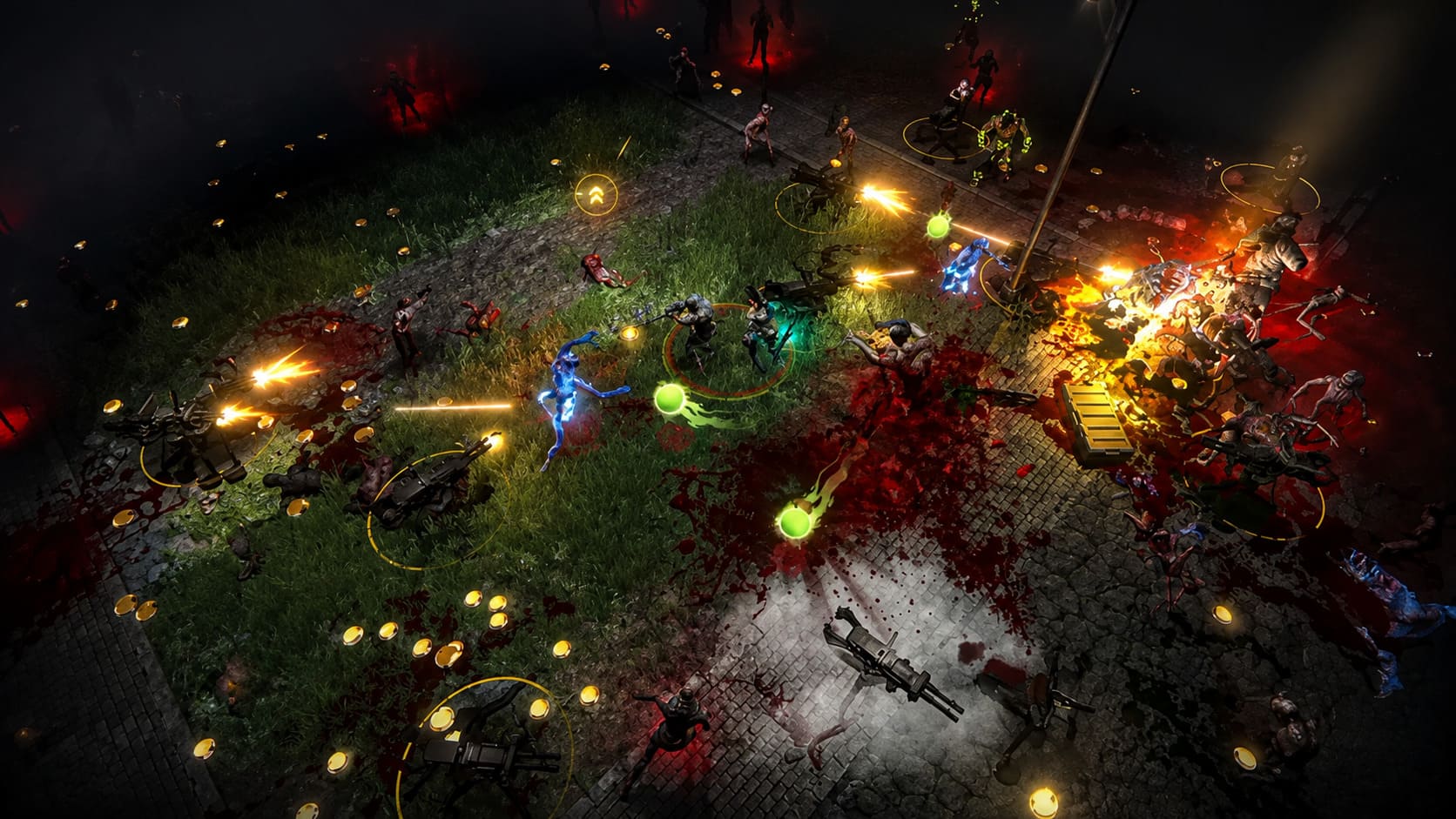
Yet Another Zombie Survivors is exactly the kind of game that can eat an evening without you noticing. One run turns into another, the squad gets stronger, the screen fills with ridiculous amounts of enemies and projectiles, and suddenly it is two in the morning. That makes a crash on launch especially annoying. You are not even getting the chance to play.
Since the Version 1.0 release, some PC players have reported a particularly frustrating collection of problems: Yet Another Zombie Survivors crashes immediately after pressing Play, freezes during startup, gets stuck on a loading screen, or opens to a completely black display. I have dealt with enough PC game launch problems to know that there is rarely one magic fix. Usually, something small has gone wrong between the game files, Windows, the GPU driver, or another program running in the background.
The good news is that most of these problems can be investigated without reinstalling Windows or spending hours randomly changing settings. Work through the fixes below in order, starting with the easy stuff.
Yet Another Zombie Survivors Cross Play PC Xbox: Everything You Need to Know in 2026
Start With Steam File Verification
After a major game update, corrupted or incomplete files are one of the first things I check. A game can appear to have installed correctly while one executable, asset package, or configuration file is damaged. You click Play, Steam starts the process, and the game simply disappears.
Steam has a built-in solution for this.
Open your Steam Library, find Yet Another Zombie Survivors, right-click it, and choose Properties. Select Installed Files, then click Verify integrity of game files.
Steam will compare your local installation against the files it expects to find and replace anything that is missing or damaged. Depending on your drive and connection, the process can take a little while.
Do not launch the game while verification is running. Once it finishes, I recommend restarting Steam before trying YAZS again. It sounds basic, but this is one of those boring troubleshooting steps that fixes a surprising number of post-update crashes.
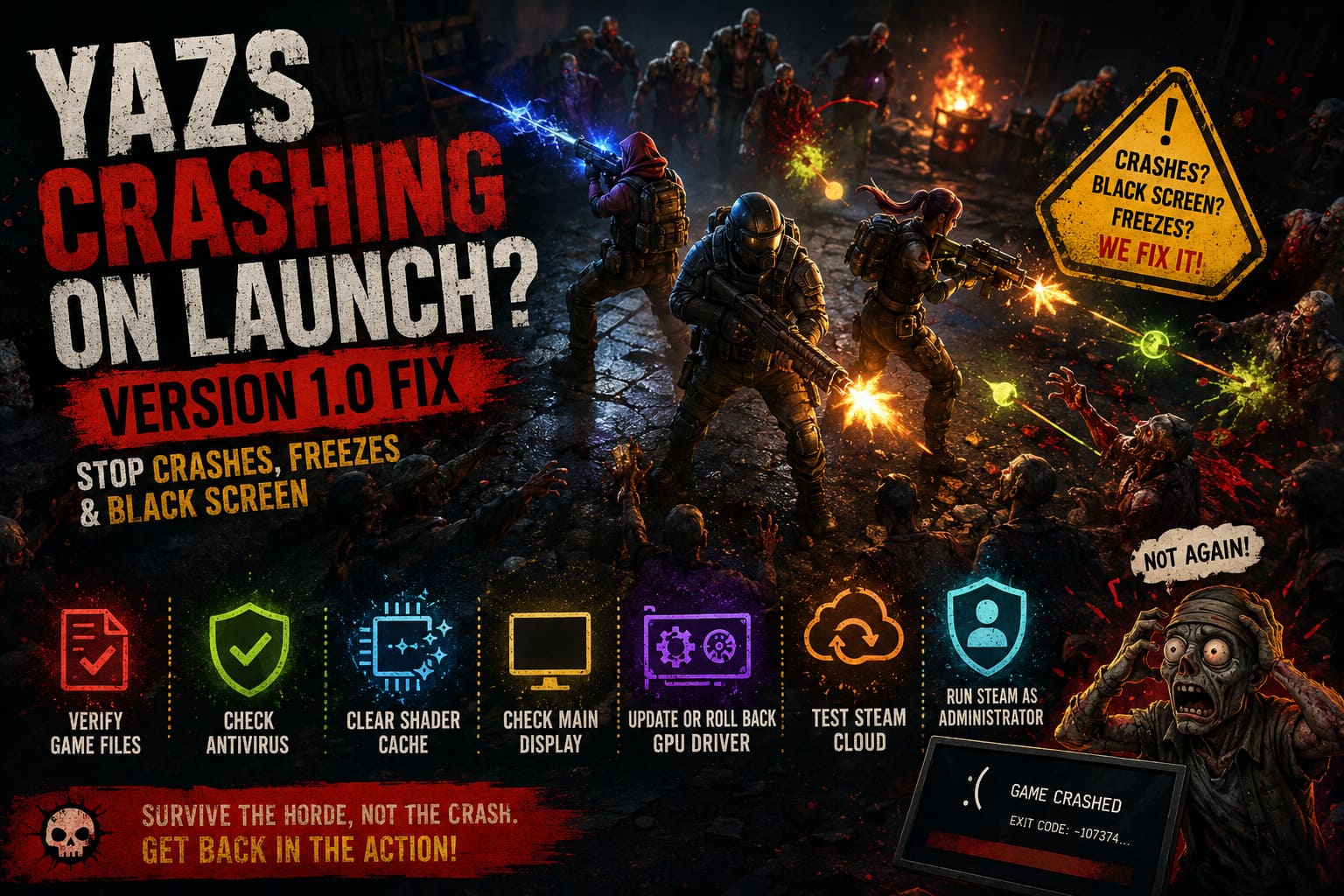
Check Your Antivirus Before Blaming the Game
Security software can occasionally be far too enthusiastic, particularly immediately after a game receives a major update. A new executable or modified game component can look suspicious to heuristic scanning even when there is nothing malicious about it.
If Yet Another Zombie Survivors closes instantly with no useful error message, check your antivirus quarantine and protection history.
Windows Defender, Malwarebytes, Bitdefender, Norton, and other security suites all have their own exclusion systems. If the game’s executable has been blocked or quarantined, restore it only if you are confident the installation came from a legitimate source.
You can also add the legitimate Steam installation and YAZS game folder to your security software’s exceptions list. The exact location depends on where you installed Steam, so do not blindly copy a folder path from somebody else’s PC.
I would not recommend permanently disabling antivirus protection. If you temporarily turn real-time protection off for testing, turn it straight back on afterward. The goal is to identify a conflict, not leave your PC unprotected.
Clear the Shader and DirectX Cache
This is one of my favorite fixes when a game suddenly starts behaving strangely after an update.
Modern games generate and store shader data so the GPU does not have to rebuild everything from scratch every time. The problem is that an older cache can sometimes disagree with a newer game build or graphics driver.
Windows provides a straightforward way to clean it.
Press Windows + R, type %localappdata%, and press Enter. NVIDIA users may find cached graphics data in their NVIDIA-related folders, including DXCache locations. Do not delete random folders just because they contain the word ‘cache.’ Stick to known shader-cache locations.
An easier option is Disk Cleanup. Search for Disk Cleanup from the Windows Start menu, select your system drive, and look for DirectX Shader Cache. Select it and allow Windows to remove the cached data.
The next launch may take a little longer because the game needs to rebuild shader information. That is normal. A slightly slower first startup is much better than another black screen.
Make Sure Windows Is Using the Correct Monitor
Multi-monitor setups are fantastic until a game decides that your secondary display is somehow the most important screen in the universe.
This can become particularly irritating if you have a high-refresh gaming monitor alongside an older 60Hz display. If YAZS launches with sound but produces a black screen, or seems to freeze while initializing graphics, your display configuration is worth checking.
Go to Windows Settings > System > Display and select the monitor you actually use for gaming. Make sure Make this my main display is enabled.
Then check Windows’ graphics preferences under Settings > System > Display > Graphics. Add Yet Another Zombie Survivors if it is not already listed, locate its executable, select Options, and choose High Performance when you have a dedicated NVIDIA or AMD GPU.
This tells Windows which graphics processor should handle the game.
If you are troubleshooting a strange windowed-mode problem, you can also experiment with Windows’ windowed-game optimization setting. The important part is not changing ten things at once. Change one setting, launch the game, and see what happens.
Update Your GPU Driver — Or Consider Rolling It Back
Graphics drivers are an obvious suspect when a game suddenly stops launching after an update, but there is a catch: newer does not automatically mean better for every game.
If your NVIDIA, AMD, or Intel driver is old, install the latest stable driver available for your hardware. Use the manufacturer’s official software or website rather than downloading drivers from random third-party pages.
If YAZS started crashing immediately after you installed a brand-new driver, however, I would consider rolling back to the previous stable version.
There is also the nuclear option: a clean driver installation.
For stubborn driver-related problems, many experienced PC players use Display Driver Uninstaller (DDU) to remove existing display-driver components before installing a fresh driver package. This is more involved than a normal update, so I would save it for situations where simpler solutions have failed.
The basic idea is simple: remove potentially corrupted driver leftovers, reboot, then install the GPU driver from scratch.
Try Running Steam With Administrator Rights
Windows permissions can sometimes get in the way of older games, unusual installations, or programs trying to access configuration and save locations.
Completely close Steam first. Open Task Manager and make sure Steam is not still running in the background.
Find the Steam shortcut or steam.exe, right-click it, choose Properties, open the Compatibility tab, and enable Run this program as an administrator.
Apply the change and restart Steam.
I would not treat administrator mode as a universal gaming performance tweak. It is a troubleshooting measure. If it changes nothing, you can return Steam to its normal configuration.
Test Steam Cloud if the Crash Happens During Synchronization
There is another possibility that is easy to overlook: corrupted configuration or save data.
If the game appears to start normally and then crashes around the point where Steam Cloud is synchronizing, temporarily disable Steam Cloud for Yet Another Zombie Survivors.
Open the game’s Steam properties and look under the General section for the Steam Cloud option. Disable synchronization temporarily and test the game.
If the game suddenly launches, you have a much stronger clue that the problem involves cloud-synchronized data rather than your GPU or installation.
Do not start deleting save files blindly. If your progress matters, make a backup first.
My Recommended Order for Fixing the Crash
If you do not want to jump between ten different Windows menus, this is the order I would personally follow:
| Priority | Fix | Why Try It |
|---|---|---|
| 1 | Verify Steam Files | Fixes damaged or missing game files |
| 2 | Check Antivirus | Rules out security software blocking the game |
| 3 | Clear DirectX Shader Cache | Removes potentially outdated graphics cache data |
| 4 | Check Main Display | Helps with black-screen and monitor conflicts |
| 5 | Update or Roll Back GPU Driver | Addresses driver compatibility problems |
| 6 | Test Steam Cloud | Useful when crashes happen during synchronization |
| 7 | Administrator Mode | Can resolve unusual permission problems |
The key is patience. Do not change every setting simultaneously. If you do, you may fix the game without knowing which change actually worked, and that makes future troubleshooting much harder.
What If Yet Another Zombie Survivors Still Crashes?
If you have verified the files, checked security software, rebuilt the shader cache, tested your display configuration, and dealt with the GPU driver, yet the game still crashes at exactly the same point, I would stop randomly tweaking Windows.
At that stage, the problem could be a genuine Version 1.0 compatibility bug or a hardware-specific regression. Indie games can occasionally have very particular issues that only appear on certain combinations of GPU, Windows version, display configuration, or background software.
This is where crash logs become useful.
If the game generates crash reports, look for them in the game’s relevant local application or temporary-data folders. Preserve the original files before changing anything, compress them into an archive if requested by support, and include useful system information such as your GPU model, CPU, Windows version, RAM amount, driver version, and what exactly happens when you press Play.
That information is far more useful to developers than a message saying, ‘Game doesn’t work.’
Final Thoughts
A launch crash is probably the least exciting way to experience a game about surviving endless zombie hordes. You should be fighting monsters, upgrading your squad, and watching the screen turn into absolute projectile chaos — not staring at a frozen loading screen.
For most players, I would start with Steam file verification, then move through antivirus checks, shader-cache cleanup, display configuration, and GPU-driver troubleshooting. Those steps cover the most common software-level causes without immediately resorting to a full reinstall.
And honestly, I would save reinstalling Yet Another Zombie Survivors for the end of the process, not the beginning. A fresh installation takes time, but it does not magically fix a broken GPU driver, a blocked executable, a corrupted cloud configuration, or a display conflict.
If none of these solutions changes anything, there is a good chance you are dealing with a deeper compatibility problem rather than something you caused. At that point, collecting crash information and reporting the exact behavior to the developers is the smarter move.
The important thing is to troubleshoot methodically. One change at a time, one launch test at a time. That approach may not feel exciting, but when Yet Another Zombie Survivors finally reaches the main menu instead of throwing you back to the Windows desktop, it feels pretty damn good.