How to Fix Bodycam Audio Bug and Static Sound: 2026 PC Audio Guide
If there is one thing Bodycam absolutely cannot afford to get wrong, it is audio.
The entire game is built around sound. Footsteps somewhere behind a wall, a distant reload, a teammate whispering over proximity chat, the sharp crack of a rifle — these details are what make a round of Bodycam feel completely different from a traditional FPS. When your headphones suddenly start producing static, popping, buzzing, or robotic voice chat, that immersion disappears almost instantly.
I’ve spent enough time with demanding PC shooters to know how annoying this particular problem can be. A game can be running at a respectable frame rate while sounding like your headset is dying. Worse, the Bodycam audio bug isn’t always caused by the same thing. Sometimes Windows is processing the signal incorrectly. Sometimes Steam’s voice system is the problem. Sometimes a virtual audio device is fighting for control. And in some cases, your PC is simply getting hammered hard enough for audio processing to fall behind.
The good news? You don’t need to start throwing hardware at the problem.
This guide walks through the most useful fixes for Bodycam static sound, crackling, popping, audio stuttering, distorted voice chat, and microphone static on PC.
What Causes the Bodycam Audio Bug?
Before changing twenty settings at random, it helps to understand what you’re actually trying to fix.
Bodycam is an unusually demanding game. Its Unreal Engine 5 presentation pushes the CPU and GPU much harder than a typical competitive shooter, particularly in visually chaotic areas. That can expose weaknesses in the rest of your Windows configuration that you might never notice in lighter games.
The most common causes fall into several categories:
| Problem | Typical Symptom | Best Place to Start |
|---|---|---|
| Sample rate mismatch | Crackling, distortion, random static | Windows sound format |
| DPC latency | Audio popping during heavy gameplay | Reduce CPU/GPU load |
| Virtual audio devices | Buzzing or incorrect output | Disable unused devices |
| Windows enhancements | Metallic or distorted sound | Disable enhancements |
| Steam Voice | Mic turns into static | Check Steam Voice settings |
| USB interference | Constant electrical buzzing | Change USB connection |
The important part is not assuming that every static problem is a broken headset. Your hardware may be perfectly healthy.
Fix 1: Set Windows Audio to 48 kHz
This is the first thing I would check.
Modern Windows PCs can run audio at a ridiculous number of sample-rate combinations. That’s useful for music production, but gaming doesn’t need an exotic 96 kHz configuration. If your headset, Windows, driver software, and game are all handling different formats, you can end up with unnecessary conversion and occasional instability.
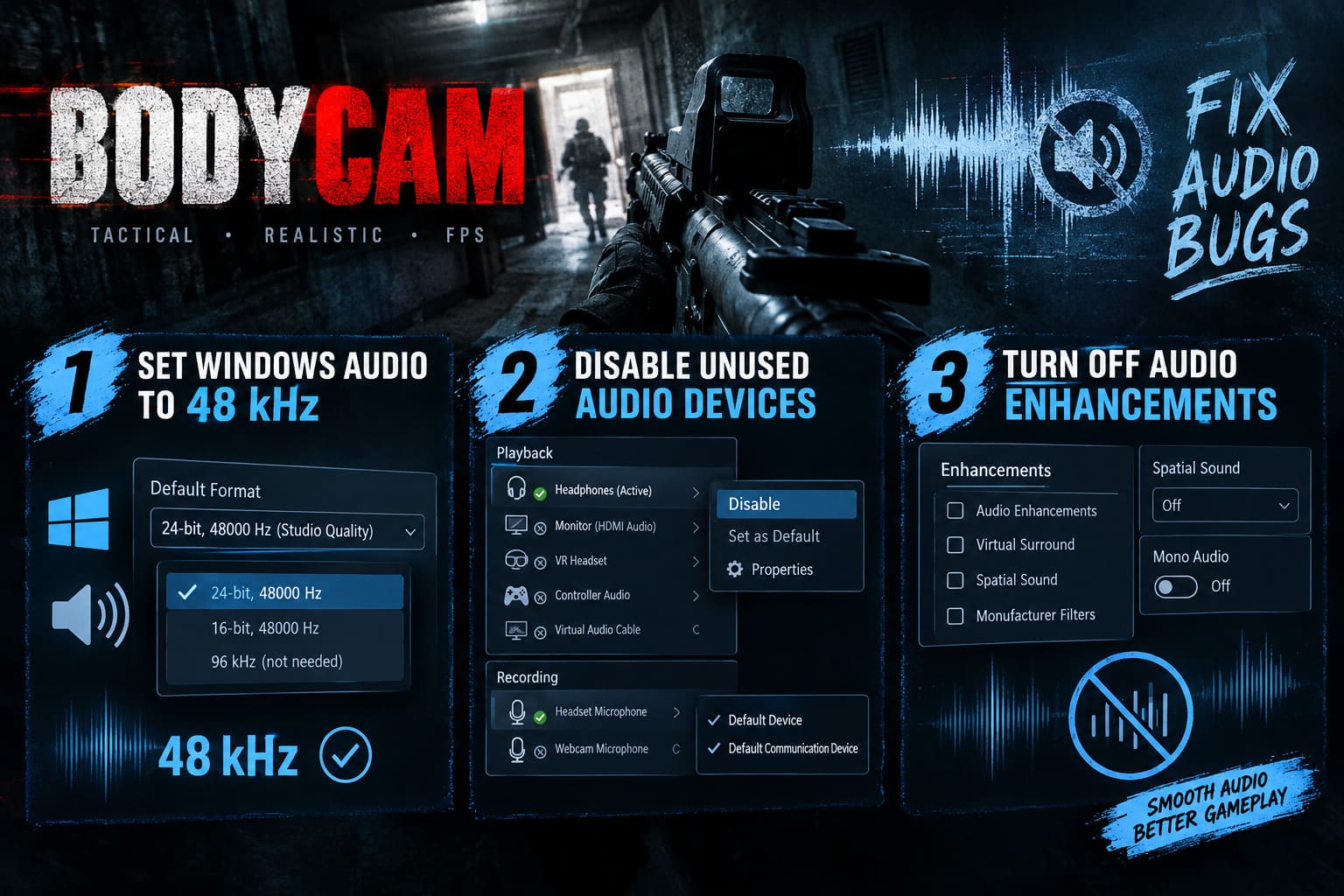
For Bodycam, 48,000 Hz is the sensible starting point.
How to change it
- Completely close Bodycam.
- Exit Steam as well rather than leaving it running in the background.
- Right-click the speaker icon on the Windows taskbar.
- Open Sound settings.
- Scroll down and select More sound settings.
- Open the Playback tab.
- Find your active headphones or speakers.
- Right-click them and choose Properties.
- Open the Advanced tab.
- Find Default Format.
- Select 24-bit, 48000 Hz or 16-bit, 48000 Hz.
- Click Apply, then OK.
I would personally start with 24-bit, 48000 Hz if your hardware supports it. If you’re still getting problems, try 16-bit/48 kHz.
I wouldn’t bother with 96 kHz for Bodycam. You’re playing a tactical shooter, not mastering an album.
Fix 2: Disable Unused Audio Devices
Windows can get surprisingly messy when you have several audio devices connected.
Maybe you have a gaming headset, your monitor has HDMI audio, a controller is connected through USB, your webcam has a microphone, and you’ve got VoiceMeeter or VB-Cable installed.
That’s a lot of potential audio endpoints.
Bodycam doesn’t benefit from having ten different devices available. Cleaning up the list can eliminate weird routing problems and make troubleshooting much easier.
Go back to:
More sound settings → Playback
Look for devices you aren’t using, including:
- Monitor or HDMI speakers
- VR headset audio
- Controller audio outputs
- Virtual audio cables
- Old USB headsets
- Digital audio outputs you never use
Right-click unnecessary devices and select Disable.
Then switch to the Recording tab and do the same thing with microphones.
If you have a dedicated headset microphone, for example, there’s usually no reason to leave your webcam microphone and controller microphone active.
Make sure your actual gaming microphone is configured as both the Default Device and Default Communication Device.
After making the changes, restart Windows.
It’s a boring fix. It also works surprisingly often.
Fix 3: Turn Off Windows Audio Enhancements
Windows audio processing is convenient, but competitive games can be picky about it.
Features such as audio enhancements, virtual surround processing, spatial effects, and manufacturer-specific sound filters can all alter the signal before Bodycam gets a chance to process it.
When several layers of processing are stacked together, you can end up with strange effects: popping, muffled footsteps, excessive bass, distorted gunshots, or audio that sounds like it is coming through a cheap radio.
Try this configuration:
- Open More sound settings.
- Go to Playback.
- Right-click your headphones.
- Select Properties.
- Find the Enhancements section.
- Disable all enhancements.
- If Windows presents an Audio Enhancements toggle instead, turn it off.
- Open Spatial Sound.
- Set Spatial Sound to Off.
- Apply the changes.
There is one exception worth testing.
If Bodycam’s positional audio sounds completely wrong after disabling spatial processing, try Windows Sonic for Headphones. Do not run multiple virtual-surround systems simultaneously.
Also check Windows’ Mono Audio setting. It should be disabled for normal directional gaming audio.
For competitive play, I prefer a clean stereo signal over piling three different surround algorithms on top of each other.
Fix 4: Fix the Bodycam Microphone Static Problem
This is a slightly different beast.
If your own game audio sounds perfect but your teammates suddenly hear violent static whenever you press the voice-chat button, focus on your microphone and Steam rather than your headphones.
Bodycam’s proximity communication is a major part of the experience, so a broken microphone can be just as frustrating as broken game audio.
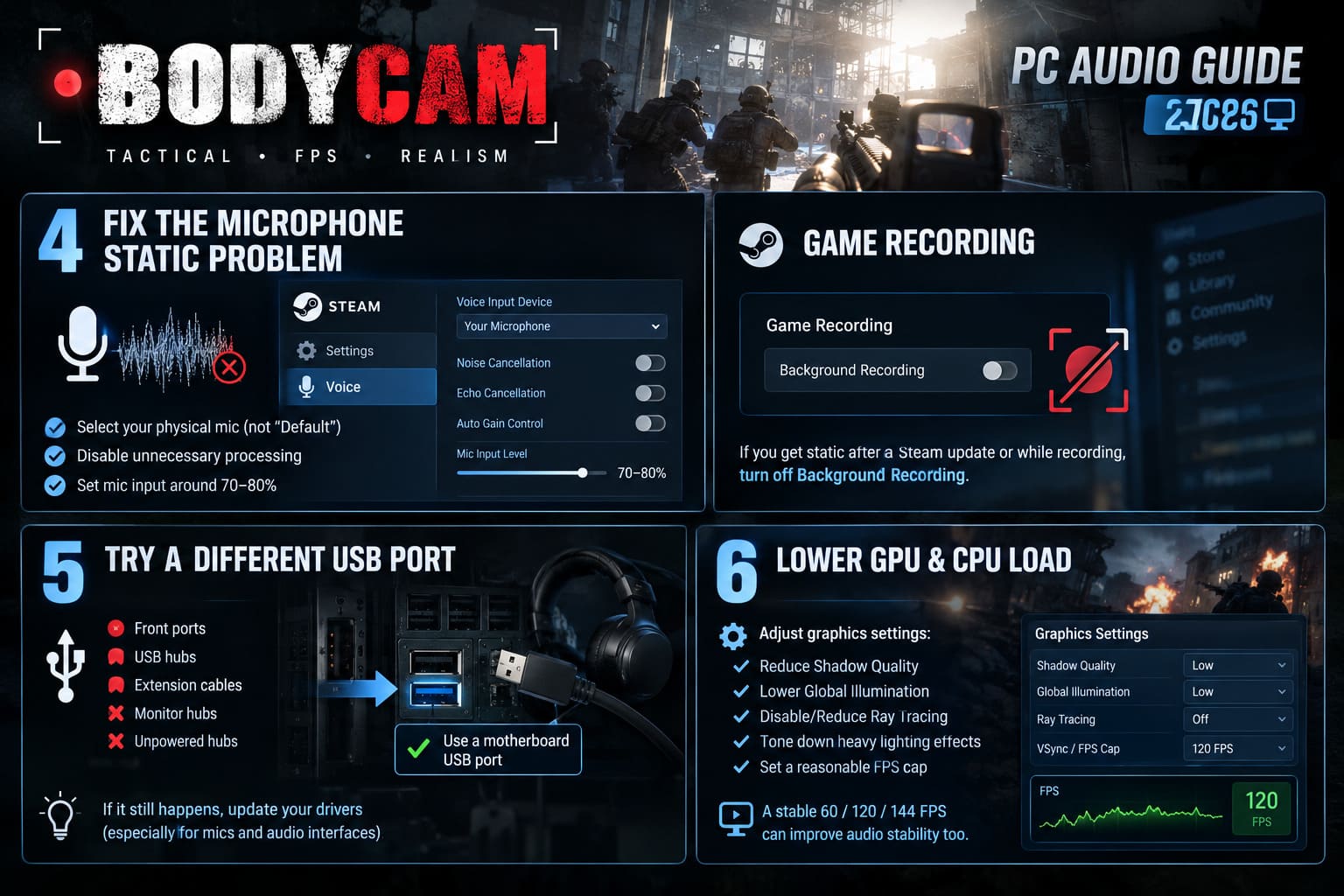
Open Steam and go to:
Steam → Settings → Voice
Check your Voice Input Device first.
Don’t leave it on “Default” if you’re troubleshooting. Manually select your physical microphone.
That removes one layer of Windows deciding which microphone you meant to use.
Then inspect Steam’s voice-processing options.
If you’re already using advanced headset software, an external mixer, or an audio interface, experiment with disabling unnecessary processing such as:
- Echo cancellation
- Noise cancellation
- Automatic gain/volume control
Double-processing is a classic source of ugly microphone artifacts.
I’d also avoid cranking the microphone input to 100%. Start around 70–80% and adjust from there.
Steam Game Recording Can Also Be Worth Testing
If the static began after a Steam update or appears primarily while Steam is recording gameplay, temporarily disable background recording.
Go into Steam’s Game Recording settings and turn Background Recording off.
If you want to keep recording enabled, check whether microphone capture can be disabled independently.
This isn’t a guaranteed universal fix — Steam and hardware configurations vary — but it is an easy troubleshooting step and takes less than a minute.
Fix 5: Move Your Headset or Microphone to a Different USB Port
Here’s the fix people often overlook because it sounds too simple.
Move the cable.
If you’re using a USB headset, USB microphone, DAC, or audio interface, don’t automatically assume every USB port is equally good for your particular setup.
As a test, disconnect the device from:
- Front-panel USB ports
- USB hubs
- Cheap extension cables
- Monitor USB hubs
- Unpowered hubs
Then connect it directly to a motherboard USB port on the back of the PC.
If the static disappears immediately, you’ve learned something important.
Electrical interference, poor shielding, USB power behavior, or a problematic hub can produce persistent buzzing and noise that software settings won’t fix.
For a dedicated microphone or audio interface, also make sure you’re using the manufacturer’s current drivers where applicable.
If you’re running a higher-end setup with something like an XLR microphone and external interface, generic Windows drivers aren’t always the best option.
Fix 6: Reduce the GPU and CPU Load
This is the fix I would investigate if your audio is fine in the menu but starts crackling during an intense match.
Pay attention to when the problem appears.
If Bodycam sounds perfect while standing still but begins popping when the map gets busy, explosions start flying, or a firefight turns into complete visual chaos, system load becomes a serious suspect.
The basic idea is simple: your PC is working so hard on rendering that other processes can experience delays.
Try these Bodycam graphics changes:
- Reduce Shadow Quality
- Lower Global Illumination
- Disable or reduce Ray Tracing, if available
- Lower other heavy lighting effects
- Set a reasonable FPS cap
- Avoid running completely uncapped frame rates
An FPS limiter can be particularly useful.
If your system is bouncing between 90, 120, 140 and 160 FPS while simultaneously rendering Bodycam’s heavy environments, your CPU and GPU can experience large workload fluctuations.
A stable 60, 120, or 144 FPS cap may produce a smoother overall experience than letting the hardware run flat-out.
And yes, that can sometimes improve audio stability too.
Don’t Ignore Your Storage Drive
Bodycam’s large environments and modern assets put considerable pressure on streaming.
If the game is installed on an old mechanical HDD, upgrading to an SSD — preferably an NVMe SSD — is worth considering for overall game responsiveness.
Storage isn’t a magical cure for every audio problem, but slow asset streaming can contribute to hitching and temporary system stalls. If you’re already dealing with stutters, long asset-loading pauses, and audio glitches at the same time, your storage setup deserves attention.
Recommended Bodycam Audio Configuration
Once you’ve cleaned up Windows and Steam, keep the in-game setup simple.
Inside Bodycam’s audio settings:
- Open the Audio menu.
- Manually select your primary headphones if the game provides an output-device selector.
- Avoid unnecessary virtual surround processing.
- Use Stereo unless you have a specific reason to use another speaker configuration.
- Test proximity voice chat after every major change.
For headphones, I would much rather have a clean stereo signal with reliable positional information than a fake 7.1 mode that makes every footstep sound like it came from a different universe.
Bodycam FSR 3 Performance Mode Settings: 2026 FPS Optimization Guide
My Troubleshooting Order for Bodycam Audio
If I were sitting at your PC trying to fix this before a match, I wouldn’t change everything simultaneously.
I’d go in this order:
- Set Windows to 48 kHz.
- Disable unused playback and recording devices.
- Turn off Windows enhancements and test Spatial Sound.
- Manually select the microphone in Steam Voice.
- Disable Steam background recording temporarily.
- Move USB audio hardware directly to the motherboard.
- Cap FPS and reduce heavy graphics settings.
- Test Bodycam again after each change.
That approach matters because otherwise you won’t know which fix actually solved the problem.
How to Fix Bodycam Out of Video Memory Error: 2026 Troubleshooting Guide
Final Thoughts
The Bodycam audio bug is one of those problems that can make an otherwise incredible shooter feel completely broken. Static is especially brutal here because sound isn’t just another presentation layer — it’s gameplay information.
You need to hear the direction of footsteps. You need to distinguish distant gunfire from nearby shots. You need clean proximity chat when your squad is trying to communicate. When every sound is accompanied by crackling or your microphone turns into an industrial-strength noise generator, the competitive experience falls apart.
The good news is that most troubleshooting starts with relatively simple changes.
48 kHz audio, fewer active devices, disabled enhancements, clean Steam Voice configuration, a direct USB connection, and a sensible FPS cap are the first things I’d attack. If the problem only happens under extreme graphical load, don’t underestimate how much reducing Bodycam’s GPU and CPU workload can help.
And don’t immediately blame your headset.
I’ve seen plenty of PC gaming setups where the hardware gets accused first, only for a sample-rate mismatch, virtual audio driver, USB hub, or background software to turn out to be the actual culprit.
Give the audio pipeline a proper cleanup, test one change at a time, and there is a very good chance you can get back to hearing Bodycam the way it should sound: clean footsteps, brutal gunshots, intelligible comms, and absolutely no digital mosquito buzzing in your ears.