Best The Division Resurgence PC Graphics Settings for Maximum FPS (2026 Guide)
I’ve always believed that a good shooter lives or dies by its performance. It doesn’t matter how beautiful the explosions look if your game decides to freeze the moment another squad pushes your position. After spending dozens of hours experimenting with settings, comparing benchmarks, and reading discussions from competitive players, I quickly realized that The Division Resurgence ships with some surprisingly conservative defaults.
The game looks fantastic when everything comes together, but Ubisoft clearly aimed for stability across a huge range of hardware. That’s understandable, yet it leaves a lot of performance sitting on the table for anyone with a decent gaming PC.
The good news is that you don’t need expensive hardware to enjoy smoother firefights. A handful of configuration tweaks and smarter graphics settings can completely transform how the game feels, especially during chaotic PvP encounters or large PvE missions where every frame counts.
How to Disable Kernel Anti-Cheat in The Division Resurgence: Safe Complete Guide
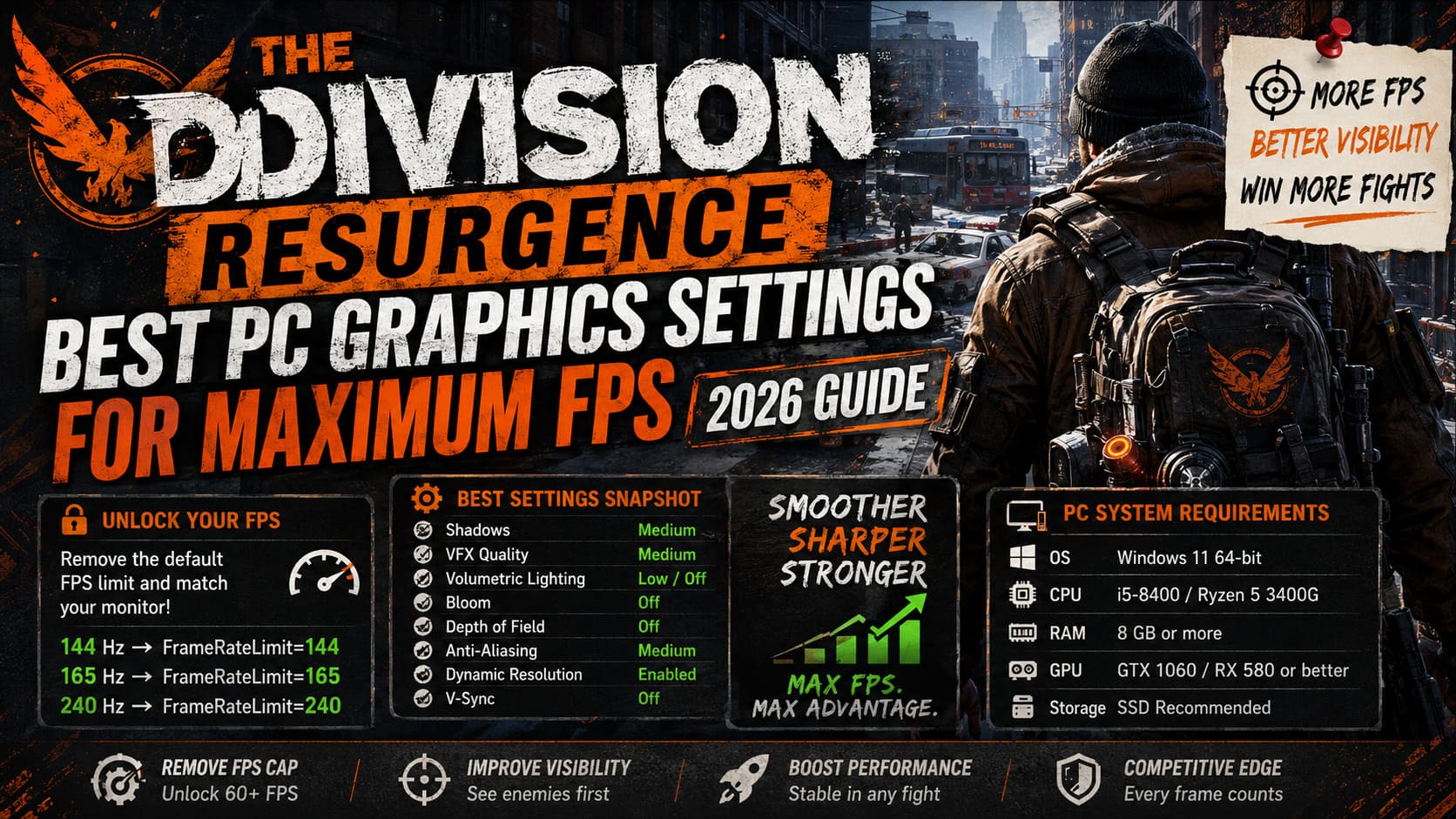
PC System Requirements
Before changing settings, make sure your computer meets at least the recommended hardware level.
| Component | Recommended |
|---|---|
| Operating System | Windows 11 64-bit |
| CPU | Intel Core i5-8400 or AMD Ryzen 5 3400G |
| RAM | 8 GB or more |
| Graphics Card | GTX 1060 / RX 580 or better |
| Storage | SSD Recommended |
While the game technically launches on weaker integrated graphics, the experience isn’t particularly enjoyable once firefights become busy. Installing the game on an SSD also helps reduce loading times and minimizes texture streaming hiccups.
Remove the Default FPS Limitation
One of the strangest discoveries I made was the built-in frame rate restriction. Even on powerful hardware, the game may refuse to go much beyond 60–65 FPS until you manually edit the configuration.
Thankfully, the solution only takes a couple of minutes.
Configuration File Location
AppData → Local → TheDivision → Saved → Config → WindowsNoEditor
Locate GameUserSettings.ini and edit the frame limit value so it matches your monitor.
Recommended Frame Rate Values
- 144 Hz → FrameRateLimit=144
- 165 Hz → FrameRateLimit=165
- 240 Hz → FrameRateLimit=240
While you’re editing the file, double-check that the desired screen resolution matches your monitor’s native resolution. I’ve seen several players unknowingly rendering the game below native resolution, which makes the streets of Manhattan appear noticeably blurrier than they should.
If the game decides to reset the frame cap after launching, switching between fullscreen and windowed mode with Alt + Enter usually forces the engine to reload the custom settings.
Best Graphics Settings for Maximum FPS
After testing multiple combinations, these are the settings I keep coming back to. They provide an excellent balance between visual quality and competitive responsiveness.
| Graphics Option | Recommended Setting | Reason |
|---|---|---|
| Window Mode | Fullscreen | Lowest input latency |
| Resolution | Native Resolution | Best image clarity |
| Shadow Quality | Medium | Excellent FPS gain |
| VFX Quality | Medium | Reduces combat stutters |
| Volumetric Lighting | Low or Off | Large GPU performance improvement |
| Bloom | Off | Improves visibility |
| Depth of Field | Off | Keeps enemies sharp |
| Anti-Aliasing | Medium | Balanced visuals and performance |
| Dynamic Resolution | Enabled | Stabilizes FPS during heavy combat |
| V-Sync | Off | Removes input delay |
These settings aren’t just about chasing higher benchmark numbers. They’re about making enemies easier to see. Bloom is a perfect example. It looks nice for screenshots, but bright lights can wash out parts of the screen during nighttime firefights. Turning it off made tracking moving targets noticeably easier.
Shadows Are the Biggest Performance Hog
If someone asked me which single setting delivers the biggest improvement without making the game ugly, my answer would be shadows every time.
Ultra shadows add very little during actual gameplay, yet they constantly eat GPU resources.
Dropping them to Medium keeps Manhattan looking atmospheric while freeing enough performance to maintain steadier frame pacing. I wouldn’t recommend going all the way down to Low unless you’re playing on older hardware.
Don’t Let Fancy Effects Hurt Your Aim
Particle effects are another setting that looks impressive until several players start throwing gadgets at once.
- Smoke grenades
- Explosions
- Seeker Mines
- Skill effects
Once everything happens simultaneously, weaker GPUs can suddenly lose 20–30 FPS. Medium particle quality still looks good while avoiding those annoying frame spikes that usually happen during the busiest encounters.
Disable Visual Effects That Hurt Competitive Play
Some graphical options exist purely for cinematic presentation. They’re beautiful. They’re immersive. They’re also terrible if you’re trying to react quickly.
I disable several effects immediately after installing the game:
- Bloom
- Depth of Field
- Motion Blur (if available)
- Heavy Volumetric Lighting
The image becomes cleaner, enemies stand out more clearly, and aiming simply feels more natural. Honestly, after playing without those effects for a while, I don’t miss them at all.
Dynamic Resolution Is Better Than Most Players Think
Many players automatically disable Dynamic Resolution because they assume it ruins image quality.
In reality, The Division Resurgence handles it surprisingly well. During quiet exploration, the game renders at full quality. During large firefights, it slightly lowers rendering resolution just enough to prevent sudden FPS drops.
Unless you’re constantly pausing to inspect textures, you’ll rarely notice the difference. You will notice that your controls remain responsive.
Emulator Users Can Get Excellent Performance Too
Although Ubisoft now offers an official PC experience, plenty of players still prefer Android emulators. If you’re using MuMu Player or LDPlayer, don’t stick with the default engine configuration.
| Emulator Setting | Recommended |
|---|---|
| Graphics API | Vulkan |
| CPU Allocation | 4 Cores or More |
| Memory | 6 GB or More |
| Performance Mode | High |
| Graphics Card | Force Dedicated GPU |
| Device Profile | Modern Flagship Phone |
Choosing a flagship device profile often unlocks higher graphical presets that remain hidden on weaker virtual devices.
Windows Optimizations Worth Doing
Game settings alone aren’t enough. Windows itself can quietly steal performance if it’s configured poorly.
I always check these before jumping into a new Ubisoft release:
- Install the latest NVIDIA or AMD graphics driver.
- Enable Hardware-Accelerated GPU Scheduling (HAGS).
- Switch Windows Power Plan to High Performance.
- Close unnecessary browser tabs and background software.
- Disable overlays you don’t actually use.
None of these changes are dramatic individually, but together they create a noticeably smoother experience.
Should You Max Out Everything?
Personally? I wouldn’t.
The visual difference between High and Ultra is surprisingly small in actual gameplay, especially while sprinting through missions or fighting other agents. The performance difference, however, can be significant.
I’d much rather have a stable 144 FPS than occasional dips into the 70s just because reflections look a little prettier. Competitive shooters reward consistency far more than eye candy.
Final Thoughts
The Division Resurgence has a surprisingly solid PC version once you remove the unnecessary restrictions hiding beneath the default settings. Unlocking the frame rate, adjusting a few demanding graphics options, and cleaning up Windows can completely change how the game feels.
After testing countless combinations, I keep returning to the same philosophy: smooth gameplay beats maximum graphics every single time. Better visibility, faster reactions, and steadier frame pacing make a far bigger difference than ultra-quality shadows or flashy lighting effects ever will.
Whether you’re clearing story missions, farming high-end gear, or battling rogue agents in PvP, these optimized settings give you a cleaner image and a much more responsive experience. Spend a few minutes tuning the game now, and every firefight afterward will feel noticeably sharper, faster, and far more enjoyable.