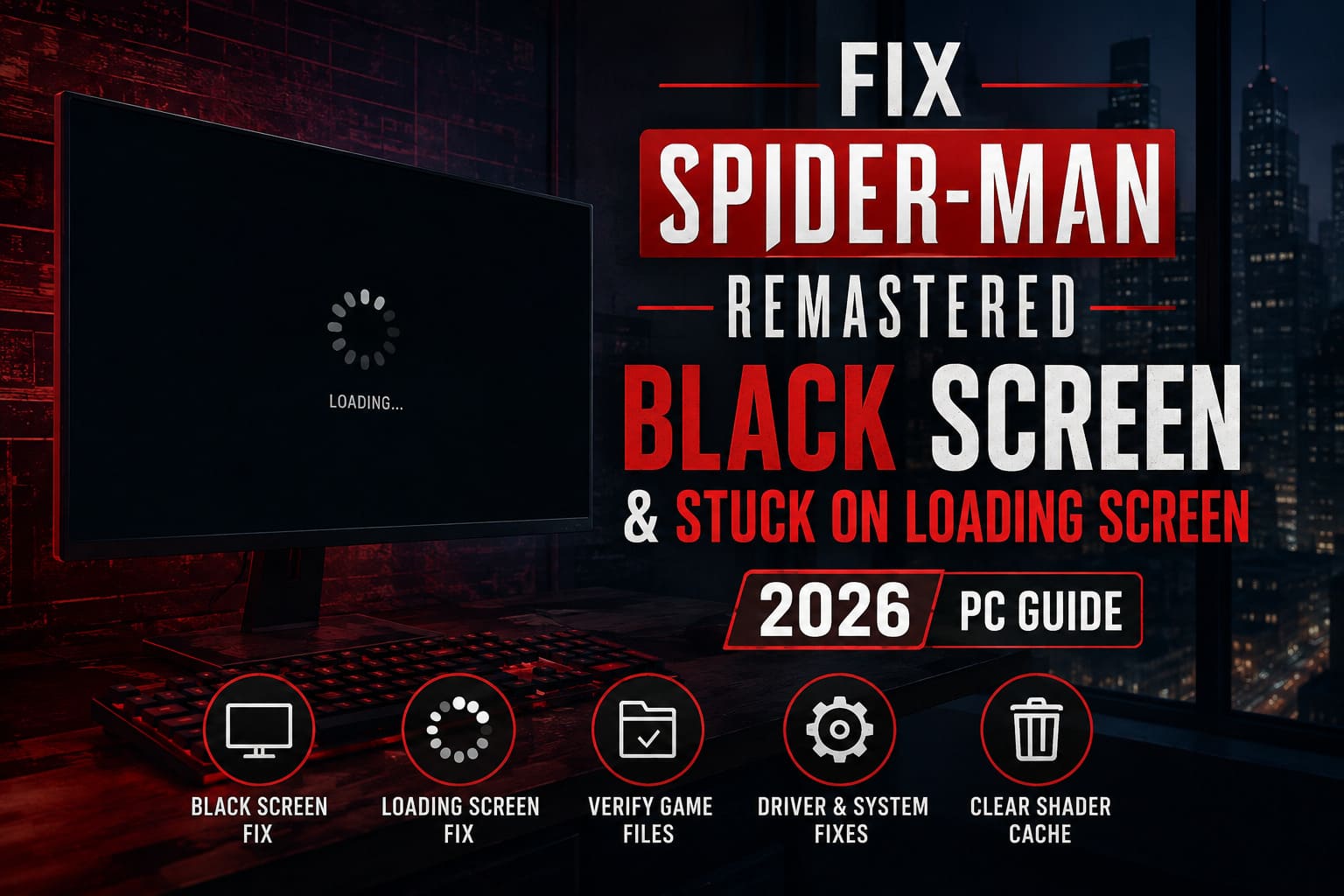
Fix Spider-Man Remastered Black Screen and Stuck on Loading Screen (2026 PC Guide)
Marvel’s Spider-Man Remastered is still one of the best superhero games you can play on PC. Even after several years, it remains a showcase for high-refresh gameplay, detailed ray tracing, and fluid web swinging. But as impressive as the game looks, I’ve noticed one thing after helping friends and troubleshooting dozens of PC releases over the years—some games never completely escape launch issues.
Spider-Man Remastered is one of them.
During multiple reinstallations on different systems, I’ve personally run into two particularly annoying problems. The first was a completely black screen after launching the game. The second was an endless loading screen that refused to enter my save file even though Windows showed the game was still running.
After digging through community discussions, testing fixes myself, and comparing results across several hardware configurations, I found that these problems usually come from a handful of common causes rather than a mysterious bug. The good news is that most of them are surprisingly easy to fix once you know where to look.
In this guide I’ll walk through the methods that actually made a difference for me instead of repeating generic “update your drivers” advice.
Why Spider-Man Remastered Gets Stuck on a Black Screen
One thing I’ve learned from years of PC gaming is that a black screen doesn’t always mean the game has crashed.
Sometimes the game is actually running but Windows, the graphics driver, or the engine fails to display the rendered image correctly.
The most common causes include:
| Problem | Typical Cause |
|---|---|
| Black screen on startup | Display mode conflict |
| Infinite loading screen | Corrupted save cache or shader cache |
| Crash after PlayStation logo | Broken mods |
| Loading never finishes | Damaged game files |
| Random black screen during startup | GPU driver conflict |
Finding the real cause saves a lot of unnecessary troubleshooting.
First Things I Always Try
Before touching Windows settings or reinstalling anything, I always test a few simple fixes.
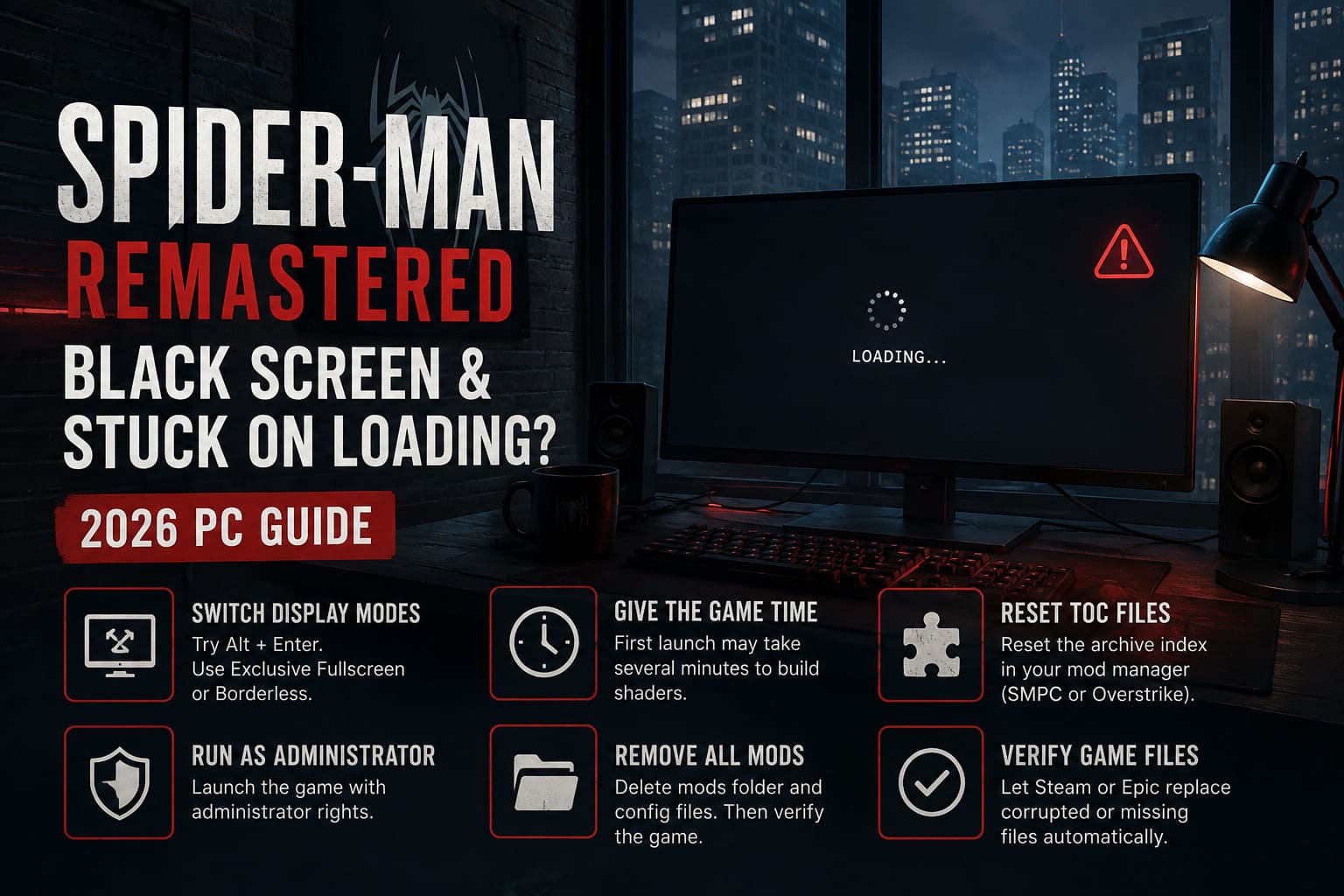
Switch Display Modes
This has solved launch problems for me more times than I can count—not only in Spider-Man but also in several Unreal Engine and DirectX 12 games.
When the screen turns black:
- Press Alt + Enter.
- Wait a few seconds.
- If the picture appears, open Graphics Settings.
- Switch to Exclusive Fullscreen or Borderless Fullscreen.
- Save the settings before restarting.
It sounds almost too simple, but display initialization bugs are surprisingly common.
Give the Game Time
The very first launch can take much longer than people expect.
Spider-Man Remastered builds shader data during the initial startup. On slower SSDs—or especially older HDDs—that process may leave you staring at a black screen for several minutes.
Unless the game has completely frozen, I usually wait around five minutes before assuming something went wrong.
Patience saves unnecessary reinstalls.
Run the Game with Administrator Rights
Windows security sometimes blocks games from creating temporary files correctly.
Running the executable as Administrator can eliminate permission-related startup problems.
It’s a small change, but one that’s worth testing before moving to more advanced fixes.
Mods Are Often the Real Problem
I’ll be honest—I love modding PC games.
Custom suits, reshades, improved textures… Spider-Man has one of the most creative modding communities around.
But every major update increases the chance that old mods will completely break the game.
If you’ve ever installed mods through SMPC or Overstrike, this should be the first thing you investigate.
Reset the TOC Files
Whenever official game archives change, the old TOC indexes can point to incorrect assets.
That often results in:
- Black screen after logos.
- Endless loading.
- Immediate crashes.
- Missing textures.
Resetting the archive index through your mod manager fixes this far more often than reinstalling the game.
Remove Every Mod Completely
Sometimes partial cleanup isn’t enough.
If troubleshooting a friend’s installation, I normally recommend removing everything.
Delete:
- The mods folder.
- Custom archive configuration files.
- Old injected assets.
Then verify the installation through Steam or Epic before launching again.
A clean vanilla installation removes countless variables.
Verify Game Files
This remains one of the highest success-rate fixes.
Steam and Epic can automatically replace corrupted files without requiring a full reinstall.
I’ve seen games download only a few missing megabytes yet suddenly launch perfectly afterward.
Never skip this step.
Repair Windows System Files
One overlooked issue is Windows itself.
If DirectX components become corrupted, games may launch but never actually render a frame.
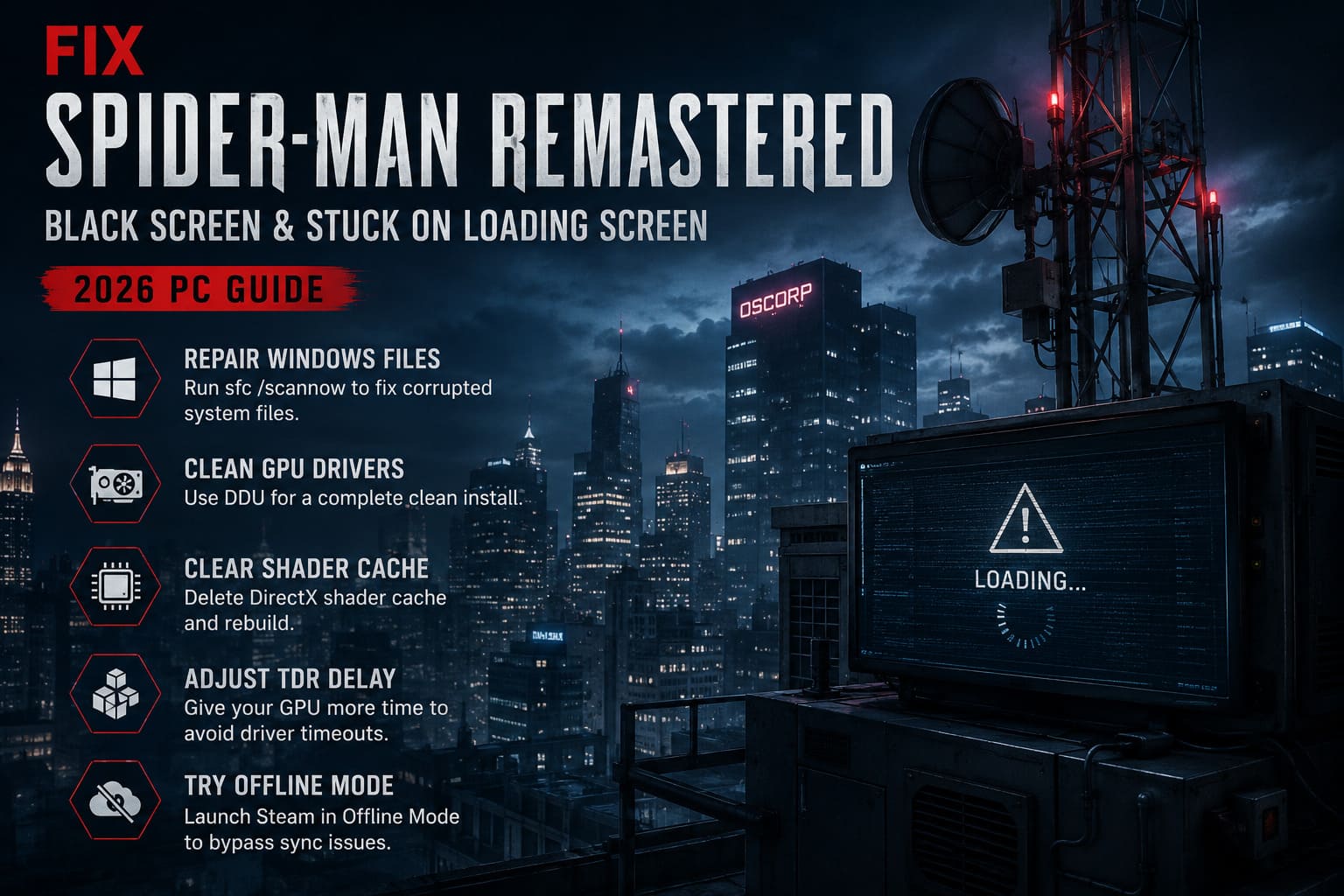
Running sfc /scannow has repaired surprisingly stubborn launch problems for me over the years.
It only takes several minutes and doesn’t remove personal files.
Clean GPU Drivers the Right Way
Simply installing a newer NVIDIA or AMD driver over the old one isn’t always enough.
Driver leftovers occasionally cause problems that survive multiple updates.
Whenever I experience repeated black screens across different games, I perform a clean installation using Display Driver Uninstaller (DDU).
It completely removes:
- Driver cache.
- Registry entries.
- Outdated graphics profiles.
- Leftover shader configurations.
After installing a fresh driver, many strange startup issues simply disappear.
Clear the Shader Cache
Shader cache corruption is another surprisingly common reason games refuse to load.
Instead of rebuilding shaders correctly, the engine keeps trying to use damaged cache files.
Deleting the DirectX Shader Cache forces Windows to generate everything again from scratch.
The first launch afterward may take longer, but future launches usually become much smoother.
A Windows Registry Change That Can Help
This isn’t something I recommend as the first fix, but it’s worth mentioning.
Windows uses a feature called TDR (Timeout Detection and Recovery).
If the GPU takes too long to respond while loading large scenes, Windows assumes the graphics card has crashed and resets the driver.
That can leave Spider-Man sitting on a permanent black screen.
Increasing TdrDelay from the default value gives demanding games a little more time to finish loading before Windows intervenes.
If you decide to edit the registry, make a backup first.
Offline Mode Surprisingly Fixed My Loading Screen
This one surprised me.
On one test system, the game refused to load an existing save while connected online.
Launching Steam in Offline Mode instantly solved it.
I’m not convinced this affects everyone, but it’s quick enough that I always recommend trying it.
If profile synchronization gets stuck, removing the internet connection briefly can bypass the problem.
Launch Options Worth Testing
Steam launch parameters occasionally help when the game struggles to initialize correctly.
| Launch Option | Purpose |
|---|---|
| -windowed | Starts the game in Windowed Mode. |
| -exclusivefullscreen | Forces Exclusive Fullscreen. |
| -fullscreen | Attempts standard fullscreen initialization. |
These aren’t miracle fixes, but they can bypass display negotiation issues on certain hardware.
Extra Tips That Improved Stability for Me
After playing dozens of demanding PC releases over the years, I tend to keep my system configured in a fairly consistent way.
Some habits that reduce launch problems include:
- Avoid installing graphics drivers immediately on release day.
- Disable unnecessary overlays while testing.
- Leave enough free SSD space for shader compilation.
- Don’t mix old mods with new game updates.
- Restart Windows after major driver installations.
None of these individually solve every problem, but together they noticeably reduce random issues.
How to Play Multiplayer in Marvel’s Spider-Man Remastered (2026 Mod Guide)
Final Thoughts
Spider-Man Remastered is generally a solid PC port, but like many modern DirectX 12 games, it’s sensitive to driver conflicts, shader corruption, and outdated mods. In my experience, the majority of black screen and infinite loading problems aren’t caused by the game itself—they’re usually the result of something surrounding it.
If I had to prioritize the fixes that worked best, my order would be:
- Verify game files.
- Remove every installed mod.
- Clear the DirectX shader cache.
- Try Alt + Enter to switch display modes.
- Perform a clean GPU driver installation with DDU.
Those five steps have resolved the overwhelming majority of launch issues I’ve encountered, whether on my own system or while helping other PC players.
PC gaming will probably never be completely free of technical hiccups, especially in visually demanding titles like Spider-Man Remastered. But with a methodical approach instead of random guesswork, getting back to swinging across New York usually takes far less time than people expect.