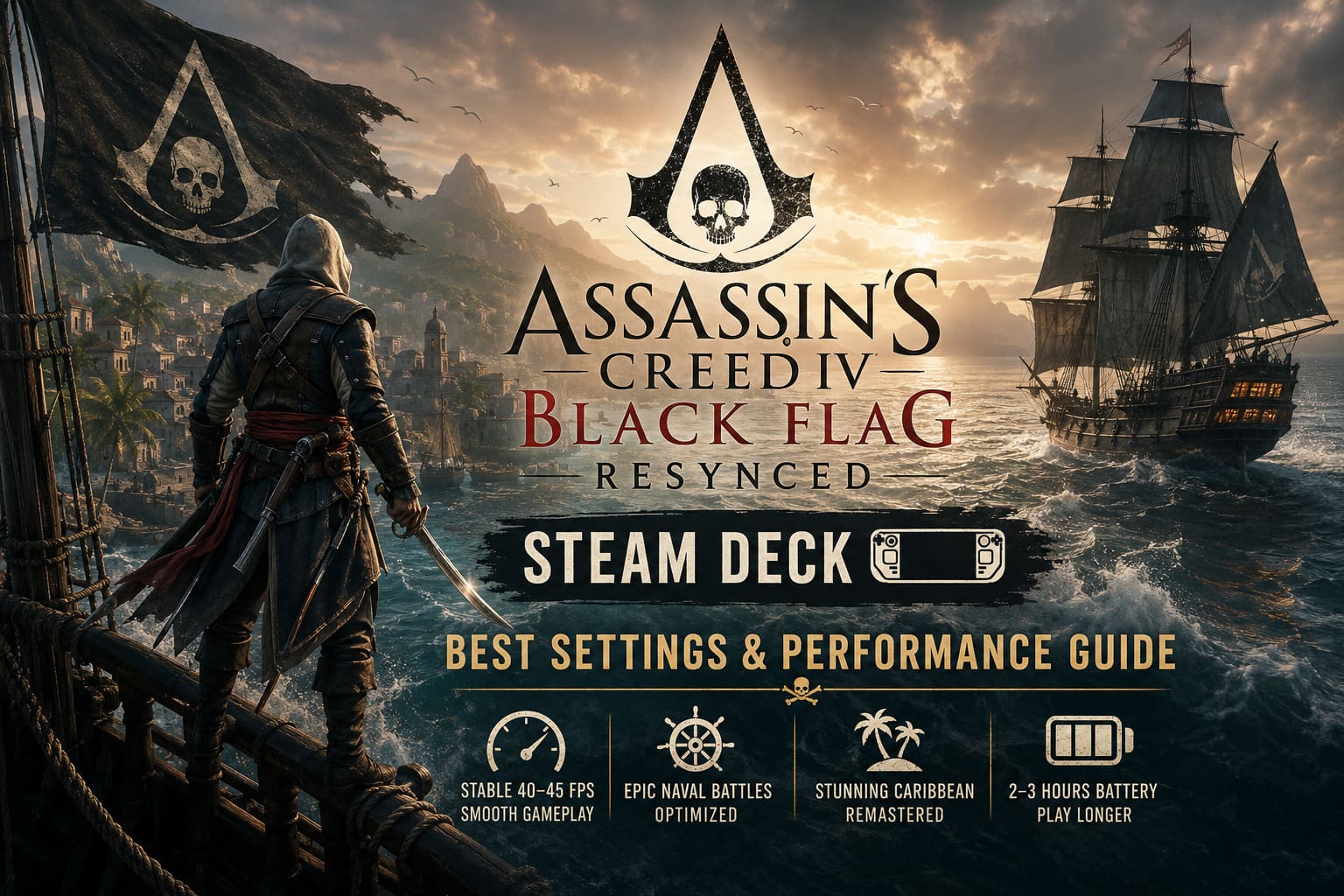
Assassin’s Creed Black Flag Resynced Steam Deck: Best Settings & Performance Guide (2026)
There are games you finish, uninstall, and rarely think about again. Then there are games like Assassin’s Creed Black Flag—titles that stay with you for years. I played the original release back in 2013, returned to it multiple times on PC, and eventually replayed it on handheld hardware just because sailing across the Caribbean never gets old. Naturally, when Assassin’s Creed Black Flag Resynced arrived with modern visuals and a rebuilt engine, the Steam Deck was one of the first places I wanted to try it.
The experience surprised me.
On one hand, Ubisoft has delivered a much more visually impressive version of Edward Kenway’s adventure. Lighting is richer, vegetation is denser, characters finally look like modern AAA models, and weather effects completely transform the atmosphere during naval battles.
On the other hand, this isn’t the kind of remake you simply install and forget about. The default settings push the Steam Deck harder than I expected, and getting consistently smooth gameplay requires a little tweaking.
After experimenting with multiple graphics presets, testing crowded cities, long sailing sessions, and several large-scale ship battles, I eventually settled on a configuration that I honestly wouldn’t want to change anymore. Here’s what worked best for me.
Black Flag Finally Feels Like a Modern Game
The original Black Flag was never a demanding game by today’s standards. Even budget PCs could run it comfortably, and the Steam Deck handled it effortlessly.
Resynced is a completely different story.
Everything from environmental detail to lighting has been rebuilt. Walking through Havana now feels noticeably more alive thanks to improved shadows, foliage movement, and richer materials. Sunsets over the ocean are easily among the best visual moments I’ve seen in an Assassin’s Creed game.
The downside is obvious.
The Steam Deck simply doesn’t have enough GPU power to brute-force every visual feature at maximum quality. If you leave everything on the higher presets, performance becomes inconsistent almost immediately.
Personally, I’d much rather sacrifice a little visual fidelity than deal with constant frame pacing issues.
The Performance Target I Recommend
After trying several configurations, I don’t believe chasing 60 FPS is worth it.
The game can occasionally reach that number in smaller environments, but once storms roll in or multiple ships begin exchanging cannon fire, performance drops become impossible to ignore.
Instead, these are the targets that actually feel good:
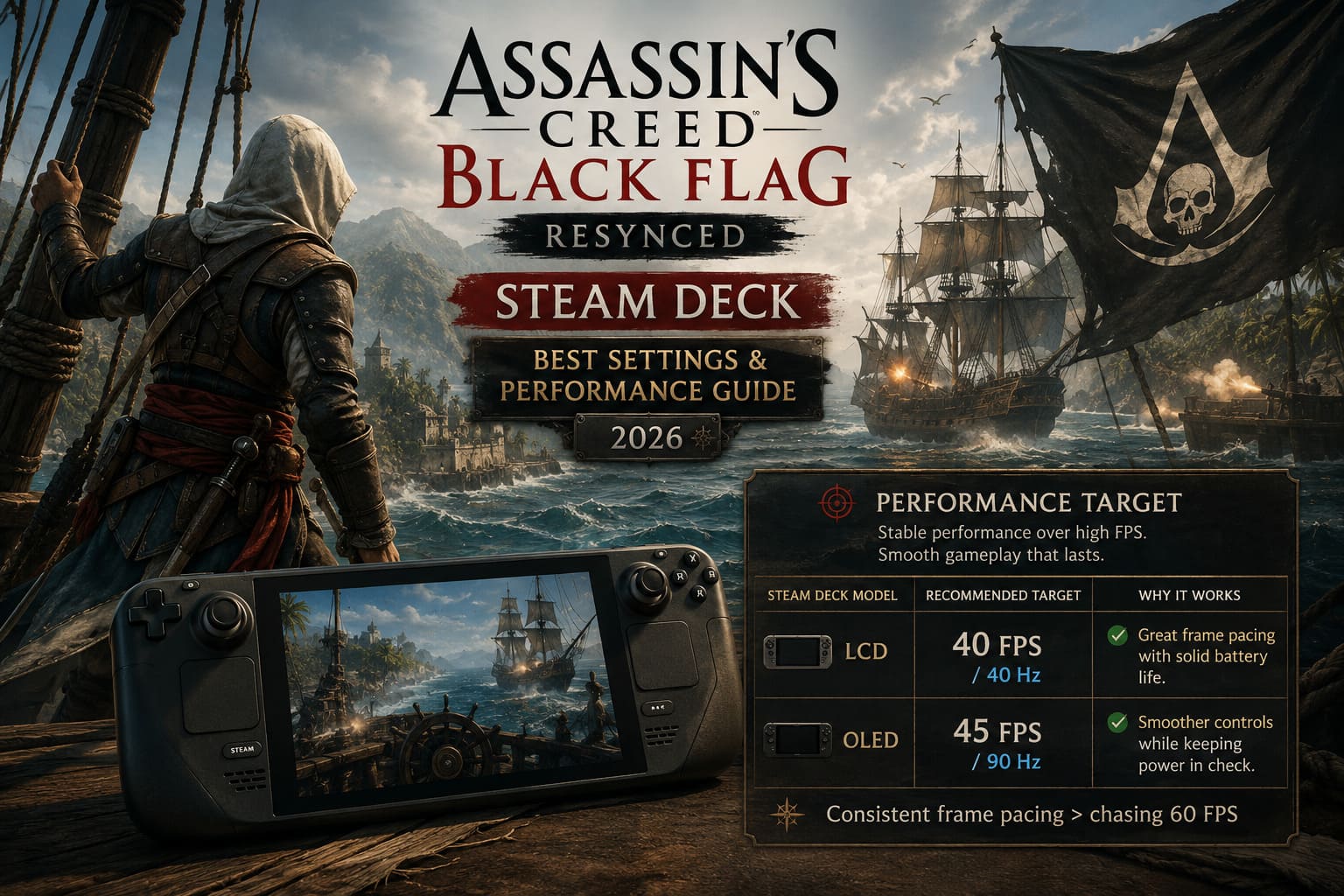
| Steam Deck Model | Recommended Target | Why It Works |
|---|---|---|
| LCD | 40 FPS / 40 Hz | Excellent frame pacing with reasonable battery life. |
| OLED | 45 FPS / 90 Hz | Smooth controls while keeping power consumption under control. |
For me, stable frame pacing always feels better than constantly watching the frame counter fluctuate.
Graphics Settings That Gave Me the Best Experience
I experimented with nearly every graphics option individually instead of simply lowering everything.
Some settings barely affected visuals while giving noticeable performance gains, whereas others dramatically reduced image quality for very little benefit.
This is the profile I ended up using.
Display Settings
- Resolution: 1280×800
- Display Mode: Borderless Window
- V-Sync: Off
- Dynamic Resolution: Enabled
Running at native resolution still looks excellent on the Deck’s display. Dynamic resolution rarely becomes noticeable during gameplay and helps prevent sudden frame drops.
Recommended Graphics Settings
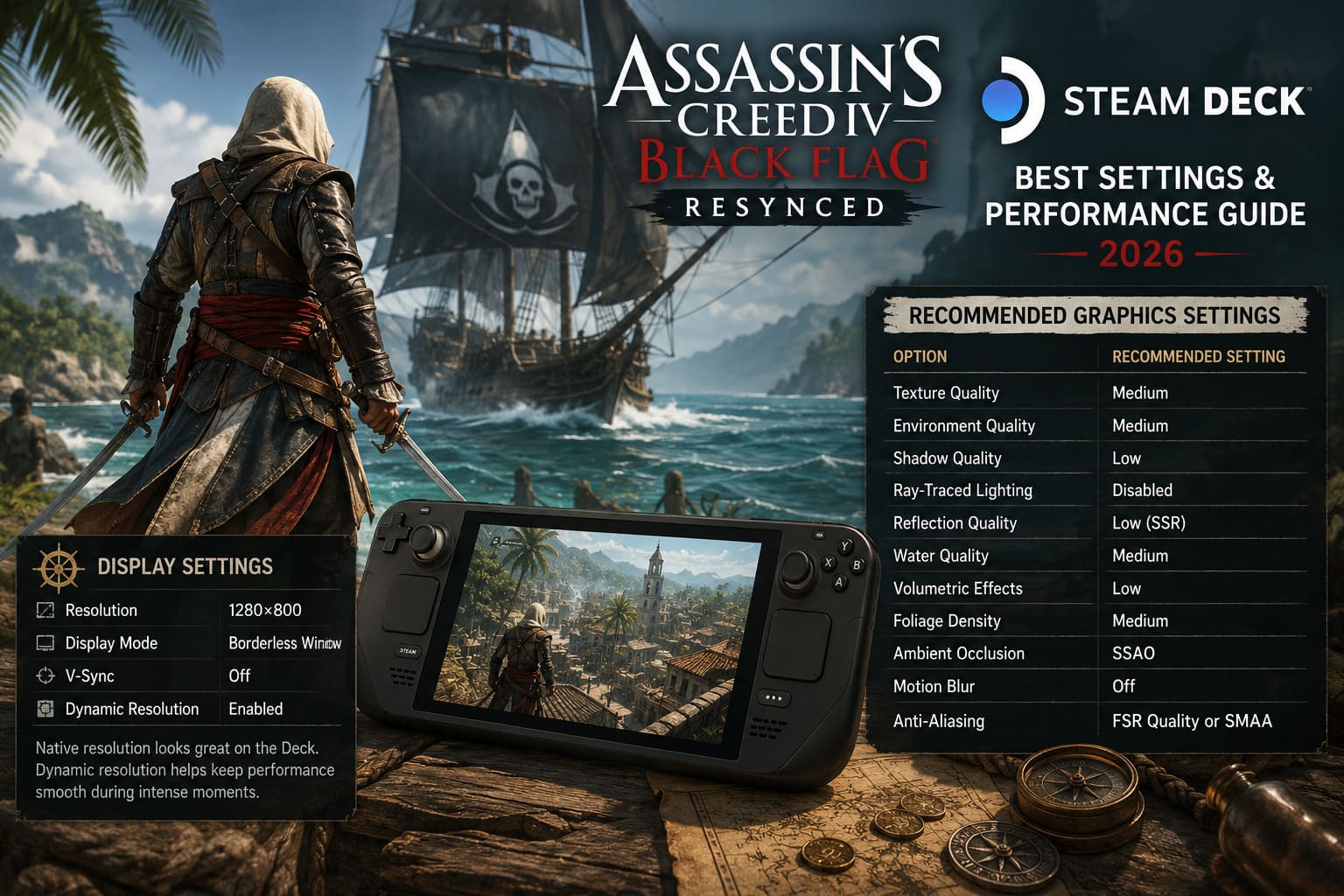
| Option | Recommended Setting |
|---|---|
| Texture Quality | Medium |
| Environment Quality | Medium |
| Shadow Quality | Low |
| Ray-Traced Lighting | Disabled |
| Reflection Quality | Low (SSR) |
| Water Quality | Medium |
| Volumetric Effects | Low |
| Foliage Density | Medium |
| Ambient Occlusion | SSAO |
| Motion Blur | Off |
| Anti-Aliasing | FSR Quality or SMAA |
Visually, this still looks surprisingly close to the higher presets while avoiding the biggest performance killers.
Texture Quality Matters More Than You Think
One thing became obvious after longer play sessions.
High textures sound tempting, but they’re probably the setting I would avoid first on Steam Deck.
Because the Deck shares system memory between the CPU and GPU, increasing texture quality also increases memory pressure. During longer sessions, I started noticing occasional hitching while entering cities or quickly moving between districts.
Dropping textures to Medium solved almost all of those issues.
Honestly, on an 800p screen, I struggled to notice the difference unless I deliberately stopped and examined walls from inches away.
Naval Battles Are the Real Stress Test
Walking through towns isn’t actually the hardest part of the game.
The biggest performance spikes happen at sea.
Large naval battles combine several demanding systems simultaneously:
- Ocean simulation
- Thick cannon smoke
- Fire effects
- Particle debris
- Dynamic weather
- Multiple AI-controlled ships
When all of those effects overlap, GPU usage climbs rapidly.
Keeping Volumetric Effects on Low and Water Quality on Medium gave me much steadier performance without making battles look significantly worse.
The Caribbean still looks beautiful—you simply avoid the worst performance dips.
SteamOS Settings I Wouldn’t Skip
The in-game settings are only half of the equation.
SteamOS itself provides a few options that noticeably improve consistency.
Here’s what I recommend:
| SteamOS Setting | Value |
|---|---|
| Frame Rate Limit | 40 FPS (LCD) / 45 FPS (OLED) |
| Refresh Rate | 40 Hz (LCD) / 90 Hz (OLED) |
| GPU Clock | 1400–1500 MHz |
| Scaling Filter | FSR (when using 720p) |
| FSR Sharpness | Level 3–4 |
Locking the GPU frequency produced surprisingly stable frame times during longer sailing sessions.
Should You Enable Ray Tracing?
No.
At least not on Steam Deck.
The rebuilt lighting system certainly looks impressive on desktop hardware, but handheld performance simply isn’t strong enough to justify it.
Disabling ray-traced lighting doesn’t suddenly make the game look outdated.
Ubisoft’s fallback lighting solution is still attractive, especially on the Deck’s smaller display.
I’d rather enjoy smooth gameplay than slightly prettier shadows.
Battery Life Is Better Than I Expected
Considering how much more demanding Resynced is compared to the original game, battery life turned out to be fairly reasonable.
My average experience looked something like this:
| Model | Average Battery Life |
|---|---|
| Steam Deck LCD | Around 2 hours |
| Steam Deck OLED | Around 3 hours |
Naturally, weather effects, crowded cities, and long naval battles consume more power than quiet exploration.
If battery life is your top priority, lowering the frame cap to 30 FPS extends playtime quite a bit, although I personally found 40–45 FPS to be the sweet spot.
Advanced Tweaks Worth Considering
If you’ve owned a Steam Deck for a while, you’ve probably heard about BIOS memory adjustments and CryoUtilities.
I’ve experimented with both over the years across dozens of games.
Increasing the UMA Frame Buffer to 4 GB can help memory-heavy titles maintain smoother frame delivery, and modern Assassin’s Creed games certainly benefit from having more graphics memory available.
CryoUtilities can also reduce some loading-related stutters depending on your setup.
That said, I wouldn’t call either tweak mandatory.
The game is perfectly enjoyable without modifying your system, especially if you’re not comfortable changing BIOS settings.
Proton Compatibility
My experience with Proton was mostly uneventful, which is exactly what you want.
The default compatibility layer worked well, and I didn’t encounter any major launch problems.
If you experience launcher crashes or unusual video playback issues, switching to Proton Experimental is usually the first thing I’d try before troubleshooting anything else.
Over the years, Proton updates have consistently improved compatibility with Ubisoft releases.
How to Fix Controller Overlay Glitch in Assassin’s Creed Black Flag Resynced (PC Guide)
Is Black Flag Resynced a Good Steam Deck Game?
Absolutely.
Is it perfect?
Not quite.
There are moments where you can clearly tell the Deck is working hard, particularly during storms or massive naval encounters. But once the graphics settings are dialed in, those moments become much less frequent.
More importantly, the core experience remains fantastic.
Sailing across open water, boarding enemy ships, hunting legendary vessels, and exploring tropical islands still captures the same sense of adventure that made the original game unforgettable.
In fact, the upgraded visuals often made me stop simply to admire sunsets or watch waves crash against the Jackdaw—something I rarely did in the original release.
For me, that’s the biggest compliment I can give this remake.
How to Claim Blackbeard’s Crimson Pack in Assassin’s Creed Black Flag Resynced (2026 Guide)
Final Thoughts
After spending plenty of time with Assassin’s Creed Black Flag Resynced on Steam Deck, I don’t think players should obsess over maximizing every graphics slider.
The handheld shines when you prioritize consistency over benchmark numbers.
A balanced Medium/Low configuration delivers exactly what matters most: stable gameplay, responsive controls, respectable battery life, and visuals that still feel genuinely next-generation on a portable screen.
If you’ve been waiting for an excuse to replay Edward Kenway’s legendary pirate adventure, the Steam Deck is a fantastic way to experience it. With a few sensible adjustments, Black Flag Resynced becomes one of those games that’s incredibly difficult to put down—even if you only planned to sail for twenty minutes.