Mistfall Hunter Lag and Stuttering Fix: PC Performance Guide
Mistfall Hunter immediately grabbed my attention with its brutal dark fantasy world, challenging PvPvE extraction mechanics, and satisfying combat. Unfortunately, after only a few hours, I realized I was spending almost as much time fighting performance problems as I was fighting monsters.
Even on powerful gaming PCs, the game currently struggles with micro-stuttering, random FPS drops, freezing during exploration, and inconsistent frame pacing. The good news is that most of these problems aren’t caused by weak hardware. They’re largely connected to Unreal Engine 5, shader compilation, and a few graphics settings that simply don’t play nicely with the current version of the game.
After experimenting with dozens of settings, reading community discussions, and testing different configurations myself, I found a combination of tweaks that noticeably improved performance. This guide collects everything that actually made a difference, while skipping the myths that float around gaming forums.
Why Mistfall Hunter Doesn’t Feel Smooth
One thing became obvious after several test sessions: raw FPS isn’t the real problem.
You might see 90–120 FPS, yet the game still feels sluggish because of inconsistent frame times. That creates the impression that the game is running at half the frame rate even when the FPS counter says otherwise.
The biggest causes currently include:
- Unreal Engine 5 shader compilation
- Heavy real-time asset streaming
- Aggressive graphics presets
- Conflicts between frame generation and upscaling
- Windows power management
- Network latency that resembles hardware stutter
Because multiple issues overlap, there isn’t one magical fix. Instead, several small optimizations combine into one much smoother experience.
My First Recommendation: Don’t Judge Performance Immediately
One mistake I made was launching the game and instantly jumping into combat.
Like many modern Unreal Engine 5 titles, Mistfall Hunter compiles shaders while you’re already playing. During the first several minutes, the CPU is constantly processing new assets, causing severe hitching whenever you encounter enemies, effects, or unfamiliar environments.
My advice is simple:
- Launch the game.
- Reach the main hub or menu.
- Leave it running for around 10–15 minutes.
- Only then begin your first expedition.
It sounds strange, but this alone reduced most of the heavy stutters during my initial session.
Graphics Settings That Actually Matter
Many graphics options barely change performance, while a few have an enormous impact.
The biggest improvement came from disabling features that currently appear poorly optimized.
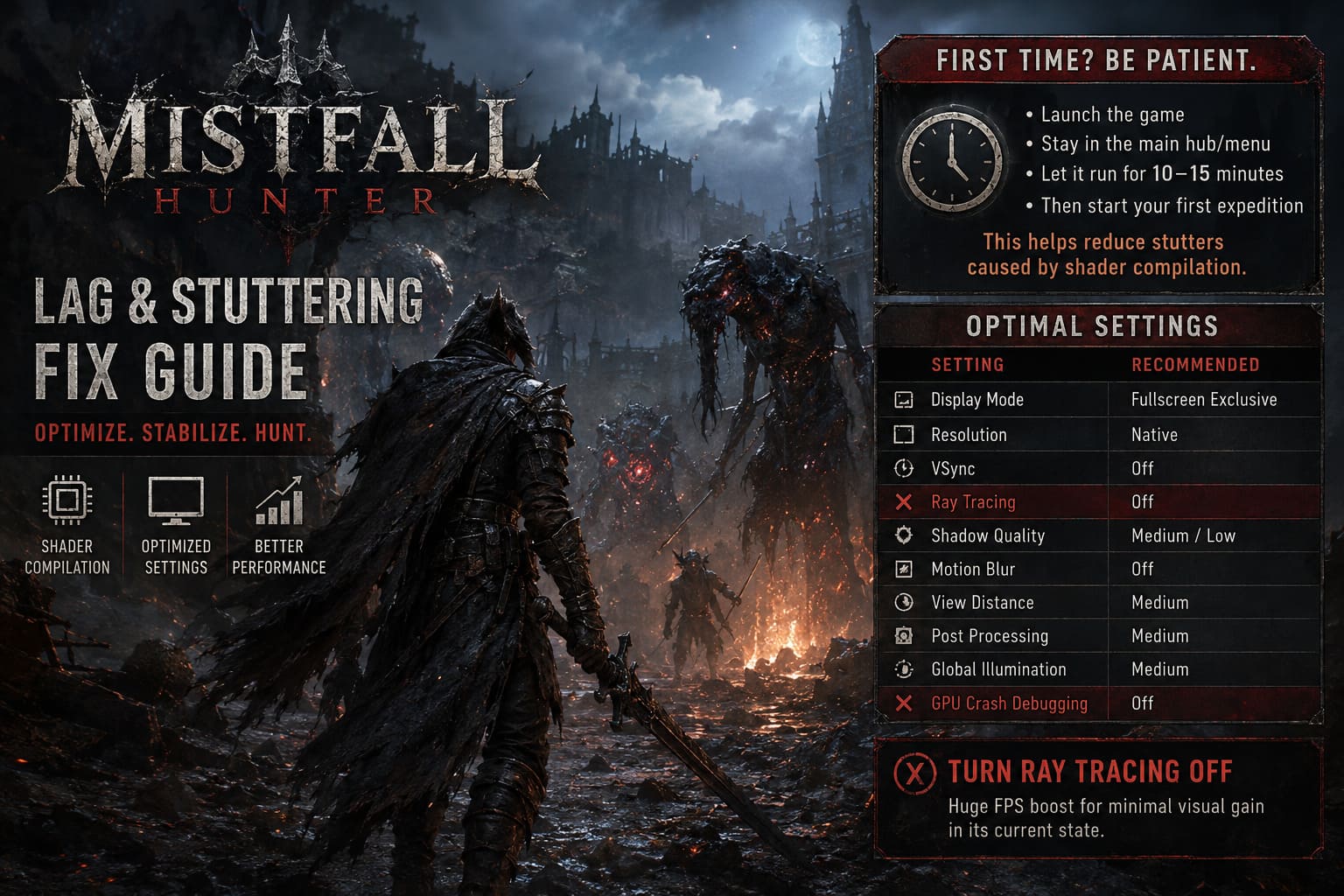
Recommended Settings
| Setting | Recommended Value | Reason |
|---|---|---|
| Display Mode | Fullscreen Exclusive | Provides more consistent frame pacing. |
| Resolution | Native | Maintains maximum image quality. |
| VSync | Off | Reduces input latency. |
| Ray Tracing | Off | Offers the biggest FPS improvement. |
| Shadow Quality | Medium or Low | One of the most demanding settings. |
| Motion Blur | Off | Improves visual clarity. |
| View Distance | Medium | Reduces GPU workload. |
| Post Processing | Medium | Better balance between visuals and performance. |
| Global Illumination | Medium | Helps stabilize frame rates. |
| GPU Crash Debugging | Off | Removes unnecessary overhead. |
The largest improvement came from turning Ray Tracing completely off. At its current state, the visual improvement simply isn’t worth the massive performance cost.
DLSS Isn’t Always the Best Choice
Normally, I enable DLSS immediately in almost every game.
Mistfall Hunter surprised me.
During my testing, and according to many players across the community, FSR produced smoother frame pacing than DLSS in several situations. Average FPS wasn’t always dramatically higher, but the game felt noticeably smoother because the annoying micro-stutters occurred less frequently.
If you’re using an RTX graphics card and the game feels inconsistent, don’t automatically assume DLSS is your best option. Test both technologies and choose the one that delivers the smoothest gameplay rather than the highest benchmark number.
Cap Your Frame Rate
Leaving FPS uncapped sounds attractive, but it actually caused more frame spikes during long sessions.
I had the best experience with the following frame limits:
- 60 FPS on mid-range systems.
- 120 FPS on high-refresh gaming monitors.
A perfectly stable frame rate almost always feels smoother than constantly fluctuating numbers.
Clean Your Shader Cache
Corrupted shader caches can force Unreal Engine 5 to repeatedly rebuild assets, causing unnecessary hitching and stuttering.
NVIDIA Users
Increase the Shader Cache Size inside the NVIDIA Control Panel and clear the existing cache so the game can rebuild fresh shader files.
AMD Users
Open AMD Software: Adrenalin Edition and use the built-in Reset Shader Cache option.
This isn’t a miracle fix, but it is worth performing after major driver updates or game patches.
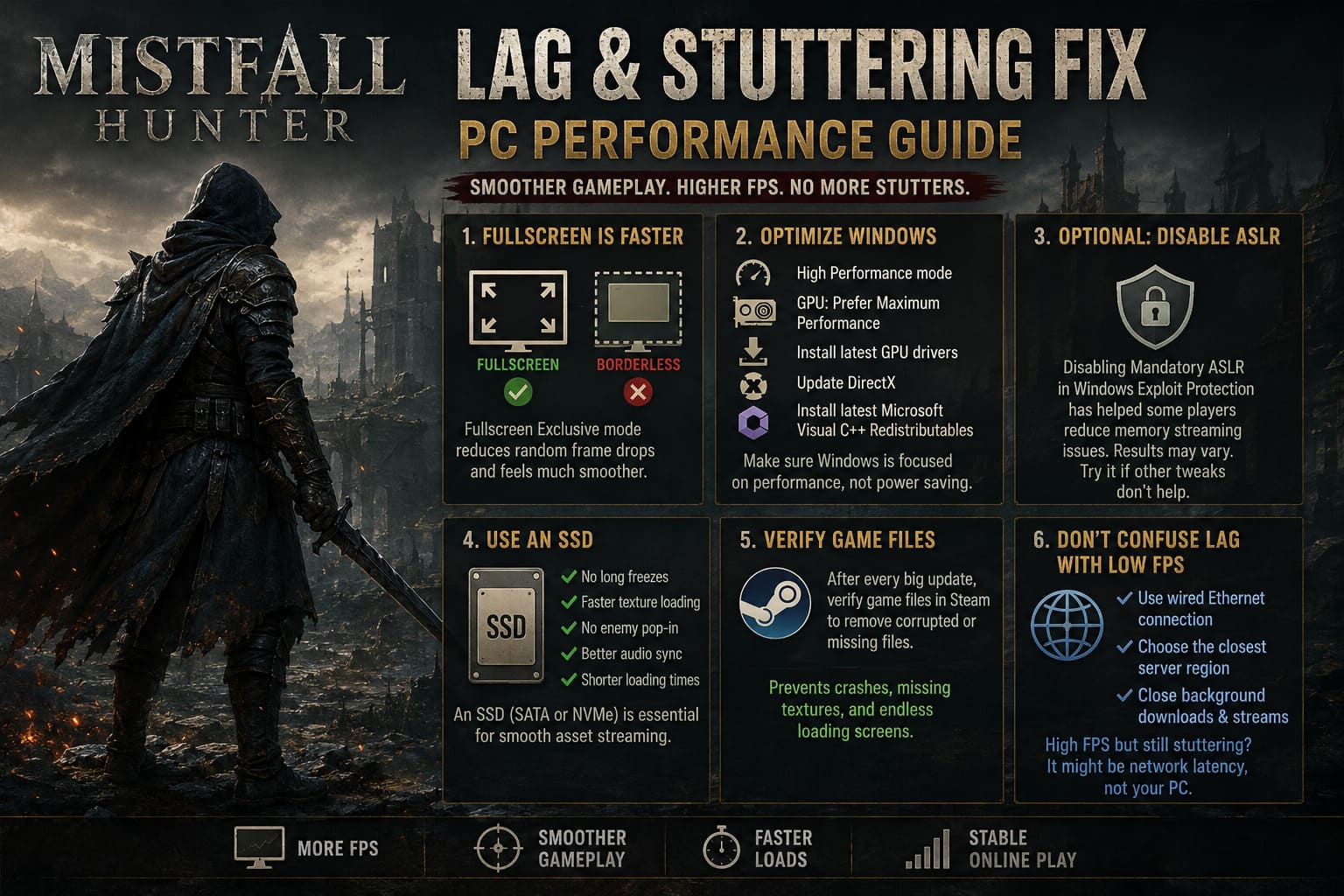
Fullscreen Beats Borderless
This is another setting that surprised me.
Borderless Windowed mode is convenient for multitasking, but in Mistfall Hunter it often introduced random frame drops while rotating the camera or entering new locations.
Switching to Fullscreen Exclusive produced noticeably smoother gameplay during exploration.
If you constantly alt-tab between applications, Borderless is still usable, but for maximum performance Fullscreen currently delivers the better experience.
Windows Can Hold Back Your Hardware
Many players spend hours tweaking graphics while ignoring Windows itself.
A few operating system settings can make a noticeable difference.
- Enable High Performance Graphics Mode.
- Set your GPU to Prefer Maximum Performance.
- Install the latest graphics drivers.
- Update DirectX components.
- Install the newest Microsoft Visual C++ Redistributables.
Windows sometimes prioritizes energy efficiency instead of gaming performance, especially on laptops. Correcting these settings ensures your CPU and GPU remain fully available while playing.
One Windows Security Setting Worth Testing
A surprisingly popular community workaround involves disabling Mandatory ASLR inside Windows Exploit Protection.
Some players reported fewer memory streaming issues after turning this feature off, while others noticed absolutely no difference.
Because results vary between systems, I consider this an optional tweak rather than an essential fix. If none of the standard optimizations help, it may be worth testing before reinstalling the game.
SSD Installation Is Practically Mandatory
Mistfall Hunter constantly streams textures, environments, enemy models, and visual effects while you explore the world.
Installing the game on a traditional mechanical hard drive can create several frustrating problems.
- Multi-second freezes.
- Delayed texture loading.
- Enemy pop-in.
- Audio synchronization issues.
- Long loading screens.
A modern SATA SSD or, even better, an NVMe SSD dramatically improves asset streaming and overall gameplay smoothness.
Verify Game Files After Every Major Patch
Large updates occasionally leave damaged or incomplete files behind.
Fortunately, Steam makes file verification quick and painless.
Running a file verification won’t directly increase FPS, but it can eliminate missing textures, unexpected crashes, broken shaders, and endless loading screens.
I personally make this part of my routine after every significant update.
Don’t Confuse Network Lag with Low FPS
One lesson I learned the hard way is that not every stutter is actually a rendering issue.
If your character suddenly teleports backward, attacks register late, or movement feels delayed despite high frame rates, you’re most likely dealing with server latency instead of graphics performance.
For the most stable online experience, I recommend:
- Using a wired Ethernet connection instead of Wi-Fi.
- Selecting the closest available server region.
- Closing background downloads and streaming applications before launching the game.
Mistfall Hunter Inventory Management Guide: Pro Tips to Maximize Loot and Warehouse Space
My Favorite Performance Configuration
After several evenings of experimenting, this setup delivered the smoothest overall experience.
| Option | Recommended Value |
|---|---|
| Display Mode | Fullscreen Exclusive |
| FPS Limit | 120 FPS |
| VSync | Off |
| Ray Tracing | Disabled |
| Upscaling | FSR Quality |
| Frame Generation | Enable only if it improves smoothness. |
| Shadow Quality | Medium |
| Texture Quality | High (12GB+ VRAM) |
| View Distance | Medium |
| Motion Blur | Off |
| Post Processing | Medium |
| Global Illumination | Medium |
This configuration maintained stable frame pacing while preserving excellent image quality throughout long gameplay sessions.
Final Thoughts
Mistfall Hunter has everything it needs to become one of the standout extraction ARPGs of the year, but there’s no denying that its current PC optimization still needs work. Fortunately, most of the frustrating performance issues aren’t caused by outdated hardware. They’re tied to Unreal Engine 5 shader compilation, aggressive asset streaming, and a handful of graphics options that remain poorly optimized in the current build.
From my own experience, the biggest improvements came from disabling Ray Tracing, switching to Fullscreen Exclusive, experimenting with FSR instead of DLSS, allowing shaders enough time to compile, and installing the game on a fast SSD. None of these tweaks completely transform the engine overnight, but together they create a noticeably smoother and more enjoyable experience.
As the developers continue releasing optimization patches, overall performance should improve further. Until then, these settings provide an excellent balance between visual quality and stable gameplay, allowing you to focus on surviving dangerous expeditions instead of constantly fighting frame drops.
If you’ve already tried every recommendation above and the game still performs poorly, chances are the problem lies within the current build rather than your PC. Keep your graphics drivers updated, verify your game files after every major patch, and stay patient while future updates continue refining Mistfall Hunter’s performance.