Silent Hill Townfall Low FPS Fix: Boost Performance on Nvidia RTX Cards
If there is one thing I expect from a modern Silent Hill game, it is atmosphere. Fog swallowing the road ahead, ugly shadows moving where nothing should be moving, flickering lights, strange reflections, and that constant feeling that the game is quietly messing with your head. Silent Hill: Townfall absolutely leans into that idea, but there is a problem: all those beautiful horror effects can also make your Nvidia RTX GPU work like it just got thrown into a boss fight.
Townfall pushes dense lighting, volumetric effects, reflections, shadows, and atmospheric rendering hard enough that even a respectable RTX setup can run into ugly frame-time spikes. The annoying part is not always the average FPS, either. You can be sitting at a perfectly playable frame rate and suddenly hit a nasty stutter when entering a new room, moving through a fog-heavy area, or triggering one of the game’s more demanding visual sequences.
After digging through the usual PC performance problems and looking at the settings that actually matter, there is a pretty straightforward way to make Silent Hill: Townfall run considerably smoother on Nvidia RTX graphics cards. You do not need to turn the game into a blurry PS3-era nightmare. A few smart compromises can preserve most of the visual impact while giving your GPU some breathing room.
How to Fix Silent Hill Townfall Stuttering on PC: Ultimate UE5 Performance Guide
Why Silent Hill: Townfall Can Run Poorly on RTX GPUs
The biggest performance offenders are not particularly surprising for a modern horror game. Unreal Engine 5-style rendering, demanding global illumination, volumetric fog, reflections, shadows, and VRAM pressure can pile up quickly.
The problem becomes especially noticeable on GPUs with 8GB of VRAM. You might initially think that lowering the resolution is the obvious answer, but textures, lighting quality, and reflections can have a much bigger impact on frame-time consistency than simply dropping every setting to Low.
The nightmare scenario is familiar to PC gamers: the GPU utilization graph looks weird, FPS appears acceptable in an empty hallway, and then the game suddenly tanks when you walk through a detailed area. Those ugly 1% low FPS numbers are often what make the experience feel broken.
And honestly, in a psychological horror game, stuttering is the last thing I want. I want the monster to scare me, not my frametime graph.
The First Fix: Turn Off Hardware-Accelerated GPU Scheduling
One of the first Windows settings worth testing is Hardware-Accelerated GPU Scheduling (HAGS).
HAGS can be beneficial in some games and configurations, but Windows gaming performance is not always that simple. If Townfall is exhibiting inconsistent frame delivery, sudden spikes, or strange GPU utilization, disabling HAGS is an easy experiment because you can reverse it immediately.
Open Windows Settings > System > Display > Graphics > Change default graphics settings, find Hardware-Accelerated GPU Scheduling, and switch it off.
Restart Windows before testing the game again. Do not judge the result after running around for 30 seconds; play through the same demanding area for several minutes and compare how the frame pacing feels.
I would not promise everyone a giant FPS increase here. PC configurations are ridiculously individual. If disabling HAGS does nothing on your machine, simply turn it back on and move to the next fix.
Should You Force DirectX 11?
This is one of those settings where I would approach the advice with caution.
If the game gives you a DX11 launch option and you are suffering from severe DX12-related stuttering, testing -dx11 through Steam launch options can be worthwhile. Right-click the game in your Steam Library, open Properties, and enter the launch command in the Launch Options field.
The important word is test.
DX12 exists for a reason, particularly in a game built around modern rendering techniques. Switching APIs can potentially remove access to certain features or change how the game handles rendering, shader compilation, and other systems. If DX11 makes your game noticeably smoother, great. If it makes the image worse or causes features to disappear, remove the launch option.
Do not blindly assume that an older graphics API is automatically faster. Benchmark your actual system.
DLSS Is Your Best Friend on RTX
If you own an Nvidia RTX GPU, DLSS should be one of the first technologies you experiment with.
Townfall’s fog, lighting, and dark environments make image reconstruction particularly important because rendering every pixel natively at high resolution can become brutally expensive. DLSS can reduce the internal rendering workload while keeping the final image surprisingly sharp.
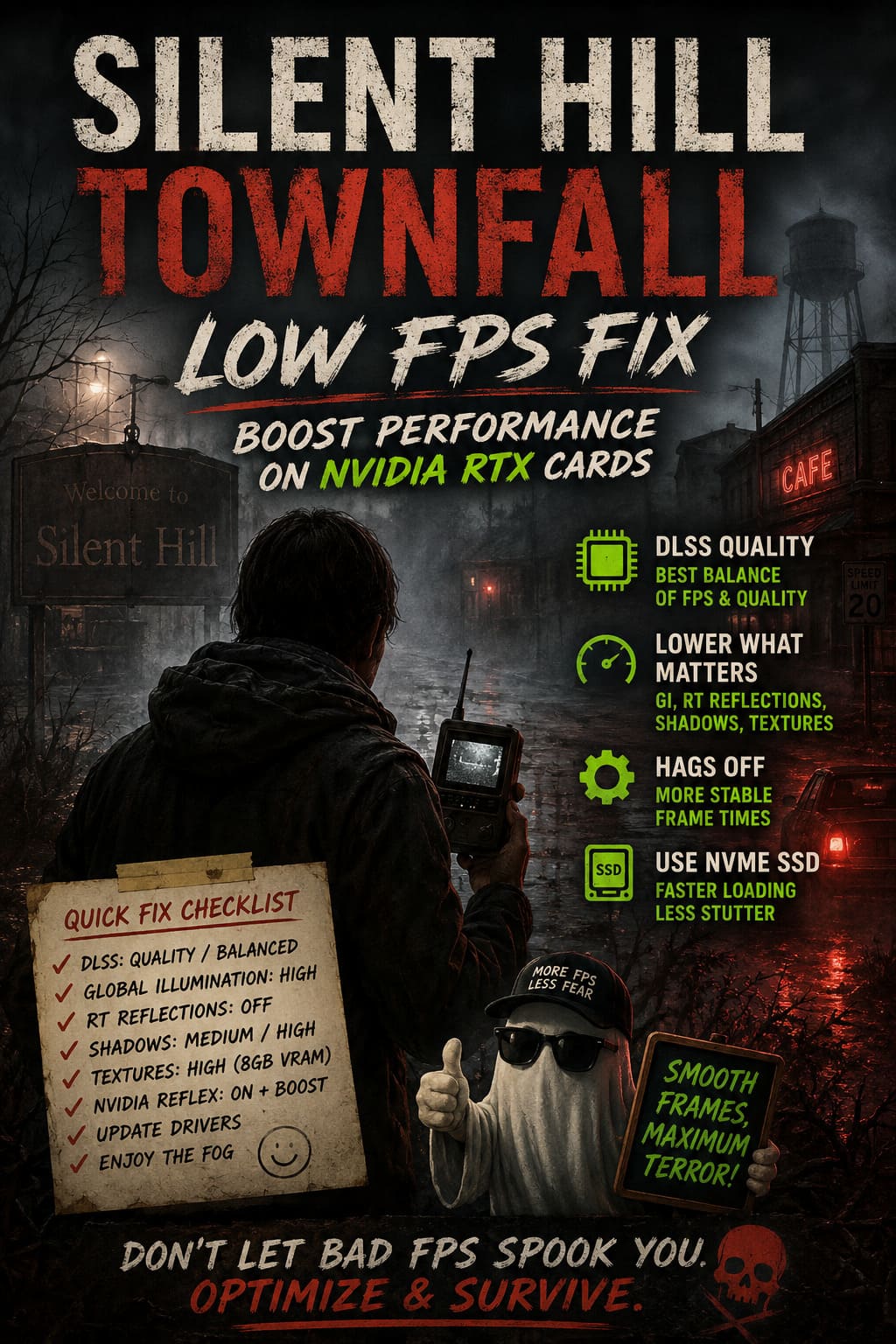
For most RTX systems, I would start with DLSS Quality.
If you are still struggling, move to Balanced. At 1440p, Balanced can be a very useful compromise when the GPU is getting hammered by lighting and volumetric effects. I would avoid jumping straight to aggressive performance modes unless you genuinely need the extra frames.
The horror genre actually makes upscaling artifacts less obvious in many situations because the screen is already full of darkness, fog, film grain, shadows, and visual noise. That makes DLSS a particularly good match for this type of game.
Recommended DLSS Starting Points
| Resolution | Recommended DLSS Mode | Priority |
|---|---|---|
| 1080p | Quality | Image Quality |
| 1440p | Quality / Balanced | FPS Balance |
| 4K | Balanced | Performance |
| 4K on weaker RTX GPUs | Performance | Maximum FPS |
If you have an RTX 40-series card and the game supports DLSS Frame Generation, it is also worth testing. Frame Generation can dramatically increase displayed frame rates, although it should not be treated as a magical cure for terrible base performance.
That distinction matters. If your real rendered FPS is struggling around 25–30 FPS, generating extra frames does not suddenly turn the underlying experience into a perfect 120 FPS game.
The Biggest Graphics Settings to Lower
You do not need to destroy the entire graphics preset.
In fact, dropping everything to Medium is usually a terrible approach if you care about image quality. Some settings barely change the picture while others absolutely hammer your GPU.
Global Illumination
Global illumination or indirect lighting is one of the first settings I would reduce.
This is exactly the sort of feature that makes horror games look incredible because light can bounce through environments and create subtle changes in dark spaces. Unfortunately, that realism comes at a cost.
If you are using Epic or the highest setting, try High first. If your GPU is still struggling, Medium can provide another substantial performance improvement.
The visual downgrade is often much smaller than the FPS improvement.
Ray-Traced Reflections
Ray tracing looks fantastic when it works well, but reflections are an easy place to save performance.
If you are on an RTX 3060-class, RTX 4060-class, or another 8GB card, I would absolutely test the game without maximum ray-traced reflection settings.
Use Screen Space Reflections or a high-quality non-RT reflection option if available.
You will lose some physically accurate reflections, but unless you are stopping every five minutes to stare at puddles and shiny surfaces, you probably will not miss them as much as you expect.
Shadows
Shadows are another classic performance trap.
Set them to Medium or High instead of the absolute maximum. Horror games benefit enormously from good shadows, so I would not recommend turning them all the way down unless you are desperate for frames.
Medium shadows can be an excellent compromise because the overall mood remains intact while the GPU gets a much easier workload.
Textures and VRAM
This is where RTX owners need to pay attention.
An 8GB GPU does not magically become a 12GB GPU because the graphics menu lets you select Epic textures. If the game pushes beyond your available VRAM, you can end up with brutal frame-time spikes, texture streaming problems, and hitching.
For an 8GB RTX card, High textures are usually the sensible starting point.
Cards with more VRAM can push texture quality higher, assuming the rest of the system is capable of handling it.
My Recommended RTX Settings
| Setting | Recommended Value |
|---|---|
| Upscaling | Nvidia DLSS |
| DLSS Quality | Quality |
| DLSS for 4K | Balanced |
| Frame Generation | On for supported RTX 40-series cards |
| Global Illumination | High |
| Reflections | High / SSR |
| Ray-Traced Reflections | Off if struggling |
| Shadows | Medium / High |
| Textures on 8GB VRAM | High |
| Motion Blur | Off |
| Film Grain | Personal Preference |
| Nvidia Reflex | On + Boost when using Frame Generation |
I would personally disable Motion Blur immediately. That is not purely a performance recommendation; I just prefer being able to see what the hell is happening when something starts chasing me through a dark corridor.
Nvidia Control Panel Tweaks Worth Testing
The Nvidia Control Panel can also help you establish a more consistent performance profile.
Open Nvidia Control Panel > Manage 3D Settings > Program Settings, select the game’s executable, and configure the profile specifically for Townfall.
Set Power Management Mode to Prefer Maximum Performance if you are experiencing clocks dropping too aggressively during gameplay. This can help avoid situations where the GPU repeatedly changes power states during demanding scenes.
You can also experiment with Texture Filtering – Quality set to Performance if you desperately need additional performance. The visual difference is usually minor, but I would not touch this setting until the in-game options have already been optimized.
Frame-rate limiting is another useful tool. If your monitor is 60Hz and the game can hold a stable 57–60 FPS, a cap around 57 FPS can sometimes produce smoother frame pacing. For a 144Hz display, something around 141 FPS is a common starting point when using a compatible VRR setup.
Do not blindly chase the highest possible FPS. In a slow-paced horror game, stable frame delivery feels much better than bouncing between 95 and 140 FPS.
Update Nvidia Drivers and Give Shader Compilation Time
Never underestimate shader-related stuttering.
Modern games can compile and cache huge amounts of shader data, and the first trip through a new environment can sometimes be rough. After updating your Nvidia driver, give the game enough time to build its shader cache rather than immediately assuming the game is permanently broken.
Keeping a healthy shader cache can also help reduce repeated compilation work.
I would also strongly recommend installing Townfall on an NVMe SSD if possible. Modern games constantly stream textures, geometry, audio, and environmental data. A mechanical HDD can become a serious bottleneck when the engine needs to pull assets quickly.
If your game is installed on an old HDD, moving it to an NVMe drive may not magically increase your average FPS, but it can improve asset streaming and reduce the sort of hitching that makes exploration feel uneven.
Do Not Ignore Windows Background Processes
Before blaming the game, check what your PC is doing in the background.
Browsers with dozens of tabs, recording software, overlays, RGB utilities, hardware monitoring programs, launchers, and other applications can all contribute to unnecessary CPU or memory pressure.
I would especially test the game with unnecessary overlays disabled. Steam Overlay, Discord Overlay, Nvidia overlays, recording tools, and third-party monitoring software are not automatically bad, but troubleshooting performance becomes much easier when you temporarily remove variables.
If the game suddenly becomes smoother, start enabling your usual applications one by one until you find the culprit.
The Best Performance Strategy for RTX Owners
The biggest mistake I see with PC graphics optimization is chasing one magical setting.
There usually isn’t one.
For Silent Hill: Townfall, the smarter strategy is to build a balanced configuration. Keep textures relatively high so the environments still look good, use DLSS to reduce the rendering workload, lower global illumination one step, avoid unnecessarily expensive ray-traced reflections, and use sensible shadow quality.
If you have an RTX 3060 or RTX 4060 with 8GB VRAM, I would prioritize stable frame pacing over maximum graphical presets. An RTX 4070-class GPU or better gives you more breathing room, while high-end RTX cards can afford to push more demanding effects, especially at 1440p.
The goal is not to make Townfall look like a competitive shooter running at 200 FPS. This is Silent Hill. The darkness, fog, shadows, and oppressive atmosphere are the entire point.
Final Verdict
Silent Hill: Townfall can look spectacular, but that visual ambition comes with a real performance cost on PC. Nvidia RTX owners have enough tools to tame the game without turning the graphics into mush, though.
Start with DLSS Quality, reduce global illumination, tone down ray-traced reflections, keep textures within your VRAM limit, and experiment with HAGS and the DX11 launch option if you are dealing with particularly nasty stuttering. Keep your Nvidia drivers updated, use an NVMe SSD, and pay attention to 1% lows instead of obsessing over the biggest FPS number you can screenshot.
For me, smooth frame pacing wins every time. A horror game should make your heart jump because something moved in the fog—not because your FPS counter suddenly fell through the floor.