Vacation Cafe Simulator Best Graphics Settings for Low-End PCs: FPS Boost Guide
If there is one thing I love about Vacation Cafe Simulator, it is how quickly the game makes you forget you are supposed to be managing a business. One minute you’re arranging tables, the next you’re standing on a sunny Italian waterfront, cooking another plate of pasta while customers wander around your cafe.
It looks fantastic.
That is also the problem.
The warm lighting, detailed food, water reflections, outdoor furniture, NPC crowds, and busy restaurant scenes can push older gaming PCs surprisingly hard. A machine that handles lightweight indie games at 60 FPS can suddenly start coughing when the cafe fills up and everyone decides they need something at exactly the same time.
I spent enough time messing with settings to learn one important lesson: you don’t need to destroy the game’s visuals to make Vacation Cafe Simulator playable on a weaker PC. The trick is knowing which settings actually matter and which ones are barely worth touching.
This guide focuses on the best Vacation Cafe Simulator low-end PC settings, practical Windows tweaks, and a few advanced configuration changes that can help stabilize FPS on aging hardware.
What Makes Vacation Cafe Simulator So Demanding?
At first glance, this doesn’t look like the kind of game that should hammer a gaming PC.
There are no giant armies. No massive open-world battles. No hundreds of explosions happening simultaneously.
But the game is constantly juggling smaller workloads.
Customer NPCs need to move around the cafe. Food and cooking objects require physics and animations. Outdoor areas contain lighting, reflections, decorative objects, and water effects. When your restaurant gets busy, the CPU and GPU have plenty of work to do.
The result is a familiar low-end PC problem: the average FPS might look acceptable, but frame-time spikes make the game feel awful.
You might see 45 FPS on the counter and still experience little freezes when turning the camera.
That’s why I would prioritize frame consistency over chasing a huge FPS number.
A stable 40 FPS is far more enjoyable than bouncing between 25 and 60 FPS every time a group of customers walks onto the patio.
Vacation Cafe Simulator System Requirements
Before changing every graphics option imaginable, check where your hardware sits compared with the game’s requirements.
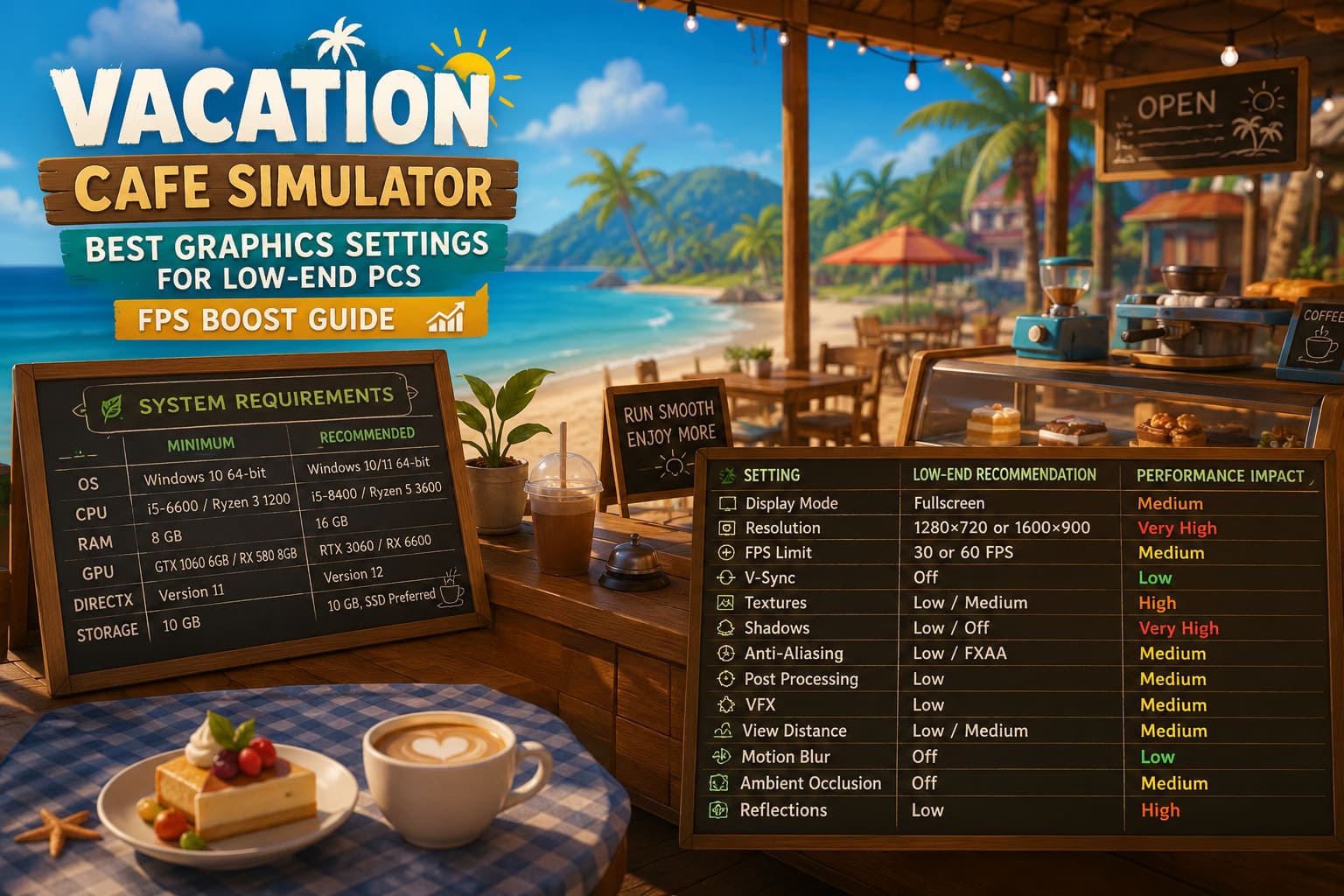
| Component | Minimum | Recommended |
|---|---|---|
| OS | Windows 10 64-bit | Windows 10/11 64-bit |
| CPU | Intel Core i5-6600 / Ryzen 3 1200 | Intel Core i5-8400 / Ryzen 5 3600 |
| RAM | 8 GB | 16 GB |
| GPU | GTX 1060 6GB / RX 580 8GB | RTX 3060 / RX 6600 |
| DirectX | Version 11 | Version 12 |
| Storage | 10 GB | 10 GB, SSD preferred |
If you’re running something around a GTX 1050 Ti, RX 560, older mobile GPU, or integrated graphics, you’re already working with considerably less headroom.
That doesn’t mean the game is automatically off-limits.
It simply means you should stop trying to run it like a showcase title.
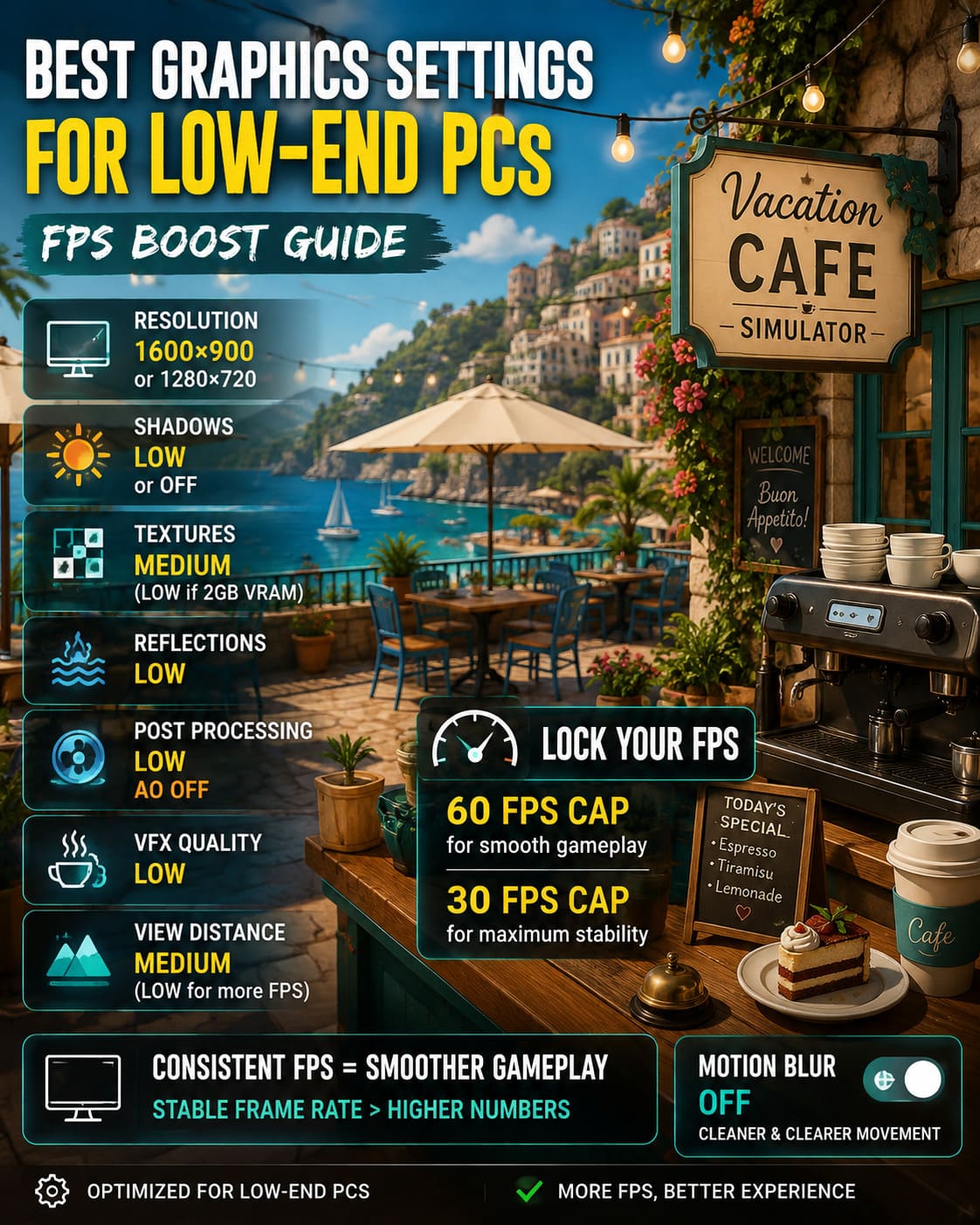
My Best Low-End Graphics Settings
If I were sitting down with an older gaming laptop and wanted the smoothest experience possible, this is where I would start.
| Setting | Low-End Recommendation | Performance Impact |
|---|---|---|
| Display Mode | Fullscreen | Medium |
| Resolution | 1280×720 or 1600×900 | Very High |
| FPS Limit | 30 or 60 FPS | Medium |
| V-Sync | Off | Low |
| Textures | Low/Medium | High |
| Shadows | Low/Off | Very High |
| Anti-Aliasing | Low/FXAA | Medium |
| Post Processing | Low | Medium |
| VFX | Low | Medium |
| View Distance | Low/Medium | Medium |
| Motion Blur | Off | Low |
| Ambient Occlusion | Off | Medium |
| Reflections | Low | High |
Resolution: The Biggest Easy Win
If your GPU is struggling, don’t be stubborn about 1080p.
1600×900 is my first choice because it offers a nice compromise between image quality and performance. If that still isn’t enough, drop to 1280×720.
The difference can be surprisingly large on weaker GPUs.
I would rather play at a clean 900p with stable frame pacing than stare at a beautiful 1080p image while the game stutters every time I turn toward the beach.
If the game provides a resolution scaling or upscaling option, use it before going all the way down to 720p.
Shadows: Kill Them First
This is one of the settings I would attack immediately.
Dynamic shadows are expensive. Outdoor scenes are especially brutal because the game has to account for sunlight, buildings, furniture, umbrellas, characters, and other objects.
Set Shadow Quality to Low.
If your hardware is genuinely struggling, turn it off completely.
Yes, the cafe will lose some visual depth. But honestly? I’d take that trade every single time on a weak GPU.
Textures: Don’t Automatically Choose Low
This one gets misunderstood constantly.
Textures don’t usually hammer the GPU in the same way shadows do. They primarily consume VRAM.
If you have 4GB or more of VRAM and aren’t experiencing texture streaming problems, Medium textures can be perfectly reasonable.
For GPUs with 2GB or less VRAM, Low is safer.
If you’re seeing brief freezes while rotating the camera, ugly texture pop-in, or sudden hitching when entering busy areas, VRAM pressure could be part of the problem.
Reflections: The Waterfront Tax
The Italian coastal setting looks great partly because of the water.
Unfortunately, water can be nasty for performance.
High-quality reflections require additional rendering work, particularly in outdoor areas where the game is already handling lighting, NPCs, vegetation, buildings, and environmental effects.
Set Reflection Quality to Low.
This is one of those changes where you might notice a visual difference for the first five minutes and then completely forget about it.
Post Processing and Ambient Occlusion
Post-processing effects can make screenshots look gorgeous, but they’re not exactly essential for running a cafe.
Set Post-Processing to Low and disable Ambient Occlusion if your frame rate is struggling.
Bloom, depth of field, lens effects, and similar extras are the first things I sacrifice when optimizing a game.
I want my customers to walk smoothly.
I don’t need cinematic blur around the espresso machine.
VFX: Reduce the Kitchen Chaos
Cooking is one of the more visually active parts of the game.
Steam, food effects, splashes, cooking animations, and other effects can pile up when you’re working through a busy service.
Set VFX Quality to Low.
This is especially useful if you notice FPS drops while actively cooking rather than simply walking around an empty cafe.
View Distance: Don’t Render the Entire Mediterranean
View distance is another setting that can quietly eat performance.
You don’t need every distant decorative object rendered at maximum quality while you’re standing behind the counter.
Set View Distance to Medium first.
If your PC is really struggling, move it to Low.
This can reduce CPU and GPU workload without making the game look nearly as ugly as aggressively lowering resolution.
Lock Your FPS Instead of Chasing It
Here’s a mistake I see constantly in PC gaming: people leave FPS completely uncapped on weak hardware.
Don’t.
If your machine can produce 37 FPS, letting it desperately chase 80 FPS isn’t going to make the game smoother.
Try a 60 FPS cap if your hardware can stay close to that number.
If you’re constantly jumping between 35 and 60, a 30 FPS cap can actually feel considerably smoother.
That sounds terrible on paper.
In practice, consistent frame pacing beats chaotic FPS.
If you use a high-refresh display, you can experiment with a higher cap once the game is stable, but don’t sacrifice consistency just to make the FPS counter look impressive.
Turn Off Motion Blur
This isn’t going to magically give you 20 extra FPS.
Still, turn it off.
Motion blur makes camera movement look softer and can make an already unstable game feel even worse.
With Motion Blur disabled, movement feels cleaner and the image remains easier to read while you’re rapidly turning around the cafe.
It’s basically free visual clarity.
Advanced Engine.ini Tweaks
If the normal graphics settings aren’t enough, there is another option for experienced PC users.
First, close the game.
Press Windows + R, enter:
%localappdata%
Then look for the game’s configuration folder. Depending on the installation and engine setup, it may be located under a folder associated with Vacation Cafe Simulator or Alice Games.
Look for:
Saved\Config\WindowsNoEditor
If an Engine.ini file is present, create a backup before changing anything.
You can then add a [SystemSettings] section with conservative rendering adjustments such as reduced shadow quality, disabled ambient occlusion, depth of field, bloom, and motion blur.
The important part here is backup first.
Configuration paths can change between versions, and blindly pasting engine commands from another Unreal Engine game is a great way to waste an evening wondering why nothing changed.
I would also avoid making the file permanently read-only unless you know exactly what the game is doing with its configuration system. Updates and patches can change settings, and a read-only configuration file can sometimes create its own headaches.
For most players, the in-game settings are enough.
Windows Tweaks That Actually Make Sense
There are plenty of ridiculous “gaming optimization” guides online telling you to disable half of Windows.
Don’t.
Start with the boring stuff that actually helps.
Enable Windows Game Mode
Go to Settings → Gaming → Game Mode and make sure Game Mode is enabled.
It’s not going to turn a GTX 1050 into an RTX 4090, but it can help Windows prioritize gaming workloads.
Use High Performance Graphics Preference
Go to:
Settings → System → Display → Graphics
Find the Vacation Cafe Simulator executable and assign it to the High performance GPU profile if your system has multiple graphics processors.
This is particularly important on gaming laptops where Windows can sometimes choose the integrated GPU.
Close Background Applications
If you’re running an 8GB system, this matters a lot.
Close unnecessary browser tabs, launchers, recording applications, and other memory-hungry software before starting the game.
Chrome with 40 tabs open is not exactly helping your little seaside restaurant.
Open Task Manager with Ctrl + Shift + Esc and check Memory usage before launching.
If you’re already sitting near the limit, don’t expect the game to behave perfectly.
Keep Your GPU Driver Updated
A newly released game can expose driver problems that older games never trigger.
For NVIDIA GPUs, check the latest Game Ready driver through the NVIDIA App.
For AMD hardware, use AMD Software: Adrenalin Edition.
For Intel integrated graphics, check Intel’s current graphics driver support.
I wouldn’t install every optional “driver optimizer” utility you find on the internet. You don’t need five different programs promising to boost your FPS.
You need the correct GPU driver.
What About Hardware-Accelerated GPU Scheduling?
If you’re on a supported Windows version and GPU, Hardware-Accelerated GPU Scheduling (HAGS) is worth testing.
I emphasize testing.
Don’t assume it automatically increases performance on every system.
If your frame pacing improves, keep it enabled. If you notice stuttering or instability afterward, switch it back and compare.
PC optimization isn’t magic. It’s controlled experimentation.
The Settings I Would Use First
If you just want the short version, start here:
- Fullscreen
- 1600×900 resolution
- 60 FPS cap
- V-Sync Off
- Textures Medium if you have enough VRAM
- Shadows Low
- Reflections Low
- Post Processing Low
- VFX Low
- View Distance Medium
- Ambient Occlusion Off
- Motion Blur Off
- Anti-Aliasing Low/FXAA
Then test the game during an actual busy cafe session.
Don’t judge performance while staring at an empty beach.
The real test is when customers are everywhere, food is cooking, animations are firing, and you’re desperately trying to keep your restaurant from becoming a Mediterranean disaster.
Final Verdict
Vacation Cafe Simulator doesn’t need to look ugly to run well on a low-end PC.
The biggest gains come from attacking the settings that actually consume rendering power: resolution, shadows, reflections, post-processing, and visual effects.
Start with 900p rather than immediately dropping to 720p. Keep textures at Medium if your VRAM allows it. Kill expensive shadows and reflections. Disable motion blur and unnecessary cinematic effects. Then clean up Windows and make sure the game is actually using your dedicated GPU.
And don’t obsess over 60 FPS if your hardware simply can’t deliver it.
A stable 30 or 40 FPS while running your beachfront cafe is infinitely better than a wild 25–60 FPS roller coaster.
The whole appeal of Vacation Cafe Simulator is relaxation. Your graphics settings shouldn’t turn it into a stress test.