How to Fix Luminary DX12 Stuttering: Complete Performance Guide
When I first launched Luminary, I immediately understood why so many players were excited about this indie action RPG. The fantasy world feels carefully crafted, exploration is rewarding, combat has a satisfying rhythm, and the fact that such a small development team created such a detailed OpenZone experience is genuinely impressive.
Unfortunately, the first hours were not as smooth as I expected. Like many modern DirectX 12 games, Luminary suffers from frustrating performance issues on some PC setups. I experienced random micro-stutters, strange frame pacing problems, and small freezes whenever I entered new areas, triggered special effects, or moved through heavier environments.
After testing different settings, driver options, and Windows adjustments, I managed to significantly improve the overall experience. These are the fixes that helped the most and should give many players a smoother Luminary experience without sacrificing visual quality.
Where Winds Meet Save File Location: How to Find, Backup, and Fix Missing Saves on PC
Why Luminary Has DX12 Stuttering Problems on PC
One thing I have learned after playing hundreds of PC games is that high FPS does not always mean smooth gameplay. A game can show 100+ FPS on the counter while still feeling terrible because of inconsistent frame delivery.
Luminary’s stuttering issues are mostly connected to how DirectX 12 handles modern rendering systems. Unlike older APIs, DX12 relies heavily on real-time shader compilation, advanced asset streaming, and direct communication between the engine, GPU drivers, and Windows.
The most common problems reported by players include:
- Micro-stutters while exploring new locations
- Short freezes during combat encounters
- Frame pacing drops despite high average FPS
- Hitching when loading new visual effects
- Performance drops in dense forest areas
The good news is that these problems are usually not caused by weak hardware. Even powerful gaming PCs can experience DX12 issues when system settings and game settings are not working together properly.
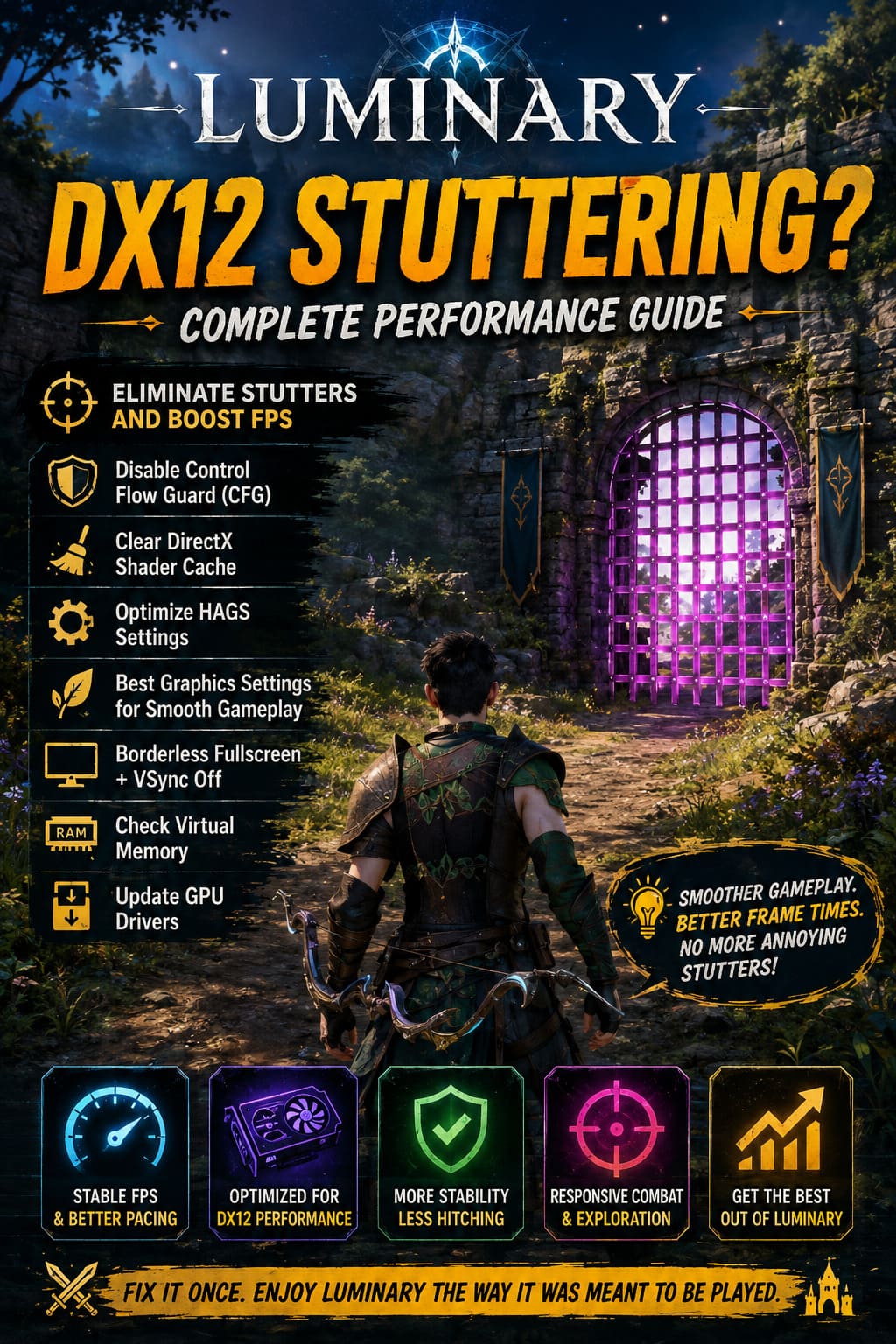
Disable Control Flow Guard for Luminary
This was the biggest improvement I personally noticed. Windows includes a security feature called Control Flow Guard (CFG), which protects applications from certain types of attacks by monitoring code execution.
While CFG is useful for general system security, some DirectX 12 games can struggle with it because of the way they constantly stream assets and manage memory. In Luminary, this can create tiny interruptions during gameplay that feel like random stutters.
The important thing is that you do not need to disable CFG globally. You can turn it off only for Luminary.
How to Disable CFG for Luminary
- Open the Windows Start menu and search for Exploit Protection.
- Open Windows Security and switch to the Program Settings tab.
- Select Add program to customize.
- Choose the Luminary executable file.
- Find the Control Flow Guard (CFG) option.
- Enable Override system settings.
- Switch CFG to Off.
- Apply the changes and restart your PC.
This simple adjustment removed a noticeable amount of random hitching for me, especially during faster movement and combat situations.
Clear DirectX Shader Cache to Fix Repeated Stutters
Shader compilation is one of the biggest challenges in modern PC gaming. Every time Luminary loads a new enemy type, magical effect, environment object, or lighting setup, your GPU may need to prepare new shader data.
If the shader cache becomes corrupted or overloaded, the game can repeatedly pause while rebuilding the same information. Clearing the cache gives your graphics driver a clean start.
How to Clear DirectX Shader Cache
- Press the Windows key and search for Disk Cleanup.
- Select your main Windows drive.
- Find DirectX Shader Cache.
- Check the option and delete the files.
NVIDIA users can also manually clear the driver cache by opening:
C:\Users\YourUsername\AppData\Local\NVIDIA\DXCache
AMD users can reset the shader cache through AMD Software Adrenalin Edition.
Do not panic if the first launch after clearing the cache feels slightly worse. The game needs some time to rebuild shaders. After that process finishes, performance should become much more stable.
Optimize Hardware-Accelerated GPU Scheduling (HAGS)
Hardware-Accelerated GPU Scheduling is another Windows feature that can behave differently depending on your hardware. Some players see better performance with HAGS enabled, while others experience inconsistent frame pacing.
In my testing, Luminary felt smoother with HAGS disabled, but this is something every player should test individually.
How to Change HAGS Settings
- Right-click your desktop and open Display Settings.
- Go to Graphics Settings.
- Open Default Graphics Settings.
- Toggle Hardware-Accelerated GPU Scheduling.
- Restart your computer.
Because GPU architecture varies so much, there is no universal answer. A setting that improves performance on an RTX 4080 might hurt another system.
Best Luminary Graphics Settings for Better Frame Stability
A common mistake players make is lowering every graphics option to Low. In Luminary, that is unnecessary. Some settings barely affect performance, while others have a huge impact on frame consistency.
| Graphics Setting | Recommended Option | Performance Impact |
|---|---|---|
| Foliage Quality | Medium | High |
| Tree Density | Medium | High |
| VSync | Off | Medium |
| Display Mode | Borderless Fullscreen | Medium |
| Shadows | High | Low |
The biggest performance killer I noticed was dense vegetation. Forest areas put a lot of pressure on rendering systems because of the amount of geometry being processed at once.
Reducing foliage quality from Ultra to Medium barely changes the visuals but can make exploration noticeably smoother.
Use Borderless Fullscreen Instead of Exclusive Fullscreen
DirectX 12 games often work better with Borderless Fullscreen because Windows manages the presentation layer more efficiently.
Switching from traditional Fullscreen to Borderless Fullscreen takes only a few seconds and can help eliminate strange frame pacing issues.
For me, movement and camera control immediately felt more consistent after making this change.
Disable Luminary’s Built-In VSync
VSync can sometimes create additional latency and uneven frame delivery. While it can remove screen tearing, the implementation inside some games is not always perfect.
I recommend disabling Luminary’s VSync and controlling FPS externally if necessary.
A good rule is to cap your FPS a few frames below your monitor refresh rate:
- 60Hz monitor: 57 FPS limit
- 120Hz monitor: 117 FPS limit
- 144Hz monitor: 141 FPS limit
- 165Hz monitor: 162 FPS limit
This usually creates smoother frame delivery without introducing unnecessary input delay.
Check Windows Virtual Memory Settings
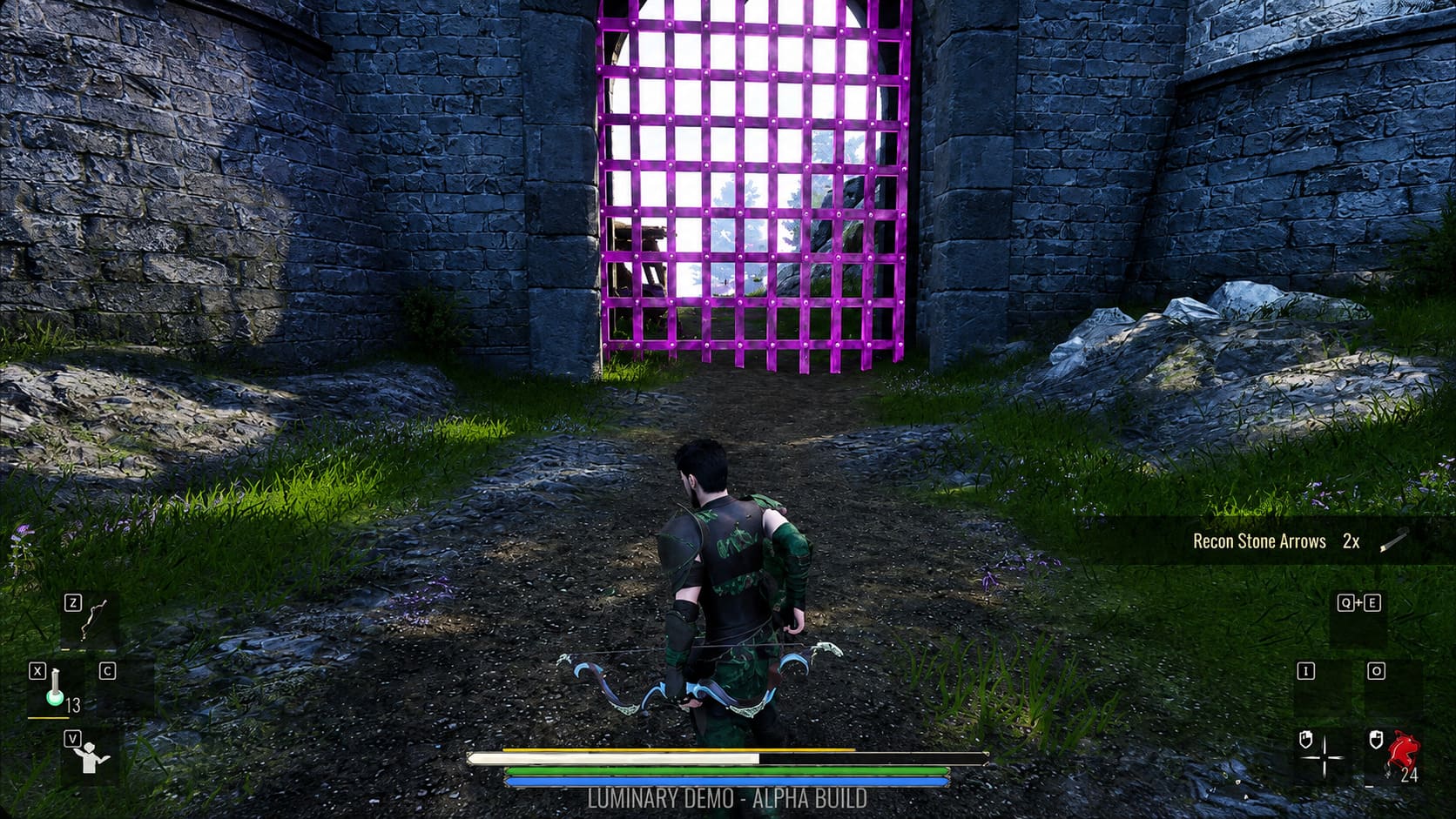
Luminary uses aggressive asset streaming, which means the game constantly moves large amounts of data between RAM, VRAM, and storage.
If your virtual memory settings are too limited, Windows may struggle when loading new areas, causing massive temporary freezes.
Recommended Pagefile Settings
- Search for Advanced System Settings.
- Open Performance Options.
- Select the Advanced tab.
- Open Virtual Memory settings.
- Enable automatic management.
If you prefer manual configuration, place the pagefile on your fastest SSD. Avoid using slow mechanical drives for virtual memory.
Update Your Graphics Drivers
This sounds obvious, but it is one of the easiest fixes to overlook. GPU manufacturers regularly release driver updates that improve DirectX 12 compatibility and game-specific performance.
Before spending hours changing settings, make sure your NVIDIA or AMD drivers are completely updated.
A fresh driver installation can sometimes fix problems that no in-game setting can solve.
Close Background Applications Before Playing
Small background processes can affect performance, especially in games that already push your CPU, RAM, and GPU heavily.
Before launching Luminary, I usually close unnecessary applications like:
- Browser tabs with heavy content
- RGB control software
- Recording applications
- Hardware monitoring tools
- Extra game launchers
Each change might seem small, but together they can noticeably improve frame consistency.
My Recommended Luminary Optimization Order
If I had to help another player fix Luminary stuttering, this is the order I would follow:
- Disable CFG specifically for Luminary.
- Clear DirectX shader cache.
- Update GPU drivers.
- Test HAGS settings.
- Reduce foliage quality.
- Switch to Borderless Fullscreen.
- Disable in-game VSync.
- Check virtual memory configuration.
You probably do not need every single tweak. In my case, the CFG adjustment and shader cache cleanup delivered the biggest improvements.
Final Thoughts on Fixing Luminary DX12 Stuttering
After spending hundreds of hours with PC games, I have seen this exact situation many times. A promising game launches with DirectX 12 problems, players blame their hardware, and the real issue turns out to be a combination of shaders, drivers, and Windows settings.
Luminary is a genuinely enjoyable RPG with a beautiful world, and it deserves to be experienced without constant interruptions. Once the stuttering was reduced, exploration felt smoother, combat became more responsive, and the entire game finally matched the quality of its design.
If you are fighting against random freezes and annoying frame drops, these adjustments are worth trying. A few minutes of optimization can completely change how Luminary feels on PC.