Where Winds Meet Save File Location: How to Find, Backup, and Fix Missing Saves on PC
I’ve spent countless hours wandering through the beautiful martial arts world of Where Winds Meet, and if there’s one lesson I’ve learned after years of PC gaming, it’s this: never trust your save files to take care of themselves.
It doesn’t matter whether you’re playing a huge RPG, a Soulslike, or a modern online adventure. One Windows update, one unexpected crash, or one corrupted configuration can wipe away dozens of hours before you even realize something went wrong.
Fortunately, Where Winds Meet handles player progression much better than many recent releases thanks to its online synchronization, but that doesn’t mean everything is protected. Plenty of important files still live locally on your PC, and knowing where they are can save you from an enormous headache later.
In this guide, I’ll show you exactly where I found the game’s save-related folders, explain what each location is actually used for, and share the backup routine I personally follow before every major update.
Why Finding Your Save Files Is Worth the Effort
A surprising number of players assume that every bit of progress is stored in the cloud. That’s only partially true.
Your character progression is generally synchronized online, but several important files remain on your computer. Graphics settings, screenshots, configuration files, and cached data are all stored locally. Losing those won’t erase your character, but it can still be frustrating when everything suddenly resets.
Whenever I install new graphics drivers, experiment with performance tweaks, or move my Steam library to another SSD, backing up these folders is one of the very first things I do.
It takes less than two minutes, and it can save dozens—or even hundreds—of hours.
Main Save File Location
The primary folder you should know is located inside Windows’ hidden AppData directory.
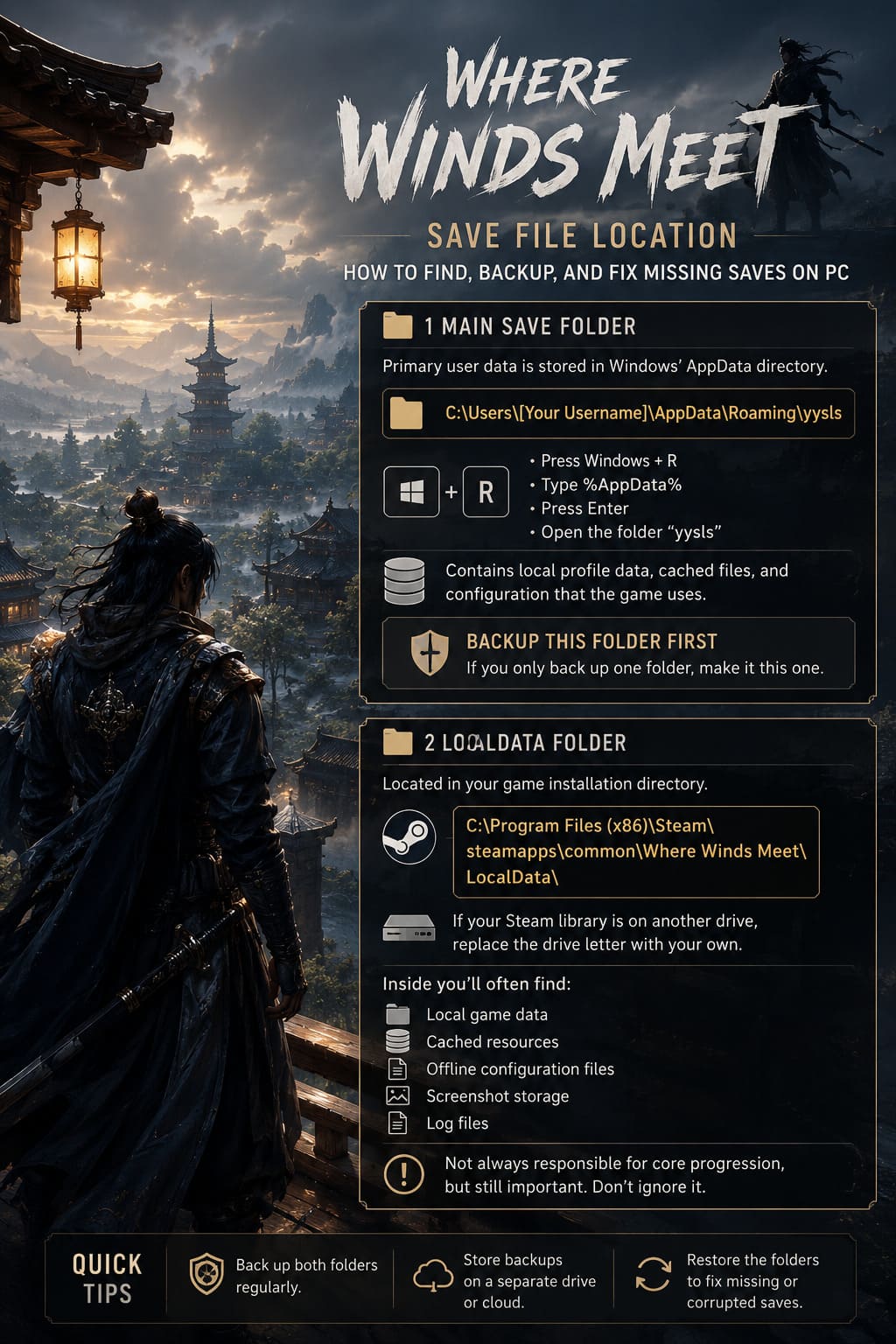
C:\Users\[Your Username]\AppData\Roaming\yysls
If you don’t want to browse through hidden folders manually, Windows offers a much quicker shortcut.
- Press Windows + R.
- Type %AppData%.
- Press Enter.
- Open the folder named yysls.
This directory stores important user-specific information, including local profile data, cached files, and configuration information that the game references while running.
If you’re only backing up one folder, make it this one.
The LocalData Folder
The second location worth checking sits inside your game installation.
For a default Steam installation, you’ll usually find it here:
C:\Program Files (x86)\Steam\steamapps\common\Where Winds Meet\LocalData\
If your Steam library is installed on another drive, simply replace the drive letter with your own Steam Library location.
I actually discovered this folder while troubleshooting a launch issue after moving the game between SSDs, and it’s become part of every backup I make.
Inside the LocalData directory you’ll often find:
- Local game data
- Cached resources
- Offline configuration files
- Screenshot storage
- Log files
Although it isn’t always responsible for your core progression, it’s still an important directory that should never be ignored.
Quick Save Location Reference
| Folder | Purpose | Recommended Backup |
|---|---|---|
| AppData\Roaming\yysls | User profile, local save-related data and configuration | Yes |
| Where Winds Meet\LocalData | Cache, screenshots, logs and local assets | Yes |
| Server Cloud | Character progression and online account data | Automatic |
Where Your Screenshots Are Stored
One of my favorite features in Where Winds Meet is the built-in photo mode. The scenery is stunning, combat animations freeze beautifully, and it’s easy to spend far too much time capturing perfect screenshots instead of continuing the story.
Depending on how the images were created, your screenshots may appear in one of two locations.
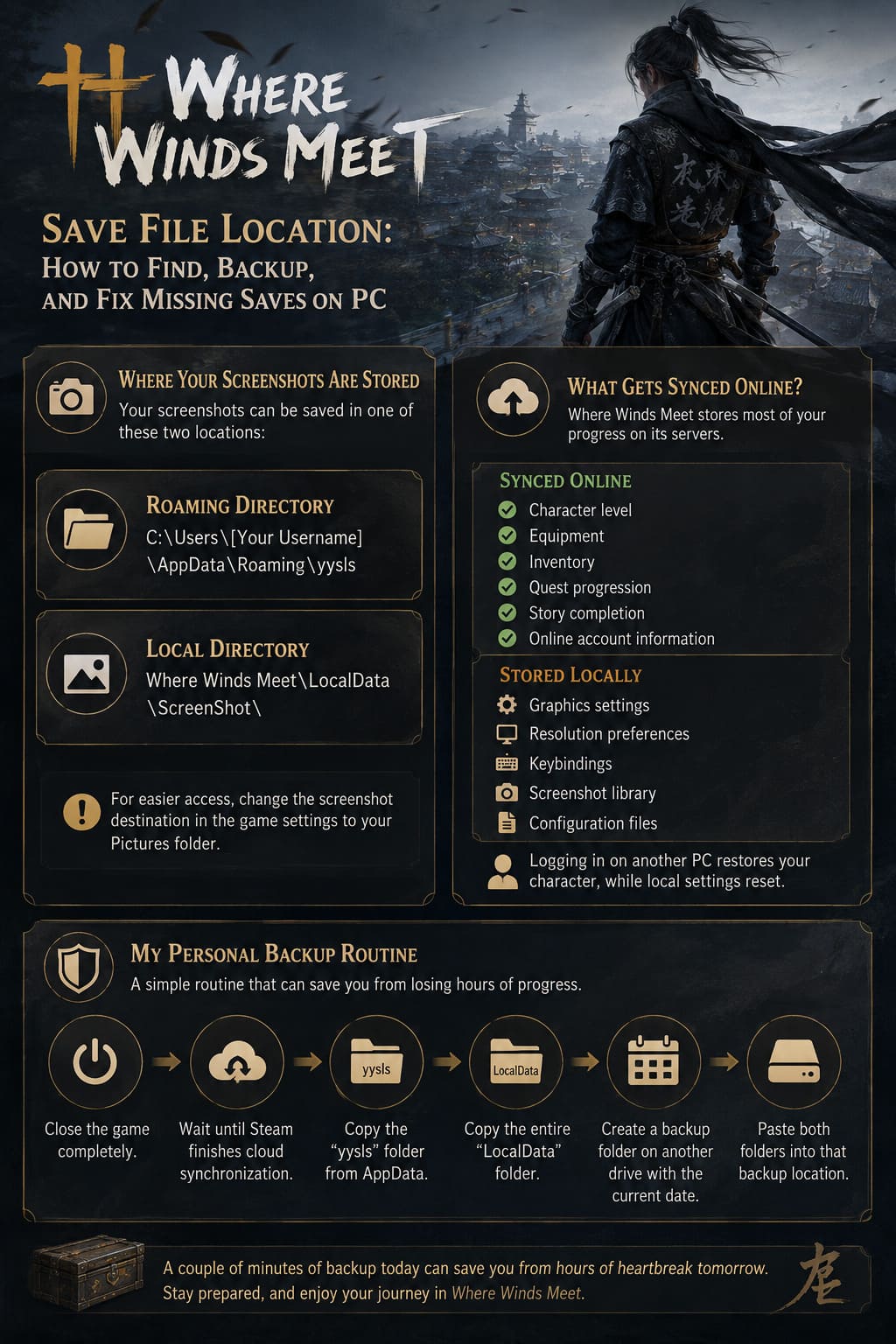
The first location is inside the familiar Roaming directory:
C:\Users\[Your Username]\AppData\Roaming\yysls
The second location is usually found here:
Where Winds Meet\LocalData\ScreenShot\
If you enjoy taking lots of in-game photos, I’d strongly recommend changing the screenshot destination inside the game’s settings menu. Saving images directly to your regular Pictures folder makes organizing your collection much easier.
What Gets Synced Online?
One thing I genuinely appreciate about Where Winds Meet is that it doesn’t rely exclusively on local save files.
Your online account takes care of a significant portion of your actual progression.
These items are generally synchronized through the game’s servers:
- Character level
- Equipment
- Inventory
- Quest progression
- Story completion
- Online account information
Meanwhile, these usually remain stored locally:
- Graphics settings
- Resolution preferences
- Keybindings
- Screenshot library
- Configuration files
That’s why logging into another PC often restores your character immediately while your graphics settings return to their defaults.
My Personal Backup Routine
After losing saves in other RPGs years ago, I’ve become slightly obsessive about backups.
Now I never install a major patch without making a fresh copy of my local files.
- Close the game completely.
- Wait until Steam finishes cloud synchronization.
- Copy the yysls folder from AppData.
- Copy the entire LocalData folder.
- Create a backup folder on another drive with the current date.
- Paste both folders into that backup location.
Maybe it’s overly cautious, but spending two extra minutes on a backup has saved me more than once over the years.
What to Do If Your Save Is Missing
Nothing creates panic faster than launching an RPG and discovering that the Continue option has disappeared.
Before assuming your progress is gone forever, try these fixes.
Enable Hidden Folders
Windows hides the AppData folder by default.
- Open File Explorer.
- Select View.
- Choose Show.
- Enable Hidden Items.
Once hidden folders become visible, you should immediately see the AppData directory inside your user profile.
Verify Steam Game Files
If a crash interrupted an update or installation, damaged files may prevent the game from reading certain local data correctly.
- Open Steam.
- Go to your Library.
- Right-click Where Winds Meet.
- Select Properties.
- Open Installed Files.
- Click Verify integrity of game files.
Steam will scan the installation and replace damaged files without affecting your online character progression.
I’ve used this feature more times than I can count, and it’s often the quickest solution to unexpected issues.
Check Your Windows Username
This isn’t common, but some games still struggle with Windows usernames containing special symbols or certain non-Latin characters.
If the client has trouble reading its save directory, it may fail to load local configuration files properly.
Creating a secondary Windows account with a simple alphanumeric username has solved similar problems for many PC gamers over the years, so it’s worth considering if everything else fails.
Where Winds Meet Beginners Guide: Best Starting Tips and Combat Tricks
Should You Still Make Manual Backups?
In my opinion, absolutely.
Cloud synchronization is fantastic until something goes wrong. Corrupted files can sync, uploads can fail, and sometimes players accidentally overwrite perfectly healthy saves with broken ones.
A manual backup gives you something cloud services simply can’t guarantee: complete control over your own data.
Considering how much time many of us invest mastering combat, collecting rare gear, and exploring every hidden corner of this incredible world, spending a few minutes protecting that progress is an easy decision.
Where Winds Meet Currency Farming Guide 2026: Master the Market and Get Gold Fast
Final Thoughts
Where Winds Meet does a solid job balancing online synchronization with local customization, but it still pays to understand where your files are stored.
Whether you’re reinstalling Windows, upgrading your SSD, moving to a gaming laptop, or simply preparing for the next major update, knowing these folders can make troubleshooting dramatically easier.
After years of playing massive RPGs, I’ve learned that save management isn’t the most exciting part of gaming, but it’s easily one of the smartest habits you can develop.
A quick backup today can save hundreds of hours tomorrow.