How to Fix Echoes of Aincrad AMD Driver Timeout Crash
For many anime RPG fans, Echoes of Aincrad was supposed to be a dream come true — a massive adventure filled with exploration, combat, and that classic virtual world feeling that longtime anime and gaming fans have been waiting for. Unfortunately, a lot of PC players have encountered a frustrating enemy that no sword build or character upgrade can defeat: the infamous AMD driver timeout crash.
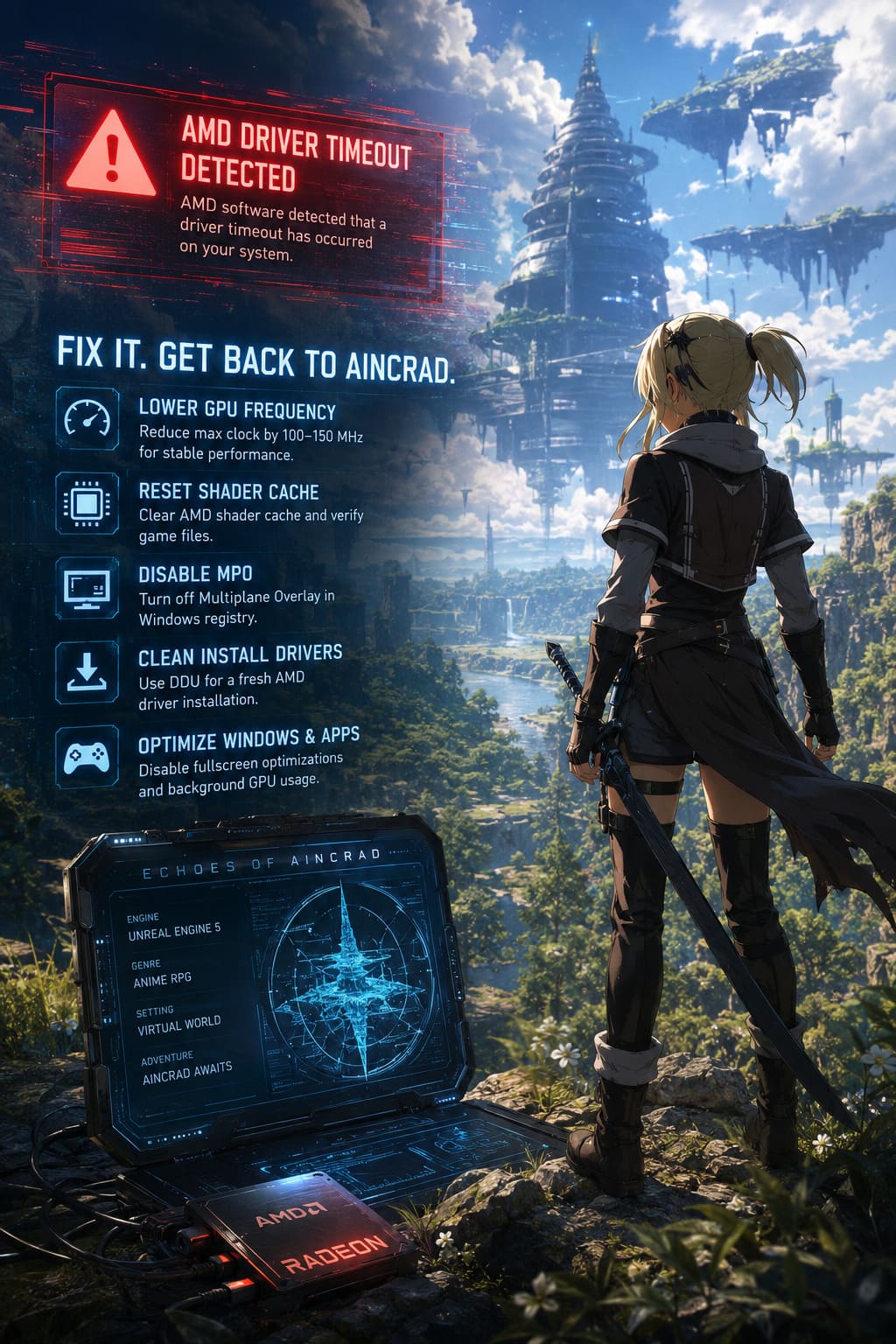
The problem is painfully familiar for Radeon users. You are walking through a beautiful Unreal Engine 5 environment, entering a new area, fighting enemies, or simply loading the game menu, and suddenly everything freezes. The screen turns black, the game disappears, and AMD Adrenalin throws the annoying message: ‘AMD software detected that a driver timeout has occurred on your system.’
After spending countless hours testing graphics settings, tweaking drivers, and digging through community discussions, it is clear that this issue is not caused by one single problem. Echoes of Aincrad pushes modern GPUs extremely hard, and AMD cards can sometimes become unstable when aggressive boost clocks, shader compilation, Windows graphics features, and Unreal Engine 5 workloads collide.
Echoes of Aincrad FSR 3 Mod PC Setup Guide Boost FPS by 100%
The good news? This crash can usually be fixed. Below are the most effective solutions that have helped many Radeon players get back into the game without random shutdowns.
Why Does Echoes of Aincrad Cause AMD Driver Timeout Crashes?
Before changing settings randomly, it helps to understand what is actually happening behind the scenes.
Windows uses a system called Timeout Detection and Recovery (TDR) to protect your computer when the graphics card stops responding. Normally, if the GPU does not answer within a few seconds, Windows assumes the driver has frozen and automatically restarts it.
This works well for everyday tasks, but demanding games like Echoes of Aincrad can trigger problems. Unreal Engine 5 titles are especially heavy because they constantly load detailed environments, advanced lighting effects, high-resolution textures, and complex shaders.
The most common causes include:
| Cause | What Happens |
|---|---|
| GPU Boost Instability | AMD cards boost beyond stable clocks, causing driver crashes under heavy load. |
| Broken Shader Cache | Old or corrupted shader files create crashes during loading screens or map transitions. |
| MPO Conflicts | Windows Multiplane Overlay can cause black screens, flickering, and driver resets. |
| Driver Conflicts | Old AMD files or Windows-installed drivers interfere with new installations. |
| Background GPU Usage | Discord, browsers, and recording software steal graphics resources. |
The interesting part is that even powerful cards like the RX 7900 XTX, RX 7800 XT, and RX 9070 XT can suffer from this problem. More horsepower does not always mean more stability.
Fix 1: Lower Your Maximum GPU Frequency in AMD Adrenalin
This is the fix that has helped the largest number of Radeon users.
Modern AMD graphics cards often boost higher than their official specifications, especially factory-overclocked models. In lightweight games this is usually fine, but Unreal Engine 5 workloads can expose instability very quickly.
The GPU may briefly jump to an unstable clock speed, fail to maintain voltage, and trigger a driver timeout.
How to Lower GPU Frequency
- Right-click your desktop and open AMD Software: Adrenalin Edition.
- Go to the Performance tab.
- Select Tuning.
- Change Tuning Control from Automatic to Custom.
- Enable GPU Tuning.
- Turn on Advanced Control.
- Find the Maximum Frequency (MHz) option.
- Reduce the maximum clock speed.
For example, if your graphics card normally boosts to around 2900 MHz, try lowering it closer to the official rated boost clock. Many players also find success by reducing the maximum frequency by 100–150 MHz.
This small performance sacrifice is usually impossible to notice while playing, but the stability improvement can be massive.
Fix 2: Reset AMD Shader Cache and Verify Echoes of Aincrad Files
Shader-related crashes are extremely common in modern games.
When Echoes of Aincrad creates shaders, your system stores compiled data to make future loading faster. The problem starts when these files become corrupted after driver updates, patches, or crashes.
A damaged shader cache can cause:
- Crashes during startup.
- Freezes when entering new locations.
- Random driver resets during gameplay.
Clear AMD Shader Cache
- Open AMD Adrenalin.
- Click the gear icon in the top-right corner.
- Open the Graphics section.
- Scroll down to Advanced Settings.
- Select Reset Shader Cache.
After that, clean the game installation.
Verify Echoes of Aincrad Files on Steam
- Open Steam Library.
- Right-click Echoes of Aincrad.
- Select Properties.
- Open Installed Files.
- Click Verify integrity of game files.
Steam will scan your installation and replace damaged files automatically.
Fix 3: Disable Windows Multiplane Overlay (MPO)
MPO is a Windows feature designed to improve desktop rendering efficiency. The idea is good, but AMD users have reported years of problems related to MPO.
Common symptoms include:
- Random black screens.
- Screen flickering.
- Driver timeout errors.
- Game crashes while switching windows.
Steps to Disable MPO
- Open Windows Search.
- Type Registry Editor.
- Run it as administrator.
- Navigate to:
HKEY_LOCAL_MACHINE\SOFTWARE\Microsoft\Windows\Dwm
- Right-click an empty area.
- Select New → DWORD (32-bit) Value.
- Name it OverlayTestMode.
- Open it.
- Set the value to 5.
- Restart your PC.
This change disables MPO and can eliminate several AMD driver problems.
Fix 4: Perform a Clean AMD Driver Installation Using DDU
Sometimes the problem is not the latest driver itself but the leftovers from previous versions.
Windows Update can also silently install generic GPU drivers, creating conflicts with AMD Adrenalin.
A clean installation removes everything and gives your GPU a fresh start.
Recommended Process
- Download the latest AMD Adrenalin driver.
- Download Display Driver Uninstaller (DDU).
- Restart Windows into Safe Mode.
- Open DDU.
- Select Device Type: GPU.
- Select Manufacturer: AMD.
- Choose Clean and Restart.
- After rebooting, temporarily disconnect your internet.
- Install the AMD driver manually.
During installation, consider trying the Driver Only option if you suspect Adrenalin itself is causing instability.

Fix 5: Disable Fullscreen Optimizations and Enable High Performance Mode
Windows has several gaming features that sometimes create conflicts with demanding titles.
Fullscreen optimization is designed to improve compatibility, but some games perform better without it.
Disable Fullscreen Optimizations
- Open Steam.
- Right-click Echoes of Aincrad.
- Select Manage → Browse Local Files.
- Find the game executable.
- Right-click the file.
- Select Properties.
- Open the Compatibility tab.
- Enable Disable fullscreen optimizations.
- Enable Run this program as administrator.
- Apply changes.
Then open Windows settings:
- Go to System → Display → Graphics.
- Add Echoes of Aincrad.
- Select Options.
- Choose High Performance.
Fix 6: Disable Hardware Acceleration in Background Applications
Many gamers forget that other applications also use the GPU.
Discord overlays, browser tabs, streaming software, and chat apps can compete with Echoes of Aincrad for graphics resources.
| Application | Setting Location |
|---|---|
| Discord | User Settings → Advanced → Disable Hardware Acceleration |
| Chrome / Edge | Settings → System → Disable Graphics Acceleration |
| Windows GPU Scheduling | Settings → Display → Graphics → Default Graphics Settings |
For some players, simply closing Discord overlays completely solves random crashes.
My Recommended AMD Setup for Echoes of Aincrad
After testing different solutions, this combination gives the best balance between performance and stability:
- GPU Clock: Reduce maximum frequency by 100–150 MHz.
- Shader Cache: Reset after every major driver update.
- MPO: Disable if you experience black screens.
- Drivers: Use DDU after repeated crashes.
- Background Apps: Disable unnecessary GPU acceleration.
- Windows: Keep Game Mode enabled but test HAGS if problems continue.
Final Thoughts: Fixing AMD Driver Timeout Crashes in Echoes of Aincrad
Echoes of Aincrad is an ambitious Unreal Engine 5 RPG, and like many modern PC releases, it can expose weaknesses in graphics driver stability. The frustrating part is that your hardware may be completely powerful enough — the issue is often about keeping everything running within stable limits.
The biggest fixes are simple: control your GPU boost behavior, clean your shader cache, remove driver conflicts, and disable problematic Windows graphics features.
After applying these changes, many Radeon players should see fewer crashes, smoother exploration, and a much more enjoyable journey through Aincrad. Sometimes the difference between a broken PC port experience and a smooth adventure is just a few hidden settings.