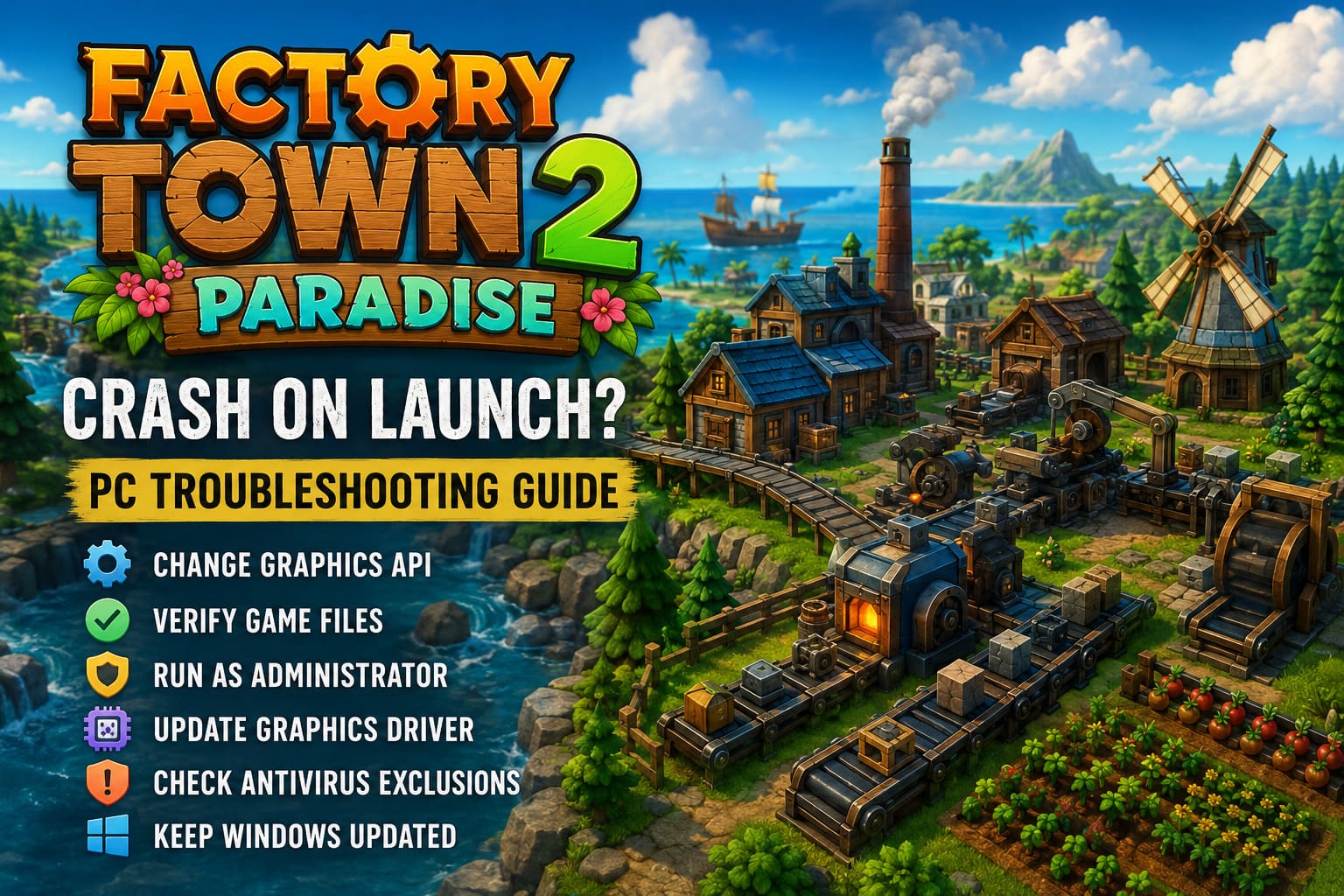
How to Fix Factory Town 2: Paradise Crash on Launch (PC Troubleshooting Guide)
When I first launched Factory Town 2: Paradise, I expected to spend my evening building production chains, optimizing conveyor routes, and trying to keep the volcano satisfied instead of staring at a black screen. Unfortunately, launch crashes are one of those problems that can hit even promising strategy games, especially during the early days after release.
The good news is that, in most cases, these crashes are not permanent. Over the years I’ve dealt with hundreds of launch issues across city builders, factory simulators, and Early Access titles, and I’ve noticed that the same handful of fixes solve the majority of them. Factory Town 2: Paradise is no exception.
This guide combines the methods I personally try first whenever a new simulation game refuses to start. Instead of randomly reinstalling Windows or blaming your hardware, work through these solutions one by one. Chances are you’ll be back to expanding your automated island much sooner than expected.
Why Factory Town 2: Paradise Crashes Before the Main Menu
A game can fail during startup for dozens of reasons, but they usually fall into a few categories:
| Possible Cause | Typical Symptoms |
|---|---|
| Graphics API conflict | Black screen, instant desktop crash |
| Damaged game files | Game never reaches the logo screen |
| Outdated GPU drivers | Engine errors or random freezes |
| Windows permission issues | Game closes immediately after launch |
| Corrupted configuration files | Crash after changing graphics settings |
| Missing runtime components | Error messages mentioning DLL or Visual C++ |
In my experience, there is no reason to panic immediately. Even powerful gaming PCs occasionally struggle with brand-new releases because of software conflicts rather than hardware limitations.
Start by Changing the Graphics API
One of the very first things I try with any Unity-based or indie simulation game is forcing a different rendering backend.
Sometimes the default renderer simply doesn’t cooperate with a particular driver version. Instead of waiting for the developer to patch it, Steam lets you override the launch behavior manually.
To do this:
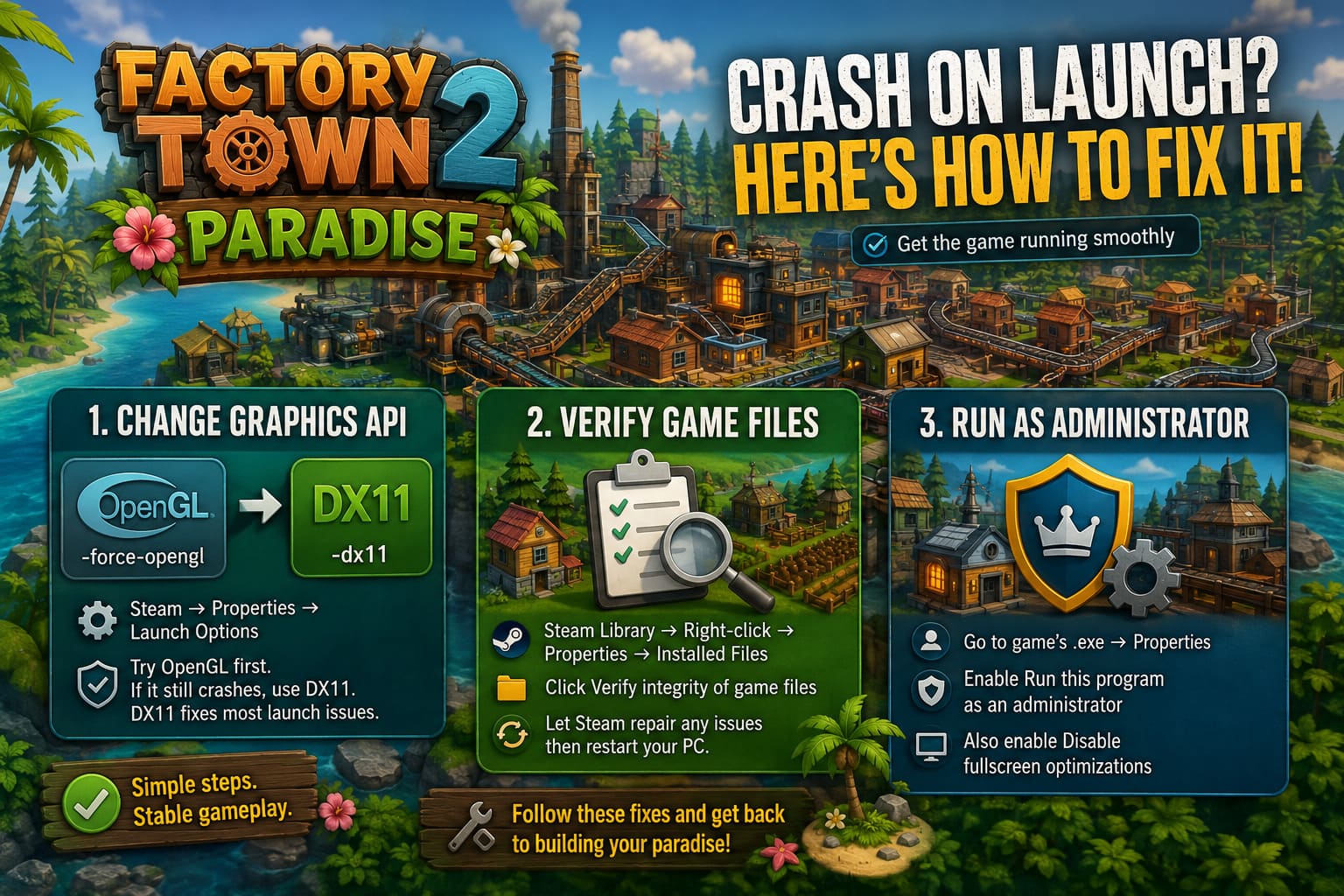
- Open your Steam Library.
- Right-click Factory Town 2: Paradise.
- Select Properties.
- Locate Launch Options.
- Enter -force-opengl.
- Close the window and launch the game.
If the game still crashes—or OpenGL performs poorly—replace that command with -dx11.
Personally, DirectX 11 has rescued more broken launches than I can count. It isn’t always the fastest option, but stability is far more important than squeezing out a few extra FPS.
Verify the Installation Before Doing Anything Extreme
I constantly see players uninstalling entire games before checking whether Steam simply downloaded a damaged file.
That’s a huge waste of time.
Steam already includes an excellent verification tool that compares your installation against the official game build and automatically replaces anything that’s missing or corrupted.
The process only takes a few minutes:
- Open your Steam Library.
- Right-click the game.
- Choose Properties.
- Open Installed Files.
- Click Verify integrity of game files.
If Steam finds damaged files, let it complete the download before testing the game again.
I always reboot my PC afterward as well. It isn’t mandatory, but I’ve seen it clear up lingering issues surprisingly often.
Run the Game With Administrator Privileges
Windows security has become much stricter over the years.
Sometimes a game can’t create save folders or configuration files because Windows silently blocks certain operations.
Here’s what I recommend:
- Browse to the local installation folder through Steam.
- Find the game’s executable.
- Open Properties.
- Go to the Compatibility tab.
- Enable Run this program as an administrator.
- Also enable Disable fullscreen optimizations.
These two options may look insignificant, but I’ve seen them solve launch problems in dozens of strategy games.
Install the Latest Graphics Driver—or Better Yet, Perform a Clean Installation
One mistake many PC gamers make is simply installing a new driver over an old one and assuming everything is clean.
Unfortunately, leftover driver files can continue causing problems.
If a normal driver update doesn’t help, I recommend performing a clean installation.
The process looks like this:
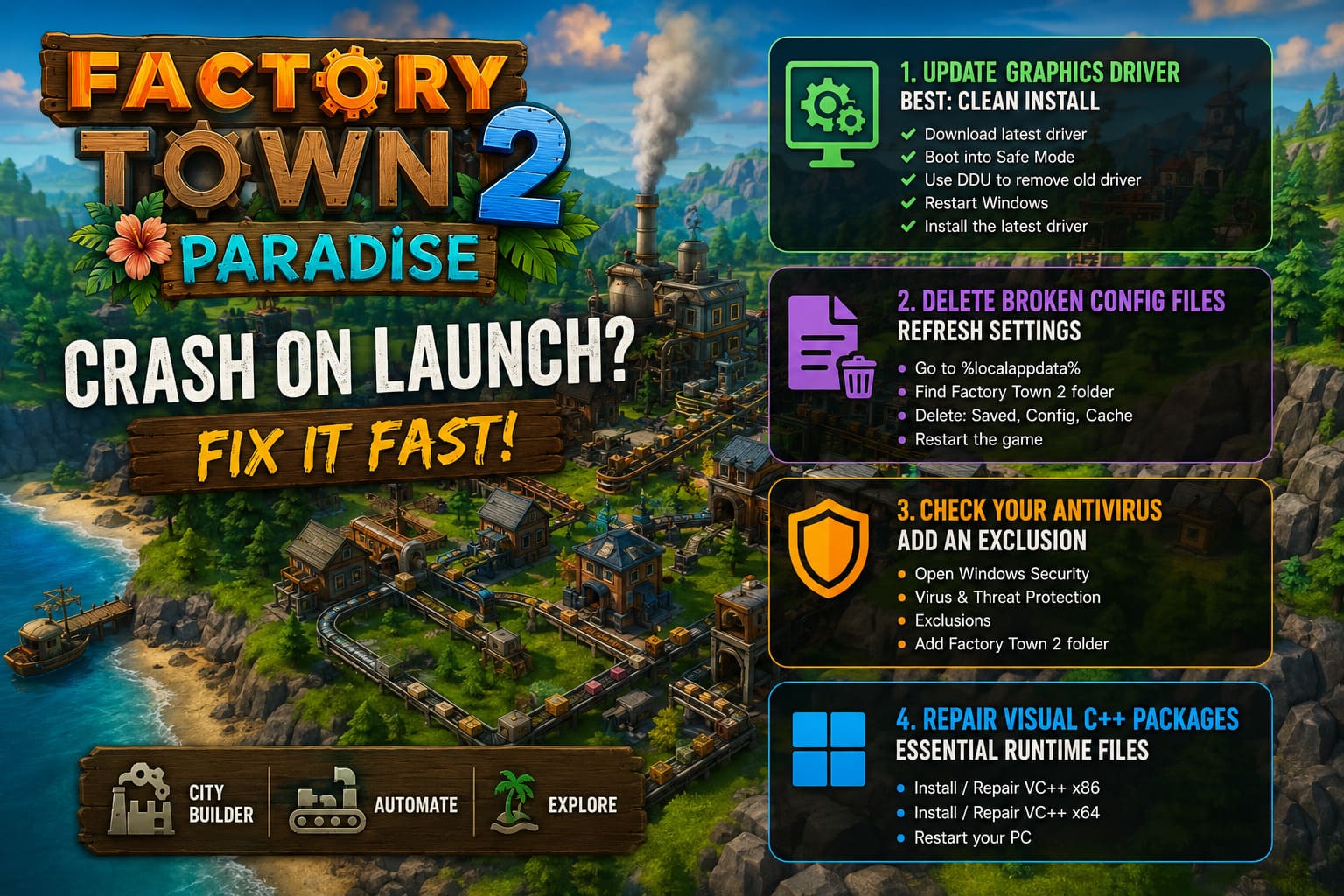
- Download the newest driver for your graphics card.
- Boot Windows into Safe Mode.
- Use Display Driver Uninstaller (DDU) to remove the existing driver.
- Restart Windows.
- Install the latest driver from scratch.
This sounds like extra work, but it eliminates years of leftover driver remnants that may interfere with newer games.
Delete Broken Configuration Files
If the game crashed after changing graphics options, resolution, or monitor settings, corrupted configuration files may be preventing future launches.
Fortunately, these files are easy to rebuild.
Navigate to your Local AppData folder:
%localappdata%
Locate the Factory Town 2 configuration directory.
Before deleting anything, I usually create a backup on my Desktop.
Look for folders such as:
- Saved
- Config
- Cache
Delete them from AppData and restart the game.
The next launch should generate completely fresh settings.
Don’t Ignore Your Antivirus
This is probably the most overlooked fix.
I’ve personally seen antivirus software quarantine perfectly safe game executables simply because they belonged to small indie developers.
Windows Defender, Avast, Bitdefender, AVG, and several others occasionally produce false positives.
If the executable disappears or refuses to launch:
- Open Windows Security.
- Navigate to Virus & Threat Protection.
- Open Exclusions.
- Add the Factory Town 2 installation folder.
After adding the exclusion, launch the game again.
It only takes a minute, and it’s one of those fixes that surprises people when it actually works.
Repair Microsoft Visual C++ Packages
Modern PC games depend on Microsoft’s runtime libraries.
If they’re damaged—or partially removed by another application—the game may crash before even creating a window.
Repairing them is straightforward.
Download both:
- Visual C++ x86
- Visual C++ x64
Run each installer.
Whenever possible, select Repair instead of Install.
After both packages finish, restart your computer.
It’s one of those maintenance tasks that’s worth doing regardless of which game you’re currently playing.
Close Background Software Before Launching
This isn’t officially listed in many troubleshooting guides, but it’s something I almost always test.
Certain applications hook directly into games and can cause conflicts.
Examples include:
- FPS overlays
- RGB management software
- Hardware monitoring utilities
- Recording applications
- GPU overclocking tools
Temporarily closing them helps determine whether one of them is interfering with the game.
If Factory Town 2 suddenly launches normally afterward, you’ve already identified the culprit.
Keep Windows Fully Updated
Skipping Windows updates isn’t usually a problem—until a newly released game relies on a system component your PC doesn’t have yet.
Before spending hours troubleshooting, make sure:
- Windows Update has installed all pending patches.
- Optional driver updates are reviewed.
- DirectX components are current.
This simple step has solved more launch issues than many people realize.
Factory Town 2 Paradise Volcano Guide: How to Earn Volcano Favor and Summon New Islands Fast“
My Personal Troubleshooting Order
Whenever I encounter a game that refuses to launch, I follow this exact sequence:
| Priority | Action |
|---|---|
| 1 | Verify Steam files |
| 2 | Try -dx11 or -force-opengl |
| 3 | Run as Administrator |
| 4 | Delete Config and Cache folders |
| 5 | Update GPU drivers |
| 6 | Repair Visual C++ packages |
| 7 | Disable antivirus temporarily or whitelist the game |
Factory Town 2: Paradise Automation Guide – Best Beginner Tips and Tricks (2026)
Final Thoughts
Factory Town 2: Paradise has all the ingredients that fans of automation and management games enjoy. Building efficient production lines on a tropical island is incredibly satisfying once everything starts working together. That’s exactly why launch crashes feel so frustrating—they stop you before the fun even begins.
From my experience, however, most startup issues aren’t permanent. They’re usually caused by graphics API conflicts, damaged installation files, outdated drivers, or Windows permissions rather than serious hardware failures.
If you’ve worked through every solution above and the game still refuses to launch, the problem is likely tied to a specific bug in the current build. At that point, it’s worth keeping an eye on future game updates, testing new patches, or trying upcoming beta versions if the developers release them.
The important thing is not to assume your PC is at fault. I’ve watched brand-new hardware struggle with games that later ran flawlessly after a single update. Until then, methodical troubleshooting almost always beats random guesswork—and once Factory Town 2 finally loads successfully, you’ll quickly forget the time spent fixing it as your island evolves into a sprawling automation paradise.