How to Fix Last Pirates Die Together Low FPS and Stuttering on PC
If there is one thing that can ruin a great horror game faster than a monster jumping out of the shadows, it is a sudden 20 FPS drop right when you are trying to escape.
I have been following Last Pirates Die Together because it is exactly the kind of game I enjoy: something unusual, chaotic, and built around multiplayer moments that you will probably remember long after the session ends. The combination of pirate exploration, physics-based interactions, proximity voice chat, and horror sounds like a perfect recipe for ridiculous late-night gaming sessions.
But there is another side to ambitious Early Access games: performance can be rough at launch.
If you are playing Last Pirates Die Together on PC and noticing low FPS, random stutters, freezes when moving into new areas, or inconsistent frame pacing, don’t immediately assume that your graphics card is too weak. Early builds can have shader compilation issues, CPU spikes, background-process conflicts, and settings that simply don’t behave well on every hardware configuration.
I have put together the adjustments I would personally try first. Some are simple in-game changes, while others are more advanced Windows and GPU tweaks. You don’t necessarily need to use every setting here. In my experience, the best approach is to change one thing at a time and see whether your frame-time graph actually improves.
Why Is Last Pirates Die Together Stuttering on PC?
Before changing everything in Windows, it is worth understanding what might actually be causing the problem.
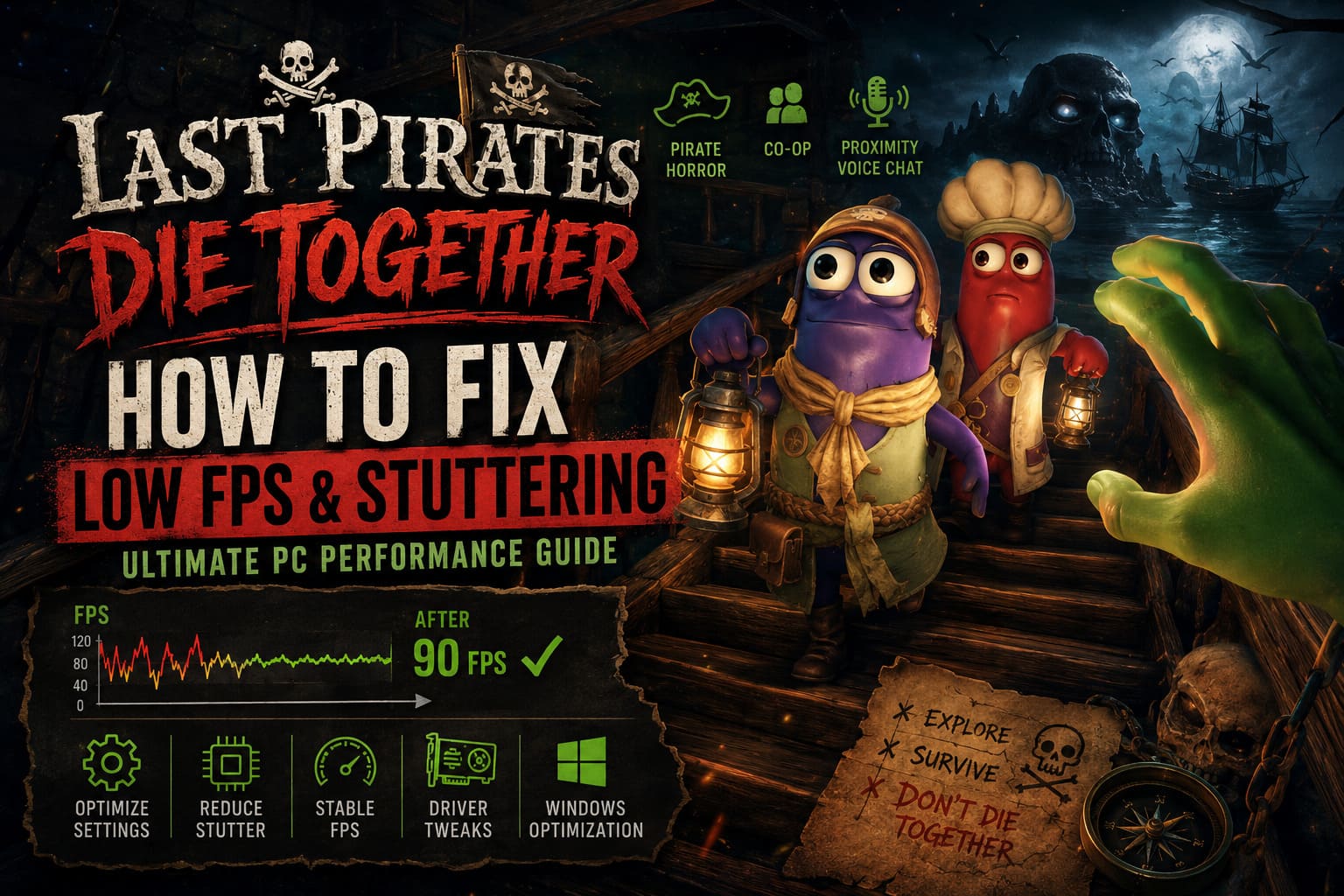
Last Pirates Die Together is not a traditional lightweight horror game. Its gameplay depends on physics, multiplayer synchronization, character movement, environmental interactions, and plenty of things happening simultaneously.
That can put pressure on both the CPU and GPU.
A system that runs another horror game at a comfortable 100 FPS might still experience occasional frame-time spikes here. The problem is especially noticeable when several players are interacting with the environment at the same time.
The most likely troublemakers include:
- Shader compilation when entering new areas.
- CPU spikes caused by physics and multiplayer activity.
- GPU load from shadows, lighting, and post-processing.
- Poor frame pacing from aggressive or conflicting VSync settings.
- Overlays and background applications competing for system resources.
- Drivers or cached shaders that need to be rebuilt after updates.
The important distinction is that average FPS and smooth FPS are not the same thing.
I would rather play at a stable 75 FPS than see the counter jump between 120 and 45 FPS every few seconds. That kind of instability is much more noticeable when you’re exploring a dark island and suddenly have to react to something moving toward you.
1. Start With the Graphics Settings That Actually Matter
My first recommendation is simple: don’t start editing Windows settings or downloading optimization utilities.
Go into the game and reduce the settings that have the biggest impact.
For a balanced setup, I’d start around these values:
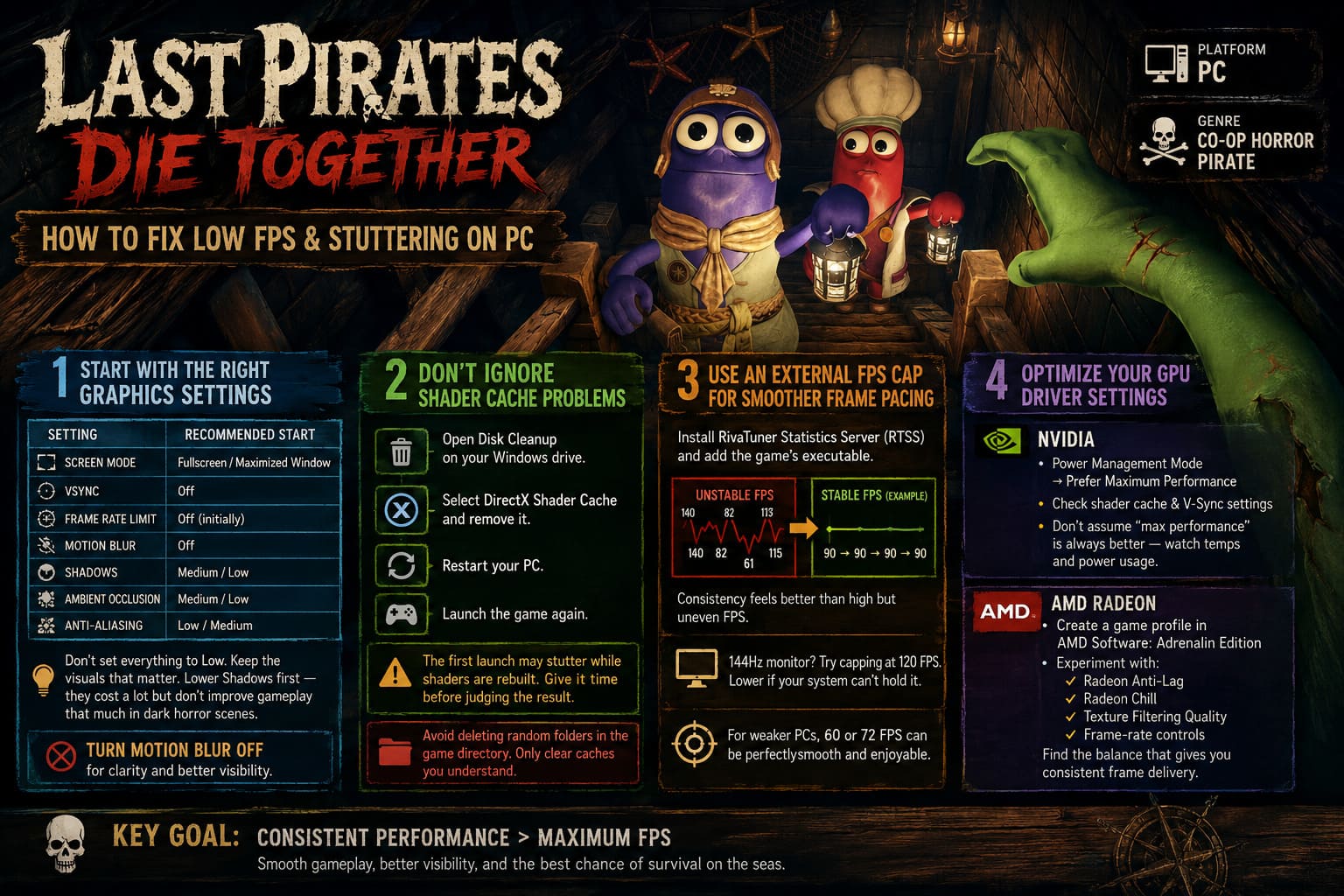
| Setting | Recommended Starting Point | Why |
|---|---|---|
| Screen Mode | Fullscreen / Maximized Window | Test both and keep the smoother option |
| VSync | Off | Avoid unnecessary synchronization conflicts |
| Frame Rate Limit | Off initially | Establish a baseline before adding a cap |
| Motion Blur | Off | Cleaner image and better visibility |
| Shadows | Medium or Low | Often a worthwhile performance sacrifice |
| Ambient Occlusion | Medium or Low | Reduces lighting workload |
| Anti-Aliasing | Low/Medium | Good compromise between clarity and performance |
I don’t believe in blindly setting every game to Low. Modern PCs are powerful enough that you should try to preserve the visual features that make a horror game look good.
Shadows are one of the first places I’d compromise.
A dark horror environment depends heavily on atmosphere, but extremely expensive shadows can consume GPU resources without making the game dramatically prettier during actual gameplay.
I would also turn Motion Blur off immediately. That’s partly personal preference, but when I’m playing a fast multiplayer game, I want to see exactly what is happening on screen.
2. Don’t Ignore Shader Cache Problems
This is one of the fixes I would consider if the game stutters primarily when entering a new location or encountering visual effects for the first time.
Modern PC games frequently rely on shaders that need to be compiled for your particular hardware. If cached data becomes outdated after a game or driver update, rebuilding the cache can sometimes help.
Windows provides a straightforward way to clear the DirectX Shader Cache.
Open Disk Cleanup, select your Windows drive, and look for DirectX Shader Cache in the list of files that can be removed.
Delete it, restart your PC, and launch the game again.
One warning, though: don’t expect the first launch after clearing the cache to be magically perfect. The game may need to rebuild shaders, so you can actually experience some temporary stuttering while that process happens.
I’d give the game some time before deciding whether the fix worked.
Also avoid randomly deleting folders inside the game’s installation directory. If you want to clear a game-specific cache, make sure you know exactly what the folder does before touching it.
3. Try an External FPS Cap for Better Frame Pacing
Here’s one of my favorite PC gaming tricks when a game technically has good FPS but still feels strangely uneven.
Use RivaTuner Statistics Server (RTSS) to create an external frame-rate limit.
For example, if your monitor runs at 144 Hz but the game jumps between 100 and 150 FPS, you could experiment with a stable 120 FPS cap.
If your system cannot maintain that, go lower.
I’d rather have:
90 → 90 → 90 → 90 FPS
than:
140 → 82 → 127 → 61 → 115 FPS.
The second scenario may produce a higher average FPS, but it can feel considerably worse.
After installing RTSS, add the game’s executable to the application profile and set a reasonable limit.
Don’t obsess over matching your monitor’s refresh rate perfectly. Your ideal cap depends on your hardware, display technology, and whether you’re using G-Sync, FreeSync, or another adaptive-sync solution.
For a weaker gaming PC, 60 or 72 FPS can be perfectly respectable if the frame delivery is consistent.
4. Nvidia and AMD Users Should Check Their Driver Profiles
GPU control panels can sometimes make a noticeable difference, although I would avoid turning every possible performance switch to maximum.
Nvidia
If you’re using an Nvidia GPU, open the Nvidia Control Panel and create a specific profile for Last Pirates Die Together.
One setting worth testing is Power Management Mode → Prefer Maximum Performance.
This can prevent the GPU from aggressively changing its power state while the game is running.
You can also review the shader cache configuration and vertical synchronization settings.
However, don’t assume that “maximum performance” automatically means better gameplay. It can increase power consumption and heat, and if your GPU is already running at full performance, you may see practically no difference.
AMD Radeon
AMD users can create a dedicated profile in AMD Software: Adrenalin Edition.
I would experiment with:
- Radeon Anti-Lag.
- Radeon Chill.
- Texture Filtering Quality.
- Frame-rate controls.
The goal isn’t to activate every feature. The goal is to find a combination that gives you consistent frame delivery.
If Radeon Chill is limiting your FPS unexpectedly, for example, disabling it may be more useful than applying another “performance” tweak elsewhere.
5. HAGS Is Worth Testing — Not Worshipping
Windows Hardware-Accelerated GPU Scheduling (HAGS) is one of those settings that gets treated like a universal optimization button on gaming forums.
It isn’t.
Depending on your Windows version, GPU, drivers, and game, HAGS can behave differently.
That’s why I recommend testing it rather than assuming it must be On.
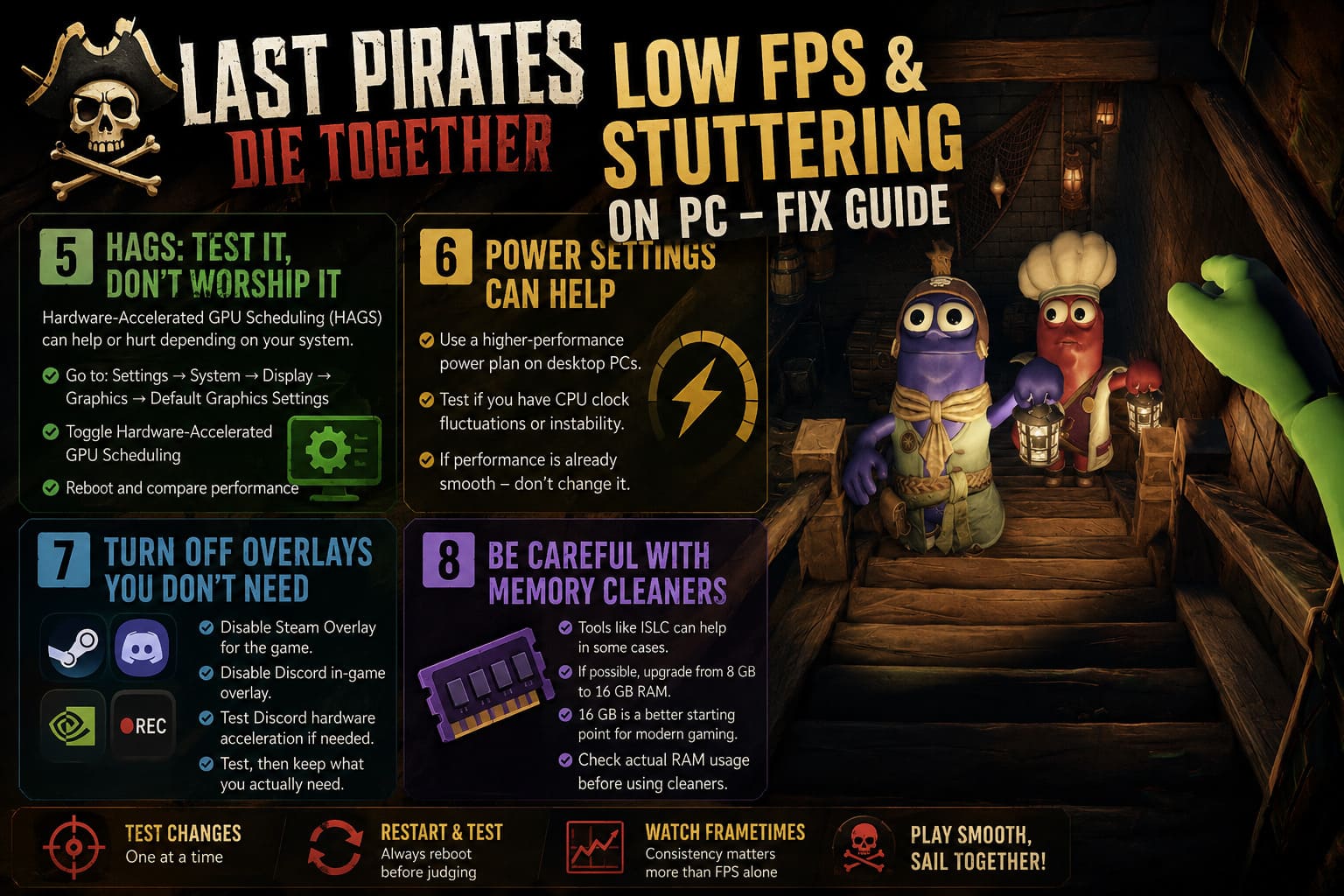
Go to:
Settings → System → Display → Graphics → Default Graphics Settings
and find Hardware-Accelerated GPU Scheduling.
If it’s enabled and you’re experiencing unusual stuttering, try disabling it and rebooting.
If it’s disabled, you can test the opposite.
The important part is the reboot and comparison. Don’t change the setting and immediately decide that it failed because you didn’t give the system a clean restart.
6. Windows Power Settings Can Help on Some PCs
If you’re using a desktop PC and notice that performance fluctuates heavily, check your Windows power configuration.
A higher-performance power plan can prevent overly aggressive power-saving behavior.
That said, I wouldn’t automatically recommend Ultimate Performance to everyone. For many modern gaming PCs, the difference can be tiny, while power consumption and heat can increase.
My approach is simple:
If the game already runs smoothly, don’t fix what isn’t broken.
If you have obvious CPU clock fluctuations or performance instability, then testing a more performance-oriented power plan makes sense.
7. Turn Off Overlays You Don’t Actually Need
This is another easy one.
I personally don’t like running five different overlays while gaming unless I actually need them.
Steam, Discord, GPU software, recording applications, hardware monitoring programs, RGB utilities, and other tools can all add additional processes or hooks.
Try disabling the Steam Overlay for Last Pirates Die Together and see whether anything changes.
For Discord, you can also disable the in-game overlay.
If you’re still having issues, test Discord’s hardware acceleration setting as well.
The important word here is test.
If you’re using Discord constantly for voice communication with your pirate crew, don’t sacrifice a feature you genuinely need just because someone online said overlays are “bad.” If your frame times don’t improve, simply turn the feature back on.
8. Be Careful With Memory-Cleaning Tools
This is where I would be much more conservative than many PC optimization guides.
Tools such as Intelligent Standby List Cleaner (ISLC) can be useful in certain situations, particularly on systems with limited memory or specific standby-memory behavior.
But I wouldn’t install a memory cleaner just because Last Pirates Die Together has a few stutters.
If you’re running close to the game’s minimum memory requirement, upgrading from 8 GB to 16 GB of RAM can be a much more meaningful long-term improvement.
For a modern gaming PC, 16 GB is a much more comfortable starting point, especially when you’re running a game alongside Discord, Steam, a browser, recording software, and other applications.
Before using ISLC, I’d check your actual RAM usage first.
Last Pirates Die Together Lore Explored: Secrets, Mechanics, and the Mystery of the Captain
My Recommended Order of Operations
If I were troubleshooting Last Pirates Die Together on my own PC, I wouldn’t change 20 settings at once.
I’d go through them in this order:
- Update the game and GPU driver.
- Lower shadows, ambient occlusion, and anti-aliasing.
- Disable Motion Blur and test VSync Off.
- Monitor GPU and CPU usage while the stutters happen.
- Clear the DirectX Shader Cache if the problem started after an update.
- Disable unnecessary Steam/Discord overlays.
- Test HAGS On and Off.
- Experiment with an RTSS frame cap.
- Only then move toward advanced utilities such as ISLC.
This approach makes troubleshooting much easier because you know which change actually helped.
How to Fix Last Pirates: Die Together Connection Errors and Invite Friends Not Working (2026 Guide)
Don’t Chase FPS at the Expense of Image Quality
One thing I really dislike about PC optimization culture is the obsession with squeezing out every possible frame.
If your RTX, Radeon, or Intel GPU is capable of running Last Pirates Die Together at a stable 80–100 FPS with medium/high settings, I wouldn’t destroy the game’s visual quality just to see a three-digit number in the corner.
Stable frame times are the real goal.
A horror game depends on atmosphere. Lighting, shadows, environmental detail, and image clarity all contribute to that atmosphere. If reducing one setting gives you a smoother experience without noticeably changing the image, great.
If you have to turn the entire game into a blurry Low preset just to gain another 15 FPS, I’d personally look for the actual bottleneck first.
Final Thoughts
Last Pirates Die Together has the kind of concept that makes Early Access worth following. The combination of cooperative pirate chaos, physics-driven gameplay, proximity voice communication, and horror encounters has plenty of potential for memorable multiplayer sessions.
But as with many new PC releases, performance can take some experimentation.
Start with the easy stuff: optimize the graphics settings, disable unnecessary overlays, check your drivers, and look at your CPU/GPU usage instead of blindly applying every tweak you find online. From there, experiment with shader cache rebuilding, Windows graphics settings, GPU profiles, and external frame-rate limiting.
And most importantly, don’t judge your PC solely by the FPS counter.
If Last Pirates Die Together feels smooth, responsive, and consistent, you’re already winning. Personally, I’d take a locked 90 FPS with clean frame pacing over a chaotic 140 FPS average that suddenly collapses every time the crew reaches a new section of the island.
As the game moves through Early Access, optimization patches should also become an important part of the story. So keep your drivers reasonably current, watch for developer updates, and don’t be afraid to undo a tweak if it makes things worse.
Sometimes the best PC optimization is not a secret registry command or a mysterious launch option.
Sometimes it’s simply finding the right balance between visual quality, stable frame times, and the hardware you actually own.