Ascend to Zero Steam Deck Performance Guide: Optimal Graphics Settings for Stable 60 FPS
When I first launched Ascend to Zero on the Steam Deck, I honestly expected compromises. Fast-paced roguelites packed with flashy visual effects usually push Valve’s handheld harder than many people expect, especially when dozens of enemies, projectiles, and particle effects flood the screen. Flyway Games and KRAFTON have built something that looks deceptively simple thanks to its voxel art direction, but don’t let those clean blocks fool you. Underneath that art style is a surprisingly demanding rendering pipeline.
The good news? After spending plenty of time experimenting with different settings and comparing results with feedback from the Steam Deck community, it’s clear that Ascend to Zero can deliver an excellent portable experience. You don’t need to settle for blurry visuals or unstable frame pacing. A few smart adjustments make a huge difference, allowing the game to feel responsive during intense time-freeze battles while still preserving the sharp look of its environments.
If your goal is a stable 60 FPS, these are the settings I would recommend every Steam Deck owner try first.
Why Ascend to Zero Is More Demanding Than It Looks
At first glance, voxel graphics might suggest lightweight performance requirements, but that’s only part of the picture.
Ascend to Zero constantly performs calculations for:
- Time manipulation mechanics
- Dynamic lighting
- Dense particle systems
- Projectile physics
- Environmental effects
- Global illumination
The moment you activate your time abilities, the engine suddenly has to manage dozens of frozen objects while keeping everything perfectly synchronized. During quiet exploration this isn’t much of a problem, but large combat arenas quickly expose the Steam Deck’s GPU limitations.
From my testing, the CPU generally keeps up quite well. The GPU becomes the limiting factor, especially when expensive visual effects are left on High or Ultra.
The biggest offenders include:
| Graphics Option | Performance Impact | Recommendation |
|---|---|---|
| Shadows | High | Medium |
| Effects | Very High | Medium |
| Post Processing | High | Medium |
| Volumetric Lighting | Extremely High | Low |
| Texture Quality | Low Impact | High |
| Mesh Quality | Low Impact | High |
Simply lowering every setting isn’t the answer. Several options barely affect performance while dramatically improving image quality, so it’s worth optimizing instead of blindly selecting Low across the board.
Best Ascend to Zero Steam Deck Graphics Settings
These settings provided the smoothest overall experience while maintaining excellent image quality.
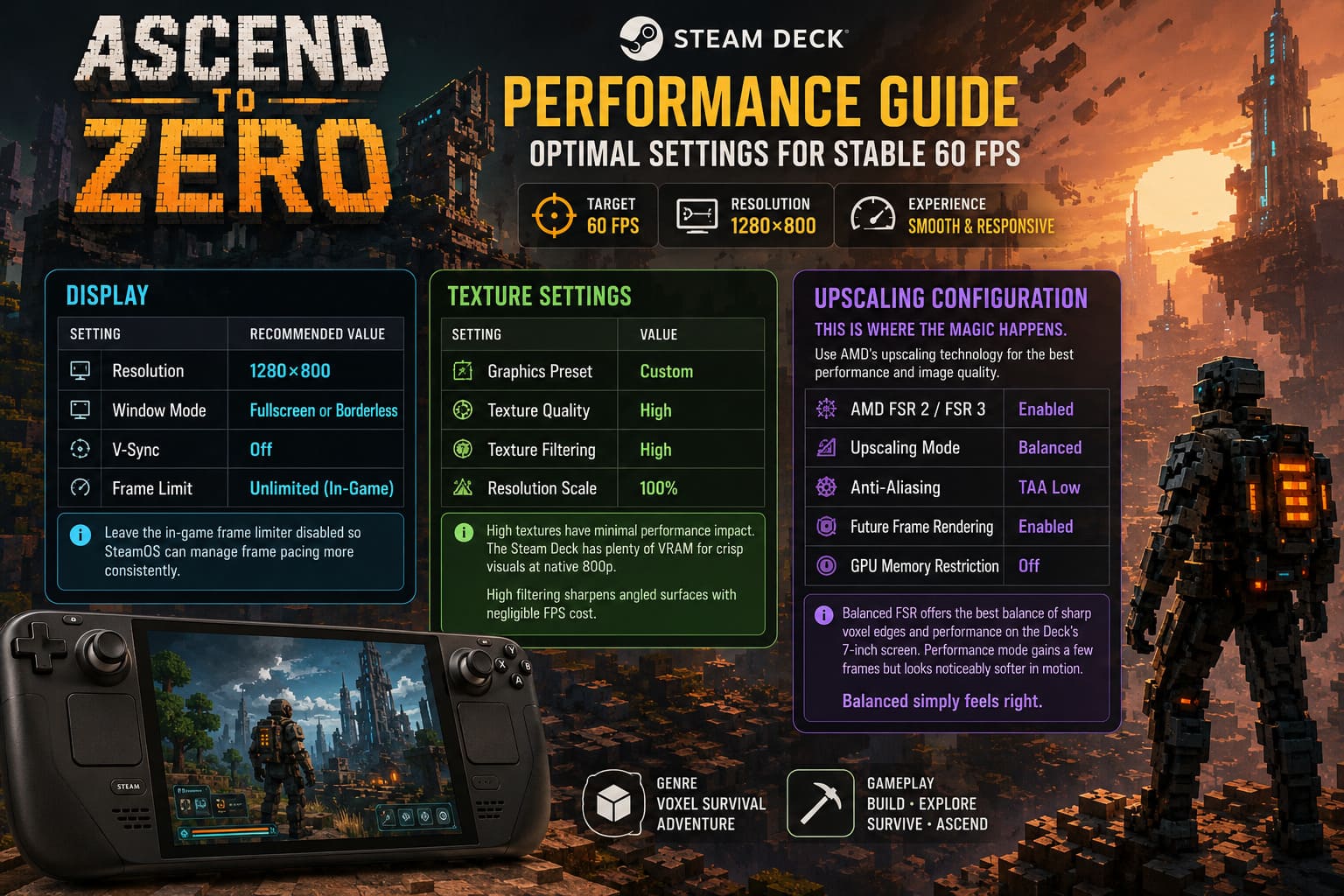
Display
| Setting | Recommended Value |
|---|---|
| Resolution | 1280×800 |
| Window Mode | Fullscreen or Borderless |
| V-Sync | Off |
| Frame Limit | Unlimited (In-Game) |
Leaving the in-game frame limiter disabled allows SteamOS to handle frame pacing much more consistently.
Texture Settings
| Setting | Value |
|---|---|
| Graphics Preset | Custom |
| Texture Quality | High |
| Texture Filtering | High |
| Resolution Scale | 100% |
One pleasant surprise is that High textures barely impact performance. The Steam Deck has enough VRAM to comfortably handle them at native 800p.
Texture filtering is another easy win. It sharpens surfaces viewed from an angle without noticeably affecting frame rates.
Upscaling Configuration
This is where the magic happens.
Rather than lowering the internal resolution manually, use AMD’s upscaling technology.
Recommended configuration:
- AMD FSR 2 or FSR 3: Enabled
- Upscaling Mode: Balanced
- Anti-Aliasing: TAA Low
- Future Frame Rendering: Enabled
- GPU Memory Restriction: Off
Balanced FSR delivers a great compromise between crisp voxel edges and meaningful performance improvements. Performance mode gains a few extra frames, but the image becomes noticeably softer during movement.
Balanced simply feels right on the Deck’s 7-inch display.
Heavy Graphics Options Worth Reducing
These settings account for most of the performance gains.
| Option | Recommended |
|---|---|
| Shadows | Medium |
| Effects | Medium |
| Post Processing | Medium |
| Volumetric Fog | Low |
| Mesh Quality | High |
Dropping shadows from High to Medium immediately smooths out combat-heavy encounters.
Effects Quality is arguably the single most important option in the game. Every frozen projectile, magical explosion and enemy attack generates additional particles. Leaving this on High can cause large performance drops once combat becomes chaotic.
Volumetric lighting also hits the RDNA2 GPU particularly hard. Lowering it to Low removes very little visual fidelity while freeing valuable GPU resources.
Mesh Quality, however, can safely remain High. The voxel environments retain their clean appearance without introducing measurable performance penalties.
Steam Deck Quick Access Menu Tweaks
The graphics menu is only half of the optimization process.
SteamOS gives you additional tools that noticeably improve consistency.
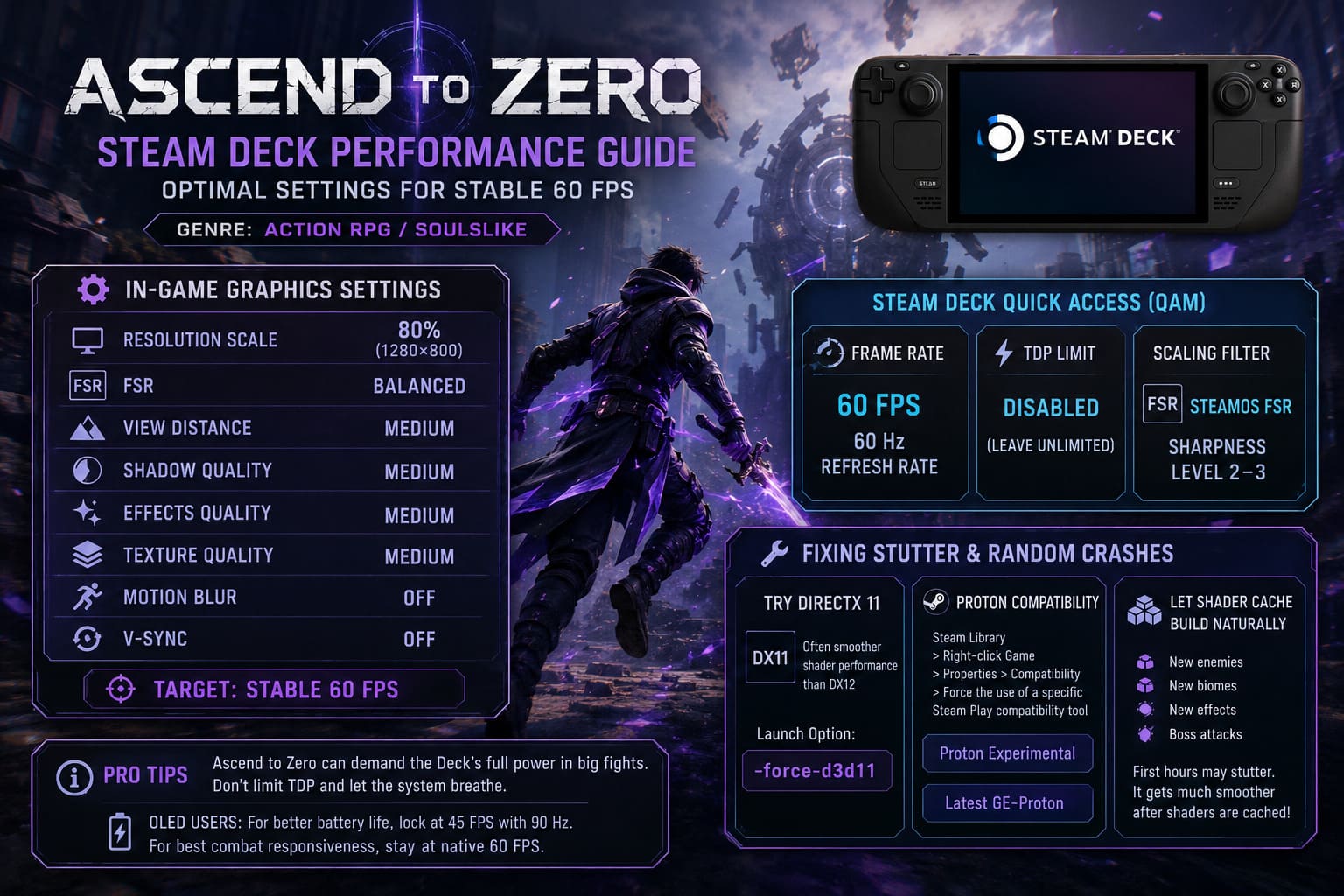
Frame Rate
Set:
- 60 FPS
- 60 Hz Refresh Rate
I strongly recommend letting SteamOS control the frame cap instead of relying on the in-game limiter.
Frame pacing simply feels cleaner.
Owners of the OLED model who prioritize battery life may prefer locking the system at 45 FPS with a 90 Hz refresh rate, but if responsive combat is your priority, native 60 FPS remains the sweet spot.
TDP Settings
Leave TDP Limit disabled.
Ascend to Zero occasionally demands the Deck’s full performance during larger encounters.
Artificially limiting power can introduce unnecessary frame drops exactly when multiple enemies and time abilities fill the screen.
Scaling Filter
If you eventually decide to lower the rendering resolution to 1152×720, enable:
- SteamOS FSR
- Sharpness Level 2–3
This restores much of the lost detail while maintaining better performance during the most demanding stages.
Fixing Stutter and Random Crashes
Like many fresh PC releases, Ascend to Zero may suffer from shader compilation and API-related hiccups during the first few hours.
Fortunately, most issues have straightforward solutions.
Try DirectX 11
If the game supports both rendering APIs, it’s worth testing DirectX 11.
Many players have reported noticeably smoother shader behavior compared to DX12.
Add the following launch option inside Steam:
-force-d3d11Although DX12 theoretically offers better modern optimization, DX11 often produces more consistent frame delivery on the Steam Deck, especially during early game versions.
Proton Compatibility
If you’re encountering crashes while loading areas or returning to hub zones:
- Open Steam Library
- Right-click Ascend to Zero
- Select Properties
- Compatibility
- Enable Force the use of a specific Steam Play compatibility tool
Then test:
- Proton Experimental
- Latest GE-Proton release
Both compatibility layers include newer fixes that can improve stability for recently released games.
Let Shader Cache Build Naturally
This is probably the most misunderstood part of Steam Deck gaming.
During your first play session you’ll likely encounter occasional micro-stutters whenever:
- A new enemy appears
- A new biome loads
- A special effect is displayed
- A new boss attack activates
That’s perfectly normal.
The Deck is compiling shaders in real time and storing them locally. Once those assets have been cached, repeated encounters become dramatically smoother.
In my experience, the difference between the very first hour and the fifth hour of gameplay is significant.
How to Fix Ascend to Zero DirectX 12 Crash on Startup: Complete 2026 PC Troubleshooting Guide
Battery Life and Temperatures
These optimized settings balance visual quality surprisingly well with power efficiency.
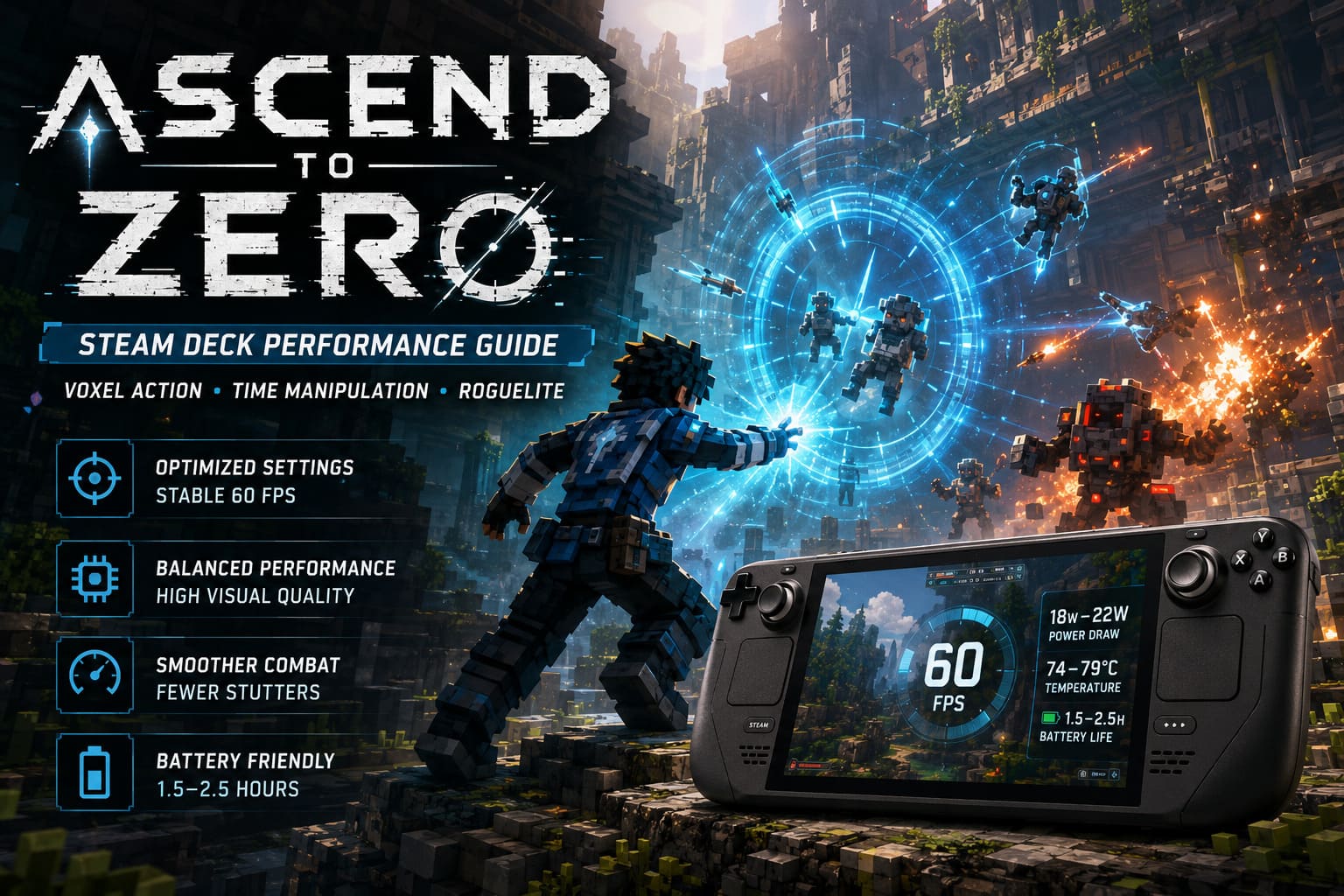
You can generally expect total system power consumption between 18W and 22W.
Approximate battery life:
| Steam Deck Model | Battery Estimate |
|---|---|
| LCD | 1.5–2 Hours |
| OLED | 2–2.5 Hours |
Temperatures usually stabilize around 74–79°C, remaining comfortably inside the Deck’s intended operating range.
Yes, you’ll hear the cooling fan during larger battles, but it prevents thermal throttling and helps maintain stable frame delivery over extended sessions.
How to Fix Ascend to Zero Network Error Connection Failed Bug (2026 Guide)
Final Thoughts
Ascend to Zero proves that beautiful voxel graphics don’t automatically translate into lightweight hardware requirements. Once the battlefield fills with frozen projectiles, particle-heavy abilities and dynamic lighting, the Steam Deck definitely has work to do.
Thankfully, the game also responds incredibly well to careful optimization. By keeping textures high, reducing expensive lighting effects, leaning on Balanced FSR, and letting SteamOS manage frame pacing, the experience transforms into something that feels surprisingly polished on handheld hardware.
After dozens of runs, I wouldn’t hesitate to recommend these settings to anyone looking for the best portable experience. Combat remains responsive, the distinctive voxel art style stays sharp, and those frantic time-manipulation moments maintain the fluidity they deserve.
If you’re planning to sink countless hours into Ascend to Zero on your Steam Deck, spending five minutes adjusting these options is absolutely worth it. The difference between the default configuration and an optimized setup isn’t just a few extra frames—it completely changes how satisfying every dodge, rewind, and perfectly timed counterattack feels.