How to Fix Ascend to Zero DirectX 12 Crash on Startup: Complete 2026 PC Troubleshooting Guide
I’ve been playing PC games for well over a decade, and if there’s one thing I’ve learned, it’s that a game’s biggest boss is sometimes the launcher itself.
I’ve dealt with Unreal Engine crashes, DirectX errors, shader compilation nightmares, broken day-one patches, GPU driver issues, and unstable releases across dozens of AAA games. So when Ascend to Zero refused to launch and crashed during the DirectX 12 initialization process, it honestly felt familiar.
The good news is that in most situations this isn’t a sign that your graphics card is failing or that your PC is no longer capable of running modern games. After trying multiple fixes myself and seeing similar issues in many other releases, I’ve found that startup crashes are usually caused by software conflicts, corrupted shader caches, outdated drivers, Windows runtime problems, or compatibility issues with DirectX 12.
If you’re stuck at the splash screen, getting an instant crash to desktop, or receiving messages like D3D Device Lost or Out of Video Memory, this guide walks through the solutions that make the biggest difference.
Why Ascend to Zero Crashes During DirectX 12 Startup
DirectX 12 delivers better CPU utilization, modern rendering features, and improved performance in many situations. However, compared to DirectX 11, it’s also far less forgiving when something on the system isn’t working correctly.
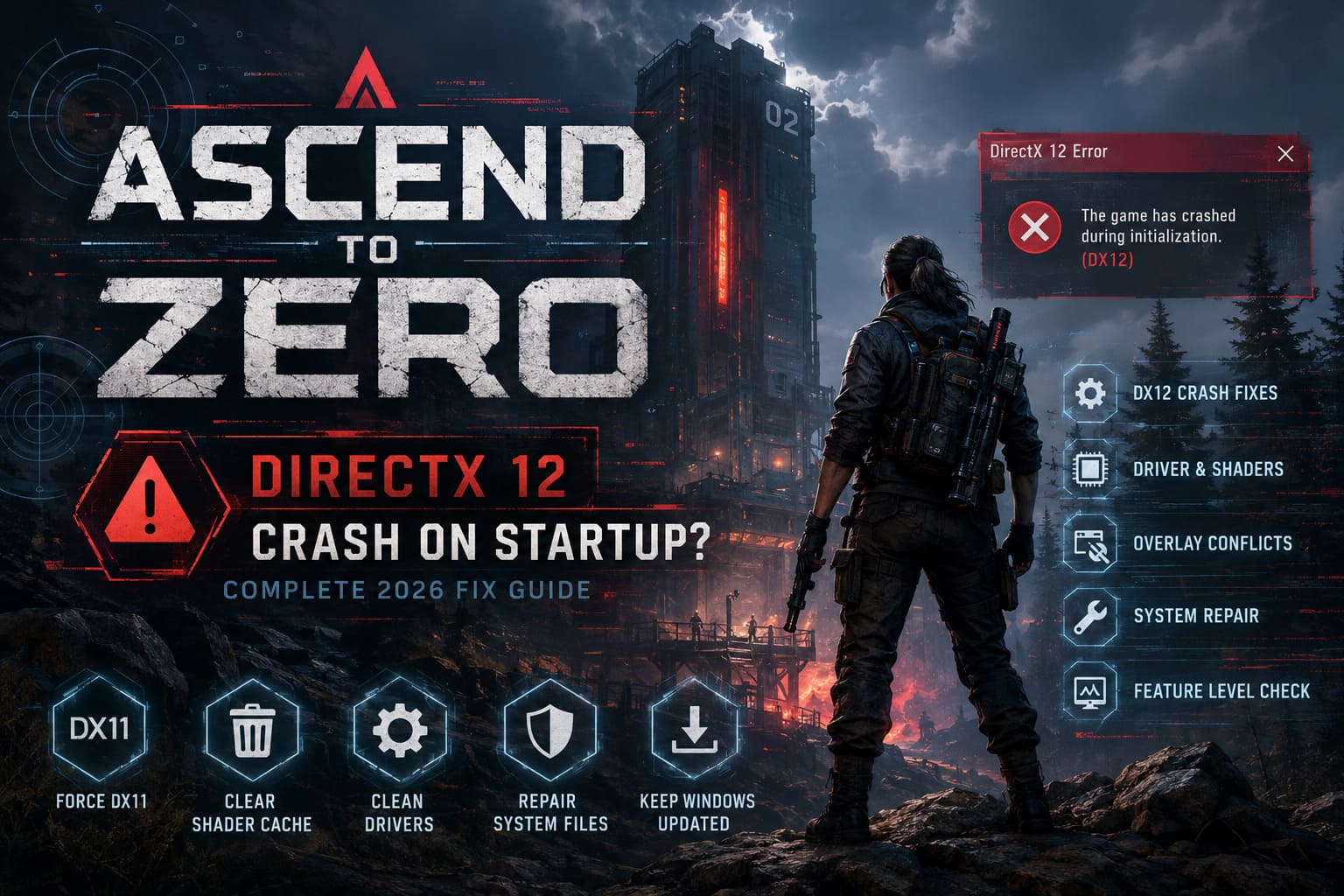
Unlike older graphics APIs, DX12 depends heavily on stable GPU drivers, current Windows components, healthy shader caches, and proper hardware support. If even one of those pieces isn’t functioning correctly, the game may never reach the main menu.
| Possible Cause | Impact | Difficulty to Fix |
|---|---|---|
| Corrupted shader cache | High | Easy |
| Outdated GPU driver | High | Easy |
| Damaged Windows DirectX components | Medium | Easy |
| Overlay software conflicts | High | Easy |
| Unsupported DirectX Feature Level | High | Hardware limitation |
| Corrupted game configuration | Medium | Easy |
Instead of reinstalling Windows or replacing hardware immediately, it’s much more effective to troubleshoot these potential causes one step at a time.
1. Force the Game to Launch in DirectX 11
The very first thing I always try with a brand-new game is forcing it to launch using DirectX 11.
Some people think switching to DX11 is a downgrade. Technically that’s true, but I’d rather lose a few advanced rendering features than have a game that crashes before reaching the title screen.
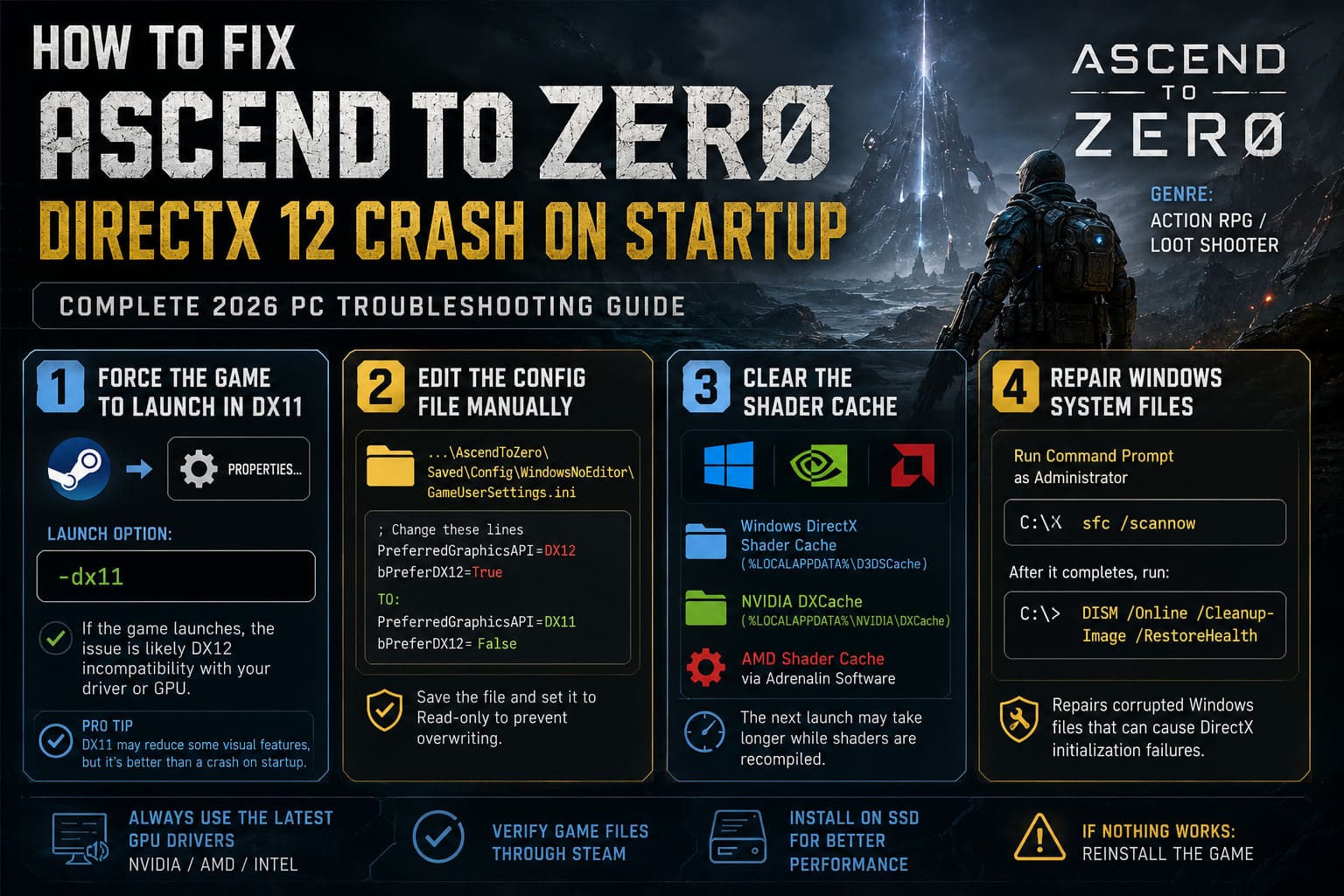
If you’re using Steam, open your Library, right-click Ascend to Zero, select Properties, and enter the following launch option:
-dx11
If the game suddenly launches without crashing, you’ve already narrowed the issue down considerably. It usually means the hardware itself isn’t defective, but the current DirectX 12 renderer doesn’t cooperate well with your particular driver or GPU configuration.
I’ve seen exactly the same behavior in several Unreal Engine 5 releases during their first weeks after launch.
2. Edit the Configuration File Manually
Sometimes the Steam launch option only works temporarily because the game recreates its configuration every time it starts.
When that happens, manually editing the configuration file is often the permanent solution.
Locate the game’s GameUserSettings.ini file inside its configuration folder and look for entries similar to:
PreferredGraphicsAPI=DX12
or
bPreferDX12=True
Change the renderer to DirectX 11 or set the DX12 preference to False. After saving the file, mark it as Read-only so the game doesn’t overwrite your changes during the next launch.
It’s a surprisingly simple trick, but one I’ve successfully used in multiple PC games over the years.
3. Clear the Shader Cache
If I had to recommend only one fix besides switching to DX11, clearing the shader cache would probably be it.
Modern games compile shaders during their first launch to reduce stuttering later. Windows and GPU drivers store these compiled shaders in cache folders for faster loading. Unfortunately, if shader compilation fails because of a crash, driver issue, or interrupted update, those files can become corrupted.
Once that happens, every future launch may fail because the game keeps trying to load damaged shader data.
I normally clear all available shader caches before testing again:
- Windows DirectX Shader Cache
- NVIDIA DXCache folder
- AMD Shader Cache through Adrenalin Software
The first startup afterward usually takes longer while everything is rebuilt, but that’s completely normal.
4. Repair Windows System Files
This is one of the most overlooked troubleshooting steps, yet it has fixed numerous gaming problems on my systems over the years.
DirectX depends on Windows system components. If one important runtime file becomes damaged or outdated, the game engine may fail during initialization long before any graphics appear.
I usually open Command Prompt as Administrator and run:
sfc /scannow
After that completes, I also execute:
DISM /Online /Cleanup-Image /RestoreHealth
These built-in Windows tools repair corrupted operating system files without requiring additional software and often solve issues that appear to be graphics related.
5. Verify Your Graphics Card Supports the Required Feature Level
This is probably one of the biggest misconceptions in PC gaming.
Many users open the DirectX Diagnostic Tool, see “DirectX 12” installed, and assume every DX12 game should work perfectly.
In reality, your operating system and your graphics card are two different things.
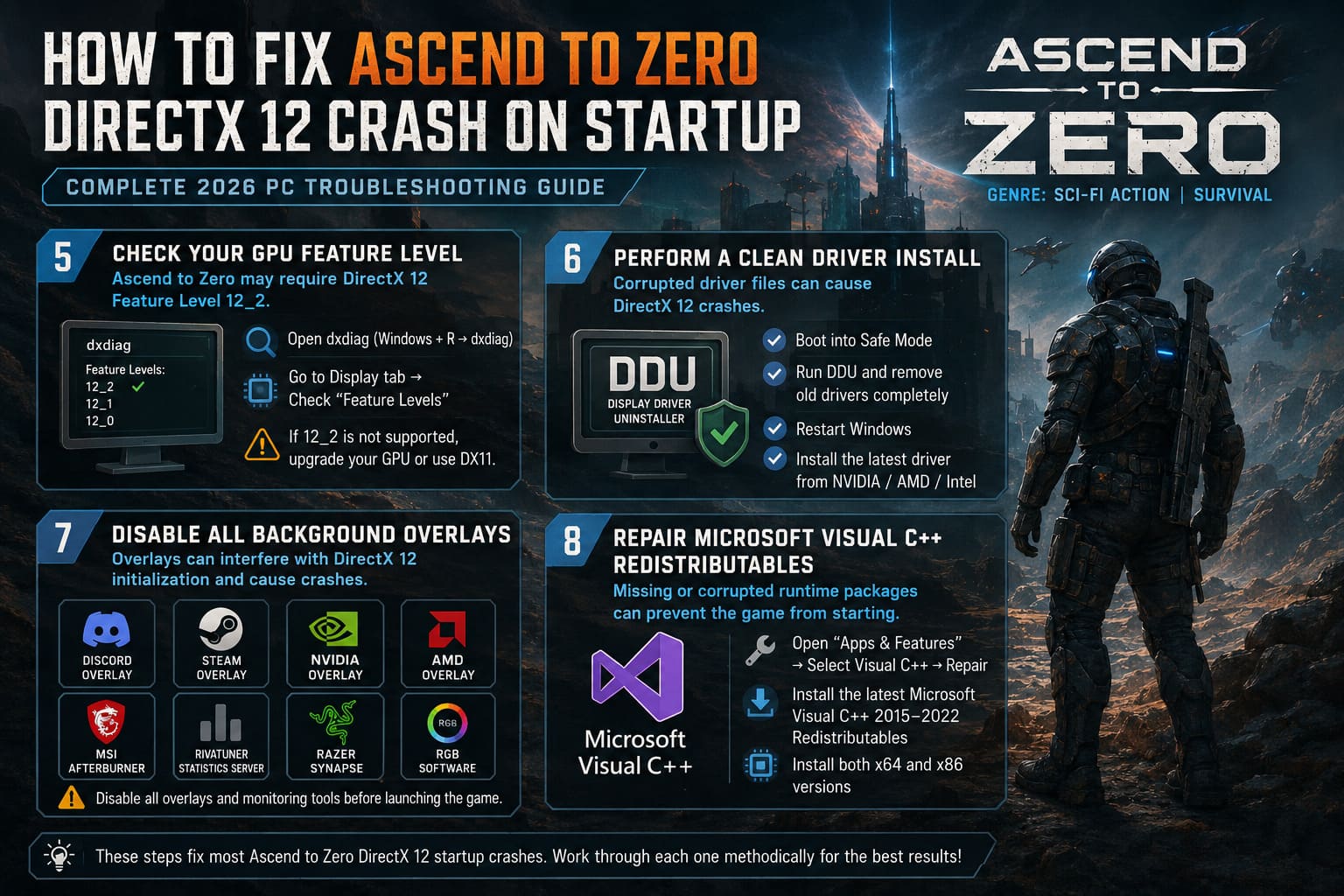
A GPU may support DirectX 12 while only offering Feature Level 12_0 or 12_1. If Ascend to Zero expects Feature Level 12_2, the game can crash before rendering its first frame.
Checking your supported Feature Levels in dxdiag takes only a minute and can save hours of unnecessary troubleshooting.
If your hardware doesn’t support 12_2, DirectX 11 may remain your most reliable option until you upgrade your graphics card.
6. Perform a Proper Clean Driver Installation
Updating your graphics driver through GeForce Experience or AMD Software isn’t always enough.
After years of troubleshooting PC games, I’ve learned that corrupted driver leftovers can survive multiple updates and continue causing DirectX problems.
Whenever startup crashes become persistent, I prefer performing a completely clean installation using Display Driver Uninstaller (DDU) in Safe Mode.
DDU removes leftover driver files, old registry entries, and configuration data that standard installers often leave behind.
Once Windows restarts normally, install the newest driver downloaded directly from NVIDIA, AMD, or Intel instead of relying on automatic update utilities.
It takes more time than a normal update, but I’ve watched mysterious DirectX crashes disappear immediately afterward.
7. Disable Every Background Overlay
This recommendation may sound excessive, but I genuinely test every new game with almost every overlay disabled.
DirectX 12 interacts with hardware differently than previous graphics APIs, and many third-party applications inject themselves into the rendering pipeline.
Even if an overlay isn’t currently visible, it can still interfere with the game’s initialization process.
I usually disable:
- Discord Overlay
- Steam Overlay
- NVIDIA Overlay
- AMD Overlay
- MSI Afterburner
- RivaTuner Statistics Server (RTSS)
- Razer Synapse and RGB software
I’ve personally experienced situations where RTSS alone prevented a game from launching despite never displaying an on-screen overlay.
8. Repair Microsoft Visual C++ Redistributables
Not every startup crash is caused by DirectX.
Games also rely heavily on Microsoft Visual C++ Redistributables to load assets, initialize libraries, and decompress game files.
If those runtime packages are missing or damaged, the game may fail before reaching its first cinematic, creating the impression of a graphics-related crash.
Instead of uninstalling everything, I usually open the installed Visual C++ packages and choose the Repair option.
If any versions are missing, installing the latest Visual Studio 2015–2022 Redistributables for both x64 and x86 systems is generally the safest approach.
The Order I Recommend for Troubleshooting
If I were helping a friend fix this issue, I’d go through the following sequence:
- Force DirectX 11.
- Disable every overlay.
- Clear all shader caches.
- Verify the game files.
- Run SFC and DISM.
- Install all Windows updates.
- Perform a clean GPU driver installation with DDU.
- Check DirectX Feature Level compatibility.
- Repair Microsoft Visual C++ Redistributables.
This approach usually solves the majority of launch problems without reinstalling Windows or replacing perfectly functional hardware.
How to Fix Ascend to Zero Network Error Connection Failed Bug (2026 Guide)
Additional Tips That Have Helped Me
There are also several smaller tweaks that don’t always appear in official troubleshooting guides but have helped me over the years.
- Disable GPU overclocks while testing.
- Close unnecessary hardware monitoring software.
- Verify the integrity of the game files after repeated crashes.
- Install the game on an SSD whenever possible.
None of these solutions alone guarantee success, but together they eliminate many variables that can interfere with DirectX 12.
Ascend to Zero Best Starting Class Tier List: Beginner Guide (2026)
Final Thoughts
After playing and troubleshooting countless PC games, I’ve noticed the same pattern repeating over and over again: launch-day crashes are usually software problems rather than hardware failures.
In the case of Ascend to Zero, DirectX 12 startup crashes are most often caused by corrupted shader caches, unstable drivers, outdated Windows components, overlay conflicts, or configuration files that force incompatible rendering settings.
I’d recommend starting with the easiest fixes first. Switch the game to DirectX 11, clear the shader cache, disable every unnecessary overlay, and make sure Windows and your GPU drivers are fully updated. If those steps don’t resolve the issue, continue with a clean driver installation and verify that your graphics card supports the DirectX Feature Level required by the game.
Troubleshooting can be frustrating, especially when all you want is to start playing. But from my experience, taking a methodical approach almost always leads to a solution much faster than randomly reinstalling software or changing settings without a plan.
With a little patience, there’s a very good chance you’ll be exploring the world of Ascend to Zero instead of staring at another crash screen.