How to Fix Echoes of Aincrad Shader Compilation Stutter on PC (2026 Guide)
When I start a brand-new Unreal Engine 5 game, I almost expect the first hour to be rough. I’ve gone through this cycle with multiple UE5 releases over the last few years, and Sword Art Online: Echoes of Aincrad follows a very familiar pattern. The visuals are gorgeous, the lighting is impressive, and the environments look fantastic—but the first several sessions can be interrupted by annoying shader compilation stutters.
After spending quite a bit of time with the PC version, experimenting with settings, comparing notes with other players, and testing different hardware configurations, I found that most of the performance issues aren’t actually caused by weak hardware. Even powerful systems can experience sudden freezes, frame-time spikes, or hitching when entering a new area or seeing a skill effect for the first time.
The good news is that these problems are usually fixable, or at least greatly reduced. Below are the methods that made the biggest difference during my own testing.
Why Echoes of Aincrad Stutters on Powerful PCs
One thing many players misunderstand is that high FPS doesn’t automatically mean smooth gameplay.
You might see your frame counter sitting comfortably above 120 FPS, yet the game still freezes for half a second every time you enter a new location. That’s because the issue isn’t average framerate—it’s frame consistency.
Like many modern Unreal Engine 5 games, Echoes of Aincrad compiles shaders while you play. Whenever the engine encounters a visual effect it hasn’t processed before, your CPU has to build that shader pipeline. During that moment, frame times spike dramatically.
In my experience, this explains why:
- the Town of Beginnings often stutters during the first visit;
- boss fights hitch when new attack effects appear;
- teleporting into unfamiliar regions causes sudden pauses;
- performance gradually improves the longer you play.
The game is essentially learning what assets it needs.
Start With a Fresh Shader Cache
The very first thing I recommend is rebuilding the shader cache.
If the initial compilation was interrupted because you alt-tabbed, crashed, or closed the game early, there’s a decent chance the cache became inconsistent.
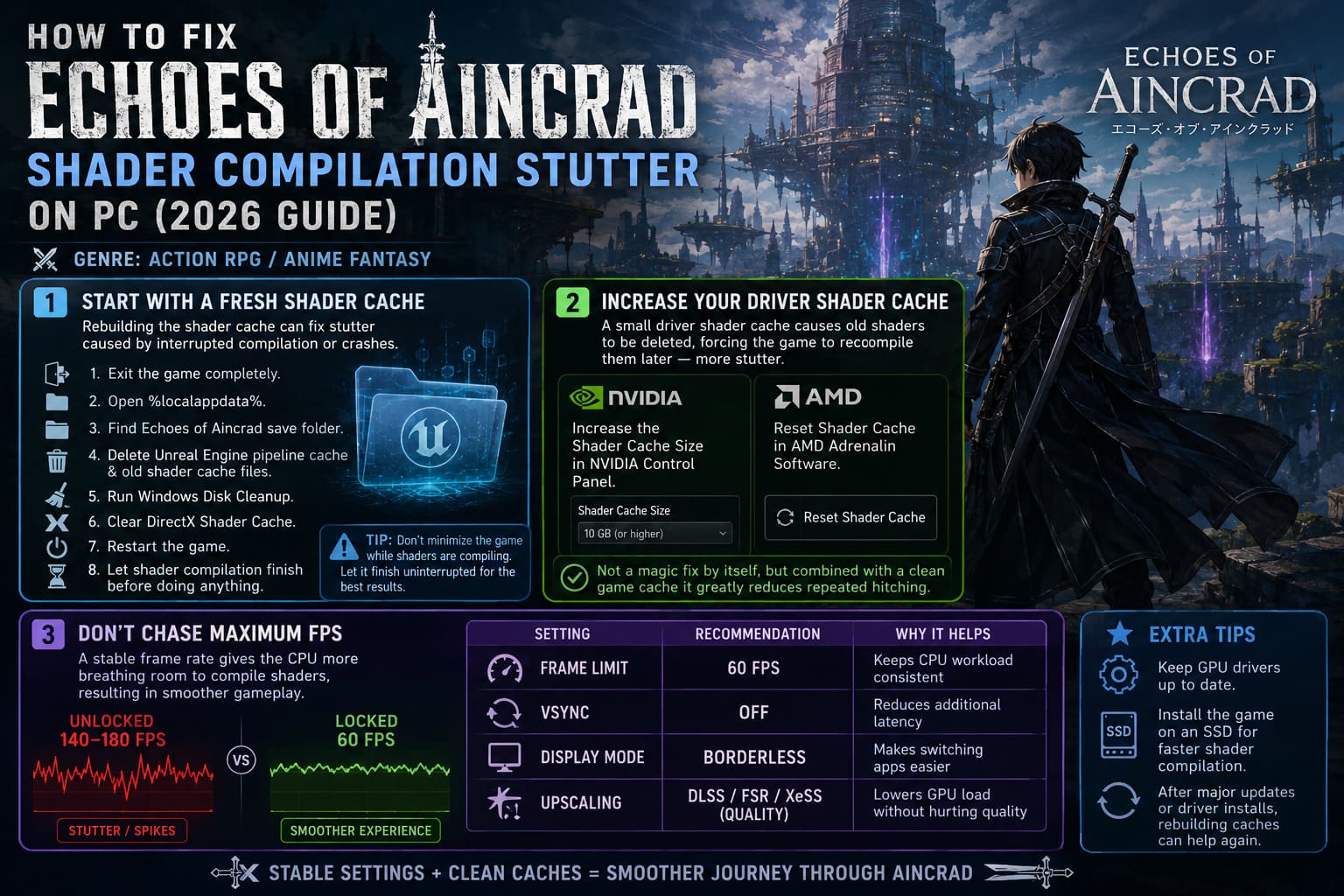
I usually follow this routine:
- Exit the game completely.
- Open %localappdata%.
- Locate the Echoes of Aincrad save folder.
- Delete Unreal Engine pipeline cache files and old shader cache files.
- Run Windows Disk Cleanup.
- Clear the DirectX Shader Cache.
- Restart the game.
- Let the shader compilation finish before touching anything.
This alone removed most of my random micro-stutters.
Tip: Don’t minimize the game while shaders are compiling. I know it’s tempting to browse YouTube while waiting, but letting the process finish uninterrupted seems to produce the most reliable results.
Increase Your Driver Shader Cache
This is one of those settings that surprisingly few people know exists.
Both NVIDIA and AMD graphics drivers store compiled shaders on your SSD. If the cache becomes too small, older entries get deleted, forcing the game to compile them again later.
That means more stuttering.
For NVIDIA users, increasing the shader cache size is a quick adjustment inside the NVIDIA Control Panel.
AMD users can reset their shader cache from Adrenalin Software, which often helps after major game updates or GPU driver installations.
From my experience, this isn’t a miracle fix by itself, but combined with a clean game cache it noticeably reduced repeated hitching after several hours of gameplay.
Don’t Chase Maximum FPS
This might be the most unpopular opinion in the PC gaming community, but I genuinely think people obsess over frame counters too much.
During my testing I actually had a smoother experience at 60 locked FPS than at an unlocked 140–180 FPS.
Why?
Because the CPU had more breathing room while compiling shaders.
Instead of wildly bouncing between extremely high frame rates and sudden freezes, the game maintained much steadier frame pacing.
Here’s what worked best for me:
| Setting | Recommendation | Why It Helps |
|---|---|---|
| Frame Limit | 60 FPS | Keeps CPU workload consistent |
| VSync | Off | Reduces additional latency |
| Display Mode | Borderless | Makes switching applications easier |
| Upscaling | DLSS/FSR/XeSS (Quality) | Lowers GPU load without hurting image quality |
If you’re using a high-refresh monitor, you can always experiment later, but I’d recommend stabilizing the game first.
Hardware-Accelerated GPU Scheduling Is Worth Testing
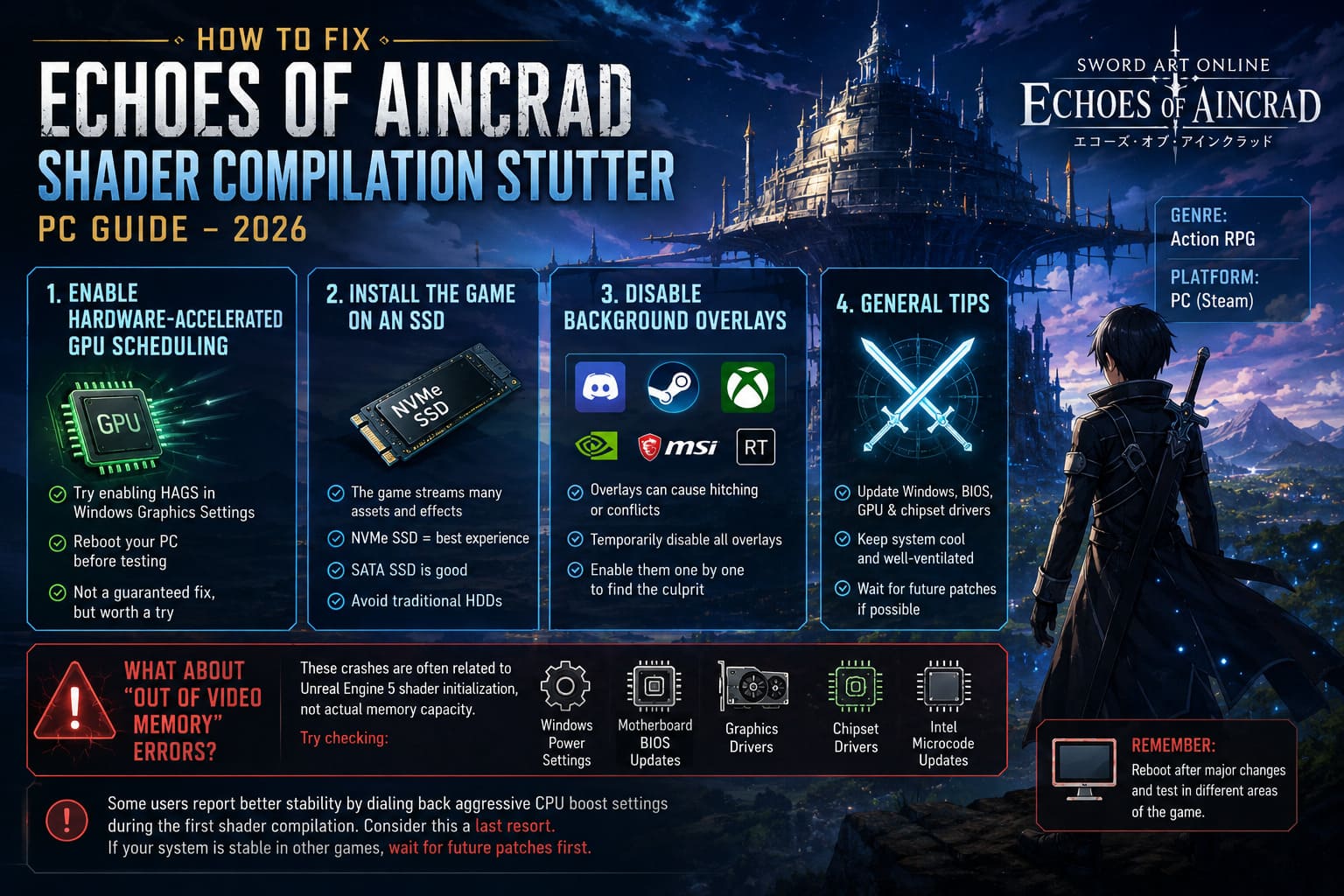
HAGS has always been somewhat inconsistent.
Some games love it.
Others hate it.
Echoes of Aincrad seemed happier with it enabled on my system.
If you’ve never tried Hardware-Accelerated GPU Scheduling before, it’s only a few clicks inside Windows Graphics Settings.
After enabling it, remember to reboot your PC before judging the results.
I wouldn’t call this a guaranteed solution, but if you’re already troubleshooting performance issues, it’s definitely worth trying.
Install the Game on an SSD
This probably sounds obvious in 2026, yet I still know people who keep large RPGs on mechanical hard drives.
Echoes of Aincrad constantly streams textures, environmental assets, and effects while exploring.
Even if shader compilation is working perfectly, slow storage can create additional pauses that feel almost identical to shader stutter.
An NVMe SSD provides the best experience, although even a regular SATA SSD is dramatically better than a traditional HDD.
If you only apply one hardware upgrade to this game, faster storage should probably be at the top of the list.
Disable Background Overlays
Another lesson I’ve learned over years of PC gaming is that overlays are wonderful—until they aren’t.
Discord.
Steam.
Xbox Game Bar.
GeForce Experience.
MSI Afterburner.
Rivatuner.
They all hook into DirectX in different ways.
Usually they behave perfectly, but every now and then one of them introduces strange hitching or conflicts with a freshly released game.
Whenever I’m troubleshooting a launch-day title, I temporarily disable every overlay I can find.
If performance improves, I enable them one by one until I discover the culprit.
It’s a simple process that has saved me hours across dozens of different PC games.
What About “Out of Video Memory” Errors?
I’ve seen plenty of reports from players using expensive hardware who still receive memory-related crashes during the initial shader loading sequence.
Ironically, these systems often have plenty of RAM and VRAM available.
The problem seems to be tied more to Unreal Engine 5’s shader initialization than actual memory capacity.
If you’re encountering these crashes, I’d recommend checking:
- Windows power settings
- motherboard BIOS updates
- graphics drivers
- chipset drivers
- Intel microcode updates
Some enthusiasts also report improved stability after slightly reducing aggressive CPU boost settings during the first shader compilation.
Personally, I only consider this a last resort. If your system is completely stable in every other game, I would first wait for future patches before modifying processor settings.
My Personal Graphics Settings
After trying dozens of combinations, I eventually settled on these settings for the smoothest overall experience.
| Graphics Option | My Choice |
|---|---|
| Resolution | Native |
| Upscaler | DLSS Quality |
| Frame Limit | 60 FPS |
| Motion Blur | Off |
| VSync | Off |
| Display Mode | Borderless |
| Texture Quality | High |
| Shadows | High |
| Effects | High |
Echoes of Aincrad Best Starting Custom Origin Traits Guide (2026)
Be Patient During Your First Few Hours
One thing I think is important to mention is that not every stutter indicates something is broken.
The first time you:
- discover a new region;
- trigger an unfamiliar Sword Skill;
- fight a new monster;
- watch a unique boss animation;
the game may briefly compile additional shaders.
That’s fairly typical behavior for many Unreal Engine 5 releases.
During my own playthrough, performance became noticeably smoother after roughly two hours because most commonly used shaders had already been generated.
If you’re constantly restarting the game, reinstalling drivers, or deleting caches every session, you’re actually preventing that process from completing.
Echoes of Aincrad Parry Guide: Timings, PC vs Console, and Weapon Windows Explained
Final Thoughts
After years of troubleshooting PC games, I’ve learned that launch-day performance problems rarely have a single magical solution. Echoes of Aincrad is no exception.
For me, the biggest improvements came from rebuilding the shader cache, increasing the driver cache size, locking the framerate to a stable value, installing the game on an SSD, and simply giving the engine enough time to compile everything properly.
Even though Unreal Engine 5 still has room for optimization, the experience becomes dramatically smoother once the initial compilation phase is behind you.
If you’re experiencing constant hitching, don’t immediately assume your hardware is failing. In most cases, the issue is simply the engine doing its job in a less-than-perfect way. A little patience, a few smart tweaks, and a clean shader cache can transform the experience from frustrating to surprisingly smooth, letting you focus on exploring Aincrad instead of watching your frame-time graph.