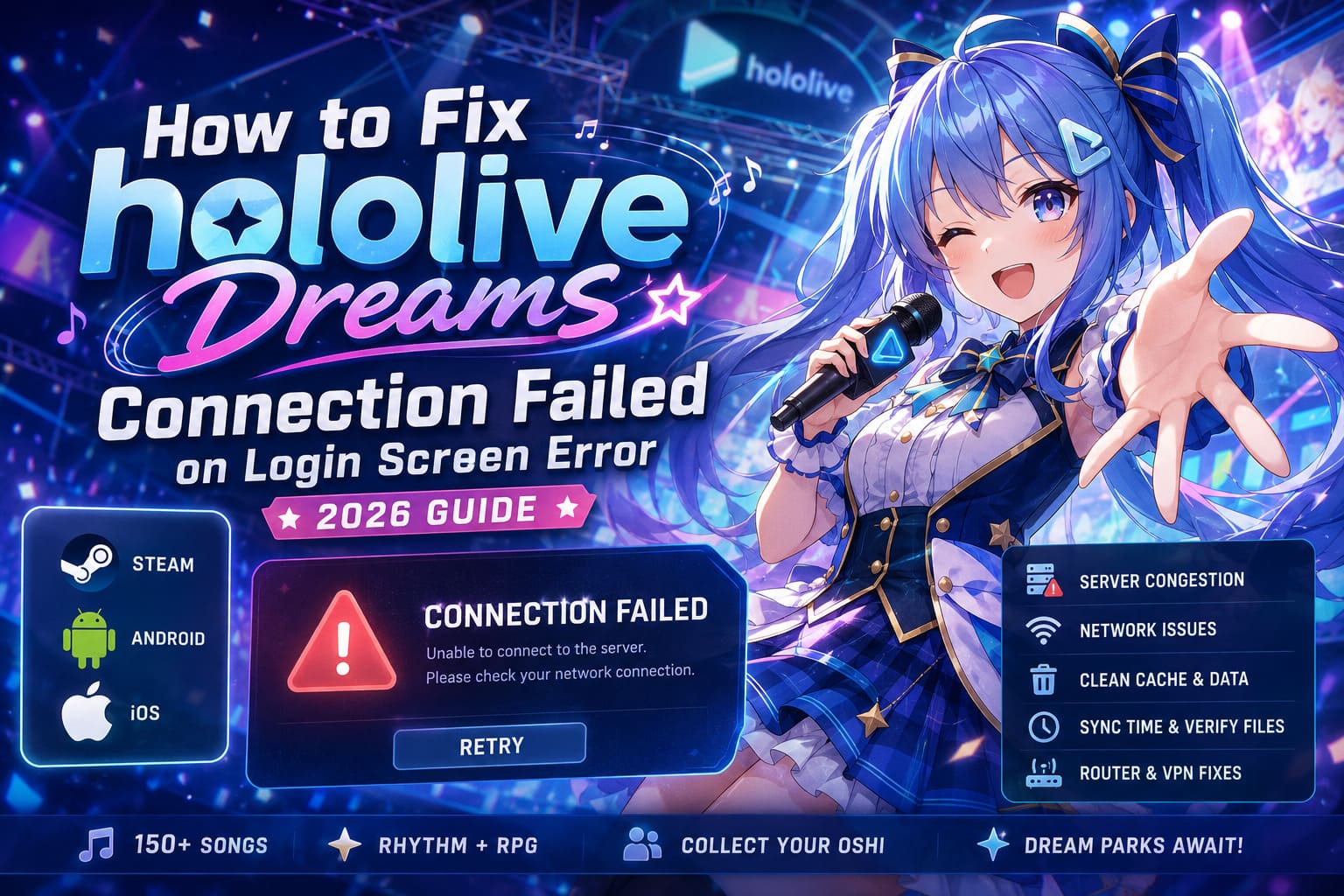
How to Fix hololive Dreams Connection Failed on Login Screen Error (2026 Guide)
The worldwide debut of Hololive Dreams on July 23, 2026 was everything many VTuber fans had been waiting years to experience. A massive crossover between rhythm gameplay, RPG mechanics, collectible idols, and more than 150 music tracks sounded like the perfect recipe for hundreds of hours of grinding Dream Parks with your favorite Oshi.
Unfortunately, launch week has also been filled with frustration.
Instead of jumping into concerts, upgrading characters, and unlocking cosmetics, thousands of players are being greeted by one of the most annoying launch-day problems imaginable:
“Connection Failed.”
For others, the game never even reaches that message. The loading indicator remains stuck at 0%, account synchronization refuses to complete, or the title endlessly loops back to the login screen after tapping Start.
I’ve seen this exact pattern with plenty of online launches over the years, and Hololive Dreams is following a surprisingly familiar script. After digging through community discussions, testing different network setups, and comparing reports from Steam players and mobile users, several reliable solutions have consistently appeared.
This guide covers every worthwhile fix currently available for Steam, Android, and iOS without wasting your time on random “magic” tricks that accomplish nothing.
Why Hololive Dreams Won’t Connect
The error itself is actually fairly generic.
Rather than pointing toward one single bug, Connection Failed simply means the game was unable to finish its authentication sequence with the official servers.
Several different issues can trigger exactly the same message.
| Possible Cause | How It Affects Login |
|---|---|
| Launch server congestion | Authentication requests timeout before completing. |
| IPv4 / IPv6 routing conflicts | Login handshake never finishes correctly. |
| VPN or proxy software | Security validation rejects modified network routes. |
| Corrupted cached data | Login files become unreadable or outdated. |
| Incorrect Windows clock | Secure authentication certificates fail validation. |
| Damaged game files | Required networking components cannot initialize. |
The important thing to understand is that the login error isn’t always your fault. During launch week, overloaded infrastructure has been responsible for many failed logins.
Still, plenty of players have managed to get in after making only one or two small changes.
Mobile Fixes (Android & iPhone)
Mobile users appear to encounter the problem more frequently during the initial authentication process.
If you’re stuck on Tap to Start or the loading wheel never moves, these are the methods worth trying.
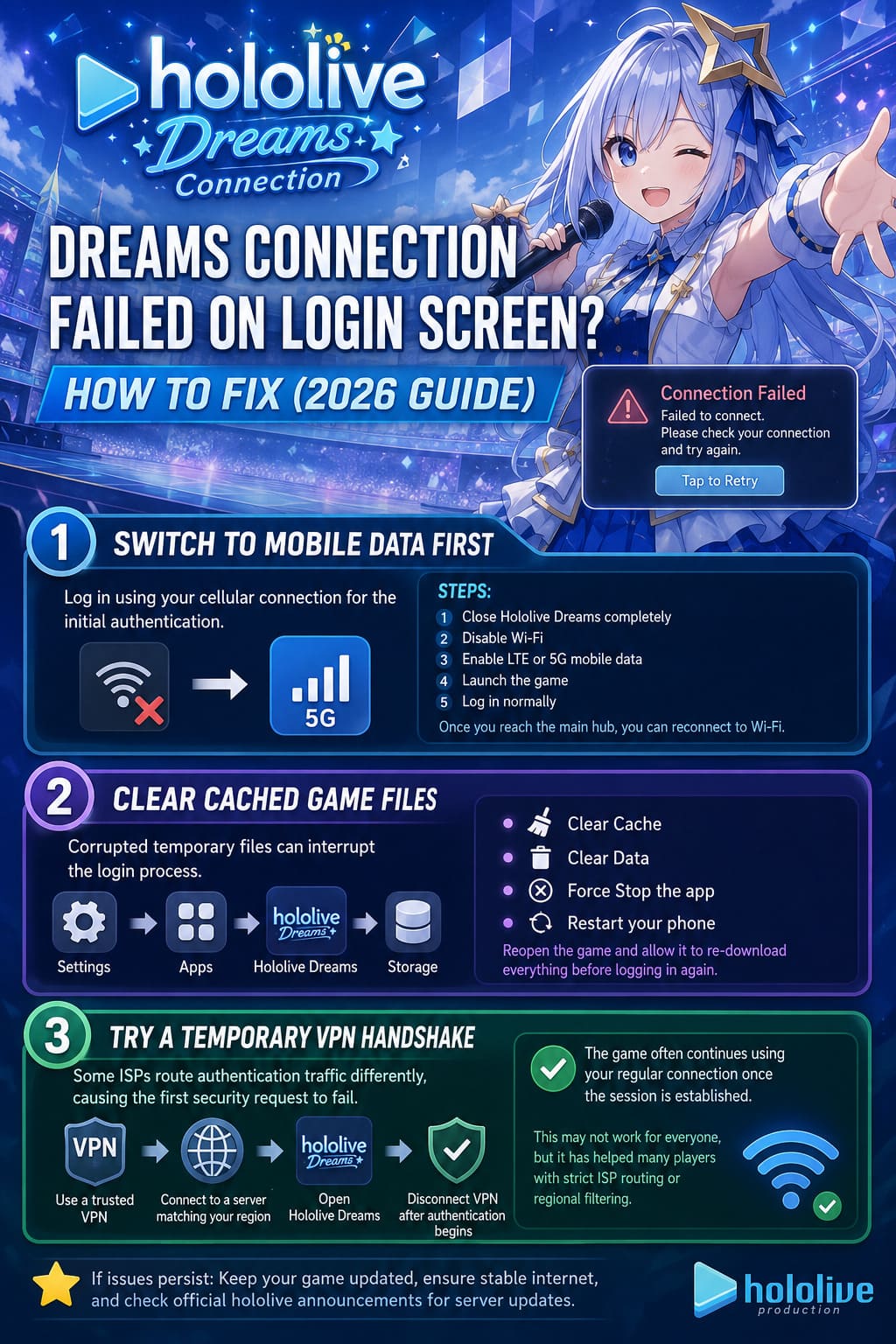
Switch to Mobile Data First
This has become one of the most successful community fixes.
Instead of attempting the first login over Wi-Fi, authenticate using your cellular connection.
Steps:
- Completely close Hololive Dreams.
- Disable Wi-Fi.
- Enable LTE or 5G mobile data.
- Launch the game.
- Log in normally.
- Once you’ve reached the main hub, reconnect to Wi-Fi if you want.
Oddly enough, many players report the game stays connected perfectly after the initial authentication.
Clear Cached Game Files
Temporary login files sometimes become corrupted during large launch downloads.
Removing them forces the client to request fresh authentication data.
Open:
Settings → Apps → Hololive Dreams → Storage
Then:
- Clear Cache
- Clear Data
- Force Stop the app
- Restart your phone
After reopening the game, allow it to download everything again before attempting another login.
Try a Temporary VPN Handshake
Normally I’d recommend avoiding VPNs with online games.
Hololive Dreams is a little unusual.
Some ISPs appear to route authentication traffic differently, causing the first security request to fail.
A workaround reported by many players involves:
- Launching a trusted VPN.
- Connecting to a server matching your account region.
- Opening Hololive Dreams.
- Disconnecting the VPN immediately after authentication begins.
The client often continues using your regular connection once the session has already been established.
This won’t work for everyone, but it has helped players dealing with strict ISP routing or regional filtering.
Steam Login Fixes
PC players have a slightly different set of problems.
Unlike mobile, Windows introduces several additional variables that can interfere with authentication.
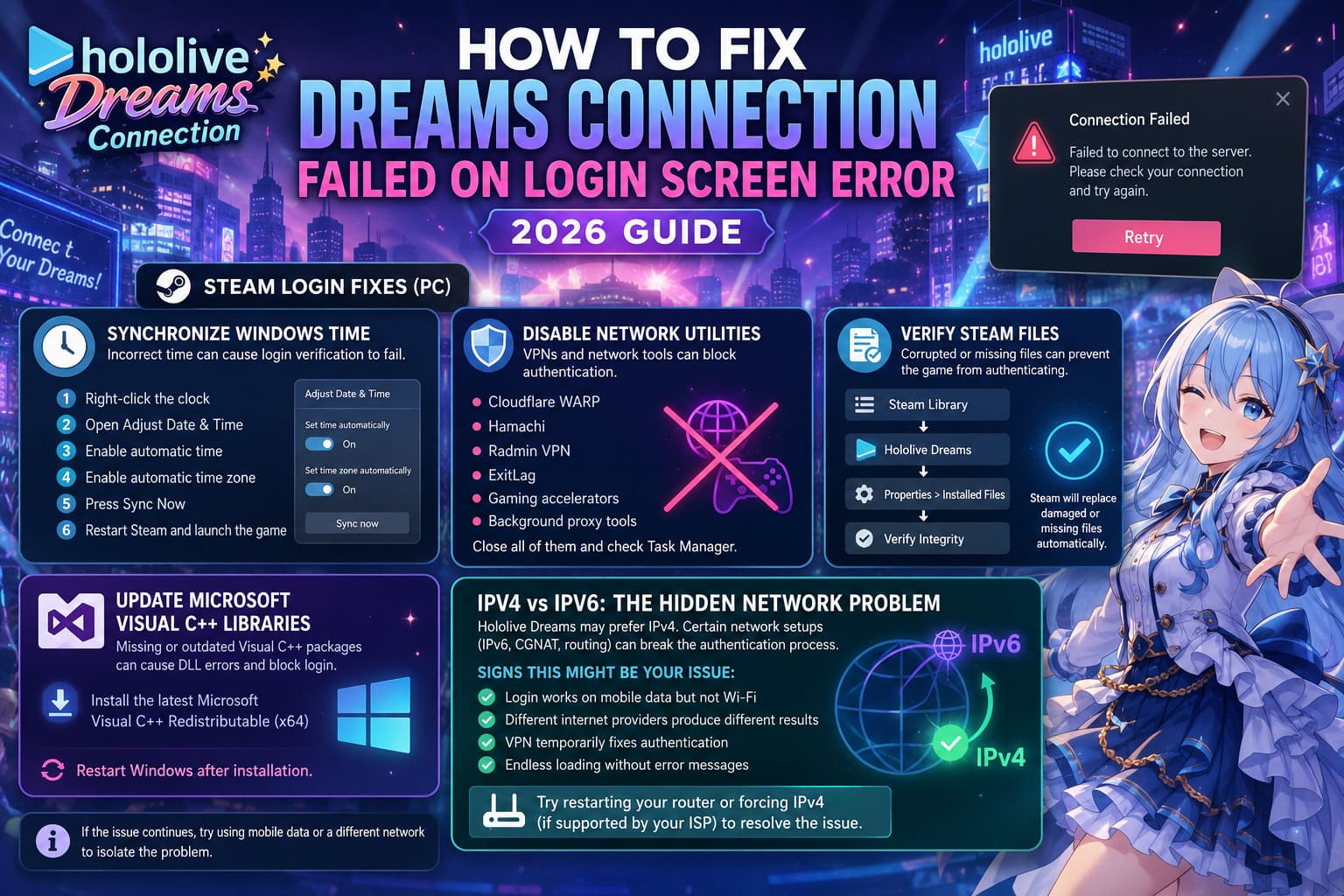
Synchronize Windows Time
This sounds ridiculously simple.
It also fixes more login issues than most people expect.
Modern online games compare your local system clock against secure authentication certificates. If your PC is even slightly out of sync, verification may fail.
To synchronize Windows:
- Right-click the clock.
- Open Adjust Date & Time.
- Enable automatic time.
- Enable automatic time zone.
- Press Sync Now.
- Restart Steam completely.
Launch the game again afterward.
Disable Network Utilities
Applications that reroute internet traffic can interfere with Hololive Dreams.
Common examples include:
- Cloudflare WARP
- Hamachi
- Radmin VPN
- ExitLag
- Generic gaming accelerators
- Background proxy tools
Close every one of them.
Don’t forget to check Task Manager afterward.
Many of these utilities continue running quietly even after their windows disappear.
Verify Steam Files
Launch-week patches sometimes leave incomplete installations behind.
Steam makes verification painless.
Open:
Steam Library → Hololive Dreams → Properties → Installed Files → Verify Integrity
Steam will automatically replace damaged or missing files.
If anything network-related became corrupted during installation, this usually fixes it.
Update Microsoft Visual C++ Libraries
Many PC gamers ignore Visual C++ packages until something breaks.
Hololive Dreams depends on Microsoft’s runtime libraries just like countless other modern games.
Installing the newest x64 package can resolve missing DLL issues that prevent authentication modules from loading correctly.
Restart Windows after installation.
IPv4 vs IPv6: The Hidden Network Problem
One topic that keeps surfacing across player reports is the game’s apparent preference for IPv4 connections.
Many modern internet providers rely heavily on IPv6 or Carrier Grade NAT.
Normally this isn’t an issue.
For Hololive Dreams, however, certain routing combinations appear to interrupt the authentication handshake before it finishes.
Signs this might be your issue include:
- Login works on mobile data but not Wi-Fi.
- Different internet providers produce different results.
- VPN temporarily fixes authentication.
- Endless loading without error messages.
If this sounds familiar, restarting your router or temporarily forcing IPv4 (when supported by your ISP) may solve the issue.
Don’t Ignore Simple Router Fixes
Sometimes gamers overcomplicate things.
Before spending an hour changing Windows settings, try the basics.
A full network reboot only takes a couple of minutes.
Disconnect your router from power.
Wait at least 60 seconds.
Reconnect everything.
Allow your modem and router to establish a completely fresh internet session before opening Hololive Dreams again.
I’ve personally seen stubborn authentication bugs disappear after nothing more than a clean router restart.
How to Tell if the Servers Are Actually Down
This is probably the question I’ve seen the most since launch.
If you’ve already:
- verified game files,
- restarted your hardware,
- tested another internet connection,
- cleared cache,
- disabled VPN software,
…and the game still refuses to authenticate, chances are you’re dealing with server-side problems.
Launch week has generated an enormous amount of traffic.
Large spikes in concurrent users naturally create login queues, overloaded authentication servers, and temporary maintenance windows.
Typical signs include:
- Everyone on social media reporting identical errors.
- Login failures beginning simultaneously worldwide.
- Infinite authentication loops affecting every platform.
- Emergency maintenance announcements from the developers.
- “Preparing to Open” or maintenance messages inside the client.
When this happens, there is nothing to fix locally.
The only solution is waiting for additional server capacity or maintenance to finish.
How to Get S Rank in hololive Dreams Concerts: Scoring Guide
Extra Tips That Can Save You Time
Before trying dozens of complicated fixes, run through this quick checklist.
Do:
- Restart the game completely.
- Keep your client fully updated.
- Restart Steam before testing again.
- Use your account’s correct region.
- Keep Windows fully updated.
- Close unnecessary background applications.
Avoid:
- Running multiple VPNs simultaneously.
- Using outdated DNS optimization software.
- Launching through unsupported third-party tools.
- Constantly retrying login every few seconds during server outages.
Repeated authentication attempts during heavy congestion rarely help and sometimes make the waiting even longer.
Hololive Dreams Beginner Guide: Reroll Tips, Team Building, and Fast Progression Strategy
Final Thoughts
Hololive Dreams delivers exactly the kind of energetic rhythm-RPG experience many VTuber fans hoped for, but its explosive launch has exposed a few weak spots in the game’s online infrastructure.
Fortunately, most login failures aren’t permanent.
In my testing and after reading countless player reports, the biggest success stories consistently came from a handful of simple fixes: switching to mobile data for the first login, synchronizing the Windows system clock, disabling VPN or network optimization software, verifying Steam files, and clearing corrupted mobile cache data.
If none of those work, don’t immediately assume something is wrong with your PC or phone. Launch-week congestion is still affecting players across multiple regions, and authentication servers can become overwhelmed without warning.
My recommendation is straightforward: work through the fixes one at a time instead of changing everything at once. That way you’ll know exactly what solved the problem, and you’ll avoid creating new issues in the process.
With a little patience—and hopefully a few infrastructure upgrades from the developers—you should be back in your Dream Park, building your collection and enjoying concerts with your favorite Hololive talents instead of staring at an endless loading screen.