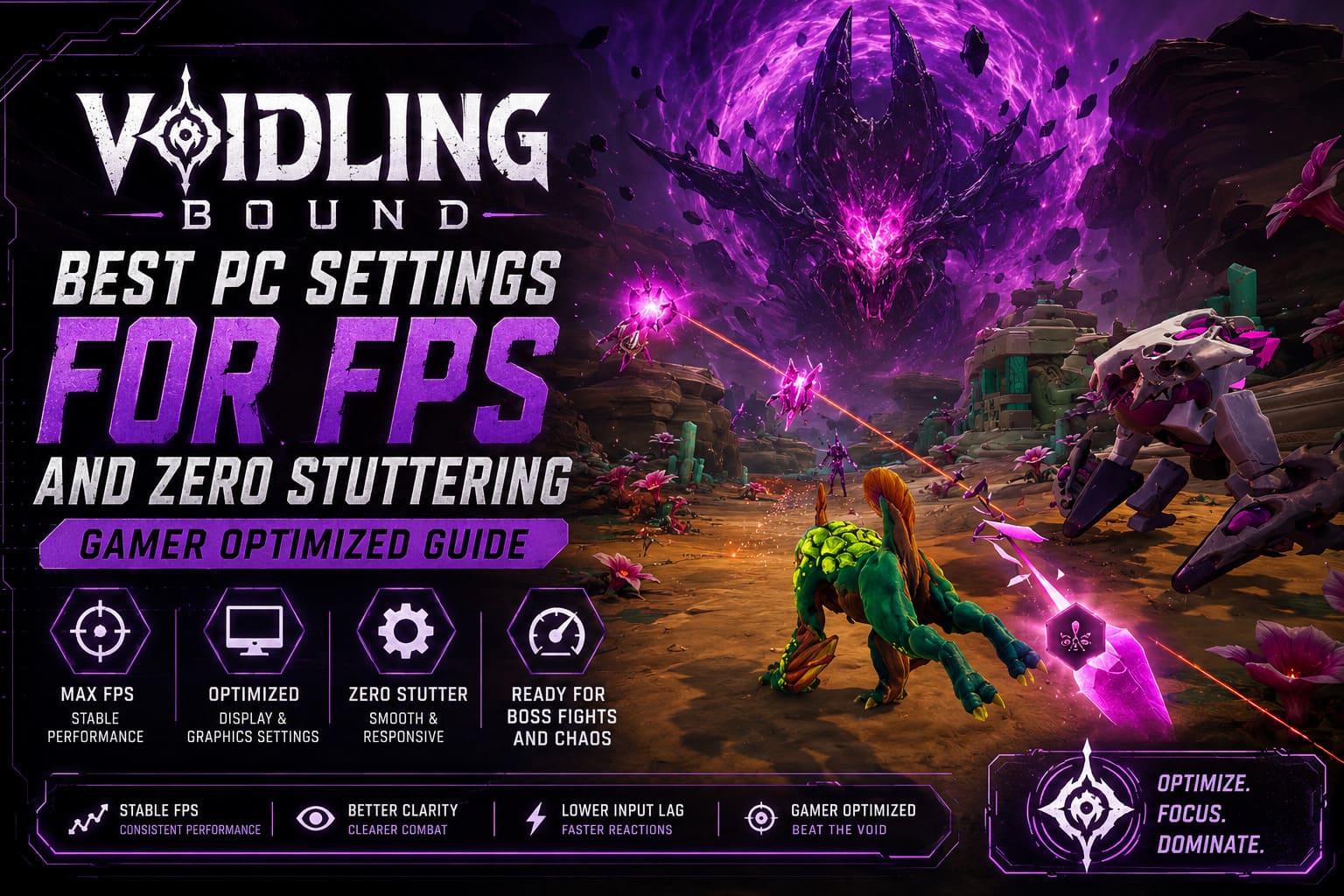
Voidling Bound Best PC Settings for FPS and Zero Stuttering (Gamer Optimized Guide)
I’ve spent way too many hours inside Voidling Bound already — the kind of sessions where “one more run” turns into a full night of boss fights, loot grinding, and wondering where the time went. And if there’s one thing that consistently breaks the immersion, it’s performance drops right when the screen turns into pure chaos.
This guide is not a dry technical breakdown. It’s written from a player’s perspective — someone who actually cares about how the game feels when everything explodes on screen and timing matters more than visuals.
The goal here is simple: stable FPS, minimal stuttering, and responsive input with settings that actually make sense in real gameplay.
Voidling Bound DNA Splicing Guide: How to Craft the Ultimate Specimen
Why Performance Matters in Voidling Bound
Voidling Bound is fast. It’s not a slow tactical RPG where you can pause and think. Everything happens at once: elemental effects, swarm AI, particle bursts, dodge windows, and constant movement. When performance drops, you don’t just lose frames — you lose reaction time.
And in this kind of game, reaction time is everything. Even a slight stutter can mean missing a dodge or eating a full combo from a boss you clearly thought you avoided.
My Approach to Optimizing Settings
After testing different setups and dealing with more FPS spikes than I’d like to admit, I stick to a few core principles:
- – Stability matters more than peak FPS
- – CPU-heavy settings should be reduced first
- – Visual clarity is more important than cinematic effects
- – Frame pacing is more important than raw numbers
In short: smooth 80 FPS always beats unstable 120 FPS.
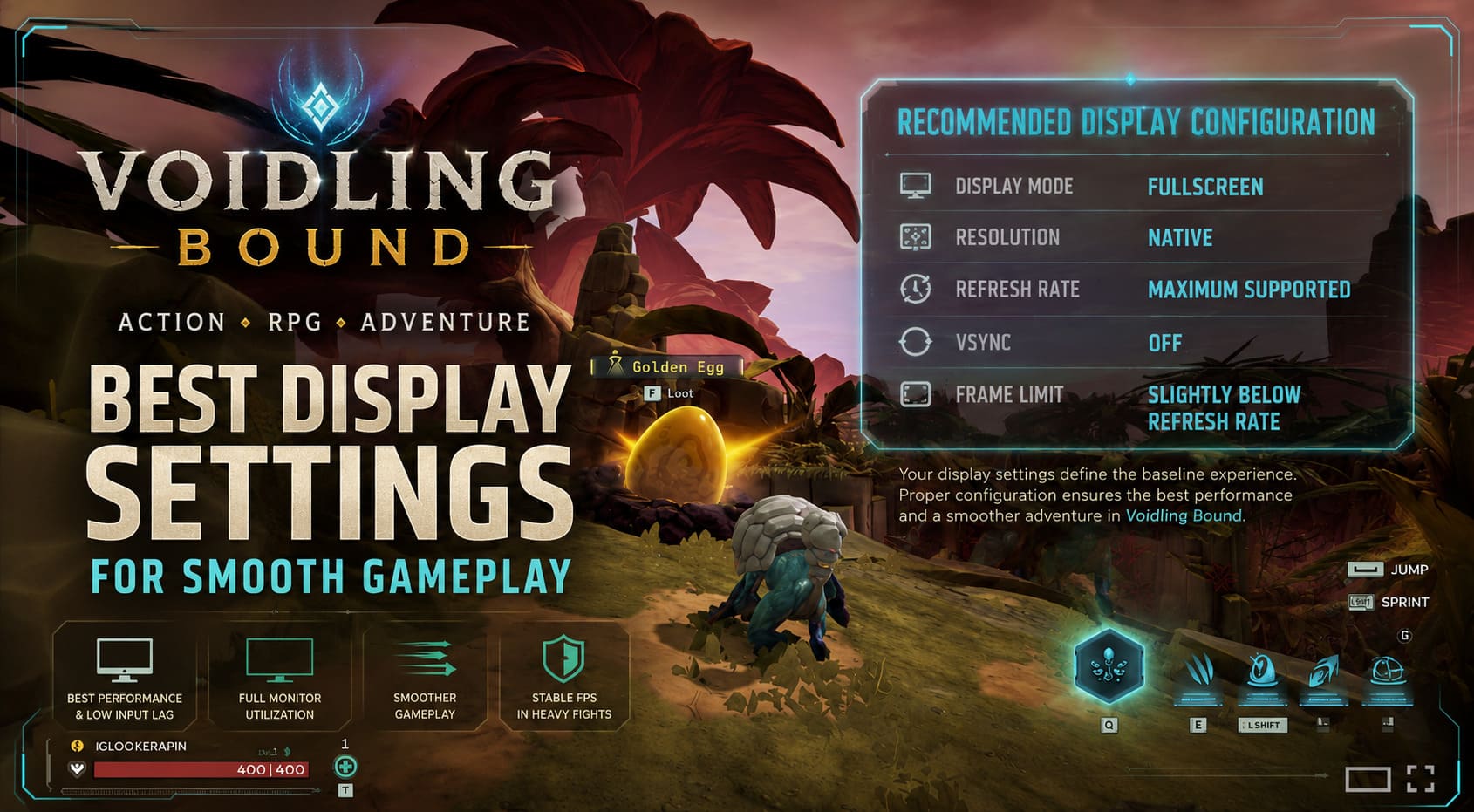
Best Display Settings for Smooth Gameplay
Your display settings define the baseline experience. If these are wrong, no amount of tweaking elsewhere will fully fix performance issues.
Recommended Display Configuration
| Setting | Recommended Value | Reason |
|---|---|---|
| Display Mode | Fullscreen | Best performance and lowest input latency |
| Resolution | Native | Avoids blur and scaling artifacts |
| Refresh Rate | Maximum supported | Ensures full monitor utilization |
| VSync | Off | Prevents input lag |
| Frame Limit | Slightly below refresh rate | Improves frame pacing stability |
I personally always cap my FPS just below my monitor refresh rate. It prevents sudden GPU spikes and keeps gameplay smoother during heavy fights.
Destiny 2 Anti-Champion Weapon System Explained – A Veteran Player’s Take on the New Meta
Best In-Game Graphics Settings
This is where most of your FPS gains will come from. Voidling Bound is heavily dependent on effects, lighting, and particle density, so optimizing here is essential.
Competitive Performance Settings
- – Render Scale: 90–100% (lower if needed for stability)
- – Texture Quality: High or Medium depending on VRAM
- – Shadows: Low
- – Effects: Low (major FPS saver)
- – View Distance: Medium
- – Foliage: Low
- – Post-Processing: Low
- – Reflections: Low
- – Anti-Aliasing: Low or Medium
The biggest performance killers are shadows, effects, and post-processing. Reducing these alone can completely stabilize frame drops during large combat encounters.
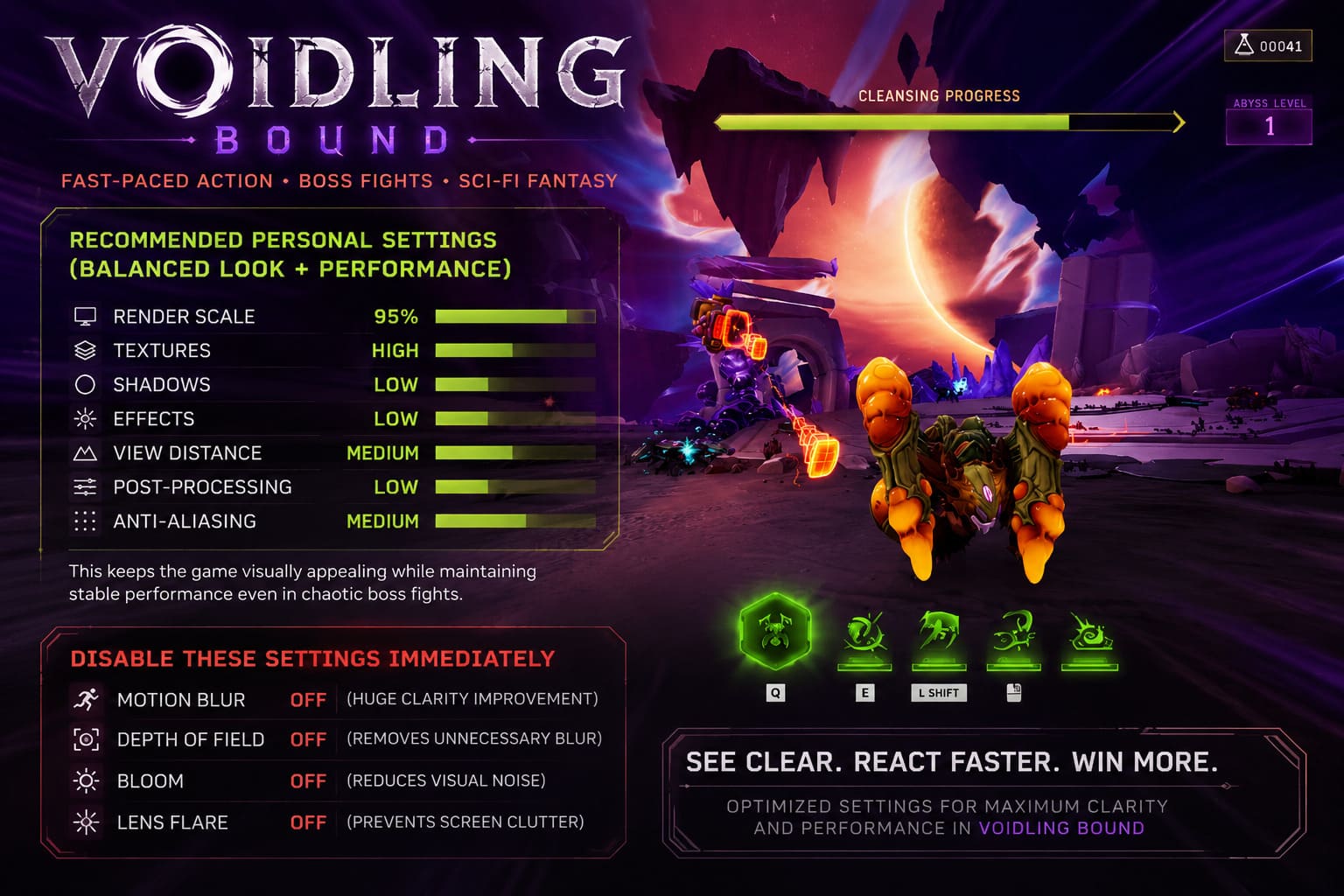
Recommended Personal Settings (Balanced Look + Performance)
After experimenting with multiple configurations, this is the setup I personally stick with:
- – Render Scale: 95%
- – Textures: High
- – Shadows: Low
- – Effects: Low
- – View Distance: Medium
- – Post-Processing: Low
- – Anti-Aliasing: Medium
This keeps the game visually appealing while maintaining stable performance even in chaotic boss fights.
Disable These Settings Immediately
Some settings look good on paper but actively hurt gameplay clarity and performance.
- – Motion Blur: OFF (huge clarity improvement)
- – Depth of Field: OFF (removes unnecessary blur)
- – Bloom: OFF (reduces visual noise)
- – Lens Flare: OFF (prevents screen clutter)
Turning these off makes combat significantly easier to read, especially when multiple effects overlap on screen.
Upscaling Technologies (DLSS and FSR)
Upscaling is one of the easiest ways to gain free performance without heavily sacrificing visuals.
- – DLSS (RTX users): Use Quality mode
- – FSR (AMD or older GPUs): Balanced or Quality mode
- – Avoid Performance mode at 1080p unless absolutely necessary
Modern upscaling in Voidling Bound is surprisingly clean and doesn’t destroy image quality like older implementations.
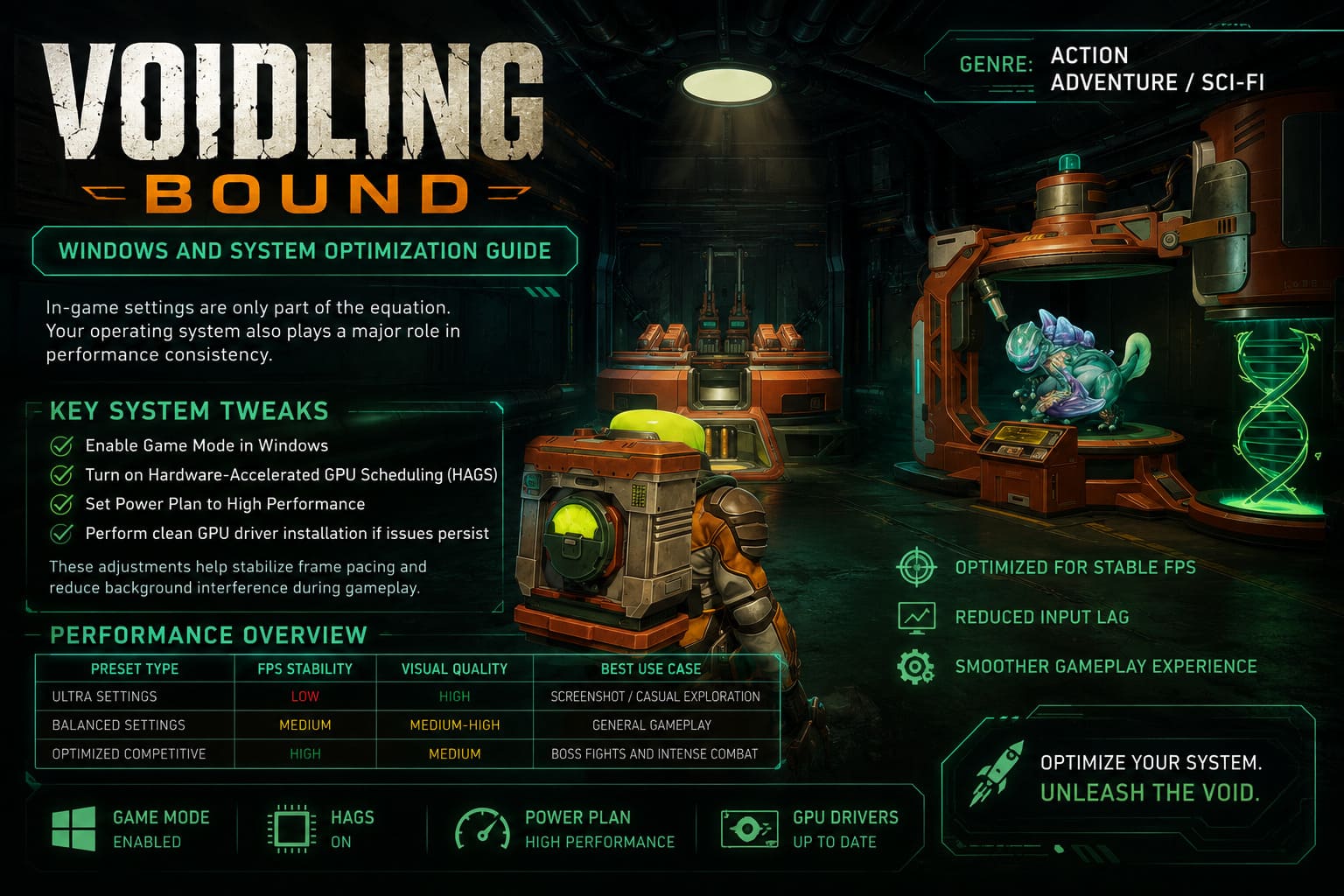
Windows and System Optimization
In-game settings are only part of the equation. Your operating system also plays a major role in performance consistency.
Key System Tweaks
- – Enable Game Mode in Windows
- – Turn on Hardware-Accelerated GPU Scheduling (HAGS)
- – Set Power Plan to High Performance
- – Perform clean GPU driver installation if issues persist
These adjustments help stabilize frame pacing and reduce background interference during gameplay.
Performance Overview
| Preset Type | FPS Stability | Visual Quality | Best Use Case |
|---|---|---|---|
| Ultra Settings | Low | High | Screenshot / Casual exploration |
| Balanced Settings | Medium | Medium-High | General gameplay |
| Optimized Competitive | High | Medium | Boss fights and intense combat |
Final Thoughts
Voidling Bound is not forgiving when it comes to performance. Once the screen fills with effects, enemies, and movement, your system has to keep up or the experience falls apart quickly.
The real goal is not maximum graphics — it’s consistency. A stable frame rate makes combat feel responsive, readable, and fair. Once you hit that balance, the game becomes significantly more enjoyable.
If you’re still struggling after applying these settings, reduce Effects and Shadows even further before touching resolution. That alone usually fixes most performance issues.
At that point, you’re not fighting the hardware anymore — you’re just playing the game the way it was meant to be played.