How to Fix 33 Days till Extraction Black Screen on Startup Error
If you have just installed 33 Days till Extraction, hit Play on Steam, and got nothing but a black screen staring back at you, you are definitely not alone. Few things kill the mood faster than being ready to explore a hostile sci-fi world only to end up listening to menu music while your monitor displays absolute darkness.
I have run into this kind of problem plenty of times with new PC releases and demo builds. A game can run perfectly on paper, yet something as boring as a shader cache, graphics API setting, overlay, or damaged configuration file can stop the renderer before the first frame appears. 33 Days till Extraction is no exception, particularly when different hardware configurations and early builds are involved.
The good news is that a black screen does not automatically mean the game is broken beyond repair. Before reinstalling everything or blaming your GPU, there are several fixes worth trying. I would work through them in order, starting with the quick solutions and moving toward the more aggressive ones.
Best Graphics Settings for 33 Days till Extraction RTX 3060: Max FPS & Optimization Guide
What Causes the 33 Days till Extraction Black Screen?
The annoying part about startup black screens is that several completely different problems can produce almost identical symptoms. You might see a black display while still hearing music, get stuck immediately after the opening cinematic, or watch the game launch in the Steam process list without ever showing the actual menu.
Common causes include:
- Incorrect DirectX or rendering API initialization
- Corrupted or missing game files
- Steam, Discord, or GPU overlays interfering with rendering
- Broken shader or configuration caches
- Outdated graphics drivers
- Fullscreen and resolution conflicts
- Multi-monitor or unusual display configurations
The key is not to throw ten fixes at the game simultaneously. Change one thing, launch it again, and see whether the behavior changes. That makes troubleshooting much easier and prevents you from accidentally creating another problem while trying to solve the first one.
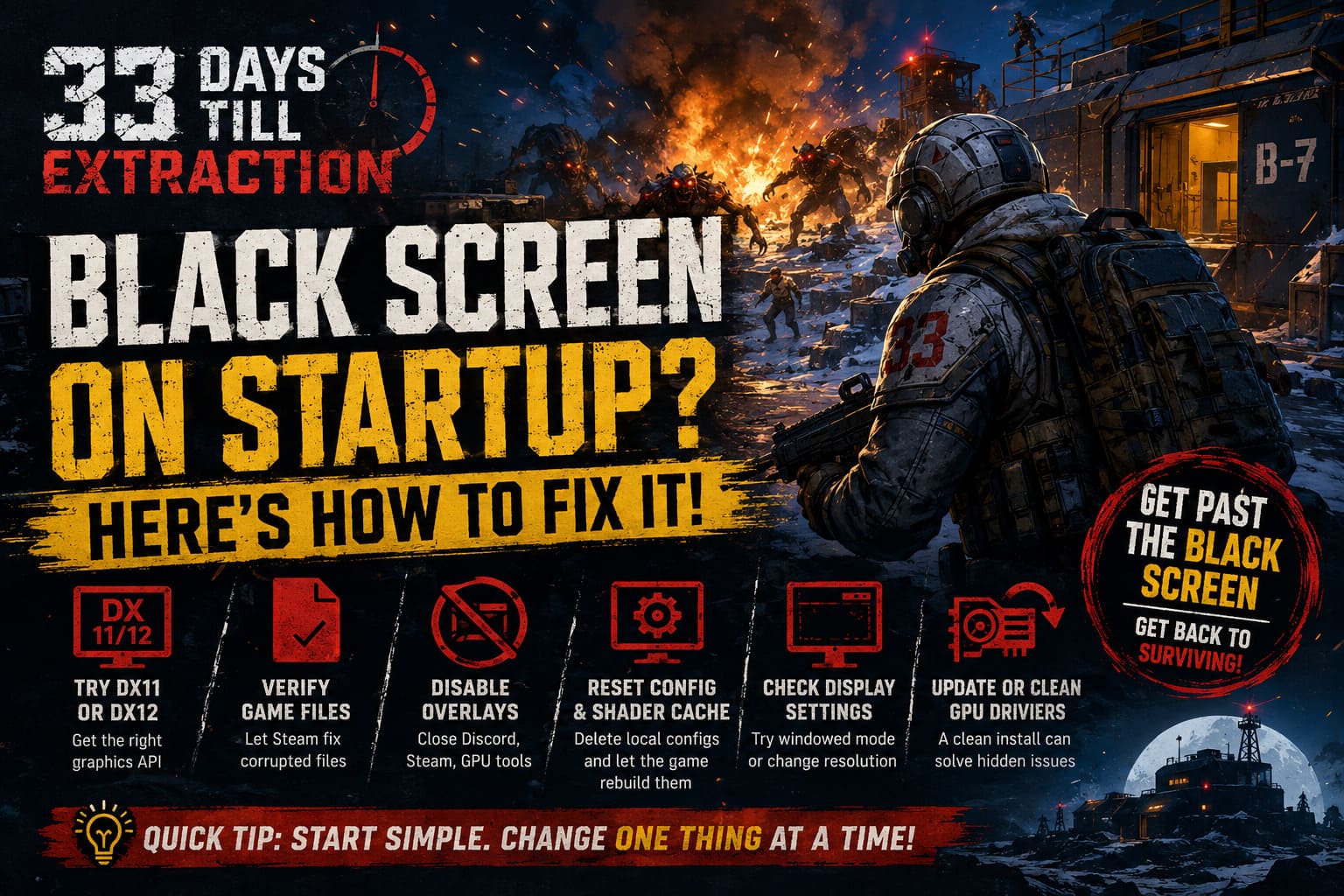
1. Try a Different Graphics API
This is one of the first things I would test because it takes less than a minute and can completely change how the game initializes its renderer.
Open your Steam Library, right-click 33 Days till Extraction, select Properties, and stay on the General tab. Find the Launch Options box and enter:
-dx11
Close the window and start the game.
If the black screen disappears, you have likely found a rendering initialization problem rather than a damaged installation. You can play with DirectX 11 for now and potentially return to the default configuration after a future update.
If -dx11 does nothing, remove it and try:
-d3d12
I would test these separately rather than leaving both commands active. Different hardware can behave very differently with each API, and there is no reason to force a configuration that already causes crashes or graphical artifacts.
| Launch Option | What to Test | When It Makes Sense |
|---|---|---|
-dx11 | DirectX 11 renderer | Startup rendering problems |
-d3d12 | DirectX 12 renderer | DX11 glitches or compatibility issues |
| No option | Default game configuration | After testing alternatives |
My recommendation: start with DX11. It is often the easier compatibility test when an early PC build refuses to render correctly.
2. Verify the Game Files Through Steam
Before doing anything complicated, make Steam check whether the installation is actually intact.
Right-click 33 Days till Extraction in your library and open Properties. Go to Installed Files, then choose Verify integrity of game files.
Steam will compare your local installation against the files it expects to find. If something is missing or corrupted, Steam can replace it automatically.
This is especially worth trying if the black screen appeared after an update. A game can download a patch successfully while one asset becomes corrupted or fails to install correctly. You may never notice the damaged file until the engine tries to load it during startup.
Once the verification finishes, launch the game again. If Steam downloaded anything, I would also give the PC a quick restart before testing.
3. Kill Every Overlay You Don’t Need
Overlays are incredibly useful when they work. When they don’t, they can become the invisible middleman between the game and your desktop.
For troubleshooting, I prefer to remove as many variables as possible.
Start with the Steam Overlay. Open the game’s Steam Properties and disable the option that enables the Steam Overlay while playing.
Then check other software running on your PC. Discord’s overlay, NVIDIA or AMD recording features, FPS counters, hardware monitoring utilities, RGB software, and capture programs can all interact with a game’s rendering process.
If you use programs such as MSI Afterburner with RivaTuner Statistics Server, OBS, Discord, or GPU recording software, close them temporarily and launch the game with a clean desktop.
This is particularly important if you can hear game audio but cannot see the picture. That symptom suggests the game may actually be running while something is preventing the rendered image from reaching the display correctly.
4. Switch Away From Fullscreen
A resolution or fullscreen problem can make a perfectly healthy game look completely dead.
If 33 Days till Extraction starts but remains black, try forcing a windowed or borderless configuration if the game supports the corresponding launch parameters. You can also check Windows display settings and temporarily simplify your setup.
For example, if you are running two or three monitors, HDR, unusual scaling, or a non-standard resolution, temporarily switch to your primary monitor and use its native resolution.
Windows fullscreen optimization can also be worth disabling for the game’s executable.
Find the game’s executable in its installation directory, right-click it, select Properties, then open Compatibility. From there, test Disable fullscreen optimizations.
I would not automatically recommend running every game as administrator, but if normal permissions are somehow preventing the title from accessing something it needs, testing Run this program as an administrator can be useful.
5. Clean Install Your GPU Drivers
If the easy fixes fail, graphics drivers move much higher on my suspect list.
Don’t assume that having the latest driver number means the installation is perfectly healthy. Driver updates can leave behind old components, profiles, or configuration data, and occasionally a fresh game exposes a problem that older titles never triggered.
For a proper clean installation, advanced users can use Display Driver Uninstaller (DDU) from Safe Mode to remove existing GPU driver components. After that, install the current driver package directly from the official manufacturer for your hardware.
This applies whether you use NVIDIA, AMD, or Intel graphics.
If the black screen began immediately after a driver update, there is another possibility worth considering: the newest driver itself may be the problem. In that situation, testing a previous stable driver version can be more useful than repeatedly installing the newest package.
6. Delete Corrupted Configuration or Shader Data
This is one of those fixes that feels almost too simple until it works.
Games store local settings, shader information, cached data, and other files outside their main installation directory. If one of these becomes corrupted, reinstalling the game does not always solve the problem because Windows can leave the problematic user data behind.
Press Windows + R, enter:
%localappdata%
and press Enter.
Look for a folder associated with 33 Days till Extraction or its developer. Depending on how the game stores its data, you may find configuration files, cache directories, or a Saved folder.
Before deleting anything important, make a backup of the folder. Then remove the relevant configuration/cache data and start the game again.
The downside is obvious: you may lose custom settings such as keybinds, graphics preferences, and audio configuration. The upside is that the game gets a chance to rebuild its local profile from scratch.
If the black screen appeared immediately after changing graphics settings, this is one of the fixes I would prioritize.
7. Give Your PC a Clean Environment
Sometimes the problem isn’t the game at all. It is the mountain of stuff Windows has running in the background.
For a proper troubleshooting test, reboot the PC and launch only Steam and 33 Days till Extraction. Don’t start Discord, browser extensions, recording software, GPU monitoring tools, launchers, or anything else you don’t need.
Also check that Windows is fully updated and that your GPU is not overheating or behaving strangely under load.
If you have an overclock or undervolt applied to your GPU or CPU, temporarily return the hardware to stock settings. A demanding game can expose an unstable overclock that other games simply never pushed hard enough to reveal.
Quick Troubleshooting Order
If you don’t want to spend an afternoon experimenting with random fixes, this is the order I would personally use:
- Restart the PC.
- Disable Steam and third-party overlays.
- Try
-dx11. - Try
-d3d12if DX11 fails. - Verify the Steam game files.
- Reset local configuration and shader cache.
- Test fullscreen/windowed display settings.
- Clean-install or change your GPU driver.
- Test the game with unnecessary background software closed.
That sequence starts with changes that are quick and reversible before moving toward anything that could reset your settings.
Black Screen With Audio vs. Black Screen With a Crash
Pay attention to what happens after clicking Play because the symptom can tell you a lot.
Black screen with working audio: this usually points toward rendering, display mode, overlay, shader, or graphics API issues. Try the DirectX launch options and disable overlays first.
Black screen followed by a crash: corrupted files, drivers, unstable hardware, or a broken configuration become stronger suspects.
Black screen immediately after changing graphics settings: reset the local configuration before wasting time reinstalling the entire game.
Game appears in Task Manager but no window appears: investigate fullscreen settings, monitor configuration, resolution, and overlays.
There is no magic fix that works on every PC. Troubleshooting becomes much easier once you stop treating every black screen as the same problem.
Should You Reinstall 33 Days till Extraction?
A full reinstall is tempting, especially when you have already spent several minutes staring at a black screen. I would not make it the first move.
If Steam’s file verification finds nothing wrong, the problem may be sitting in your local configuration, shader cache, driver installation, or an overlay. Reinstalling the game may simply put the same problem back on your SSD.
I would save a complete reinstall for the end of the process. If you do reinstall, consider resetting the game’s leftover user data as well, otherwise you may carry the corrupted configuration into the fresh installation.
Final Thoughts
A startup black screen is one of those PC gaming problems that feels far more dramatic than it usually is. Your GPU isn’t necessarily dying, your save isn’t necessarily corrupted, and you probably don’t need to throw the entire Windows installation out the window.
For 33 Days till Extraction, I would start with the graphics API, verify the game files, and shut down every overlay before doing anything more aggressive. If that doesn’t work, resetting the game’s local configuration and performing a clean GPU driver installation are the next serious steps.
The whole point of a game like this is preparing for extraction, not preparing a forensic investigation of your Windows installation. Once the renderer finally decides to cooperate, you can get back to managing your bunker, experimenting with the game’s systems, and surviving those 33 increasingly stressful days instead of watching a completely black monitor.