How to Fix Don’t Starve Together Black Screen Freeze When Joining Game (2026 Guide)
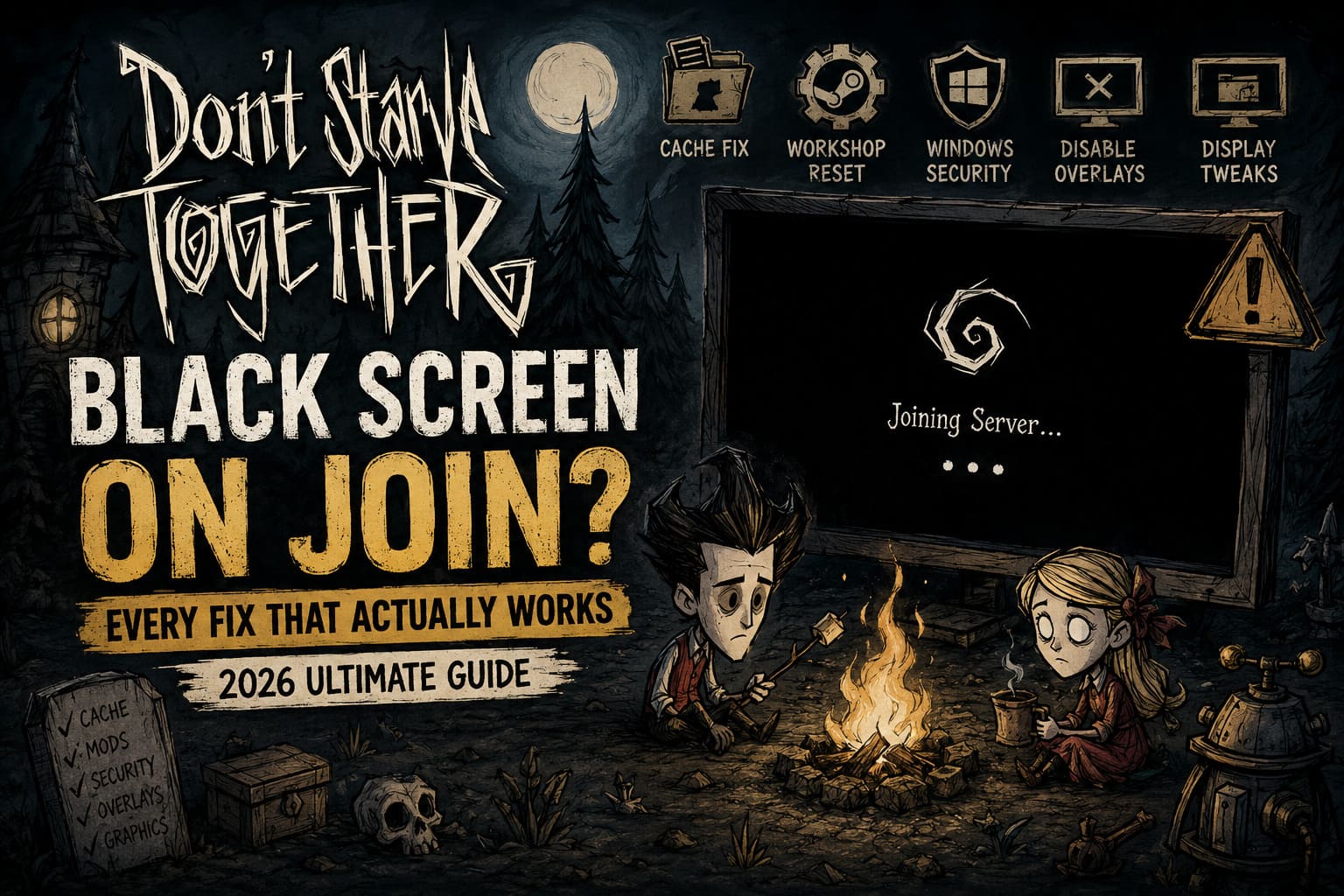
There are few things more frustrating than gathering your friends for a long survival session in Don’t Starve Together, clicking Join, entering the server password, and then… absolutely nothing.
A black screen.
Maybe you can still hear the wind, birds, or menu sounds. Maybe the cursor moves, but the game refuses to load. Sometimes Windows reports that the application has stopped responding, leaving Task Manager as your only escape route. If you’ve landed here, you’re definitely not the only survivor dealing with this headache.
I’ve spent countless hours in DST, hosted dedicated servers, experimented with dozens of Workshop mods, and dug through community reports after nearly every major update. The good news? This issue almost always has a logical cause, and in most cases it can be fixed without reinstalling Windows or wiping your entire Steam library.
This guide combines the most reliable community discoveries with practical troubleshooting steps that have consistently helped players get back into their worlds.
Why Does Don’t Starve Together Freeze on a Black Screen?
Joining a multiplayer world is much more demanding than simply launching the game.
Before your character even appears at the Florid Postern, the client has to complete several tasks simultaneously:
- synchronize world information with the server;
- download or verify Workshop content;
- initialize your local player profile;
- prepare textures, shaders, and rendering assets;
- establish Steam networking authentication.
If one of these processes gets interrupted, the rendering engine may stop updating while waiting for data that never arrives. The result is the infamous endless black screen.
From what I’ve seen over the years, the biggest culprits are:
- damaged local save or cache files;
- broken Workshop downloads;
- outdated server mods;
- Windows security blocking game folders;
- graphics overlays interfering with rendering;
- networking conflicts between Steam clients.
The trick is figuring out which one is affecting your installation.
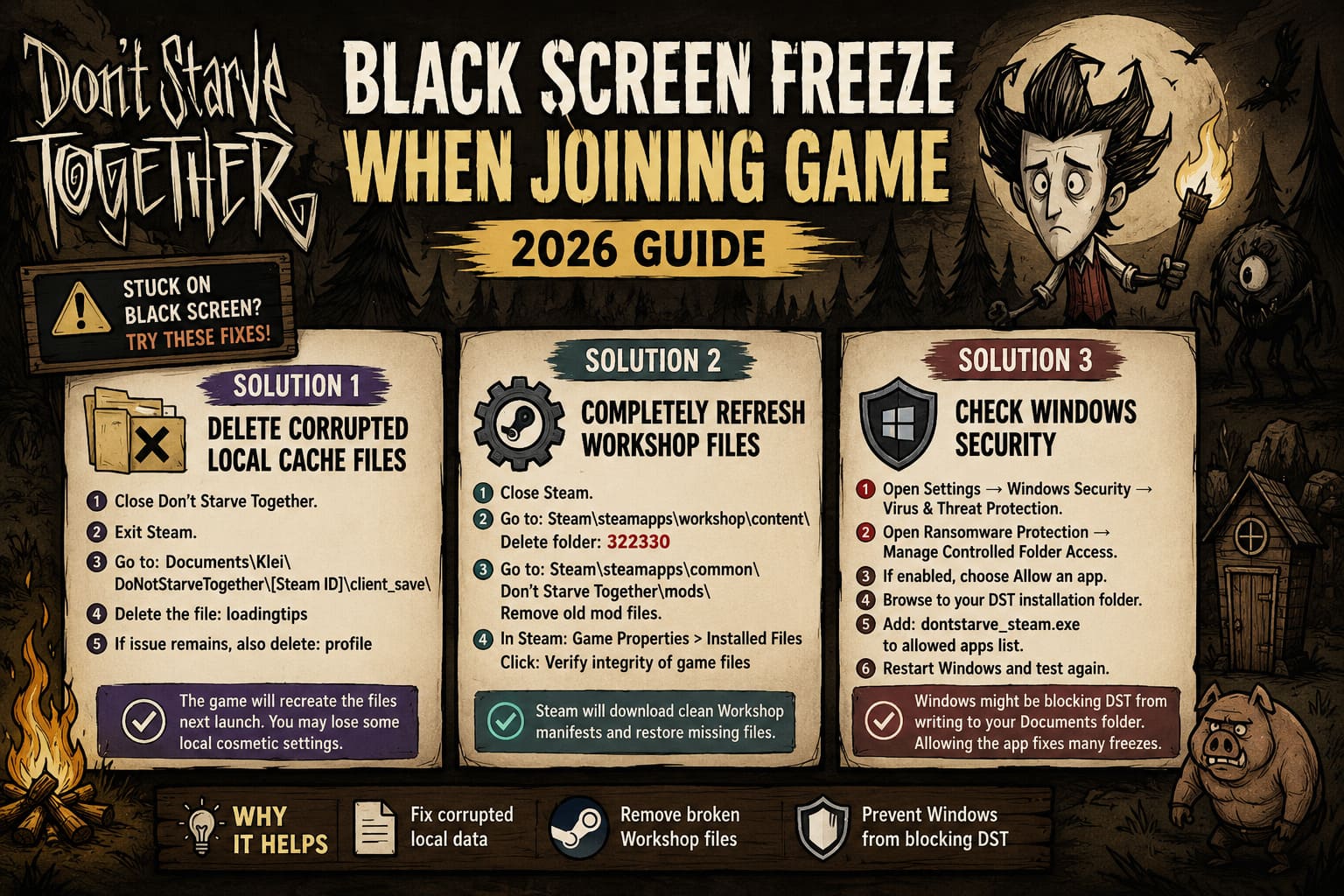
Solution 1 – Delete Corrupted Local Cache Files
One surprisingly common cause is corruption inside your local client_save folder.
This usually happens after an unexpected crash, a forced shutdown, or a game update that doesn’t finish writing configuration data correctly.
Fortunately, these files aren’t essential and the game will automatically rebuild them.
Here’s what to do
- Close Don’t Starve Together completely.
- Exit Steam.
- Open Documents\Klei\DoNotStarveTogether\.
- Open the folder with your Steam ID.
- Enter client_save.
- Delete the file called loadingtips.
- If the issue remains after testing, return to the same folder and also delete profile.
The game recreates both files on the next launch. You’ll lose some local cosmetic settings, but many players report that this instantly resolves black screen loading problems.
Solution 2 – Completely Refresh Workshop Files
Workshop mods are fantastic… until one download silently becomes corrupted.
Even players who believe they’re running a completely vanilla game may still have old cached Workshop assets sitting inside Steam.
Those leftovers can confuse the client while joining servers.
Perform a clean Workshop reset
Close Steam first.
Navigate to Steam\steamapps\workshop\content\.
Locate the folder named 322330. That folder belongs exclusively to Don’t Starve Together.
Delete it.
Next, open Steam\steamapps\common\Don’t Starve Together\mods\.
Remove outdated mod files while leaving official game files intact if you also host servers.
Afterward, launch Steam, open the game’s Properties, select Installed Files, and click Verify integrity of game files.
Steam will download clean Workshop manifests and restore anything that’s missing.
I’ve personally fixed multiple stubborn loading problems this way after major game updates.
Solution 3 – Check Windows Security
This one surprises a lot of people.
Modern Windows versions include ransomware protection that watches programs writing files inside the Documents folder.
Unfortunately, that’s exactly where Don’t Starve Together stores a lot of multiplayer data.
If Windows blocks those write operations, the client can become stuck forever during the loading sequence.
Verify Controlled Folder Access
- Open Settings → Windows Security → Virus & Threat Protection.
- Find Ransomware Protection.
- Open Manage Controlled Folder Access.
- If the feature is enabled, choose Allow an app.
- Browse to your DST installation folder.
- Add dontstarve_steam.exe to the allowed applications list.
- Restart Windows before testing again.
This small adjustment has solved countless unexplained freezes for players who never realized Windows Security was silently blocking the game.
Solution 4 – Disable Every Overlay You Can
Gaming overlays are incredibly useful… until they aren’t.
Programs that hook into DirectX or OpenGL sometimes interrupt the transition between the main menu and active gameplay.
Instead of seeing your character spawn, you’re left staring at a black screen forever.
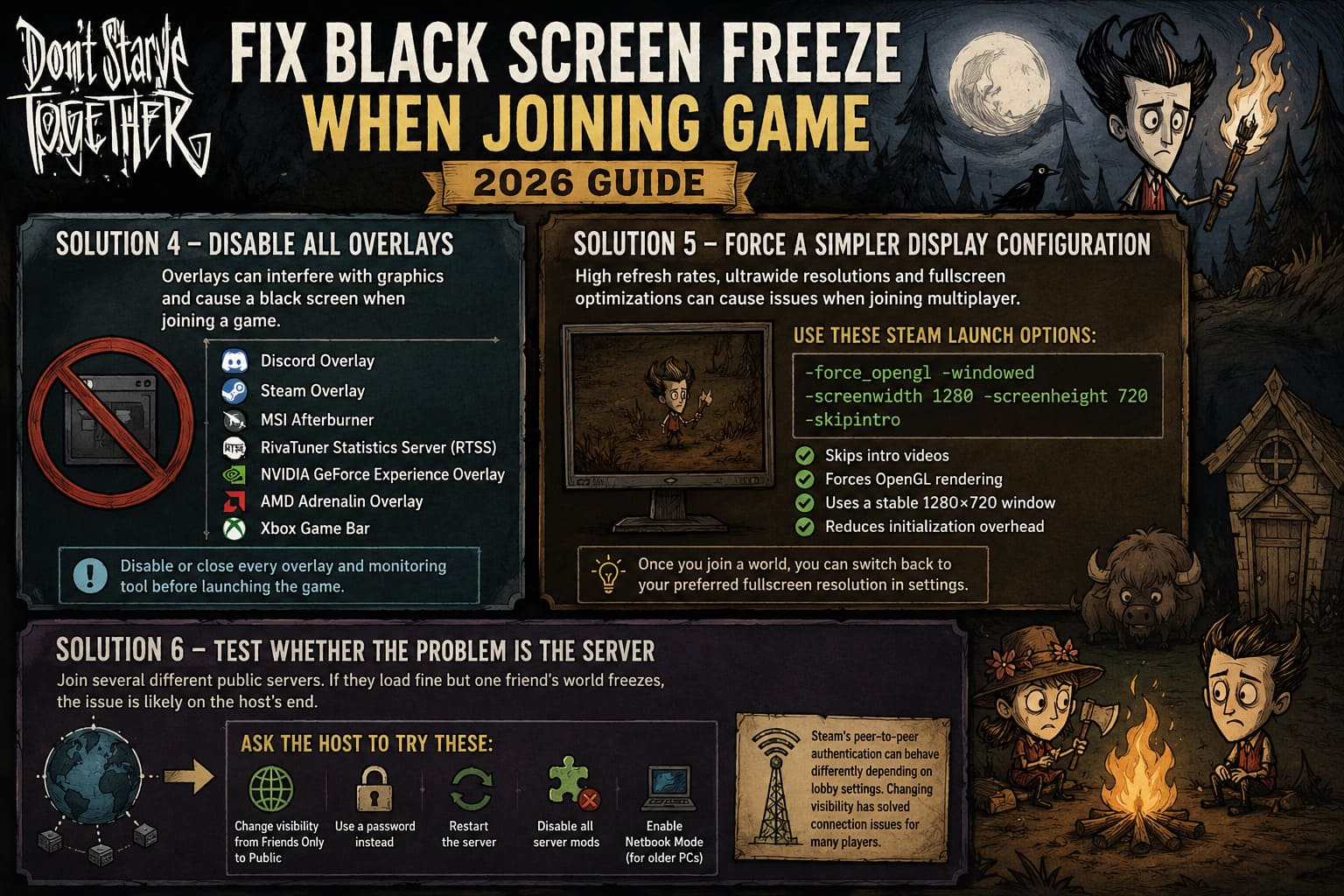
Before launching the game, temporarily disable:
- Discord Overlay
- Steam Overlay
- MSI Afterburner
- RivaTuner Statistics Server (RTSS)
- NVIDIA GeForce Experience Overlay
- AMD Adrenalin Overlay
- Xbox Game Bar
If you’re using multiple monitoring utilities simultaneously, close every one of them.
I’ve seen RTSS cause issues not only in DST but in several older multiplayer games that rely on unusual rendering pipelines.
Solution 5 – Force a Simpler Display Configuration
Not every graphics issue is caused by your GPU.
High refresh monitors, ultrawide resolutions, and fullscreen optimizations occasionally introduce compatibility problems while joining multiplayer sessions.
Running the game in a lightweight windowed configuration is an easy way to rule that out.
Open the game’s Launch Options inside Steam and enter:
-force_opengl -windowed -screenwidth 1280 -screenheight 720 -skipintro
These launch parameters skip the intro videos, force OpenGL rendering, use a stable 1280×720 window, and reduce initialization overhead.
Once you’ve successfully joined a world, you can return to your preferred fullscreen resolution from the in-game graphics settings.
Solution 6 – Test Whether the Problem Is Actually the Server
Sometimes your installation isn’t the problem at all.
A useful test is joining several different public servers.
If those load correctly while one friend’s world consistently freezes, you’ve narrowed the issue considerably.
Ask the host to try a few quick changes:
- Switch server visibility from Friends Only to Public.
- Protect the world with a password instead.
- Restart the server.
- Temporarily disable all server mods.
- Enable Netbook Mode if either player uses older hardware.
Steam’s peer-to-peer authentication occasionally behaves differently depending on lobby settings, so changing server visibility has unexpectedly solved connection issues for many groups.
Quick Comparison of the Most Effective Fixes
| Problem | Recommended Solution | Difficulty | Success Rate |
|---|---|---|---|
| Corrupted save cache | Delete loadingtips and profile | Easy | High |
| Broken Workshop downloads | Remove Workshop cache and verify files | Medium | High |
| Windows Security blocking files | Allow DST through Controlled Folder Access | Medium | High |
| Overlay conflicts | Disable all overlays | Easy | Medium |
| Graphics initialization issue | Force OpenGL and windowed mode | Easy | Medium |
| Friend’s server only | Change lobby settings and test without mods | Easy | Medium |
Additional Things Worth Trying
If none of the major fixes solve the problem, there are still a few smaller tweaks that have helped parts of the community.
Consider trying:
- updating your graphics driver;
- restarting your router;
- disabling VPN software;
- temporarily turning off antivirus scanning;
- reinstalling Microsoft Visual C++ Redistributables;
- launching Steam as Administrator;
- checking whether the server is running outdated Workshop mods.
These won’t fix every case, but they’re worth testing before performing a complete reinstall.
Will Don’t Starve Together Skins Transfer to Don’t Starve Elsewhere?
Final Thoughts
The black screen freeze when joining a Don’t Starve Together server can feel completely random, especially because the game often continues playing audio in the background. Fortunately, it’s usually the result of one broken link somewhere between your local files, Steam Workshop content, Windows security, or the server itself—not permanent damage to your installation.
If I had to prioritize the fixes, I’d start by clearing the client_save cache, then perform a full Workshop cleanup, verify the game’s files through Steam, and finally disable every overlay running on the system. Those four steps alone resolve the overwhelming majority of reported cases.
DST remains one of the best cooperative survival games available, and while connection issues can occasionally test your patience more than Deerclops ever could, they rarely require drastic measures. A bit of cleanup and a few configuration changes are often enough to get you back into the Constant, where the real challenge is surviving the next winter—not staring at a frozen black screen.