How to Disable EOS Crossplay in The Binding of Isaac: Repentance
If you’ve spent any meaningful time in The Binding of Isaac: Repentance, you already know this game doesn’t tolerate instability. One small stutter during a bullet-hell room can completely ruin a run that was otherwise perfect. That’s why the introduction of Epic Online Services (EOS) and crossplay features has become such a controversial topic among solo players.
What was meant to expand multiplayer functionality often ends up feeling like unnecessary background noise for a game that has always thrived as a tightly tuned single-player experience. For many players, disabling EOS is less about preference and more about restoring the game’s original responsiveness.
Don’t Starve Together Absolute Beginners Guide (Summer 2026 Update)
Why EOS Feels Problematic in Isaac
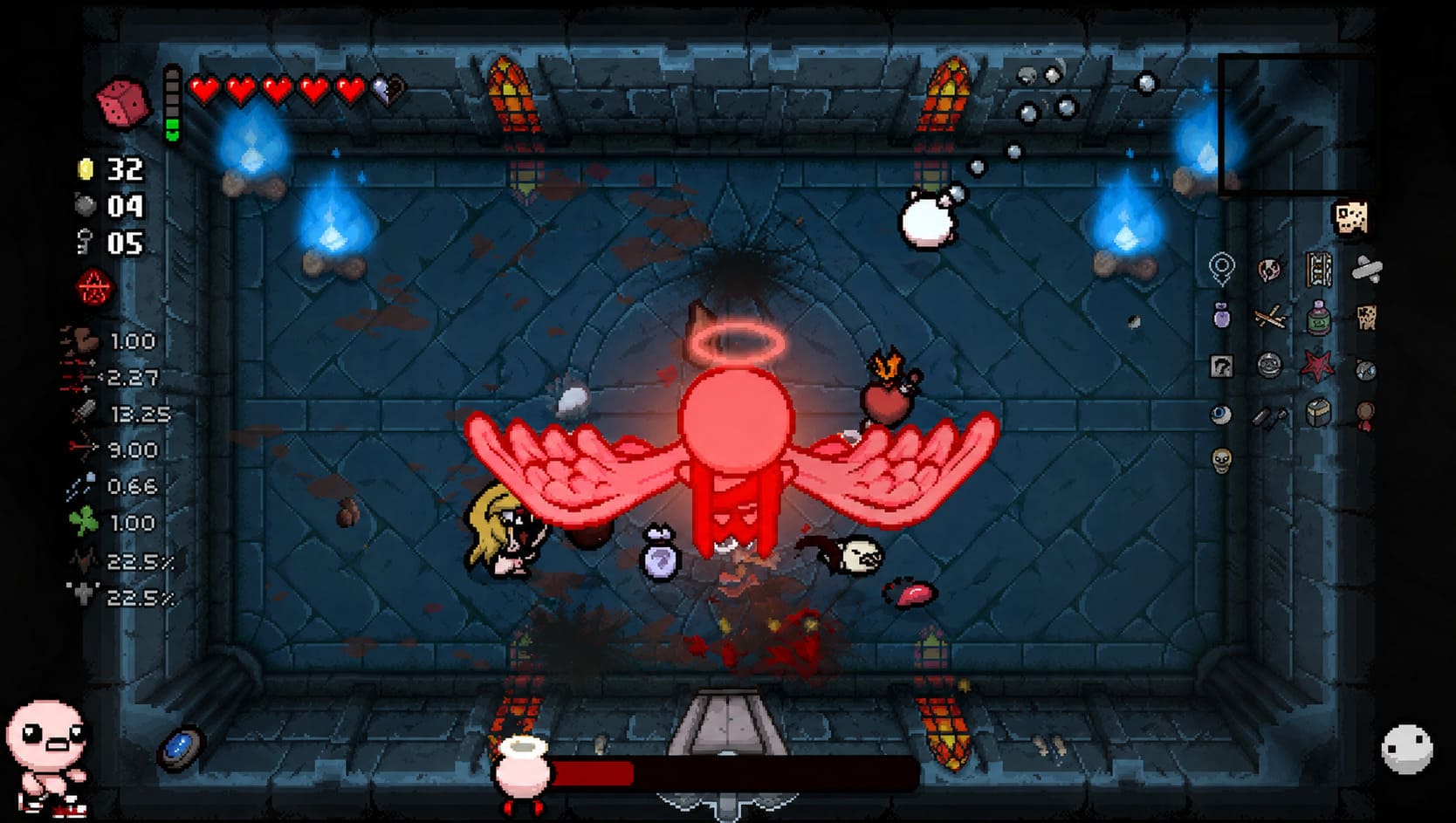
The Binding of Isaac: Repentance is built around precision, timing, and fast reaction loops. Even minor frame inconsistencies can break the flow of a run. EOS introduces background communication processes that constantly interact with online services, and those interactions are not always invisible.
Instead of feeling like a clean offline experience, some players report micro-stutters, delayed inputs, and even crashes after updates. This becomes especially noticeable in high-density combat rooms where performance spikes matter most.
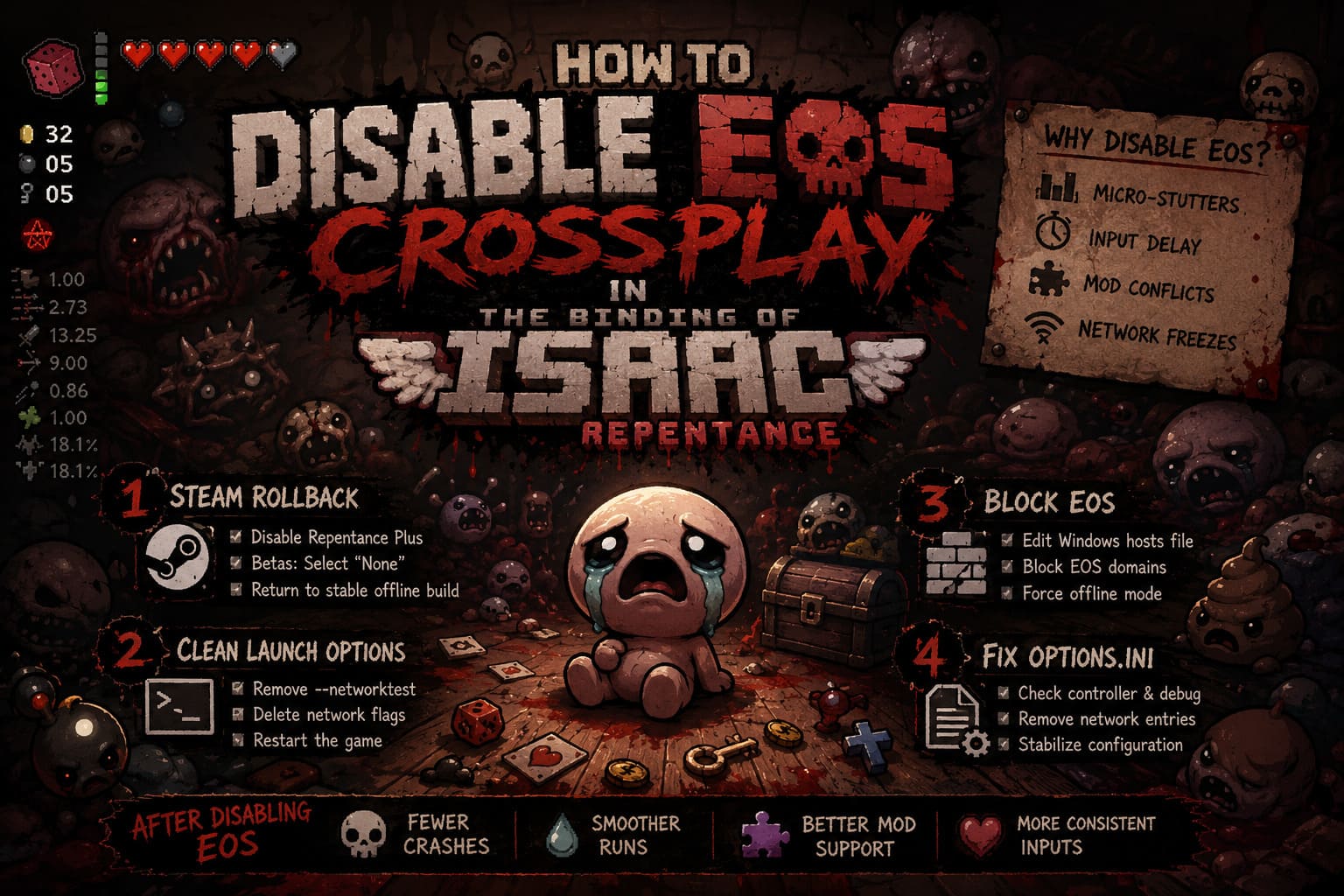
Common issues reported by players
- Random micro-stutters during heavy combat rooms
- Mod conflicts causing crashes on startup
- Input delay during fast dodging sequences
- Unexpected network-related freezes
These problems don’t affect everyone equally, but for players running high-level challenges or modded setups, they can become game-breaking.
Method 1: Disable Repentance Plus / Online Beta via Steam
The most reliable way to remove EOS dependencies is by reverting to a stable offline configuration through Steam. The online functionality is tightly tied to newer Repentance Plus builds, which means rolling back can significantly improve stability.
Steps to follow
- Open your Steam library and locate The Binding of Isaac: Rebirth
- Right-click and open Properties
- Navigate to the DLC section
- Disable Repentance Plus or any online-related content
- Go to the Betas tab and select “None”
- Allow Steam to apply the downgrade update
Once completed, the game typically returns to a fully offline state without forcing EOS initialization at launch. This is also one of the safest methods because it does not involve system-level changes.
Method 2: Remove Network Launch Options
Some instability issues come from leftover launch parameters that force the game into network testing modes. These flags can persist even if you never intentionally enabled them.
How to clean launch options
- Open Steam and go to your library
- Right-click the game and open Properties
- In the General tab, locate Launch Options
- Check for entries like –networktest
- Delete any network-related flags
- Restart the game normally
Leaving these flags active can cause the game to constantly search for online services, which directly impacts performance stability in single-player runs.
Method 3: Block EOS via Windows Hosts File
For players who want a deeper and more permanent solution, blocking Epic Online Services at the system level is an option. This method prevents the game from communicating with EOS servers entirely while still allowing offline gameplay.
Configuration process
- Open Notepad as Administrator
- Navigate to C:\Windows\System32\drivers\etc
- Open the hosts file (change file type filter to “All Files”)
- Add EOS-related domains to the block list
- Save and close the file
This method effectively cuts off the game’s ability to reach Epic servers, forcing it into offline mode automatically. It is widely used in games with unwanted background services.
Method 4: Fixing options.ini Configuration
Sometimes the issue isn’t purely network-related. EOS integration can leave behind corrupted or conflicting settings in local configuration files, especially after updates or mod usage.
What to check in options.ini
- Controller hotplug settings
- Debug console flags
- Unexpected network-related entries
Resetting or correcting these values can stabilize input behavior and prevent hidden conflicts that might otherwise go unnoticed during gameplay.
Mods, Stability, and Why This Matters
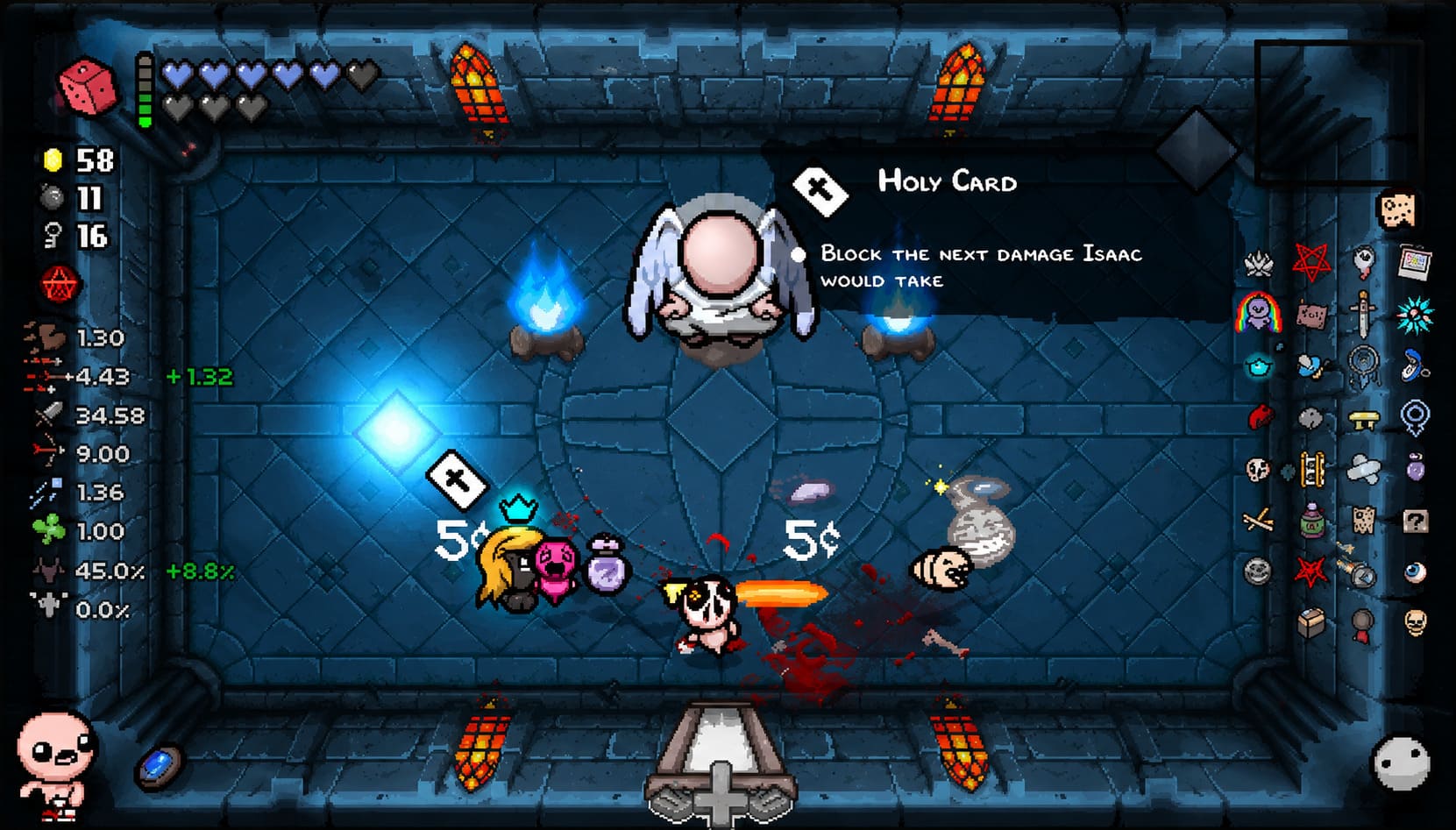
One of the biggest reasons players disable EOS is mod compatibility. The Binding of Isaac has one of the most active modding communities in gaming, and frameworks like Repentogon rely heavily on stable initialization.
When EOS interferes, the result is often unpredictable: mods fail to load, assets break, or the game crashes without clear error messages. For players invested in long-term modded progression, stability becomes more important than online features.
Typical improvements after disabling EOS
- Fewer random crashes during runs
- Smoother room transitions
- Better mod compatibility
- More consistent input response
Performance Experience After Disabling EOS
Once EOS is properly removed or blocked, the difference is usually noticeable even if frame rates don’t dramatically increase. The real improvement comes from consistency rather than raw performance numbers.
Rooms feel more stable, inputs respond more predictably, and the game stops introducing sudden spikes caused by background communication. For a game built around precision dodging, that stability is everything.
Final Thoughts
The Binding of Isaac: Repentance remains one of the most mechanically intense roguelikes ever created. However, modern online integrations like EOS don’t always align with its core design philosophy. For many players, especially solo and modded users, disabling these systems restores the experience to what it should feel like: tight, responsive, and brutally fair.
Whether you choose a simple Steam rollback or a full system-level block, the goal is the same—removing unnecessary interference so the game can perform at its best. Once that’s done, Isaac returns to being exactly what it has always been: chaotic, punishing, and deeply satisfying when everything finally clicks.