Crimson Desert Save File Location PC (Steam/Epic) & How to Fix Corrupted Saves
There are few things more painful in modern gaming than losing dozens of hours of progress because of a corrupted save. As someone who has spent years playing large-scale RPGs, open-world adventures, and sandbox games, I’ve learned one lesson the hard way: never assume your save data is completely safe.
With Crimson Desert finally bringing players into the massive world of Pywel, many gamers are already searching for save locations, backup methods, and solutions for corrupted progress files. Whether you’re playing through Steam or Epic Games Store, understanding how the game handles local saves can save you from a major headache later.
In this guide, I’ll walk through the save file location, explain why save corruption happens, and share some practical recovery methods that have worked for countless PC players across different games over the years.
Why Knowing Your Save File Location Matters
Most players never think about save files until something goes wrong. Then suddenly the location of those files becomes the most important information on your computer.
Knowing where Crimson Desert stores its data can help you:
- Create manual backups before major updates
- Transfer progress between PCs
- Restore saves after crashes
- Fix synchronization issues
- Troubleshoot loading problems
- Protect hundreds of hours of gameplay
Open-world RPGs often generate huge amounts of world-state information, and even a minor interruption during a save process can sometimes create unexpected issues.
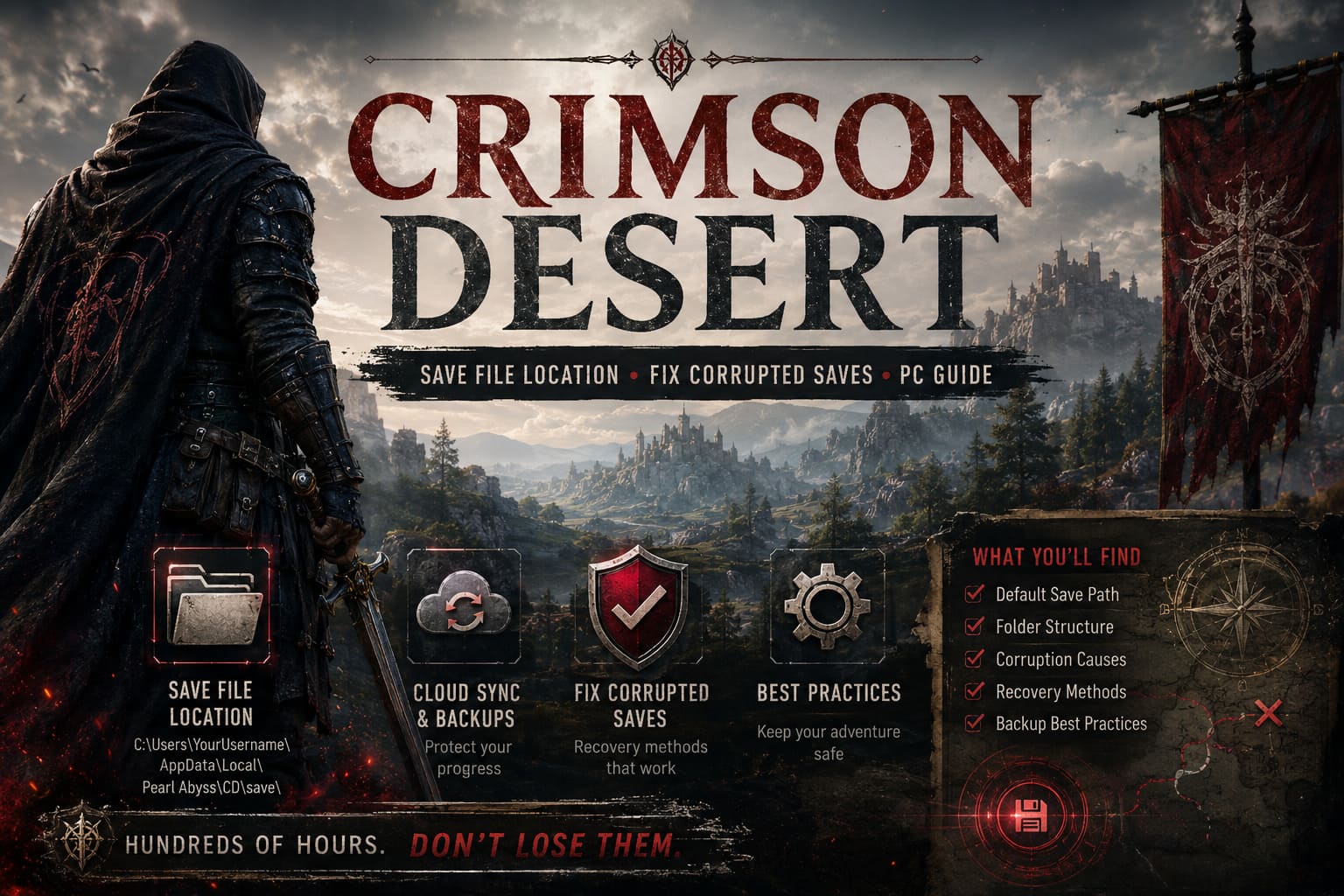
Crimson Desert Save File Location on PC
From my experience, one of the first things I do after installing any major RPG is locate the save folder. Crimson Desert follows a structure similar to many modern PC games by storing important files inside the Windows AppData directory.
Default Save Path
The standard save location is:
C:\Users\[YourUsername]\AppData\Local\Pearl Abyss\CD\save\
Inside this directory you’ll typically find additional folders associated with your platform account. These folders contain:
- Manual save slots
- Auto-save files
- Character progression
- World-state information
- Campaign progress
- User-specific data
If you’re planning to back up your game, this is the folder you’ll want to copy.
Quickest Way to Access the Save Folder
Windows hides AppData by default, which can confuse less experienced users.
The fastest method is:
- Press Windows + R
- Type %LOCALAPPDATA%
- Press Enter
- Open the Pearl Abyss folder
- Navigate to CD
- Open the save folder
This shortcut works on both Windows 10 and Windows 11.
Save File Structure Overview
The exact contents may vary depending on updates and future patches, but players generally encounter a structure similar to this:
| Folder/File | Purpose |
|---|---|
| Save Folder | Main save storage |
| Auto Saves | Automatic checkpoints |
| Manual Saves | User-created save slots |
| Profile Data | Character progression |
| Configuration Files | Graphics and settings data |
Understanding the difference between game saves and configuration files is important because not every issue is related to corrupted progress.
Where Graphics and Settings Are Stored
One common complaint among PC players is losing custom graphics settings after an update or crash.
In many cases, the actual save data remains perfectly healthy while the settings file becomes damaged.
The configuration file is typically stored within the same save directory and controls things such as:
- Graphics presets
- Resolution settings
- Keybindings
- Display options
- Engine preferences
If Crimson Desert suddenly launches with strange visual behavior, stuttering menus, or reset settings, deleting the damaged configuration file may allow the game to generate a fresh one automatically.
This solution has fixed similar problems in dozens of RPGs I’ve played over the years.
What Causes Save Corruption?
Many players immediately blame the game itself, but save corruption can happen for several reasons.
The most common causes include:
Unexpected Crashes
A crash during an active save operation can leave incomplete data behind.
Power Outages
Sudden shutdowns are one of the oldest enemies of save files.
Cloud Sync Conflicts
Steam Cloud and other cloud systems occasionally overwrite good files with broken versions.
Modifications and Save Editors
Third-party tools can introduce errors if used incorrectly.
Interrupted Updates
Patches that modify core systems sometimes create compatibility problems with older saves.
How to Recover a Corrupted Save
Before attempting any fix, always create a backup.
I cannot stress this enough.
Copy the entire save folder somewhere safe before making changes.
Method 1: Create a Fresh Save
One trick that has worked across numerous RPGs is generating a brand-new save.
The process is simple:
- Backup your existing save folder.
- Launch the game.
- Start a new character.
- Create a manual save.
- Exit the game.
- Compare the new folder structure with your original files.
- Replace only the necessary data while keeping newly generated profile information.
Many loading issues stem from damaged profile markers rather than the actual gameplay data itself.
Method 2: Restore Cloud Backups
If you use Steam Cloud, older save versions may still exist online.
Cloud backups can be lifesavers after:
- SSD failures
- Accidental deletions
- Corrupted local files
- Failed updates
Whenever possible, compare timestamps and restore the newest version that predates the problem.
Method 3: Remove Problematic Inventory Data
Inventory-related corruption isn’t uncommon in RPGs.
I’ve personally seen this happen in games where:
- Equipment modifiers stack incorrectly
- Duplicate items appear
- Quest rewards become bugged
- Gear data conflicts after updates
If community save editors become available, they can sometimes remove problematic items that prevent saves from loading.
However, always use trusted tools and keep backups before editing anything.
Method 4: Force a Clean Cloud Synchronization
Cloud services occasionally create endless synchronization loops.
When this happens:
- Move suspicious save files elsewhere.
- Launch the game using valid local files.
- Create a fresh manual save.
- Allow the platform to synchronize again.
The goal is to replace damaged cloud data with a healthy version instead of repeatedly downloading the corrupted files.
Best Practices to Protect Your Progress
After years of RPG gaming, I’ve developed a few habits that have saved me countless hours.
Keep Multiple Backups
Never rely on a single save.
Store backups:
- On another drive
- In cloud storage
- On an external SSD
- In a dedicated backup folder
Backup Before Major Updates
Large patches often introduce unexpected issues.
A backup created one minute before updating can save weeks of frustration.
Avoid Saving During Intensive Events
Cutscenes, scripted battles, and major world transitions can sometimes increase the risk of interrupted saves.
Whenever possible, save while freely exploring the world.
Monitor Cloud Synchronization
Cloud systems are incredibly useful, but they’re not perfect.
If sync warnings appear frequently, investigate them immediately instead of ignoring them.
How to Fix Crimson Desert “Profile Data Loading Failed” Error on PC and Consoles
My Personal Recommendation
After dealing with save corruption in everything from giant RPGs to survival games, I always recommend maintaining manual backups regardless of how reliable a game’s cloud service appears.
Crimson Desert is an ambitious open-world adventure with a massive amount of progression data. The larger and more complex a game becomes, the more valuable proper save management becomes as well.
The good news is that most save-related issues can be prevented with a few simple habits. Locate your save folder early, create backups regularly, and don’t depend entirely on automated cloud systems.
A thirty-second backup today can easily save a hundred hours of progress tomorrow.
Final Thoughts
Crimson Desert stores its PC save data inside the Windows AppData directory, making it easy to access once you know where to look. Whether you’re backing up your progress, migrating to a new computer, or recovering from a corrupted save, understanding the game’s file structure gives you a major advantage.
For players investing dozens or even hundreds of hours into exploring Pywel, maintaining regular backups is one of the smartest things you can do. Save corruption may never happen to you—but if it does, you’ll be prepared long before disaster strikes.