How to Fix Stuttering in Wanderburg on AMD Radeon GPUs: Complete Performance Guide
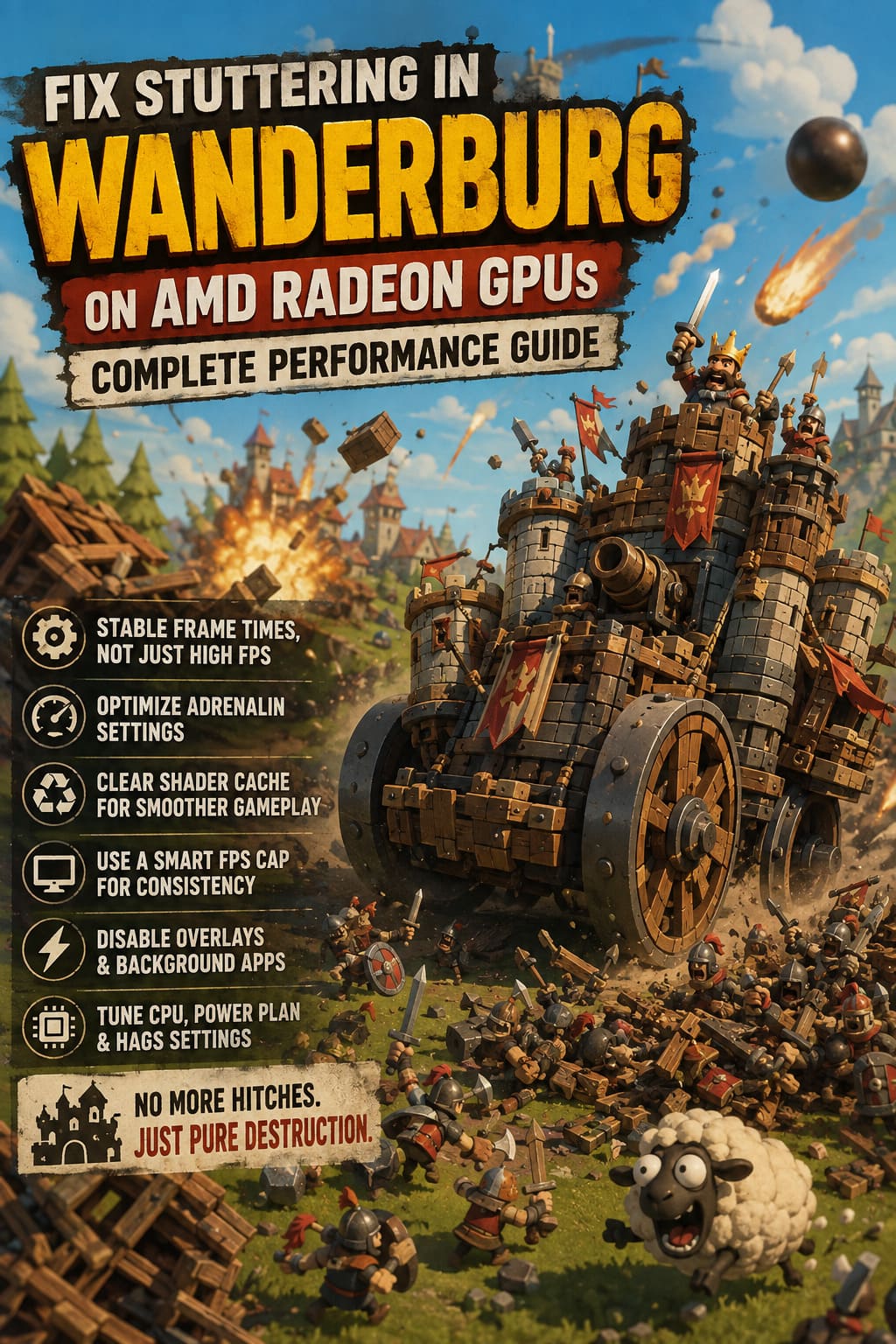
There is a lot to love about Wanderburg. The idea of driving a gigantic medieval fortress on wheels through a procedurally generated world, smashing settlements and turning destruction into actual progression is the kind of ridiculous game concept that immediately grabs my attention. After spending enough time with games that abuse physics, procedural generation, and massive amounts of objects on screen, though, I know exactly what happens when the engine starts struggling: the FPS counter can look perfectly healthy while the game still feels like it’s running through mud.
That is exactly the problem some AMD Radeon players are running into with Wanderburg. You can have a perfectly capable Radeon GPU, a fast processor, plenty of RAM, and still get micro-stutters, sudden frame-time spikes, freezing during area transitions, and nasty FPS drops when the screen becomes packed with destruction and physics effects.
The frustrating part is that this doesn’t always look like a conventional performance problem. Your average FPS might sit comfortably above 60 or even 100, yet every few seconds the game hits you with a tiny hitch. Once you notice it, you can’t unsee it.
Wanderburg NVIDIA Control Panel Performance Tweaks: Fix FPS Drops & Stuttering
Why Is Wanderburg Stuttering on AMD Radeon GPUs?
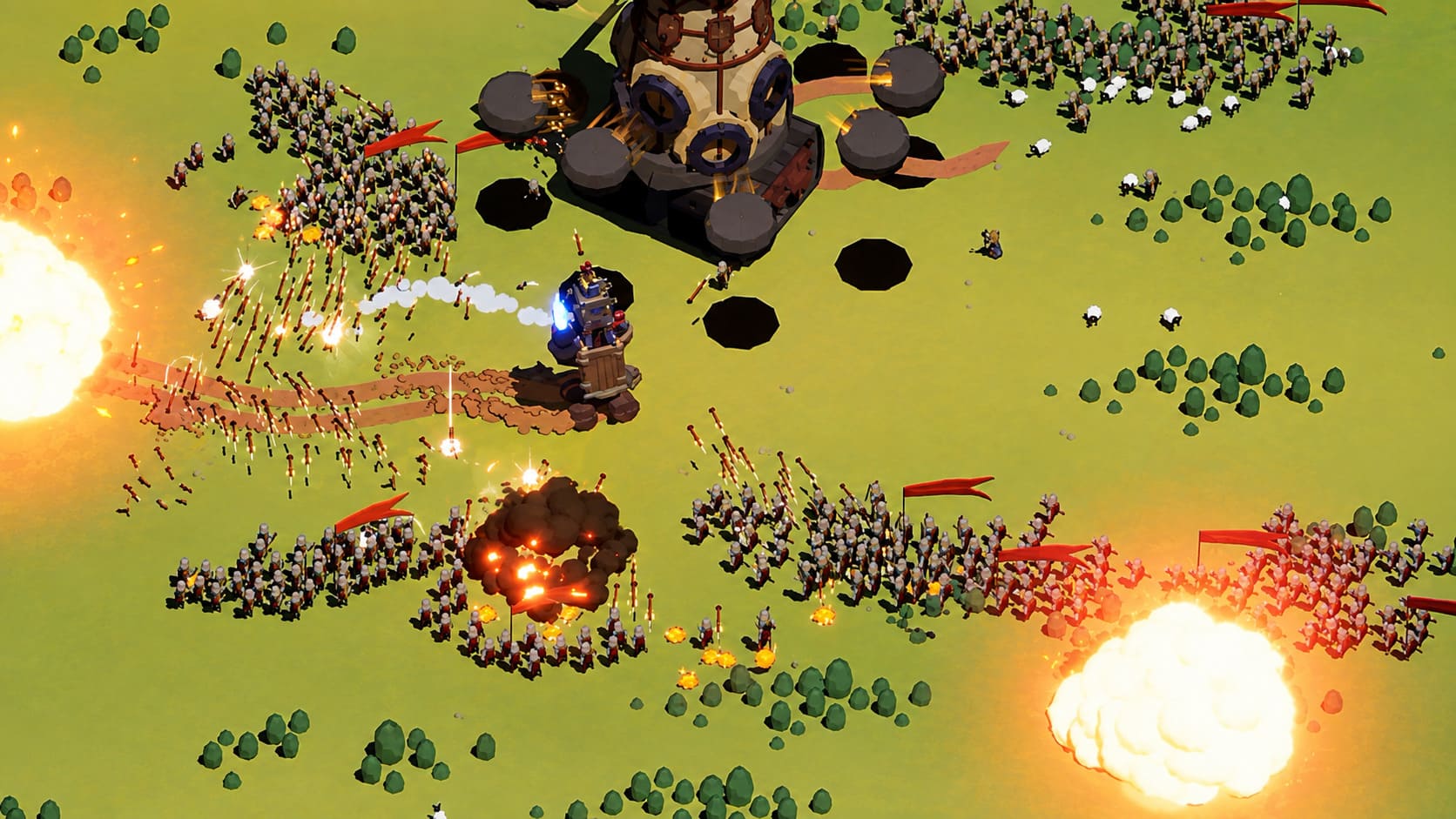
Wanderburg is doing some pretty unusual work behind the scenes. You’re not simply running through a static level with a few enemies spawned around you. The game constantly deals with procedural environments, destructible structures, physics objects, large numbers of assets, and world streaming.
That combination can create frame-time problems even when the GPU itself isn’t fully overloaded.
The most common causes worth investigating are:
- Shader compilation and shader-cache problems
- Unstable frame pacing
- Radeon Adrenalin features conflicting with the game’s rendering behavior
- Windows background processes and overlays
- CPU scheduling or power-management behavior
- Heavy asset streaming during movement between regions
- Long gaming sessions where memory usage gradually increases
The important thing is to focus on frame times rather than FPS alone. A game running at 100 FPS can still feel awful if individual frames occasionally take dramatically longer to render.
1. Start With AMD Adrenalin Settings
If I were troubleshooting Wanderburg on a Radeon PC, AMD Software: Adrenalin Edition would be the first place I’d look. Radeon features are useful, but enabling every ‘performance’ option because it sounds beneficial is not always the winning move.
Open AMD Software and go to the Gaming section. Find Wanderburg and create a dedicated profile if one doesn’t already exist. I prefer using a relatively clean configuration while troubleshooting rather than stacking half a dozen driver-level technologies on top of the game.
For testing, I’d disable:
- Radeon Anti-Lag
- Radeon Boost
- Radeon Chill
- Driver-level frame generation or experimental features, if applicable
- The Radeon in-game overlay
The goal isn’t to claim these technologies are bad. They aren’t. The problem is that different engines react differently to driver-level intervention, and troubleshooting becomes much easier when you eliminate variables.
Radeon Chill deserves particular attention. Its dynamic frame-rate behavior can be great for reducing power consumption, but a game with rapidly changing camera movement, destruction, and asset density isn’t necessarily the ideal place to let the driver constantly manipulate performance targets.
For image quality, Radeon Image Sharpening can be left on if you like the effect, although I would personally disable unnecessary enhancements until the stuttering is solved.
2. Don’t Chase Maximum FPS — Stabilize It
Here’s one of the oldest PC gaming lessons that still holds up: a stable 90 FPS often feels better than an unstable 130 FPS.
If Wanderburg is bouncing between 120, 95, 140, and 80 FPS, the average number may look impressive, but the frame delivery can feel noticeably uneven. A sensible FPS cap gives your hardware some breathing room and can make the whole game feel dramatically more consistent.
For a 144Hz monitor, try something around 141 FPS. On a 165Hz display, approximately 162 FPS is a reasonable starting point. For 60Hz, try 57 FPS.
| Display Refresh Rate | Suggested FPS Cap |
|---|---|
| 60Hz | 57 FPS |
| 75Hz | 72 FPS |
| 120Hz | 117 FPS |
| 144Hz | 141 FPS |
| 165Hz | 162 FPS |
| 240Hz | 237 FPS |
Don’t treat those numbers as sacred. If your Radeon GPU can’t maintain 141 FPS consistently, capping Wanderburg at 100 or 90 FPS can make much more sense.
The objective is consistent frame delivery, not winning an FPS screenshot contest.
3. Clear the Shader Cache
This is one of the fixes I’d absolutely try if the stuttering happens primarily when entering new areas or encountering visual effects you’ve never seen before.
Modern games rely heavily on shaders, and Wanderburg’s procedural and destructive gameplay gives the renderer plenty of reasons to encounter different combinations of materials, effects, lighting, and objects.
A damaged or outdated shader cache can make the problem worse.
Open AMD Software and look through the Graphics settings for the Reset Shader Cache option. Clear it and restart your PC afterward.
You can also use Windows’ Disk Cleanup utility. Search for Disk Cleanup, select your Windows drive, and look for DirectX Shader Cache.
Don’t panic if the first launch after clearing the cache isn’t perfect. The game may need to rebuild shaders, and that can produce temporary stuttering. Give it some time and play through the affected areas before deciding whether the change worked.
If the stuttering becomes noticeably worse during the first session but improves later, that is actually useful information. It points toward shader compilation rather than raw GPU performance.
4. Experiment With Hardware-Accelerated GPU Scheduling
Windows’ Hardware-Accelerated GPU Scheduling (HAGS) is one of those settings that can be fantastic on one PC and completely uninteresting on another.
That’s why I wouldn’t blindly tell every Radeon user to turn it on and forget about it.
Open Windows Graphics settings and check whether Hardware-Accelerated GPU Scheduling is available. If it is enabled, test Wanderburg with it on. If you’re still experiencing hitching, turn it off and test again.
Keep everything else identical during the comparison.
This matters because you’re trying to identify whether the stuttering is related to scheduling rather than simply changing ten Windows settings and hoping for a miracle.
5. Check Your Windows Power Plan
This one is less exciting than smashing a village with a mobile castle, but it can matter.
If your CPU is aggressively changing clocks under load, you may see inconsistent performance when Wanderburg suddenly needs additional processing power for physics, simulation, world streaming, or destruction.
Go to Control Panel → Power Options and check your active power plan. A High Performance profile can be useful for troubleshooting performance instability.
I wouldn’t necessarily recommend running an aggressive power profile permanently on every machine. If your system already maintains clocks properly, the difference may be negligible. But as a diagnostic step, it’s worth testing.
6. Turn Off Overlays
Overlays are convenient until they aren’t.
Steam, Discord, AMD Software, recording applications, RGB utilities, monitoring tools, and other background software can all add additional layers between the game and desktop.
When diagnosing stuttering, I like to go nuclear and temporarily disable them.
Try disabling:
- Steam Overlay
- Discord Overlay
- AMD Adrenalin Overlay
- Xbox Game Bar
- Third-party recording overlays
- Unnecessary monitoring widgets
Then launch Wanderburg again.
If the stuttering disappears, you can turn these features back on individually until you find the culprit.
This is especially useful when the game doesn’t simply stutter but occasionally freezes for a second or causes a desktop crash.
7. Don’t Ignore RAM and Background Applications
Wanderburg can become surprisingly busy when the world gets populated with objects and effects. If you’re playing with Chrome loaded with 40 tabs, Discord, RGB software, launchers, recording utilities, and other applications running simultaneously, you’re giving Windows more work to juggle.
Before testing performance, close anything you don’t actually need.
Pay particular attention to:
Browser tabs, RGB control applications, hardware monitoring software, game launchers, cloud-sync applications, and video recording tools.
You don’t have to turn your PC into a sterile laboratory every time you play. This is mainly useful for determining whether background software contributes to the problem.
If Wanderburg runs beautifully immediately after a reboot but starts hitching after several hours, memory usage becomes even more interesting.
8. Try Disabling Fullscreen Optimizations
Windows has its own presentation and fullscreen behavior, and occasionally a particular game behaves better when you remove some of that intervention.
Find the Wanderburg executable in your Steam installation folder. Right-click the .exe, choose Properties, open the Compatibility tab, and test the Disable fullscreen optimizations option.
Again, this isn’t a universal magic switch.
If it changes nothing, turn it back off. If frame pacing becomes smoother, you’ve found a useful configuration for your particular system.
My Recommended Troubleshooting Order
Don’t change everything at once. That’s the fastest way to end up with a ‘fixed’ game while having absolutely no idea what fixed it.
I’d approach the problem in this order:
- Disable Radeon Anti-Lag, Boost, Chill, and overlays.
- Apply a sensible FPS cap.
- Reset the AMD shader cache and DirectX shader cache.
- Restart the PC and test the same area again.
- Compare HAGS enabled versus disabled.
- Test a High Performance Windows power plan.
- Close background applications.
- Test fullscreen optimization settings.
Use the same game area for every test whenever possible. If the stutter happens while moving from one region to another, repeat that exact route. If it appears during heavy destruction, reproduce the same kind of encounter.
That gives you something resembling a controlled test instead of relying on memory.
Final Thoughts
Wanderburg is exactly the kind of game where smooth performance matters more than the FPS counter suggests. Driving a ridiculous medieval fortress through a living procedural world should feel chaotic because of the gameplay—not because your frame pacing is falling apart.
If you’re on an AMD Radeon GPU and dealing with stuttering, I wouldn’t immediately assume that your hardware is too weak. Shader caching, frame pacing, driver features, Windows scheduling, and overlays can all create problems that look like GPU limitations.
My biggest recommendation is to resist the temptation to install some mysterious ‘ultimate FPS boost’ tweak pack from a random forum. Start clean, change one setting, test it, and keep the configuration that actually produces smoother frame times.
And honestly, once Wanderburg stops hitching, the difference is huge. The whole game becomes more satisfying when your fortress rolls through the countryside without those annoying little freezes interrupting the destruction. The game is supposed to make your castle feel unstoppable. Your frame rate should get the same treatment.