Serious Sam Shatterverse Lobby Invite Not Working Glitch: How to Fix Co-op Connection Errors
Serious Sam Shatterverse is at its best when the screen is packed with enemies, explosions, and several friends yelling over voice chat because nobody knows where the next wave is coming from. After spending a lot of time with co-op shooters and roguelites, I have learned that there is almost nothing more frustrating than getting a group together and then discovering that the game itself refuses to let everyone into the same lobby.
That is exactly what makes the Serious Sam Shatterverse lobby invite not working problem so annoying. You can have a perfectly stable internet connection, see your friends online, and still end up staring at a loading screen or an invite button that appears to do absolutely nothing.
The good news is that you don’t necessarily have to wait for a developer patch before trying to play. Some of the fixes are simple, while others involve changing the way you create and join a session. In my experience with multiplayer games, the simplest workaround is often the best one, so I would start at the top of this guide rather than immediately changing router settings or digging through configuration files.
What Does the Serious Sam Shatterverse Lobby Invite Bug Look Like?
The problem isn’t always identical for every player. That is part of what makes multiplayer troubleshooting such a pain. One player might have a completely dead invite button, while another can send the invitation but watches their friend disconnect before the session even begins.
Common symptoms include:
- Invite Friends does nothing: You press the button, hear the usual confirmation sound, and then… nothing.
- Authorization errors: The main menu may continue displaying an authorization or connection warning.
- Permanent Connecting status: The game appears to be trying to establish a multiplayer connection indefinitely.
- Friends cannot join: The invitation arrives, but accepting it results in a failed connection or immediate kick.
- Severe co-op desync: Everyone gets into the game, but enemies teleport around, players rubber-band, and the session eventually falls apart.
I’ve seen versions of these problems in plenty of online shooters. A game can run perfectly in single-player while its multiplayer services are having a completely different conversation with your PC, console, router, or matchmaking backend.
Before You Start: Don’t Overcomplicate the Fix
My first rule with multiplayer troubleshooting is simple: don’t start changing ten settings at once. If you do, you won’t know which change actually solved the problem.
Completely close Serious Sam Shatterverse, restart Steam or your console, and then launch the game again. If possible, have everyone in your group do the same thing. It sounds almost too basic, but a stale multiplayer session or authentication token can survive longer than you’d expect.
Once the game is back at the main menu, give it a moment before immediately opening the co-op screen. This leads to the first fix.
1. Give the Main Menu Time to Finish Authentication
This is probably the least exciting solution in the article, but it is also one I would try first. Multiplayer games often start connecting to their backend services before you actually enter a lobby. If you rush into co-op while that process is still happening, you can end up with a session that looks available but isn’t fully authenticated.
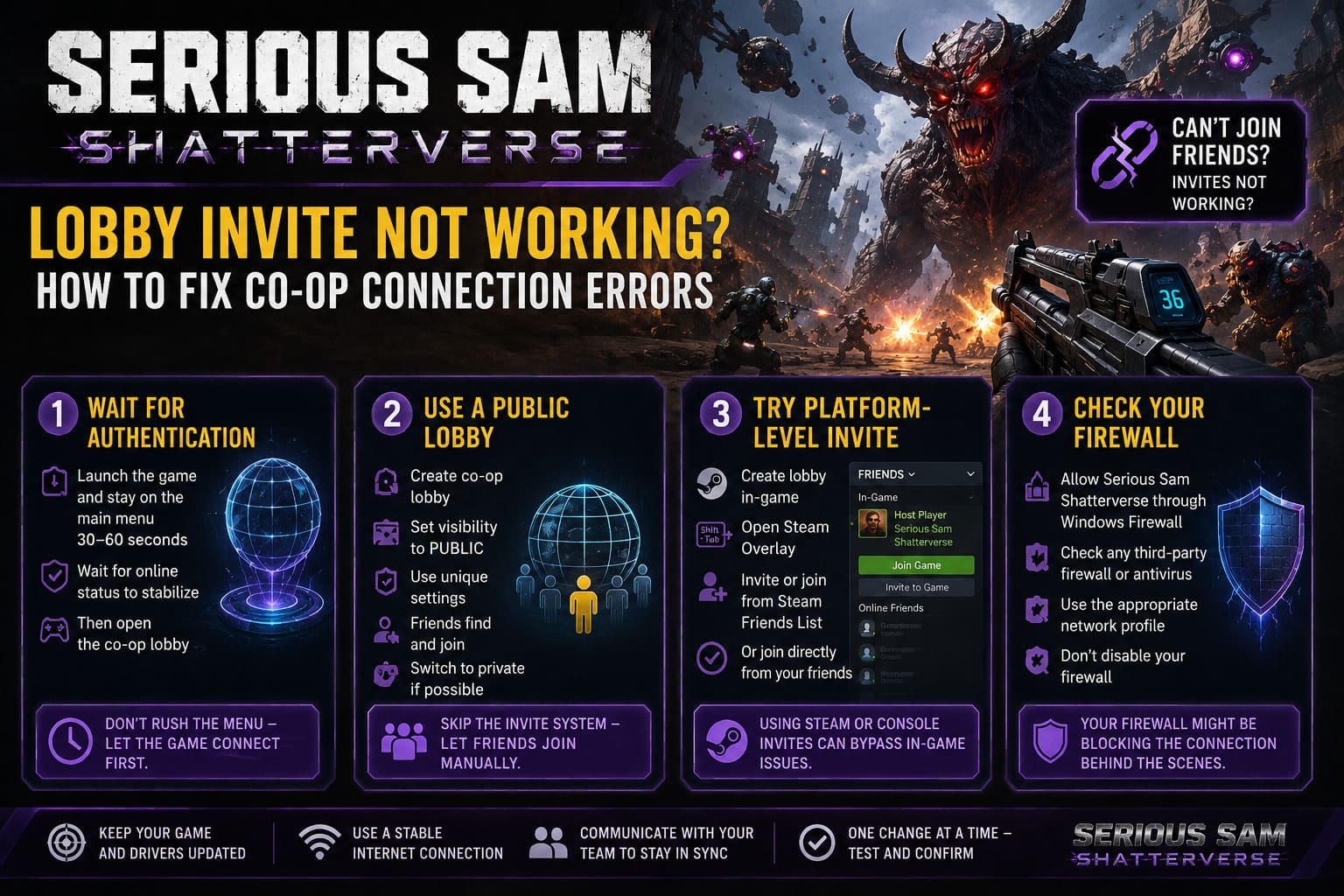
Here’s the routine I recommend:
- Close Serious Sam Shatterverse completely.
- Restart your PC or console if the previous session ended with a connection error.
- Launch the game normally.
- Stay on the main menu for around 30–60 seconds.
- Watch for authorization warnings, connection indicators, or a profile that hasn’t loaded correctly.
- Only create the co-op lobby after the online status appears stable.
I’ve used this kind of waiting trick in other online games, and while it isn’t a glamorous fix, it can make a surprising difference. If the game is still showing an authorization error after several minutes, don’t keep hammering the invite button. Move on to the next method.
2. Use a Public Lobby Instead of the Broken Invite System
This is my favorite workaround when the actual invitation interface decides to stop cooperating.
Instead of forcing the game to send a friend invitation, create a public lobby and let your friends find it manually. It sounds less convenient, but you’re effectively removing one part of the matchmaking chain from the equation.
The basic process is:
- Create a cooperative session as the host.
- Set the lobby visibility to Public.
- Choose distinctive settings that make the lobby easy for your friends to identify.
- Have your friends open the multiplayer browser and search for the same configuration.
- Join the matching lobby manually.
- Once everyone is inside, switch the session back to a more private setting if the game allows it.
The important part is making your lobby recognizable. You don’t want five random players joining while your friends are scrolling through a list trying to figure out which session is yours.
It’s not elegant, and I wouldn’t call it a permanent solution. But when the invite system itself is broken, avoiding the invite system is often smarter than repeatedly trying it.
3. Try the Platform-Level Invite
If you’ve played enough PC multiplayer games, you’ve probably noticed that the game’s own friend interface isn’t always the most reliable part of the system. Steam already knows who your friends are, and sometimes using the platform’s own tools gets around a malfunctioning in-game menu.
For Steam players, create your co-op lobby first. Then press Shift + Tab to open the Steam Overlay and use the available friend interaction options to invite or join the active game.
Your friend can also try joining directly from your Steam Friends List rather than accepting the invitation from inside the game.
This is one of those fixes I particularly like because it doesn’t involve editing files or changing your router. You’re simply using another route to establish the same multiplayer relationship.
Console players should take the same general approach. Create the in-game session, then use the console’s own friends or party interface to send the game invitation. If an invitation appears to be stuck, completely closing the game and accepting the invitation from the console notification system can sometimes provide a cleaner launch into the host’s session.
4. Check Your Firewall Before Blaming the Game
Sometimes the lobby is not actually broken. Your computer is simply preventing the game from communicating correctly.
On Windows, check Windows Defender Firewall and make sure Serious Sam Shatterverse is allowed through the firewall on the network profile you’re using. If you have a third-party antivirus or security suite with its own firewall, check that as well.
I would avoid blindly disabling your entire firewall. That’s unnecessary and creates another problem while you’re trying to solve the first one. Adding the game to the appropriate allowed applications list is the cleaner approach.
If you recently installed a major Windows update, changed antivirus software, or switched network profiles, this check becomes even more important.
5. Restart Your Router and Look at NAT
NAT problems are some of the least obvious multiplayer issues because everything can look normal until you try to connect to another player.
Start with the easy option: restart your router. Give it a minute or two to reconnect fully before launching the game again.
Then check whether your router has UPnP enabled. UPnP allows compatible applications to negotiate the ports they need without requiring you to manually create every forwarding rule.
If you’re playing with another person on the same network, pay particular attention to the router configuration. Two systems attempting to establish multiplayer sessions through the same restrictive network can produce strange behavior that looks like a game-side bug.
6. Be Careful With Manual Port Forwarding
This is where I would slow down. Port forwarding is frequently recommended in gaming troubleshooting articles, but it’s not something I’d change just because an invite failed once.
If you’ve already established that your NAT is restrictive and normal UPnP isn’t solving the problem, manual forwarding may be worth investigating. Community troubleshooting commonly points toward gaming-related ports such as 27015 and other title-specific ranges, but the exact requirements can depend on the game’s networking implementation and platform.
Don’t assume that opening a random list of ports will magically fix everything. Check the current game’s official networking guidance before making permanent router changes.
7. Don’t Immediately Edit Engine Configuration Files
You’ll sometimes see multiplayer guides recommending changes to values such as MaxClientRate, cli_iMaxBPS, or other network variables in configuration files.
I’m not a fan of making these changes as a first-line solution.
Configuration tweaks can be useful when a game genuinely exposes a network bandwidth limitation, but changing an undocumented variable can also create new instability. Worse, the game may overwrite the setting during an update, leaving you wondering why the same fix suddenly stopped working.
If you decide to experiment with configuration files, make a backup first. Never start by setting a configuration file to read-only without understanding what the game needs to write to that file.
Which Serious Sam Shatterverse Co-Op Fix Should You Try First?
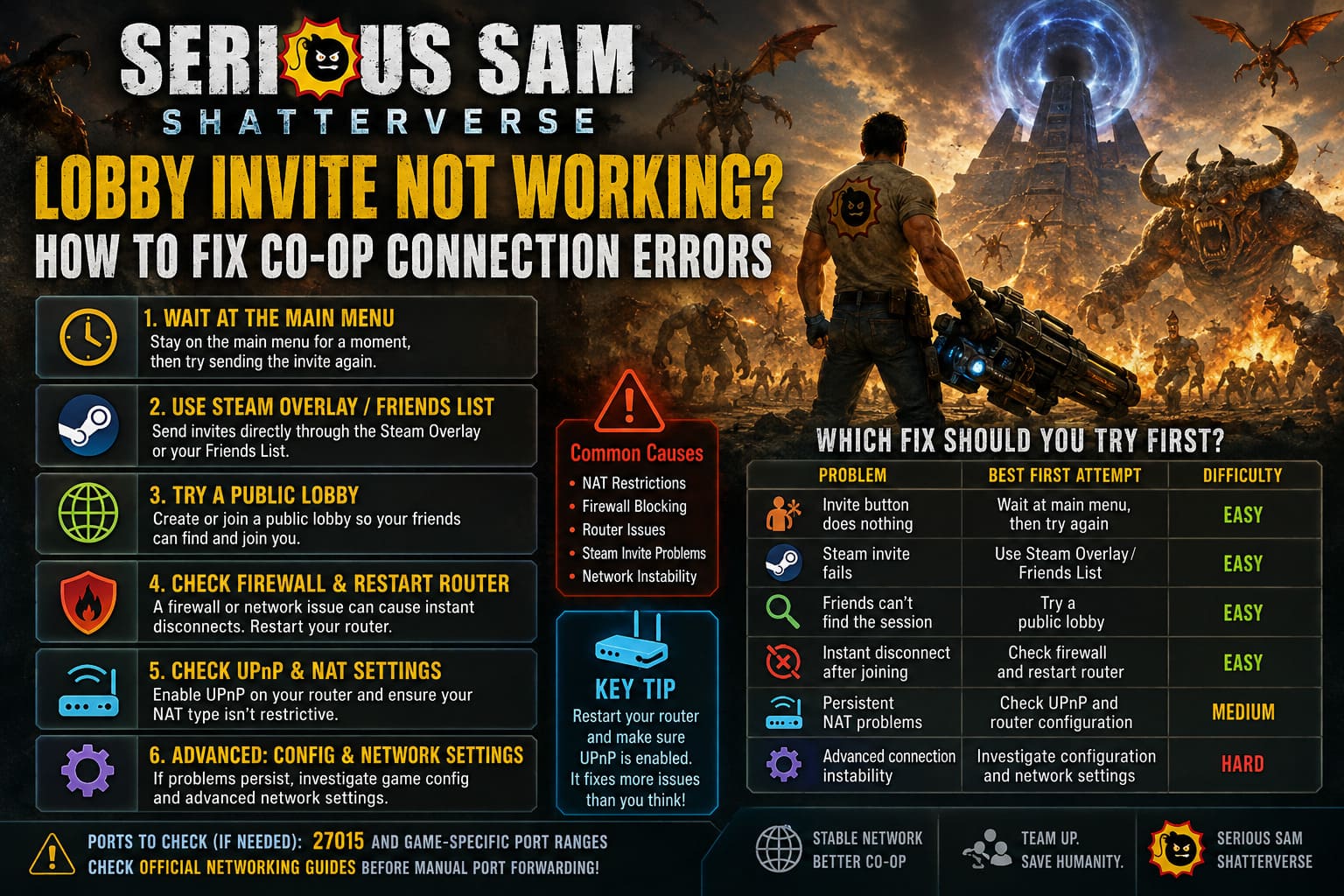
| Problem | Best First Attempt | Difficulty |
|---|---|---|
| Invite button does nothing | Wait at main menu, then try again | Easy |
| Steam invite fails | Use Steam Overlay / Friends List | Easy |
| Friends can’t find the session | Try a public lobby | Easy |
| Instant disconnect after joining | Check firewall and restart router | Easy |
| Persistent NAT problems | Check UPnP and router configuration | Medium |
| Advanced connection instability | Investigate configuration and network settings | Advanced |
My Recommended Troubleshooting Order
If I were sitting down with three friends and the lobby suddenly stopped working, I wouldn’t start editing .ini files. I’d work through the problem in this order:
- Restart the game and platform.
- Wait at the main menu for authentication to finish.
- Try creating the lobby again.
- If invites fail, use the Steam or console friend system.
- If that fails, create a public lobby and have friends join manually.
- Check the firewall and security software.
- Restart the router and check NAT/UPnP.
- Only then investigate advanced network or configuration changes.
This approach has another advantage: it keeps the troubleshooting process reversible. If something works, you know what fixed it. If nothing works, you haven’t spent an hour modifying settings that you’ll eventually have to restore.
What If Everyone Can Join but the Game Is Still Lagging?
A successful lobby connection doesn’t necessarily mean the networking problem is solved.
If players are teleporting, enemies are snapping between positions, attacks appear delayed, or someone suddenly gets disconnected after several minutes, look at the connection quality of every player. The host’s connection matters, but so does the weakest connection in the group depending on how the game’s multiplayer architecture handles the session.
Close unnecessary downloads and streaming applications. Avoid playing over an unstable Wi-Fi connection if Ethernet is available. And if one player consistently causes the session to collapse, try making somebody else the host.
That last test is particularly useful. If the same four players can complete a session when Player A hosts but constantly disconnect when Player B hosts, you’ve learned something important: the problem may be related to the host’s network rather than the entire game.
Is Serious Sam Shatterverse Coming to Xbox and PS5? Release Date and Platforms Confirmed
Keep Serious Sam Shatterverse Updated
Finally, don’t ignore updates. Multiplayer bugs are often fixed through backend changes as well as traditional game patches, so keeping the client current is essential.
If a particular workaround suddenly stops working after an update, don’t assume your system has become faulty. The developers may have changed the matchmaking or invitation system underneath it.
And if the problem happens repeatedly, document exactly what occurs. Note whether the invite fails, whether the recipient receives it, whether the lobby loads, and whether the disconnect happens before or after gameplay begins. That’s far more useful than simply reporting that “co-op doesn’t work.”
Serious Sam Shatterverse Full Story Explained: The Lore of the Multiverse
Final Verdict
The Serious Sam Shatterverse lobby invite not working glitch is the kind of multiplayer problem that can make an otherwise great co-op session feel broken before it even starts. But I wouldn’t jump straight to drastic fixes.
Start with authentication. Then try the platform’s own invite system. If that doesn’t work, the public-lobby workaround is surprisingly practical. After that, investigate your firewall, router, NAT, and UPnP configuration.
The biggest lesson from troubleshooting multiplayer games over the years is that there is rarely one magic button. Connection problems are layered. Sometimes the game is responsible. Sometimes Steam or the console network is responsible. Sometimes your router is the culprit. And occasionally, everything is fine on your end and the servers simply aren’t cooperating.
For now, using platform-level invitations or manually joining a distinctive public lobby is where I’d start. They’re quick, reversible, and don’t require turning your PC or router upside down just to play a few rounds with friends.