How to Fix Hell Let Loose: Vietnam UE5 Crash on Startup: Complete PC Troubleshooting Guide
Hell Let Loose: Vietnam has exactly the kind of presentation that makes you want to jump straight into a server. The dense jungle, helicopters, huge battles, underground tunnel systems, and 50v50 warfare are all built around the idea of throwing players into absolute battlefield chaos. The problem is that some PC players never make it that far. Instead of hearing gunfire and helicopter rotors, they are staring at the desktop after an Unreal Engine 5 crash on startup.
I’ve seen this sort of problem countless times with demanding PC games. One minute everything looks perfectly normal, and the next you’re looking at an Unreal crash window with a vague Low Level Fatal Error that tells you almost nothing useful. The annoying part is that startup crashes can come from several completely different sources: graphics drivers, cached settings, DirectX, Easy Anti-Cheat, Windows permissions, or corrupted configuration files.
The good news is that you don’t need to start reinstalling Windows or throw your GPU out the window. If Hell Let Loose: Vietnam crashes before reaching the main menu, work through the fixes below in order. Start with the quick solutions and only move toward the more aggressive repairs if the problem survives.
Hell Let Loose Vietnam FPS Drop in Jungle Fix: Boost Performance on PC
Why Does Hell Let Loose: Vietnam Crash Before Launching?
Unreal Engine 5 is powerful, but it is not exactly lightweight. Games using the engine can put considerable pressure on the GPU driver, shader compilation system, VRAM, CPU, and Windows background services before you even reach gameplay. A bad configuration file or broken driver component can therefore cause a crash during the first seconds of initialization.
There is another important factor: launch crashes are often configuration problems rather than performance problems. If your PC runs other demanding UE5 games without issues, don’t immediately assume that your hardware is too weak. A corrupted cache or incompatible graphics API setting can be enough to prevent the game from starting.
| Possible Cause | Typical Symptom | Recommended Fix |
|---|---|---|
| DirectX conflict | Crash immediately after startup | Test DX11 or DX12 |
| Corrupted configuration | Crash after updates or settings changes | Reset local files |
| GPU driver issue | Fatal error or display crash | Clean-install driver |
| Easy Anti-Cheat | Game closes before reaching menu | Repair EAC |
| Windows permissions | Black screen or instant termination | Test administrator mode |
| Missing runtime files | Launch failure or dependency error | Repair Visual C++ |
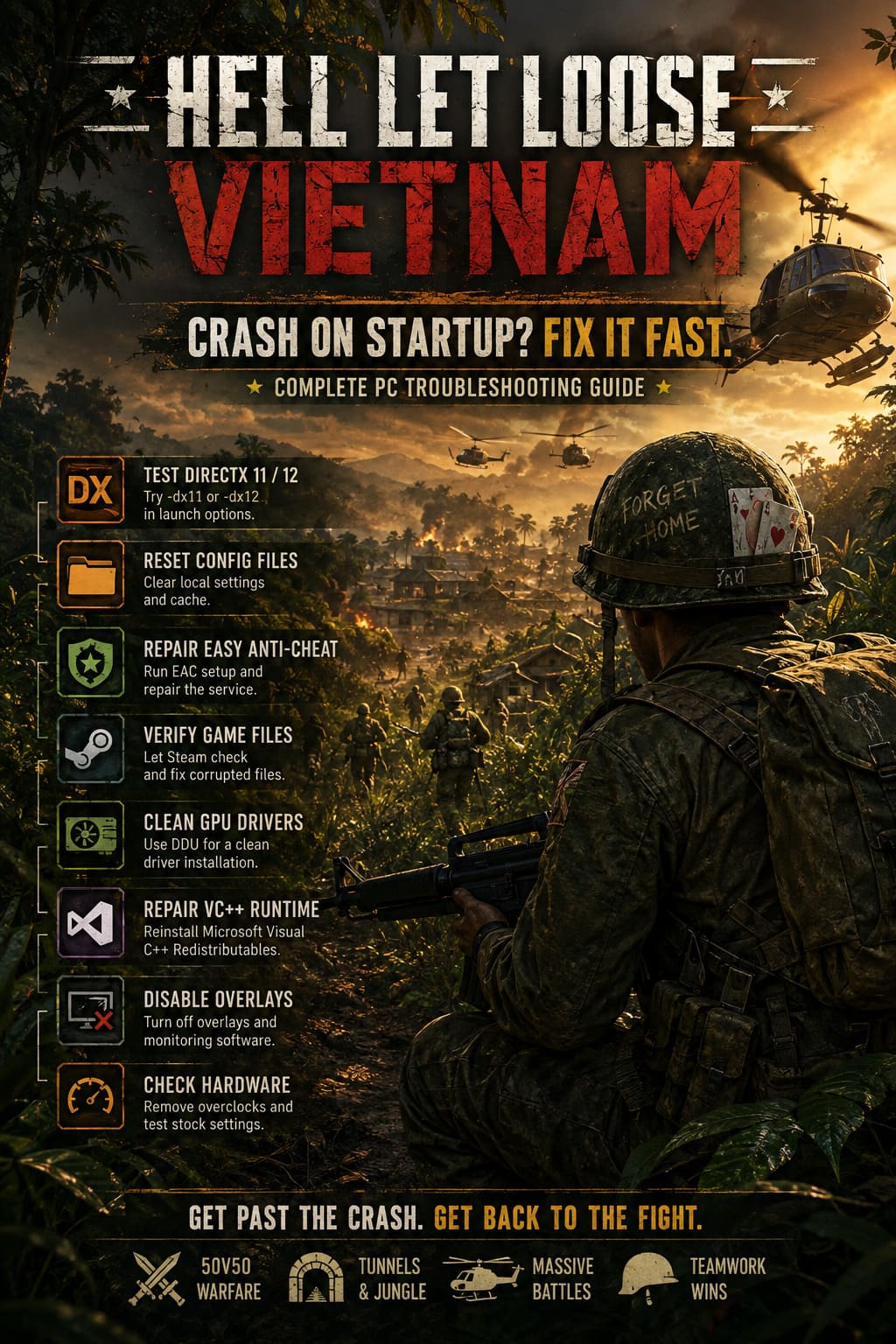
1. Force Hell Let Loose: Vietnam to Use DirectX 11
This is the first thing I’d try because it takes roughly thirty seconds and doesn’t require changing anything inside Windows. UE5 games can behave differently depending on the GPU, driver version, and API being initialized. If the default DirectX configuration is crashing during startup, forcing another API can get you past the problem.
Open Steam, find Hell Let Loose: Vietnam in your library, right-click it, and select Properties. Under the General section, find Launch Options and enter:
-dx11
Close the window and launch the game again. If the crash disappears, you’ve probably found an API initialization problem rather than a fundamental hardware issue.
If DX11 makes things worse or the game still crashes, remove the command and test -dx12 instead. Don’t leave both commands in the box. You want to test each API separately so you know which configuration is actually working.
2. Reset the Game’s Local Configuration
This is one of those fixes that looks too simple to work until it actually does. Games store graphics settings, shader information, temporary data, and other configuration files locally. An update, driver change, or interrupted shutdown can leave one of those files in a state the game doesn’t like.
Press Windows + R, enter %localappdata%, and press Enter. Look for the Hell Let Loose: Vietnam-related folder and open its Saved directory. If you’re unsure about the exact folder name, search within AppData for files associated with the game rather than deleting random folders.
Before deleting anything important, make a backup of the folder. Once you’ve backed it up, remove the relevant local configuration or Saved data and launch the game again. The engine should recreate clean files automatically.
This is particularly worth trying after a major update. A game that worked perfectly yesterday can suddenly refuse to launch because an old configuration is no longer compatible with the new build.
3. Repair Easy Anti-Cheat
Multiplayer shooters have another potential failure point: anti-cheat software. If Easy Anti-Cheat isn’t installed correctly or one of its service components becomes damaged, the game can close during startup instead of giving you a useful explanation.
Open Steam and browse the local files for Hell Let Loose: Vietnam. Find the Easy Anti-Cheat installation folder and locate its setup executable. Run the setup utility as administrator and look for the option to Repair Service.
After the repair completes, restart Windows before launching the game. I wouldn’t skip that reboot. Anti-cheat services interact with Windows at a lower level than ordinary game files, and a restart gives the repaired service a clean initialization.
4. Verify Hell Let Loose: Vietnam Game Files
Before doing anything drastic, let Steam check whether your installation is intact. This is especially useful if the game crashed during an update, your PC lost power while Steam was writing files, or you’ve recently moved the installation to another drive.
In Steam, open the game’s Properties, select Installed Files, and choose Verify integrity of game files. Steam will compare your installation against the expected files and replace anything missing or corrupted.
Don’t underestimate this basic repair. I’ve lost count of how many PC game problems turned out to be one damaged file hiding somewhere in a massive installation. It’s much better to spend a few minutes verifying the installation than immediately reinstalling the entire game.
5. Perform a Clean GPU Driver Installation
If Hell Let Loose: Vietnam crashes with a Low Level Fatal Error, your graphics driver deserves serious attention. Updating a driver normally is easy, but sometimes old driver components remain behind and cause problems with a new game or engine version.
For persistent crashes, a clean installation is worth considering. NVIDIA and AMD both provide current driver packages through their official software and websites. For an especially stubborn driver problem, many experienced PC users use Display Driver Uninstaller (DDU) from Safe Mode to completely remove the existing graphics driver before installing a fresh version.
The general process is straightforward: download the correct driver first, boot into Windows Safe Mode, run DDU, choose the appropriate GPU manufacturer, select the clean-and-restart option, and then install the fresh driver after Windows starts normally.
Don’t blindly update to a random beta driver just because it’s newer. For a new UE5 game, stability is usually more important than squeezing out a couple of extra frames per second.
6. Reinstall Microsoft Visual C++ Redistributables
Some startup failures aren’t really graphics problems at all. Unreal Engine games depend on Windows runtime components, and damaged or missing Microsoft Visual C++ files can prevent required modules from loading correctly.
Install or repair the current Microsoft Visual C++ Redistributable packages, particularly the x64 version used by modern 64-bit games. Keeping the x86 package installed as well is sensible because other software on your PC may depend on it.
If the installer offers Repair, use it. Once the process finishes, restart Windows and test Hell Let Loose: Vietnam again.

7. Turn Off Overlays and Monitoring Software
Here’s a troubleshooting step that often gets ignored. If you’re running Steam Overlay, Discord Overlay, NVIDIA or AMD overlays, MSI Afterburner, RivaTuner Statistics Server, RGB utilities, recording software, or other hardware-monitoring tools, temporarily disable them.
UE5 games don’t always appreciate several applications hooking into the rendering pipeline at the same time. A perfectly stable overclocking or monitoring setup in one game can become the reason another game crashes before reaching the menu.
For testing, run the game with as little extra software as possible. If it suddenly launches, start enabling your background applications one at a time until you find the troublemaker.
8. Remove GPU Overclocks and Test Stock Settings
If you’ve overclocked your GPU, CPU, or RAM, return everything to stock temporarily. Yes, even if your system is completely stable in every other game. Different engines stress hardware in different ways, and UE5 can expose instability that remains invisible during ordinary gaming.
The same applies to aggressive undervolting. A profile that works flawlessly in a lighter game may crash when a UE5 title suddenly increases shader compilation or VRAM activity. Stability testing should always start from factory settings.
9. Check Windows and System Requirements
If none of the software fixes work, stop focusing exclusively on the game. Make sure Windows is fully updated and that your GPU has a current driver. Also check whether your CPU, GPU, RAM, and available storage meet the game’s requirements.
Pay particular attention to VRAM. Modern UE5 environments can consume significantly more graphics memory than older shooters, especially when high-resolution textures and advanced rendering features are enabled. A system that technically launches the game can still behave badly if it is constantly running out of available VRAM.
The Fastest Troubleshooting Order
If you don’t want to spend an entire evening experimenting with every Windows setting, use this order. It starts with the safest and fastest fixes and gradually moves toward deeper system repairs.
- Verify the game files through Steam.
- Test -dx11, then -dx12 separately.
- Reset the game’s local configuration files.
- Repair Easy Anti-Cheat.
- Disable overlays and monitoring software.
- Return CPU, GPU, and RAM settings to stock.
- Clean-install your graphics driver.
- Repair Microsoft Visual C++ Redistributables.
What I Would Try First
If this happened on my own gaming PC, I wouldn’t immediately start deleting folders or reinstalling Windows. I’d verify the files, test the DirectX launch options, and reset the game’s local configuration. Those three steps are quick, reversible, and cover a surprisingly large number of startup problems.
If the crash remained, I’d move to Easy Anti-Cheat and background software before touching the GPU driver. Only after those checks would I reach for DDU and a completely clean driver installation. That approach saves time and, more importantly, gives you a better idea of what actually caused the crash.
Final Thoughts
A startup crash is a terrible first impression for a game built around massive multiplayer battles. You shouldn’t need to perform system surgery just to reach the main menu, but demanding UE5 games can occasionally run into exactly these kinds of PC-specific conflicts.
The important thing is not to throw ten fixes at the problem simultaneously. Change one thing, launch the game, and see what happens. If Hell Let Loose: Vietnam suddenly starts after one particular change, you’ve found the likely culprit and can build your settings around a stable configuration instead of blindly changing everything.
For most players, the combination of clean configuration files, verified Steam files, a repaired anti-cheat installation, the correct DirectX mode, and a clean GPU driver should cover the major causes of UE5 startup crashes. And once the game finally gets past that first loading screen, you can stop fighting Windows and get back to the part that actually matters: surviving the jungle.
| SEO Element | Recommended Text |
|---|---|
| SEO Title | Hell Let Loose: Vietnam UE5 Crash on Startup – Best PC Fixes |
| Meta Description | Hell Let Loose: Vietnam crashing on startup? Try these practical UE5 fixes for DirectX errors, Easy Anti-Cheat, corrupted files, GPU drivers, and Windows issues. |
| Tags | Hell Let Loose Vietnam, UE5 Crash, PC Fix, Startup Crash, DirectX, Easy Anti-Cheat |