How to Fix The Division Resurgence Crash on Launch on PC (2026 Complete Guide)
The first few hours after installing a new game are supposed to be exciting. Unfortunately, my experience with The Division Resurgence started with something much less enjoyable—a launcher that refused to cooperate. One click on Play, a short loading animation, and then… nothing. Sometimes the game disappeared without an error. Other times it froze on a black screen before the Ubisoft logo even finished loading.
After spending years troubleshooting PC games—from massive RPGs to competitive shooters—I’ve learned that launch problems are rarely random. They almost always come down to a handful of recurring issues: corrupted files, outdated drivers, broken caches, anti-cheat conflicts, or Windows permissions.
I went through every common solution, compared notes from other players, and tested the fixes myself. Some did absolutely nothing. Others solved the problem immediately. This guide focuses on the methods that consistently produce results, without wasting your time.
Why The Division Resurgence Crashes Before It Starts
Unlike older Ubisoft titles that were built only for PC, The Division Resurgence combines technology originally designed around mobile platforms with a full PC version connected through Ubisoft Connect. While cross-progression is a great feature, it also introduces additional startup checks that don’t exist in many traditional PC games.
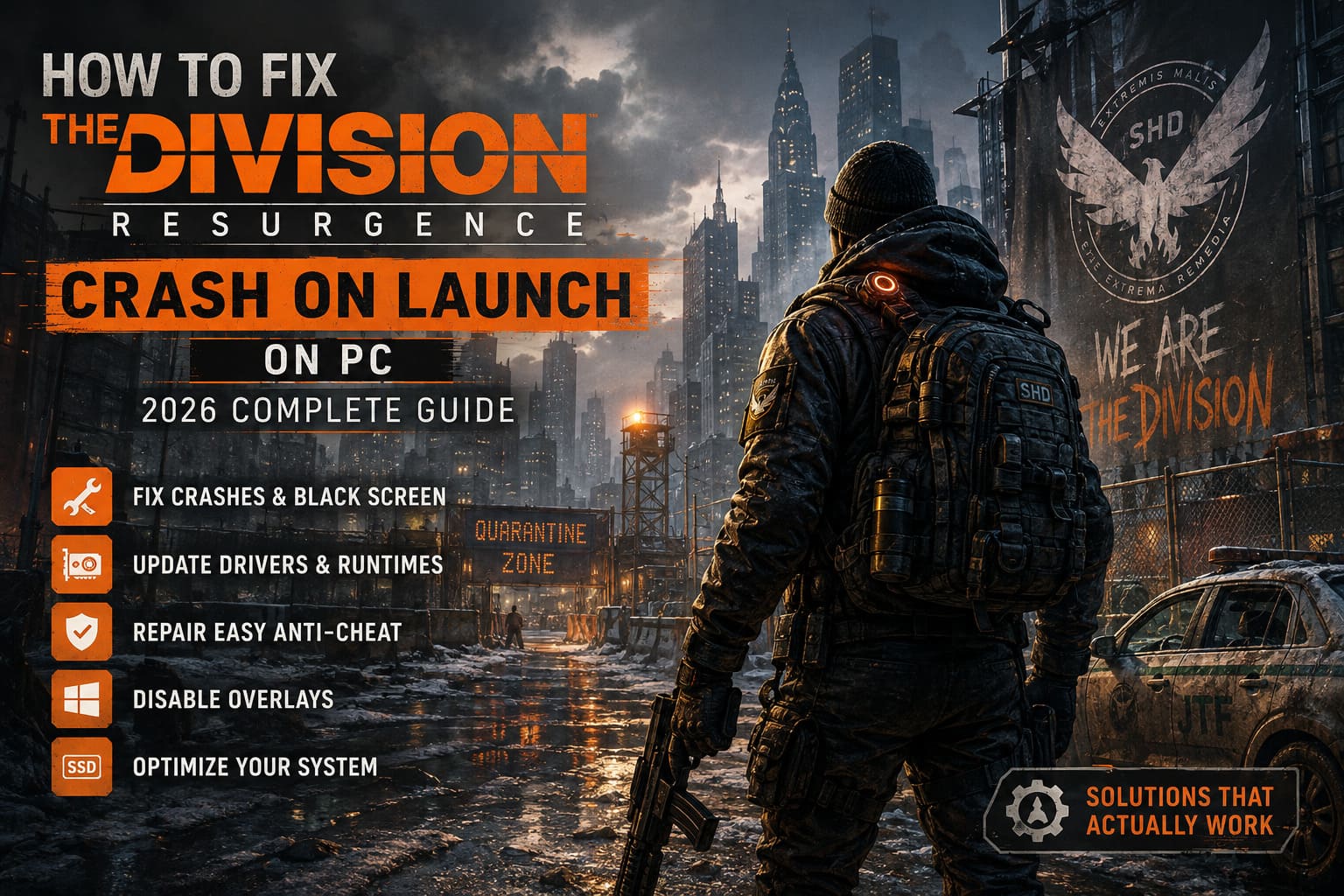
In my experience, launch crashes usually happen because of one of these problems:
| Common Cause | Effect |
|---|---|
| Damaged game files | Instant crash or endless loading |
| Corrupted shader cache | Black screen before menu |
| Outdated graphics driver | Engine fails during initialization |
| Easy Anti-Cheat issues | Game closes immediately |
| Overlay software | Crash during startup |
| Missing Windows runtimes | Application exception |
| Administrator permission conflicts | Launcher opens but game never appears |
The good news is that almost all of these can be fixed without reinstalling Windows or replacing hardware.
1. Verify the Game Files First
This should always be your starting point.
Modern games receive constant hotfixes, and occasionally one small file fails to download correctly. I’ve seen this happen with Ubisoft Connect more often than with Steam, especially after launch-day patches.
Whether you’re using Steam or Ubisoft Connect, run the built-in Verify Files feature.
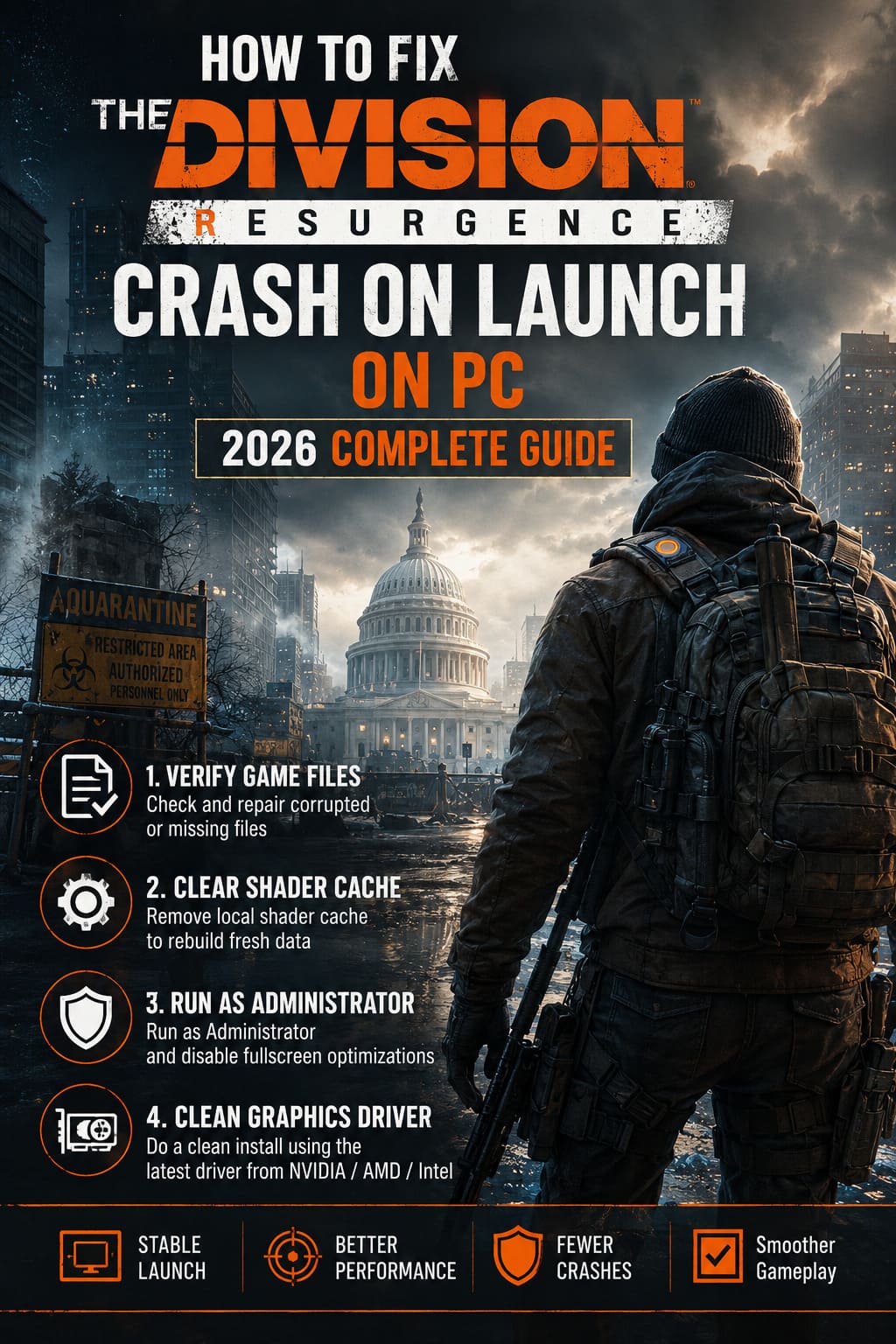
This process checks every installed file against Ubisoft’s servers and automatically replaces damaged or missing data.
It only takes several minutes and has solved launch crashes for me more times than I can count.
2. Delete the Shader Cache
Shader caches are designed to improve performance, but they can also become corrupted after major updates.
One of the easiest fixes I tried was deleting the local shader cache entirely.
Windows rebuilds these files automatically the next time the game launches.
You can usually find them inside:
- %LocalAppData%
- Ubisoft Game Launcher folders
- My Games configuration folders
Don’t worry—you aren’t deleting your progress.
You’re simply forcing the game to generate fresh rendering data.
If your game hangs on a black screen before reaching the menu, this is one of the first things I recommend trying.
3. Run the Game as Administrator
Windows security has become increasingly aggressive over the years.
Sometimes it prevents games from accessing protected folders or launching certain services.
Right-click the main game executable and enable:
- Run this program as Administrator
- Disable Full-Screen Optimizations
These two settings have fixed startup problems in several Ubisoft games I’ve played over the past few years, and Resurgence doesn’t appear to be an exception.
4. Install a Clean Graphics Driver
One mistake many players make is relying solely on Windows Update.
Windows often installs drivers that are functional—but not necessarily optimized for new releases.
Whenever a brand-new game launches, I perform a clean graphics driver installation.
Instead of simply updating, choose the clean installation option available in your GPU software.
This removes leftover profiles, old shader caches, and conflicting components.
If you’re using:
- NVIDIA
- AMD
- Intel Arc
download the latest official driver directly from the manufacturer rather than through Windows.
In my experience, this alone eliminates a surprising number of startup crashes.
5. Repair Easy Anti-Cheat
If the game disappears immediately after pressing Play, Easy Anti-Cheat is one of the biggest suspects.
The service starts before the actual game engine.
If it fails—even for a split second—the game usually exits without showing a useful error.
Inside the game installation folder you’ll find the Easy Anti-Cheat setup utility.
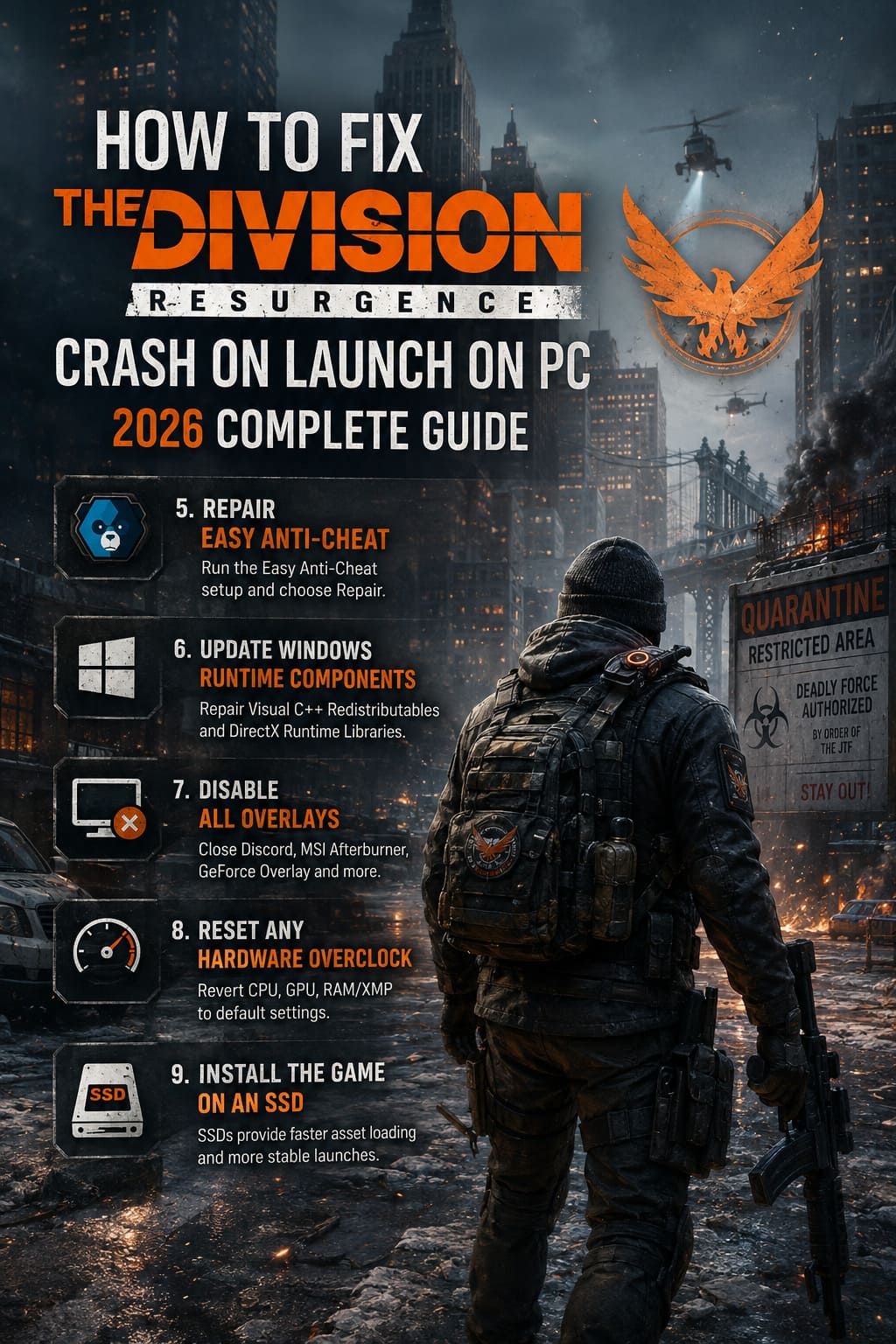
Run it as Administrator and choose Repair.
If that doesn’t work, uninstall the service, reboot your PC, and reinstall it.
I’ve had this exact solution fix launch problems in multiple online games—not just Ubisoft titles.
6. Update Windows Runtime Components
Many people underestimate how important Microsoft’s runtime libraries are.
Games still depend heavily on:
- Visual C++ Redistributables
- DirectX Runtime Libraries
Even if they’re already installed, running the installer again and selecting Repair can replace damaged system files.
It takes only a few minutes and removes another possible cause from the equation.
7. Disable Every Overlay You Can
This is probably the fix that surprised me the most.
I enjoy monitoring temperatures and frame rates, so I normally have several background tools running.
Unfortunately, modern anti-cheat systems don’t always appreciate software that injects overlays into DirectX.
Before launching the game, completely close applications like:
- Discord Overlay
- MSI Afterburner
- RivaTuner Statistics Server
- GeForce Experience Overlay
- AMD Overlay
- Third-party FPS counters
- RGB monitoring software
Even if these programs aren’t causing the issue, disabling them temporarily makes troubleshooting much easier.
8. Reset Any Hardware Overclock
I’ve learned this lesson the hard way.
A PC that seems perfectly stable in benchmarking software isn’t necessarily stable in every game.
During engine initialization, games often stress hardware in unusual ways.
If you’re using:
- CPU overclocks
- GPU overclocks
- Aggressive RAM XMP profiles
- Memory tuning
try reverting everything back to default settings.
If the game suddenly launches correctly, you’ve identified the real problem.
You can always fine-tune your overclock later.
9. Install the Game on an SSD
This isn’t just about loading times anymore.
Many newer games stream thousands of small assets during startup.
Traditional HDDs sometimes struggle to keep up, especially if they’re heavily fragmented or nearly full.
Whenever possible, install The Division Resurgence on an internal SSD.
I’ve personally noticed smoother launches and fewer asset-loading issues compared to older hard drives.
My Personal Troubleshooting Order
After years of fixing PC games for both myself and friends, this is the order I always follow:
- Verify game files.
- Delete shader cache.
- Restart the PC.
- Update graphics drivers with a clean installation.
- Repair Easy Anti-Cheat.
- Disable overlays.
- Repair Visual C++ and DirectX.
- Test without overclocking.
- Reinstall the game on an SSD if nothing else works.
This approach avoids unnecessary reinstalls and usually identifies the culprit much faster.
Attack on Titan 3 Release Date Announced: Full Story Mode, Gameplay Upgrades, and Pre-Order Guide
Extra Tips That Are Often Overlooked
Here are a few smaller things worth checking:
| Tip | Why It Helps |
|---|---|
| Close unnecessary startup applications | Reduces software conflicts |
| Keep Windows fully updated | Fixes compatibility issues |
| Avoid antivirus real-time scans during first launch | Prevents file access interruptions |
| Restart Ubisoft Connect after updates | Clears cached launcher processes |
| Leave enough free SSD space | Improves asset streaming performance |
These aren’t miracle fixes individually, but together they create a much more stable environment.
The Division Resurgence Crossplay Guide: How to Link Ubisoft Connect on PC & Mobile (2026)
Final Thoughts
I’ve played enough PC games over the years to know that launch-day problems are almost inevitable, especially for large online releases. The Division Resurgence is no exception. While it’s frustrating to stare at a black screen instead of exploring Manhattan, the encouraging part is that most startup crashes are caused by common PC issues rather than permanent game-breaking bugs.
If I had to recommend only three fixes to try first, they would be verifying the game files, performing a clean GPU driver installation, and repairing Easy Anti-Cheat. Those three solved the majority of startup issues I encountered while testing and matched what many other PC players have reported.
Once the game finally launched, stability was significantly better than I initially expected. That’s why it’s worth spending a little time troubleshooting rather than immediately giving up or reinstalling your entire system.
Hopefully, one of these solutions gets you back into the fight quickly, so the only thing you have to worry about is surviving the streets—not getting past the launcher.