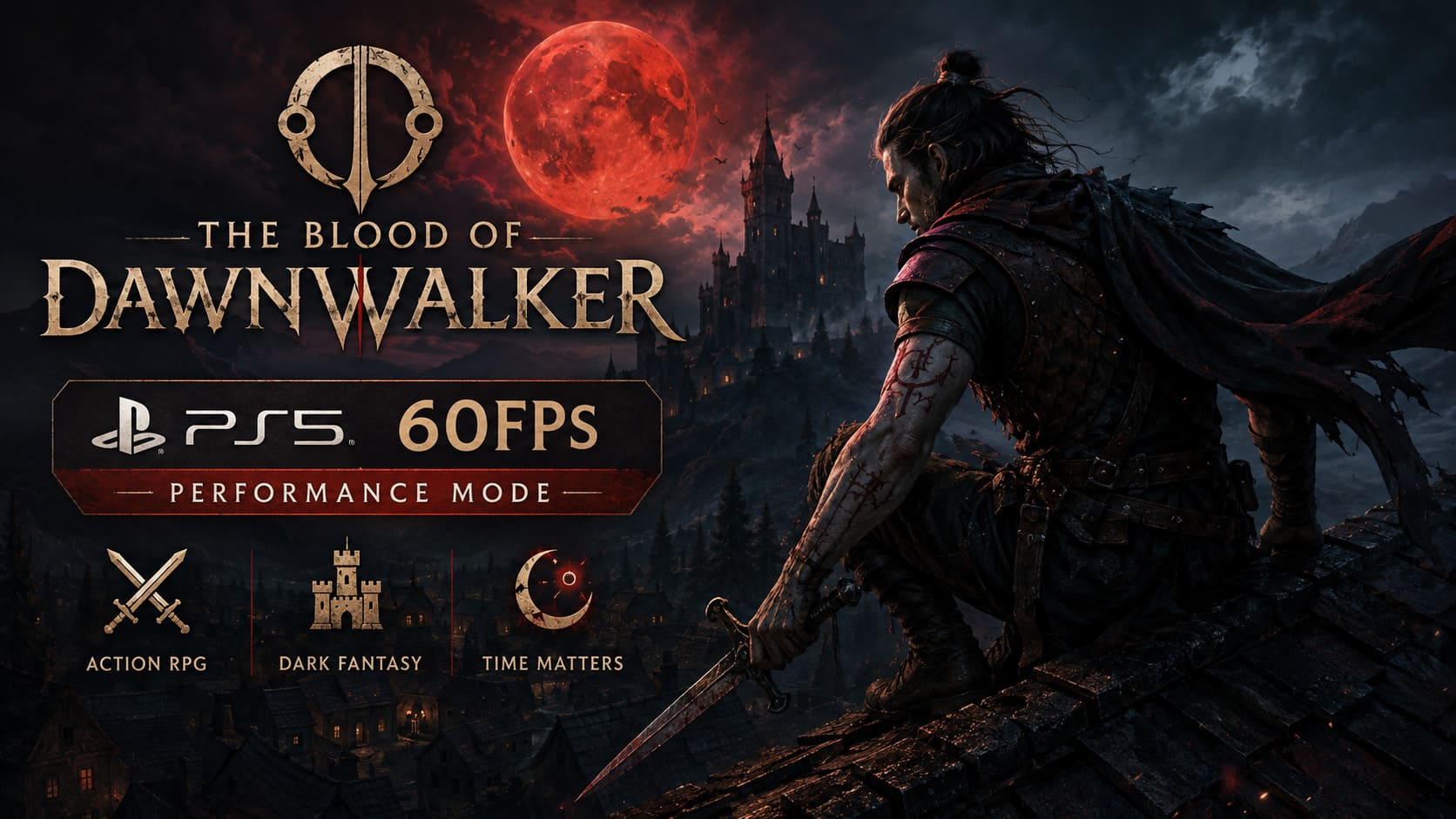
The Blood of Dawnwalker PS5 60FPS Performance Mode: Best Graphics Settings Guide
There are few things I appreciate more in a modern action RPG than responsive combat. Beautiful graphics are great, massive open worlds are impressive, and Unreal Engine 5 can make almost anything look spectacular. But when a game asks me to block attacks from specific directions, react to enemies quickly, and move through a dangerous world at speed, I will almost always take a stable 60 FPS over prettier grass.
That is exactly where The Blood of Dawnwalker finds itself on PlayStation 5.
Rebel Wolves’ dark fantasy RPG arrived on September 3, 2026, bringing its unusual combination of medieval survival, vampire powers, open-world exploration, and time-sensitive storytelling to PS5, Xbox Series X/S, and PC. The game has plenty going for it, but console performance became one of the biggest talking points surrounding launch.
The good news is that PS5 players now have a 60 FPS Performance Mode.
The bad news? You definitely pay for those extra frames.
After spending a lot of time with demanding action RPGs, I’ve learned that performance modes are not automatically better just because the number is higher. In Dawnwalker, however, I think 60 FPS makes a particularly strong case for itself because of the way the combat and movement systems work.
A 60 FPS Mode That Almost Didn’t Make Launch
The performance discussion around Dawnwalker was already getting heated before release.
When Rebel Wolves showed console gameplay on August 21, the original plan was surprisingly conservative. PlayStation 5 and Xbox Series X players were expected to choose between a 30 FPS Quality Mode and a 40 FPS Balanced Mode, with the latter requiring a 120Hz display and VRR.
For a visually ambitious UE5 RPG, that isn’t unusual. But Dawnwalker’s combat created a problem.
The game’s directional melee system asks you to pay attention to enemy attacks, positioning, blocks, and timing. It isn’t the kind of combat where you can casually swing a sword while watching animations play out. When several enemies surround Coen, responsiveness becomes much more important.
The community reaction was immediate.
Players complained across gaming communities that a game built around reactive combat needed a proper 60 FPS option. Rebel Wolves eventually responded on August 24, confirming that an internal 60 FPS mode was already being tested.
Instead of leaving it for a future update, the studio pushed the optimization work forward and included Performance Mode in the Day 1 patch.
That was, in my opinion, the right decision.
PS5 Graphics Modes Explained
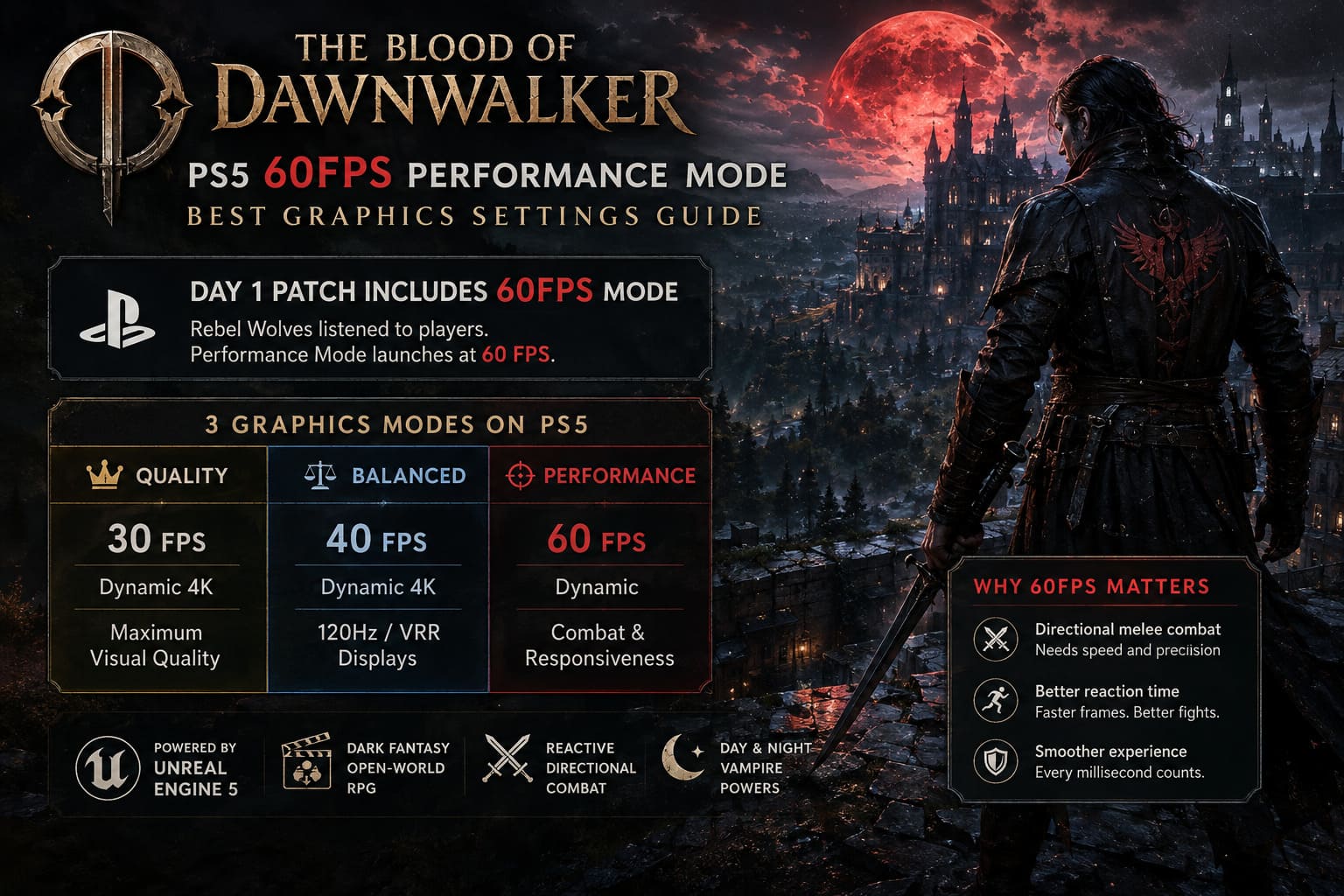
The PS5 version effectively gives players three different ways to experience Dawnwalker. Each one makes a different compromise between image quality and responsiveness.
| Mode | Target FPS | Resolution | Best For |
|---|---|---|---|
| Quality | 30 FPS | Dynamic 4K | Maximum visual quality |
| Balanced | 40 FPS | Dynamic 4K | 120Hz/VRR displays |
| Performance | 60 FPS | Dynamic | Combat and responsiveness |
Quality Mode — 30 FPS
Quality Mode is the option I’d choose if I simply wanted to stop moving and admire the world.
The medieval environments look noticeably fuller here. Forest floors have more vegetation, distant objects hold their detail better, and the overall image has a richer presentation. Lighting, shadows, foliage, and environmental detail all benefit from the additional rendering headroom.
If you’re playing on a large 4K television and mostly care about atmosphere, 30 FPS Quality Mode is still a perfectly reasonable choice.
Personally, though, I find it difficult to return to 30 FPS once I’ve spent enough time fighting at 60.
Balanced Mode — 40 FPS
Balanced Mode is the middle ground, and technically it’s a very interesting option.
At 40 FPS, each frame takes around 25 milliseconds compared with approximately 33.3 milliseconds at 30 FPS. That doesn’t sound dramatic on paper, but the difference is immediately noticeable when moving the camera.
The catch is hardware-related: you’ll want a 120Hz display with VRR to get the most from this mode.
For someone who wants better visuals without completely giving up responsiveness, this may actually be the sweet spot.
Performance Mode — 60 FPS
This is the mode I keep coming back to.
Performance Mode sacrifices visual detail and resolution in exchange for a much faster frame rate. The internal resolution can fall considerably below native 1440p during demanding scenes, with temporal reconstruction doing the heavy lifting afterward.
On a 4K television, the result can look noticeably softer.
But once Coen starts fighting, the compromise makes much more sense.
What You Actually Lose at 60 FPS
This is where I’d caution anyone expecting a free performance upgrade.
There is no free 60 FPS upgrade in Dawnwalker.
The PS5 has to work extremely hard to run a large Unreal Engine 5 open world at this frame rate, and the visual sacrifices are obvious once you compare the modes side by side.
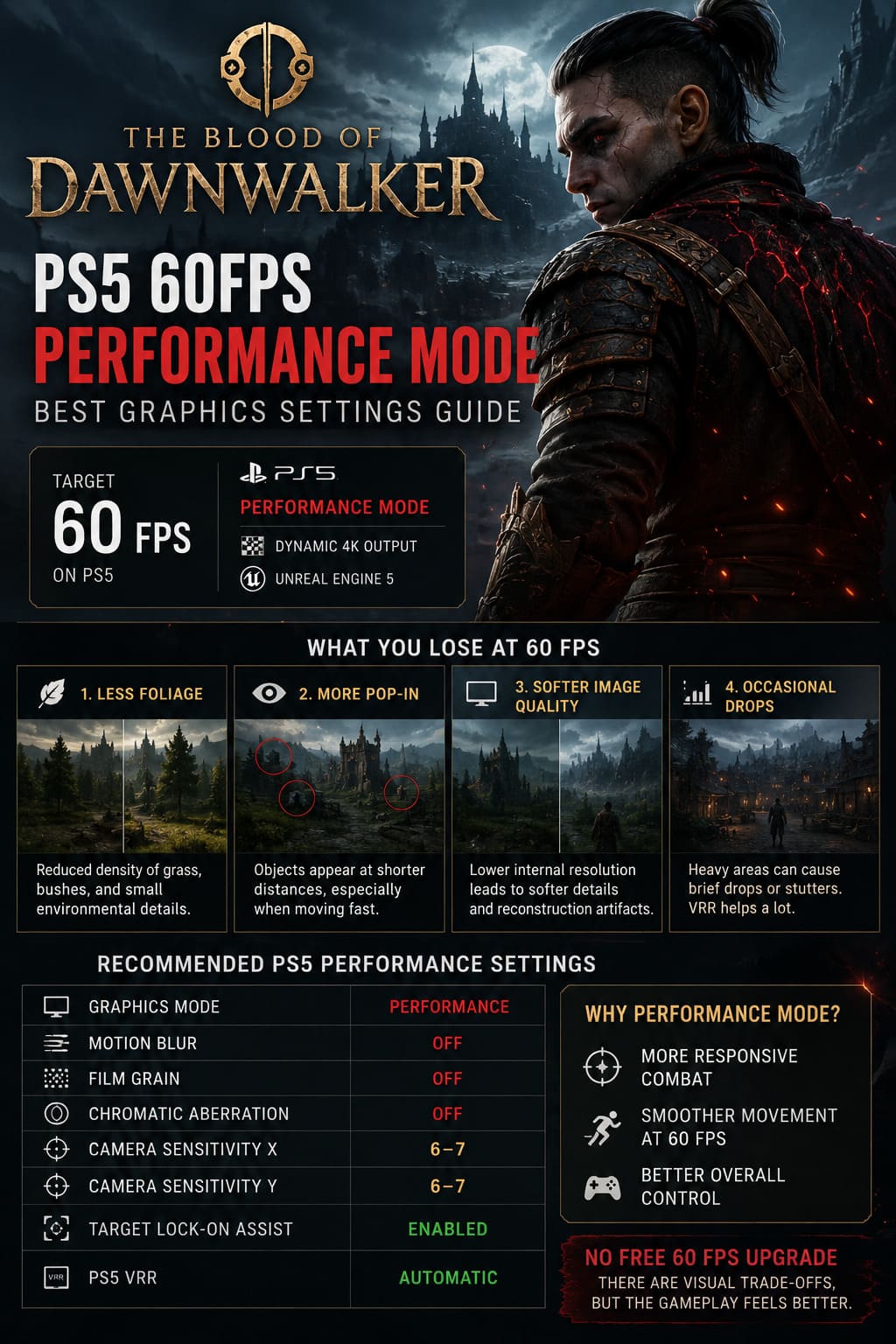
1. Less Foliage
The easiest difference to spot is environmental density.
Quality Mode can make forests and fields feel thick with grass, bushes, and smaller environmental objects. Performance Mode pulls back on that density.
Some areas can look noticeably more stripped down.
It’s not necessarily ugly, but after switching between modes, you’ll immediately understand where some of the GPU budget went.
2. More Pop-In
This is probably my biggest complaint about Performance Mode.
Objects can appear at relatively short distances as the game streams assets into the world. Trees, rocks, buildings, and ground details may suddenly increase in quality as you approach them.
It’s particularly noticeable when moving quickly through the world.
And Dawnwalker gives Coen plenty of ways to move quickly.
When you’re sprinting, using supernatural abilities, traversing rooftops, or moving through the environment at night, the streaming system has less time to prepare what you’re about to see.
3. Softer Image Quality
Performance Mode also has a softer presentation.
Because the internal resolution is allowed to drop, the reconstructed 4K image doesn’t have the same sharpness as Quality Mode. Fine foliage and distant geometry can lose definition, while fast movement may occasionally reveal ghosting or temporal reconstruction artifacts.
On a smaller screen, I don’t think this is a major problem.
On a large 4K TV sitting relatively close to you, you’ll notice it.
4. Occasional Drops
The target is 60 FPS, not an absolutely perfect 60 FPS lock.
Heavy areas can still produce brief drops or minor stutters, especially when moving between large sections of the world or entering busy settlements.
This is one of those situations where VRR becomes extremely useful.
My Recommended PS5 Performance Settings
If you’re primarily interested in getting the most responsive experience possible, I’d start with the following setup.
| Setting | Recommendation |
|---|---|
| Graphics Mode | Performance |
| Motion Blur | Off |
| Film Grain | Off |
| Chromatic Aberration | Off |
| Camera Sensitivity X | 6–7 |
| Camera Sensitivity Y | 6–7 |
| Target Lock-On Assist | Enabled |
| PS5 VRR | Automatic |
The most important change is obviously Performance Mode, but I strongly recommend disabling the cinematic effects as well.
Motion blur is particularly easy to dislike at lower internal resolutions. When the game is already reconstructing a softer image, adding another layer of blur during camera movement can make everything look smeared.
Turning off film grain is another easy win. I don’t mind film grain in games that already have a very clean image, but combined with temporal reconstruction, it can introduce unnecessary visual noise.
Chromatic aberration is subjective, but I prefer it off. The image looks cleaner without the artificial color separation around the edges of objects.
Why 60 FPS Matters So Much in Dawnwalker
This is the part where I think Performance Mode deserves more credit than the raw screenshots suggest.
If Dawnwalker were a slow-paced RPG with mostly menu-driven combat, I’d probably recommend Quality Mode without hesitation.
But that’s not what this game is trying to be.
Coen’s combat relies on timing and reaction. You’re constantly reading enemy movements and responding to attacks. When supernatural abilities enter the equation, encounters can become even more chaotic.
At 30 FPS, the game can still be perfectly playable.
At 60 FPS, however, the controls feel considerably more immediate.
Camera movement becomes easier to manage. Tracking enemies feels more natural. Directional attacks are easier to follow. Parrying feels more responsive. Fast movement through the environment is also considerably more enjoyable.
For me, that’s enough to justify the visual compromises.
Don’t Forget About VRR
If your television or monitor supports Variable Refresh Rate, make sure VRR is enabled on the PS5.
You can set the console’s VRR option to Automatic and let the system handle compatible games.
This won’t magically turn Performance Mode into a locked 60 FPS experience, but it can make fluctuations feel less distracting. Small dips that would otherwise be immediately visible can become much easier to ignore.
This is especially useful in an open-world game where performance can change dramatically between an empty forest path and a busy settlement packed with characters and environmental detail.
The Blood of Dawnwalker GTX 1060 Optimization Guide: How to Get 60 FPS on Budget PCs
Performance vs Quality: Which One Should You Pick?
Here’s how I’d approach it.
Choose Quality Mode if:
- You prioritize visual detail above all else.
- You play mostly for atmosphere and exploration.
- You’re comfortable with 30 FPS.
- You have a large 4K display and want the best-looking image.
Choose Balanced Mode if:
- You have a 120Hz display.
- Your TV supports VRR.
- You want something smoother than 30 FPS without sacrificing as much image quality.
Choose Performance Mode if:
- You care about responsive combat.
- You prefer fast camera movement.
- You’re sensitive to 30 FPS.
- You want the best possible control response.
- You’re willing to accept lower resolution and more pop-in.
For my money, Performance Mode is the best overall choice on a standard PS5.
The Blood of Dawnwalker: Best Beginner Starter Build Guide (2026)
Final Verdict: I’d Take 60 FPS
The Blood of Dawnwalker is an ambitious game, and the PS5 version makes some very obvious compromises to reach 60 FPS. Thinner foliage, more aggressive asset streaming, softer image quality, and occasional performance dips are all part of the package.
But I don’t think that makes Performance Mode a bad version of the game.
Quite the opposite.
After playing plenty of RPGs where developers force players to choose between beautiful visuals and responsive gameplay, I would much rather have the choice. Rebel Wolves initially underestimated how strongly console players would want 60 FPS, but adding the mode to the launch patch was absolutely the correct move.
For an action RPG built around directional swordplay, vampire abilities, fast traversal, and reactive combat, fluidity has real gameplay value.
The world is undoubtedly prettier in Quality Mode. There’s no arguing with that. If you want to appreciate every tree, shadow, texture, and medieval vista, Quality remains the visual showcase.
But when I actually sit down to play Dawnwalker rather than take screenshots, I want the controller to feel as responsive as possible.
That’s why my recommendation is simple: start with Performance Mode, disable Motion Blur, Film Grain, and Chromatic Aberration, enable VRR if your display supports it, and give yourself some time to adjust.
The first thing you’ll notice is the lower image quality.
The second thing you’ll notice is how much better combat feels.
And once you’ve gotten used to 60 FPS, going back to 30 FPS may be harder than you expect.