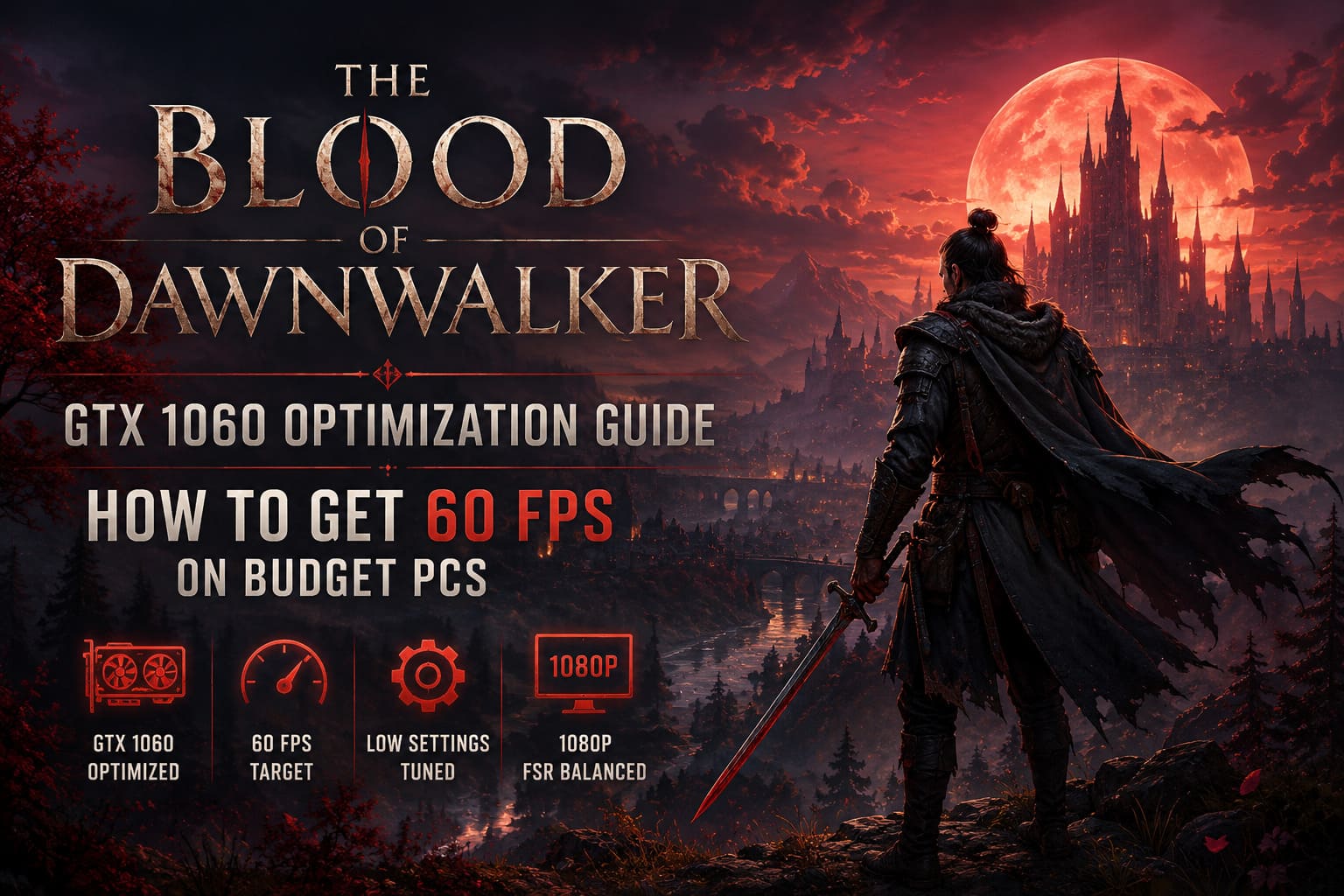
The Blood of Dawnwalker GTX 1060 Optimization Guide: How to Get 60 FPS on Budget PCs
I’ll be honest: when I first saw the PC requirements for The Blood of Dawnwalker, my immediate reaction was, “Okay, this is going to destroy older GPUs.” The game looks absolutely massive, and it is running on Unreal Engine 5, which has already earned a reputation for being brutal on aging hardware.
But after spending time going through the settings and testing what actually matters, I think GTX 1060 owners have a much better chance than the initial requirements suggested.
The NVIDIA GeForce GTX 1060 is obviously no longer a modern graphics card. It launched years ago, it doesn’t have the newer AI hardware that today’s upscaling technologies rely on, and its Pascal architecture was never designed with huge Unreal Engine 5 worlds in mind. Still, with the right configuration, it can deliver a surprisingly playable experience.
My goal here isn’t to make Dawnwalker look like a screenshot from a high-end RTX system. That’s unrealistic. Instead, I’m aiming for something I personally prefer when playing a demanding RPG: stable frame pacing, responsive controls, and graphics that still look good enough to enjoy the world.
For me, a consistent 45-60 FPS experience is far more enjoyable than chasing maximum visual quality and constantly watching the frame counter collapse.
Can a GTX 1060 Actually Run The Blood of Dawnwalker?
Yes — but there is a pretty important distinction between the 6GB and 3GB versions of the GTX 1060.
The 6GB model is the one I’d recommend trying. The extra VRAM gives the game more breathing room when it is loading textures, environments, characters, and other assets. The 3GB version is much more restricted, particularly in a large open-world RPG where texture streaming is happening constantly.
The biggest mistake you can make is launching the game, selecting a preset, and assuming that the preset has done all the optimization work for you.
It hasn’t.
Modern games increasingly have settings that can dramatically change GPU workload without making the image look dramatically worse. Dawnwalker is exactly the kind of game where manually tuning those options makes sense.
If you’re using a GTX 1060, I would start with 1080p and an upscaler enabled rather than trying to brute-force native resolution.
My Starting Point
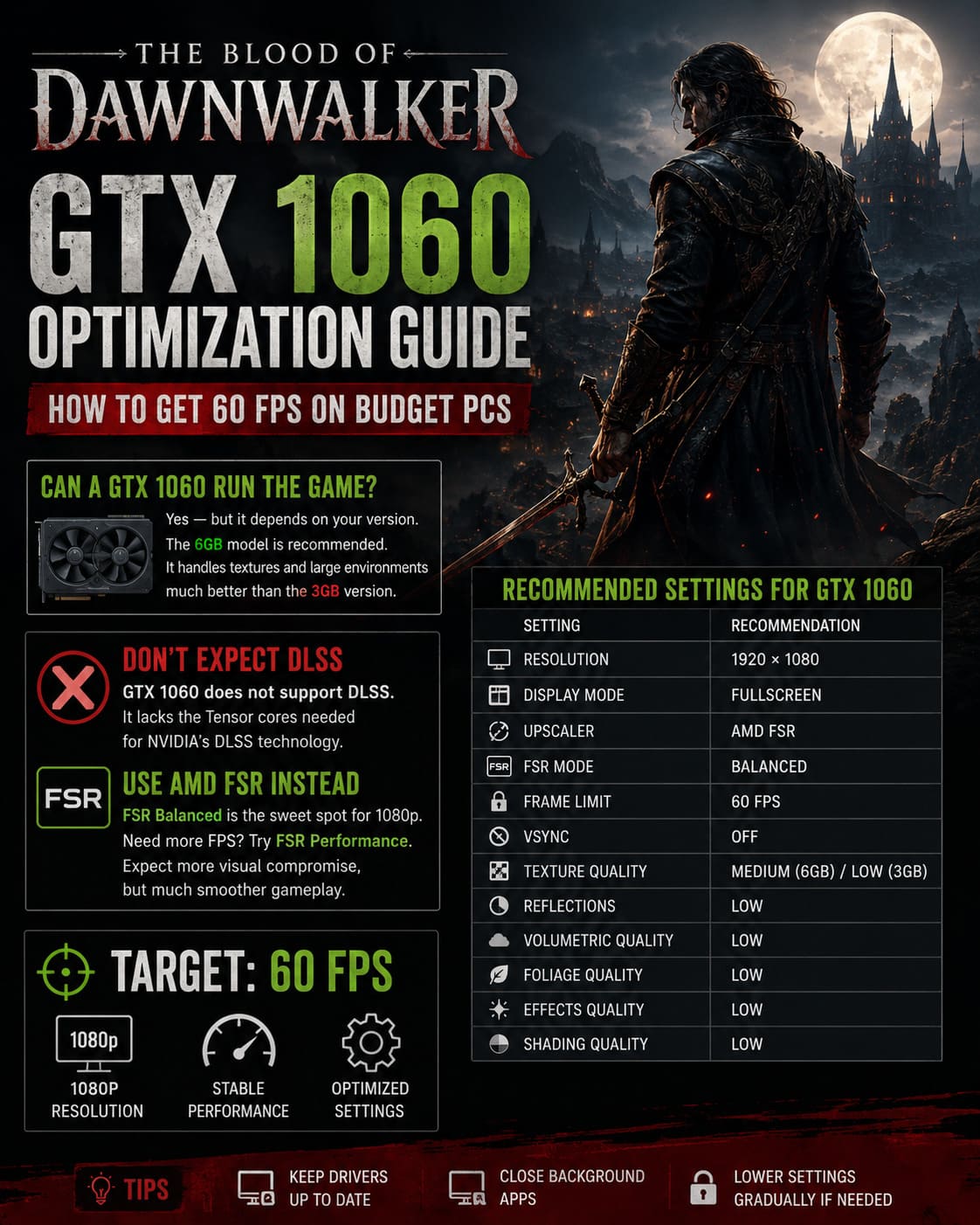
| Setting | GTX 1060 Recommendation |
|---|---|
| Resolution | 1920×1080 |
| Display Mode | Fullscreen |
| Upscaler | AMD FSR |
| FSR Mode | Balanced |
| Frame Limit | 60 FPS |
| VSync | Off |
| Texture Quality | Medium on 6GB / Low on 3GB |
| Reflections | Low |
| Volumetric Quality | Low |
| Foliage Quality | Low |
| Effects Quality | Low |
| Shading Quality | Low |
This isn’t the prettiest configuration possible, but it gives us a strong foundation.
Don’t Expect DLSS on a GTX 1060
This is something worth clearing up because I still see people suggesting DLSS whenever a PC game has performance problems.
The GTX 1060 cannot use DLSS.
That’s not something you can fix with a driver update or a configuration file. The card doesn’t have the dedicated Tensor hardware required for NVIDIA’s modern DLSS technology.
That leaves AMD FSR as the more interesting option.
At 1080p, FSR Balanced reduces the internal rendering resolution and reconstructs the image back toward your display resolution. Obviously, this means you’re sacrificing some native image detail, but the performance improvement can be much more valuable on an older GPU.
I’ve always preferred a slightly softer image with stable performance over a razor-sharp picture that stutters every few seconds.
If Balanced still isn’t enough, FSR Performance is the emergency button.
It will get you closer to that 60 FPS target, but you’ll notice more shimmering around vegetation, thin objects, and distant details. Personally, I’d use Performance only when the alternative is a constantly unstable frame rate.
The Settings That Actually Matter
Not every graphics option deserves the same attention.
This is probably my biggest piece of advice for anyone optimizing an older gaming PC: don’t automatically turn everything to Low.
Some settings destroy image quality while barely helping performance. Others can dramatically reduce GPU usage while remaining almost invisible during normal gameplay.
Dawnwalker has several options where this difference becomes obvious.
Reflections: Turn Them Down First
If I had to pick one graphics option to attack first, Reflections would be near the top of my list.
High-quality reflections can be expensive, particularly in a visually complex game with lots of lighting and environmental detail. On a GTX 1060, I don’t think Ultra or even High is worth the cost.
I’d start at Low.
Medium can be worth testing if you have some performance headroom, but Low is the setting I’d choose when trying to stabilize the frame rate.
And honestly? While playing normally, I’m usually too busy exploring, fighting enemies, or looking at the environment to notice that my reflections aren’t perfect.
Volumetrics: Beautiful but Expensive
This is another setting where Unreal Engine 5 can make older hardware suffer.
The atmosphere in Dawnwalker is a huge part of the experience. Fog, lighting, shadows, and other volumetric effects help create that dark fantasy mood.
Unfortunately, those effects can also be expensive.
Volumetric Quality should be Low on a GTX 1060.
Yes, the atmosphere loses some of its cinematic quality. But I’d rather keep the game moving smoothly through a foggy forest than watch the frame rate fall apart whenever the lighting gets complicated.
Foliage Quality: Don’t Be Afraid of Low
The forests and outdoor environments are exactly where an older GPU can start struggling.
There are enormous numbers of objects being rendered, and foliage isn’t just about pretty grass. Vegetation can involve geometry, shadows, lighting calculations, and constant asset streaming.
I recommend Low Foliage Quality for the GTX 1060.
This is one of those compromises that sounds worse on paper than it actually looks in motion.
When I’m moving through a forest at normal gameplay speed, I’m much more concerned with whether the game feels smooth than whether every individual piece of grass is rendered at maximum distance.
Texture Quality Depends on Your VRAM
This one requires a little more care.
If you have the GTX 1060 6GB, I’d try Medium textures.
Textures are one of the areas where lowering quality too aggressively can make a game look significantly worse. Character faces, clothing, weapons, buildings, and environmental surfaces can all lose detail.
The 6GB model has enough VRAM to make Medium a reasonable target.
The 3GB model is a different story.
I’d start at Low and only move upward if the game remains stable. Texture streaming problems and VRAM pressure can create ugly stutters that aren’t always obvious from the average FPS number.
This is why I don’t recommend judging optimization purely by the headline FPS.
Effects and Shading
Combat is another situation where performance can suddenly change.
The game has plenty of effects, particles, lighting interactions, and other visual elements that can become much more demanding when multiple things happen at once.
For a GTX 1060, I’d keep Effects Quality on Low.
Shading Quality should also start at Low. If you’re comfortably above your target frame rate, Medium is one of the first upgrades I’d experiment with.
This gives you a little extra visual quality without immediately attacking the heavier settings.
My Recommended GTX 1060 Profile
After putting all of those decisions together, this is the configuration I’d personally use as my first serious attempt at running Dawnwalker on a GTX 1060:
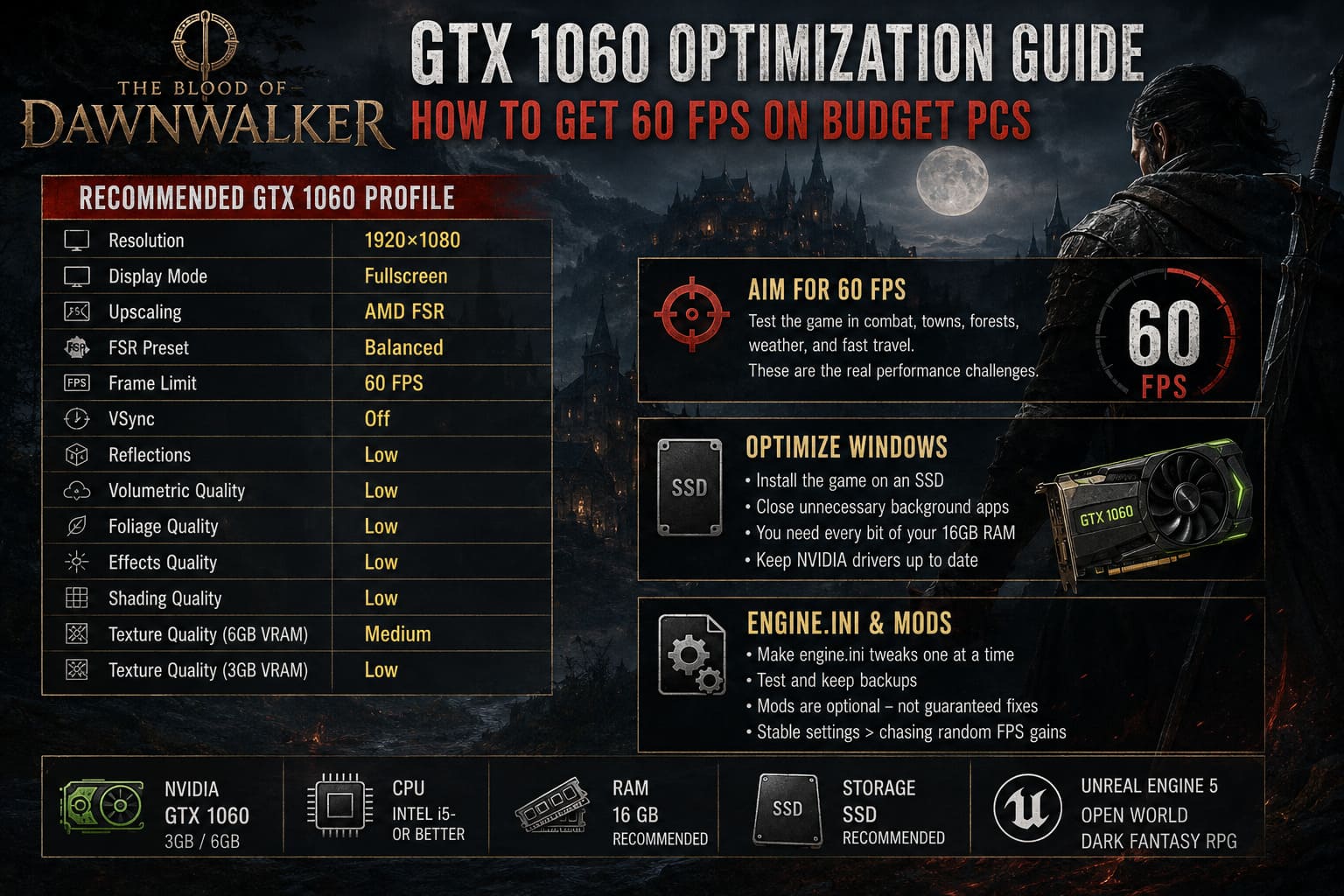
| Graphics Option | Recommended Setting |
|---|---|
| Resolution | 1920×1080 |
| Display Mode | Fullscreen |
| Upscaling | AMD FSR |
| FSR Preset | Balanced |
| Frame Limit | 60 FPS |
| VSync | Off |
| Reflections | Low |
| Volumetric Quality | Low |
| Foliage Quality | Low |
| Effects Quality | Low |
| Shading Quality | Low |
| Texture Quality | Medium on 6GB |
| Texture Quality | Low on 3GB |
I’d then play for at least 15-20 minutes in several different environments before changing anything.
Don’t optimize while standing inside a quiet room.
The real test is combat, towns, forests, weather effects, and fast traversal. Those are the moments when an older GPU is most likely to expose weaknesses.
Windows Optimization Still Matters
Graphics settings aren’t the whole story.
The game is designed around an SSD, and I’d strongly recommend installing it on one. An HDD can become a major problem in an open-world Unreal Engine 5 game because the engine constantly needs to stream new assets.
You may technically be able to launch the game from slower storage, but that doesn’t mean the experience will be good.
Before launching, I also recommend closing unnecessary background programs.
Chrome tabs, recording software, launchers, overlays, Discord, and other applications can consume RAM and CPU resources. With 16GB of system memory, you don’t have an enormous amount of headroom for running everything simultaneously.
If you’re troubleshooting random stutters, this is one of the easiest things to eliminate.
And yes, keep your NVIDIA drivers updated. It isn’t going to magically transform a GTX 1060 into an RTX 5070, but driver updates can fix game-specific problems and shader-related issues.
About Engine.ini Tweaks
Unreal Engine games often attract configuration tweaks, and Dawnwalker is no exception.
You may encounter recommendations involving the game’s Engine.ini, including streaming pool and shader-related parameters.
These tweaks can sometimes help particular systems, but I wouldn’t blindly paste dozens of commands from a random forum post into your configuration.
That’s especially important with older hardware.
A setting that improves one PC can make another system less stable. I’d make one change at a time, test the game, and keep a backup of the original configuration.
The same philosophy applies to performance mods from community sites such as Nexus Mods.
There are interesting community-made optimization projects, but mods should be treated as optional experiments rather than guaranteed fixes.
If the game is already stable after tuning the native settings, I wouldn’t install five different optimization packages just because someone online claims they gained 20 FPS.
What About the 60 FPS Goal?
Here’s where I’d set expectations.
A GTX 1060 isn’t going to turn Dawnwalker into a perfect 1080p/60 FPS machine simply by changing three settings.
Your actual results will depend heavily on your CPU, RAM configuration, driver version, background processes, and the specific area you’re playing in.
My realistic target would be:
| Configuration | Expected Experience |
|---|---|
| Low + Native 1080p | Around 24-30 FPS |
| Low + FSR Quality | Around 32-40 FPS |
| Optimized + FSR Balanced | Around 45-55 FPS |
| Optimized + FSR Performance | Around 55-60 FPS |
Think of these numbers as performance targets rather than guarantees.
For me, the sweet spot is clearly the optimized FSR Balanced setup. If I can stay around 45-55 FPS without horrible stuttering, I’m happy.
I’d only switch to Performance mode if I absolutely needed more frames.
The Blood of Dawnwalker: Best Beginner Starter Build Guide (2026)
One Thing I Wouldn’t Change: The Visual Identity
There’s a temptation when optimizing a demanding game to turn everything down until it looks like a completely different title.
I don’t think that’s necessary here.
Dawnwalker’s dark fantasy atmosphere is one of its biggest attractions. Lighting, environments, characters, and atmosphere are a huge part of why I want to play it in the first place.
So my strategy is simple: cut expensive effects that I barely notice and preserve the settings that contribute to the game’s identity.
That’s why I don’t immediately recommend putting every single option on Low.
Textures deserve some quality when VRAM allows it. FSR Balanced is preferable to Performance when possible. And if a setting costs a huge amount of performance for a visual effect I barely notice during actual gameplay, it’s getting turned down.
Blood of Dawnwalker Armourer Locations: Complete Armor Upgrade & Skill Manual Guide
Final Verdict: Can the Old GTX 1060 Survive Dawnwalker?
Surprisingly, yes.
The GTX 1060 isn’t going to provide the kind of experience you’d get from a modern high-end GPU, and anyone expecting max settings at native 1080p should probably lower their expectations.
But that’s not the same thing as saying the card is useless.
With AMD FSR Balanced, Low reflections, Low volumetrics, Low foliage, reduced effects, sensible texture settings, an SSD, updated drivers, and a 60 FPS cap, the GTX 1060 can still give you a respectable way into Dawnwalker’s world.
My biggest recommendation is to prioritize frame pacing over average FPS.
I’d rather play at a mostly stable 45-50 FPS than bounce constantly between 30 and 60. The latter might look better in a benchmark screenshot, but it feels noticeably worse when you’re actually controlling the character.
And if you’re lucky enough to have the 6GB GTX 1060, I’d absolutely give the game a shot before deciding your hardware is too old.
The Pascal era might be showing its age, but with some careful tuning, it isn’t ready for retirement just yet.