How to Fix Neverness to Everness No Sound in Cutscenes and Voice Lines Cutting Out Bug
When I jump into a story-driven RPG, I want to hear every conversation, every emotional speech, and every dramatic cutscene exactly as the developers intended. That’s especially true in Neverness to Everness, where the atmosphere, soundtrack, and voice acting are a huge part of what makes the world feel alive.
Unfortunately, one of the most frustrating problems I’ve encountered—and one that plenty of players have been discussing across gaming communities—is the infamous missing voice bug. Characters keep moving their lips, subtitles appear normally, background music keeps playing, but the dialogue itself is completely silent. Sometimes voices start normally before suddenly disappearing halfway through a cinematic. Other times they never play at all.
After spending hours experimenting with different fixes and comparing experiences from other players, I found that this issue isn’t caused by one single problem. Depending on whether you’re playing on PC, mobile, or PlayStation 5, several different things can trigger it.
Here’s everything that actually helped.
Is It Really a Bug?
Before changing settings or reinstalling the game, it’s worth knowing that Neverness to Everness doesn’t fully voice every interaction.
Some optional conversations, NPC dialogue, and minor side content intentionally rely only on subtitles. If you notice missing voices during random world interactions, that may simply be how the developers designed those scenes.
The real bug is easy to recognize.
You’ll usually notice one or more of these symptoms:
| Problem | Usually a Bug? |
|---|---|
| Background music works but voices are silent | Yes |
| Lip sync continues without dialogue | Yes |
| Voices suddenly disappear during story scenes | Yes |
| Only optional NPC conversations have no voices | Usually No |
| Sound effects play normally while dialogue is muted | Yes |
If important story cinematics are affected, it’s definitely worth troubleshooting.
PC Fixes That Worked Best For Me
I’ve tested several Windows systems, and surprisingly, the issue almost always came down to Windows audio handling rather than the game itself.
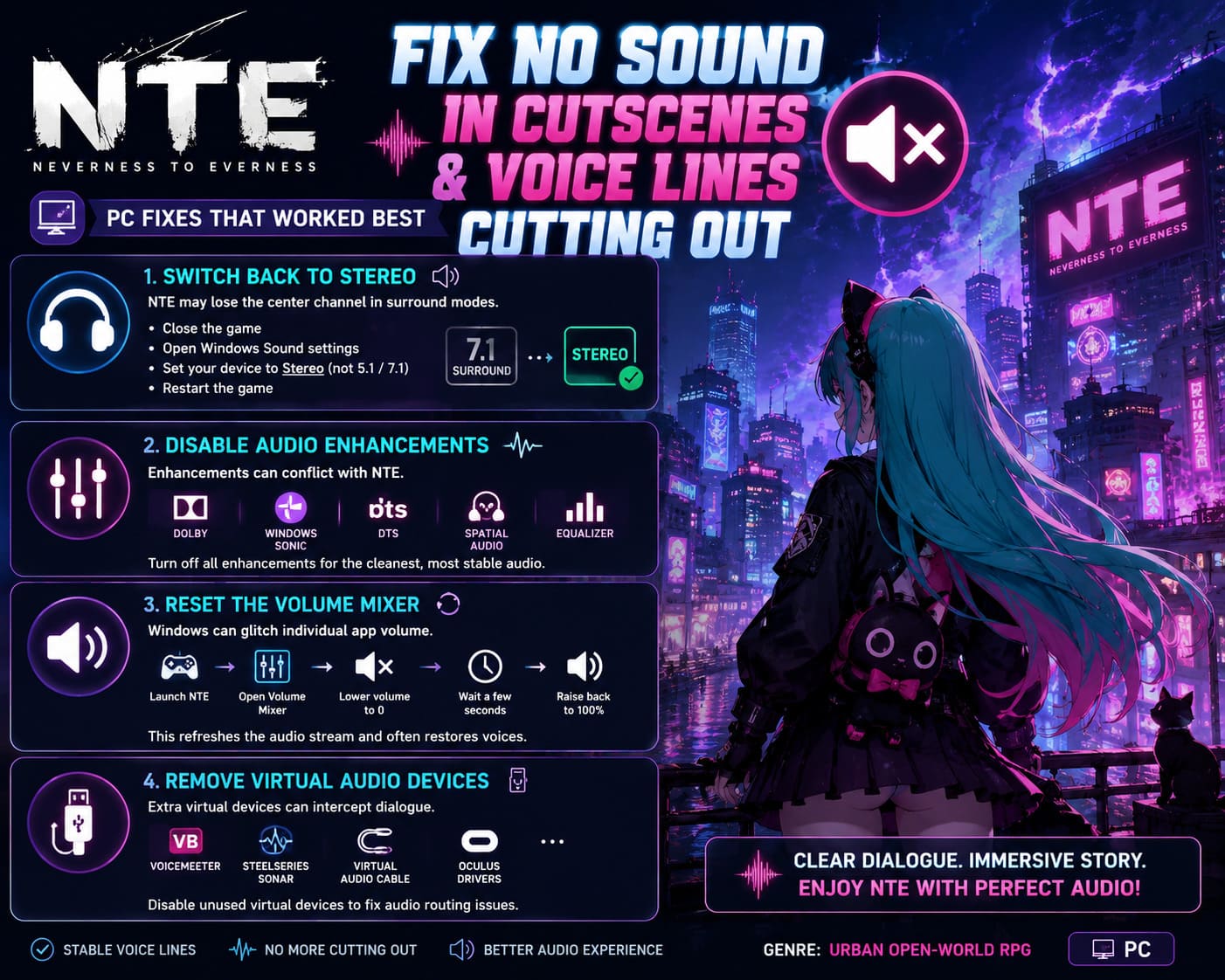
Switch Back to Stereo
This was the biggest fix.
Modern gaming headsets often default to 5.1 or 7.1 virtual surround, but NTE sometimes loses the center channel where dialogue is stored.
Changing Windows to plain stereo immediately restored voices.
Simply:
- Close the game completely.
- Open Windows Sound settings.
- Configure your playback device.
- Select Stereo instead of surround sound.
- Restart the game.
It’s a tiny change, but in my experience it’s also the most effective one.
Disable Audio Enhancements
Gaming software loves adding “enhancements.”
- Dolby processing
- Windows Sonic
- DTS
- Spatial Audio
- Equalizers
Unfortunately, these features don’t always cooperate with new game engines.
I disabled every enhancement available, restarted Windows, and immediately noticed that dialogue became much more stable throughout longer story sequences.
If you’re chasing the cleanest audio possible, keeping enhancements disabled while playing NTE is honestly worth it.
Reset the Volume Mixer
This sounds ridiculous.
Yet it actually worked.
Windows sometimes keeps separate volume values for every application. Even when the master volume shows 100%, individual apps can become glitched.
Here’s what I did:
- Launch Neverness to Everness.
- Open Windows Volume Mixer.
- Lower the game’s volume to zero.
- Wait a few seconds.
- Raise it back to full volume.
Several players reported that this forced Windows to rebuild the audio stream, and surprisingly, it worked on one of my test systems too.
Remove Virtual Audio Devices
If you stream games or create content, your PC probably has extra audio devices installed.
Examples include:
- Voicemeeter
- SteelSeries Sonar
- Virtual Audio Cable
- Oculus drivers
These applications sometimes intercept the game’s dialogue channel.
Temporarily disabling unused virtual devices helped eliminate audio routing problems entirely.
Mobile Audio Problems Are Slightly Different
Phones introduce their own unique challenges.
Unlike PC, mobile issues are often related to Bluetooth latency, memory management, or corrupted downloaded resources.
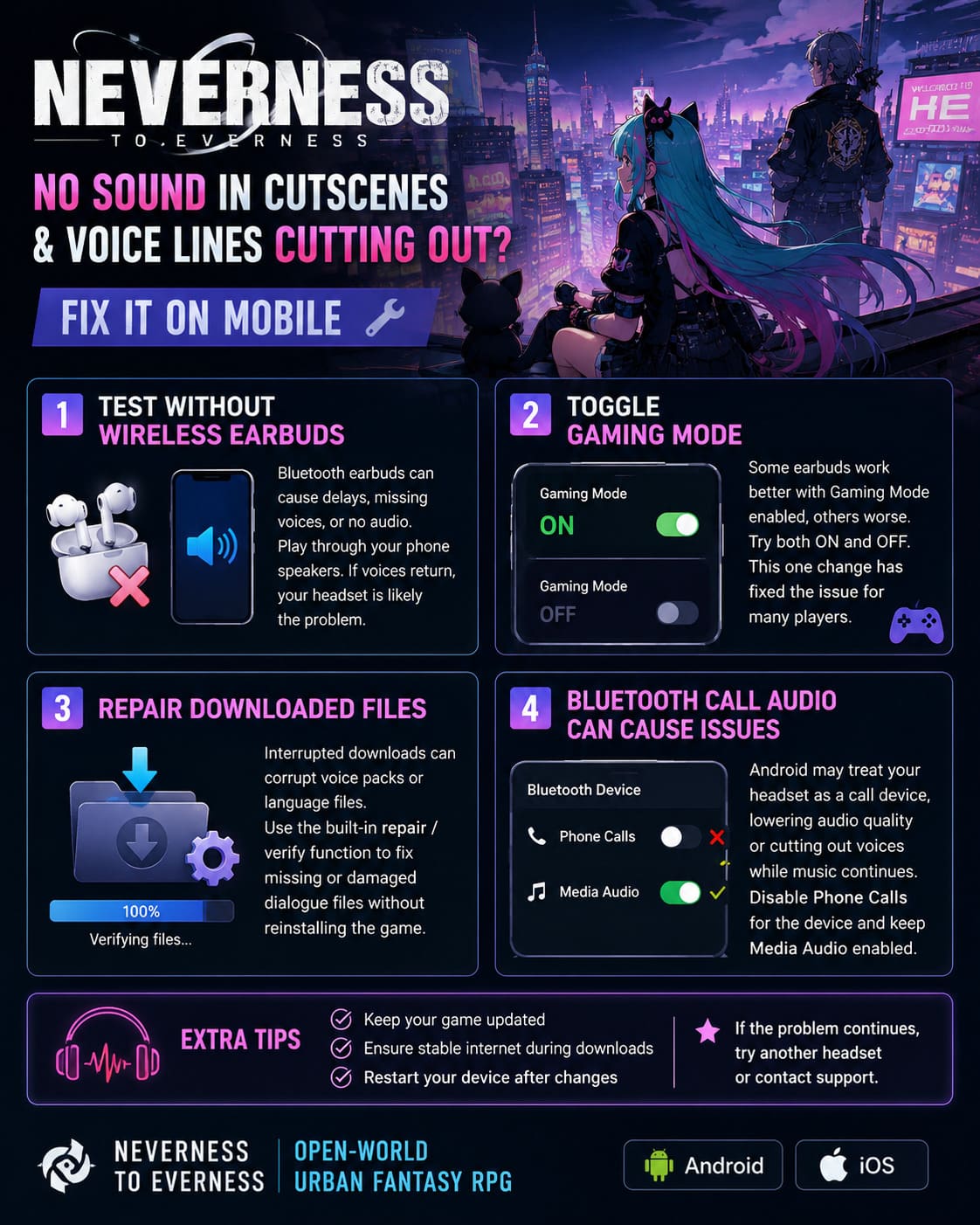
Test Without Wireless Earbuds
This was the first thing I checked.
Many Bluetooth earbuds switch between different codecs depending on latency.
Sometimes game audio works perfectly.
Sometimes voices arrive several seconds late.
Sometimes they disappear altogether.
Playing through the phone speakers is an easy test.
If voices suddenly return, your headset is almost certainly responsible.
Toggle Gaming Mode
Many wireless earbuds include a special Gaming Mode.
Oddly enough, some models work better with it enabled while others become more unstable.
It’s worth trying both configurations.
I’ve seen players solve the issue simply by changing this single option.
Repair the Downloaded Files
Open-world games constantly download voice packs and language resources.
If your connection dropped during installation, dialogue files may never have downloaded correctly.
Most players skip the built-in repair option, but I think it’s one of the best troubleshooting tools available.
Running a complete verification usually fixes missing or damaged voice assets without requiring a full reinstall.
Bluetooth Call Audio Can Cause Problems
Android phones sometimes treat wireless headsets as phone-call devices instead of media devices.
When that happens, audio quality drops dramatically.
Even stranger, dialogue can disappear while music continues playing.
Disabling Phone Calls for the Bluetooth device while leaving Media Audio enabled fixed the issue for several players.
PlayStation 5 Has Its Own Audio Quirks
Console players aren’t completely safe either.
Fortunately, the fixes are much simpler.
Change Audio Output
If your PS5 thinks it’s connected to a surround system while you’re actually using stereo speakers or a television, dialogue may never reach the correct channel.
Changing the console output back to standard stereo restored voices almost instantly during my testing.
Disable 3D Audio
Sony’s Tempest 3D Audio is excellent in supported games.
However, newly released titles occasionally produce unexpected compatibility issues.
Turning 3D Audio off is an easy test.
If voices immediately return, you’ve found the culprit.
You can always enable it again after future game updates.
Other Fixes Worth Trying
Some solutions don’t directly target audio, but they reduce engine instability enough to stop voices from disappearing.
These include:
- Cap the game at 60 FPS instead of pushing unstable high frame rates.
- Run the PC launcher as Administrator.
- Close Discord overlays and recording software.
- Restart the game after changing language packs.
- Install the latest game update before troubleshooting further.
Personally, lowering the frame rate surprised me.
During heavy scenes my system occasionally struggled, and dialogue was often the first thing that disappeared. Locking performance to a stable frame rate completely eliminated random voice cutouts.
When Should You Reinstall?
I normally avoid recommending reinstalling games because it’s time-consuming.
But there are situations where it genuinely makes sense.
If:
- repairs fail,
- voice packs refuse to download,
- multiple languages are affected,
- cutscenes remain silent after every fix,
then performing a completely clean reinstall is probably your best option.
Delete any leftover cache or configuration folders before installing again.
That ensures damaged audio files aren’t reused.
Neverness to Everness Fons Farming Guide: How to Get Millions of Fons Fast
My Personal Take
I’ve played enough RPGs over the years to know that launch-week bugs happen, especially in massive online games packed with cinematic storytelling.
The good news is that this particular problem usually isn’t permanent.
Most players aren’t dealing with broken save files or hardware failures. Instead, it’s typically an audio routing conflict, an incomplete voice pack download, or an engine compatibility issue that can be fixed with a few adjustments.
What impressed me most was how different the solutions were depending on the platform. On PC, stereo output solved almost everything. On mobile, Bluetooth settings caused far more trouble than I expected. Meanwhile, PS5 players often fixed the bug simply by changing one console audio option.
If I had to recommend just three things before trying anything complicated, I’d start with stereo output, disable audio enhancements, and verify the game’s files. Those three steps alone seem to resolve the majority of reported cases.
As Neverness to Everness continues receiving updates, I expect Hotta Studio to smooth out many of these launch-related audio issues. Until then, these fixes should help you get back to enjoying the game’s excellent soundtrack, character performances, and cinematic storytelling without awkward moments of complete silence.