R.E.P.O. Steam Deck Performance Guide: Best Settings for 60 FPS
R.E.P.O. quickly became one of those games I didn’t expect to spend dozens of hours playing. As someone who streams new releases and constantly jumps between indie gems and major AAA launches, I can honestly say this co-op horror title delivers something refreshingly different. The combination of physics-driven gameplay, tense exploration, and chaotic teamwork creates moments that feel genuinely unscripted.
That said, my first few sessions on Steam Deck were far from perfect.
The game looked good, but performance wasn’t always consistent. Frame drops appeared during busy multiplayer moments, battery life disappeared faster than expected, and certain visual effects seemed unnecessarily demanding for handheld hardware. After experimenting with multiple configurations and comparing notes with other Steam Deck players, I found a setup that dramatically improved the overall experience.
If you’re looking for the best R.E.P.O. Steam Deck settings in 2026, this guide covers everything I personally recommend.
Why R.E.P.O. Can Be Demanding on Steam Deck
At first glance, R.E.P.O. doesn’t appear particularly hardware-intensive. The visual style is relatively simple compared to modern blockbuster games. However, what many players don’t immediately notice is how much work is happening behind the scenes.
Several systems constantly compete for hardware resources:
- Real-time object physics
- Dynamic lighting effects
- Multiplayer synchronization
- Environmental interactions
- Atmospheric visual filters
When multiple players start throwing, carrying, or accidentally destroying valuable objects, the workload increases significantly. This is where handheld systems often begin to struggle.
Fortunately, Steam Deck handles the game surprisingly well once a few settings are adjusted.
My Recommended Graphics Settings
After testing various combinations, I found that prioritizing stability over visual excess creates a much better experience.
The game still looks atmospheric and creepy while maintaining smoother frame pacing.
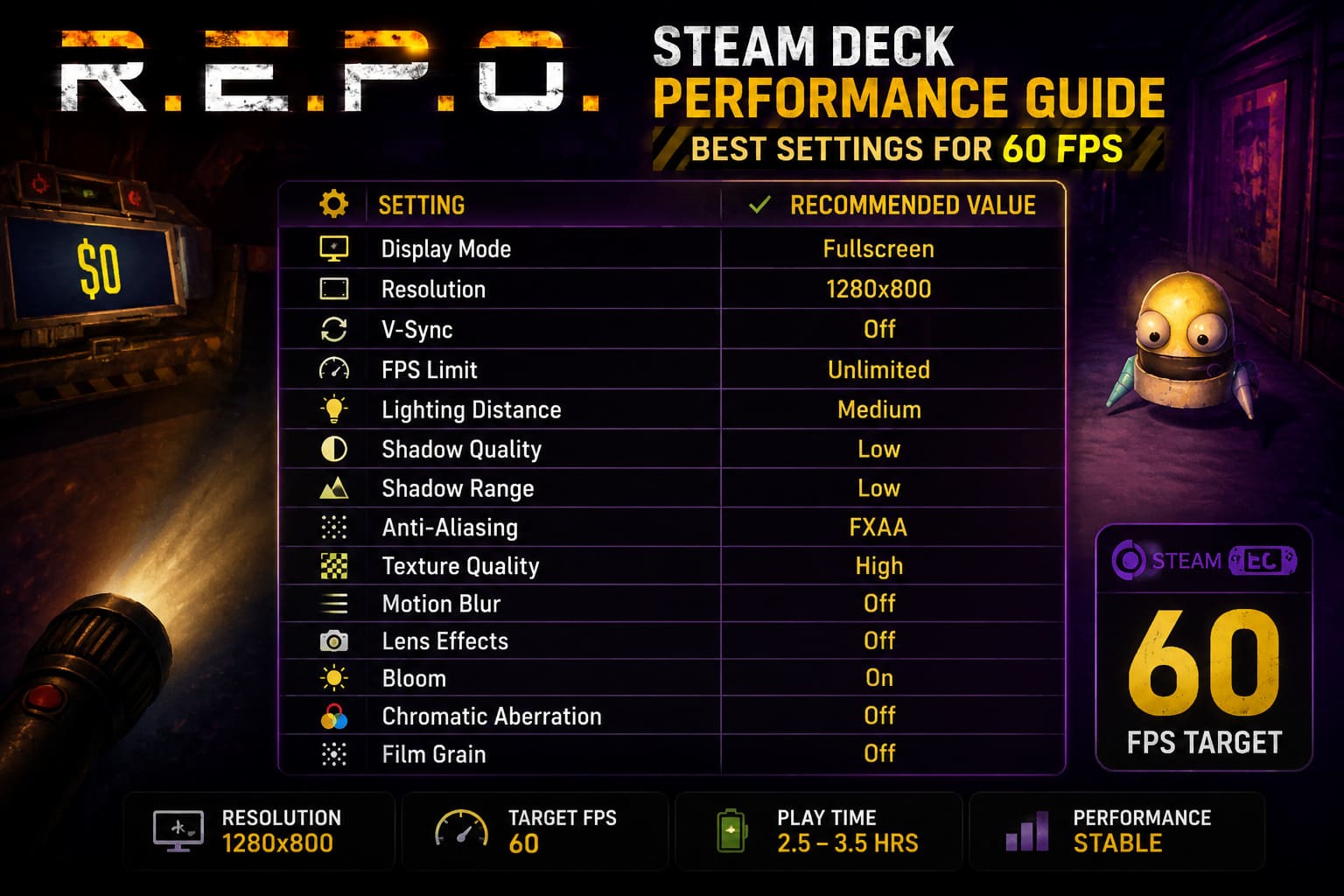
| Setting | Recommended Value | Reason |
|---|---|---|
| Display Mode | Fullscreen | Reduces unnecessary overhead |
| Resolution | 1280×800 | Native Steam Deck resolution |
| V-Sync | Off | Lower input delay |
| FPS Limit | Unlimited | Let SteamOS handle frame caps |
| Lighting Distance | Medium | Excellent performance gain |
| Shadow Quality | Low | Biggest FPS improvement |
| Shadow Range | Low | More consistent frame times |
| Anti-Aliasing | FXAA | Better efficiency |
| Texture Quality | High | Minimal performance impact |
| Motion Blur | Off | Cleaner image |
| Lens Effects | Off | Improves visibility |
| Bloom | On | Preserves atmosphere |
| Chromatic Aberration | Off | Sharper visuals |
| Film Grain | Off | Better clarity |
One thing I noticed during streaming sessions is that reducing shadow settings delivers a larger performance boost than lowering textures. Many players automatically reduce texture quality first, but on Steam Deck that’s often unnecessary.
Keeping textures high preserves visual detail while shadows are where most of the performance savings come from.
The SteamOS Tweaks That Made the Biggest Difference
In my experience, optimizing R.E.P.O. isn’t only about the game’s graphics menu.
SteamOS offers several powerful tools that can completely change how the game feels.
Steam Deck LCD Owners
For the original LCD model, I strongly recommend:
- Refresh Rate: 40Hz
- Frame Limit: 40 FPS
This remains one of the best performance-to-smoothness ratios available on the platform. While 60 FPS sounds appealing, maintaining it consistently during intense multiplayer moments can be difficult.
A locked 40 FPS feels surprisingly fluid while extending battery life considerably.
Steam Deck OLED Owners
The OLED model offers more flexibility.
My preferred setup is:
- Refresh Rate: 90Hz
- Frame Limit: 45 FPS
This creates excellent frame pacing and takes advantage of the OLED screen’s higher refresh capabilities.
For horror games like R.E.P.O., consistency matters more than chasing maximum frame rates.
FSR and Resolution Scaling
Sometimes I play during travel and want to squeeze every possible minute from the battery.
When that happens, lowering the internal resolution can help.
Recommended setup:
- Resolution: 1024×640
- SteamOS FSR: Enabled
- Sharpness: Level 2 or 3
The image remains surprisingly clear on the small display while reducing GPU workload noticeably.
For most players, however, native 1280×800 remains the sweet spot.
Battery Life Improvements
One area where optimization really pays off is battery longevity.
Before tweaking my settings, I was averaging roughly:
| Scenario | Battery Life |
|---|---|
| Default Settings | 1.5–2 Hours |
| Optimized Settings | 2.5–3 Hours |
| Aggressive Power Saving | Up to 3.5 Hours |
Those extra minutes make a huge difference during long co-op sessions.
Nothing is worse than reaching the final extraction phase only to see a low battery warning appear.
TDP Settings Worth Using
Another adjustment I frequently use is limiting the Steam Deck’s power draw.
My recommendation:
TDP Limit: 10W–11W
This delivers several advantages:
- Lower temperatures
- Reduced fan noise
- Better battery life
- More comfortable handheld sessions
What surprised me most was how little performance was sacrificed. R.E.P.O. simply doesn’t need the full power budget available to the Steam Deck most of the time.
A Useful VRAM Adjustment
If you’re experiencing occasional hitching or texture streaming issues, there’s one advanced tweak worth considering.
You can increase the UMA Frame Buffer allocation through the Steam Deck BIOS.
Changing it from:
1GB → 4GB
can help reduce certain memory-related stutters.
I wouldn’t call this mandatory, but for players who spend most of their time in modern games, it can improve overall system behavior.
Just remember to follow the BIOS instructions carefully before making any changes.
Proton Version Recommendations
One mistake I often see players make is constantly switching compatibility tools in search of magical performance gains.
For R.E.P.O., I found the best results came from:
- Proton Experimental
- Proton Hotfix
Both versions generally provide the latest fixes and compatibility improvements.
In contrast, forcing alternative configurations sometimes introduced additional shader stuttering during gameplay.
My advice is simple:
If the game is already working correctly, avoid unnecessary experimentation.
Controller Layout Adjustments I Actually Use
After several streams, I modified my control scheme to make item handling much easier.
My favorite changes include:
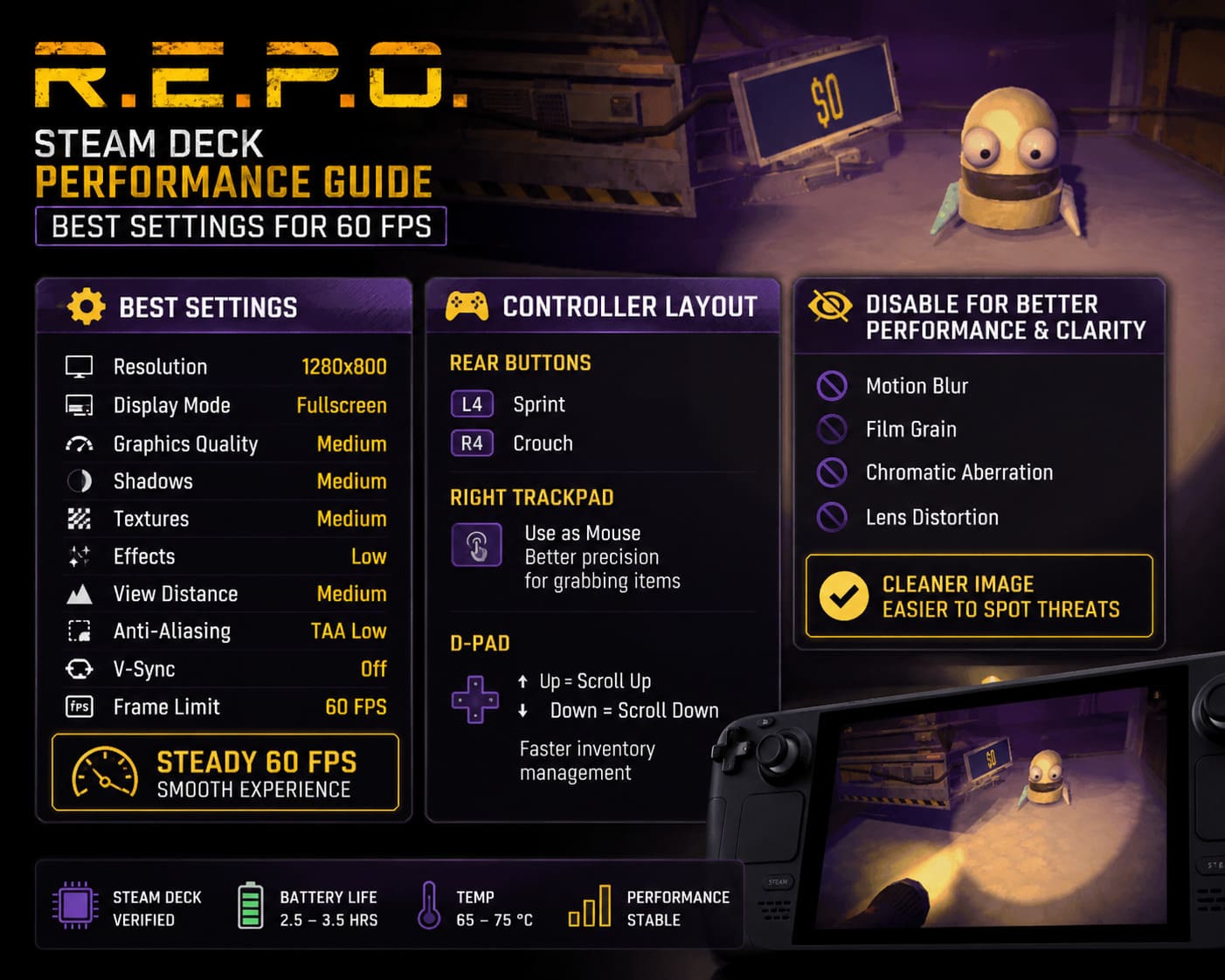
Rear Buttons
- Sprint mapped to L4
- Crouch mapped to R4
This allows movement without removing thumbs from the analog sticks.
Right Trackpad
Using the trackpad as a mouse greatly improves precision when grabbing small objects.
In cluttered environments, this becomes incredibly useful.
D-Pad Functions
I map:
- D-Pad Up = Scroll Up
- D-Pad Down = Scroll Down
This creates faster inventory management during stressful encounters.
Visual Features You Can Safely Disable
Some graphical effects simply aren’t worth the performance cost or visual clutter.
I usually disable:
- Motion Blur
- Film Grain
- Chromatic Aberration
- Lens Distortion
The result is a cleaner image that makes enemies, objects, and environmental details easier to spot.
Ironically, the game often looks better after turning these effects off.
REPO Game Multiplayer Guide: How to Play Without Friends and Master Proximity Voice Chat in 2026
Final Thoughts
After spending many hours with R.E.P.O. on both desktop and Steam Deck, I genuinely believe Valve’s handheld is one of the best ways to experience the game.
The portability adds something special to the tension. Exploring dark industrial environments while wearing headphones and playing from a couch or while traveling creates an immersive experience that’s hard to replicate elsewhere.
For most players, I recommend targeting a locked 40 FPS on the LCD model or a locked 45 FPS on the OLED version. Those settings deliver the best balance between image quality, performance, battery life, and thermal efficiency.
R.E.P.O. doesn’t need ultra settings to be enjoyable. What matters most is smooth gameplay, reliable frame pacing, and maintaining the atmosphere that makes the game so effective.
Once those elements are dialed in, the experience feels fantastic on Steam Deck—and honestly, it’s become one of my favorite handheld horror games to stream this year.