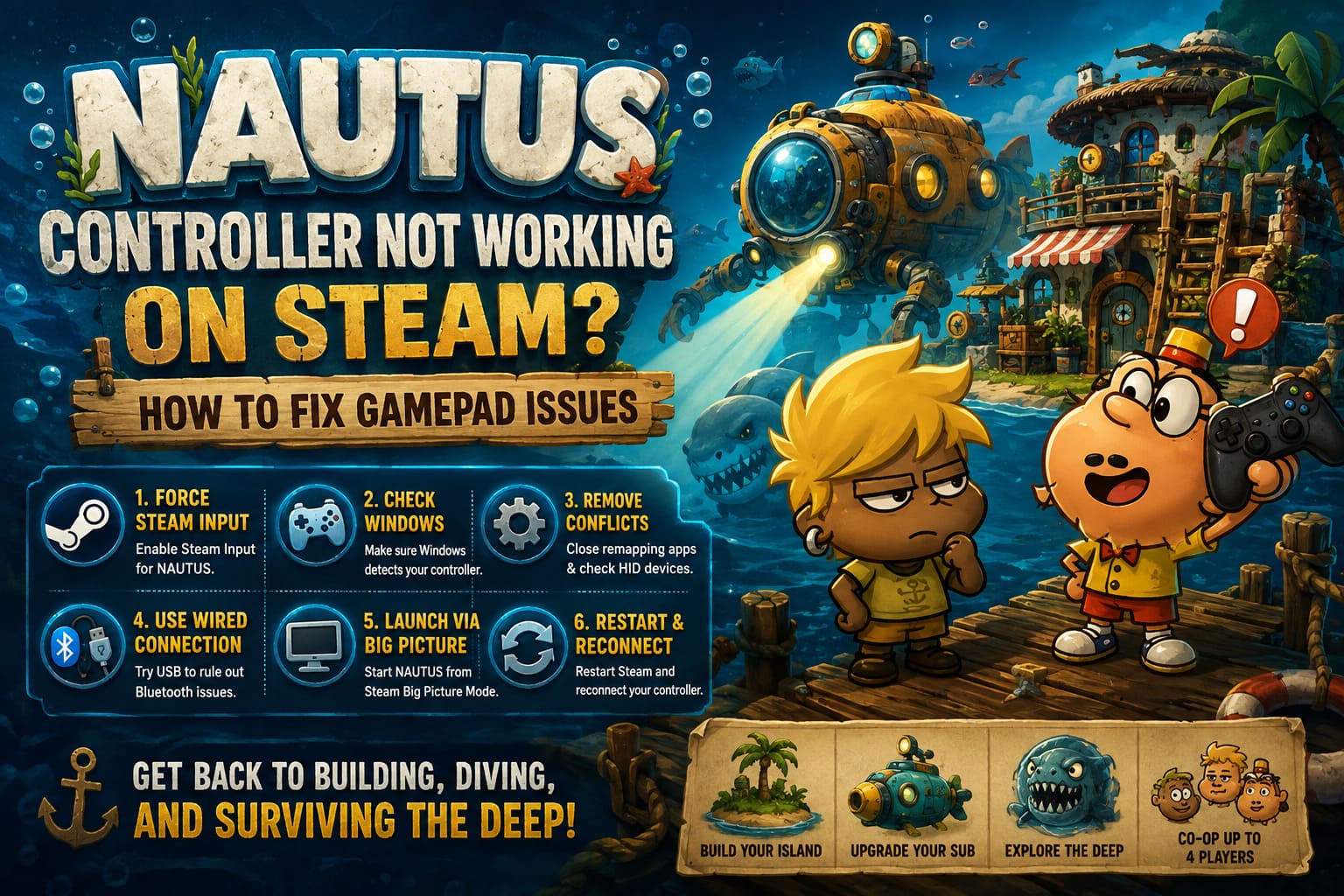
Nautus Controller Not Working on Steam: How to Fix Gamepad Issues
If you are jumping into NAUTUS expecting to spend hours building up an island, upgrading a submarine, and diving into increasingly ridiculous underwater trouble, the last thing you want is Steam deciding that your controller simply does not exist. Nothing kills the mood faster than watching your gamepad light up while the game completely ignores every button press.
NAUTUS from Magic Design Studios and Arc Games has a pretty unusual hook. You get the relaxing side of island development mixed with dangerous submarine exploration, strange ocean creatures, and online co-op for up to four players. It is exactly the kind of game where a controller feels natural. Steering a submarine with mouse and keyboard can work, sure, but it does not have the same satisfying feel as grabbing a gamepad and diving straight into the abyss.
The annoying part is that controller detection problems on PC are rarely caused by one single thing. Steam Input, Windows HID devices, Bluetooth connections, virtual controllers, remapping applications, and even another USB device can interfere with the input chain. I have run into enough of these PC gaming headaches to know that randomly reinstalling the game is usually a waste of time.
Here is the troubleshooting route I would use first.
Nautus Game Steam Deck Compatibility: Can You Play It Handheld?
NAUTUS Controller Problems at a Glance
| Problem | Best Fix | Difficulty |
|---|---|---|
| Steam does not recognize controller | Enable Steam Input | Easy |
| Controller works in Steam but not NAUTUS | Force Steam Input for the game | Easy |
| Controller appears as the wrong device | Check HID devices | Medium |
| Windows does not detect gamepad | Test USB/Bluetooth connection | Easy |
| Inputs are duplicated or broken | Disable remapping software | Easy |
| Gamepad works inconsistently | Restart Steam and reconnect controller | Easy |
1. Force Steam Input for NAUTUS
Steam Input should be your first stop. It acts as a translation layer between your controller and the game, allowing different gamepads to communicate through Steam even when a title has limited native controller support.
Steam normally decides automatically whether Steam Input should be active. That’s convenient when everything works, but automatic detection can sometimes be exactly what causes the headache.
Open the Steam desktop client and go to Steam → Settings → Controller. Look through the controller support options and make sure the type of controller you are using is enabled. Xbox, PlayStation, Switch Pro, and generic gamepad support can have different configuration options depending on your hardware.
After checking the global settings, configure NAUTUS itself.
- Open your Steam Library.
- Right-click NAUTUS.
- Select Properties.
- Open the Controller section.
- Find the Steam Input override option.
- Select Enable Steam Input.
- Close the window and restart Steam.
- Launch NAUTUS again.
This is particularly worth trying with PlayStation controllers and generic PC gamepads. Sometimes Windows sees the hardware perfectly, but the game expects a different input API. Steam Input can bridge that gap without requiring another piece of software.
2. Launch NAUTUS Through Big Picture Mode
This sounds almost too simple, but Big Picture Mode can be surprisingly useful for controller troubleshooting.
Steam’s controller-focused interface was designed around navigating the PC entirely with a gamepad. If the normal desktop Steam client is behaving strangely, starting the game from Big Picture Mode can sometimes force Steam to establish the controller connection correctly.
Connect your controller first. USB is preferable while troubleshooting because it eliminates Bluetooth pairing and wireless interference from the equation.
Open Steam’s Big Picture Mode, navigate to your library, select NAUTUS, and start the game directly from there.
If your controller has a central guide button, such as the Xbox button or PlayStation button, use it to bring up Steam’s controller interface. Check whether Steam actually identifies the device and whether it is being treated as the primary controller.
This is especially useful when you have multiple gamepads, virtual controllers, arcade sticks, racing wheels, or other input hardware connected at the same time.
3. Check Windows Before Blaming Steam
Here’s the big one: if Windows itself cannot see your controller correctly, Steam cannot magically fix it.
Before messing around with game files or reinstalling NAUTUS, test the gamepad directly through Windows.
Press the Windows key and search for “Set up USB game controllers.” Open the controller panel and check whether your gamepad appears in the device list.
Select the controller and open its properties. You should be able to move the analog sticks and press the buttons while watching Windows register the inputs.
If nothing happens, stop troubleshooting Steam for a moment. The problem is probably somewhere between the controller and Windows.
Try a different USB port. If you are using a desktop PC, I prefer testing a motherboard USB port rather than a front-panel hub or inexpensive USB extension. Also try another cable if the controller uses a detachable USB connection.
For Bluetooth controllers, remove the device from Windows Bluetooth settings and pair it again. A fresh pairing can eliminate some extremely stubborn connection problems.
4. Investigate HID Device Conflicts
Windows can get messy when you have a lot of gaming hardware installed.
Human Interface Devices, or HID devices, are a common source of controller confusion. Keyboards with macro functions, flight sticks, steering wheels, virtual gamepads, keypads, and controller emulation software can all create additional input devices.
Open Device Manager and expand Human Interface Devices.
Look for entries such as HID-compliant game controller. If you have several controllers and virtual devices listed, determine which hardware you actually need.
Do not start disabling random HID entries. Your mouse, keyboard, touchscreen, and other peripherals can also appear in this category. The goal is to identify unnecessary virtual or duplicate controller devices, not to turn Device Manager into a guessing game.
If you recently installed controller software, a virtual device may be sitting between your physical controller and Steam. Removing that conflict can instantly restore normal input.
After making a change, unplug the controller, wait a few seconds, reconnect it, and restart Steam.
5. Shut Down Controller Remapping Software
This is one of the most common causes of weird controller behavior.
Programs such as DS4Windows, x360ce, JoyToKey, and InputMapper can create virtual controllers or remap inputs before Steam receives them. That’s useful when you need custom configurations, but running several input systems simultaneously is asking for trouble.
Imagine your physical PlayStation controller sends an input to DS4Windows. DS4Windows creates a virtual Xbox controller. Steam then detects the virtual controller and applies Steam Input on top of it. NAUTUS receives the final result.
That’s a lot of translation layers for one button press.
For troubleshooting, close third-party remapping applications completely. Do not simply minimize them to the system tray if they continue running in the background.
Then restart Steam and test NAUTUS using one input system at a time.
If the controller suddenly works, you have found the culprit.
6. Temporarily Disable Overlays
Overlays are not usually the first thing I blame for controller problems, but they can contribute to strange input behavior, especially when several overlays are active simultaneously.
If you are experiencing controller lag, dropped inputs, or buttons that randomly stop responding, temporarily disable overlays from applications such as Discord, NVIDIA’s gaming overlay, or MSI Afterburner/RivaTuner.
You do not necessarily need to uninstall anything. The goal is simply to reduce the number of programs hooking into the game while you diagnose the problem.
Once NAUTUS is working correctly, you can re-enable your overlays one at a time. If the problem returns after activating one particular application, congratulations—you found the troublemaker.
7. Try Running Steam as Administrator
This is not my favorite solution because you should not need elevated permissions for a controller to work, but it is worth testing when another application is interfering with Steam.
Close Steam completely.
Right-click the Steam shortcut and choose Run as administrator, then launch NAUTUS.
If the controller suddenly starts working, there may be a permissions conflict involving another program, driver, or background process.
I would treat this as a diagnostic step rather than the permanent solution. If possible, identify what is actually preventing Steam from communicating with the controller instead of simply running everything with administrator privileges forever.
8. Test With a Wired Connection
If you are using Bluetooth, eliminate wireless variables.
Connect the controller directly to your PC with USB and launch NAUTUS again. If everything works immediately, your game itself is probably fine and the issue is somewhere in the Bluetooth connection, Windows pairing, controller firmware, or wireless adapter.
This is also a great troubleshooting trick because wired mode gives you a clean baseline.
If USB works and Bluetooth does not, forget the Bluetooth device in Windows, restart your PC, and pair the controller again. Checking for controller firmware updates is also worthwhile if your manufacturer provides official update software.
The Fix I Would Try First
If I had just installed NAUTUS and my controller refused to work, I would not reinstall the entire game. My troubleshooting order would be:
- Confirm Windows detects the controller.
- Test the buttons through Windows controller properties.
- Close DS4Windows, x360ce, JoyToKey, and similar applications.
- Enable Steam Input.
- Force Steam Input specifically for NAUTUS.
- Reconnect the controller.
- Launch NAUTUS through Big Picture Mode.
- Check for HID or virtual controller conflicts.
That sequence eliminates the most common variables without turning your PC into a laboratory experiment.
Don’t Forget the Obvious Stuff
PC gaming has a funny habit of making complicated problems look mysterious when the solution is sitting right in front of you.
Check that the controller is actually powered on. Try another USB port. Try another cable. Disconnect additional controllers. Restart Steam. Restart Windows. If you’re using Bluetooth, test USB.
Also make sure the controller is not being claimed by another application. A controller that works perfectly in another game but fails only in NAUTUS points toward a software or configuration issue, while a controller that fails everywhere suggests a Windows, driver, cable, Bluetooth, or hardware problem.
Final Verdict
A NAUTUS controller not working on Steam is frustrating, especially when the game is built around switching between island management and underwater exploration. The good news is that most controller failures are recoverable without reinstalling the game or replacing your hardware.
Steam Input is the first fix I’d try, followed by a direct Windows controller test. From there, HID conflicts and third-party remapping software are the biggest suspects. Once you remove competing input layers and establish a clean controller connection, NAUTUS should be ready for those submarine dives again.
And honestly, that’s where the game belongs. Managing an island with a keyboard is fine, but when you’re suddenly surrounded by hostile sea creatures several hundred meters underwater, you want your controller working—not Windows asking which device you meant to press.