Mistfall Hunter Best Settings for RTX 3060: Max FPS & Stutter Fix Guide
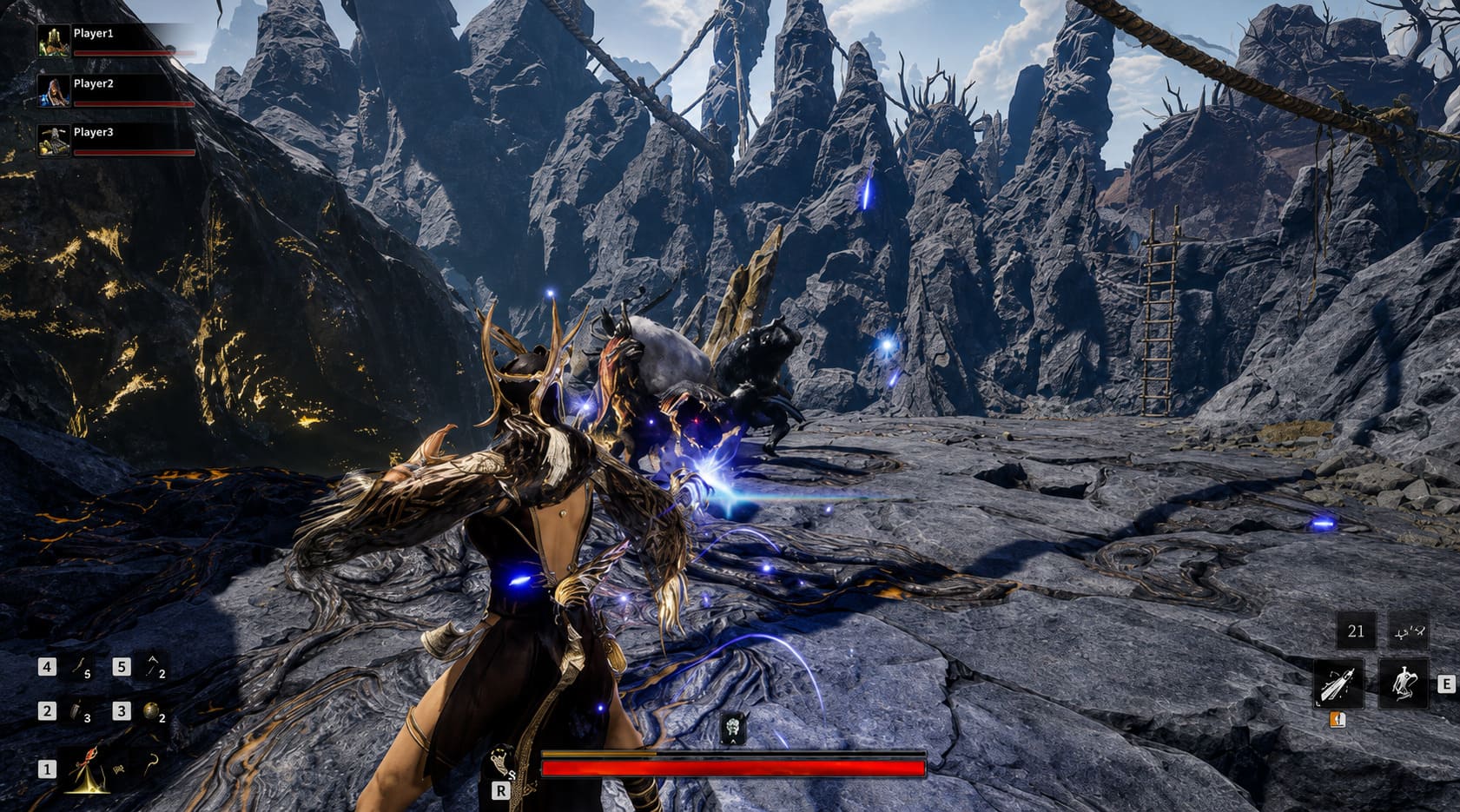
I’ve spent hundreds of hours testing demanding Unreal Engine 5 releases over the last few years, and after jumping into Mistfall Hunter, one thing became obvious almost immediately—the game looks incredible, but it absolutely loves pushing GPUs to their breaking point. Bellring Games created a stunning dark fantasy world filled with atmospheric castles, haunting forests, and brutal PvPvE encounters, yet the technical side still needs polishing.
If you’re using an NVIDIA GeForce RTX 3060, don’t worry. This graphics card is still one of the best value GPUs around, but running Mistfall Hunter with default settings is asking for trouble. Massive frame drops, shader stutters, and inconsistent frametimes can quickly ruin extraction runs. After experimenting with different configurations and comparing community feedback from experienced PC players, I found a setup that keeps gameplay smooth while preserving the game’s gorgeous visuals.
How to Turn Off Ray Tracing in Mistfall Hunter Ultimate FPS and Performance Optimization Guide
Why Mistfall Hunter Is So Demanding
Unlike many recent releases, Mistfall Hunter isn’t simply GPU-heavy because of high-resolution textures. Unreal Engine 5 introduces several advanced rendering technologies that place significant stress on both graphics memory and processor resources.
The biggest performance killers include advanced lighting systems, dynamic geometry rendering, real-time shader compilation, volumetric effects, dense environmental details, and demanding spell effects during large PvPvE battles. Every one of these features contributes to the cinematic atmosphere, but together they can overwhelm mid-range hardware.
- Lumen Global Illumination
- Nanite Geometry
- Dynamic shader compilation
- Volumetric lighting
- Dense vegetation rendering
- Heavy particle effects during PvPvE combat
The first time I entered one of the larger extraction zones, the framerate looked perfectly stable until another squad appeared. Suddenly, the game froze for a split second before recovering. That wasn’t my hardware failing—it was shader compilation happening in real time.
Unfortunately, this behavior has become fairly common in many Unreal Engine 5 releases. Traversal stutters remain one of the biggest complaints among PC players, especially during the first several matches after installation.
Best RTX 3060 Graphics Settings
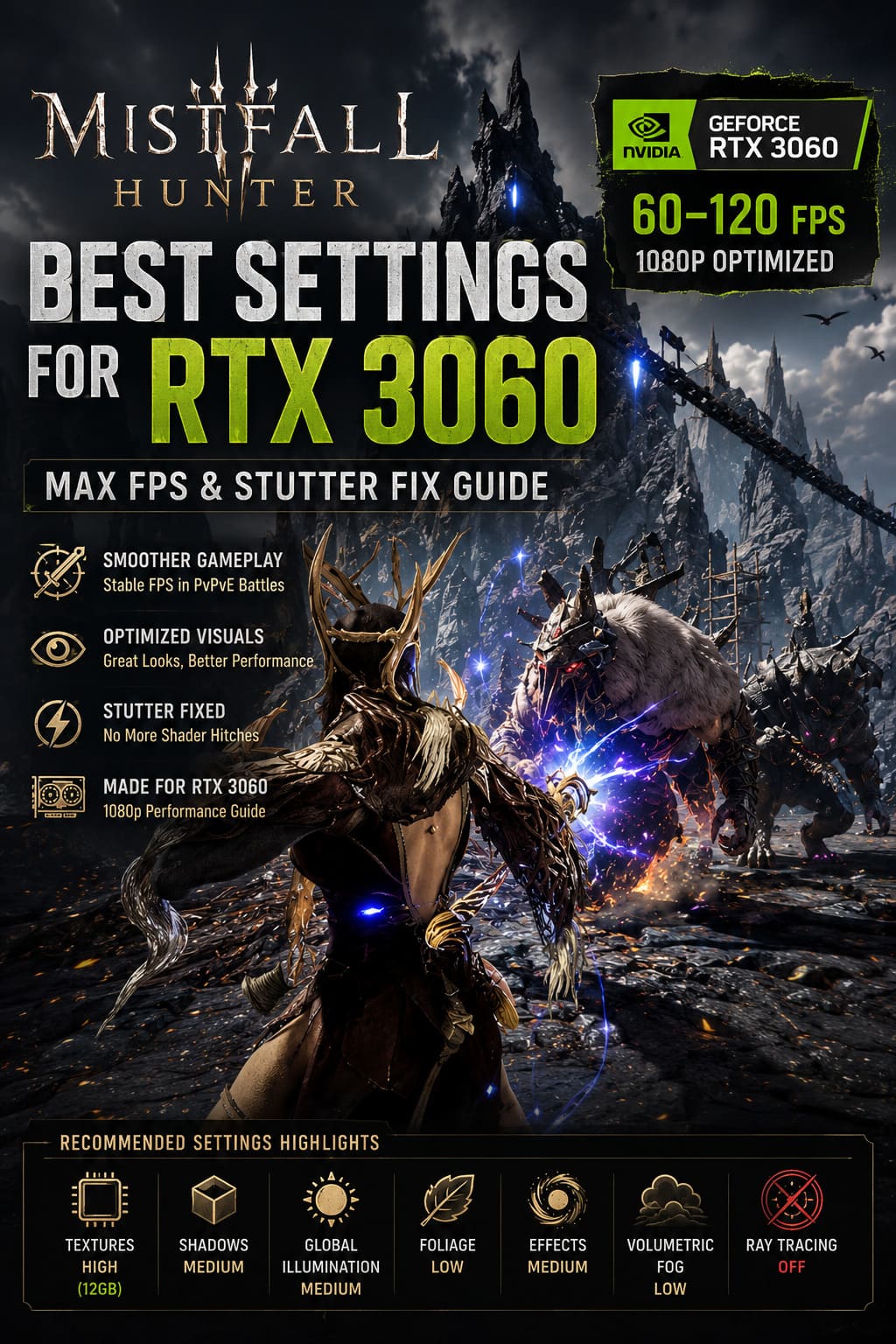
After numerous testing sessions, I found that Medium settings often deliver almost identical visuals to High while dramatically improving frametime consistency. Instead of chasing maximum graphical fidelity, balancing image quality and responsiveness produces a far better experience.
| Setting | Recommended Value | Reason |
|---|---|---|
| Display Mode | Fullscreen | Allows Windows to prioritize GPU resources efficiently. |
| Resolution | 1920×1080 | The ideal native resolution for the RTX 3060. |
| Frame Rate Limit | 60 or 120 FPS | Reduces frame pacing spikes while maintaining smooth gameplay. |
| Anti-Aliasing | High | Keeps image quality sharp with minimal performance cost. |
| Texture Quality | High (12GB) / Medium (8GB) | Avoids VRAM saturation and texture streaming issues. |
| Shadow Quality | Medium | Provides one of the largest FPS improvements. |
| Global Illumination | Medium | Maintains attractive lighting without excessive GPU load. |
| Effects | Medium | Improves performance during spell-heavy encounters. |
| Foliage | Low | Boosts visibility and overall frame rate. |
| Post Processing | Low | Disables expensive visual effects that add little gameplay value. |
| Volumetric Fog | Low | Produces a noticeable FPS increase. |
| Motion Blur | Off | Creates a cleaner image while improving target tracking. |
| Ray Tracing | Off | Delivers the largest overall performance gain. |
Why Ray Tracing Should Stay Disabled
Normally I enjoy ray tracing in slower single-player adventures where visual immersion is the main attraction. Mistfall Hunter, however, revolves around quick reactions, positioning, and survival. Stable performance matters far more than prettier reflections.
Enabling ray tracing on the RTX 3060 can easily cost more than twenty-five frames per second during larger encounters. That trade simply isn’t worth it when you’re trying to survive against both monsters and rival players.
Turning Ray Tracing Off should always be your first optimization step.
DLSS or FSR? Here’s What Actually Works
This was probably the biggest surprise during my testing. Normally NVIDIA users instinctively choose DLSS because it’s often the best upscaling solution available. Mistfall Hunter behaves differently.
Several long gaming sessions revealed occasional frametime inconsistencies when using DLSS, particularly inside larger hubs or heavily populated locations. Community reports have highlighted similar issues, making alternative upscaling methods surprisingly attractive.
| Upscaling Option | Recommended Setting |
|---|---|
| Upscaling Method | AMD FSR |
| Preset | Quality |
| Alternative | TSR |
| NVIDIA Smooth Motion | Off |
FSR Quality delivers a surprisingly crisp image while giving the RTX 3060 additional performance headroom. Until future patches improve DLSS stability, FSR remains my preferred choice.
Reduce Shader Compilation Stuttering
Shader compilation is currently responsible for many of the random pauses players experience while exploring new areas. The game generates certain shaders dynamically instead of preparing them during startup.
A simple workaround can noticeably improve the overall experience.
- Launch Mistfall Hunter.
- Remain in the starting camp.
- Wait approximately ten minutes.
- Allow shaders to finish caching.
- Begin your first extraction afterward.
This won’t eliminate every hitch completely, but future matches usually become considerably smoother.
NVIDIA Control Panel Settings
Optimizing the in-game graphics menu is only part of the process. The NVIDIA Control Panel also offers several options that improve stability during demanding gameplay.
| Option | Recommended Value |
|---|---|
| Power Management Mode | Prefer Maximum Performance |
| Texture Filtering Quality | High Performance |
| Low Latency Mode | On |
| Vertical Sync | Off (unless screen tearing becomes distracting) |
Setting Power Management Mode to Prefer Maximum Performance prevents unnecessary GPU clock reductions during sudden combat spikes and demanding scene transitions.
Windows Performance Tweaks
Windows itself can introduce unnecessary overhead if background applications continue consuming valuable system resources. Before launching Mistfall Hunter, I always perform several quick adjustments.
- Enable High Performance GPU mode in Windows Graphics Settings.
- Close unnecessary browser tabs.
- Disable RGB management software if possible.
- Exit hardware monitoring utilities.
- Keep NVIDIA graphics drivers updated.
Each tweak provides only a small improvement on its own, but together they contribute to noticeably smoother gameplay.
Disable Third-Party Overlays
Another overlooked source of performance issues comes from software overlays running in the background. Mistfall Hunter’s anti-cheat system doesn’t always interact well with external applications.
For the best experience, temporarily disable the following:
- Discord Overlay
- GeForce Experience Overlay
- RivaTuner Statistics Server (RTSS)
- MSI Afterburner Overlay
- Xbox Game Bar
Disabling unnecessary overlays reduces unexpected hitching, minimizes input latency, and can even prevent occasional crashes.
Is the RTX 3060 Still Good Enough?
Absolutely. Despite newer graphics cards dominating headlines, the RTX 3060 remains a capable gaming GPU when paired with sensible graphics settings.
At native 1080p using the optimized configuration described above, players can expect consistently enjoyable performance throughout most gameplay situations.
| Scenario | Average FPS |
|---|---|
| World Exploration | 75–90 FPS |
| Small PvPvE Encounters | 65–80 FPS |
| Large Team Battles | 58–70 FPS |
| Hub Areas | 60–75 FPS |
These numbers provide a dramatically smoother experience than simply selecting the Epic graphics preset.
Additional Optimization Tips
If you’re trying to squeeze every possible frame from your system, a few extra habits can also make a difference.
- Restart the game after several long extraction sessions.
- Install Mistfall Hunter on an SSD.
- Avoid multitasking while gaming.
- Maintain at least 20% free SSD storage.
- Leave Windows Game Mode enabled.
- Restart your PC before extended gaming sessions.
None of these tweaks are revolutionary by themselves, but together they create a noticeably more consistent experience.
Final Verdict
Mistfall Hunter is easily one of the most visually impressive extraction RPGs released this year, but it also highlights just how demanding Unreal Engine 5 can be on mid-range hardware. Fortunately, the RTX 3060 still delivers an excellent experience when paired with optimized settings instead of blindly maxing every graphical option.
After extensive testing, I found that running the game at 1080p with a balanced mix of Medium and High settings, disabling ray tracing, selecting FSR Quality, and closing unnecessary background software offers the best combination of image quality and performance. Instead of fighting random frame drops, you’ll be free to focus on surviving dangerous encounters, collecting valuable loot, and escaping each extraction with confidence.
Bellring Games will almost certainly continue refining the game’s optimization through future updates, and DLSS may eventually become the superior choice once its implementation matures. Until then, these settings remain the most reliable way for RTX 3060 owners to enjoy Mistfall Hunter with smooth gameplay, stable frame pacing, and excellent visual quality.