Island Beekeeper Steam Deck Best Settings: How to Get 60 FPS and Maximize Battery Life (2026 Optimization Guide)
When a new cozy simulator lands on Steam, I’m usually one of the first people downloading it for a livestream. Games like these are perfect for relaxing after spending hours in competitive shooters or difficult RPGs, and Island Beekeeper immediately caught my attention. The colorful islands, relaxing atmosphere, and surprisingly detailed bee management looked like the perfect game to play from the couch with a Steam Deck.
After several hours of testing different settings during my streams, I realized something interesting. Although the game looks peaceful, it’s actually much heavier on hardware than I expected. Once your island becomes busy with dozens (or hundreds) of active bees, upgraded hives, flowers, and environmental effects, performance starts to fluctuate. On default settings, my Steam Deck fans became noticeably louder, battery life dropped quickly, and frame pacing wasn’t as smooth as I wanted.
I spent a long evening experimenting with graphics options, SteamOS tweaks, and a few system optimizations until I finally found a setup that feels genuinely great. If you’re trying to enjoy Island Beekeeper on Valve’s handheld without sacrificing visuals or draining your battery in two hours, these are the settings I personally recommend.
Why Island Beekeeper Is More Demanding Than It Looks
At first glance, Island Beekeeper appears to be a lightweight farming and management simulator. Don’t let the relaxing art style fool you.
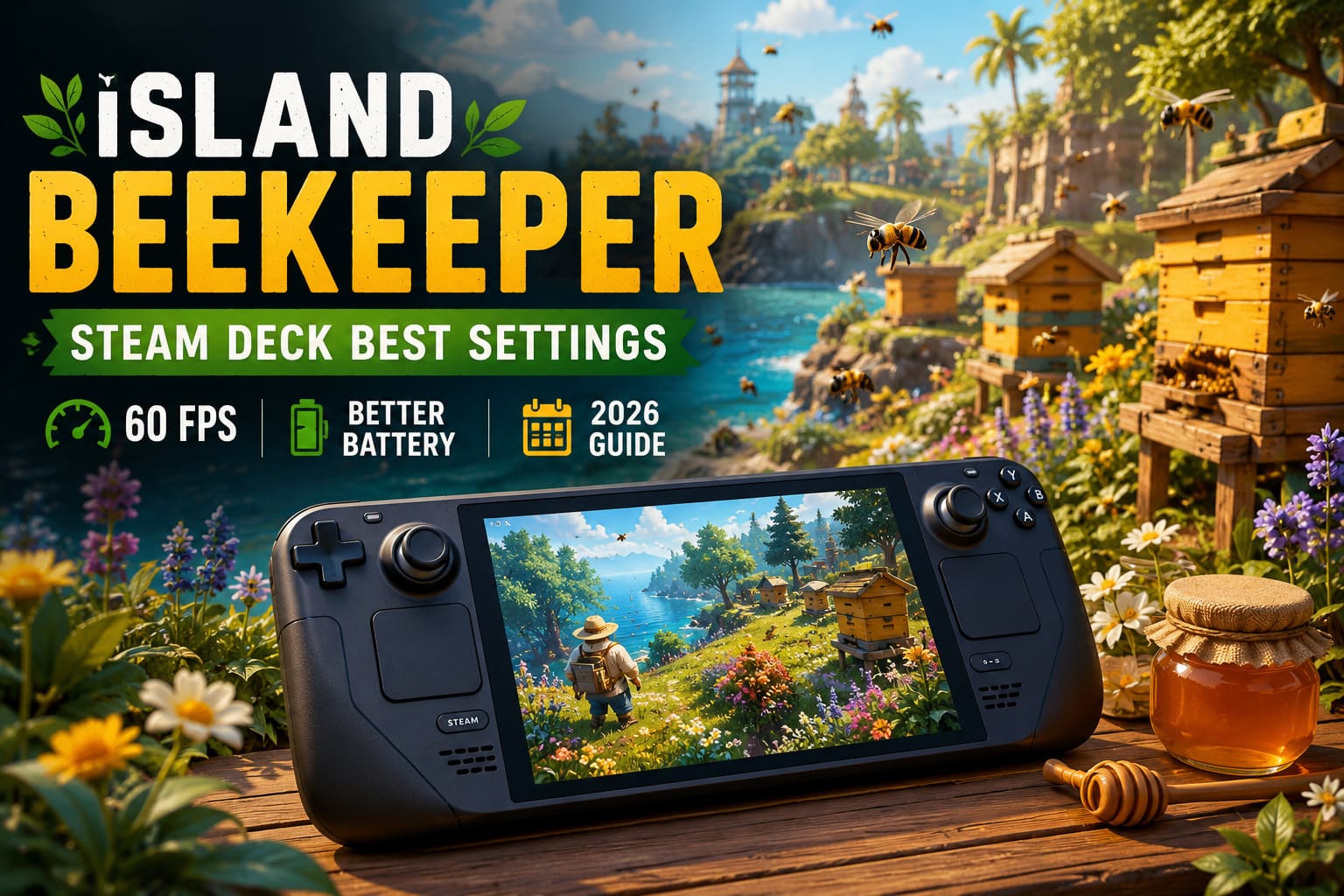
Behind those charming visuals are numerous real-time systems working simultaneously:
- Hundreds of animated bees flying independently.
- Dynamic vegetation covering the island.
- Realistic water rendering.
- Day and night lighting changes.
- Constant hive activity.
- Environmental particle effects.
None of these systems alone are particularly demanding, but together they create a surprisingly heavy workload for the Steam Deck’s Zen 2 processor and RDNA 2 graphics chip.
During my first session, performance stayed above 60 FPS while exploring the starting island. After expanding my apiary and unlocking larger hive clusters, I started seeing frame drops into the mid-40s whenever large bee swarms filled the screen.
The good news? You don’t need to destroy the visuals to get smooth gameplay.
My Favorite In-Game Graphics Settings
After testing nearly every available option, this combination gave me the best balance between image quality and consistent performance.
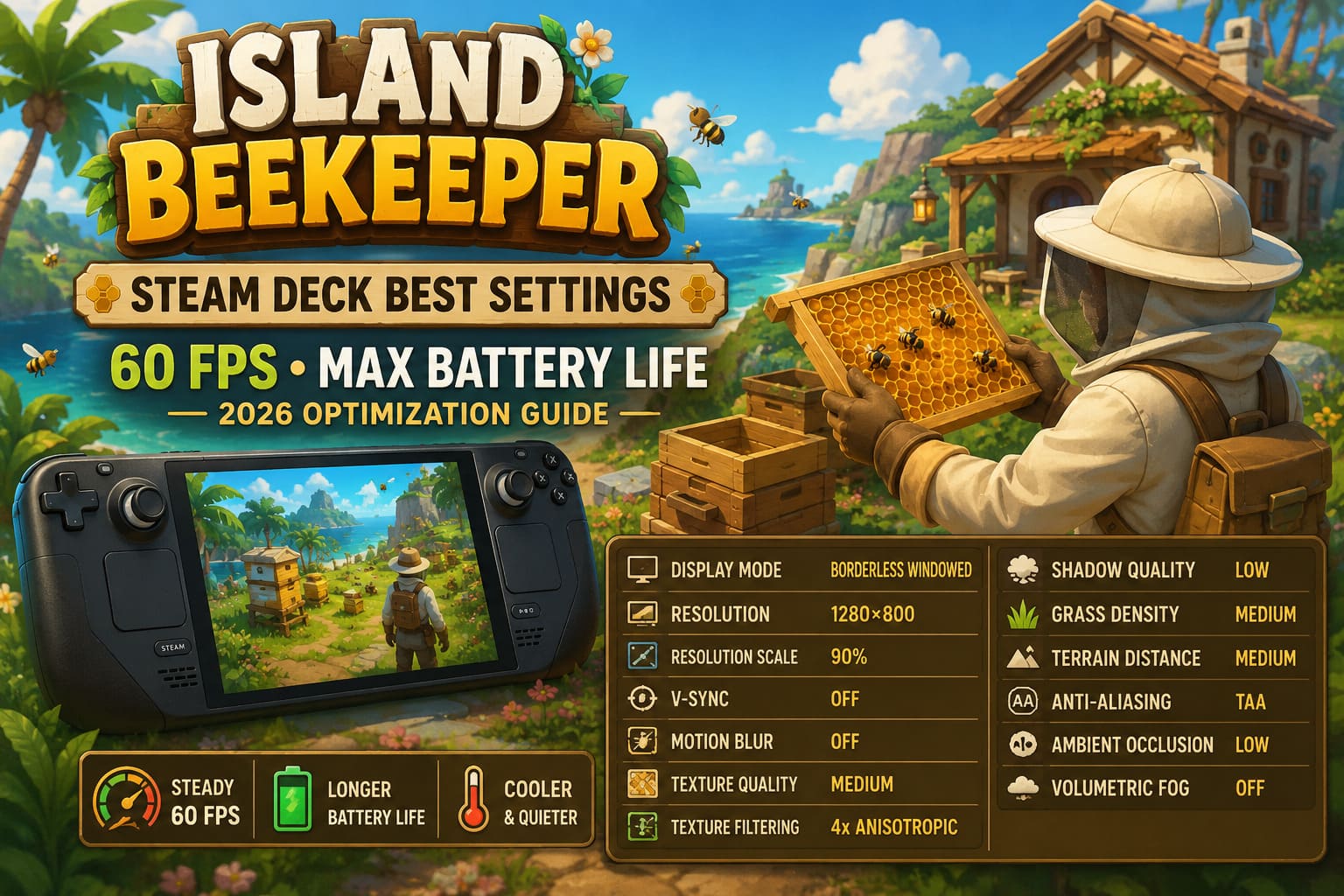
| Graphics Option | Recommended Setting | Reason |
|---|---|---|
| Display Mode | Borderless Windowed | Easy Alt-Tab and stable performance. |
| Resolution | 1280×800 | Native Steam Deck resolution. |
| Resolution Scale | 90% | Excellent FPS boost with minimal quality loss. |
| V-Sync | Off | SteamOS handles frame pacing better. |
| Motion Blur | Off | Cleaner image and slightly lower GPU load. |
| Texture Quality | Medium | Looks sharp without wasting memory. |
| Texture Filtering | 4x Anisotropic | Better ground textures with little performance cost. |
| Shadow Quality | Low | Biggest FPS improvement. |
| Grass Density | Medium | Keeps islands looking alive. |
| Terrain Distance | Medium | Prevents unnecessary rendering. |
| Anti-Aliasing | TAA | Smooths edges nicely on the Deck display. |
| Ambient Occlusion | Low | Good visual balance. |
| Volumetric Fog | Off | Reduces GPU usage significantly. |
Out of every setting I changed, Shadow Quality had the largest impact.
I honestly couldn’t justify running shadows above Low on the Steam Deck. The visual difference while actually playing is small, but the frame rate improvement is immediately noticeable.
Likewise, disabling volumetric fog made the system noticeably cooler during long sessions.
SteamOS Settings I Always Change
The built-in Steam Deck performance menu is incredibly useful, yet many players never touch it.
Before launching Island Beekeeper, I always open the Quick Access Menu and configure a dedicated game profile.
Here’s the setup that has worked best for me.
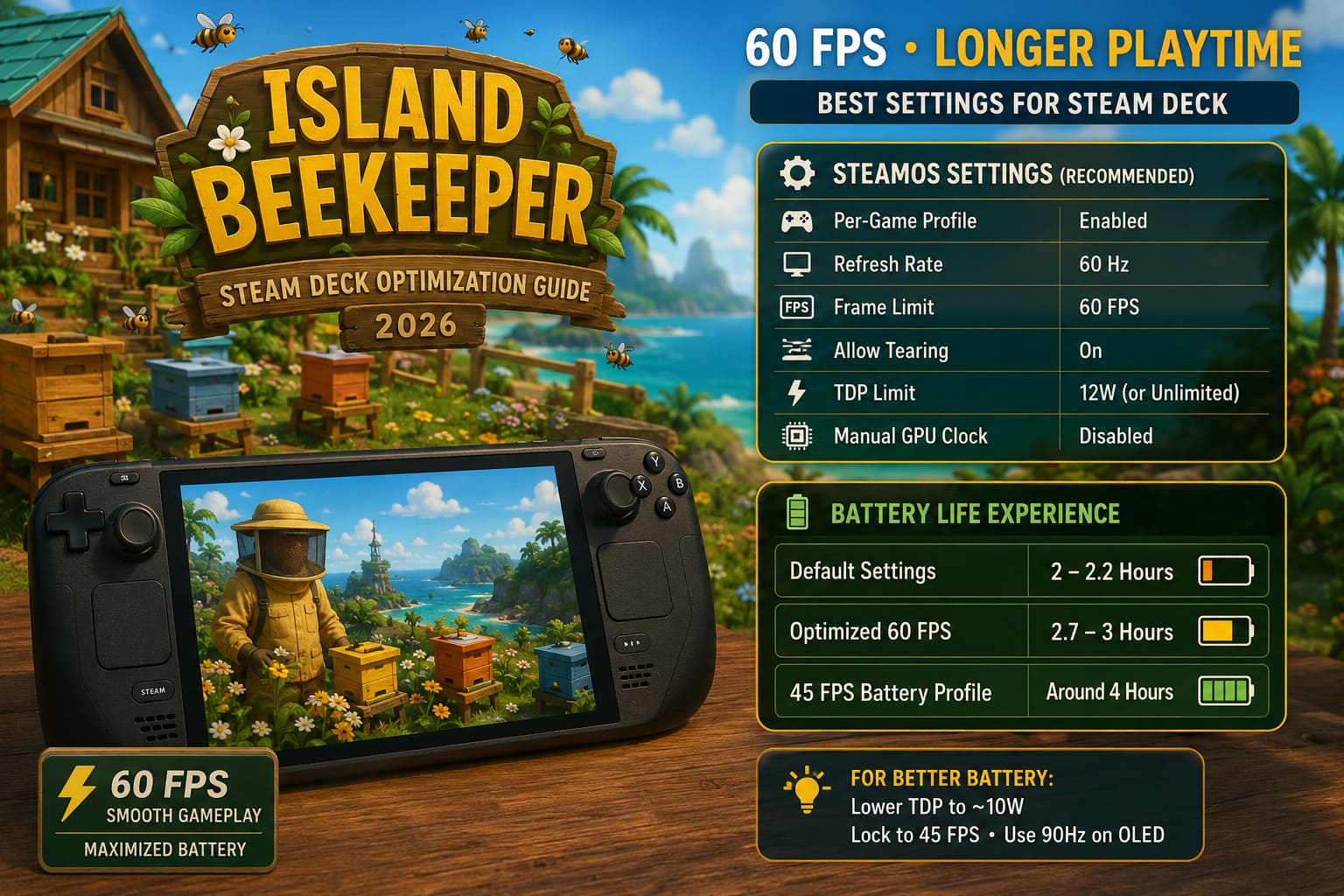
| SteamOS Option | Value |
|---|---|
| Per-Game Profile | Enabled |
| Refresh Rate | 60 Hz |
| Frame Limit | 60 FPS |
| Allow Tearing | On |
| TDP Limit | 12W (or Unlimited) |
| Manual GPU Clock | Disabled |
I generally leave GPU clock control alone because SteamOS already does a great job adjusting frequencies dynamically.
If you’re trying to maximize battery life instead of chasing 60 FPS, reducing the TDP to around 10W still delivers a very enjoyable experience, although you’ll occasionally notice small frame drops during busy moments.
My Battery Life Experience
Battery life surprised me more than performance.
With default settings, I was averaging roughly two hours before needing a charger.
After applying the optimizations above, battery endurance improved noticeably.
Here’s what I experienced over multiple sessions.
| Profile | Approximate Battery Life |
|---|---|
| Default Settings | 2–2.2 Hours |
| Optimized 60 FPS | 2.7–3 Hours |
| 45 FPS Battery Profile | Around 4 Hours |
If you’re playing during travel, I actually recommend sacrificing a few frames for extra battery.
On the Steam Deck OLED, running the display at 90 Hz while locking gameplay to 45 FPS feels remarkably smooth.
Small Changes That Make a Big Difference
A few options don’t look important at first, but together they noticeably improve consistency.
- Disable Motion Blur.
- Disable Volumetric Fog.
- Keep Shadow Quality on Low.
- Use Medium foliage and textures.
The game still looks beautiful on the Steam Deck’s screen, and the image remains crisp despite lowering the rendering scale slightly.
Because of the smaller display, it’s genuinely difficult to notice the difference between native rendering and 90% resolution scaling during normal gameplay.
Reducing Stuttering with a Larger UMA Buffer
One thing I noticed while streaming was that occasional hitching didn’t happen because of low FPS.
Instead, it occurred whenever the game streamed larger areas or loaded lots of hive assets.
Increasing the Steam Deck’s UMA Frame Buffer to 4 GB reduced those micro-stutters considerably.
- Completely power off the Steam Deck.
- Hold Volume Up while pressing the Power button.
- Enter the BIOS.
- Navigate to the Advanced menu.
- Change the UMA Frame Buffer from 1 GB to 4 GB.
- Save the changes and restart SteamOS.
This won’t magically increase average FPS, but it does improve overall smoothness once your island becomes more complex.
Is CryoUtilities Worth Installing?
I know this question appears in almost every Steam Deck community discussion.
Personally, I think CryoUtilities is helpful—but not because it suddenly gives you huge FPS gains.
Where I noticed the biggest improvement was frame consistency. Larger islands loaded more smoothly, camera movement felt steadier, and background asset streaming produced fewer sudden pauses.
If you’re comfortable installing community tools, using the recommended preset is worthwhile. If not, don’t worry. The game remains perfectly enjoyable with only the graphics settings mentioned above.
Playing on a Docked Display
Sometimes I stream directly from my television instead of the handheld screen.
When docked at higher resolutions, Island Beekeeper naturally becomes more demanding.
One trick I experimented with was running the game internally at 30 FPS and using frame generation software to create smoother motion on an external display.
For slower simulation games like this, the result is surprisingly convincing. Fast-paced competitive games still benefit more from native frame rates, but Island Beekeeper’s relaxed gameplay makes frame generation a reasonable option when playing on a TV.
Island Beekeeper Black Screen on Startup & Loading Screen: 7 Proven Fixes
My Overall Performance Results
After several evenings of testing, this is what I consistently experienced.
| Scenario | Average FPS |
|---|---|
| Starting Island | 60 FPS |
| Medium Apiary | 58–60 FPS |
| Large Hive Network | 52–60 FPS |
| Heavy Swarm Activity | Mid-50s |
| Rain & Evening Effects | Around 55 FPS |
No handheld PC will maintain an absolutely perfect 60 FPS in every situation, especially in games with dynamic simulation systems.
However, these settings kept gameplay smooth enough that I completely stopped thinking about performance—and that’s usually the best compliment I can give any optimization setup.
How to Fix Island Beekeeper Crash on Launch, Freezing, and Black Screen on Windows 11
Final Thoughts
After spending many hours building islands, experimenting with hive layouts, and chatting with viewers during livestreams, I genuinely think Island Beekeeper is one of the more relaxing indie simulation games released this year. It isn’t flawless—its optimization could certainly be better—but with a few thoughtful adjustments, the Steam Deck handles it surprisingly well.
The biggest gains come from lowering Shadow Quality, disabling Volumetric Fog, using a 90% Resolution Scale, and letting SteamOS manage frame pacing through a dedicated per-game profile. If you’re comfortable making deeper tweaks, increasing the UMA Frame Buffer to 4 GB can also smooth out asset streaming once your island grows into a thriving honey empire.
From my own experience, this setup strikes the best balance between visuals, performance, fan noise, and battery life. More importantly, it lets you focus on what makes the game enjoyable—expanding your apiary, exploring peaceful islands, and watching your buzzing little workforce thrive—instead of worrying about stutters or overheating. If you’re planning to sink dozens of hours into Island Beekeeper on the Steam Deck, these settings are the ones I’d recommend every time.