How to Force FSR 3 and Frame Generation in Granblue Fantasy Relink: Complete PC Performance Guide
Granblue Fantasy Relink is one of those action RPGs where smooth performance directly affects how enjoyable the combat feels. Every dodge, combo chain, link attack, and boss mechanic depends on responsive controls, but many PC players have struggled with unstable FPS, sudden drops, and inconsistent frame pacing during intense battles.
The biggest problems usually appear during multiplayer raids, crowded locations like Folca and Seedhollow, or difficult end-game missions where dozens of visual effects fill the screen. The game looks incredible, but performance issues can quickly turn an exciting fight into a frustrating experience.
The strange part is that Granblue Fantasy Relink does not include modern PC graphics features that many players expect. There is no official support for AMD FSR 3, NVIDIA DLSS, or Intel XeSS. Because Cygames developed the game using a custom internal engine, traditional upscaling solutions cannot simply be activated through normal settings.
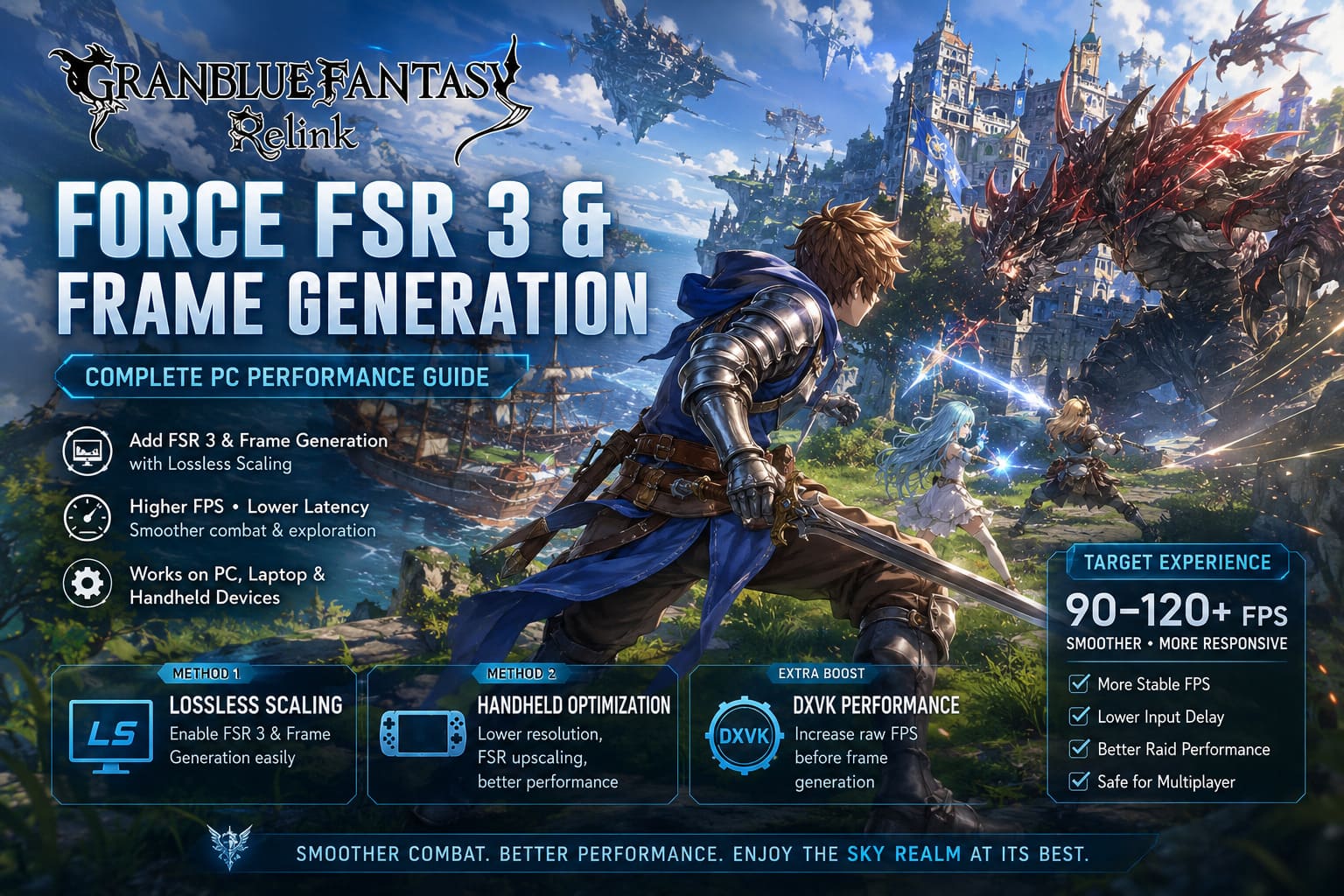
Thankfully, the PC community has found several effective workarounds. By using external performance tools, players can force advanced upscaling and Frame Generation features into Granblue Fantasy Relink, creating a much smoother experience that can reach 90–120+ FPS depending on the hardware.
How to Fix Audio Crackling and Popping in Windows 11/10 (2026 Guide)
Why Granblue Fantasy Relink Does Not Support FSR 3 or DLSS
Most modern PC games are built with engines that already include support for technologies like DLSS and FSR. Developers integrate these systems directly into the rendering pipeline, allowing players to enable them with a simple graphics menu option.
Granblue Fantasy Relink works differently. The game uses a proprietary engine that does not contain a native upscaling framework. This means popular DLL replacement methods that work in other games usually fail because there is no existing DLSS or FSR system for those files to connect with.
Simply replacing game files with third-party upscaling DLLs will not activate FSR 3. The engine does not recognize them, and there is no built-in technology available for injection.
Because of this limitation, players need application-level solutions that operate outside the game engine. The most effective methods currently used by the community are Lossless Scaling, handheld optimization tricks, and DXVK performance improvements.
| Method | Best For | Main Advantage |
|---|---|---|
| Lossless Scaling | Desktop PCs and gaming laptops | Adds FSR-style scaling and Frame Generation without engine support |
| Steam Deck and Handheld Tweaks | Portable gaming devices | Improves resolution scaling and frame stability |
| DXVK Wrapper | AMD, Intel Arc, and Steam Deck users | Can increase raw FPS before using Frame Generation |
Method 1: Using Lossless Scaling to Add FSR 3 Frame Generation
The most popular solution for Granblue Fantasy Relink players is Lossless Scaling. This tool has become one of the most useful utilities for games that lack official support for modern upscaling technologies.
Unlike traditional mods, Lossless Scaling does not modify game files or change gameplay systems. Instead, it captures the game’s rendered image, applies advanced scaling algorithms, and generates additional frames externally.
For Granblue Fantasy Relink, this approach completely bypasses the engine restrictions and allows players to experience smoother gameplay without waiting for official updates.
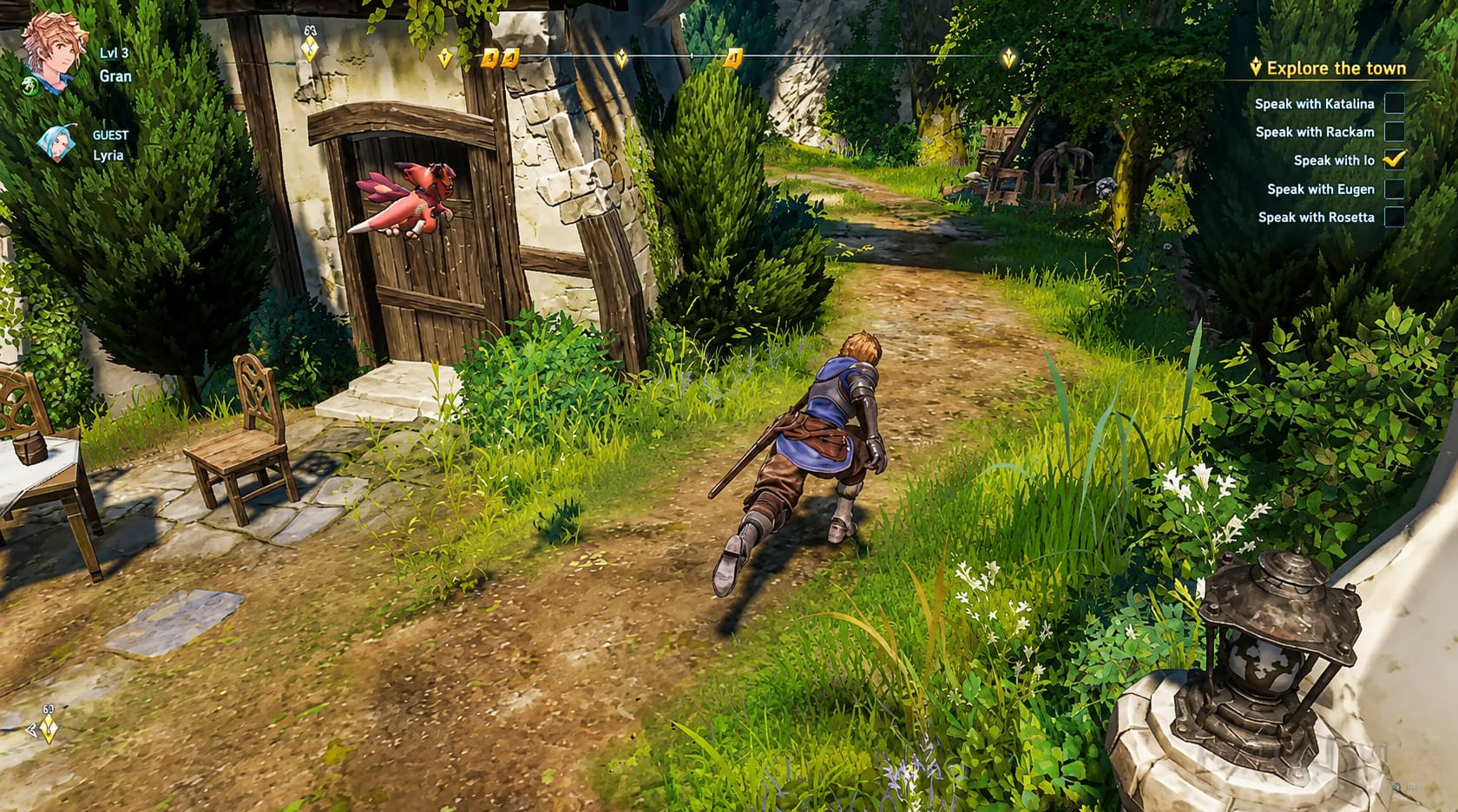
How to Configure Lossless Scaling for Granblue Fantasy Relink
Follow these steps to enable upscaling and Frame Generation:
- Install Lossless Scaling from Steam.
- Launch Granblue Fantasy Relink.
- Open the game’s graphics settings.
- Change the display mode to Windowed or Borderless Windowed.
- Disable the in-game V-Sync option.
- Set a stable FPS limit that your PC can maintain consistently.
- Open Lossless Scaling while the game is running.
- Select AMD FSR under the Scaling Type option.
- Adjust sharpness between 0.6 and 0.7 for the best image quality.
- Enable LSFG Frame Generation.
- Select your preferred multiplier, either X2 or X3.
- Press the Scale button and quickly return to the game window.
After activation, Lossless Scaling will begin generating additional frames on top of the game’s original output. A system running at 60 FPS can feel much closer to 120 FPS, while weaker hardware can achieve noticeably smoother gameplay.
The Most Important Frame Generation Rule: Maintain a Strong Base FPS
Many players misunderstand Frame Generation and expect it to magically fix poor performance. That is not how the technology works. Frame Generation improves an already stable experience, but it cannot completely hide low performance.
If your game is constantly dropping below 40 FPS, generated frames may make the counter look better, but input delay becomes much more noticeable. In an action RPG like Granblue Fantasy Relink, delayed controls can hurt your timing during perfect dodges and difficult boss encounters.
| Base FPS Before Frame Generation | Expected Experience |
|---|---|
| 60 FPS | Excellent smooth gameplay with low latency |
| 50 FPS | Very good results |
| 40 FPS | Playable but with increased delay |
| Below 40 FPS | Not recommended for competitive combat |
For the best results, enable Hardware Accelerated GPU Scheduling (HAGS) in Windows, use your GPU control panel to limit FPS, and keep your frame rate slightly below your monitor refresh rate.
A stable 90 FPS experience will always feel better than an unstable 140 FPS counter filled with stutters.
Method 2: Improving Granblue Fantasy Relink Performance on Steam Deck and Handheld PCs
Portable devices have the hardest time running Granblue Fantasy Relink because their hardware limitations become obvious during demanding late-game missions. Steam Deck, ASUS ROG Ally, and Lenovo Legion Go users often experience significant FPS drops during multiplayer fights.
The best solution is combining community fixes with system-level upscaling. The idea is simple: reduce the internal rendering resolution, then allow SteamOS or Windows-based tools to upscale the final image.
Steam Deck Optimization Steps
- Install a community performance fix such as GBFRelinkFix.
- Extract the files into the Granblue Fantasy Relink installation folder.
- Adjust launch options if required.
- Lower the internal game resolution.
- Allow SteamOS to apply AMD FSR scaling.
Running the game at a lower internal resolution like 1024×640 can greatly reduce GPU load while keeping the final image surprisingly sharp after upscaling.
Many handheld users report that these changes improve unstable 30–40 FPS gameplay into a much smoother experience closer to 50–60 FPS.
Windows handheld devices can go even further by combining lower resolution settings with Lossless Scaling Frame Generation.
Extra Performance Boost: Using DXVK to Improve FPS
Before adding Frame Generation, improving your original performance is always the smartest move. Granblue Fantasy Relink uses DirectX 11, but some players experience inefficient CPU usage and inconsistent GPU utilization with the default implementation.
This is where DXVK can help. DXVK translates DirectX 11 commands into Vulkan, which can provide better performance on certain hardware configurations.
DXVK Can Be Useful For:
- AMD Radeon graphics cards.
- Intel Arc GPUs.
- Steam Deck systems.
- Older gaming PCs struggling with CPU limitations.
The process involves downloading DXVK files, placing the required DirectX components into the Granblue Fantasy Relink folder, and launching the game normally.
Depending on the system, players have reported noticeable improvements in raw FPS before applying any upscaling. A stronger base frame rate also creates better Frame Generation results with lower latency.
Is Using FSR 3 Tools Safe for Granblue Fantasy Relink Multiplayer?
Many players worry about using external performance tools because Granblue Fantasy Relink includes online co-op gameplay. The good news is that these solutions do not modify damage values, character data, progression systems, or multiplayer mechanics.
Lossless Scaling only processes the final image output, while DXVK changes the graphics translation method. Neither tool provides gameplay advantages or changes how your character performs.
You can continue farming materials, completing raids, and playing with friends while enjoying smoother performance.
Final Thoughts: FSR 3 Makes Granblue Fantasy Relink Feel Like a Different Game
Granblue Fantasy Relink already has incredible combat, beautiful environments, and some of the most satisfying action RPG mechanics available. It is frustrating that the PC version lacks built-in support for technologies that have become standard in modern gaming.
Fortunately, the community has created practical solutions that solve many of these issues. Lossless Scaling provides the easiest upgrade for most players, while handheld users can combine resolution tricks with system-level FSR for better performance.
Adding DXVK can also help maximize your original FPS before enabling Frame Generation, giving you a smoother and more responsive experience.
Granblue Fantasy Relink deserves to be played at high frame rates. With these optimization methods, the world of the Sky Realm finally feels as fluid and responsive as the combat system was designed to be.