Jurassic World Evolution 3 Rebirth Expansion PS5 Pro Resolution Settings Guide: How to Get 4K, PSSR, and Stable FPS
Ever since I booted up Jurassic World Evolution 3: Rebirth, I’ve spent more time tweaking park layouts and watching dinosaurs interact than I care to admit. As someone who lives and breathes simulation games, I can confidently say that Frontier has delivered one of the most visually impressive management titles available on consoles right now.
The problem? All that visual ambition comes at a cost.
Massive dinosaur populations, advanced AI routines, dynamic weather systems, dense vegetation, and huge customizable parks can push even modern hardware surprisingly hard. That’s why many PS5 Pro owners are searching for the best balance between image quality and performance.
After dozens of hours with the Rebirth Expansion, experimenting with every available display option and testing different park sizes, I’ve found the settings that provide the cleanest image, the most stable gameplay, and the least amount of visual distractions. If you’re aiming for a gorgeous 4K presentation without sacrificing overall smoothness, this guide is for you.
Why Jurassic World Evolution 3 Is So Demanding
Unlike action games that focus on rendering a limited area around the player, Jurassic World Evolution 3 is constantly calculating hundreds of systems simultaneously.
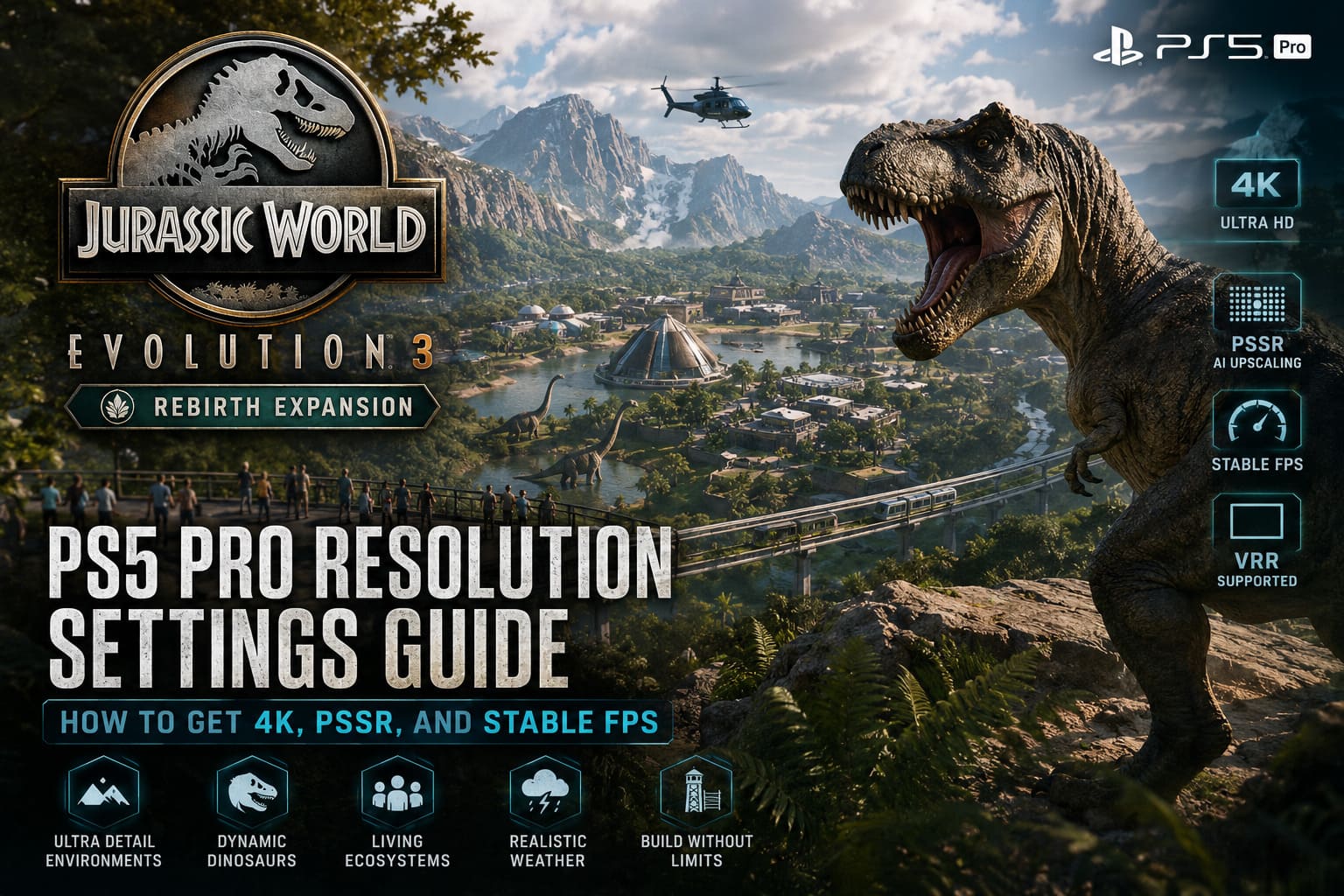
Every dinosaur has behavioral routines. Visitors move through pathways and attractions. Environmental effects react to weather conditions. Large enclosures contain dozens of interactive objects. When all these systems are active at once, the console isn’t just rendering graphics—it is running an entire ecosystem.
This is particularly noticeable once your park starts growing beyond the early stages.
When I first started the Rebirth campaign, everything felt incredibly smooth. Later, after expanding into multiple habitats filled with large carnivores and hundreds of guests, I began noticing occasional slowdowns during wide camera pans. That’s where proper optimization becomes important.
What the PS5 Pro Brings to the Table
The PlayStation 5 Pro offers several advantages that help Jurassic World Evolution 3 look significantly better than on standard hardware.
Some of the most noticeable improvements include:
- Enhanced 4K image reconstruction
- Sharper distant foliage and terrain detail
- Improved shadow rendering
- Better visual stability during camera movement
- Higher quality environmental effects
- More consistent image clarity during weather events
The biggest advantage, in my opinion, is the improved image reconstruction technology. Large parks contain an incredible amount of visual detail, and the PS5 Pro does a much better job preserving that detail when compared to traditional upscaling methods.
The result is a cleaner image that helps distant dinosaurs, trees, fences, and structures remain visible without becoming a blurry mess.
My Recommended PS5 Pro Settings
After extensive testing, these are the settings I personally use.
| Setting | Recommended Value | Why It Helps |
|---|---|---|
| Resolution Output | 2160p (4K) | Maximizes image quality |
| VRR | Enabled | Reduces perceived stutter |
| HDR | Enabled | Improves lighting and contrast |
| Motion Blur | Off | Creates a cleaner image |
| Depth of Field | Off | Improves long-distance visibility |
| Camera Speed | Slightly Increased | Makes navigation feel more responsive |
These settings won’t magically increase frame rates, but they dramatically improve the overall experience.
Turn Off Motion Blur Immediately
This is the first thing I disable in almost every game, and Jurassic World Evolution 3 is no exception.
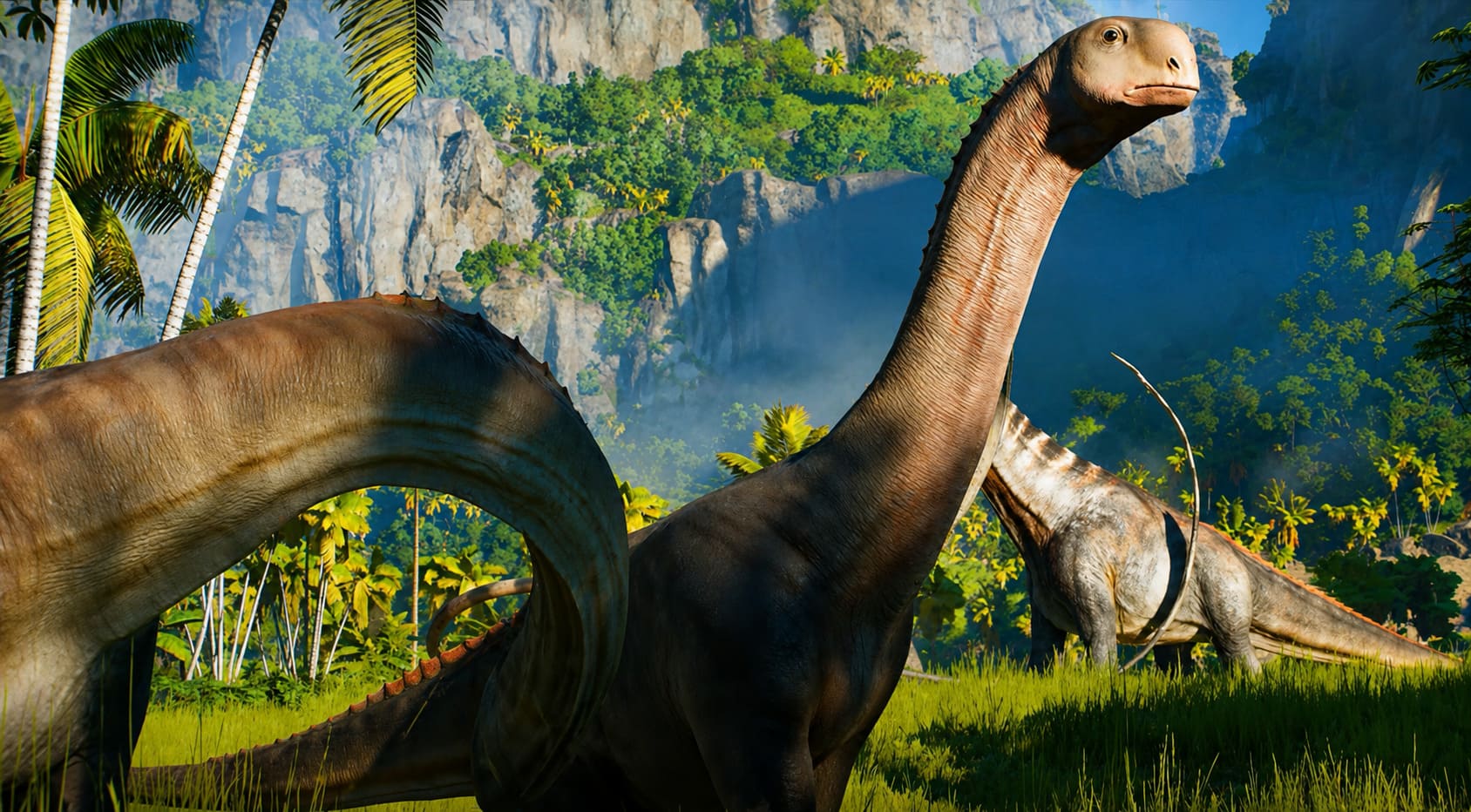
Motion blur attempts to make movement appear smoother by adding blur during camera motion. While some players enjoy the cinematic look, I find that it hides detail and makes large parks harder to appreciate.
When flying across the map at high speed, motion blur can cause fences, vegetation, and buildings to smear together visually.
Once disabled, everything looks noticeably sharper.
Dinosaurs remain easier to track, structures appear cleaner, and the overall presentation feels more natural.
Depth of Field Looks Nice—Until It Doesn’t
Depth of Field is one of those graphical effects that sounds great on paper.
The goal is to mimic a real camera lens by blurring objects outside the focus area. In cinematic cutscenes it can look fantastic.
In a management game, however, I want to see everything.
The Rebirth Expansion features some truly gorgeous environments, and I found it frustrating when distant mountains, habitats, or dinosaur enclosures became artificially blurred.
Turning Depth of Field off immediately improved overall image clarity.
More importantly, it made planning large-scale park expansions easier because I could clearly see terrain features across the map.
VRR Is a Game Changer
If your display supports HDMI 2.1 Variable Refresh Rate, make sure it’s enabled.
This setting won’t increase performance, but it can make fluctuations feel far less noticeable.
Simulation games rarely maintain perfectly identical frame pacing once parks become massive. During heavy weather events or crowded viewing angles, frame delivery can vary slightly.
VRR helps your display adapt dynamically, reducing visual judder and improving perceived smoothness.
In my experience, it makes large late-game parks feel noticeably better.
Understanding the Park Complexity System
One of the most overlooked factors affecting performance isn’t actually a graphics setting.
It’s the size of your park.
The game’s complexity system essentially acts as a warning indicator that tracks how much strain your park is placing on the hardware.
Factors that increase complexity include:
- Large dinosaur populations
- Dense decoration placement
- Extensive path networks
- Massive viewing galleries
- Complex terrain modifications
- Heavy use of fences and infrastructure
I noticed that once my parks approached the upper end of the complexity meter, performance became less consistent during zoomed-out views.
That doesn’t mean you should stop building.
It simply means you should build smarter.
Natural terrain features often look better than excessive decorative clutter while consuming fewer system resources.
Should You Use the Complexity Override?
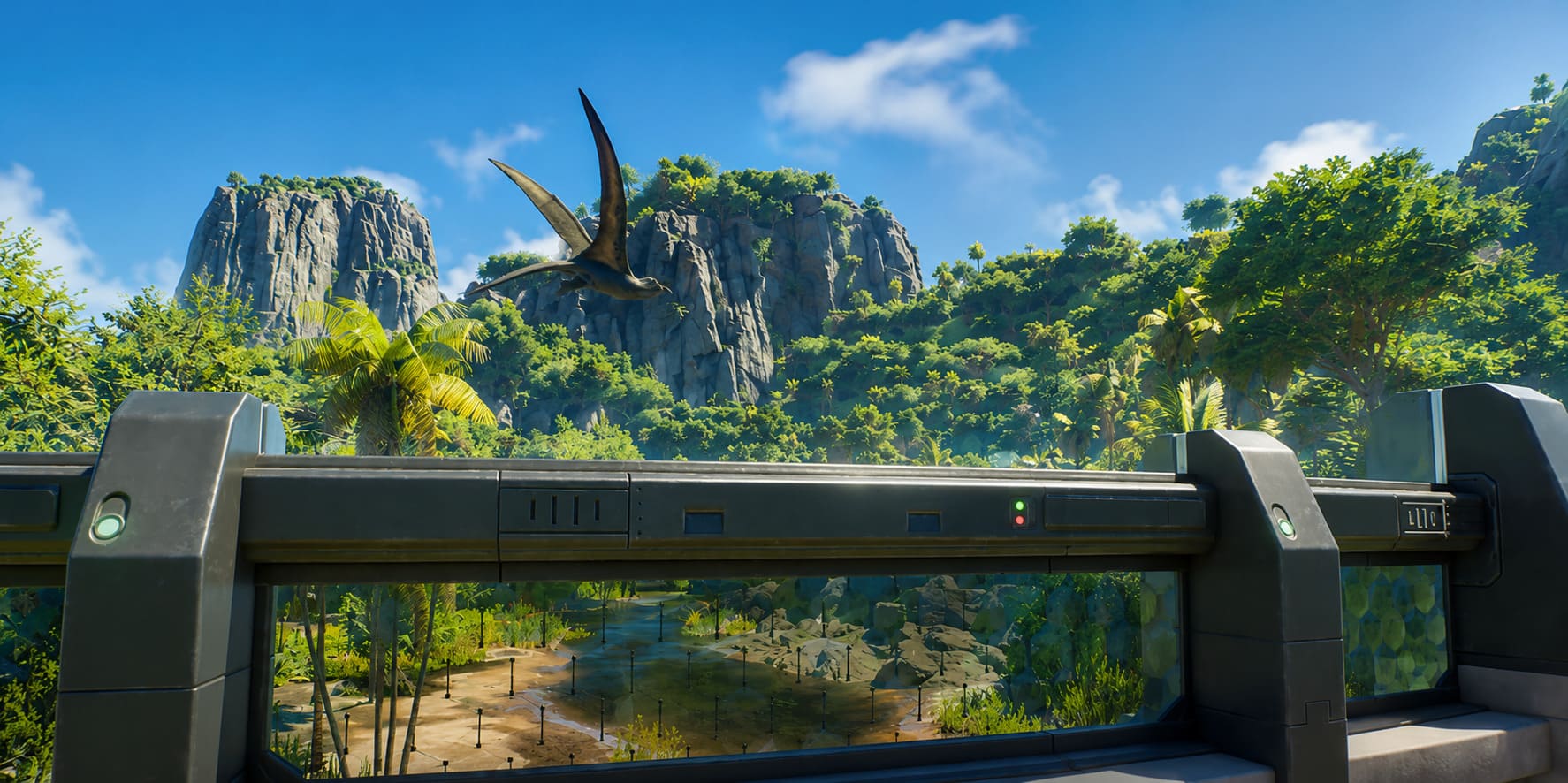
Sandbox players often ask whether the Complexity Override option is worth enabling.
Personally, I treat it as a creative mode feature.
If your goal is building the ultimate dream park without restrictions, it’s fantastic. You gain nearly unlimited freedom to create massive prehistoric attractions.
However, there is a tradeoff.
The larger and more complicated your park becomes, the harder the system must work.
For players who prioritize visual stability, I recommend staying within the normal complexity limits.
For players who prioritize creativity above all else, enable the override and build the Jurassic park you’ve always imagined.
How to Fix Jurassic World Evolution 3 Rebirth Expansion Update 1.3 Crash on Launch
The Best Visual Balance for Rebirth Expansion
After countless hours managing dinosaur habitats, optimizing guest flow, and rebuilding enclosures I accidentally ruined, I’ve come to one conclusion:
Jurassic World Evolution 3 is at its best when image clarity is prioritized over unnecessary visual effects.
Disabling Motion Blur and Depth of Field provides the largest improvement to visual quality. Pair those changes with 4K output, HDR, and VRR support, and the game looks absolutely stunning on PS5 Pro.
The Rebirth Expansion introduces some of the most beautiful environments Frontier has ever created. Dense forests, dramatic waterfalls, realistic weather effects, and incredibly detailed dinosaurs deserve to be seen clearly.
Jurassic World Evolution 3 Rebirth Expansion Steam Deck Performance Guide: Can You Hit 60 FPS?
Final Verdict
As a long-time fan of management and simulation games, I’m genuinely impressed by what Frontier achieved with Jurassic World Evolution 3: Rebirth.
The PS5 Pro version delivers a premium visual experience that showcases the scale and ambition of the game. While it doesn’t transform the title into a high-refresh-rate performance showcase, it provides exactly what this genre needs: a sharp image, rich environmental detail, and stable gameplay during most situations.
If you’re looking for the best settings, keep things simple:
- 4K Enabled
- HDR Enabled
- VRR Enabled
- Motion Blur Off
- Depth of Field Off
Those adjustments provide the cleanest and most enjoyable experience I’ve found after many hours of building, experimenting, and occasionally watching my carefully designed dinosaur exhibits descend into complete chaos.
And honestly, that’s part of the fun.