How to Fix Wanderburg Black Screen on Launch: Complete PC Troubleshooting Guide
There are few things more annoying than finally sitting down to play a new PC game, hitting Play in Steam, and getting… nothing. No menu. No loading screen. No glorious medieval fortress rolling across the landscape. Just a stubborn black display staring back at you.
That is exactly what some Wanderburg players can run into when launching Randwerk’s medieval moving-fortress roguelike on PC. In some cases, the game appears to start normally in the background, with music and sound effects playing while the screen remains completely black. In worse cases, the title crashes moments later and throws you straight back to the desktop.
I’ve dealt with enough broken PC launches to know that the first instinct is usually to start reinstalling everything. Don’t do that yet. A black screen does not automatically mean the entire installation is wrecked. Display settings, GPU drivers, Windows permissions, overlays, runtime components, or even a strange refresh-rate configuration can be enough to stop a game before you ever reach the main menu.
The good news is that most of these problems are fixable without nuking the game from your SSD.
Here are the best Wanderburg black screen fixes for PC, starting with the simplest solutions and moving toward deeper system-level troubleshooting.
Wanderburg Black Screen Fixes at a Glance
| Fix | What It Targets | Difficulty |
|---|---|---|
| Verify Game Files | Corrupted or missing files | Easy |
| Force Windowed Mode | Resolution and fullscreen conflicts | Easy |
| Update GPU Drivers | Driver corruption or compatibility | Easy |
| Disable Fullscreen Optimizations | Windows display conflicts | Easy |
| Disable Overlays | Software injection conflicts | Easy |
| Repair VC++ / DirectX | Missing runtime components | Easy |
| Select Dedicated GPU | Laptop graphics switching | Medium |
| Change Monitor Settings | Refresh-rate/display conflicts | Easy |
| Add Antivirus Exclusion | Security software blocking files | Medium |
If you want the fastest route, start with file verification and windowed mode. Those two checks can solve a surprising number of launch problems.
1. Verify Wanderburg’s Steam Files First
This is the boring fix, but it’s also the one I’d try before doing anything complicated.
Steam downloads thousands of individual files for modern games, and one damaged asset or incomplete update can be enough to break the startup process. If Wanderburg crashes immediately after showing a black screen, corrupted installation data should be high on your suspect list.
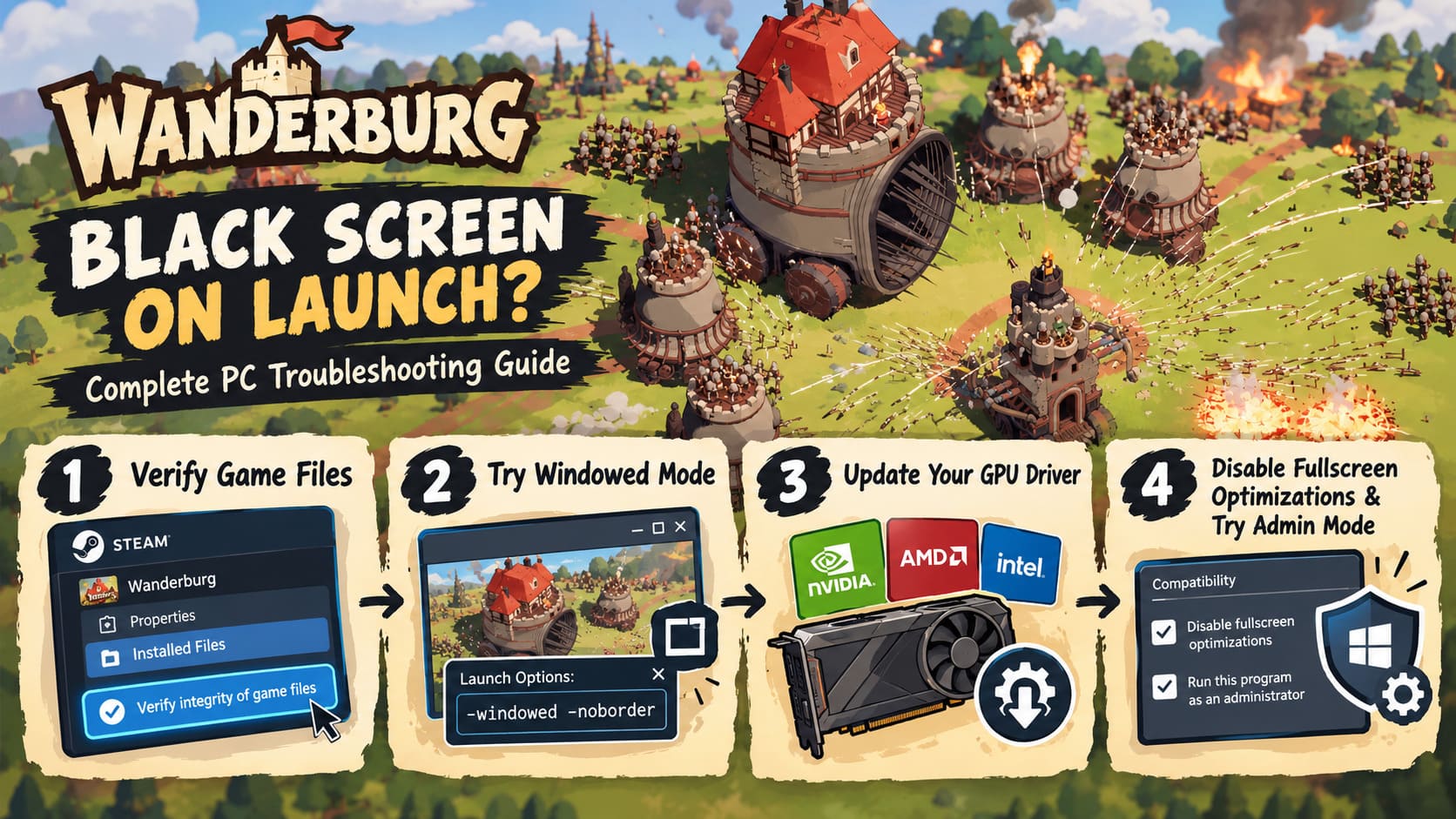
How to verify Wanderburg files
- Completely close Wanderburg.
- Open Steam and enter your Library.
- Find Wanderburg in your game list.
- Right-click the game and choose Properties.
- Select Installed Files.
- Click Verify integrity of game files.
- Let Steam finish scanning the installation.
- If damaged or missing files are discovered, Steam should automatically download replacements.
When the process finishes, restart Steam and launch the game again.
Don’t interrupt the verification halfway through. If Steam finds something broken, let it finish repairing the installation before testing the game.
My advice: always try this before reinstalling the entire game. Re-downloading a huge installation just to replace a handful of broken files is a waste of time.
2. Force Wanderburg Into Windowed Mode
A black screen with audio still playing is a huge clue. It can mean that the game itself is running, but its display output isn’t being presented correctly.
Fullscreen mode is often the culprit when a game starts with an unsupported resolution, refresh rate, HDR configuration, or unusual monitor setup.
Steam lets you override the initial display mode through launch options.
Open:
Steam Library → Wanderburg → Properties → General → Launch Options
Try:
-windowed -noborder
This forces the game to start in a borderless window instead of immediately taking exclusive control of your monitor.
If that doesn’t help, you can also test a different graphics API if the game supports the corresponding launch parameter:
-dx11
or:
-dx12
Don’t blindly assume both options are supported by every game or build. If one causes another crash, remove it and return to the default configuration.
If windowed mode gets you into the main menu, that’s excellent news. Go into Wanderburg’s graphics settings and manually select your monitor’s native resolution and preferred refresh rate. You can then try fullscreen again.
3. Update or Clean Install Your GPU Driver
Your graphics driver is basically the translator between Wanderburg and your GPU. If that translator is broken, outdated, or carrying configuration baggage from several previous driver installations, the game can fail before rendering its first frame.
This is particularly worth checking after a major GPU driver update or when several other games have recently started behaving strangely.
Identify your GPU manufacturer:
- NVIDIA
- AMD
- Intel
Download the current stable driver directly from the manufacturer’s official website.
During installation, choose the Custom/Advanced installation option when available and use the clean-install option if provided.
Afterward, restart Windows.
Don’t skip the reboot. Graphics-driver components are deeply integrated into Windows, and restarting ensures the newly installed components are actually loaded.
If Wanderburg suddenly works afterward, you’ve probably found a driver-level conflict rather than a broken game installation.
4. Disable Fullscreen Optimizations and Try Administrator Mode
Windows has several compatibility features designed to make games behave better, but sometimes those features are exactly what causes trouble.
If Wanderburg refuses to display anything, disabling fullscreen optimizations is worth testing.
From Steam:
Wanderburg → Manage → Browse local files
Locate the game’s main executable, likely something similar to:
Wanderburg.exe
Right-click it and choose Properties.
Open the Compatibility tab and enable:
Disable fullscreen optimizations
You can also test:
Run this program as an administrator
Click Apply, then OK.
Try launching the game again.
I wouldn’t permanently run every game as administrator just because someone on a forum suggested it. Treat this as a troubleshooting test. If administrator mode fixes the problem, that tells you something useful about permissions or access to game-related files.
5. Kill Third-Party Overlays
PC gaming has accumulated an absurd number of overlays over the years.
Steam Overlay. Discord Overlay. NVIDIA’s overlay. AMD software. Recording tools. Performance monitors. RGB utilities. GPU tuning software.
Most of the time they coexist peacefully with games. Sometimes they absolutely do not.
A newly released title can be particularly sensitive to software trying to hook into its rendering process.
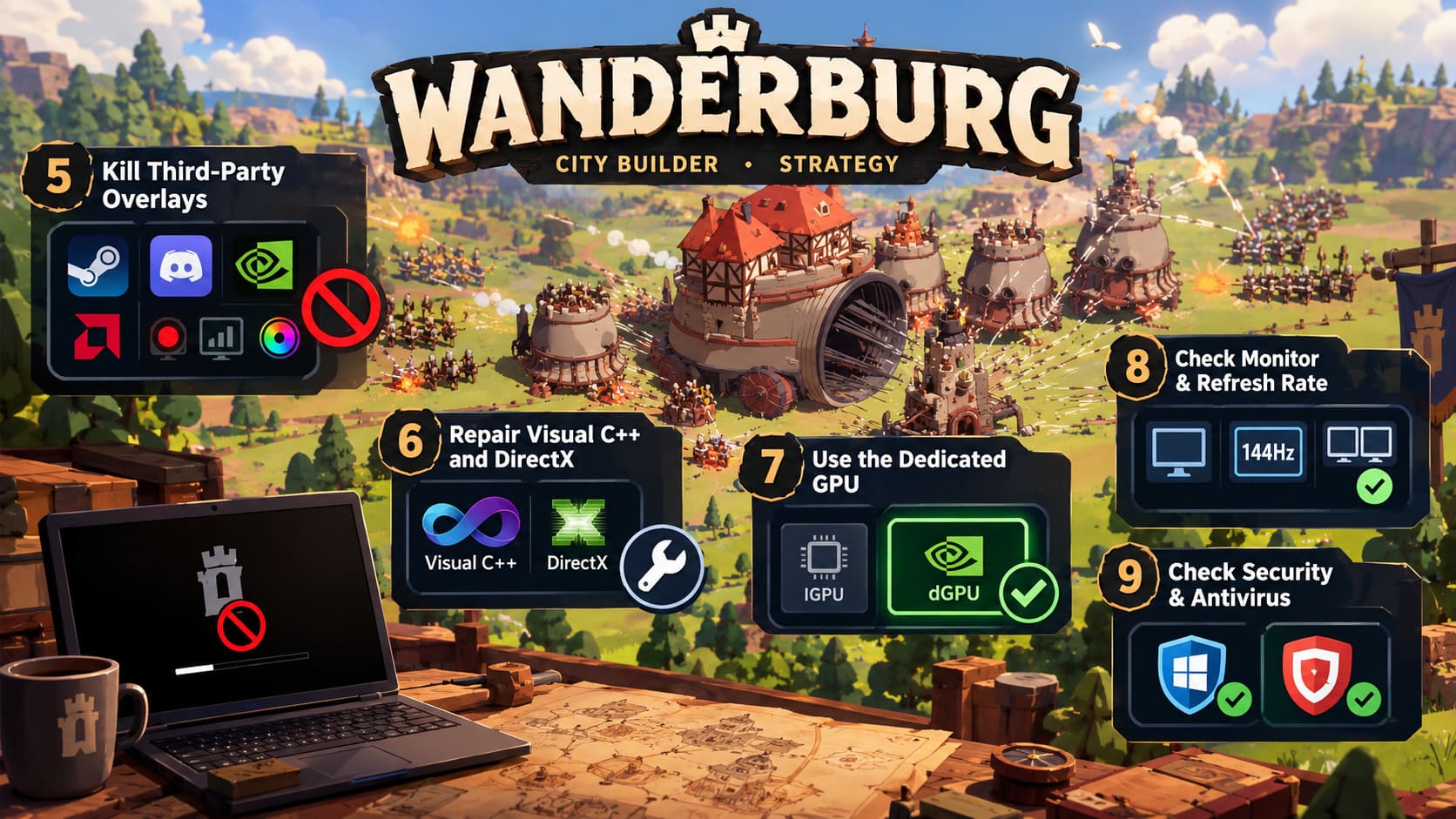
Steam Overlay
Open Steam settings and locate the In-Game section. Disable the Steam Overlay for testing.
Discord Overlay
Open Discord → User Settings → Game Overlay and disable the in-game overlay.
NVIDIA Overlay
If you’re using NVIDIA’s software, open its settings and disable the In-Game Overlay.
You don’t necessarily need to keep every overlay disabled forever. The goal is to eliminate them temporarily and see whether Wanderburg suddenly boots correctly.
If the game launches after disabling one of them, you’ve found a very strong lead.
6. Repair Visual C++ and DirectX Components
A game can have perfectly healthy files and a perfectly updated GPU driver yet still refuse to start because Windows is missing or has damaged runtime components.
The Microsoft Visual C++ Redistributable packages are particularly important for PC games. Different applications can depend on different runtime versions, which is why having a recent package doesn’t necessarily mean every dependency is healthy.
Install or repair the current Microsoft Visual C++ Redistributable packages, including the x64 and x86 versions where appropriate.
If the installer detects an existing installation, choose Repair when available.
You should also make sure Windows itself is fully updated.
For a basic DirectX diagnostic check:
- Press the Windows key.
- Type dxdiag.
- Open the DirectX Diagnostic Tool.
- Check the system information for your DirectX version.
- Install pending Windows updates if your system is behind.
One important distinction: DirectX 12 is part of modern Windows, so you generally aren’t fixing a DirectX 12 problem by downloading random third-party “DirectX installers.” Stick to Microsoft-provided components and Windows Update.
Restart the PC after repairing the runtime environment.
7. Make Sure Wanderburg Uses the Dedicated GPU
This one is mainly for gaming laptops.
Modern laptops often have two GPUs: an integrated graphics processor and a much faster dedicated NVIDIA or AMD GPU. Windows normally handles the switching automatically, but occasionally a game gets assigned to the wrong graphics processor.
That can result in terrible performance, rendering problems, or a crash during initialization.
Windows Graphics Settings
Open:
Settings → System → Display → Graphics
Use Browse to add Wanderburg’s executable.
Once the game appears in the list:
Options → High Performance → Save
This tells Windows to prioritize the dedicated GPU for the game.
NVIDIA Control Panel
NVIDIA users can also open:
NVIDIA Control Panel → Manage 3D Settings → Program Settings
Add Wanderburg’s executable and select the High-performance NVIDIA processor where that option is available.
Launch the game again.
If the black screen disappears, Windows was probably sending the game through the wrong graphics path.
8. Check Your Primary Monitor and Refresh Rate
This sounds almost too simple, but multi-monitor setups can create some genuinely bizarre PC gaming problems.
If you have two or more displays connected, temporarily simplify the setup.
Open Windows Display Settings and select the monitor you actually want to use for Wanderburg.
Make sure it is configured as your main display.
Then open Advanced Display and check the refresh rate.
If you’re running an unusual overclocked refresh rate, temporarily switch to a standard setting such as 60Hz, 120Hz, or 144Hz, depending on what your monitor supports.
This is especially useful if the black screen began after changing your monitor configuration.
You can also temporarily disconnect a secondary monitor and launch Wanderburg with only your primary screen connected.
If it suddenly works, you’ve narrowed the problem down considerably.
9. Check Windows Security and Antivirus Blocking
Security software can occasionally interfere with games when executables, libraries, shaders, or configuration files are being accessed during startup.
If everything else has failed, check whether Windows Security or a third-party antivirus is blocking Wanderburg.
For Windows Security:
Windows Security → Virus & threat protection → Manage settings → Exclusions → Add or remove exclusions
You can add the Wanderburg installation folder as an exclusion for testing.
However, don’t randomly exclude your entire Steam library. That’s far broader than necessary and weakens your system’s protection.
If you use third-party antivirus software, check its quarantine or blocked-app history for anything related to Wanderburg.
If the game was blocked, restore the legitimate file and add a narrowly targeted exception if necessary.
After testing, you can remove the exclusion if it turns out not to be responsible.
What If Wanderburg Still Shows a Black Screen?
If you’ve gone through all nine fixes and you’re still looking at darkness, don’t immediately start deleting Windows files or changing obscure registry settings.
At this point, I’d start looking for evidence.
Check whether other games launch normally. If every other title works, the problem is much more likely to be specific to Wanderburg.
Also pay attention to the exact behavior:
- Black screen + music: likely display/rendering initialization.
- Black screen + immediate crash: potentially driver, runtime, or compatibility related.
- Black screen only in fullscreen: strongly points toward display configuration.
- Works with
-windowed: resolution, refresh rate, HDR, or fullscreen conflict. - Works after disabling overlays: third-party injection conflict.
- Works only on dedicated GPU: laptop graphics assignment issue.
- Fails after an update: verify files and check for a new game hotfix.
That information is much more useful than simply saying, “Wanderburg doesn’t work.”
Is Wanderburg Coming to PS5 and Xbox Series X/S? Release Date and Console Rumors
My Recommended Troubleshooting Order
If I were sitting at my own PC with Wanderburg refusing to boot, I wouldn’t randomly jump between fixes. I’d work through them in this order:
- Verify Steam game files.
- Launch with
-windowed -noborder. - Disable Steam, Discord, and GPU overlays.
- Update or clean-install the GPU driver.
- Check the dedicated GPU assignment on laptops.
- Disable fullscreen optimizations.
- Check monitor resolution and refresh rate.
- Repair Visual C++ and update Windows.
- Investigate antivirus/security blocking.
This order keeps the easy, reversible fixes at the front and saves the more invasive troubleshooting for later.
Wanderburg Early Access Review 2026: Is This Rolling Castle Roguelike Worth Your Money?
Final Thoughts
A Wanderburg black screen on launch is frustrating, especially when the game appears to be running behind that blank display. The important thing is not to assume that a black screen means you need to reinstall everything immediately.
Start with Steam’s file verification, then attack the display configuration with windowed mode. From there, move into GPU drivers, overlays, Windows compatibility settings, runtime components, and graphics selection.
For laptop users, the dedicated-GPU check deserves special attention. For multi-monitor users, refresh rate and primary-display settings can also be surprisingly important.
And if none of these solutions work, keep an eye on Wanderburg’s Steam Community discussions and official updates. Early PC releases can have hardware-specific bugs that simply cannot be solved by changing a Windows setting. When that happens, a developer hotfix is often the real answer.
For now, though, don’t give up on your rolling fortress. Nine times out of ten, the black screen is a configuration problem worth chasing before you resort to a full reinstall.