How to Fix Pax Autocratica Low FPS, Lag Spikes & Stuttering (2026 Guide)
I’ve spent countless hours in strategy games, colony simulators, extraction shooters, and roguelites over the years, but few games have surprised me quite like Pax Autocratica. The game is an ambitious blend of large-scale colony management and fast-paced FPS combat, and when everything works properly, it delivers some of the most intense moments I’ve experienced in a strategy-action hybrid.
Unfortunately, not everyone is getting the smooth experience the developers clearly intended.
Since launch, I’ve seen dozens of discussions across gaming communities from players dealing with sudden FPS drops, annoying micro-stutters, frame pacing issues, and performance degradation during long play sessions. What’s particularly interesting is that many of these reports come from players using powerful hardware that should have no trouble running the game.
After experimenting with settings myself and comparing notes with other players, I’ve put together this optimization guide that focuses on the fixes that actually make a difference.
Why Pax Autocratica Can Be So Demanding
The biggest challenge with Pax Autocratica is that it isn’t just one game.
At any given moment, the engine is handling:
- Colony simulation calculations
- Worker pathfinding
- Resource transportation systems
- Production chains
- Enemy AI behavior
- Physics interactions
- Projectile tracking
- Environmental destruction
Many modern games primarily stress either the GPU or CPU. Pax Autocratica does both simultaneously.
During peaceful base management, the CPU is constantly processing hundreds of calculations behind the scenes. Once combat begins, the GPU suddenly has to render large numbers of effects, particles, explosions, and enemy units.
The result is a game that can run perfectly at 144 FPS one minute and then unexpectedly drop into the 70s or lower when the battlefield becomes crowded.
One thing I’ve personally noticed is that difficulty settings seem to have a surprisingly large impact on performance. Higher difficulties don’t just make enemies stronger—they often increase the number of active units and calculations happening in the background.
If you’re struggling with performance, that’s one of the first things worth considering.
Best Graphics Settings for Higher FPS
If your goal is maximizing performance while keeping the game visually attractive, these are the settings I’d recommend.
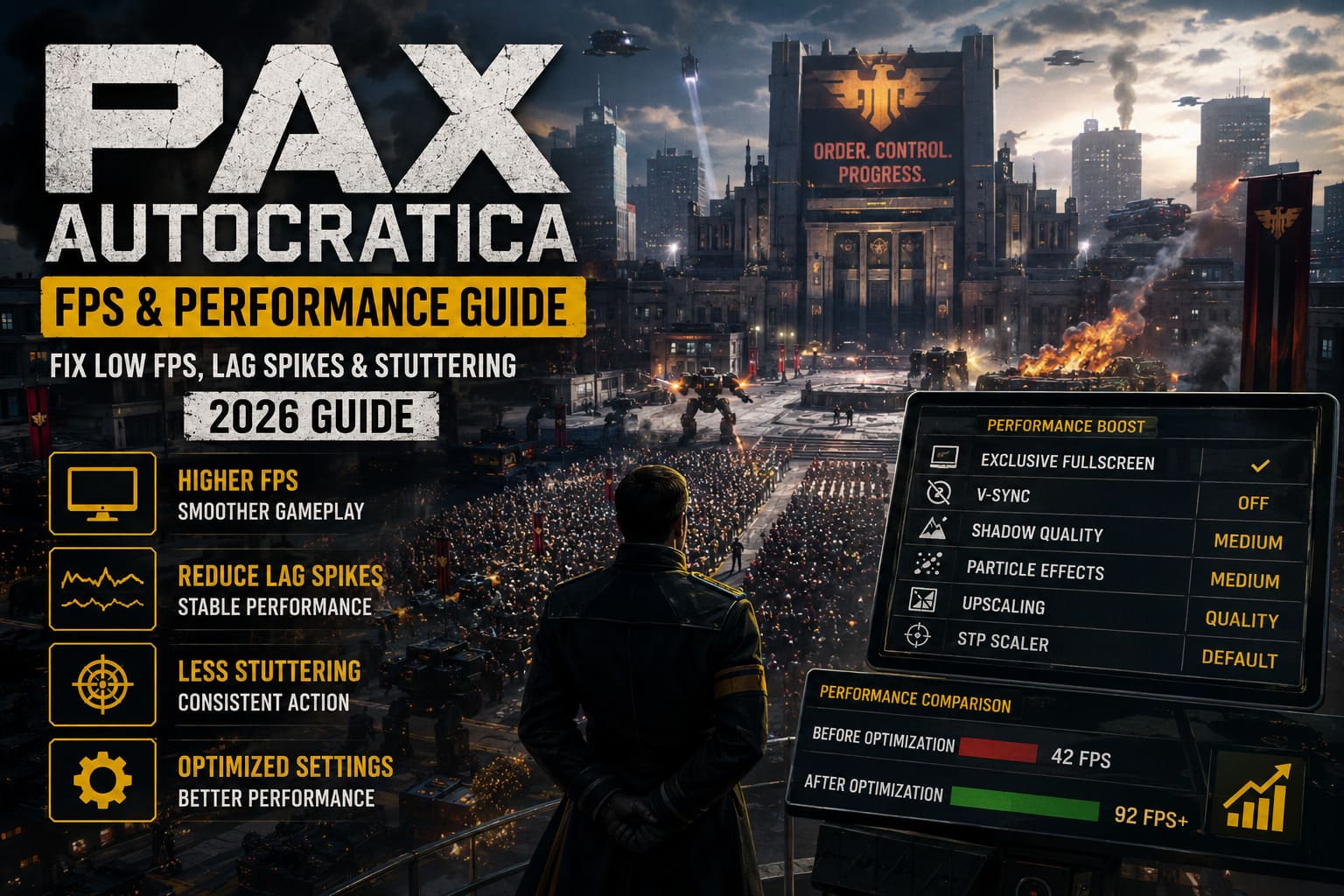
| Setting | Recommended Value | Performance Impact |
|---|---|---|
| Display Mode | Exclusive Fullscreen | High |
| V-Sync | Off | Medium |
| Shadow Quality | Medium | High |
| Particle Effects | Medium | High |
| Upscaling | Quality or Balanced | Medium |
| STP Scaler | Default or Slightly Lower | High |
Switch to Exclusive Fullscreen
This is one of the easiest improvements you can make.
Borderless mode is convenient, but it introduces additional overhead from Windows’ desktop management system. In my testing, Exclusive Fullscreen consistently produced smoother frame pacing and reduced random stutters.
Disable In-Game V-Sync
The built-in V-Sync implementation can be surprisingly aggressive.
I’ve seen situations where FPS instantly dropped from over 120 FPS to 60 FPS simply because the game couldn’t maintain the target refresh rate.
Disable the in-game option and let your GPU driver handle synchronization instead.
Lower Shadows Before Anything Else
If you only change one setting, make it shadows.
The visual difference between Ultra and Medium shadows is relatively minor during gameplay, but the FPS gain can be substantial during large firefights.
Reduce Particle Density
Bullet-heavy combat is where Pax Autocratica pushes systems the hardest.
Hundreds of projectiles, explosions, and visual effects can create serious GPU strain. Lowering particle quality often delivers an immediate improvement without noticeably hurting visual quality.
Memory Issues Are More Common Than You Think
One pattern I’ve repeatedly seen is performance slowly degrading over time.
The game starts smoothly.
Two hours later, frame rates begin falling.
Three hours later, stuttering becomes impossible to ignore.
This behavior strongly suggests heavy memory accumulation during extended sessions.
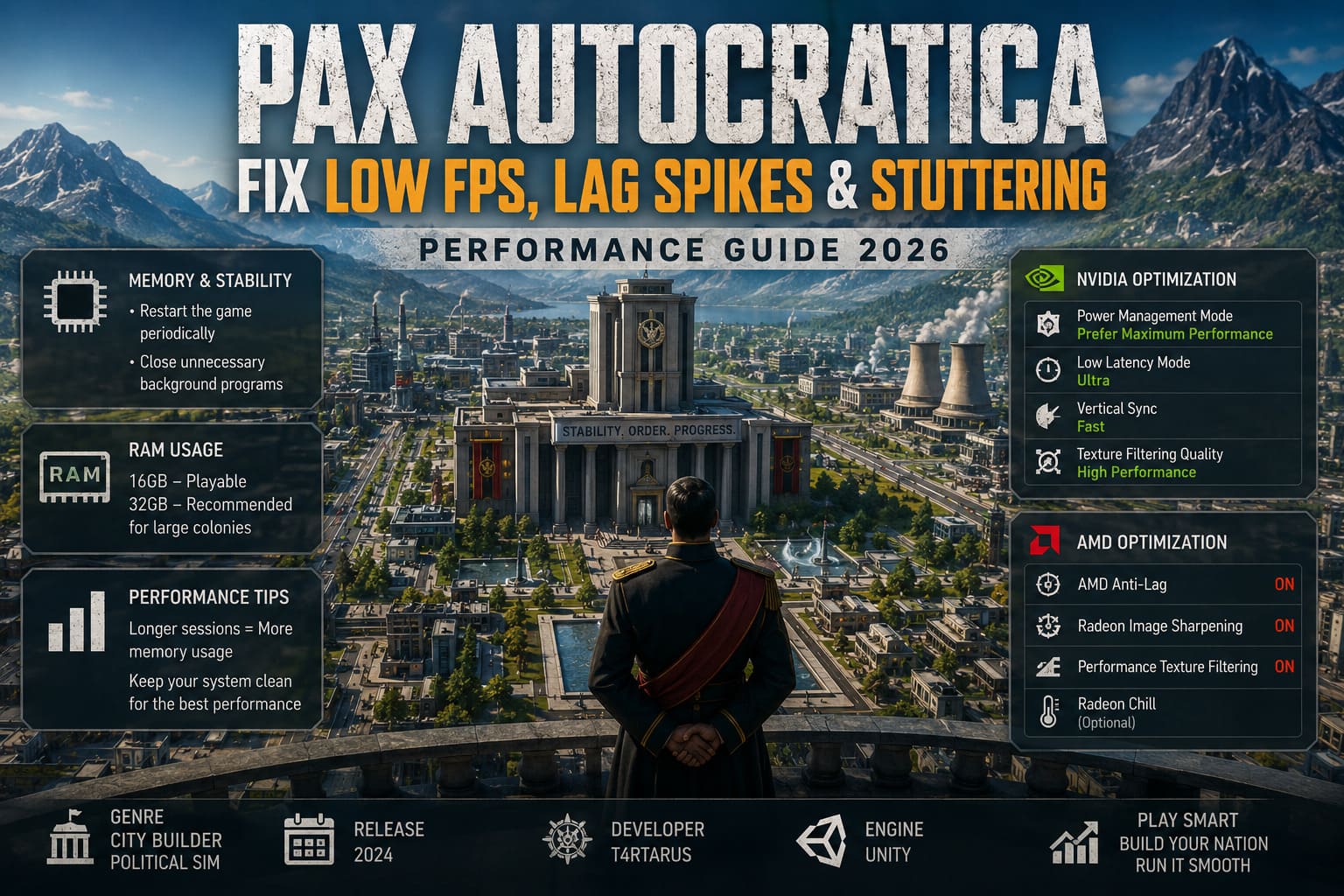
Restart the Game Periodically
This may sound simple, but it works.
If you’re playing a long campaign and notice FPS dropping compared to when you first launched the game, save your progress and restart the application.
Several players have reported recovering massive amounts of performance instantly after doing this.
Close Unnecessary Background Programs
Before launching Pax Autocratica, I recommend closing:
- Chrome or other browsers
- RGB software
- Overlay applications
- Hardware monitoring utilities
- Recording tools you are not actively using
These programs consume memory and CPU resources that the game could otherwise utilize.
Is 16GB of RAM Enough?
Technically yes.
Comfortably? Not always.
Modern simulation-heavy games continue pushing memory requirements higher every year. While 16GB remains playable, players with 32GB often report fewer performance issues during large-scale colony development.
NVIDIA and AMD Optimization Settings
Driver-level tweaks won’t magically double your FPS, but they can improve consistency and reduce frame-time spikes.
NVIDIA Settings
Open NVIDIA Control Panel and create a profile specifically for Pax Autocratica.
Recommended changes:
| Setting | Value |
|---|---|
| Power Management Mode | Prefer Maximum Performance |
| Low Latency Mode | Ultra |
| Vertical Sync | Fast |
| Texture Filtering Quality | High Performance |
The biggest improvement usually comes from Prefer Maximum Performance, which prevents the GPU from aggressively downclocking during lighter gameplay moments.
AMD Settings
For Radeon users, I recommend enabling:
- AMD Anti-Lag
- Radeon Image Sharpening
- Performance Texture Filtering
If your temperatures are climbing too high during long sessions, Radeon Chill can also help stabilize performance and reduce thermal throttling.
Storage Speed Matters More Than Expected
One mistake I still see players making in 2026 is installing large modern games on traditional hard drives.
Pax Autocratica constantly streams assets while you’re:
- Expanding colonies
- Traveling between zones
- Entering combat areas
- Loading large structures
When the storage device can’t keep up, stuttering becomes unavoidable.
Move the Game to an NVMe SSD
If you’re still using a mechanical HDD, upgrading to an SSD can feel like a completely different experience.
Even SATA SSDs perform significantly better, but NVMe drives offer the best results.
Verify Game Files
Corrupted files can create strange performance problems that are difficult to diagnose.
If you’ve recently experienced crashes, freezes, or missing assets:
- Open Steam.
- Right-click Pax Autocratica.
- Select Properties.
- Open Installed Files.
- Click Verify Integrity of Game Files.
This process often resolves issues that appear to be hardware-related but are actually caused by damaged game files.
Windows Tweaks That Actually Help
I’m generally skeptical about most “FPS boost” guides because many of them recommend changes that either do nothing or create new problems.
However, a few Windows settings are genuinely useful.
Enable Game Mode
Windows Game Mode has improved significantly over the years.
It helps prioritize gaming workloads and reduces interference from background tasks.
Use the Ultimate Performance Power Plan
Many systems never operate at their full potential because Windows constantly balances power usage.
Enabling the Ultimate Performance profile removes many of those restrictions.
Run the following command in an elevated Command Prompt:
powercfg -duplicatescheme e9a42b02-d5df-448d-aa00-03f14749eb61Afterward, select the Ultimate Performance plan from Windows power settings.
Update Chipset Drivers
This step is frequently overlooked.
Whether you’re using Intel or AMD hardware, chipset drivers directly influence communication between critical system components.
Several players reported smoother gameplay after updating motherboard drivers and BIOS versions.
How to Fix Pax Autocratica Graphic Glitch on RTX 3060 Laptops (2026 Workaround)
My Personal Settings for Stable Gameplay
After multiple campaigns, these are the settings that provided the best balance between visual quality and smooth performance:
| Option | Setting |
|---|---|
| Resolution | 1440p |
| Upscaling | Quality |
| Shadows | Medium |
| Particles | Medium |
| V-Sync | Off |
| Display Mode | Exclusive Fullscreen |
| FPS Limit | Monitor Refresh Rate |
| Motion Blur | Off |
Using these settings, I was able to maintain significantly more consistent frame rates during large colony expansions and chaotic combat encounters.
Pax Autocratica Out of Video Memory Error: 7 Ways to Fix VRAM Crashing in 2026
Final Thoughts
Pax Autocratica is one of the most ambitious strategy-action hybrids released in recent years, but that ambition comes with technical challenges. The combination of colony simulation systems, large-scale AI processing, projectile-heavy combat, and dynamic world management can overwhelm even powerful gaming PCs if settings aren’t properly optimized.
From my experience, the biggest improvements come from lowering shadow quality, reducing particle effects, switching to Exclusive Fullscreen, keeping the game installed on a fast NVMe SSD, and restarting the game during extremely long sessions.
If performance issues persist after trying every fix above, don’t ignore the game’s built-in reporting tools. Developers continue collecting performance data and player logs, and future patches will likely improve optimization further.
Until then, a few smart tweaks can transform Pax Autocratica from a stuttering mess into the smooth, addictive colony-conquering experience it was clearly designed to be.