How to Fix Ore Factory Squad Multiplayer Connection Failed Error and Low FPS Lag (2026 Optimization Guide)
There’s something incredibly addictive about watching a chaotic mining operation slowly transform into a perfectly optimized industrial empire. That’s exactly why I’ve been spending way too many late nights playing Ore Factory Squad with friends.
But if you’ve reached the point where your factory contains thousands of moving resources, conveyor belts stretch across the map, and automated production never stops, you’ve probably noticed something else: performance starts falling apart.
I’ve experienced random “Connection Failed” errors, lobby timeouts, heavy FPS drops, micro-stuttering, and moments where even a powerful gaming PC suddenly behaves like it’s ten years old. After testing dozens of solutions, reading community discussions, and experimenting with my own setup, I finally found the tweaks that consistently improve both multiplayer stability and performance.
This isn’t magic, and it won’t turn weak hardware into a monster gaming rig. However, these changes noticeably improved my experience and helped our group play long factory sessions without constant disconnects.
Why Ore Factory Squad Starts Struggling
Unlike many survival or sandbox games, Ore Factory Squad constantly simulates enormous amounts of moving objects.
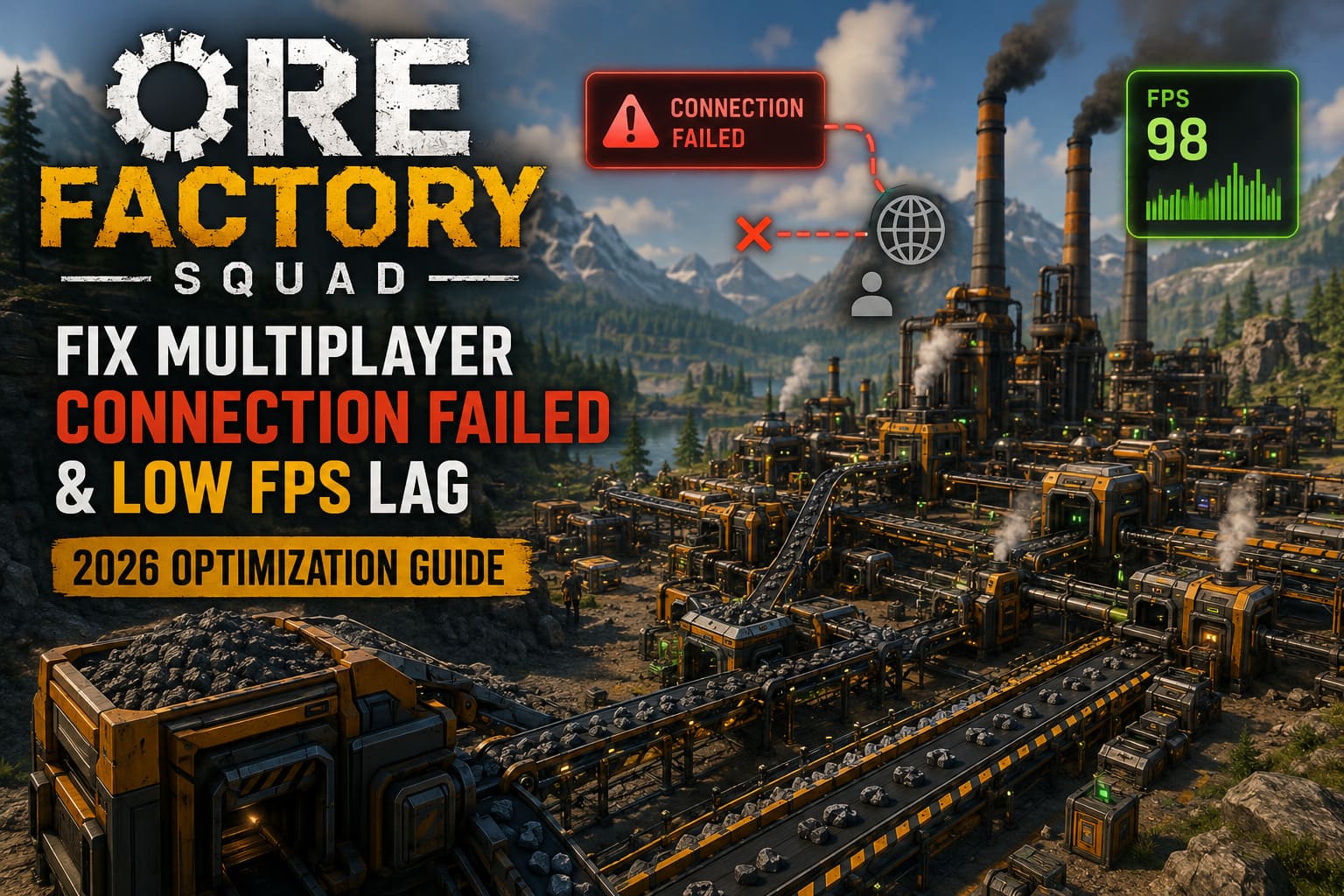
Every conveyor belt…
Every ore pallet…
Every automated machine…
Every logistics chain…
…adds another layer of calculations.
When you combine all of that with peer-to-peer multiplayer, the host has to process physics while simultaneously synchronizing every moving object with every connected player.
The bigger your factory becomes, the harder both your CPU and network have to work.
Part 1 — Fixing Multiplayer Connection Failed Errors
If your friends can’t join your lobby—or players disconnect after several minutes—I’d start with these fixes.
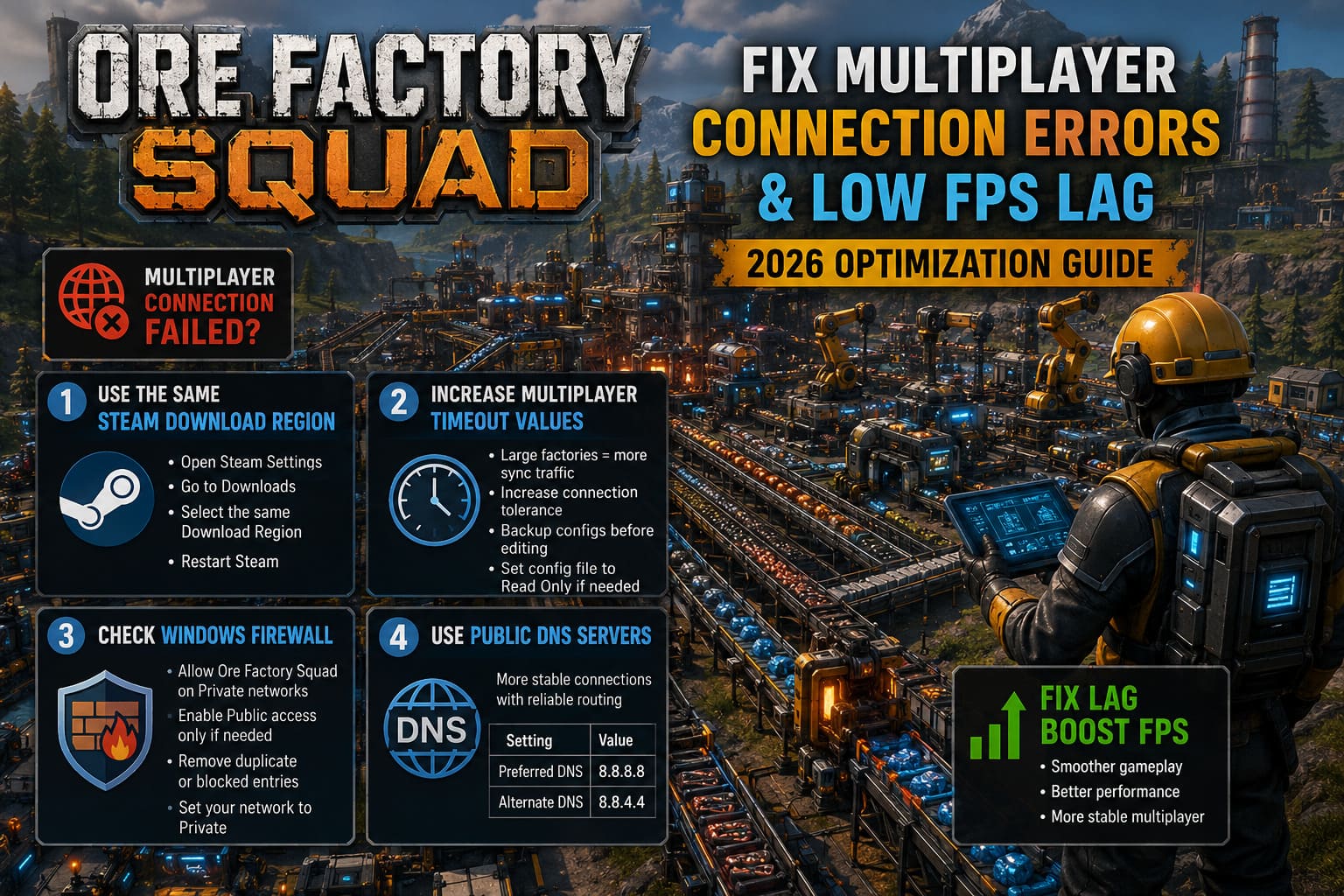
1. Make Sure Everyone Uses the Same Steam Download Region
This sounds unrelated, but it solved our lobby issue almost immediately.
Steam handles a large portion of multiplayer matchmaking, and using different download regions occasionally causes handshake problems during lobby creation.
Simply follow these steps:
- Open Steam Settings.
- Go to Downloads.
- Select the same Download Region for every player.
- Restart Steam.
It’s a small adjustment that can eliminate surprisingly stubborn connection errors.
2. Increase Multiplayer Timeout Values
Large factories generate much more synchronization traffic than small worlds.
From my experience, default networking values can become too aggressive once thousands of factory objects exist.
If Ore Factory Squad stores multiplayer settings inside its configuration files, increasing connection tolerance may prevent clients from timing out while loading heavily automated saves.
Before changing anything, I recommend the following:
- Create a backup of the configuration folder.
- Edit only documented settings whenever possible.
- Avoid copying random configuration files from unknown websites.
If the game resets your custom settings after every update, marking the edited configuration as Read Only may help preserve your changes.
3. Check Windows Firewall
Windows updates occasionally recreate firewall rules without asking.
I’ve seen this happen after several major updates.
Open Windows Defender Firewall and verify the following:
- Ore Factory Squad is allowed on Private networks.
- Public access is enabled only if you actually need it.
- Duplicate game entries aren’t accidentally blocked.
If your home network is still marked as Public, changing it to Private can also improve local connectivity.
4. Try Public DNS Servers
While DNS won’t increase your internet speed, it can reduce connection problems caused by unreliable ISP routing.
I personally tested Google’s public DNS.
| Setting | Value |
|---|---|
| Preferred DNS | 8.8.8.8 |
| Alternate DNS | 8.8.4.4 |
The improvement wasn’t dramatic, but our lobby became noticeably more reliable.
Part 2 — How I Improved FPS Without Destroying Graphics
I always prefer visuals over raw FPS.
Still, there are several graphics options that barely affect image quality while giving back a surprising amount of performance.
These are the first settings I’d change.
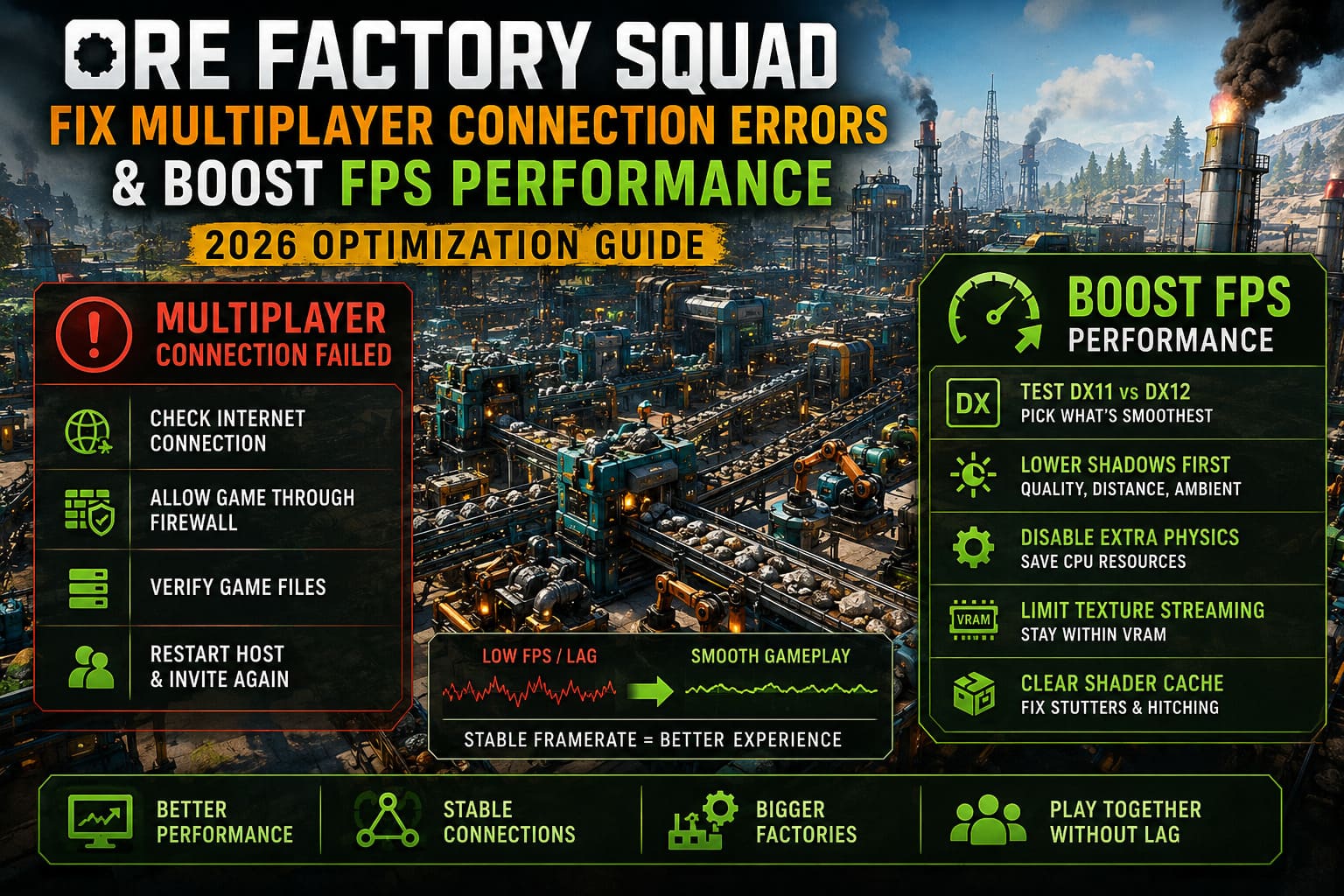
Switch Between DX11 and DX12
There’s no universal winner.
On one PC, DirectX 12 produced smoother gameplay with large factories.
On another system, it introduced severe shader stutters.
My advice: test both APIs for about 20 minutes inside your largest save.
Ignore average FPS.
Watch frame consistency instead.
Stable frame pacing feels much smoother than occasional FPS spikes.
Lower Shadows First
Dynamic shadows become extremely expensive once hundreds of machines and moving resources fill your base.
Instead of lowering textures, I recommend reducing:
- Shadow Quality
- Shadow Distance
- Ambient Lighting
The visual difference is surprisingly small compared to the performance gain.
Disable Unnecessary Physics Effects
Some environmental simulations look impressive until your factory reaches industrial scale.
If your settings include optional environmental physics or advanced wake simulations, disabling them usually frees valuable CPU resources without affecting gameplay.
Avoid Unlimited Texture Streaming
One setting I almost never recommend is forcing the engine to preload every texture.
Unless your GPU has a huge amount of VRAM, this can create several issues:
- Memory spikes.
- Longer loading times.
- Random frame drops.
Keeping texture streaming within your graphics card’s VRAM limit generally produces smoother gameplay.
Clear Old Shader Cache
After several updates, old shaders can become incompatible with newer game versions.
Whenever I notice the following problems, I clear the shader cache:
- Camera hitching.
- Freezing while rotating.
- Sudden micro-stutters.
I clear the DirectX Shader Cache using Windows Disk Cleanup.
The first launch afterward takes slightly longer because shaders rebuild, but gameplay usually feels smoother.
Optimize Your GPU Driver Settings
Driver settings won’t magically double your FPS.
Still, they can improve frame stability.
For NVIDIA users, I usually recommend the following configuration:
| Setting | Recommended Value |
|---|---|
| Power Management | Prefer Maximum Performance |
| Low Latency Mode | Ultra |
| Frame Rate Limit | Around 90–95% of monitor refresh rate |
The last setting deserves special attention.
Instead of letting FPS constantly bounce between 80 and 165, limiting it slightly below your monitor’s refresh rate often creates much smoother frame pacing.
Don’t Ignore Windows Background Processes
Modern Windows installs run dozens of background services.
Some of them occasionally consume CPU time during gameplay.
I periodically check the following:
- Unnecessary startup applications.
- Overlay software.
- RGB utilities.
- Recording tools.
Closing unused background programs freed enough CPU resources to reduce noticeable hitching during large production spikes.
The Biggest FPS Improvement Came From My Factory Design
This surprised me the most.
I kept blaming my hardware until I rebuilt part of my factory.
Ore Factory Squad appears to simulate every moving item individually.
That means massive conveyor backups become performance killers.
Instead of allowing resources to pile up endlessly, I started using:
- Overflow storage.
- Smarter splitters.
- Cleaner logistics routes.
- Shorter conveyor lines.
The difference wasn’t subtle.
Both CPU usage and overall frame rate improved during longer sessions.
Another trick I strongly recommend is avoiding one gigantic production area.
Separating heavy machinery into dedicated sections reduces the number of objects visible at the same time, making rendering much easier.
How to Fix Ore Factory Squad Crash on Launch, Black Screen, and Not Starting on Steam (2026 Guide)
Is a Dedicated Server Worth It?
For casual two-player sessions?
Probably not.
For three or four friends managing an enormous industrial complex?
Absolutely.
One issue with peer-to-peer hosting is that the host handles everything:
- Local gameplay.
- Physics simulation.
- AI calculations.
- Multiplayer synchronization.
As factories become larger, that single PC eventually becomes the bottleneck.
Moving your save to a dedicated server allows the simulation to run independently, reducing CPU pressure on the host and making multiplayer sessions significantly more stable.
If your group plans to invest dozens of hours into one world, it’s one of the best long-term upgrades you can make.
Ore Factory Squad Beginner Guide: Factory Optimization & Automation Tips (2026)
Final Thoughts
After spending countless hours expanding conveyor networks, optimizing production lines, and inevitably breaking my own factory more times than I’d like to admit, I’ve learned one important lesson: Ore Factory Squad rewards optimization in more ways than one.
The same mindset that helps you build efficient production systems also applies to your PC setup. A few well-chosen tweaks—whether it’s cleaning old shader caches, adjusting graphics settings, improving network configuration, or redesigning an overloaded factory—can make the difference between constant frustration and hours of smooth cooperative gameplay.
No single fix works for everyone because every system, network, and factory layout is different. But combining several of these optimizations gave me a noticeably more stable experience, fewer multiplayer disconnects, and much smoother frame rates during late-game production.
If you’re serious about building the biggest automated mining empire possible, don’t just optimize your machines—optimize the game itself. Your teammates (and your CPU) will thank you.