How to Fix Drone Sector Black Screen on Startup: PC System Requirements and Troubleshooting Guide (2026)
When I boot up a brand-new game on release day, I expect two things: exciting gameplay and a few launch-day hiccups. That’s simply part of PC gaming nowadays. I can live with minor bugs or occasional frame drops, but staring at a black screen while the game refuses to load is another story entirely.
That was my experience with Drone Sector, the latest tactical military simulator from MicroProse Software. I was genuinely excited to jump into its mix of AC-130-inspired fire support, drone surveillance, and real-time squad coordination. Instead, my first mission became troubleshooting Windows rather than commanding troops.
After spending several hours experimenting with different fixes, comparing notes with other players, and reading through community discussions, I finally got everything working smoothly. If you’re facing the same startup black screen, here’s everything I recommend trying before giving up.
Why Drone Sector Is Worth Fixing
Despite the frustrating first impression, Drone Sector has a lot going for it.
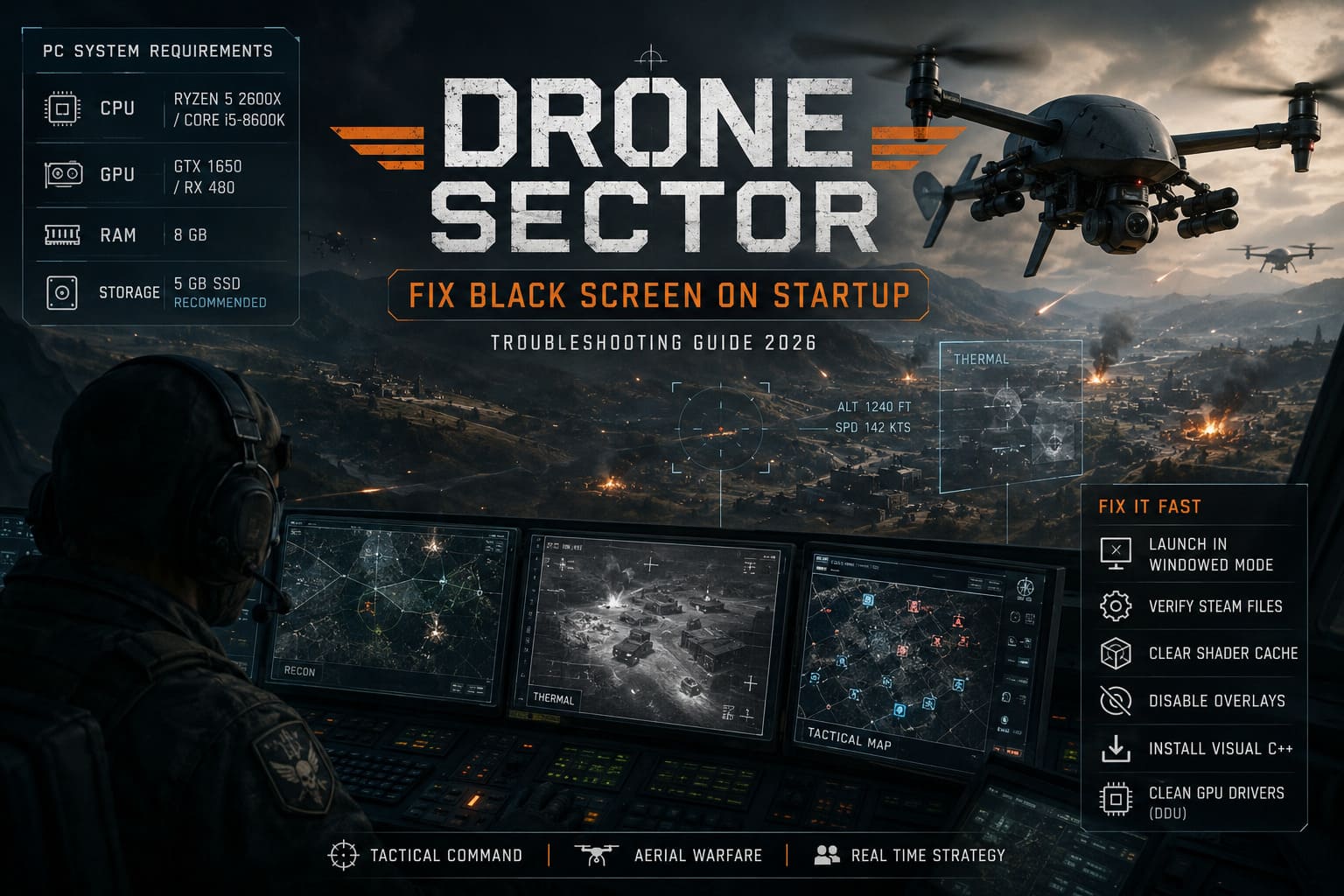
The combination of aerial combat and tactical command feels refreshing. You’re not simply flying around destroying targets—you constantly balance reconnaissance, thermal imaging, precision strikes, and support for friendly ground units. It creates a surprisingly immersive battlefield that rewards patience more than reckless shooting.
That makes the startup issues even more disappointing because once the game actually launches, there’s plenty to enjoy.
Official Drone Sector PC System Requirements
Before blaming the game, it’s worth making sure your hardware isn’t the actual problem.
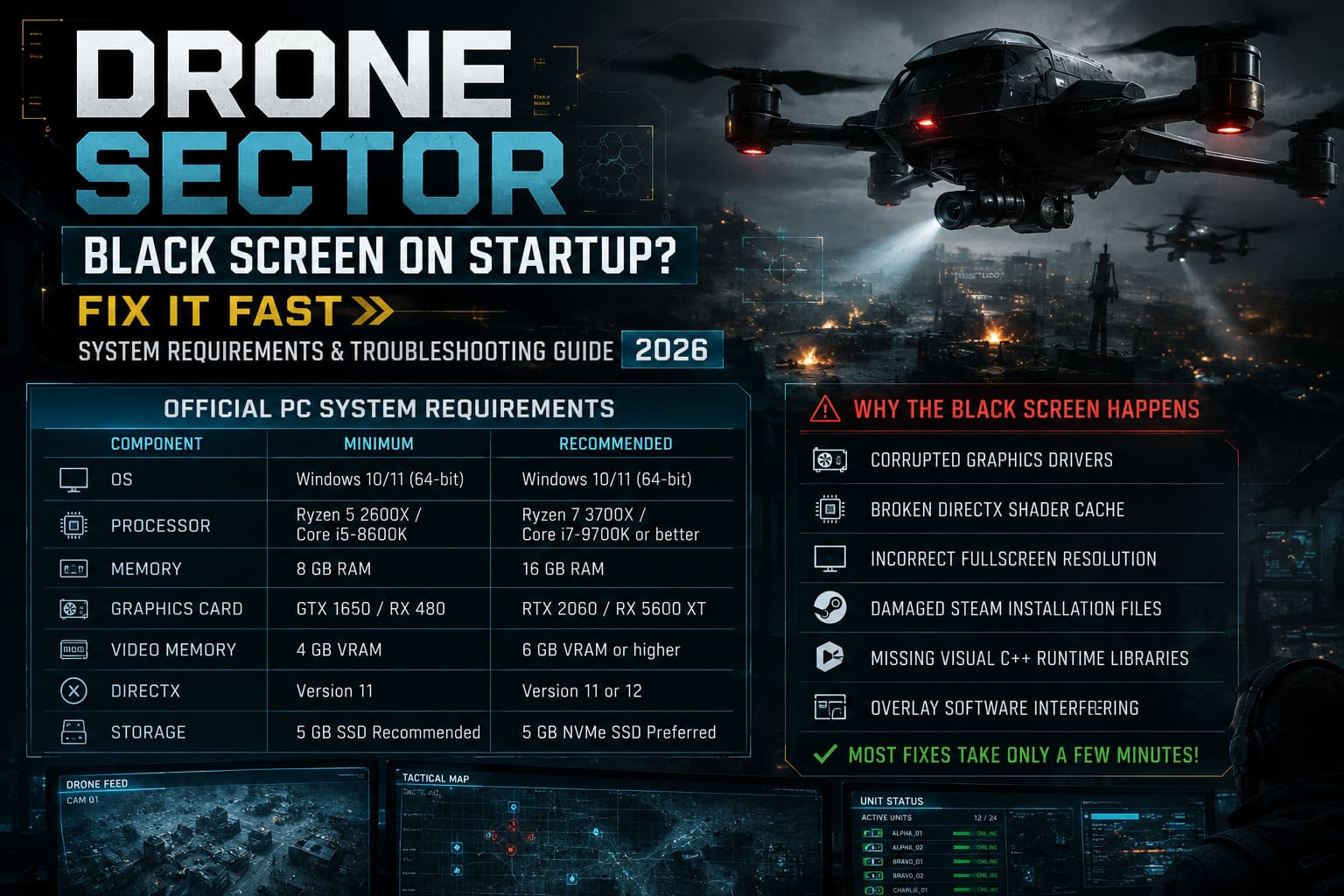
| Component | Minimum | Recommended |
|---|---|---|
| Operating System | Windows 10/11 (64-bit) | Windows 10/11 (64-bit) |
| Processor | Ryzen 5 2600X / Core i5-8600K | Ryzen 7 3700X / Core i7-9700K or better |
| Memory | 8 GB RAM | 16 GB RAM |
| Graphics Card | GTX 1650 / RX 480 | RTX 2060 / RX 5600 XT |
| Video Memory | 4 GB VRAM | 6 GB VRAM or higher |
| DirectX | Version 11 | Version 11 or 12 |
| Storage | 5 GB SSD Recommended | 5 GB NVMe SSD Preferred |
My Opinion on the Requirements
These specifications are actually quite reasonable.
Drone Sector isn’t trying to compete with the biggest AAA graphical showcases. Instead, its engine focuses on rendering multiple tactical camera feeds, AI-controlled units, lighting effects, and battlefield calculations simultaneously.
However, I wouldn’t recommend running it on integrated graphics. Intel UHD and Iris Xe solutions simply struggle with the shader workload during startup, which often leads directly to the infamous black screen.
What Usually Causes the Black Screen?
From everything I’ve tested and seen across the community, the issue generally falls into one of these categories:
- Corrupted graphics drivers
- Broken DirectX shader cache
- Incorrect fullscreen resolution
- Damaged Steam installation files
- Missing Visual C++ runtime libraries
- Overlay software interfering with rendering
The good news? Most of these can be fixed in just a few minutes.
Fix #1 — Start the Game in Windowed Mode
This was actually the solution that worked for me first.
Sometimes Drone Sector attempts to launch using a refresh rate or resolution your monitor refuses to initialize correctly.
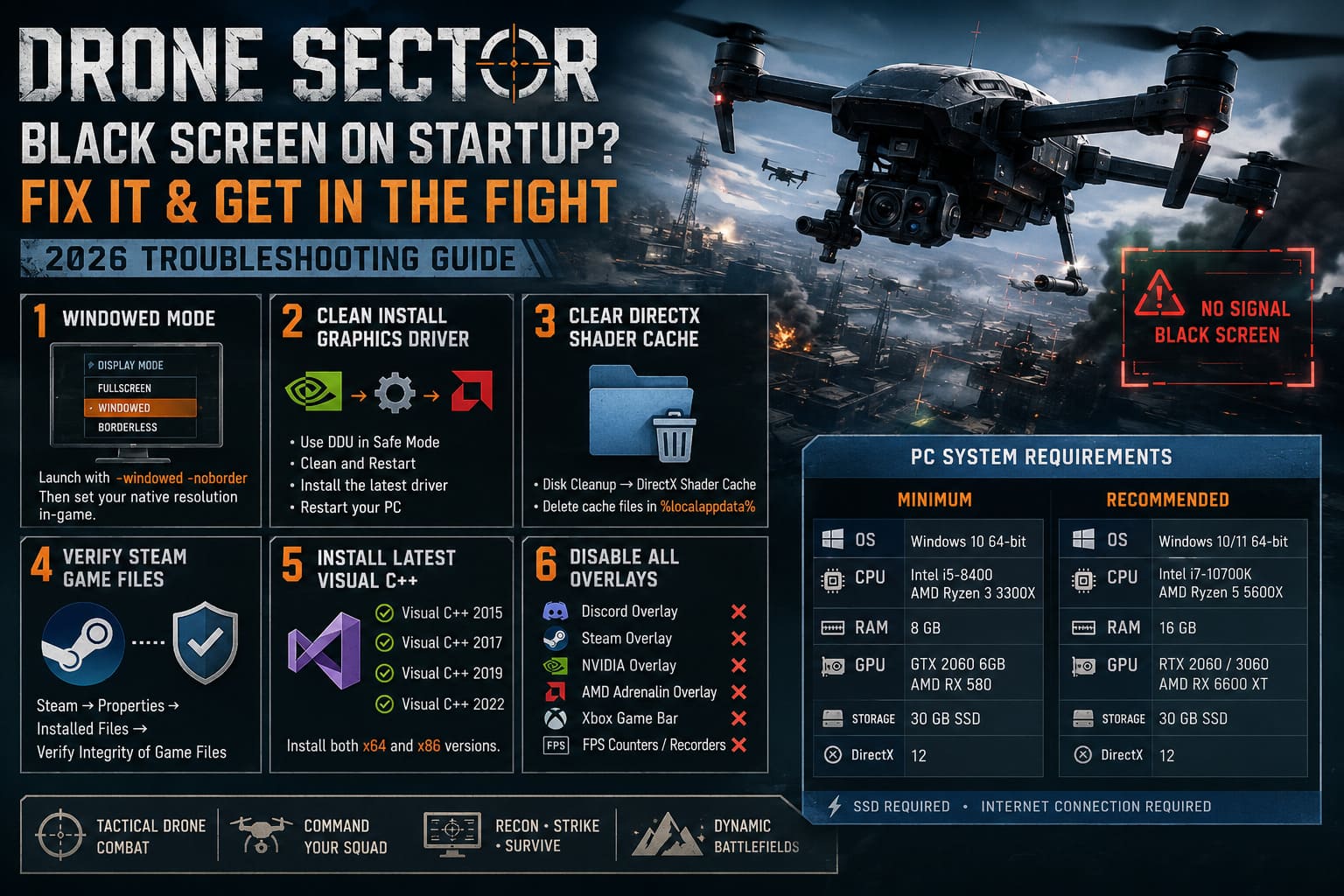
Open your Steam Library, right-click Drone Sector, choose Properties, and locate the Launch Options field.
-windowed -noborderLaunch the game again.
If it finally opens, immediately head into the graphics settings and manually choose your monitor’s native resolution before switching back to fullscreen.
This simple workaround has solved the problem for a surprising number of players.
Fix #2 — Completely Reinstall Your Graphics Driver
Updating a driver isn’t always enough.
Old driver files can remain buried inside Windows even after installing newer versions, creating conflicts with modern game engines.
I strongly recommend performing a clean installation.
- Download the newest driver for your graphics card.
- Download Display Driver Uninstaller (DDU).
- Boot Windows into Safe Mode.
- Run DDU.
- Select Clean and Restart.
- Install the newest graphics driver.
- Restart your PC once more.
It sounds like a lot of work, but it removes years of leftover registry entries and corrupted driver files that can prevent games from launching correctly.
Fix #3 — Delete the DirectX Shader Cache
Modern games compile thousands of shaders during their very first launch.
If even one cached shader becomes corrupted, the game engine can freeze before reaching the main menu.
Windows already provides a built-in cleanup utility.
- Open Disk Cleanup.
- Select your Windows drive.
- Check DirectX Shader Cache.
- Delete the selected files.
Next, press Windows + R, enter the following command, and press Enter.
%localappdata%If you find Drone Sector’s cache folder or temporary saved shader data, delete the cache files. The game will automatically rebuild everything during the next launch.
Fix #4 — Verify the Steam Installation
I’ve seen this solve problems far more often than people expect.
Even a tiny interruption during download can leave important files damaged.
Inside Steam, open:
- Drone Sector
- Properties
- Installed Files
- Verify Integrity of Game Files
Steam compares every installed file against the official version and automatically downloads replacements if necessary.
The process usually finishes within a few minutes.
Fix #5 — Install the Latest Visual C++ Redistributables
Many startup crashes occur before the game even has a chance to display an error message.
Missing Microsoft runtime libraries are often responsible.
Install the latest versions of:
- Visual C++ 2015
- Visual C++ 2017
- Visual C++ 2019
- Visual C++ 2022
Don’t forget to install both the x64 and x86 packages. Even modern 64-bit games sometimes depend on components from both architectures.
Fix #6 — Disable Every Overlay You Can
Overlay software has become surprisingly aggressive over the last few years.
Programs constantly attempt to hook into DirectX while games are launching, and Drone Sector doesn’t always handle those conflicts gracefully.
I usually disable everything before troubleshooting.
- Discord Overlay
- Steam Overlay
- NVIDIA Overlay
- AMD Adrenalin Overlay
- Xbox Game Bar
- Third-party FPS counters
- Recording software
Once the game launches consistently, you can gradually re-enable each overlay to determine whether one of them is responsible.
Extra Tweaks That Helped Me
These aren’t guaranteed fixes, but they’ve noticeably improved stability on several different PCs.
Run the Game as Administrator
Sometimes Windows prevents Drone Sector from accessing folders required during startup. Running the executable with administrator privileges removes those restrictions.
Disable Fullscreen Optimizations
Right-click the game’s executable file, open Properties, select the Compatibility tab, and enable Disable Fullscreen Optimizations. This can prevent Windows from interfering with exclusive fullscreen mode.
Install the Game on an SSD
Although Drone Sector only requires around 5 GB of storage, installing it on an SSD—or even better, an NVMe SSD—can noticeably improve loading reliability since the engine streams textures and tactical assets during startup.
Keep Windows Fully Updated
Graphics APIs and system libraries receive constant updates. Installing the latest Windows patches can quietly resolve compatibility issues without requiring any additional troubleshooting.
Troubleshooting Priority
If a friend asked me where to start, I’d recommend following this exact order.
| Priority | Solution | Difficulty |
|---|---|---|
| 1 | Launch in Windowed Mode | Easy |
| 2 | Verify Steam Files | Easy |
| 3 | Clear Shader Cache | Easy |
| 4 | Disable Overlays | Easy |
| 5 | Install Visual C++ Packages | Medium |
| 6 | Clean Graphics Driver Installation (DDU) | Advanced |
Working through these fixes in order usually resolves the issue without unnecessary effort.
Drone Sector Crash on Launch: How to Fix MicroProse Game Startup Issues on Steam (2026 Guide)
Is the Black Screen Actually the Game’s Fault?
Only partly.
Early Access releases almost always encounter unexpected compatibility issues because developers have to support thousands of unique PC hardware combinations.
Drone Sector appears especially sensitive to graphics initialization, shader compilation, and monitor detection during its first launch.
Fortunately, most community reports suggest the issue isn’t caused by permanently broken game files. Instead, outdated drivers, corrupted shader caches, display configuration conflicts, or Windows software are usually responsible.
Hopefully, upcoming patches will make the first-time launch process much smoother.
Drone Sector Weaponry Tier List: Gunship Loadout Guide (MicroProse 2026)
Final Thoughts
As someone who genuinely enjoys jumping into new releases on day one, I wasn’t thrilled to spend my first evening troubleshooting instead of flying combat missions.
Still, once Drone Sector finally launched correctly, it reminded me why I was excited in the first place. The blend of reconnaissance, precision strikes, thermal imaging, and battlefield support creates a satisfying tactical experience that feels very different from a traditional military shooter.
If you’re currently staring at nothing but a black screen, don’t immediately assume your hardware isn’t powerful enough. In most situations, the solution is much simpler. Start with the windowed launch option, verify your Steam installation, clear the DirectX shader cache, and continue through the remaining fixes if necessary.
With a little patience, you’ll hopefully spend less time troubleshooting Windows and more time switching between thermal cameras, coordinating your infantry, and dominating the battlefield from above—the way Drone Sector was meant to be played.