How to Fix DIVE or DIE Children of Rain Crashing on Launch, Startup Bugs, and Black Screen on PC
When I first launched DIVE or DIE: Children of Rain, I expected to spend my evening exploring the mysterious underwater world instead of troubleshooting Windows. As someone who streams newly released indie games almost every week, I’ve learned one thing: launch-day issues happen even to excellent games.
Despite the rough first impression, I genuinely enjoyed what Drop Rate Studio created here. The atmosphere is incredible, the survival mechanics are tense without being unfair, and the constant pressure of the black rain creates a unique sense of urgency that keeps pulling me back for another run.
Unfortunately, many players—including people watching my stream—ran into the same frustrating problems. The game crashed immediately after pressing Play, froze on a black screen, or simply closed without displaying any error message.
After testing different solutions on my own PC, comparing notes with viewers, and reading community discussions, I narrowed the issue down to several common causes. Below are the fixes that made the biggest difference.
Why Does DIVE or DIE Crash on Startup?
From what I’ve seen, the game itself isn’t necessarily “broken.” Most startup crashes seem to come from conflicts between Windows, graphics drivers, overlays, and the game’s rendering initialization.
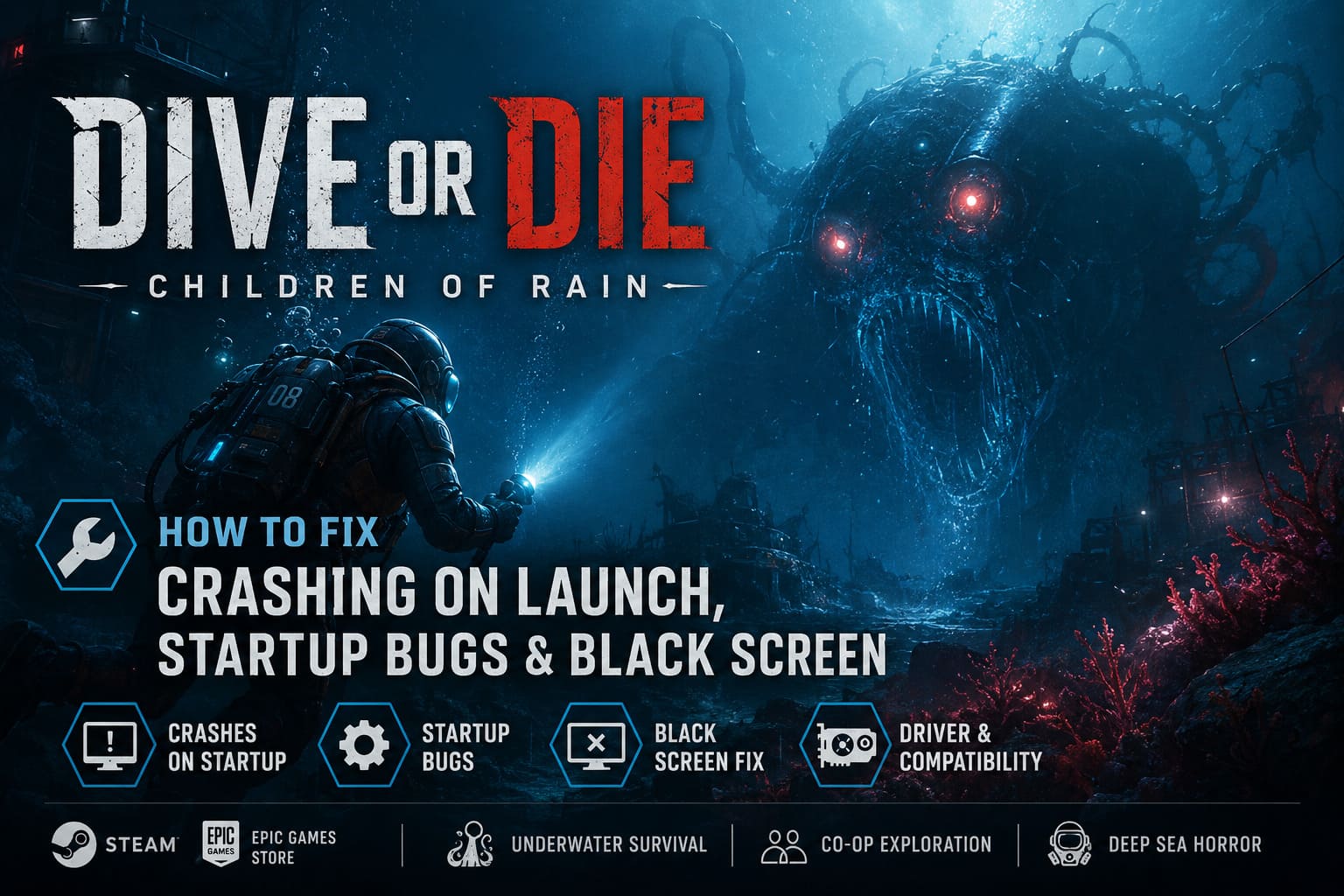
The most common reasons include:
- Damaged installation files
- DirectX initialization problems
- Outdated GPU drivers
- Overlay software conflicts
- Multiple monitor detection bugs
- Missing Windows runtime components
The good news is that almost every one of these can be fixed without reinstalling Windows or replacing hardware.
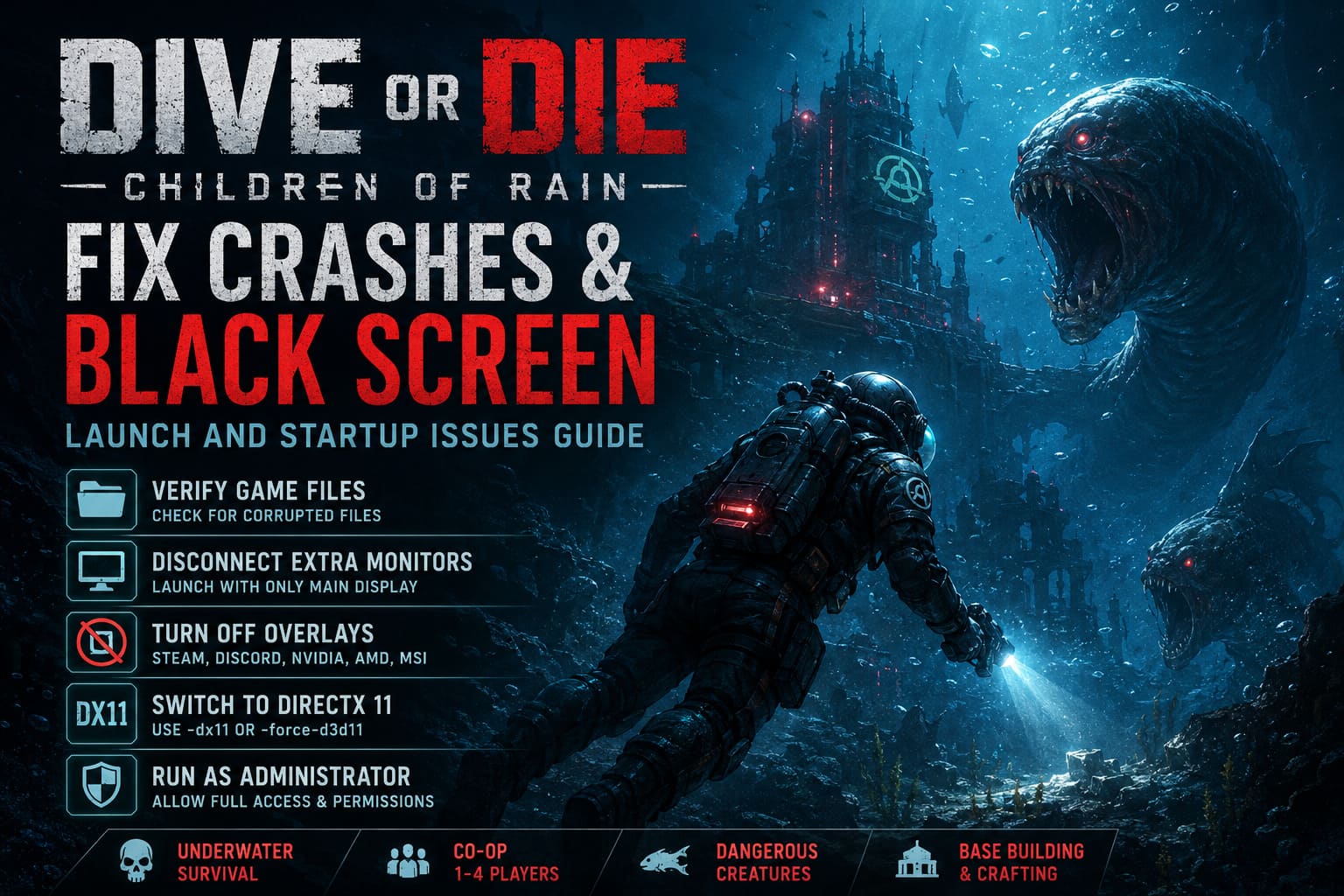
1. Verify the Game Files First
This is always my first recommendation whenever a brand-new game refuses to launch.
Large downloads occasionally finish with one or two damaged files, and even a single corrupted asset can prevent the engine from loading properly.
Steam
- Open your Library.
- Right-click DIVE or DIE: Children of Rain.
- Select Properties.
- Open the Installed Files section.
- Click Verify integrity of game files.
Epic Games Store
- Open your Library.
- Find the game.
- Click the three dots.
- Select Manage.
- Click Verify.
It isn’t the most exciting solution, but during launch week this fixed the problem for several people in my community.
2. Disconnect Extra Monitors Before Launching
This one surprised me.
I normally stream using two monitors, and during testing the game consistently behaved better when I disconnected my secondary display before launching.
Some modern PC games have trouble determining the primary rendering device during startup, especially when multiple displays, capture cards, or TVs are connected.
Try this:
- Disconnect every secondary monitor.
- Launch the game using only your main display.
- Wait until you reach the main menu.
- Reconnect your additional monitors afterward.
It sounds strange, but it has solved launch issues in more games than I can count over the past few years.
3. Turn Off Every Overlay You Don’t Need
Overlays are incredibly convenient.
They’re also one of the biggest reasons new PC games refuse to cooperate.
Programs that inject themselves into DirectX include:
- Steam Overlay
- Discord Overlay
- NVIDIA GeForce Experience
- AMD Software Overlay
- MSI Afterburner OSD
- RivaTuner Statistics Server
I usually disable all of them before testing a new release.
Once the game becomes stable, you can enable them one at a time to identify which one causes the conflict.
4. Switch to DirectX 11
One thing I’ve noticed while streaming recent PC releases is that DirectX 12 offers great performance—but it also tends to expose driver issues much more quickly.
If the game crashes before reaching the menu, forcing DirectX 11 is definitely worth trying.
Open Steam Properties and enter one of these launch commands:
-dx11or
-force-d3d11Neither option magically increases FPS, but stability is often noticeably better on systems with older drivers or GPUs.
5. Run the Game With Administrator Rights
Windows security has become much stricter over the years.
Sometimes a game simply doesn’t receive permission to create save folders, shader caches, or temporary configuration files.
To test this:
- Browse to the installation folder.
- Locate the game’s executable.
- Open Properties.
- Go to the Compatibility tab.
- Enable Run this program as administrator.
If you’re using an older version of Windows, compatibility mode for Windows 10 can also help.
I wouldn’t leave compatibility mode enabled permanently unless necessary, but it’s worth testing.
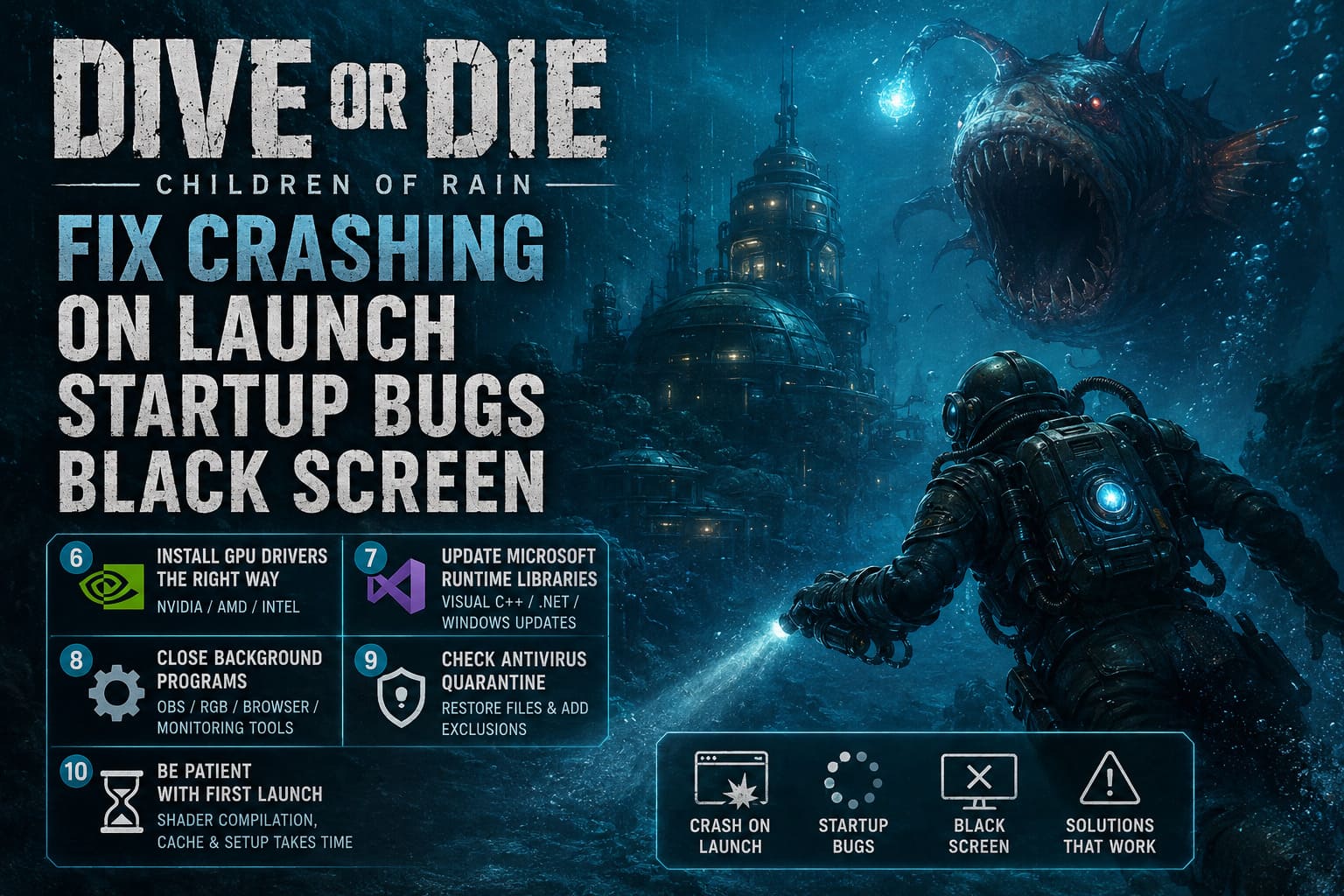
6. Install GPU Drivers the Right Way
Many people click Express Installation and assume everything is updated.
In reality, old driver files can remain behind and continue causing problems.
Whenever I prepare my streaming PC for major game launches, I always perform a clean graphics driver installation.
Here’s what I recommend.
| Component | Recommendation |
|---|---|
| NVIDIA | Perform Clean Installation |
| AMD | Use Factory Reset during installation |
| Intel | Install the newest official graphics package |
| Windows | Restart after installation |
A clean installation often removes corrupted shader caches and outdated registry settings that ordinary updates leave behind.
7. Update Microsoft Runtime Libraries
This fix doesn’t receive enough attention.
Games depend on Microsoft Visual C++ Redistributables and various Windows runtime components.
If one package is damaged or missing, the executable may close before showing anything on screen.
Install:
- Latest Visual C++ x64
- Latest Visual C++ x86
- Newest .NET Framework updates
- Pending Windows Updates
Afterward, restart your PC instead of using Fast Startup.
That extra reboot allows Windows to properly register the new libraries.
8. Close Background Programs Before Playing
Streaming software, RGB utilities, monitoring applications, browser hardware acceleration, and motherboard control suites can all interfere with launch.
When I’m troubleshooting a new game, I usually keep Windows as clean as possible.
Applications I temporarily close include:
- OBS Studio (unless I’m actively streaming)
- RGB software
- Browser windows
- Hardware monitoring tools
- Third-party antivirus scans
Once the game is working normally, I gradually reopen everything.
This makes it much easier to identify the real culprit.
9. Check Your Antivirus Quarantine
I’ve actually seen this happen several times during indie launches.
Windows Security or third-party antivirus software occasionally flags a newly released executable before enough reputation data exists.
Open your antivirus history and make sure the game’s executable hasn’t been quarantined.
If necessary, add the installation folder to the exclusion list.
Only do this if you downloaded the game from an official source like Steam or the Epic Games Store.
10. Be Patient With the First Launch
This is one thing many players mistake for a crash.
During the first startup, the engine may spend several minutes compiling shaders, generating cache files, creating save data, and initializing graphics resources.
If CPU usage remains active, give the game several minutes before forcing it to close.
I’ve watched plenty of new Unreal and Unity releases appear frozen when they were actually still preparing resources in the background.
DIVE or DIE Children of Rain Walkthrough: Main Story Quest Guide and How to Recruit Survivors
My Personal Experience
After experimenting with different fixes on my own setup, the combination that finally gave me a perfectly stable experience was surprisingly simple.
I verified the installation, disabled every overlay, launched the game using DirectX 11, and performed a clean NVIDIA driver installation.
After that, I played for several hours without another startup crash.
The game still has room for optimization, especially considering it’s a fresh release, but once everything is working, it’s honestly one of the more memorable survival roguelikes I’ve played this year.
The atmosphere is fantastic, exploration constantly rewards curiosity, and the underwater setting feels genuinely different from the usual survival formula.
Dive or Die Children of Rain Guide: How to Survive Deep Dives and Manage Sanity
Fix Summary
| Problem | Best Solution |
|---|---|
| Game crashes immediately | Verify game files |
| Black screen on launch | Force DirectX 11 |
| Crash before menu | Disable overlays |
| Startup closes instantly | Clean GPU driver installation |
| Launch fails with dual monitors | Disconnect secondary displays |
| No error message | Run as Administrator |
| Random startup failures | Update Visual C++ and .NET |
| First launch takes forever | Wait for shader compilation |
Final Thoughts
As someone who spends a lot of time covering new PC releases on stream, I rarely judge a game solely by its launch-day technical problems. DIVE or DIE: Children of Rain definitely had a few rough edges during its initial release, but underneath those issues is a genuinely atmospheric survival experience that’s worth sticking with.
If your copy refuses to start, don’t assume the game is beyond repair. In most cases, the problem comes down to a handful of common PC conflicts rather than a fatal bug in the game itself. Start with the basics—verify the installation, disable unnecessary overlays, test DirectX 11, and make sure your graphics drivers are installed cleanly. Those steps resolved the majority of startup issues I encountered while testing and streaming.
With continued post-launch patches and driver updates, I expect stability to improve even further. Until then, these fixes should give you the best chance of getting past the black screen and finally diving into the Abyss instead of staring at your desktop.