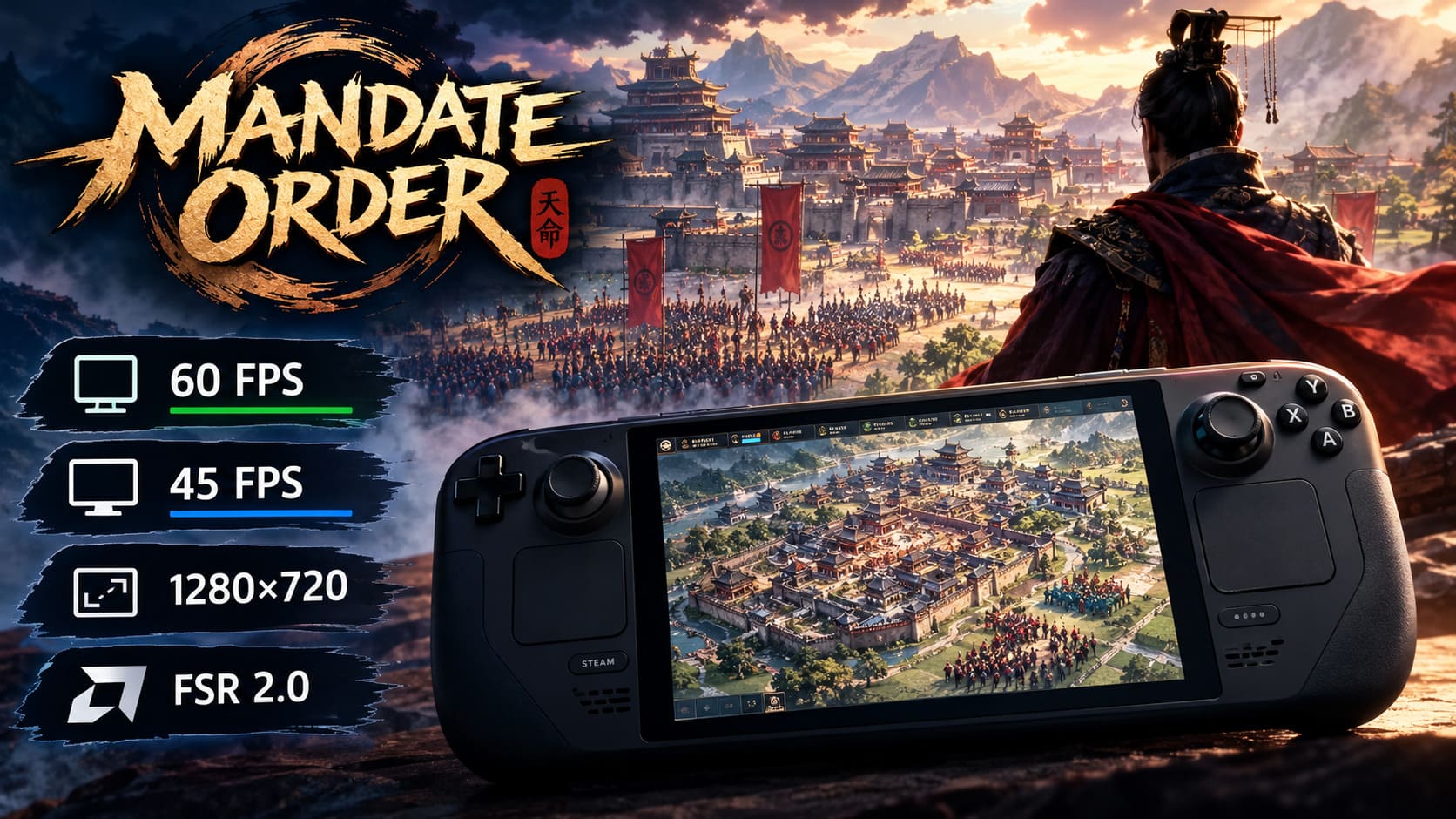
Mandate Order Steam Deck Best Settings: How to Get 60FPS or Smooth Performance
Mandate Order is exactly the kind of strategy game that makes me appreciate what the Steam Deck can do — and also reminds me where its limits are.
Digital Sky’s ancient China simulation throws a ridiculous amount of activity at the screen. You are not simply placing buildings and watching a few units walk around. Your settlements develop into complicated economies, workers move through supply chains, armies gather in huge formations, and eventually you can have thousands of soldiers involved in a single battle.
That is where things get interesting on Steam Deck.
I have always preferred playing strategy games on a handheld when the controls and performance are properly tuned. Being able to sit back and manage a growing city or plan a siege without being tied to a desktop PC is fantastic. But with Mandate Order, blindly targeting 60 FPS isn’t always the smartest approach.
The good news is that you can get a very enjoyable experience on both Steam Deck LCD and Steam Deck OLED. You just need to choose the right performance target.
This Mandate Order Steam Deck settings guide covers the setup I recommend for high FPS, a more stable 40/45 FPS experience, SteamOS tweaks, graphics settings, and a few fixes worth trying if the game doesn’t behave properly.
Is 60FPS Realistic in Mandate Order on Steam Deck?
Yes — but there is an important catch.
During the early stages of a campaign, when your settlement is relatively small and there aren’t hundreds of active systems running simultaneously, Mandate Order can feel surprisingly smooth. With the right settings, getting close to 60 FPS is absolutely achievable.
The situation changes as your civilization expands.
More buildings mean more calculations. More workers create more simulation activity. Larger logistics networks require additional CPU processing. Then you add huge armies, battlefield effects, weather, lighting and thousands of individual soldiers.
At that point, the Steam Deck’s CPU becomes the limiting factor more often than the GPU.
That’s why I wouldn’t recommend treating 60 FPS as a sacred number throughout an entire campaign. It feels fantastic when the game can maintain it, but constantly bouncing between 40, 50 and 60 FPS can actually feel worse than a stable lower frame rate.
For me, there are two sensible ways to play:
- 60 FPS profile: Best for smaller settlements and early-to-mid game.
- 40/45 FPS profile: My preferred choice for larger cities and prolonged campaigns.
If you’re playing on an OLED Deck, the 45 FPS option is particularly attractive.
My Recommended 60FPS Settings
If you’re chasing maximum responsiveness, start with the following configuration.
| Setting | Recommended Value |
|---|---|
| Resolution | 1280×720 |
| Display Mode | Exclusive Fullscreen |
| V-Sync | Off |
| FPS Limit | 60 / Unlimited |
| Upscaling | FSR 2.0 or XeSS |
| Upscaling Mode | Performance |
| Render Scale | 80–85% |
| Texture Quality | Medium |
| Texture Filtering | 4x–8x |
| Shadow Quality | Low |
| SSAO | Off / Low |
| Volumetric Effects | Low |
| Effects Quality | Low |
| LOD | Low / Medium |
| Unit Density | Medium |
| Motion Blur | Off |
| Depth of Field | Off |
The first thing I would change is the resolution scaling.
Don’t immediately destroy the image quality by putting everything on Low. Mandate Order has a lot of small environmental details, and the game can look noticeably worse when textures and geometry are pushed too far down.
Instead, I prefer keeping textures at Medium and using an upscaler to reduce the actual rendering workload.
Why 80–85% Render Scale Works Well
Running the game internally below its native resolution gives the Steam Deck’s GPU considerably more breathing room.
I would start at 85%. If large battles still cause the GPU to struggle, drop to 80%.
Going much lower can make text, UI elements and distant objects noticeably soft, which is particularly annoying in a strategy game where you’re constantly reading menus and looking at small units.
If FSR 2.0 or XeSS is available in your build, experiment with both. Personally, I’d pick whichever produces cleaner text and fewer shimmering artifacts rather than obsessing over the theoretical performance difference.
Don’t Waste Steam Deck Performance on Shadows
If there’s one graphics setting I would sacrifice first, it’s Shadow Quality.
Mandate Order has dynamic lighting and large numbers of units moving through the environment. High-quality shadows can become surprisingly expensive, especially when the battlefield gets busy.
Set shadows to Low.
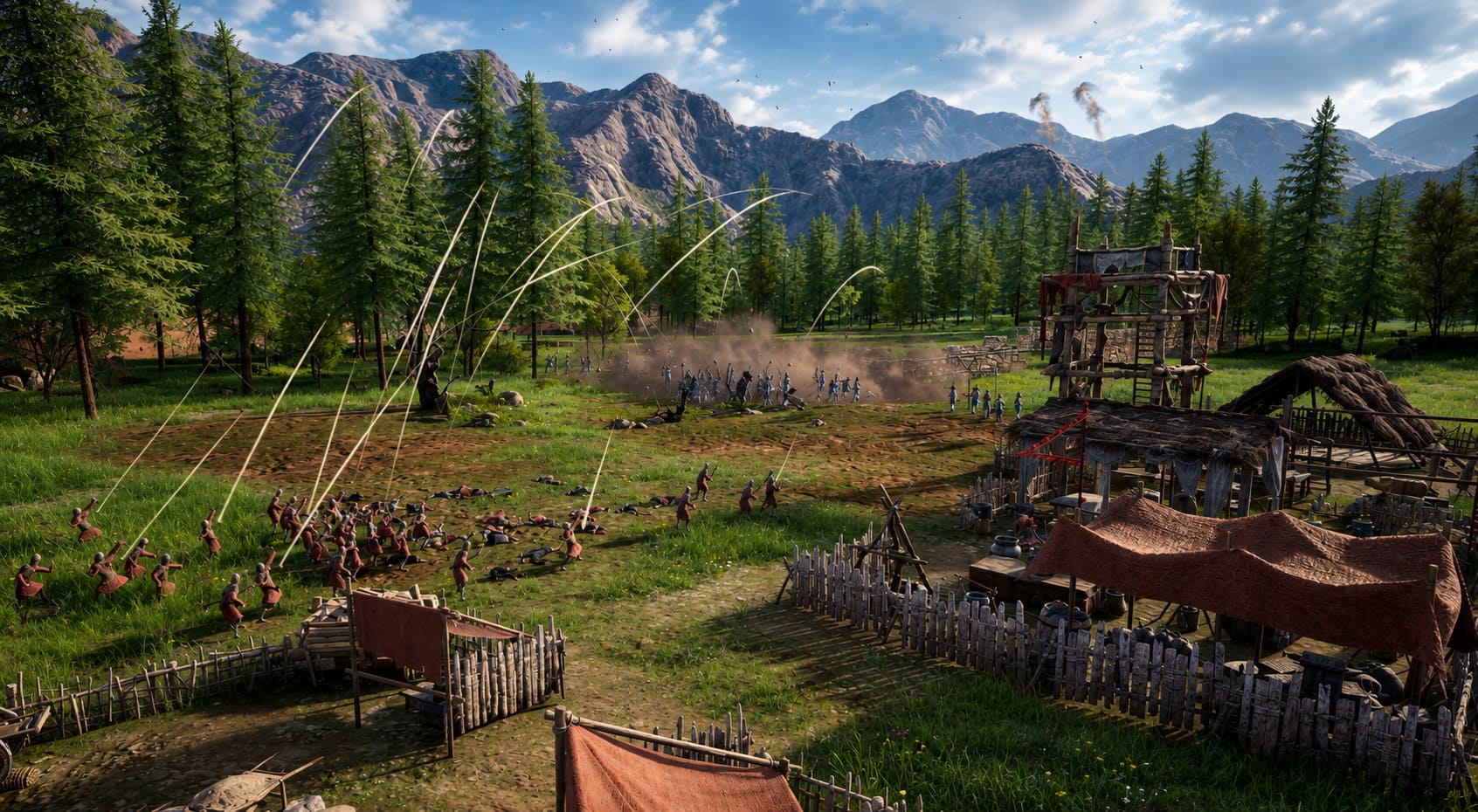
I know that sounds painful if you’re coming from a desktop with a modern GPU, but on a seven-inch Steam Deck screen, the difference between Low and High shadows isn’t nearly as important as maintaining stable frame delivery.
The same applies to:
- Volumetric clouds
- Fog
- Heavy particle effects
- SSAO
- Post-processing
These are the settings I’d attack before lowering textures.
The 45FPS Profile Is Actually My Favorite
Here’s my slightly unpopular opinion: I would rather play Mandate Order at a locked 45 FPS than an unstable 60 FPS.
This is especially true once your city becomes large.
On the Steam Deck OLED, a 90Hz display with a 45 FPS cap is a fantastic combination. Every frame gets a clean 20ms window, and the game feels considerably more consistent than when the FPS constantly jumps around.
For the LCD model, a 40Hz/40FPS setup is an excellent alternative.
For a strategy game, this is a very comfortable compromise. You don’t need the same ultra-low latency that I would demand from a competitive shooter, and the extra consistency makes scrolling around a massive city feel much better.
Here is the balanced profile I’d personally use:
| Setting | Balanced Recommendation |
|---|---|
| FPS Cap | 45 FPS OLED / 40 FPS LCD |
| Refresh Rate | 90Hz OLED / 40Hz LCD |
| Upscaling | Balanced / Quality |
| Render Scale | 90–95% |
| Texture Quality | High |
| Shadow Quality | Low |
| SSAO | Low |
| LOD | Medium |
| Volumetric Effects | Low |
| Effects | Low / Medium |
| Motion Blur | Off |
The biggest advantage is that you can increase image quality without constantly fighting the performance ceiling.
Textures can go to High, render scaling can approach 95%, and LOD can be raised to Medium.
That makes the game look considerably better while still keeping the overall experience controlled.
SteamOS Settings You Should Change
The in-game menu isn’t the whole story.
Press the three-dot Quick Access button on your Steam Deck and open the Performance section. I strongly recommend creating a dedicated per-game profile for Mandate Order.
That way, your settings won’t interfere with lighter games.
Frame Rate and Refresh Rate
For the aggressive performance profile:
60 FPS + 60Hz
For OLED:
45 FPS + 90Hz
For LCD:
40 FPS + 40Hz
Don’t be afraid to use the lower targets. In a simulation-heavy strategy game, consistency matters more than a number that occasionally looks impressive on the performance overlay.
TDP Limit
I recommend leaving the TDP Limit disabled.
Mandate Order can become CPU-heavy during large simulations and battles, so I want the APU to have access to its available power budget when necessary.
Artificially restricting the power envelope can make those late-game CPU spikes more noticeable.
Manual GPU Clock
Leave Manual GPU Clock Control disabled.
This is another setting I wouldn’t mess with unless you have a specific reason.
Mandate Order doesn’t maintain one consistent workload. Sometimes you’re looking at menus and a relatively quiet settlement. A few seconds later, you’re watching a massive battle with thousands of units.
Let SteamOS handle the CPU/GPU balance dynamically.
Should You Enable Allow Tearing?
This is one of those settings where I recommend experimenting.
If your priority is the lowest possible latency and you don’t mind occasional tearing, enabling Allow Tearing can be useful.
However, this isn’t something I’d consider mandatory.
For a slower-paced strategy game, I personally prefer a clean and consistent presentation. If you’re already running a locked 40 or 45 FPS profile, the benefit of chasing a tiny latency improvement becomes less important.
Try both settings and keep whichever feels better to you.
Make Mandate Order Easier to Read
Performance isn’t the only problem when taking a PC-first strategy game to Steam Deck.
UI readability matters.
Mandate Order has plenty of information to process: logistics, policies, diplomacy, construction, workers, military formations and the various systems surrounding the Hundred Schools of Thought.
At 1280×720, some elements can become uncomfortable to read.
If the game provides UI scaling options in your version, increase them until menus are comfortable without taking up half the screen.
I’d much rather sacrifice a tiny amount of visible information than spend an entire evening squinting at tiny text.
This is one of those handheld compromises that makes a surprisingly big difference.
Controller Setup: Don’t Ignore Community Layouts
Mandate Order isn’t built around a traditional gamepad-first control scheme.
The free-form construction system and mouse-driven tactical controls are much easier with a cursor, so the Steam Deck’s trackpads can be extremely useful.
I’d recommend experimenting with Steam Input community layouts.
A setup I particularly like for PC strategy games is:
- Right Trackpad: Mouse cursor
- Right Trigger: Left mouse click
- Left Trigger: Right mouse click
- Analog Sticks: Camera movement
- Left Trackpad: Radial shortcuts
- Back Buttons: Frequently used commands
You don’t need to copy this exactly.
The important thing is making the controls fit how you actually play. Once the layout starts feeling natural, the Deck stops feeling like a compromise and starts feeling like a proper strategy machine.
Proton Troubleshooting for Crashes and Stuttering
If Mandate Order launches normally on your PC but behaves strangely on Steam Deck, Proton compatibility is one of the first things I’d test.
Go to the game’s Steam properties and open:
Compatibility → Force the use of a specific Steam Play compatibility tool
Then try Proton Experimental first.
If that doesn’t help, test a recent stable Proton release or a current Proton GE build.
This can be particularly useful if you’re dealing with:
- Random crashes
- Long loading screens
- Audio problems
- Rendering glitches
- Stuttering after transitioning between areas
- Problems appearing after a game update
Don’t assume the newest compatibility layer is automatically the best one. Sometimes a game behaves better on a slightly different Proton version.
What I Would Actually Use
If I were sitting down for a long Mandate Order session on my Steam Deck, I wouldn’t start by chasing 60 FPS.
I’d use the 45 FPS OLED / 40 FPS LCD profile.
The reason is simple: Mandate Order is the kind of game where the simulation itself becomes the performance challenge. You can have a perfectly optimized GPU configuration and still encounter a heavy frame-time spike when the game has to process an enormous city or a massive army.
A stable frame rate makes those moments much less annoying.
My personal priorities would be:
- Stable frame pacing
- Readable UI
- Good texture quality
- Low shadows and volumetric effects
- Medium LOD
- Aggressive upscaling only when necessary
I’d only switch to the 60 FPS profile when playing through the earlier sections of the game or when I know the current scenario isn’t putting much pressure on the CPU.
Is Mandate Order Coming to PS5 and Xbox? Release Date & Console News
Final Steam Deck Settings Checklist
If you don’t want to experiment with every individual option, this is the profile I’d start with:
For Steam Deck OLED:
- 1280×720
- 90Hz refresh rate
- 45 FPS cap
- FSR/XeSS Balanced
- 90–95% render scale
- Medium/High textures
- Low shadows
- Low volumetric effects
- Low SSAO
- Medium LOD
- Medium unit density
- Motion Blur Off
- Depth of Field Off
- TDP Limit Off
- Manual GPU Clock Off
For Steam Deck LCD:
- 1280×720
- 40Hz refresh rate
- 40 FPS cap
- FSR/XeSS Balanced
- 90% render scale
- Medium/High textures
- Low shadows
- Low volumetric effects
- Low SSAO
- Medium LOD
- Medium unit density
- Motion Blur Off
- Depth of Field Off
- TDP Limit Off
- Manual GPU Clock Off
For a pure performance experiment, switch to Performance upscaling, 80–85% render scale, Low shadows and Low effects, then raise individual settings until you find the image quality you’re comfortable with.
The Bottom Line
Mandate Order is ambitious enough that I wouldn’t judge the Steam Deck experience by its FPS counter alone.
When your city is small, 60 FPS can be a great target. Once the economy becomes complicated and enormous armies start appearing, CPU limitations become much more important, and trying to force 60 FPS can lead to inconsistent frame times.
That’s why the 40/45 FPS approach is my favorite way to play.
You get better image quality, smoother pacing, less fan noise and a more predictable experience during long sessions. For a strategy game where I’m spending hours building cities, managing logistics and planning battles, that consistency is far more valuable than seeing “60” on the performance overlay for a few minutes.
With sensible Steam Deck settings, a good Steam Input layout and the right Proton version, Mandate Order can feel surprisingly comfortable on Valve’s handheld.
And honestly, there is something pretty satisfying about building an ancient Chinese empire from the couch without having to sit in front of my desktop. That’s exactly what handheld PC gaming should be about.