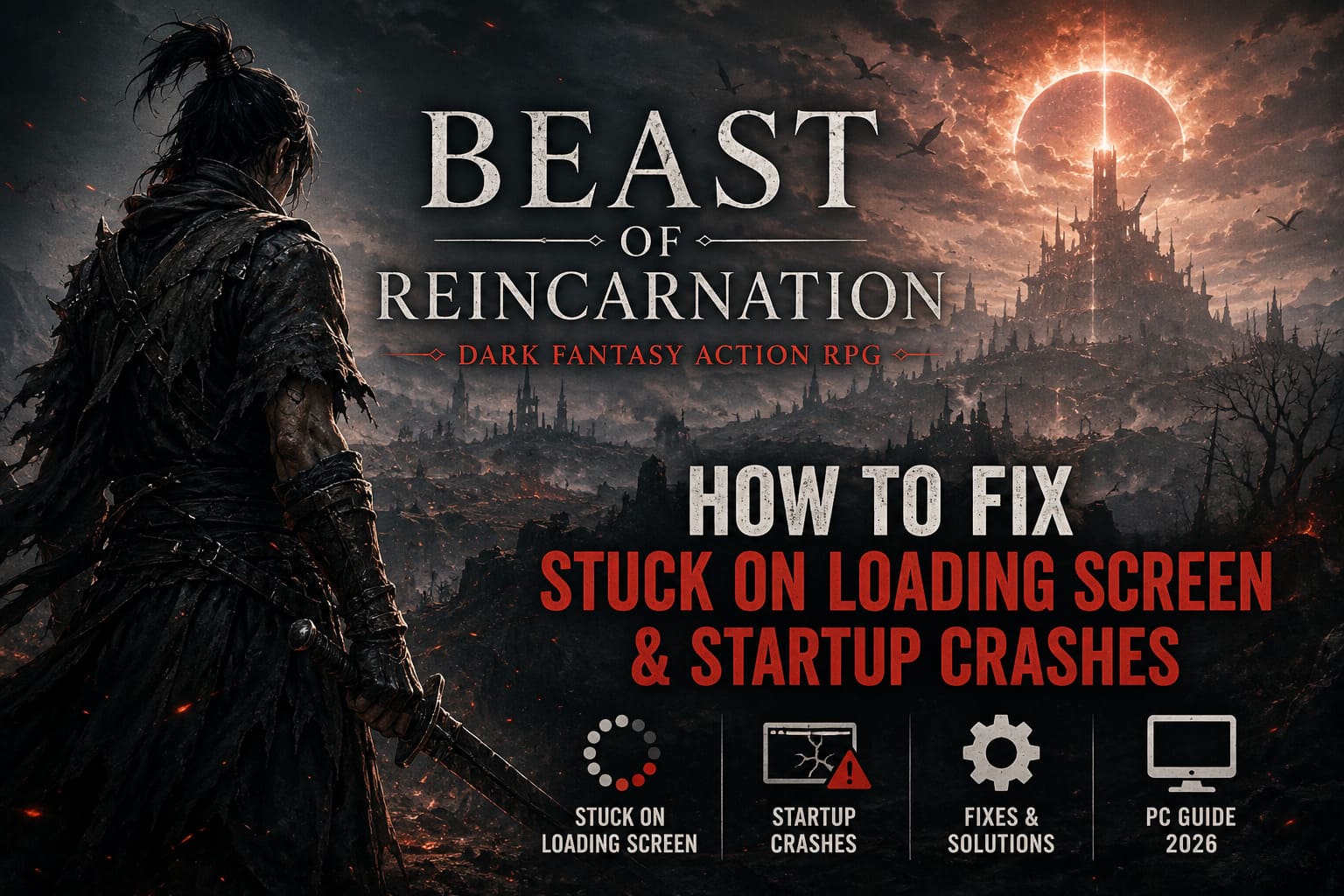
How to Fix Beast of Reincarnation Stuck on Loading Screen & Startup Crashes (2026 Guide)
The first few hours after launching Beast of Reincarnation reminded me of dozens of other major PC releases over the past decade. I’ve seen the same pattern with Unreal Engine games, massive RPG launches, and even smaller indie hits: thousands of players are ready to jump in, only to spend their first hour staring at a loading screen instead of actually playing.
I ran into the startup issue myself while testing the game on two different systems. One machine would freeze before the main menu appeared, while another simply sat on the loading screen forever with Windows briefly showing “Not Responding.” After trying multiple community solutions, reading discussions from experienced PC gamers, and comparing what worked across different hardware, I finally narrowed down the fixes that consistently solved the problem.
If your copy of Beast of Reincarnation refuses to load, crashes immediately after launch, or gets stuck forever during startup, these are the methods I’d try first.
Why Beast of Reincarnation Gets Stuck During Startup
Modern Unreal Engine games perform a surprising amount of work before the main menu even appears. During those first few seconds the game initializes DirectX, compiles shaders, loads configuration files, verifies save locations, and prepares graphics resources.
If even one of those steps fails, the loading screen may never finish.
From what I’ve experienced—and what many other PC players have reported—the most common causes include:
- DirectX 12 compatibility issues
- Corrupted shader cache
- Incorrect fullscreen or resolution settings
- Damaged installation files
- Windows permission problems
- Graphics driver conflicts
- Overlay software interfering with the engine
Fortunately, most of these problems don’t require reinstalling Windows or replacing hardware.
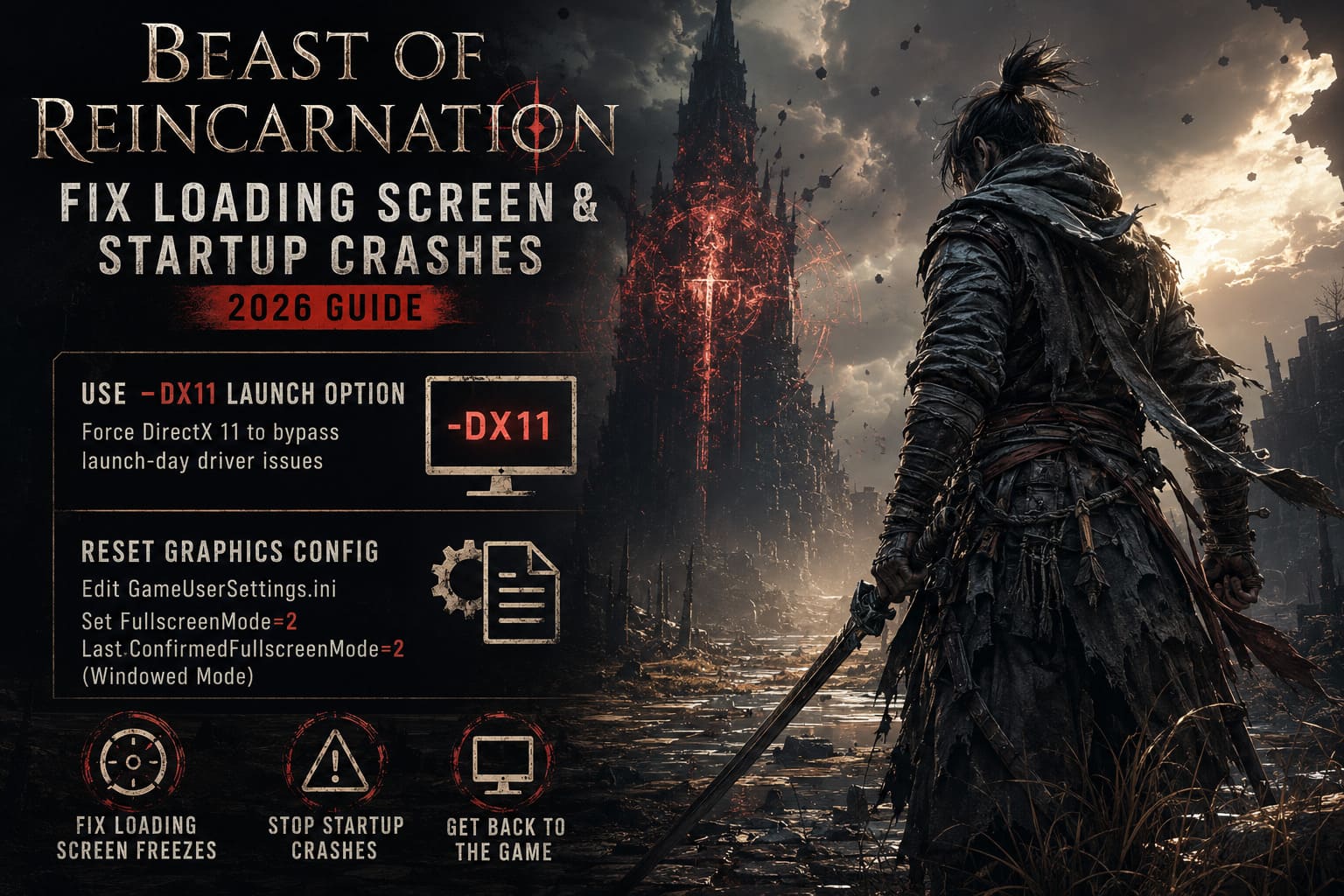
The Fix That Solved It First: Force DirectX 11
This was the very first solution that got the game running on one of my PCs.
While Unreal Engine 5 is designed around DirectX 12, launch-day driver bugs are nothing new. Switching to DirectX 11 skips several rendering features that occasionally cause initialization failures.
Steam
- Open your Steam Library.
- Right-click Beast of Reincarnation.
- Select Properties.
- Under Launch Options, enter:
-dx11Launch the game again.
Epic Games Launcher
If you’re using Epic Games Launcher, open the game’s settings and enable additional command line arguments.
Enter:
-dx11Restart the launcher before testing again.
In my experience, this single change fixes an impressive number of startup crashes in newly released Unreal Engine titles.
Reset the Graphics Configuration
Sometimes the game isn’t actually frozen—it simply cannot initialize the display because Windows and the game’s saved configuration disagree.
I’ve encountered this after upgrading monitors, switching GPUs, and changing refresh rates.
Navigate to your configuration folder:
%localappdata%Locate the Beast of Reincarnation configuration directory.
Open:
Saved\Config\WindowsNoEditorInside you’ll find:
GameUserSettings.iniLook for the following values:
FullscreenMode=
LastConfirmedFullscreenMode=
Set both values to:
2This forces the game into windowed mode during startup, avoiding many fullscreen initialization issues.
Save the file and launch the game again.
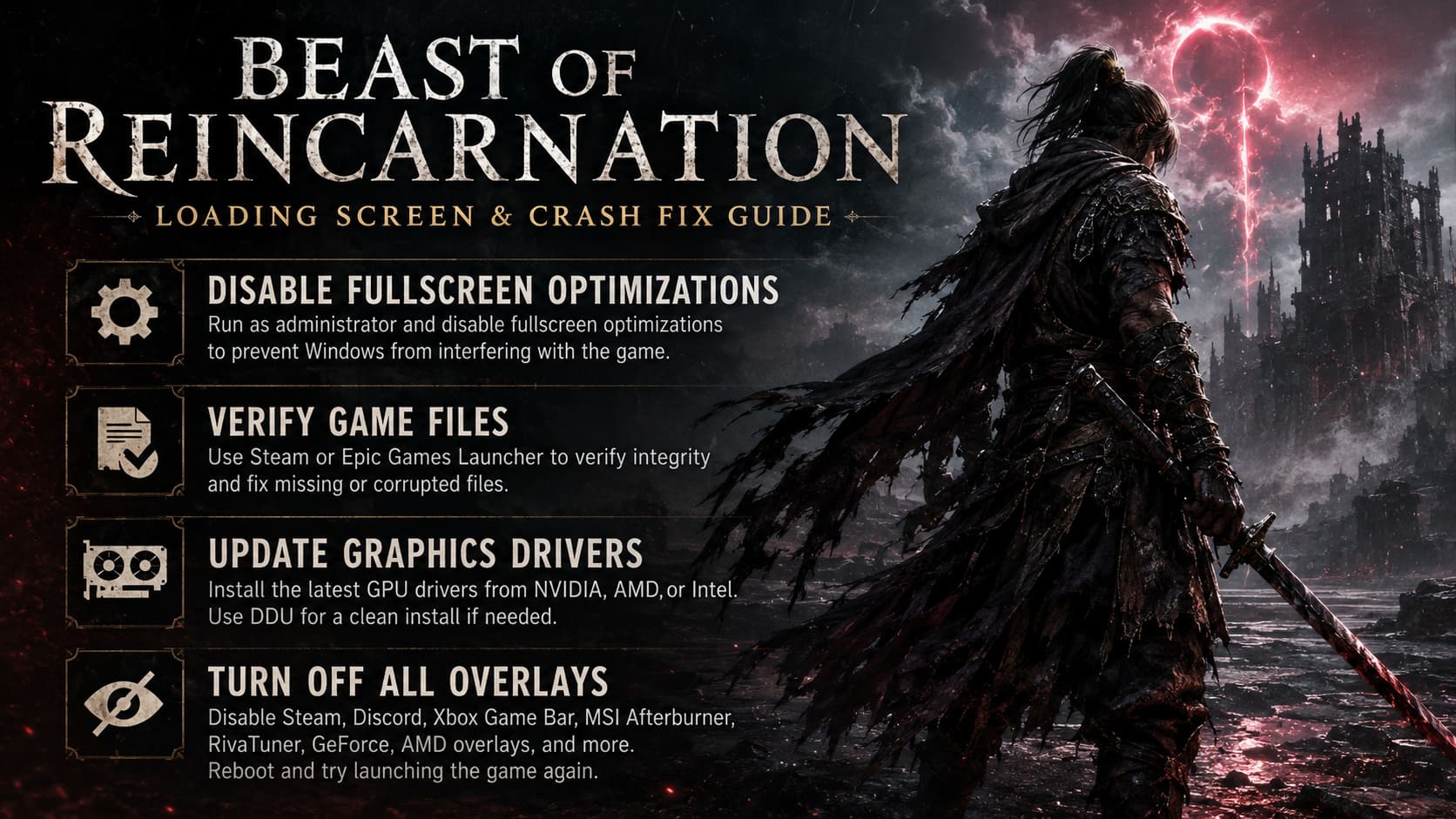
Disable Fullscreen Optimizations
This is one of those Windows features that sounds useful but has caused me more headaches than improvements.
Right-click:
BeastOfReincarnation.exeOpen Properties and then:
- Enable Run this program as administrator
- Enable Disable fullscreen optimizations
These two options allow Windows to stop interfering with how the engine initializes the display.
It only takes a few seconds and is worth trying before moving on to more complicated fixes.
Verify the Game Files
If your download was interrupted—even briefly—you may have one damaged file preventing the engine from loading correctly.
Steam
Open:
Library → Properties → Installed Files → Verify integrity of game files
Steam will compare every installed file against the official version and automatically replace anything missing or corrupted.
Epic Games Launcher
Open the game’s menu and choose:
Manage → Verify
This process usually finishes much faster than downloading the entire game again.
Update Your Graphics Drivers
I’ve lost count of how many launch-day issues were solved simply by installing the latest GPU driver.
New AAA releases often receive driver optimizations on launch week.
Whether you’re using NVIDIA, AMD, or Intel graphics, install the newest driver available.
If you’ve updated your GPU multiple times over the years without performing a clean installation, consider using Display Driver Uninstaller (DDU) before installing the newest driver.
A clean graphics driver often resolves shader compilation issues that normal updates leave behind.
Turn Off Every Overlay
One lesson I’ve learned from years of PC gaming is this:
The more overlays running, the greater the chance something conflicts with a newly released game.
I usually disable every overlay before troubleshooting.
That includes:
- Steam Overlay
- Discord Overlay
- Xbox Game Bar
- MSI Afterburner
- RivaTuner Statistics Server
- GeForce Overlay
- AMD Overlay
After disabling them, reboot the PC and try launching the game again.
Several Unreal Engine games have shown startup instability whenever overlay software attempts to hook into the rendering pipeline too early.
Close Unnecessary Background Applications
Before launching the game, open Task Manager.
Pay special attention to software that consumes:
- High CPU usage
- Large amounts of RAM
- Background GPU acceleration
Examples include:
- Web browsers with dozens of tabs
- Recording software
- RGB control utilities
- Video editing applications
- Virtual machine software
Freeing system resources can sometimes be enough to let the game finish its initial loading process.
Make Sure Windows Is Fully Updated
A surprising number of players skip Windows updates for weeks or even months.
Unfortunately, many modern games depend on recent Windows components.
Open Windows Update and install:
- Cumulative updates
- Optional driver updates
- .NET updates
- Security patches
Restart your PC afterward—even if Windows doesn’t insist on it.
Delete the Shader Cache
If the game managed to create corrupted shader files during its first launch, those broken files may continue causing crashes every time you start the game.
Deleting the shader cache forces the engine to build a completely fresh set.
While the first launch afterward may take longer, many startup issues disappear once the cache is rebuilt correctly.
Check Storage Health
One issue people rarely mention is storage performance.
I’ve personally fixed several “loading screen forever” problems that had nothing to do with the game itself.
If your SSD is nearly full or beginning to fail, loading times can increase dramatically.
Make sure:
- At least 20–30 GB of free storage remains.
- The drive isn’t reporting health warnings.
- The game isn’t installed on a failing HDD.
Fast SSDs noticeably reduce shader compilation and asset loading.
Beast of Reincarnation: 10 Things I Wish I Knew Before Playing
Quick Troubleshooting Checklist
| Problem | Most Effective Fix | Difficulty |
|---|---|---|
| Infinite loading screen | Force DirectX 11 | Easy |
| Black screen on startup | Reset GameUserSettings.ini | Easy |
| Crash before menu | Verify game files | Easy |
| Random startup crash | Update GPU drivers | Medium |
| Freeze after splash screen | Disable overlays | Easy |
| Endless loading after update | Delete shader cache | Medium |
My Recommended Order
If I were helping a friend troubleshoot this game, I wouldn’t waste time trying random solutions.
- Force DirectX 11.
- Verify game files.
- Disable every overlay.
- Reset the graphics configuration.
- Update GPU drivers.
- Run the executable as administrator.
- Delete the shader cache.
- Reboot the PC.
- Check Windows Update.
- Consider a clean driver installation with DDU.
This order solves the majority of launch problems without reinstalling the entire game.
Beast of Reincarnation Starter Guide: Essential Survival Strategy Tips to Master the Blight
Final Thoughts
Every major PC release seems to have its share of launch-day technical hiccups, and Beast of Reincarnation is no exception. The good news is that most infinite loading screens and startup crashes aren’t caused by faulty hardware—they’re usually the result of software conflicts, graphics initialization problems, or corrupted cached data.
After testing the game myself and comparing solutions with other experienced PC players, the two fixes that stood out were forcing DirectX 11 and resetting the game’s display configuration. Those alone resolved the startup issue on systems that initially refused to reach the main menu.
If none of these methods work, don’t immediately assume your PC is at fault. Launch-week patches are common, especially for large Unreal Engine releases, and developers often address shader compilation, memory management, and startup stability within the first few updates. Until then, working through the steps above gives you the best chance of getting back into the world of Beast of Reincarnation without waiting for an official hotfix.