Arena Breakout Infinite Season 6: How to Fix Lag in Hostile Sector Co-Op Matchmaking
Arena Breakout Infinite Season 6 is easily one of the biggest updates the game has received so far. The arrival of the new Hostile Sector mode finally gives players a dedicated PvE and PvPvE experience packed with dangerous AI squads, brutal weather conditions, and some of the most intense firefights the game has ever offered.
Unfortunately, not everything about the update has been smooth.
After spending dozens of hours testing different configurations and digging through community reports, one issue keeps appearing across forums, Discord channels, and player discussions: Hostile Sector co-op matchmaking lag.
Players are reporting everything from sudden rubberbanding and delayed hit registration to random frame drops and matchmaking sessions that feel completely disconnected from what is happening on screen. The strange part is that many of these problems appear specifically during co-op matchmaking rather than standard raids.
If you’ve lost expensive gear because enemies teleported across your screen or because your character froze during a firefight, you’re definitely not alone.
This guide breaks down the most effective fixes currently available and explains why Hostile Sector behaves differently from other modes in Arena Breakout Infinite Season 6.
Why Hostile Sector Feels Laggier Than Other Modes
One thing became obvious after extensive testing: Hostile Sector puts significantly more strain on both the game servers and your local hardware.
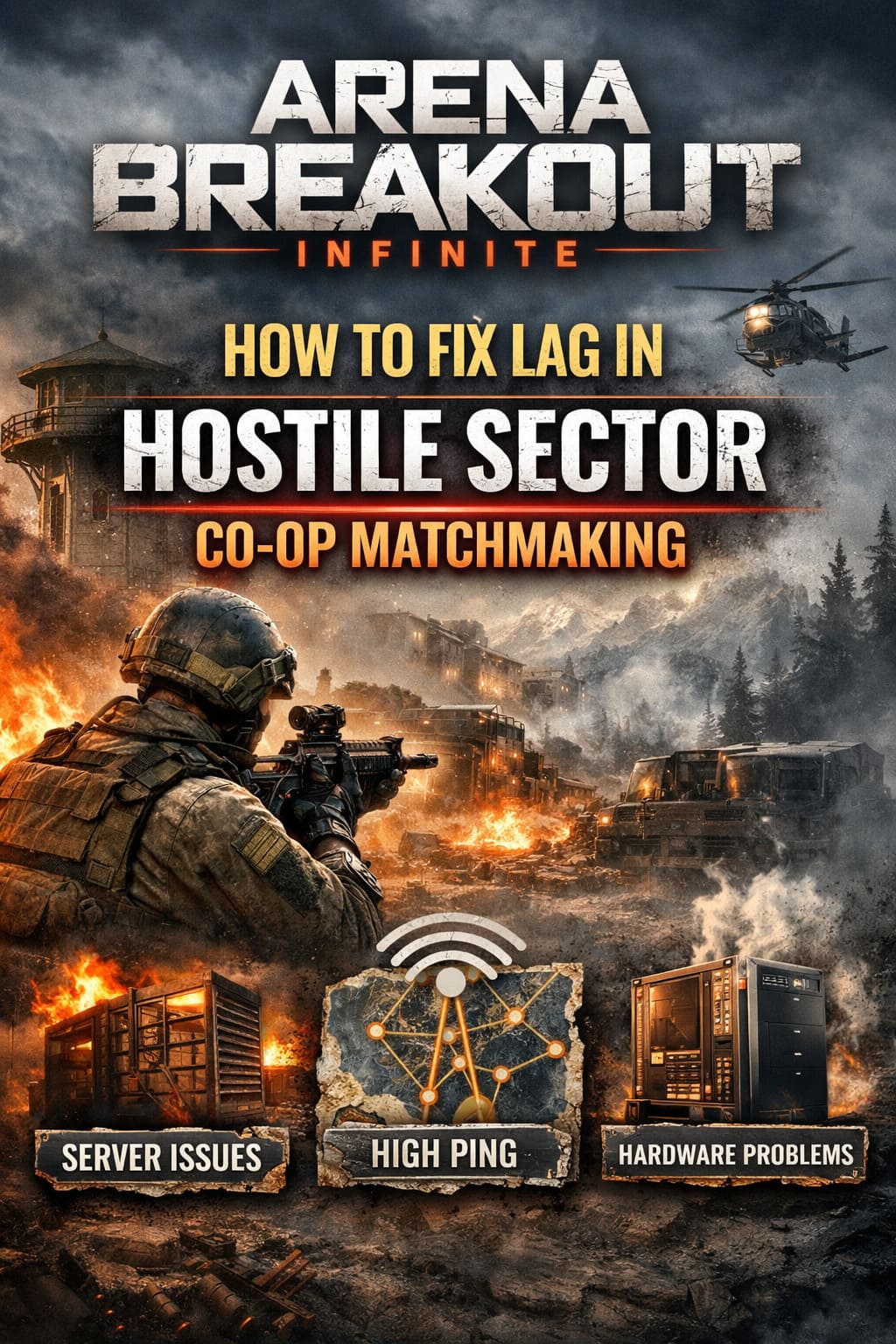
Unlike traditional raids, the mode combines several demanding systems simultaneously:
| System | Performance Impact |
|---|---|
| Dynamic Weather | Heavy GPU workload from fog, snowstorms, and darkness |
| Elite AI Squads | Increased server calculations and synchronization |
| Co-Op Matchmaking | Additional network traffic between players |
| Projectile Tracking | More data packets during intense firefights |
| Environmental Effects | Higher CPU usage during combat encounters |
When all of these systems collide in a four-player session, weaker connections and unoptimized PCs can struggle to keep up.
The result often looks like network lag, even when part of the problem is actually hardware-related.
The Hidden Matchmaking Problem Most Players Ignore
One of the biggest discoveries from the Season 6 community revolves around matchmaking itself.
Arena Breakout Infinite now has several active playlists running simultaneously:
- Hostile Sector
- Tactical Ops
- Supply Drops
- Team Deathmatch
- Lockdown Zones
- Forbidden Zones
That sounds great on paper, but it divides the player population into multiple matchmaking pools.
When you queue for Hostile Sector co-op, the game attempts to find teammates within a relatively narrow rank range. If suitable players aren’t available nearby, the system starts expanding the search radius.
Eventually, you can end up connected to servers located hundreds or even thousands of miles away.
The moment that happens, ping increases dramatically and desync starts appearing.
Many players blame their internet connection when the actual problem is server selection.
Turn Off Low-Ping Preference
This recommendation sounds completely backwards at first.
Most players naturally assume that enabling a Low-Ping setting should improve connection quality.
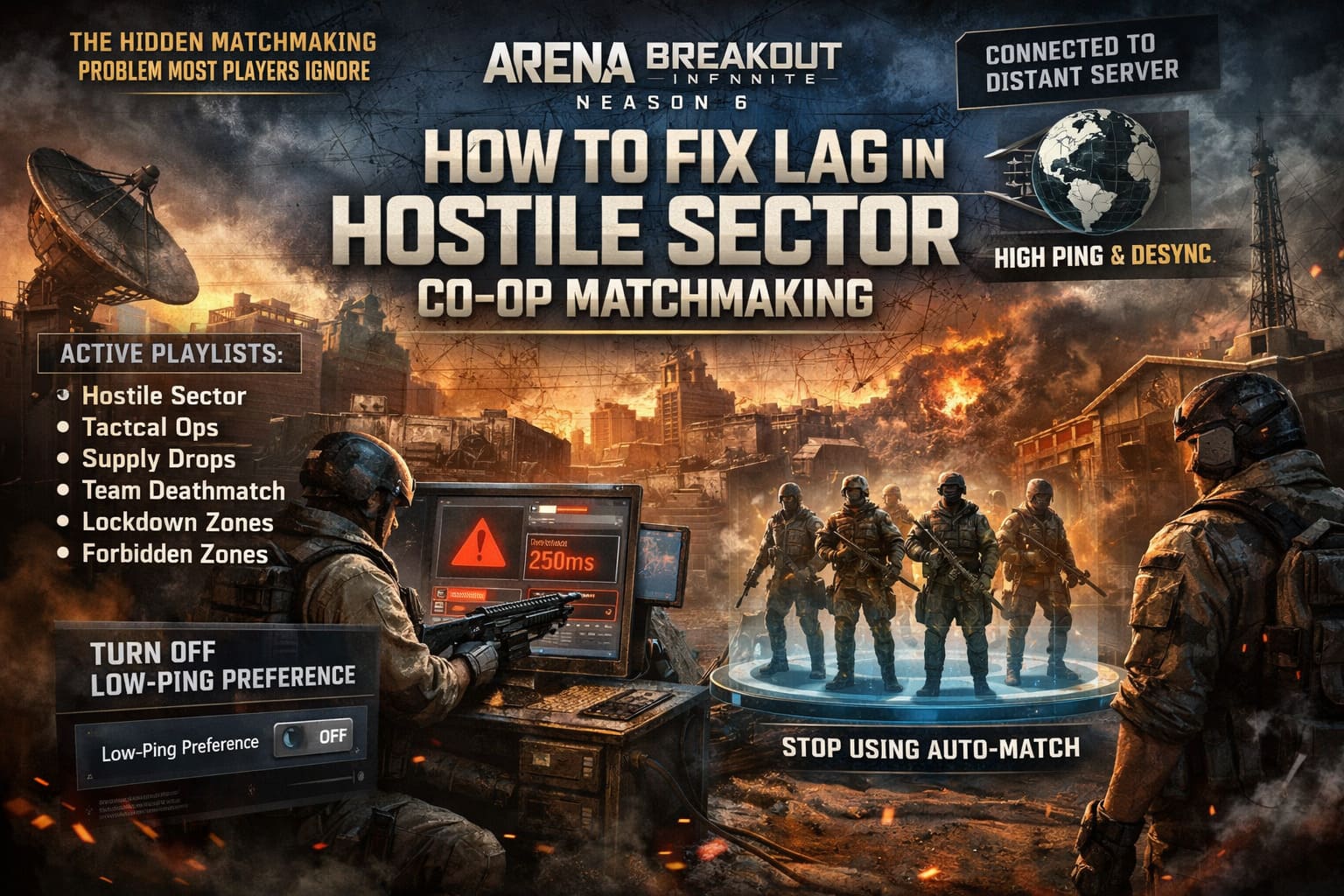
In reality, many Season 6 players have experienced the exact opposite.
When Low-Ping Preference is enabled, the matchmaking system becomes extremely selective. If it cannot build a proper squad using nearby players, it may create unstable matchmaking scenarios that lead to synchronization problems.
Disabling the setting often allows the game to create more stable lobbies.
To test this:
- Open game settings.
- Locate matchmaking preferences.
- Disable Low-Ping Preference.
- Queue again.
The difference can be surprisingly noticeable.
Stop Using Auto-Match Whenever Possible
This is probably the single most effective fix currently available.
Auto-Match has developed a reputation for creating inconsistent co-op sessions.
I’ve personally seen players dropped into partially populated squads, mismatched regions, and even situations where teammates appeared to be playing on completely different server routes.
Instead, use:
- The built-in Group Finder
- Community LFG channels
- Official Discord groups
- Friends list squads
A pre-made four-player team removes much of the matchmaking complexity and helps the game focus on finding a suitable server rather than assembling a squad from scratch.
In many cases, ping improvements are immediate.
Ethernet Still Dominates Wi-Fi for Extraction Shooters
Modern Wi-Fi has improved tremendously, but extraction shooters remain extremely sensitive to packet loss.
Hostile Sector is constantly exchanging information between:
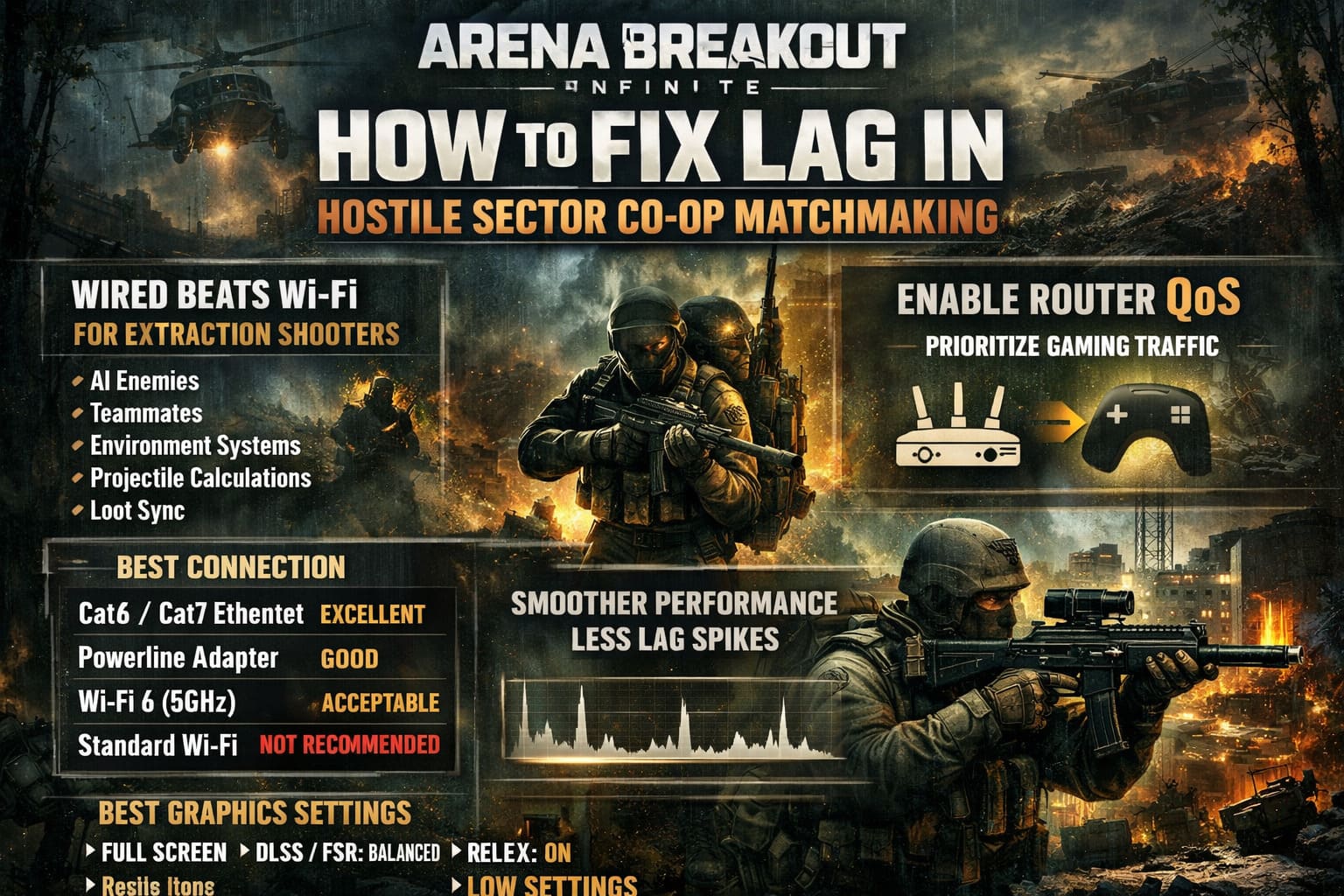
- AI enemies
- Teammates
- Environmental systems
- Projectile calculations
- Loot interactions
Even tiny interruptions can create visible stutters.
For the best results:
| Connection Type | Recommended |
|---|---|
| Cat6 Ethernet | Excellent |
| Cat7 Ethernet | Excellent |
| Powerline Adapter | Good |
| Wi-Fi 6 (5GHz) | Acceptable |
| Standard Wi-Fi | Not Recommended |
If running a cable isn’t possible, prioritize a dedicated 5GHz or 6GHz network and keep interference to a minimum.
Enable Router QoS
Many players overlook their router entirely.
If someone in your house is streaming Netflix, downloading games, watching YouTube, uploading files, or running cloud backups, your gaming packets are competing for bandwidth.
Quality of Service (QoS) allows your router to prioritize gaming traffic.
Most modern routers include this feature.
Assign your gaming PC the highest network priority and you’ll often see fewer packet spikes during raids.
Best Graphics Settings for Hostile Sector
Season 6 weather effects are gorgeous.
They’re also performance killers.
Heavy fog, snowstorms, and dark-night visibility systems place significant pressure on both GPUs and CPUs.
For maximum stability, I recommend the following setup.
| Setting | Recommended Value |
|---|---|
| Screen Mode | Full Screen |
| VSync | Off |
| DLSS | Balanced |
| FSR | Balanced |
| Reflex | On |
| Shadows | Low |
| Effects | Low |
| Vegetation | Low |
| Post Processing | Low |
| View Distance | Balanced |
This configuration preserves visual clarity while eliminating many frame-time spikes.
Nvidia Reflex Is Practically Mandatory
If you’re running an Nvidia GPU, activate Reflex immediately.
Hostile Sector firefights can become chaotic when elite AI squads engage multiple players simultaneously.
Reflex reduces rendering latency and helps actions appear on screen faster.
The improvement isn’t just measurable on benchmark charts.
You can actually feel it during combat.
Weapons react more naturally and aiming feels tighter, especially when tracking moving targets through fog.
Fix Windows Resource Allocation Problems
Windows occasionally decides that background applications deserve just as much attention as your game.
That can create unnecessary performance instability.
To force Arena Breakout Infinite into a higher priority state:
- Open Windows Settings.
- Navigate to Graphics Settings.
- Add the game’s executable.
- Set it to High Performance.
This small adjustment can improve consistency during longer sessions.
Disable Fullscreen Optimizations
Windows Fullscreen Optimizations sound useful.
For many competitive games, they’re not.
The feature allows Windows to interfere with rendering behavior and can introduce additional latency.
To disable it:
- Find UAGame.exe.
- Open Properties.
- Select Compatibility.
- Check Disable Fullscreen Optimizations.
- Apply changes.
It’s a quick tweak that frequently improves responsiveness.
Clear Shader Cache After Major Updates
Season 6 introduced substantial graphical changes.
Whenever large updates modify assets, old shader data can become problematic.
Common symptoms include:
- Random stutters
- Asset-loading hiccups
- Frame spikes
- Weather-related freezes
Clearing your GPU shader cache forces the system to rebuild fresh files optimized for the latest version of the game.
For many players, this removes stuttering almost immediately.
Your Gaming Mouse Might Be Hurting Performance
This sounds ridiculous until you test it.
A growing number of modern gaming mice support 1000Hz, 2000Hz, 4000Hz, and even 8000Hz polling rates.
While those numbers look impressive on marketing material, they can increase CPU overhead.
Arena Breakout Infinite already places considerable demand on system resources.
Reducing polling rate to 500Hz often eliminates strange micro-stutters that occur while rapidly flicking the mouse during combat.
The difference in responsiveness is almost impossible to notice, but the stability improvement can be significant.
How to Fix Arena Breakout Infinite Crash on Launch in Windows 11 (Season 6 Guide)
Disable Every Overlay You Don’t Need
Overlays remain one of the most common causes of unexplained performance issues.
I strongly recommend disabling:
- Discord Overlay
- Steam Overlay
- Xbox Game Bar
- Nvidia Overlay
- Background recording tools
- Instant Replay features
Every overlay introduces another layer between the game and your hardware.
During Hostile Sector matchmaking transitions, those layers can create conflicts that trigger hitching and latency spikes.
Arena Breakout Infinite Season 6 Weapon Tier List: Best Meta Guns After July Hotfix
Final Verdict
After extensive testing, the biggest cause of Hostile Sector lag isn’t a single bug—it’s the combination of matchmaking expansion, server routing, weather effects, elite AI calculations, and local system bottlenecks all hitting at once.
The fastest path to smoother raids is surprisingly straightforward:
- Use Ethernet whenever possible.
- Disable Low-Ping Preference.
- Avoid Auto-Match.
- Build pre-made squads.
- Enable QoS on your router.
- Run Full Screen with VSync disabled.
- Activate DLSS or FSR Balanced mode.
- Turn on Nvidia Reflex.
- Clear shader cache after updates.
- Disable unnecessary overlays.
Hostile Sector is arguably the most exciting mode Arena Breakout Infinite has added to date. When the networking and performance issues are under control, the mode delivers some of the most tense extraction-shooter gameplay currently available. Fixing these bottlenecks won’t just improve frame rates—it can save your loadout, your raid, and a lot of frustration when every second counts.