Project P.I.T.T. Crashing on Startup PC Fix: How to Stop Launch Crashes and Freezes in 2026
Project P.I.T.T. is exactly the kind of game that can make you laugh at one moment and stare at your desktop in disbelief the next. I have played plenty of physics-heavy sandbox games over the years, and there is a familiar pattern with releases like this: the gameplay works brilliantly when everything lines up, but one awkward graphics setting, driver conflict, or corrupted configuration can turn the first few seconds after pressing Play into a crash festival.
Since its PC launch on August 19, 2026, Project P.I.T.T. has attracted plenty of attention for its ridiculous physics sandbox. Throwing rubber ducks, piñatas, cash registers, and other objects into the Maw is the sort of deliberately stupid gameplay that somehow becomes addictive. The problem is that the same physics-heavy systems that make the game entertaining can also put considerable pressure on the engine.
If Project P.I.T.T. crashes on startup, freezes on a black screen, or closes immediately after launching, don’t assume your PC is incapable of running it. In many cases, the problem is configuration rather than raw hardware performance.
Why Is Project P.I.T.T. Crashing Before It Starts?
There isn’t always one universal cause behind a startup crash. Different PC configurations can fail at different points in the launch process.
Project P.I.T.T. uses the Godot engine and relies heavily on real-time physics, object rendering, shaders, and asset loading. That combination can expose problems that might never appear in a simpler game.
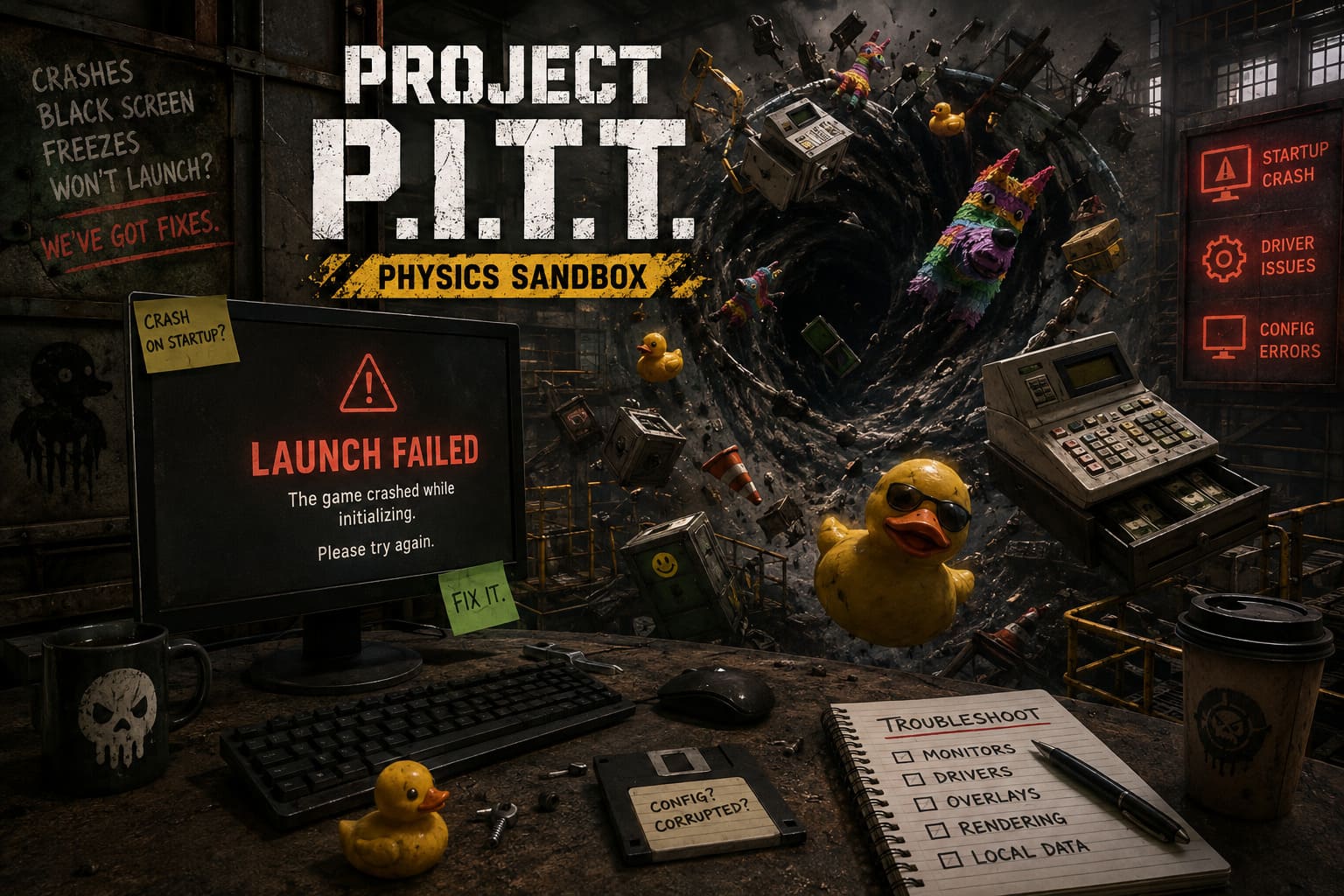
The most common areas worth investigating are:
- Graphics API initialization
- Hybrid GPU and multi-monitor configurations
- Corrupted configuration or save data
- Outdated or damaged graphics drivers
- Overlay and monitoring software
- Unstable background applications
One thing I would avoid is immediately blaming the game’s physics simulation. If Project P.I.T.T. crashes before you even reach the main menu, the physics workload probably isn’t the direct cause. The game may instead be failing during graphics initialization or while loading local configuration data.
Project P.I.T.T. Startup Crash Fixes
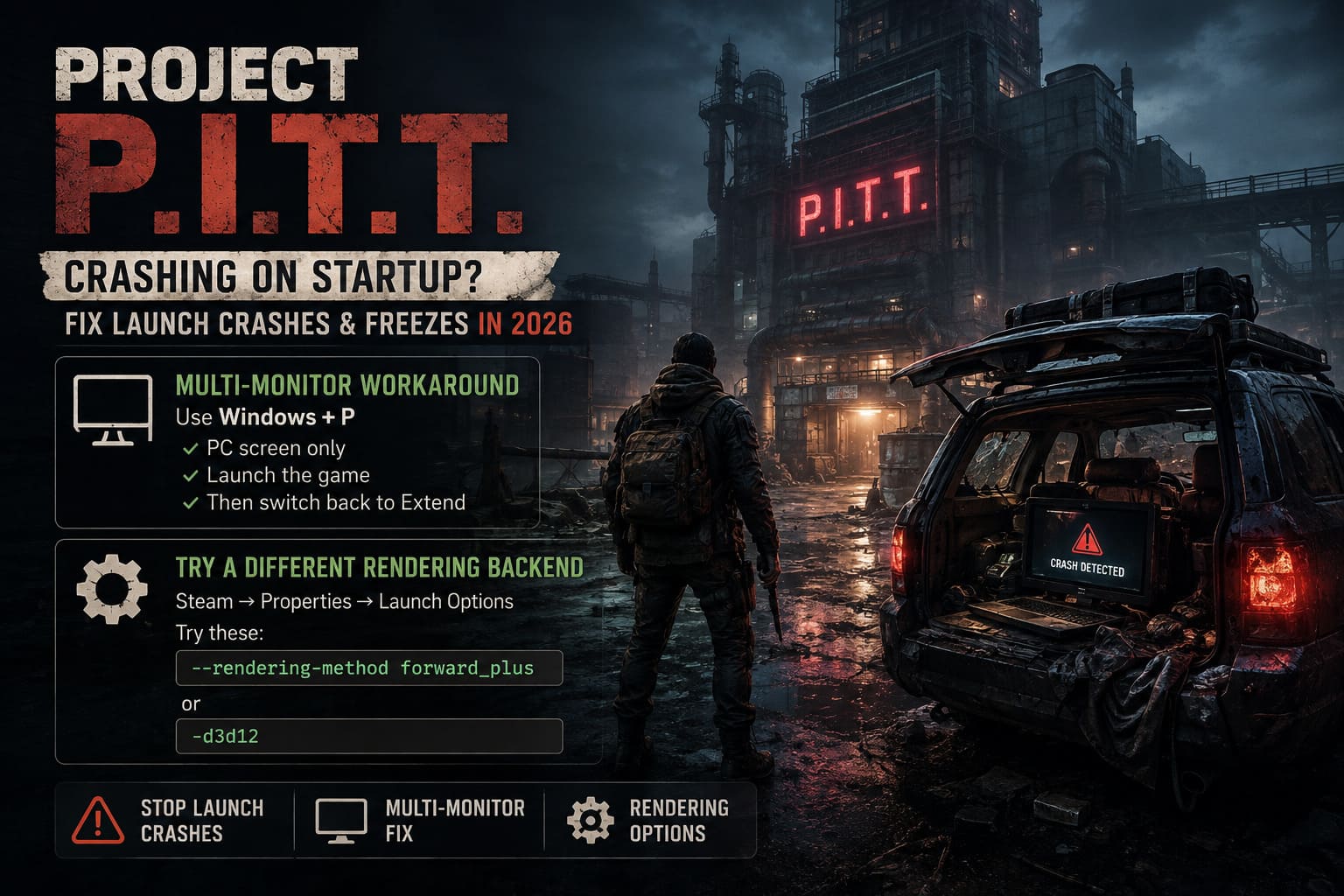
1. Try the Windows + P Multi-Monitor Workaround
This is one of the first things I would test if you’re running two monitors, particularly if the displays are connected through different graphics hardware.
Hybrid graphics setups can get surprisingly messy. A desktop might have a dedicated NVIDIA or AMD GPU handling the primary display while another screen is connected to the motherboard’s video output. Some games handle that arrangement perfectly. Others don’t.
Project P.I.T.T. can apparently run into problems during startup when the operating system and engine disagree about which GPU should handle the rendering workload.
Here’s the simple test:
- Press Windows + P.
- Select PC screen only.
- Temporarily disable the secondary display.
- Launch Project P.I.T.T.
- Wait until you reach the main menu.
- If the game loads correctly, press Windows + P again.
- Select Extend to restore your normal desktop setup.
This isn’t the sort of fix I’d want to use every time I play a game. But as a diagnostic test, it’s excellent.
If Project P.I.T.T. suddenly starts working with one monitor, you’ve narrowed the problem down considerably.
2. Experiment With the Rendering Backend
The rendering API is another major suspect.
If the game crashes almost immediately after you click Play, changing the rendering method is worth trying before doing anything destructive to your installation.
For Steam users:
- Open your Steam Library.
- Right-click Project P.I.T.T.
- Select Properties.
- Stay on the General tab.
- Find the Launch Options field.
- Try:
--rendering-method forward_plus
If that doesn’t help, another option worth testing is:
-d3d12
Don’t throw several parameters into the box at once. Change one thing, launch the game, and see what happens. That way, you actually know which setting made a difference.
3. Clear Potentially Corrupted Local Data
This is the fix I’d consider if Project P.I.T.T. used to launch normally and suddenly stopped working.
That’s an important distinction.
A game that has never launched points toward drivers, rendering, permissions, hardware configuration, or installation problems. A game that worked yesterday and crashes today can have a completely different cause.
If you’ve been creating huge physics scenes with hundreds of objects, local save or configuration data becomes particularly interesting.
Before deleting anything, make a backup.
Press:
Windows + R
Then enter:
%APPDATA%
Look for folders associated with Project P.I.T.T., Fr0ke, or the game’s Godot configuration data.
Depending on the build and current save structure, the exact folder names may differ, so don’t blindly delete unrelated Godot folders.
If you find Project P.I.T.T. save data or local configuration files, copy them somewhere safe first. Then remove the relevant local files and launch the game again.
The goal here isn’t to erase your progress for fun. It’s to determine whether corrupted local data is preventing the game from completing its startup sequence.
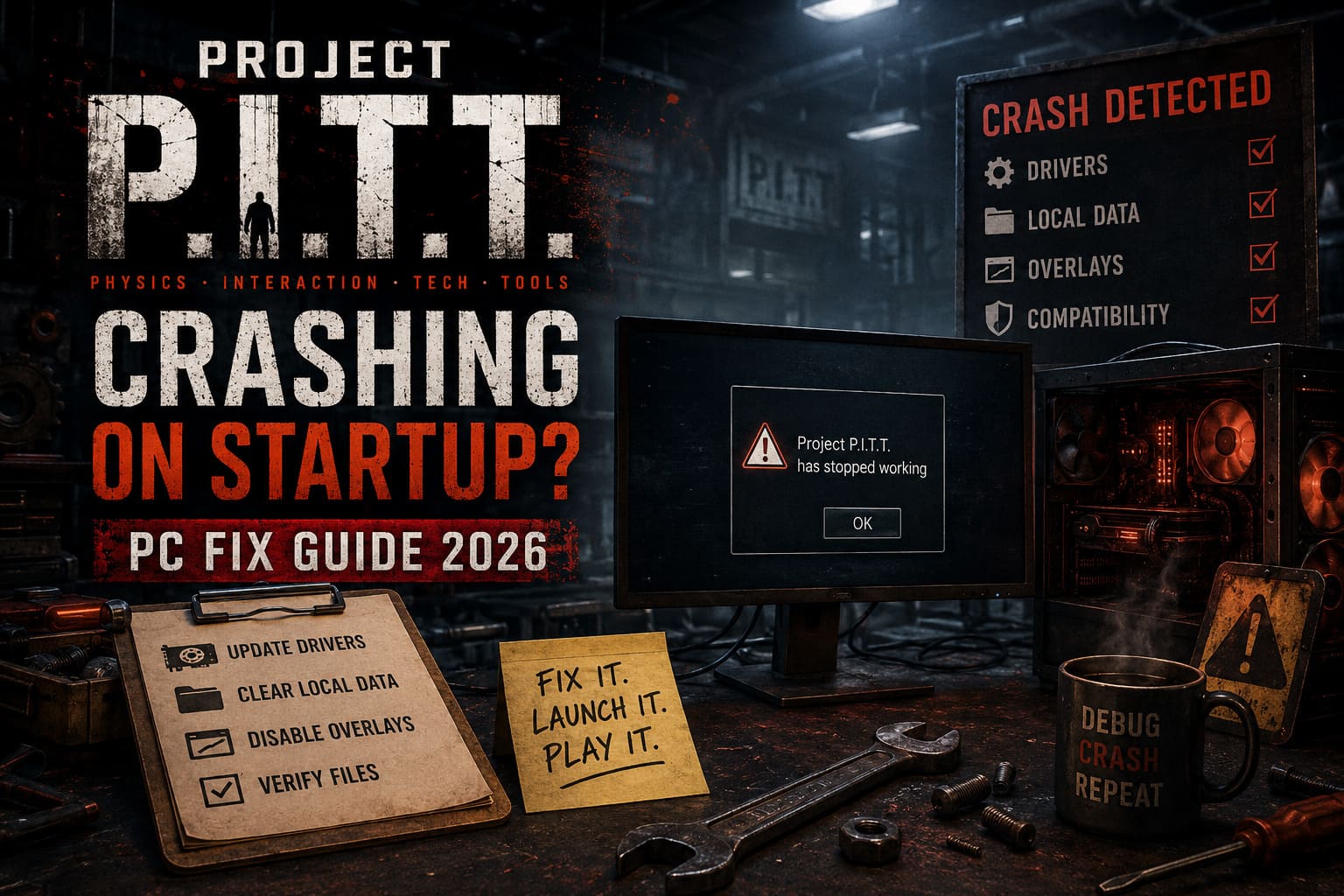
4. Update Your Graphics Driver — But Consider a Clean Installation
Yes, updating drivers is boring advice. I’ve seen it fix enough bizarre PC problems that I can’t leave it off the list.
A game can crash during shader compilation even when every other title on your machine works normally. New releases can also expose driver issues that older games never touch.
Check the latest driver for your GPU manufacturer:
| GPU | Driver Source |
|---|---|
| NVIDIA GeForce | Official NVIDIA driver package |
| AMD Radeon | Official AMD Software package |
| Intel Arc | Official Intel graphics driver |
If a normal update doesn’t help, consider performing a clean driver installation.
This is especially useful if you’ve upgraded your graphics card recently or carried the same Windows installation through several GPU generations.
Restart Windows after the installation. Don’t skip this part. Then test Project P.I.T.T. before opening a dozen other applications.
5. Turn Off Overlays and Monitoring Software
PC gaming has accumulated an absurd number of overlays.
Steam Overlay. Discord Overlay. GPU performance monitors. FPS counters. Recording software. RGB utilities. Hardware monitoring tools.
Most of the time they coexist peacefully with games. Sometimes they don’t.
For troubleshooting, temporarily disable:
- Steam Overlay
- Discord Game Overlay
- MSI Afterburner
- RivaTuner Statistics Server
- GPU recording or performance overlays
- Other applications that inject themselves into games
For Steam, open the game’s properties and disable the Steam Overlay option.
Then completely close Discord and monitoring utilities rather than simply minimizing them.
If Project P.I.T.T. suddenly launches, you’ve found a software conflict. You can then re-enable applications one at a time to identify the culprit.
Check Your PC Specifications
Before spending an hour changing Windows settings, make sure your hardware isn’t below the game’s requirements.
The published specifications are relatively reasonable for a modern PC game, but the recommended configuration gives you considerably more breathing room for the physics simulation.
| Specification | Minimum | Recommended |
|---|---|---|
| OS | Windows 10/11 64-bit | Windows 11 64-bit |
| CPU | Ryzen 5 1600 / Core i5-7400 | Ryzen 7 5700X / Core i7-11700K |
| RAM | 16 GB | 32 GB |
| GPU | GTX 1060 / RX 580 | RTX 3060 Ti / RX 6700 XT |
| Storage | 4 GB SSD | SSD recommended |
| DirectX | — | DirectX 12 |
The 32 GB RAM recommendation makes sense for a game built around large numbers of physics-enabled objects. You don’t necessarily need 32 GB just to launch the game, but once you’re filling the world with hundreds of simulated objects, memory pressure can become much more relevant.
What If Project P.I.T.T. Still Won’t Launch?
If you’ve worked through the fixes above and nothing changes, don’t start randomly deleting Windows folders or changing registry values. That’s how a simple game problem becomes a Windows problem.
I’d go through this order instead:
- Launch with one monitor.
- Disable every overlay.
- Update or clean-install your GPU driver.
- Test a different rendering argument.
- Verify the game installation through Steam.
- Back up and remove Project P.I.T.T. local configuration/save data.
- Restart Windows and test again.
The order matters. There is no reason to wipe your entire configuration before you’ve tested whether Windows + P fixes the issue.
Project P.I.T.T. Maw Guide: How to Feed the Pit and Maximize Profits
My Take After Troubleshooting PC Games Like This
The frustrating thing about startup crashes is that they make a game look much more broken than it necessarily is.
I’ve played plenty of PC games where the actual gameplay was perfectly stable once the initial configuration problem was solved. The first launch was the difficult part. Project P.I.T.T. appears capable of falling into that category, particularly on systems using multiple monitors, hybrid GPU routing, or unusual graphics configurations.
The biggest mistake is treating every crash as a performance problem.
A startup crash isn’t the same thing as low FPS. If the game dies before reaching the menu, lowering textures isn’t going to magically fix a graphics API initialization failure. Likewise, adding more RAM won’t repair a corrupted save file.
Start with the simplest variables: display configuration, rendering backend, drivers, overlays, and local data.
And if you’re running a dual-monitor setup, I’d genuinely try the Windows + P workaround first. It’s quick, reversible, and can immediately tell you whether the display/GPU configuration is involved.
Is Project P.I.T.T. Worth Buying? 2026 In-Depth Game Review & Verdict
Final Verdict
Project P.I.T.T. is the kind of sandbox where the chaos is the point, but getting that chaos running shouldn’t require an engineering degree.
If you’re dealing with Project P.I.T.T. crashing on startup in 2026, begin with the multi-monitor workaround, then test the rendering arguments, clean up graphics drivers, disable overlays, and finally investigate corrupted local data.
Don’t change ten things at once. That’s the fastest way to lose track of what actually fixed the problem.
Once the game finally reaches the menu and stays there, you can get back to the important stuff: spawning ridiculous amounts of junk, abusing the physics system, and finding out just how much nonsense you can throw into the Maw before your PC starts regretting your life choices.