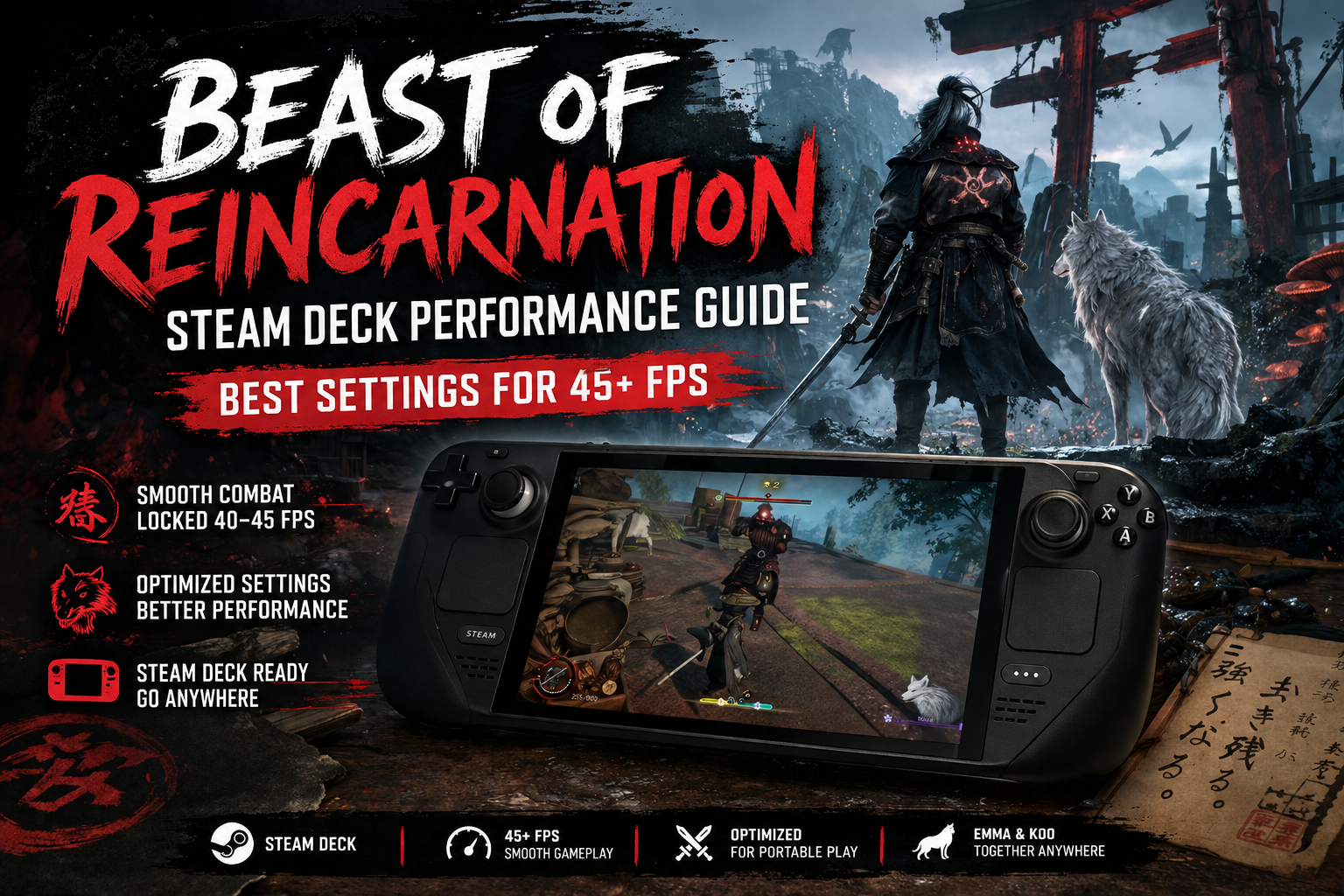
Beast of Reincarnation Steam Deck Compatibility: Best Settings for 45+ FPS
Game Freak surprised just about everyone when it revealed Beast of Reincarnation. If you had told me a few years ago that the studio behind Pokémon would release a dark action RPG filled with brutal sword fights, ruined cities, creepy fungal monsters, and Sekiro-inspired combat, I probably would’ve laughed. After spending time experimenting with the game on the Steam Deck, though, I can honestly say this is one of the more impressive portable experiences I’ve had in 2026—provided you’re willing to tweak a few settings first.
This isn’t the kind of game where you can simply leave everything on Medium and hope for the best. Beast of Reincarnation pushes Unreal Engine 5 surprisingly hard, and every missed frame can turn a perfectly timed parry into another frustrating death screen. Fortunately, after plenty of testing and comparing results with other handheld enthusiasts, it’s possible to reach a smooth experience that feels great without turning the game into a blurry mess.
If you’re planning to explore the ruined version of Japan with Emma and her wolf companion Koo on Valve’s handheld, here’s the setup I’d actually recommend.
Beast of Reincarnation PC Optimization Guide Best Graphics Settings for RTX 4060
Why Steam Deck Needs Extra Optimization
One thing became obvious during my first hour: this game loves powerful hardware.
Combat isn’t just flashy. It’s incredibly dependent on timing. Bosses chain attacks together, enemies punish hesitation, and the entire defensive system expects your reactions to match what’s happening on-screen. Even occasional frame drops can throw everything off.
On top of that, Unreal Engine 5 continues its tradition of demanding plenty of GPU and CPU resources. Dense vegetation, advanced lighting, particle-heavy Blight effects, and large environments all compete for the Steam Deck’s limited hardware budget.
Instead of chasing an unstable 60 FPS, I found it much smarter to target a consistent frame rate that remains smooth during the majority of gameplay.
Recommended Steam Deck Graphics Settings
After experimenting with multiple combinations, this configuration delivered the best balance between visuals and responsiveness.
| Setting | Recommended Value | Why It Works |
|---|---|---|
| Resolution | 1280×800 | Native Deck resolution keeps the image clean. |
| Display Mode | Borderless Windowed | Stable behavior with SteamOS. |
| V-Sync | Disabled | Reduces controller latency. |
| Frame Limit (Game) | Unlimited | Let SteamOS control frame pacing instead. |
| Upscaling | AMD FSR 3 / TSR | Big performance improvement with acceptable image quality. |
| Upscaling Mode | Balanced | Better compromise than Performance mode. |
| Sharpness | 0.60 | Helps recover details lost through FSR. |
Graphics Preset I Actually Recommend
There are only a handful of options that really matter.
- Textures: Medium
- Shadows: Low
- View Distance: Low
- Effects: Medium
- Post Processing: Low
- Foliage: Low
- Anti-Aliasing: Medium
- Shading: Low
- Ray Tracing: Off
I experimented with raising shadows and foliage because the ruined forests look incredible. Unfortunately, they’re also responsible for some of the biggest performance drops in the game.
Once I accepted sacrificing a little environmental detail, combat immediately became much smoother.
SteamOS Settings Make an Even Bigger Difference
Honestly, I think many Steam Deck owners overlook this part.
The in-game graphics menu is only half the optimization process. SteamOS itself gives you additional control that can dramatically improve consistency.
Here’s what I personally use.
| SteamOS Option | Recommended Setting |
|---|---|
| Refresh Rate (OLED) | 90Hz |
| FPS Limit (OLED) | 45 FPS |
| Refresh Rate (LCD) | 40Hz |
| FPS Limit (LCD) | 40 FPS |
| TDP Limit | Disabled |
| GPU Clock | Auto or 1600 MHz |
The jump from an unstable 55–60 FPS to a locked 40–45 FPS feels much better than the numbers suggest.
Frame pacing stays predictable, controls remain responsive, and boss fights become noticeably easier simply because the game isn’t constantly bouncing between frame rates.
Proton Version Matters More Than You Might Think
One thing I noticed while testing different builds is that Unreal Engine 5 games can occasionally behave differently depending on your Proton version.
If you encounter:
- random crashes
- freezes during cinematics
- black screens
- startup problems
- unexpected desktop exits
It’s worth switching compatibility modes.
I had the best experience using:
- Proton Experimental
- Proton GE 8+
Changing compatibility only takes a minute and has solved stability issues for plenty of modern DirectX 12 games.
Real Performance You Can Expect
Nobody likes optimization guides that promise impossible numbers, so here’s what I actually experienced.
| Gameplay Area | Average Performance |
|---|---|
| Indoor locations | 45 FPS |
| Story dungeons | 42–45 FPS |
| Exploration | 40–45 FPS |
| Large boss fights | 34–40 FPS |
| Heavy particle effects | 35–38 FPS |
Those occasional drops during major encounters are almost unavoidable because several systems activate simultaneously—large arenas, destruction effects, enemy animations, and dense spell effects all pile onto the hardware.
Thankfully they don’t last very long.
Most of the adventure feels surprisingly stable once everything is configured correctly.
Visual Quality Trade-Offs
Let’s be honest.
You aren’t getting desktop-quality visuals on a handheld running a modern AAA Unreal Engine 5 title.
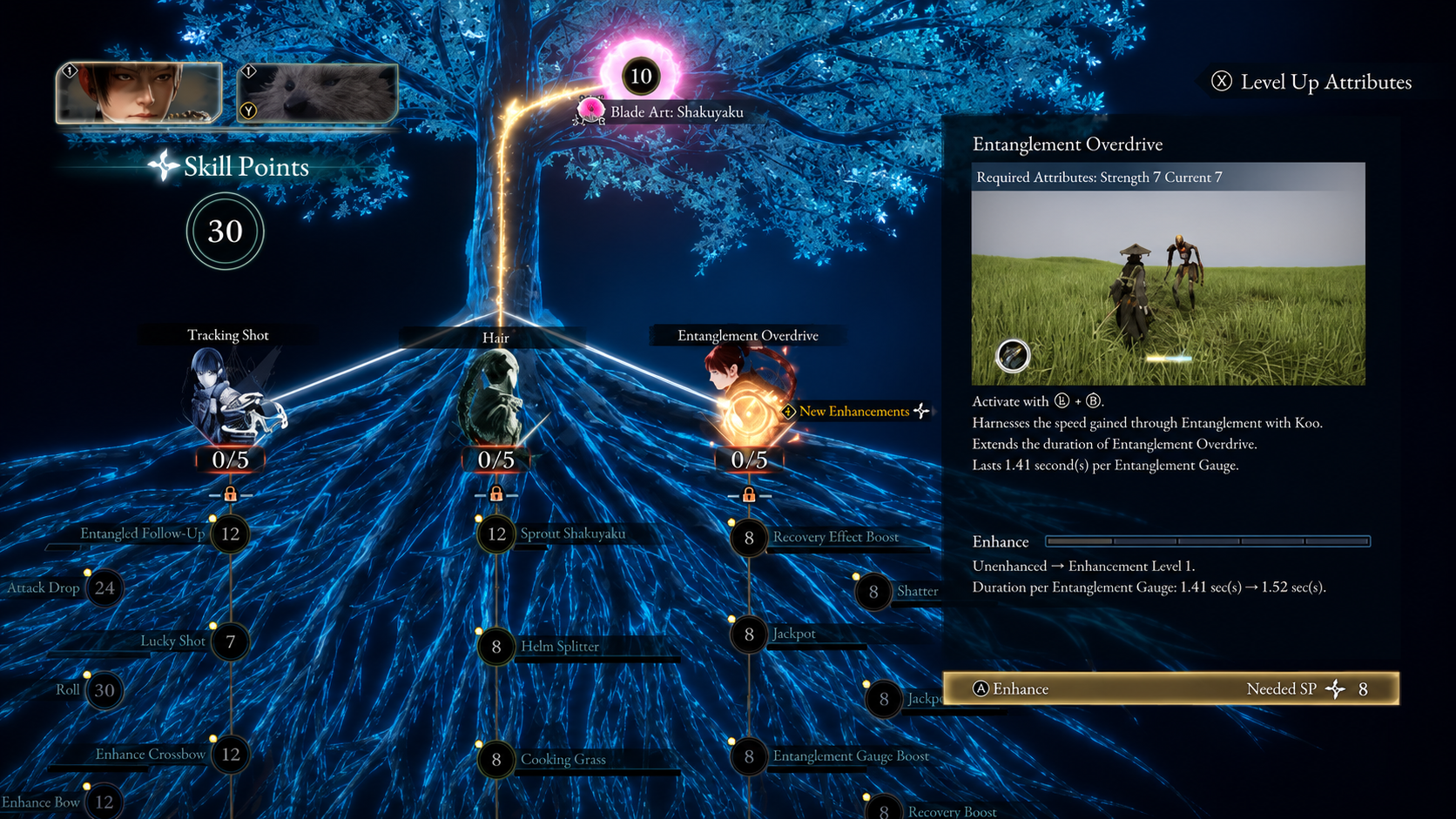
FSR introduces a softer image, especially when looking closely at Emma’s detailed armor or Koo’s fur. Thin branches and distant foliage also lose some sharpness.
The funny thing is that I stopped noticing after about twenty minutes.
During actual gameplay you’re constantly dodging, sprinting, and reacting to enemy attacks. The smoother combat matters far more than perfectly crisp leaves on distant trees.
I’d choose stable performance every single time.
Battery Life Expectations
This is another area where it’s better to keep expectations realistic.
Running Beast of Reincarnation pushes the Steam Deck fairly hard.
Here’s roughly what I observed.
| Steam Deck Model | Estimated Battery Life |
|---|---|
| LCD | 1.5–2 Hours |
| OLED | 2–2.5 Hours |
Boss-heavy sessions consume battery even faster because both CPU and GPU stay under sustained load.
If you’re planning a long gaming session, bringing a USB-C power bank is definitely worth it.
Is Beast of Reincarnation Actually Good on Steam Deck?
I went into this expecting compromises everywhere.
Instead, I came away genuinely impressed.
The controls feel excellent on handheld, traversal remains fluid, and the smaller display actually hides many of the visual sacrifices made for performance. Koo’s AI companion mechanics translate naturally to the Deck controls, while fast parry-focused combat feels surprisingly comfortable once you’ve adjusted to the controller layout.
There are still moments where Unreal Engine 5 reminds you who’s in charge. Massive Blight explosions, huge bosses, and densely overgrown areas can briefly stress the hardware. Those slowdowns never felt severe enough to ruin encounters during my testing, and they recover quickly.
What impressed me most wasn’t the graphics—it was how responsive everything remained after dialing in the right settings. That’s exactly what an action RPG like this needs.
Extra Tips for Better Performance
A few additional tweaks can squeeze out slightly smoother gameplay without sacrificing much quality.
- Restart the game after changing multiple graphics options.
- Close unnecessary background downloads in Steam.
- Keep Proton updated whenever a newer build becomes available.
- Avoid enabling experimental visual effects unless future patches improve optimization.
- Install the game on the internal SSD whenever possible for faster asset streaming.
None of these changes magically add ten extra frames, but together they help reduce hitching during longer play sessions.
Final Thoughts
Game Freak took a huge creative risk with Beast of Reincarnation, and I honestly respect that. Instead of relying on familiar formulas, the studio delivered something darker, faster, and far more demanding than anyone expected. The Steam Deck isn’t powerful enough to brute-force Unreal Engine 5 at high settings, but with a sensible configuration it becomes an excellent way to experience this adventure on the go.
My advice is simple: don’t chase maximum graphics. Prioritize consistency. Keep shadows and foliage low, use FSR Balanced, let SteamOS handle frame limiting, and stick with a reliable Proton version if stability becomes an issue. Once everything is dialed in, the game feels remarkably comfortable in handheld mode, making every perfectly timed parry and hard-fought boss victory that much more satisfying.
If portable action RPGs are your thing, this is absolutely one of the strongest Steam Deck experiences I’ve played this year—even if it demands a little optimization before it truly shines.