Aliens Fireteam Elite 2 Matchmaking Not Working: How to Fix Co-Op and Connection Errors
If there is one thing I cannot stand in a co-op shooter, it is spending more time staring at a matchmaking screen than actually shooting aliens. Aliens: Fireteam Elite 2 is supposed to be about forming a squad, loading into a mission, and immediately getting buried under a ridiculous number of Xenomorphs. When matchmaking decides to stop working, though, the whole experience falls apart.
Since the game’s August 25, 2026 launch, players on Steam, Epic Games Store, PlayStation 5, and Xbox Series X|S have been reporting different versions of the same problem. Quickplay can be unavailable, the Team tab may disappear, invitations can fail, or you can get a frustrating “Game no longer exists” message when trying to join somebody.
I’ve played enough multiplayer games to know that launch-day connection problems rarely have one magical fix. Sometimes the servers are struggling. Sometimes your firewall is being overprotective. Sometimes two players have completely different lobby settings and the game does a terrible job explaining why they cannot connect.
The good news is that there are several things worth trying before you give up and start playing solo.
Why Is Aliens: Fireteam Elite 2 Matchmaking Not Working?
The first thing to understand is how the game’s co-op networking works.
Aliens: Fireteam Elite 2 uses a peer-to-peer system for its cooperative sessions, meaning one player effectively becomes the host while the other members connect to that player’s session. This is different from a traditional setup where a dedicated game server handles the entire match.
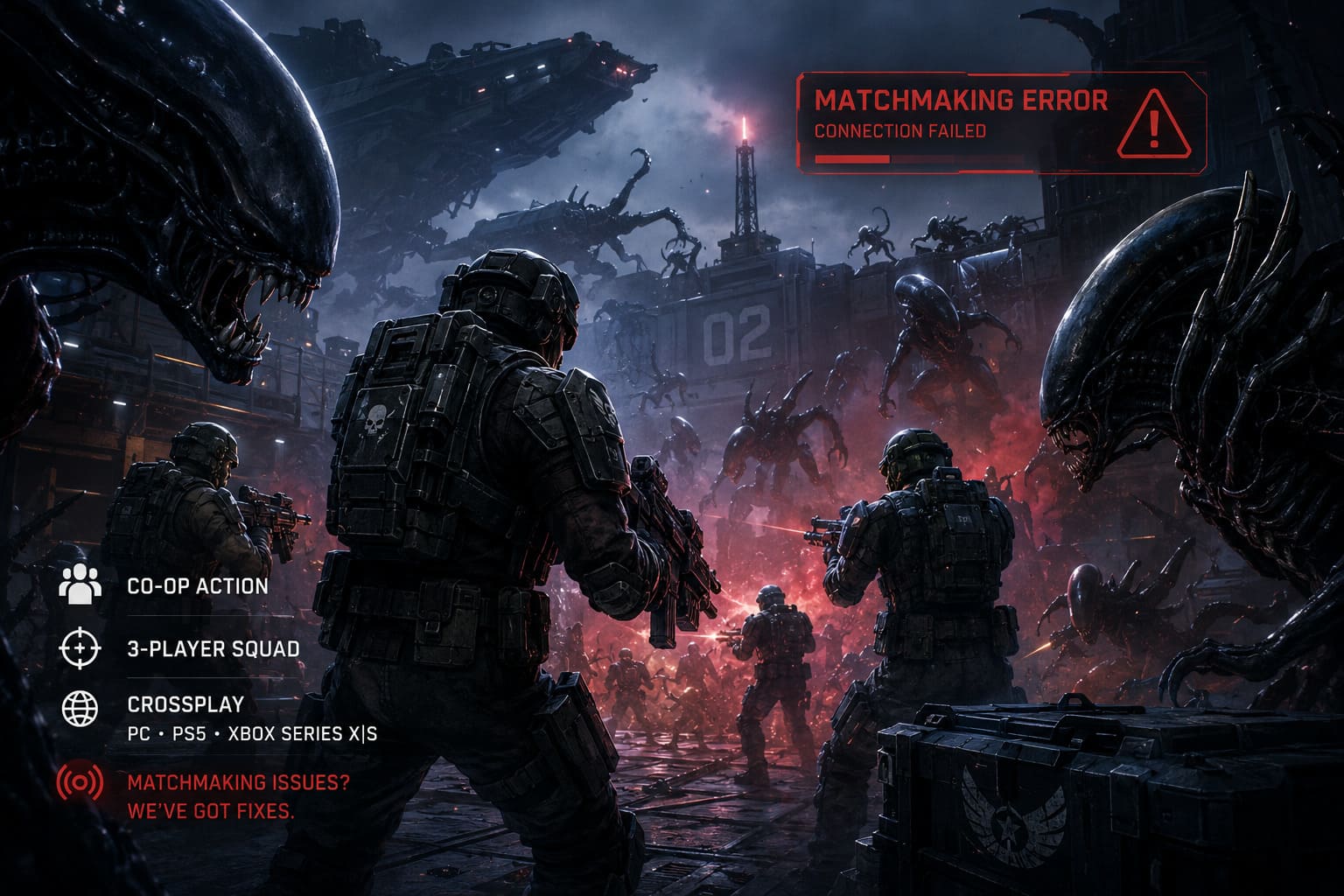
I actually like P2P when it works. It can make co-op sessions feel responsive and can reduce the infrastructure needed to host every individual firefight. But there is a downside: your home network suddenly matters a lot more.
A strict NAT, firewall rule, unstable Wi-Fi connection, or routing problem can turn a perfectly good lobby into a networking nightmare.
There is also the obvious launch-week factor. Thousands of players are hammering the game’s authentication and matchmaking infrastructure at the same time. Even if your own internet connection is perfectly healthy, the backend can still be having a bad day.
From what players are reporting, the most common causes include:
- Launch traffic and matchmaking congestion
- Different lobby or crossplay settings
- Modified game files or detected mods
- Firewall, antivirus, or NAT restrictions
- Temporary authentication problems
- Connection issues between different platforms
And sometimes, frankly, it is just the game having a game.
1. Check Your Lobby Settings Before Doing Anything Complicated
This is the first thing I would check because it takes about a minute and can save you an hour of unnecessary troubleshooting.
If you are playing with friends, make sure everybody is using compatible settings.
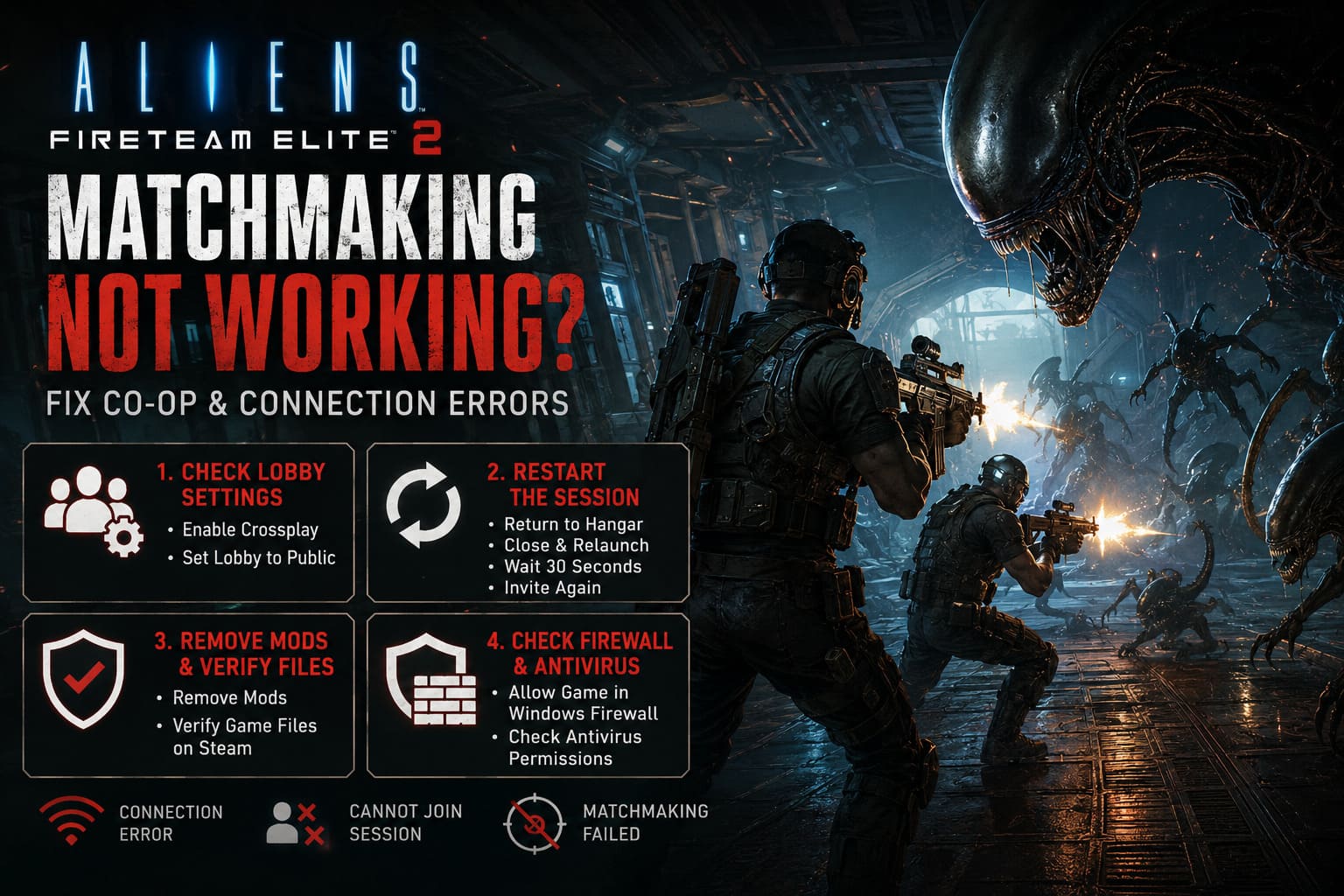
Check Crossplay
Open the game’s settings and find the Crossplay option.
If your group is playing across PC, PlayStation, and Xbox, make sure crossplay is enabled for everybody.
If everyone is playing on the same platform, there is also a useful troubleshooting test: temporarily disable crossplay for the entire group and see whether the connection suddenly works.
This does not magically repair your internet connection. What it does is remove one variable from the matchmaking process.
If the squad suddenly connects after disabling crossplay, you have a pretty good clue that the problem is related to cross-platform matchmaking rather than your local connection.
Check Matchmaking Privacy
Also check whether your mission lobby is set to Public or Private.
If you’re trying to invite friends into a lobby while using restrictive matchmaking settings, the game can behave strangely.
For testing purposes, I recommend making the host’s lobby Public, inviting the other players, and seeing whether the session appears normally.
Once you know everything works, you can experiment with private sessions again.
2. If the Team Tab Is Missing, Restart the Session Properly
A missing Team tab is particularly annoying because it makes the problem feel much worse than a normal matchmaking failure.
If the interface is not showing your team options, the client may have failed to establish a proper connection with the game’s backend.
Here’s the simple fix I would try first.
- Leave any current matchmaking or loading screen.
- Return to your hangar.
- Have your friends do the same.
- Completely close the game.
- Relaunch it.
- Wait around 30 seconds after entering the hangar.
- Try sending the invitation again.
That little waiting period sounds silly, but it gives the game time to finish its network initialization before you start throwing invitations at it.
Do not repeatedly hammer the invite button if the first attempt fails. In my experience with multiplayer games, that can create more confusion rather than fixing anything.
If the game reports “Game no longer exists,” restart both the host and the joining player rather than only restarting the person who received the invitation.
3. Remove Mods and Restore the Original Game Files
Here’s another classic PC multiplayer problem.
If you’ve installed cosmetic modifications, unofficial tweaks, altered configuration files, or other modifications, temporarily remove them.
Multiplayer games can be extremely sensitive to modified files, especially when anti-cheat or matchmaking restrictions are involved.
If your Quickplay button is grayed out, modified files should be one of the first things you investigate.
On Steam, use the game’s file verification feature to restore missing or modified files.
The general process is:
Steam Library → Aliens: Fireteam Elite 2 → Properties → Installed Files → Verify Integrity of Game Files
Let the process finish completely.
Then launch the game again.
If you have manually installed mods, don’t simply verify the files and assume everything is clean. Check the installation directory and remove anything that shouldn’t be there.
Personally, I would always test vanilla files before blaming matchmaking servers. It eliminates a huge variable from the equation.
4. Check Windows Firewall and Antivirus Permissions
Here’s another classic PC multiplayer problem.
Your internet connection can be working perfectly while Windows is quietly blocking the game from accepting the connections it needs.
If you’re on PC, check your Windows firewall settings and make sure Aliens: Fireteam Elite 2 is allowed through the firewall.
Open Windows Security and navigate to the firewall settings. Look for the option that allows applications to communicate through Windows Defender Firewall.
Find the game and make sure it has permission on the appropriate network types.
Third-party antivirus software can also interfere with multiplayer games. If you’ve recently installed security software or changed its network protection settings, check those rules as well.
I would not recommend permanently disabling your firewall just to test matchmaking. That’s an unnecessarily blunt solution. It’s much better to create the correct exception and keep your security protections enabled.
5. Restart Your Router
This is boring advice.
It is also advice that works surprisingly often.
If you are experiencing repeated matchmaking failures, disconnects, or trouble joining friends, power-cycle your router.
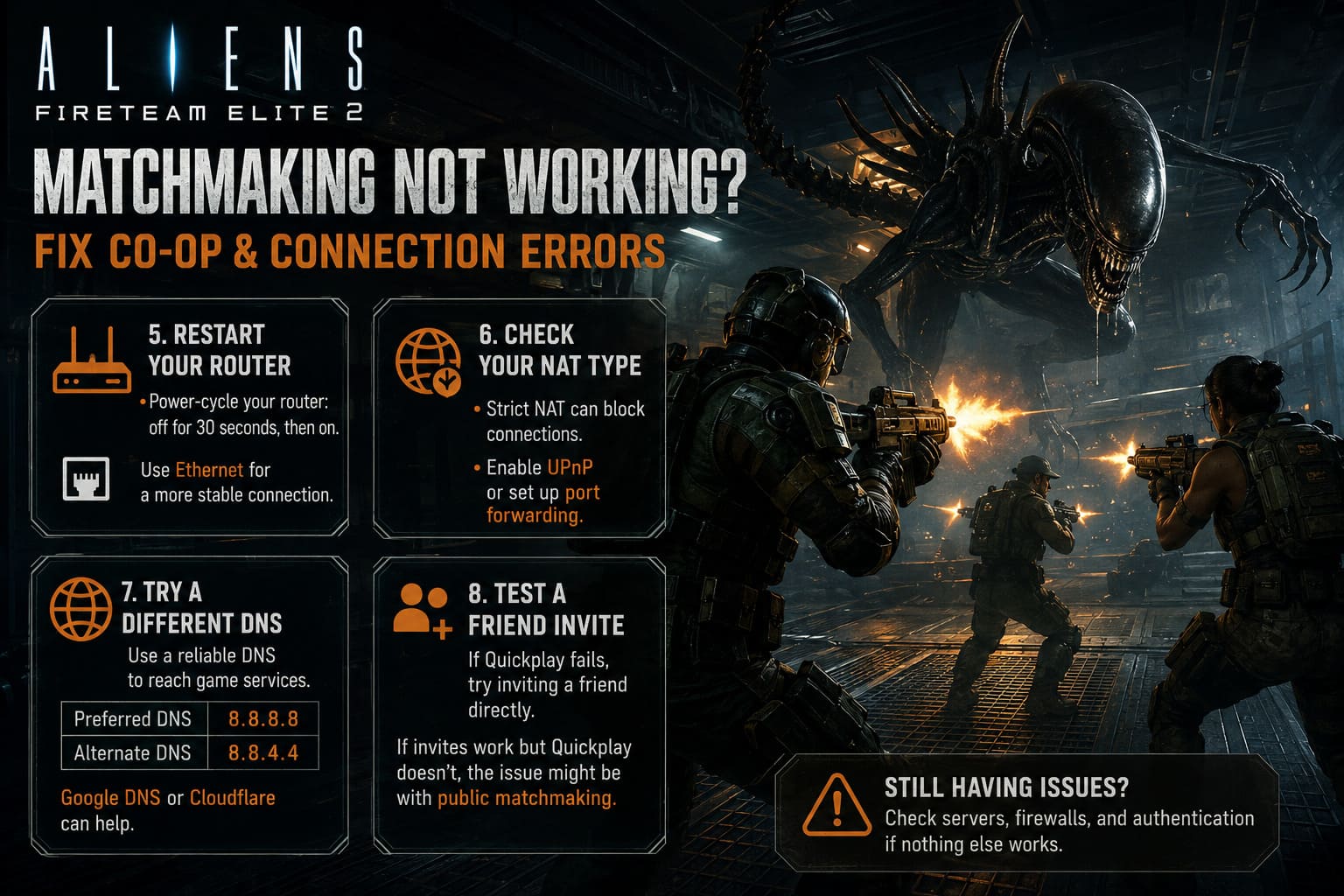
Turn it off, wait roughly 30 seconds, and turn it back on. Give your connection a couple of minutes to stabilize before launching the game again.
If possible, use Ethernet instead of Wi-Fi while troubleshooting.
You don’t need a gigabit connection to play a co-op shooter. Stability matters much more than having an enormous download speed.
6. Check Your NAT Type
NAT problems are particularly relevant in a P2P multiplayer game.
If your NAT is strict or your router is preventing incoming connections, you may have difficulty connecting to certain players even though everything else appears normal.
On consoles, check the network status section in the system settings.
On PC, check your router’s NAT or UPnP configuration.
If UPnP is disabled, enabling it can sometimes allow your router to automatically establish the connections required by multiplayer games.
However, if you’re comfortable configuring your router manually, port forwarding can also be an option.
Don’t start changing advanced router settings unless the simpler solutions have failed. There is no reason to turn a matchmaking problem into a full networking project when a basic router restart might solve it.
7. Try a Different DNS Server
If the game is struggling to reach authentication services, changing DNS can occasionally help.
For Windows users, you can manually configure IPv4 DNS addresses through your network adapter settings.
A commonly used option is Google DNS:
| DNS Server | Address |
|---|---|
| Preferred | 8.8.8.8 |
| Alternate | 8.8.4.4 |
Cloudflare’s public DNS is another popular alternative.
Changing DNS isn’t a guaranteed Aliens: Fireteam Elite 2 fix. It won’t repair an overloaded matchmaking backend. But if your ISP is having trouble resolving or routing certain services, switching DNS can be a useful troubleshooting step.
After changing the settings, restart the game and test matchmaking again.
8. Test a Friend Invite Instead of Quickplay
If Quickplay is refusing to work, don’t immediately assume the entire multiplayer system is broken.
Try joining a friend directly.
Have one player host from the hangar and send an invitation through the appropriate platform system, such as Steam’s invite functionality, PlayStation’s social features, or Xbox’s party/invite system.
This is a useful diagnostic test.
If direct invitations work but Quickplay doesn’t, your local connection may be perfectly fine. The problem could instead be related to public matchmaking.
If neither direct invitations nor public matchmaking works, then I would start looking more seriously at NAT, firewall, authentication, or server-side problems.
How to Fix “Cannot Join Game” in Aliens Fireteam Elite 2: Multiplayer & Crossplay Solutions
What If Nothing Fixes Aliens: Fireteam Elite 2 Matchmaking?
At some point, you have to accept that not every multiplayer problem is on your end.
This is especially true during launch week.
If you’ve:
- Verified your game files
- Removed modifications
- Checked firewall permissions
- Restarted your router
- Tested different lobby settings
- Checked NAT
- Tried direct invitations
- Restarted the game and platform
…and you still cannot connect to anyone, there is a decent chance the issue is server-side or related to launch traffic.
Don’t waste three hours reinstalling Windows because four-player matchmaking isn’t working on day one.
Check the game’s official announcements and community reports for signs of a wider outage or matchmaking problem. If thousands of players are reporting the same issue at roughly the same time, your home network probably isn’t the real villain.
Aliens Fireteam Elite 2 High Ping: How to Fix Lag and Packet Loss (2026 Guide)
My Take: Don’t Overcomplicate It
The biggest mistake I see with multiplayer troubleshooting is jumping straight into advanced solutions.
Someone can’t join a lobby, so suddenly they’re changing DNS servers, forwarding ports, reinstalling drivers, deleting network adapters, and sacrificing a goat to the router gods.
Start simple.
Check the lobby settings. Restart the game. Restart the router. Verify the files. Remove mods. Check the firewall. Test a direct friend invitation.
Only then move into NAT and DNS troubleshooting.
And if all of that fails during the first few days after launch, be patient. A major co-op shooter launching with matchmaking problems is frustrating, but it doesn’t necessarily mean the game is permanently broken.
Aliens: Fireteam Elite 2 is at its best when everything clicks: four players moving through a dark corridor, somebody yelling about an incoming swarm, ammunition disappearing faster than expected, and then an entire wall suddenly becoming Xenomorphs.
That’s the experience we’re here for.
So if matchmaking is currently leaving you alone in the hangar, don’t uninstall the game just yet. Work through the basic fixes first, figure out whether the problem is local or server-side, and give the developers some time to stabilize the launch.
Because once the connection behaves, this is exactly the kind of co-op game where having three friends screaming over voice chat can be half the fun.