Water You Doing Low End PC Optimization: Boost FPS and Fix Lag
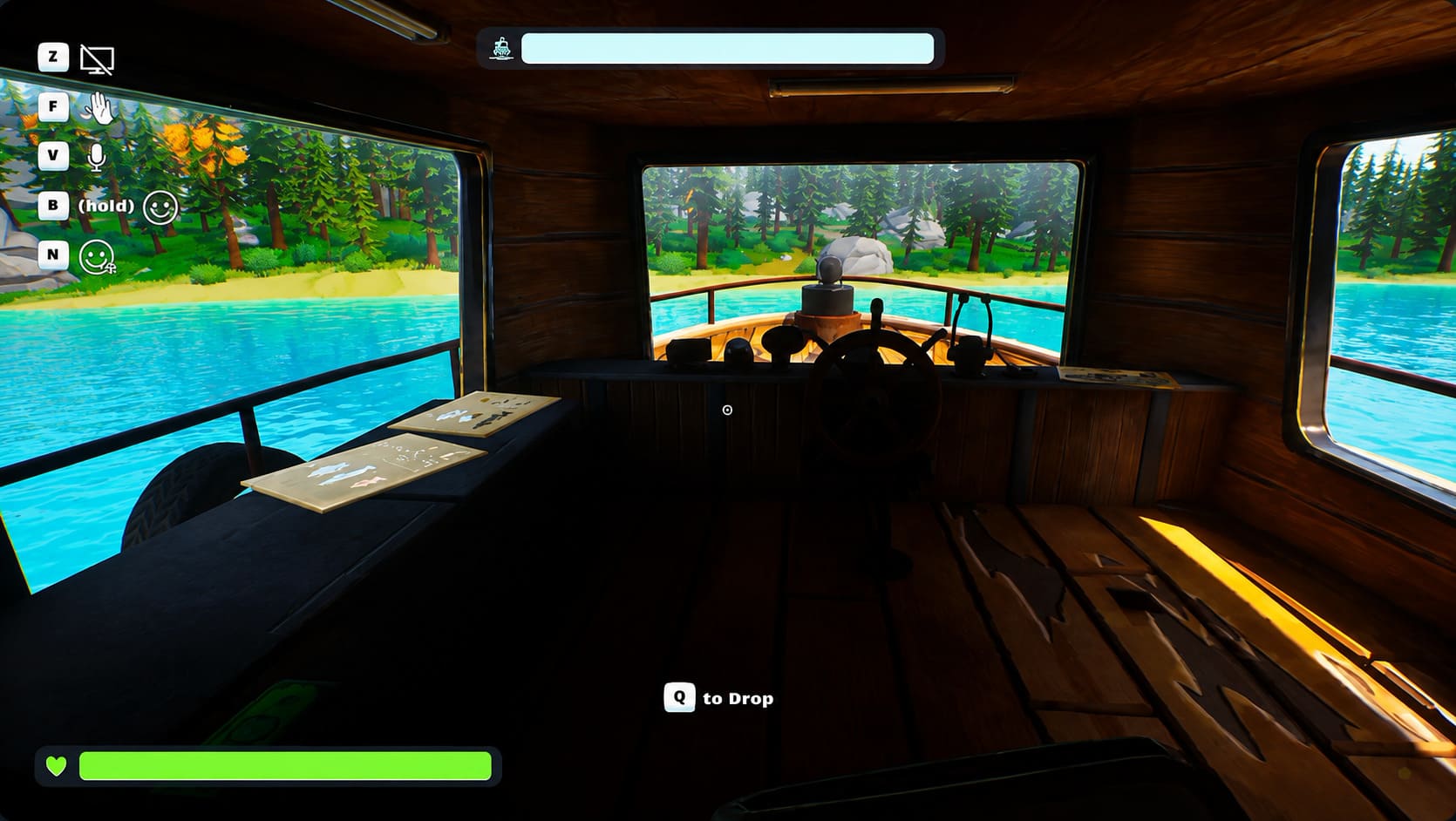
Water You Doing? is the kind of co-op game that looks harmless until the physics engine decides your boat, the ocean, and your graphics card all need to suffer at the same time. Developed by DiSolve Studios, this chaotic boat survival game throws players onto a battered vessel where keeping the thing afloat is only half the problem. You are repairing leaks, navigating unpredictable water, fishing for useful upgrades, and launching ridiculous harpoons while the environment constantly finds new ways to turn a simple trip into complete nonsense.
That chaos is a huge part of the game’s charm. It is also exactly why weaker PCs can struggle.
If you’re playing on an older gaming laptop or an entry-level desktop and Water You Doing? is bouncing between playable FPS and slideshow territory, don’t immediately blame your hardware. The game’s water simulation, physics interactions, shadows, particles, and multiplayer activity can create some nasty performance spikes. A stable frame rate is absolutely possible on modest hardware, but you need to be selective about what you sacrifice.
This guide focuses on practical Water You Doing? low-end PC optimization, including graphics settings, Windows tweaks, GPU driver configuration, RAM management, and thermal issues.
Water You Doing? Low FPS Fix: How to Boost Performance and Stop Stuttering
Why Water You Doing? Can Run Poorly on Low-End PCs
The interesting thing about Water You Doing? is that traditional graphics settings aren’t the entire story. You can lower textures and resolution, but the biggest performance hits can happen when the game has a lot of physics activity happening simultaneously.
A calm section of ocean might run perfectly at 60 FPS. Then three players start moving around the boat, multiple objects collide, water reacts to the chaos, harpoons start flying, and suddenly your frame rate falls through the floor.
That usually means your PC isn’t dealing with one expensive visual effect. It’s dealing with several systems demanding CPU and GPU resources at the same time.
CPU usage can become particularly important on older processors. If the processor is already close to 100%, lowering texture quality won’t magically solve the problem. Likewise, an older GPU can become overwhelmed by water rendering, shadows, effects, and high resolutions even when the CPU still has some breathing room.
Check Your PC Before Changing Everything
Before aggressively lowering every setting, check where the bottleneck actually is.
The game’s listed minimum hardware targets include processors such as the Intel Core i5-6300HQ or AMD Ryzen 3 1200, paired with graphics hardware around the NVIDIA GeForce GTX 950M or AMD RX 550 Mobile class.
Those specifications give you a rough idea of the hardware tier the game is targeting, but minimum requirements rarely tell the whole story. There is a massive difference between ‘the game launches’ and ‘the game maintains a comfortable 60 FPS during a chaotic four-player session.’
| Hardware Area | Recommended Low-End Approach | Main Reason |
|---|---|---|
| CPU | Close unnecessary background programs | Frees processing resources |
| GPU | Lower water, shadows, and effects | Reduces rendering load |
| RAM | Keep background apps closed | Prevents memory pressure |
| VRAM | Use Medium/Low textures | Reduces texture swapping |
| Storage | Keep adequate free space | Helps general system responsiveness |
| Cooling | Clean fans and vents | Prevents thermal throttling |
If you’re unsure whether the CPU or GPU is causing the problem, open Task Manager while playing. Watch CPU, GPU, memory, and temperature readings if your monitoring software provides them.
If GPU usage sits around 99% while CPU usage is moderate, you’re probably GPU-limited. If CPU usage is pinned near maximum during chaotic moments while GPU usage drops, the processor may be the bigger problem.
Best Water You Doing? Graphics Settings for Low-End PCs
This is where you can get the biggest immediate FPS gains.
Don’t just move every slider to Low and call it a day. Some settings barely matter visually or performance-wise, while others can completely change how your machine handles the game.
Display Mode: Fullscreen
Use Fullscreen whenever possible.
Exclusive fullscreen can give your system a cleaner path between the game and the display compared with running everything through a borderless desktop window. The difference isn’t always enormous on modern hardware, but when you’re fighting for every frame on an older machine, small improvements can matter.
Resolution: Lower It Aggressively If Necessary
Resolution is one of your most powerful performance controls.
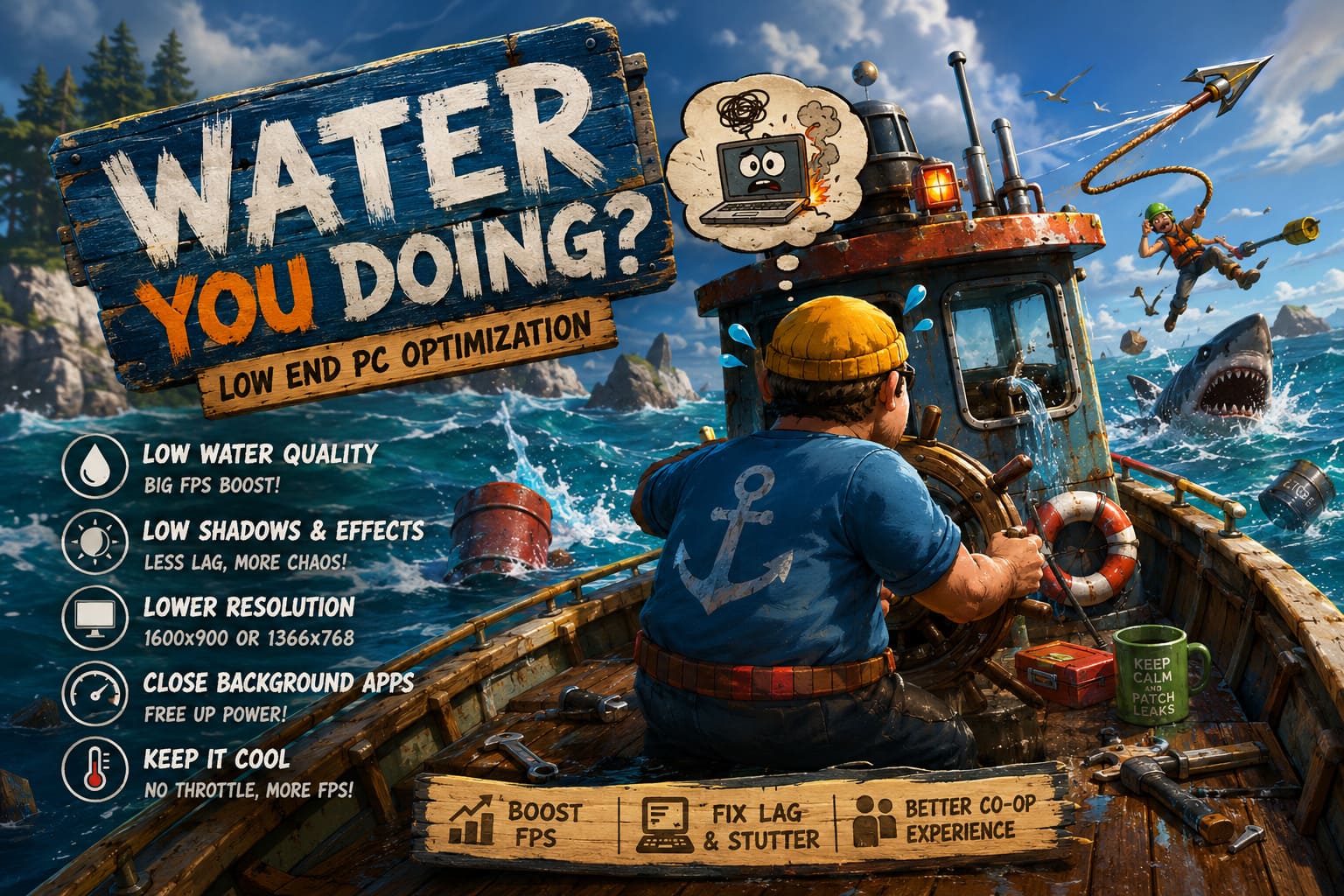
If you’re playing at 1920×1080 and struggling around 25–35 FPS, try 1600×900 first. If that’s still rough, 1366×768 is perfectly reasonable for a low-end machine.
Yes, the image will look softer. But I’d rather play a slightly blurry game at a consistent 45–60 FPS than stare at a beautiful 1080p ocean while my character moves like he’s underwater.
If the game provides a render scale option, that’s also worth experimenting with.
Water Quality: Your First Target
This is probably the setting I’d attack first.
Water You Doing? is built around water, which means water rendering and simulation are central to the experience. Higher settings can increase the visual complexity of waves, reflections, surface effects, and related calculations.
Set Water Quality or Simulation Detail to Low.
If you gain a significant amount of FPS immediately, you’ve found one of your primary bottlenecks.
Shadow Quality: Low or Off
Shadows are classic performance thieves.
Set Shadow Quality to Low or disable it if the game allows you to do so. You may lose some visual depth around the boat, but the performance improvement can be worthwhile on older GPUs.
This is one of those settings where I don’t think low-end players should feel guilty about turning it down. Shadows are nice. Stable FPS is nicer.
Anti-Aliasing: Off or FXAA
If you’re running an older graphics card, don’t waste precious performance on expensive anti-aliasing methods.
Try Off or FXAA first.
Heavy anti-aliasing can consume additional GPU resources and, depending on the implementation, soften the image noticeably. FXAA is usually a reasonable compromise when available.
Texture Quality: Medium or Low
Textures aren’t always the biggest FPS killer, but they can become a memory problem.
If your GPU has 4GB of VRAM or less, start with Medium textures. Drop to Low if you experience sudden stutters when moving through new areas or loading lots of objects.
Texture settings affect visual quality more than raw geometry performance, so don’t automatically set them to the absolute minimum if your GPU has enough memory.
Effects and Particles: Low
Harpoons, splashes, environmental effects, explosions, and multiplayer nonsense can all pile up quickly.
Set Effects Quality to Low.
This is especially useful if your FPS is normally fine but collapses whenever everyone starts doing something stupid at once. And let’s be honest, that’s probably going to happen frequently in this game.
Recommended Low-End Preset
If you just want a starting point without spending twenty minutes testing individual options, use this:
- Display Mode: Fullscreen
- Resolution: 1600×900
- V-Sync: Off
- Shadows: Low
- Water Quality: Low
- Anti-Aliasing: Off or FXAA
- Textures: Medium
- Effects: Low
- Particles: Low
- View Distance: Low or Medium
- Motion Blur: Off
- Depth of Field: Off
Then test the game during an actual chaotic multiplayer session rather than standing somewhere quiet.
A setting that looks fine in a calm area may completely fall apart once the physics engine gets busy.
Disable V-Sync If Input Feels Sluggish
V-Sync can eliminate screen tearing, but it can also introduce additional input latency depending on the game’s implementation and your frame rate.
For a low-end PC, I’d start with V-Sync disabled.
If tearing becomes unbearable, use a sensible FPS cap through your GPU driver or another supported method. A stable capped frame rate can sometimes feel considerably better than allowing the game to bounce wildly between 35, 50, and 70 FPS.
Consistency matters.
Optimize Windows Before Launching the Game
Windows can quietly consume resources while you’re trying to keep a rusty boat alive.
Open Windows Settings > Gaming > Game Mode and make sure Game Mode is enabled. It can help prioritize gaming workloads and reduce interference from certain background activities.
You should also check Settings > System > Display > Graphics and add the game’s executable if necessary. On laptops with integrated and dedicated graphics, make sure Water You Doing? is configured to use the High Performance GPU.
This is an easy one to miss. If the game accidentally launches on integrated graphics, no amount of in-game tweaking is going to make that situation pretty.
Clean Up Startup Programs
Press Ctrl + Shift + Esc to open Task Manager and check the applications running in the background.
Browsers, launchers, cloud synchronization software, RGB utilities, recording applications, chat clients, and update services can all consume resources.
You don’t need to turn off everything Windows owns. Just remove unnecessary startup applications that you never use while gaming.
And if you’ve got a browser open with 47 tabs, maybe close it. Your boat does not need your browser’s entire RAM budget to survive.
Set a Sensible Power Mode
On laptops especially, Windows power management can make a surprisingly large difference.
Use a performance-oriented power mode while gaming and keep the laptop connected to power. Battery-saving modes can reduce CPU and GPU performance to preserve battery life, which is the exact opposite of what we want here.
If your system becomes extremely hot, however, don’t simply force maximum performance forever. A processor that overheats will eventually throttle itself anyway.
NVIDIA Settings for Better Performance
If you’re using NVIDIA hardware, open the NVIDIA Control Panel and find the profile for Water You Doing?.
For a low-end performance profile, consider:
- Power Management Mode: Prefer Maximum Performance
- Texture Filtering – Quality: High Performance
- Vertical Sync: Off
- Max Frame Rate: Optional
- Shader Cache: Driver Default or Enabled
Don’t blindly change every NVIDIA setting you can find. Some settings provide negligible gains while potentially hurting image quality.
The goal isn’t to make the game look like a PS2 game. The goal is to remove expensive effects that don’t contribute much to gameplay.
AMD Settings for Low-End Hardware
AMD users can make similar adjustments through AMD Software.
For the game’s profile, use a performance-oriented texture filtering setting and consider enabling Radeon Anti-Lag if supported by your hardware and the game.
Keep driver features that improve image quality or consume additional GPU resources disabled unless you actually need them.
If the game already has its own anti-aliasing and sharpening controls, I’d generally test those first before stacking additional driver-level processing on top.
Reduce Stuttering by Managing RAM
FPS and stuttering aren’t exactly the same problem.
You can have an average of 60 FPS and still experience horrible hitching every few seconds. That’s often related to memory pressure, asset streaming, background applications, or CPU spikes.
Before launching Water You Doing?, close memory-heavy applications. Browsers are the obvious offender, but video editing software, launchers, virtual machines, and background utilities can also consume a surprising amount of RAM.
If your system only has 8GB of RAM, managing background memory becomes much more important.
Clear Temporary Windows Files
Temporary files aren’t a magic FPS button, despite what some questionable optimization videos might suggest.
Still, keeping your system tidy is reasonable.
Press Windows Key + R, enter %temp%, and remove temporary files that Windows allows you to delete. Don’t obsess over this as an FPS tweak. It won’t suddenly turn a 30 FPS machine into a 100 FPS machine.
Think of it as general system maintenance rather than a miracle performance fix.
Don’t Ignore Thermal Throttling
This is one of the most overlooked causes of performance loss on aging gaming laptops.
Dust buildup can restrict airflow. Restricted airflow increases temperatures. High temperatures can cause the CPU or GPU to reduce clock speeds. Suddenly your hardware that used to run the game smoothly is struggling.
If your FPS starts high and progressively gets worse after 15–30 minutes, thermal throttling should be on your suspect list.
Clean the cooling vents, make sure fans aren’t obstructed, and monitor temperatures while playing. For laptops, using a hard surface instead of a bed or blanket can also make a noticeable difference.
What to Change First
If you don’t want to spend your entire evening tweaking settings, follow this order:
- Lower Water Quality.
- Reduce Resolution to 1600×900 or 1366×768.
- Set Shadows to Low or Off.
- Reduce Effects and Particles.
- Disable V-Sync.
- Close background applications.
- Make sure the dedicated GPU is being used.
- Check CPU/GPU temperatures.
- Test the game during a chaotic multiplayer session.
- Only then start experimenting with individual driver settings.
This approach makes troubleshooting much easier because you’re changing the settings that are most likely to matter first.
Final Performance Verdict
Water You Doing? is exactly the kind of game that can expose the weaknesses of an older PC because its charm comes from chaos. The water moves, objects collide, players scramble around the boat, and physics systems are constantly doing work behind the scenes.
That doesn’t mean you need a monster gaming rig.
With low water simulation, reduced shadows, lighter effects, sensible resolution scaling, a cleaned-up Windows environment, and proper GPU configuration, an older PC can become surprisingly capable of handling the game.
The biggest mistake is chasing a single magical optimization. There isn’t one. Performance comes from stacking several small improvements until those brutal FPS drops become far less frequent.
And honestly, that’s all I want from a game like Water You Doing?. Give me stable frames, responsive controls, and enough performance headroom that three friends can simultaneously launch harpoons at something that absolutely did not deserve it.
Once the game stops turning your PC into a space heater, the ridiculous boat physics become a lot more fun.